Workflow condition: Customer criteria
Understand the Customer criteria condition

Before you begin
New to workflows? Take a quick look atHow workflows work andUnderstanding workflow conditions to get up to speed.
You can also check out the Workflow condition: An event occurred to unlock more flexible workflow paths.
Description
Filter and branch workflows based on customer profile data and behavior, so each customer follows the path that best fits them.
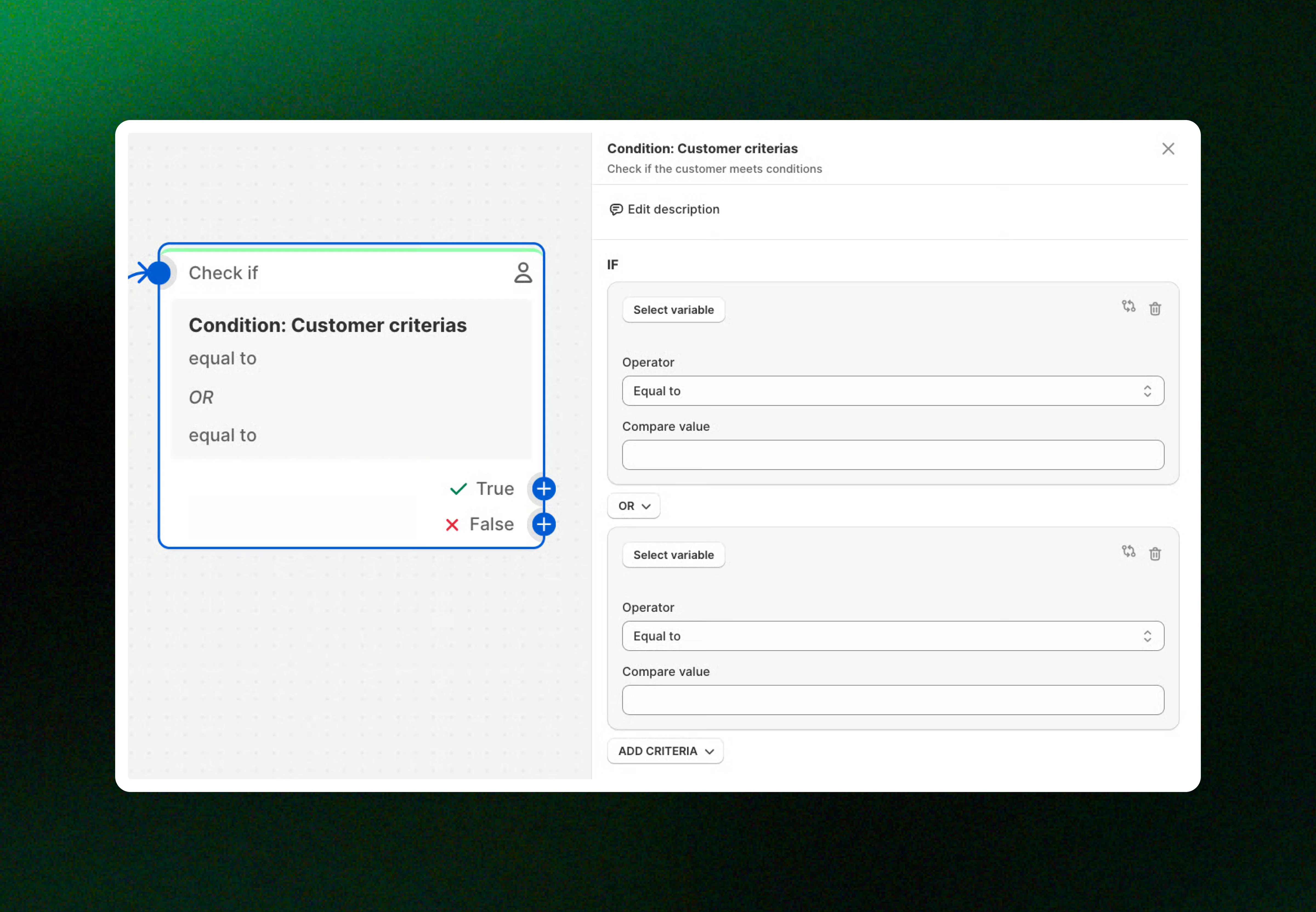
How to set up Customer criteria condition:
Add criteria and choose AND / OR logic.
Select a variable that matches your needs (you can edit or remove it anytime).
Set the operator and value to define the condition.
Add more criteria if you need multiple conditions.
Available customer data fields
A list of customer data fields you can use to build conditions and personalize workflow paths.

Order count
customer.numberOfOrders
Number
Total number of orders placed
Total spent
customer.amountSpent.amount
Number
The total amount a customer has spent on orders in their lifetime.
Signed up date
customer.signUpDate
Date
When customer signed up for notification
Last order date
customer.lastOrder.createdAt
Date
Date of most recent order
Customer tags
customer.tags
Text/Array
Tags assigned to customer
Accepts marketing
customer.acceptsMarketing
Boolean (True/False)
Email marketing opt-in status
If the correct data type is not entered, the "compare value" will not appear in the workflow condition.
You can combine these fields with operators and AND/OR logic to:
Segment customers
Personalize workflow paths
Send different messages based on customer behavior or profile data
Examples:
Order count: Target customers who have placed at least 3 orders.
Total spent: Target customers who have spent more than $500 in total.
Signed up date: Target customers who signed up before Jan 1, 2024
Last order date: Target customers whose most recent order was more than 90 days ago.
Customer tags: Target customers who are tagged as VIP.
Accepts marketing: Target customers who have opted in to email marketing.
Available operators
Operators define how a customer data value is compared in a condition. They help you check whether a customer meets specific rules.
Operators are evaluated at the moment the workflow runs, ensuring your conditions always use the most up-to-date customer data.
🧾 Order count: customer.numberOfOrders

You can use Order count criteria with operators:
Equal to
Checks if the order count matches an exact number.
Order count equal to 3 → customers who placed exactly 3 orders
Not equal to
Checks if the order count is different from a specific number.
Order count not equal to 0 → customers who have placed at least 1 order
Greater than
Checks if the order count is higher than a number.
Order count greater than 5 → customers with more than 5 orders
Greater than or equal to
Checks if the order count meets or exceeds a number.
Order count ≥ 3 → customers with 3 or more orders
Less than
Checks if the order count is lower than a number.
Order count less than 2 → customers with 0 or 1 order
Less than or equal to
Checks if the order count is at or below a number.
Order count ≤ 1 → customers with 0 or 1 order
Pro Tip:
Combine Order count with other criteria (like Total spent or Last order date) for more accurate segmentation.
When possible, prefer ranges (e.g. ≥ 3 orders) instead of exact values to keep workflows flexible as customer data changes.
Example:
Trigger: New customer sign-up
→ Condition: Order count = 0
True: Send welcome email
False: Create discount code → Action: Send VIP email
💰 Total spent: customer.amountSpent.amount

You can use Total spent criteria with operators:
Equal to
Checks if the total spent is exactly a specific amount.
Total spent = 500
Not equal to
Checks if the total spent is not a specific amount.
Total spent ≠ 0
Greater than
Checks if the total spent is higher than a value.
Total spent > 500
Greater than or equal to
Checks if the total spent is at least a value.
Total spent ≥ 1,000
Less than
Checks if the total spent is below a value.
Total spent < 100
Less than or equal to
Checks if the total spent is at most a value.
Total spent ≤ 50
Pro Tip:
Use Greater than / Greater than or equal to to identify VIP or high-value customers.
Combine Total spent with Order count to better understand customer behavior (big spenders vs frequent buyers).
Avoid using Equal to for large amounts unless you’re targeting a very specific case.
Pair with Last order date to find high-value but inactive customers.
Use ranges (e.g. ≥ 500) instead of exact values to keep workflows flexible over time.
Example:
Trigger: Product restock
→ Condition: Total spent ≥ 500
True: Send back-in-stock email with VIP early access
False: Send standard back-in-stock email
🗓️ Signed up date: customer.signUpDate

You can use Signed up date criteria with operators:
Equal to
Checks if the signup date matches a specific date.
Signed up date = 2026-01-01 at 09:00
Not equal to
Checks if the signup date does not match a specific date.
Signed up date ≠ 2026-01-01 at 09:00
Is after
Checks if the customer signed up after a given date.
Signed up date after 2026-01-01 at 00:00
Is before
Checks if the customer signed up before a given date.
Signed up date before 2026-01-01 at 23:59
Between
Checks if the signup date falls within a date range.
Signed up date between 2026-04-01 00:00 and 2026-06-30 23:59
Days ago
Checks if the customer signed up a specific number of days ago.
Signed up date 30 days ago (Running on Nov 11) → Matches dates on or before Oct 11, 2026
Days from now on
Checks if the signup date is a certain number of days from now.
Signed up date in 7 days (Running on Nov 11) → Matches dates on or before Nov 18, 2026
Pro Tip:
Use Days ago to create welcome or onboarding flows (e.g. 1 day, 7 days after sign-up).
Combine with Order count = 0 to target new but inactive customers.
Use Between to analyze or re-engage customers from a specific campaign period.
Add time if your workflow depends on same-day or time-sensitive follow-ups.
Pair with Accepts marketing = true to ensure messages are sent only to opted-in customers.
Example:
Trigger: Product restock
→ Condition: Signed up date is 30 days ago
True: Send follow-up email (30-day welcome / reminder)
⏰ Last order date: customer.lastOrder.createdAt

You can use Last order date criteria with operators:
Equal to
Checks if the last order happened on an exact date and time.
Last order date = 2026-01-01 at 09:00
Not equal to
Checks if the last order did not occur on a specific date/time.
Last order date ≠ 2026-01-01 at 09:00
Is after
Checks if the last order was placed after a given date/time.
Last order date after 2026-01-01 at 00:00
Is before
Checks if the last order was placed before a given date/time.
Last order date before 2026-01-01 at 23:59
Between
Checks if the last order falls within a specific time range.
Last order date between 2026-04-01 00:00 and 2026-06-30 23:59
Days ago
Checks if the last order was placed a specific number of days ago.
Last order date 30 days ago (Running on Nov 11) → Matches dates on or before Oct 11, 2026
Days from now on
Checks if the last order was placed a specific number of days ago.
Last order date in 7 days (Running on Nov 11) → Matches dates on or before Nov 18, 2026
Pro Tip:
Use Days ago to identify inactive customers (e.g. no orders in 60 or 90 days).
Combine with Total spent to find high-value but inactive customers for win-back campaigns.
Use Between for campaign analysis or seasonal targeting.
Include time when you need precise control (e.g. same-day follow-ups after purchase).
Pair with Accepts marketing to ensure you only message customers who opted in.
Example:
Trigger: Product restock
→ Condition: Last order date is more than 60 days ago
True: Send win-back email with a discount
🏷️ Customer tags: customer.tags

You can use Customer tags criteria with Quantifiers:
None of items
None of the customer’s tags match the condition.
Customer does not have the tag VIP.
At least one of items
At least one tag matches the condition.
Customer has either VIP or Loyal.
All of items
All specified tags must match the condition.
Customer has both VIP and Wholesale.
You can use Items of customer tags with operators:
Equal to
Tag exactly matches the given value.
Tag equals VIP.
Not equal to
Tag does not match the given value.
Tag is not VIP.
Includes
Tag contains the given text.
Tag includes vip (matches vip_gold).
Excludes
Tag does not contain the given text.
Tag excludes internal.
Start with
Tag starts with the given text.
Tag starts with promo_.
End with
Tag ends with the given text.
Tag ends with _2026.
Pro Tip:
Be consistent with tag naming: Avoid similar tags like
VIP,vip, andVipto prevent confusion.Use “At least one of items” for flexible targeting: This works best when customers may belong to multiple segments.
Combine tags with other criteria: For example, use Customer tags + Total spent to target high-value VIPs.
Avoid overcomplicated logic: Too many OR/AND conditions can make workflows hard to debug later.
Example:
Trigger: Product restock
→ Condition: Customer tags at least one of VIP, Loyal
True: Send early-access back-in-stock email
False: Send standard back-in-stock email
📧 Accepts marketing: customer.acceptsMarketing

You can use Accepts marketing criteria with operators:
True
The customer has opted in to receive email marketing.
Send a promotional email only to subscribed customers.
False
The customer has not opted in to email marketing.
Exclude unsubscribed customers from campaigns.
Pro Tip:
Use this condition before sending marketing emails: This helps you stay compliant with email marketing regulations.
Combine with other criteria for better targeting: For example:
Accepts marketing = True+Total spent > 500to target high-value subscribers.Do not rely on tags alone: A customer may have a
VIPtag but still opt out of marketing.Use carefully in non-marketing workflows: For transactional or operational emails, this condition may not be required.
Example:
Trigger: New customer sign up
→ Action: Send welcome email
→ Condition: Accepts marketing = True
True: Send promotional follow-up email
Combining multiple criteria with AND/OR logic in a condition
When building a condition, you can add multiple criteria. You can then choose how these criteria are combined to decide whether the condition is evaluated as true or false.
AND - If all criteria are met
Selecting AND means the condition is true only when all criteria are met.
AND logic: Enabling highly precise and controlled targeting.
Example:
Trigger: New customer sign-up
→ Condition: Customer criteria (Check if Total spent ≥ 300 AND Customer tags include Loyal)
If True
→ Action: Create discount code → Action: Send email (Send loyalty welcome email with special offer)
If False → Action: Send email (Send standard welcome email)

This condition is True only when both criteria are met.
If either the total spent is below 300 or the customer does not have the Loyal tag, the workflow goes to the False branch.
OR - If any criteria are met
Selecting OR means the condition is true when at least one criterion is met.
OR logic: Providing flexible targeting with multiple paths to entry.
Example:
Trigger: New customer sign-up
→ Condition: Customer criteria (Check if Order count = 0 OR Signed up date is today)
If True → Action: Send email (Send first-time welcome email)
If False → Action: Send email (Send returning customer email)

With OR logic, the condition is True if at least one criterion is met.
If Order count = 0 or Signed up date equals February 1, 2026, the workflow follows the True branch.
If neither condition is met, the workflow follows the False branch.
Example of workflow condition: Customer criteria
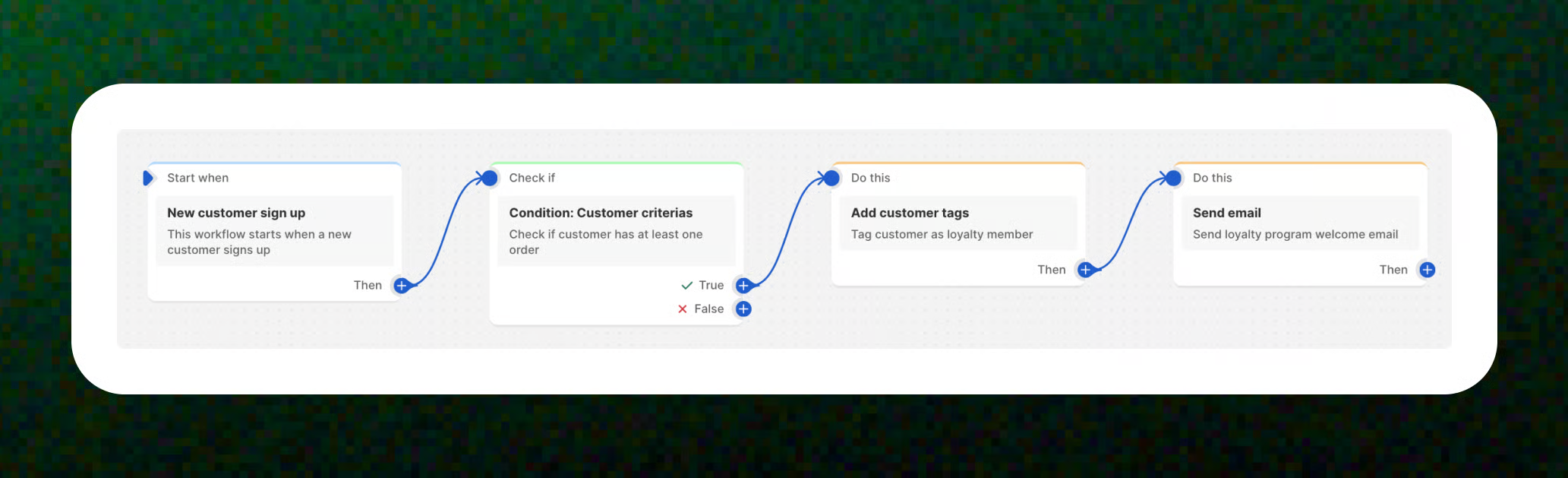
Example 1: Customer criteria - Order count
Trigger: New customer sign-up
→ Condition: Customer criteria - Order count > Greater than or equal to > 1 (customer has placed at least one order)
→ Action (If True): Add customer tags (automatically adds the "loyalty member" tag to the customer's profile)
→ Action: Send email (sends a loyalty program welcome email to the customer) 🔗 Learn more: Loyalty program enrollment
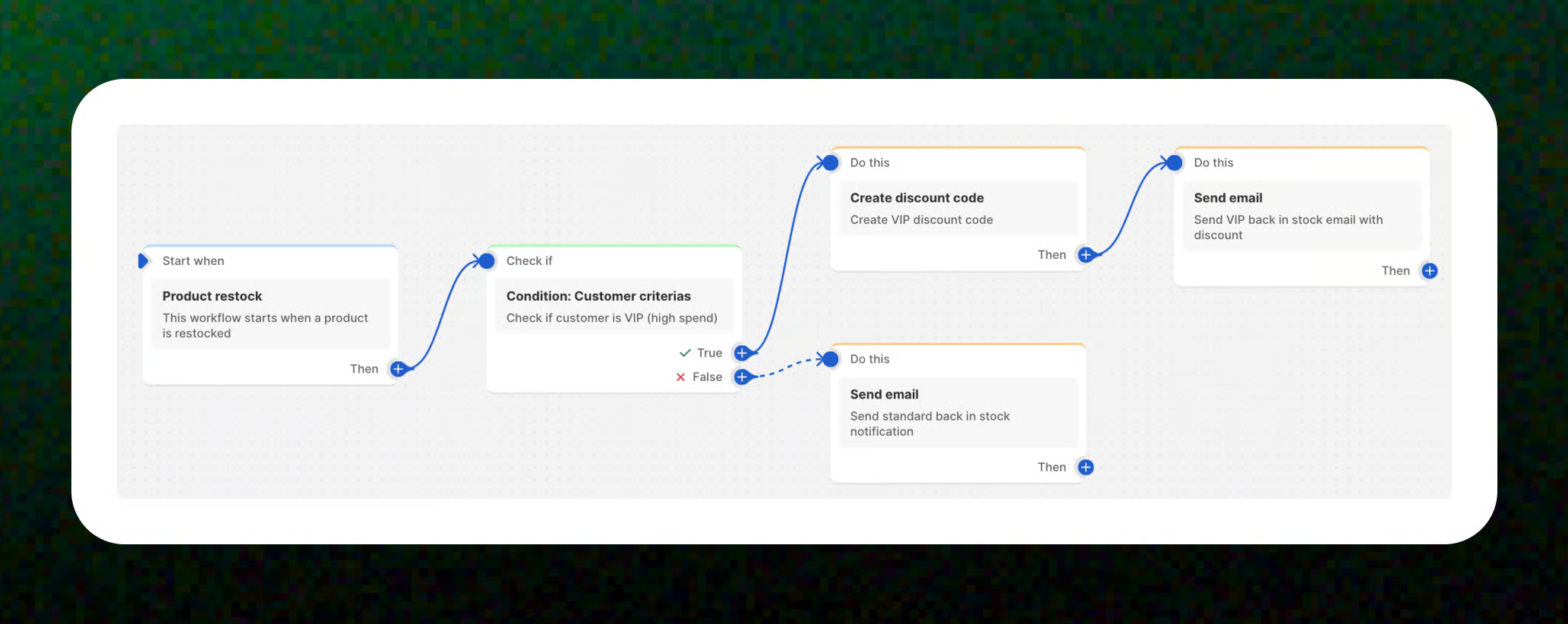
Example 2: Customer criteria - Total spent
Trigger: Product restock
→ Condition: Customer criteria (Total spent ≥ 1000) (Check if customer is VIP / high spender)
If True → Action: Create discount code (Create VIP discount code) → Action: Send email (Send VIP back-in-stock email with discount)
If False → Action: Send email (Send standard back-in-stock notification) 🔗 Learn more: Back in stock with tiered response
Example 3: Customer criteria - Signed up date
Trigger: New customer sign-up
→ Condition: Customer criteria (Signed up date = 2026-02-14) (Check if Signed up date equals a specific date)
If True → Action: Send email (Send special welcome or anniversary email - Valentine)

Example 4: Customer criteria - Last order date
Trigger: Product restock
→ Condition: Customer criteria (Last order date) (Check if Last order date is 90 days ago)
If True → Action: Send email (Send special back-in-stock email)

Example 5: Customer criteria - Customer tags
Trigger: New customer sign-up
→ Condition: Customer criteria (Customer tags) (Check if customer tags include Wholesale)
If True → Action: Send email (Send wholesale welcome email)
If False → Action: Send email (Send standard welcome email)

Example 6: Customer criteria - Accepts marketing
Trigger: New customer sign-up
→ Action: Send email (Send welcome email)
→ Condition: Customer criteria (Accepts marketing) (Check if Accepts marketing = True)
If True → Action: Send email (Send promotional follow-up email)

Best practices
Start with the most important condition first: Place high-impact or broad conditions at the top to reduce unnecessary checks later in the workflow.
Choose AND vs OR carefully:
Use AND for precise targeting when all conditions must be met.
Use OR for broader targeting when any condition can qualify.
Keep conditions simple and readable: Avoid adding too many criteria in a single condition. If logic becomes complex, consider splitting it into multiple conditions.
Use clear, meaningful values: Choose thresholds that make sense (for example: order count ≥ 1).
Plan for the False branch: Decide what should happen when conditions are not met.
Avoid overlapping criteria: Ensure conditions do not unintentionally target the same customers across branches.
Test with real scenarios: Validate your conditions using example customers to ensure the logic behaves as expected.
Related articles
Available triggers, actions, and conditionsGet started with workflow templates libraryCreate a workflow📩 Need help?
We’re here to make your XFlow experience smooth and successful. Our support team is always ready to assist you—no matter how big or small your question is.
Last updated