# Urgency back in stock notification
_d4vsS9mF.jpg)
Not sure where to use this template? Check out [Get started with workflow templates library](https://docs.foxecom.com/xflow-app/workflows/get-started-with-workflow-templates-library)
## About this template
When a product is back in stock, send an **immediate notification** and then a **follow-up urgency email after 1 day** if the customer **hasn't purchased** yet.
## Step-by-step guide to set up this template
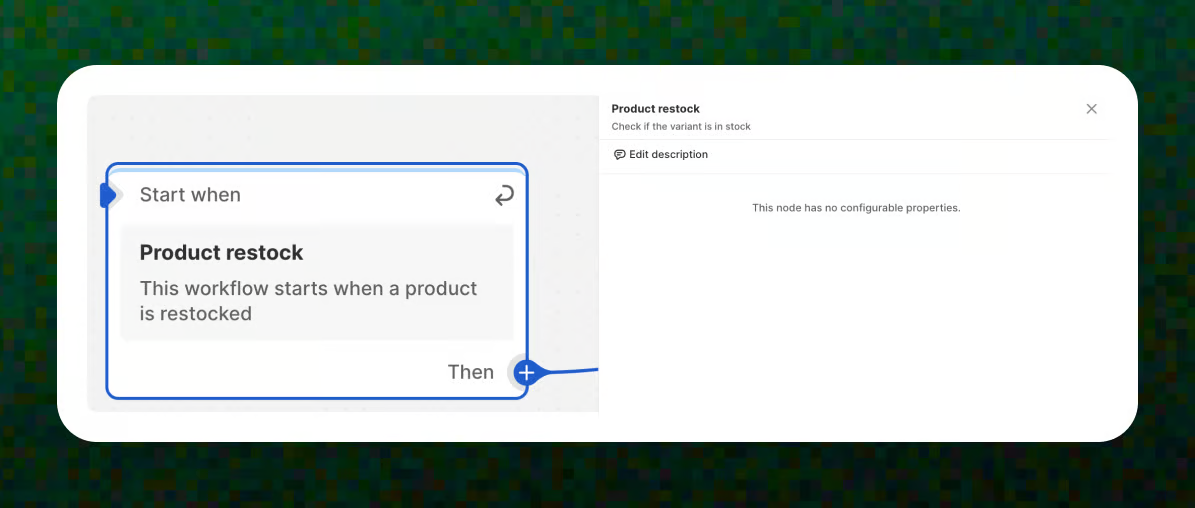
### Trigger – Product restock
The workflow starts when a product is restocked and becomes available again.
📝 Learn more about triggers: [Understanding workflow triggers](https://docs.foxecom.com/xflow-app/workflows/understanding-workflow-triggers)
### Action – Send email
Send the initial back-in-stock notification email.
1. Enter the **email subject**.
2. Select the **initial back-in-stock notification email** that you have prepared in advance.
If you don’t have an **email template** yet, check out [Create an email template](https://docs.foxecom.com/xflow-app/email-templates/create-an-email-template)
Read more about the **variables** you can use in email: [Available variables in email templates](https://docs.foxecom.com/xflow-app/email-templates/understanding-personalization-variables-in-email-templates/available-variables-in-email-templates)
_2bE9tVlA.jpg)
### Action – Wait
Wait for **1 day** before continuing to give customers time to complete their purchase before continuing.
📝 Learn more about actions: [Understanding workflow actions](https://docs.foxecom.com/xflow-app/workflows/understanding-workflow-actions)
_a2YpRarG.jpg)
### Condition – An event occured: Customer purchased
Check if the customer has **completed a purchase**, so you only follow up with customers who haven’t bought yet.
📝 Learn more about conditions: [Workflow condition: An event occurred](https://docs.foxecom.com/xflow-app/workflows/understanding-workflow-conditions/workflow-condition-an-event-occurred)
_W4p8Zuxf.jpg)
### Action – Send email
In the **False** path, if the customer has not purchased, send an urgency email (low stock warning).
In the **True** path, no further action is taken. If the customer has already purchased, **no additional emails are sent and the workflow ends**.
1. Enter the **email subject**.
2. Select the **urgency email template** that you have prepared in advance.
If you don’t have an **email template** yet, check out [Create an email template](https://docs.foxecom.com/xflow-app/email-templates/create-an-email-template)
Read more about the **variables** you can use in email: [Available variables in email templates](https://docs.foxecom.com/xflow-app/email-templates/understanding-personalization-variables-in-email-templates/available-variables-in-email-templates)
_mGURhMot.jpg)
All done! This setup makes sure no interested customer is left behind without a reminder.
**🌟 Pro Tip:**
* Set a reasonable wait time to avoid sending urgency emails too soon.
* Keep urgency emails short and action-focused.
* Highlight low stock or limited availability to drive faster decisions.
## Common use cases
The **Urgency back in stock notification** workflow template is commonly used when:
* You want to encourage customers to complete their purchase if they haven’t bought yet.
* You want to follow up with customers who haven’t purchased after receiving a back in stock notification.
* You want to remind customers to act before the product runs out of stock.