# General settings
Keep your store information up to date, choose your preferred app language, and manage the notifications you receive from XFlow.
***
## How to update the store details
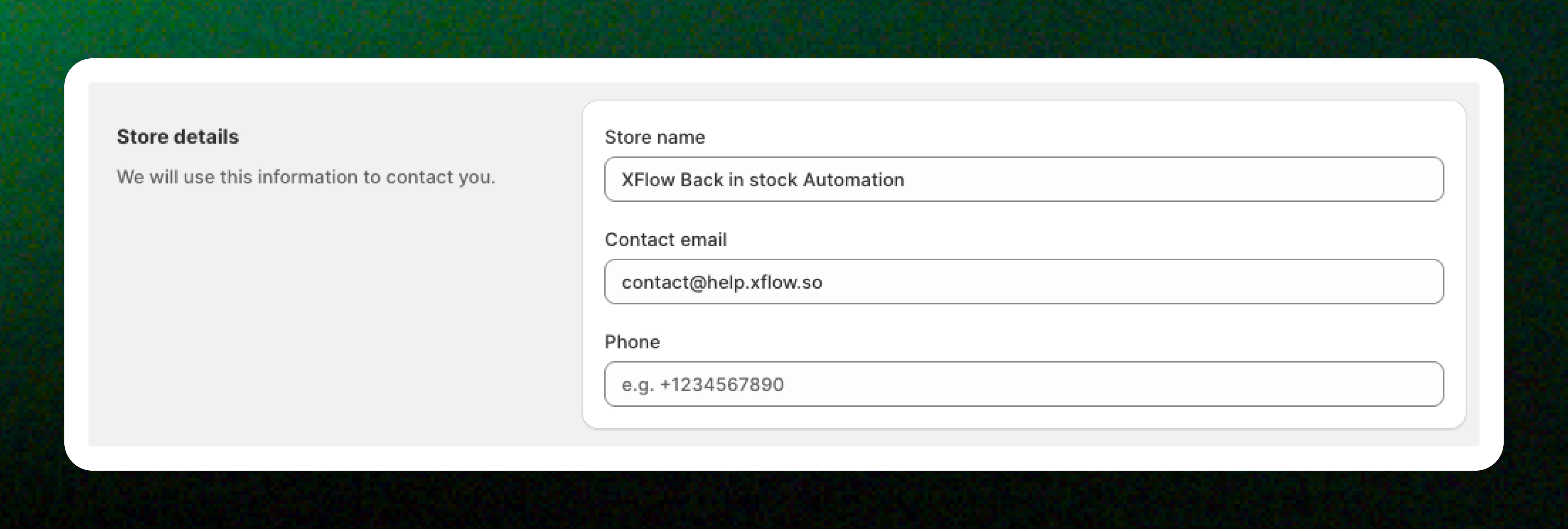
1. In the XFlow dashboard, go to **Settings > General settings > Store details**.
2. You will see **editable fields** for:
Store name
Contact email
Phone number
3. Click any field to **edit** your details.
4. **Save** the changes.
These details allow our team to reach you and provide support whenever needed.
## How to change your app language
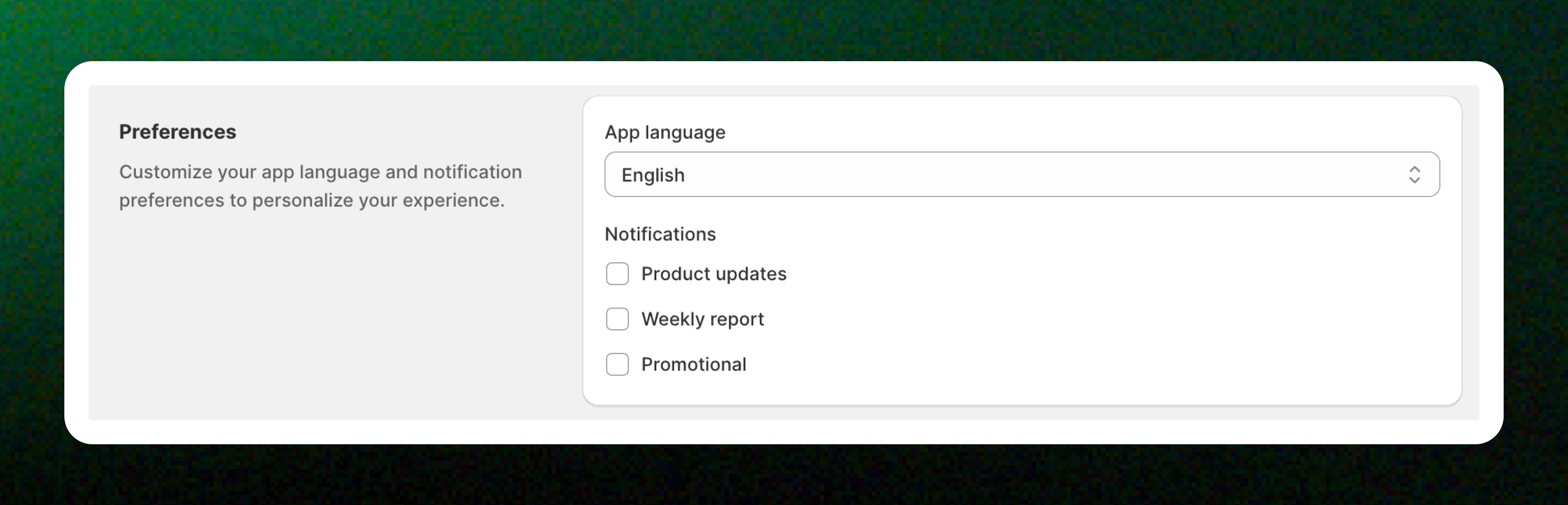
1. In the XFlow dashboard, go to **Settings > General settings > Preferences**.
2. Under the **App language** section, select your preferred language. Supported app languages:
* English
* French
* Spanish
* German
* Italian
3. **Save** your changes.
*Missing your preferred language? Let us know at* [*contact@help.xflow.so*](mailto\:contact@help.xflow.so) *— we’d love to add it in future updates!*
## How to choose your notification types
1. In the XFlow dashboard, go to **Settings > General settings > Preferences**.
2. In the **Notifications** section, enable or disable any of these notification types:
| Notification type | Description |
| ------------------- | -------------------------------------------------------------------------------------------------------------- |
| **Weekly report** | A short summary of your campaign performance, subscribers, and recovered revenue. |
| **Product updates** | Get notified when new XFlow features or improvements are released. |
| **Promotional** | Occasional offers, educational content, or best-practice guides from the [FoxEcom team](https://foxecom.com/). |