# Analytics & Report
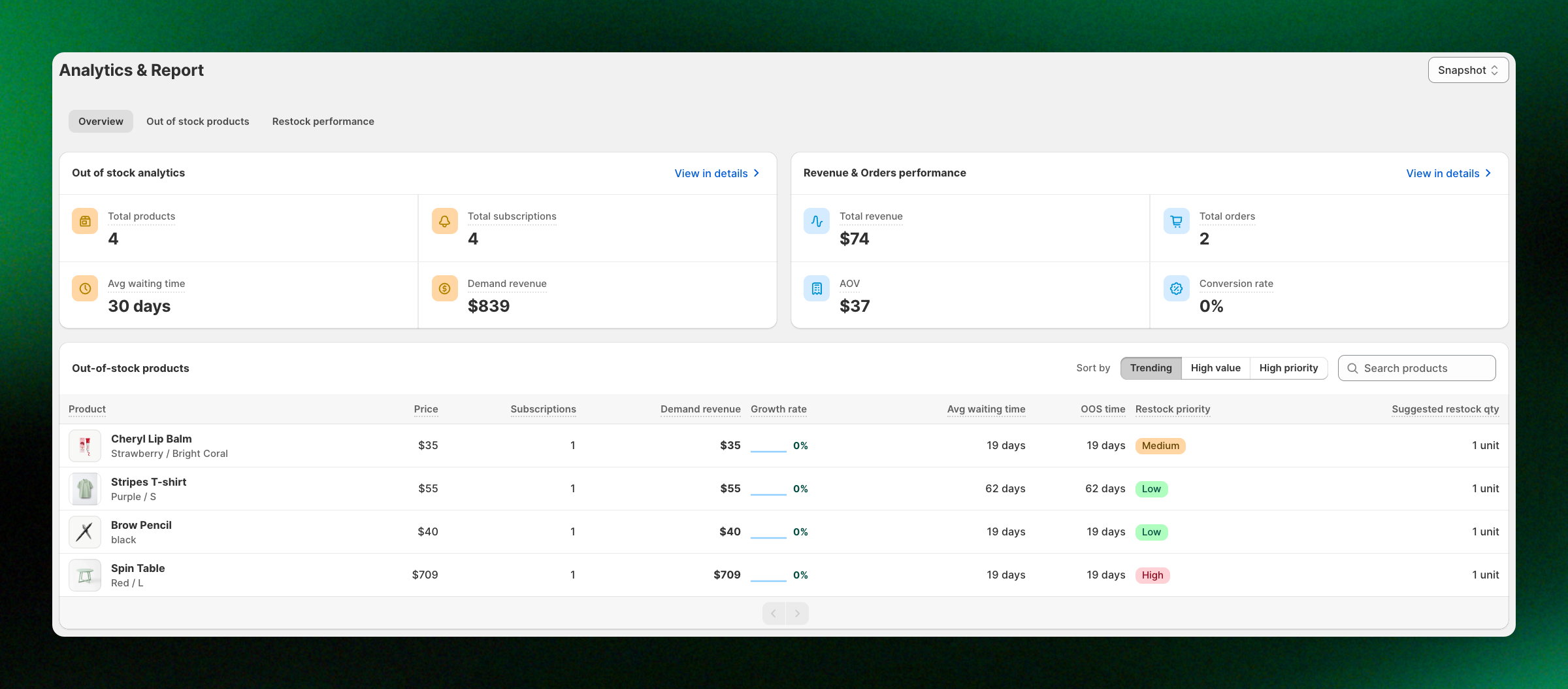
Explore the dashboard to understand customer demand, track out-of-stock products, and measure how back-in-stock notifications contribute to sales.
With this dashboard, you can:
* See which out-of-stock products customers are waiting for.
* Track subscription demand and potential revenue.
* Identify products that should be restocked first.
* Understand how long customers have been waiting.
* Monitor revenue, orders, and conversions from back-in-stock notifications.
* Evaluate how well your restocking efforts are performing.
## How to access Analytics & Report
1. Open your **XFlow Dashboard**
2. Click **Analytics & Report** in the app sidebar.
The dashboard contains three tabs:
| Tab | What you can check |
| ------------------------- | ------------------------------------------------------------------------------------------ |
| **Overview** | Get a quick summary of customer demand, out-of-stock products, and sales performance. |
| **Out of stock products** | Understand which products customers are waiting for and identify restocking opportunities. |
| **Restock performance** | See how your back-in-stock notifications perform after products are restocked. |
Use the date filter in the top-right corner to select a reporting period:
* **Snapshot:** Current outstanding demand and all-time sales performance.
* **Last 7 / 30 / 60 / 90 days:** Activity during the selected period, including subscriptions, orders, and revenue.
Snapshot shows current pending subscriptions, while date ranges show new subscriptions created during that period. The product list in Overview always reflects current demand, regardless of the selected date filter.
## Overview
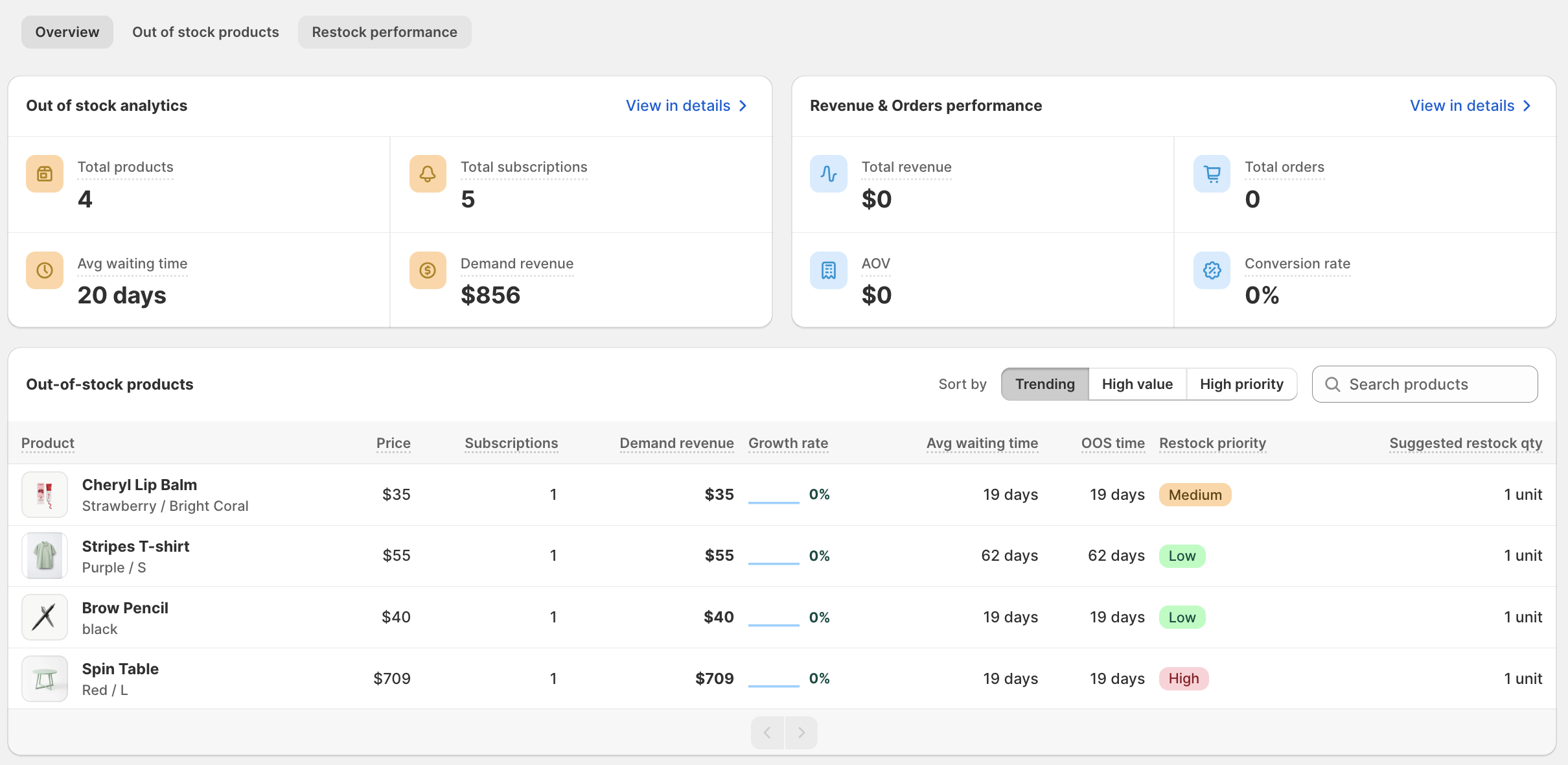
Get a quick overview of customer demand for out-of-stock products and revenue generated through your back-in-stock workflows.
### Out of stock analytics
This section shows how much demand exists for products that customers cannot currently purchase. Click **View in details** to navigate to the **Out of stock products** tab for more detailed insights.
| Metric | What it means |
| ----------------------- | -------------------------------------------------------------------------------------------------------------------------------------------------- |
| **Total products** | The number of out-of-stock product variants with at least one pending subscription. |
| **Total subscriptions** | The number of subscriptions currently waiting for products to be restocked. |
| **Avg waiting time** | The average number of days customers have been waiting for their subscribed products. |
| **Demand revenue** | Total product value of all pending subscriptions, based on prices when subscriptions were created. This is potential revenue, not confirmed sales. |
### Revenue & Orders performance
This section helps you measure sales generated through your back-in-stock workflows. Click **View in details** to navigate to the **Restock performance tab** for more detailed insights.
| Metric | What it means |
| ------------------- | ------------------------------------------------------------------ |
| **Total revenue** | Revenue generated from orders attributed to converted subscribers. |
| **Total orders** | Number of orders generated from converted subscribers. |
| **AOV** | Average order value: Total revenue ÷ Total orders. |
| **Conversion rate** | Percentage of queued subscriptions that resulted in a purchase. |
If your back-in-stock workflows generated $1,200 from 30 orders:
**AOV \= $1,200 ÷ 30 \= $40**
If 100 subscriptions reached the queued stage and 20 of those converted into purchases:
**Conversion rate \= 20 ÷ 100 × 100 \= 20%**
Demand revenue and total revenue measure different things. Demand revenue represents potential sales from customer interest, while total revenue represents actual sales attributed to converted subscribers.
### Out-of-stock products table
At the bottom of Overview, you'll find a list of products with outstanding customer demand. The table includes:
| Column | Description |
| ------------------------- | ---------------------------------------------------------------------------------------------- |
| **Product** | Product name and variant |
| **Price** | Latest product price. |
| **Subscriptions** | Number of pending subscriptions for that product. |
| **Demand revenue** | Latest product price × pending subscriptions. |
| **Growth rate** | Change in new subscriptions over the last 7 days compared with the previous 7 days. |
| **Avg waiting time** | Average waiting time across pending subscriptions for the product. |
| **OOS time** | Number of days since the first back-in-stock subscription for the current out-of-stock period. |
| **Restock priority** | Priority level to help identify which products may need restocking sooner. |
| **Suggested restock qty** | Estimated minimum quantity needed to cover expected purchases from subscribers. |
You can sort products using:
* **Trending:** Sorts products by growth rate (last 7 days compared with the previous 7 days), highest first.
* **High value:** Sorts products by demand revenue, highest first.
* **High priority:** Sorts products by restock priority score, highest first.
Use **Search products** to find a specific product.
Suggested restock quantity is an estimate based on subscription demand. It is not a complete inventory purchasing recommendation and does not account for all sales channels or future demand.
## Out of stock products
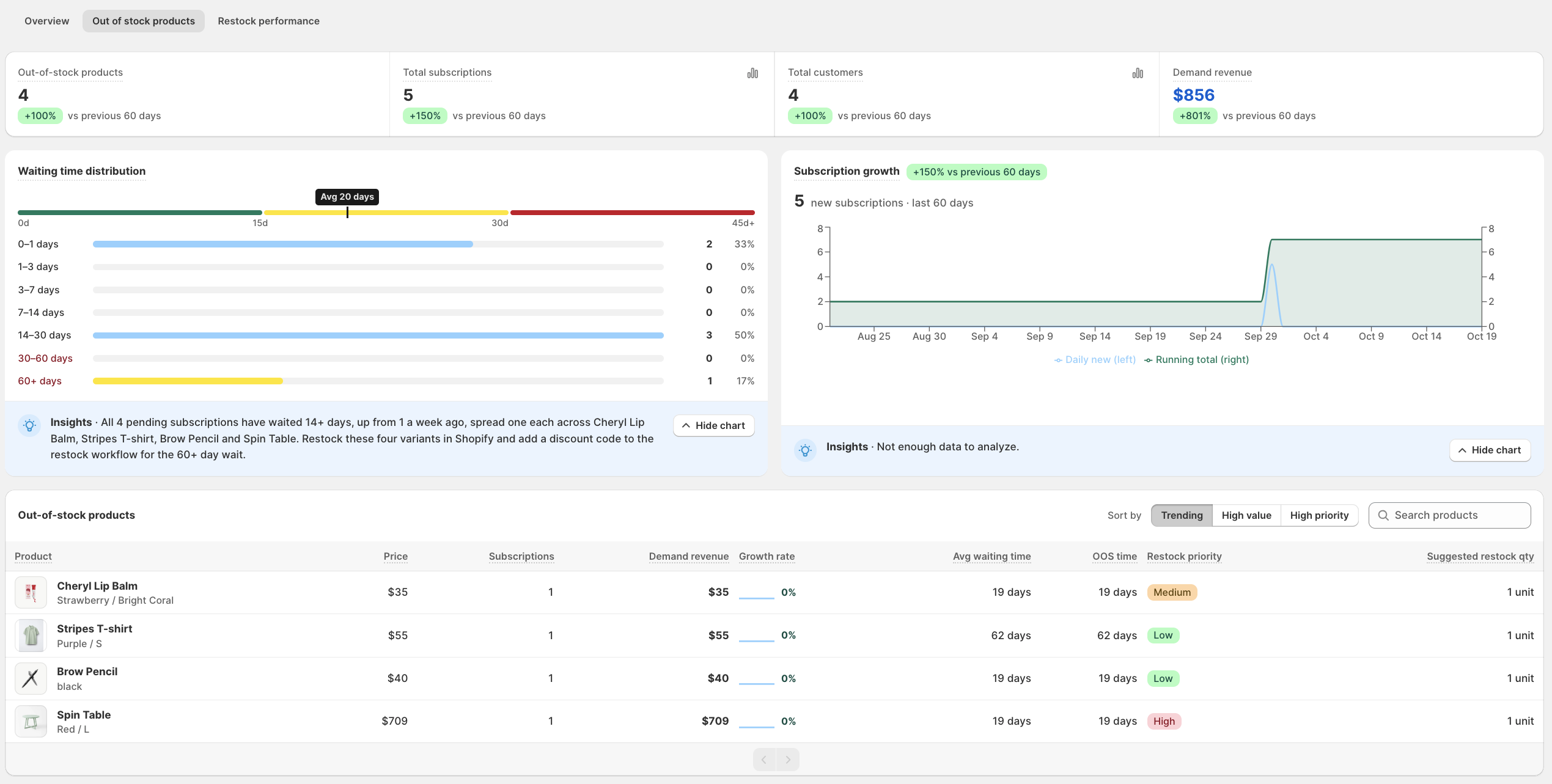
The **Out of stock products** tab gives you a deeper understanding of customer demand before products return to stock.
It includes a summary of subscriptions, customer waiting times, subscription growth, and a detailed product list.
### Key metrics
The top section summarizes out-of-stock activity for the selected reporting period. Percentage changes show how each metric compares with the previous reporting period.
| Metric | Description |
| ------------------------- | ---------------------------------------------------------------------------- |
| **Out-of-stock products** | Number of products with active back-in-stock subscriptions. |
| **Total subscriptions** | Total number of back-in-stock subscriptions created. |
| **Total customers** | Number of unique customers who subscribed to back-in-stock notifications. |
| **Demand revenue** | Estimated potential revenue based on product prices and subscription demand. |
### Waiting time distribution
Providing an overview of customer waiting times, showing how subscriptions are distributed across different waiting periods. Waiting times are grouped into 7 ranges.
Each range displays the **number and percentage of subscriptions**, making it easy to see how waiting customers are distributed across different periods.
The chart also highlights the **average waiting time** using a color-coded indicator so you can quickly understand whether customers have been waiting longer than expected. Click **Open chart** to view more detailed information when available.
* **Green (0–15 days):** Short waiting time
* **Yellow (15–30 days):** Moderate waiting time
* **Red (30+ days):** Long waiting time
The **Insights** section provides a summary of waiting subscriptions, highlights products with longer waiting times, and suggests actions to improve restock performance.
If the average waiting time is 30 days and several subscriptions fall into the 30–60 days category, you may want to prioritize those products to avoid keeping customers waiting longer.
### Subscription growth
The **Subscription growth** chart provides an overview of how new subscriptions change over time, helping you track customer interest in out-of-stock products.
The chart displays two key metrics:
* **Daily new (blue line):** Shows the number of new subscriptions received each day.
* **Running total (green line):** Shows the cumulative number of subscriptions over time.
The section also displays the **total number of new subscriptions** during the selected date range and the **percentage change compared with the previous period**, helping you understand subscription growth trends.
The **Insights** section provides additional information about subscription trends when sufficient data is available.
## Restock performance
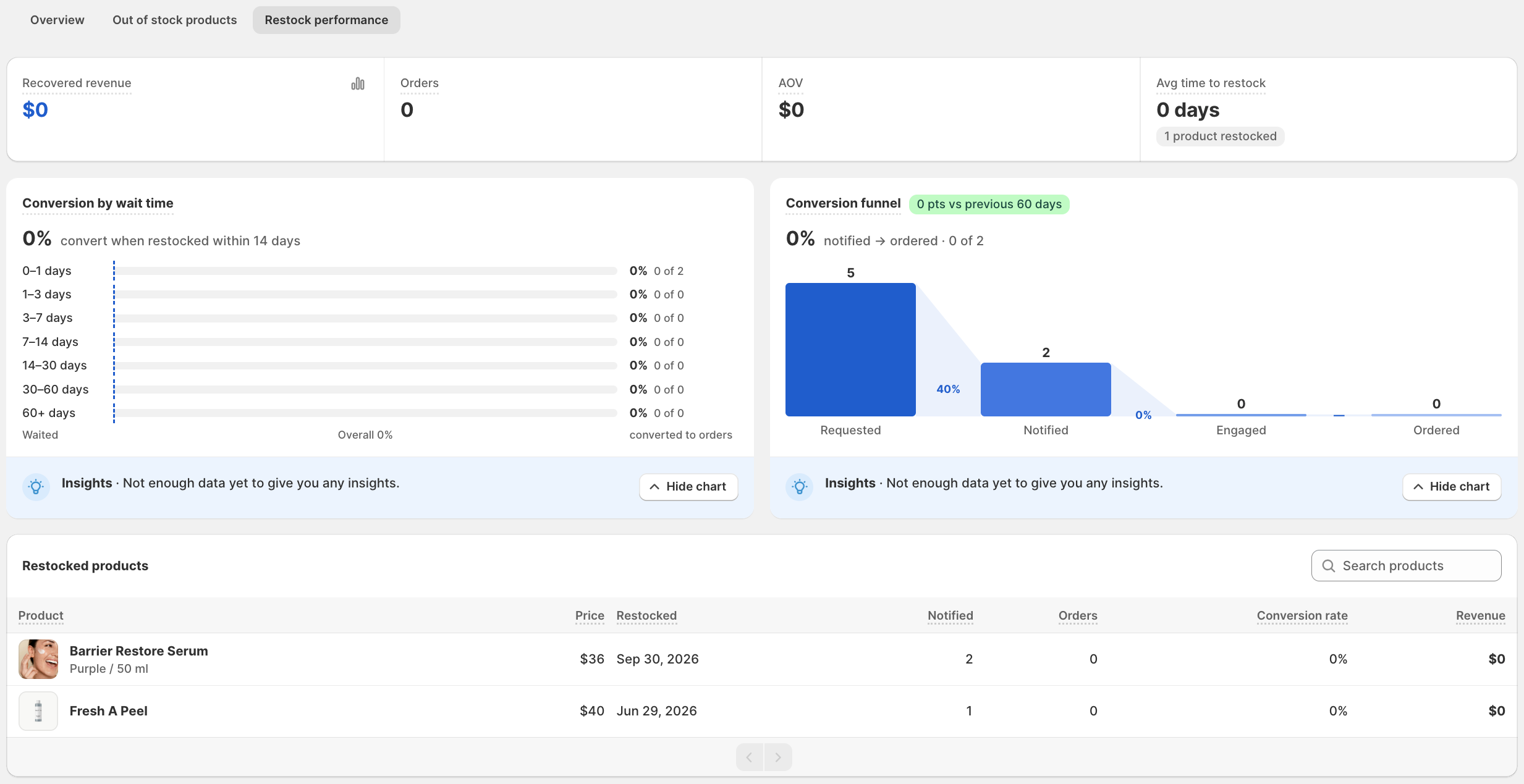
The **Restock performance** tab helps you understand what happens after products are restocked and back-in-stock notifications are sent.
It focuses on recovered revenue, customer conversions, and the performance of individual restocked products.
### Key metrics
The top section provides an overview of your restock performance for the selected reporting period.
| Metric | Description |
| ----------------------- | --------------------------------------------------------------------------------------------------------------------- |
| **Recovered revenue** | Total revenue generated from orders attributed to back-in-stock notifications. |
| **Orders** | Total number of orders attributed to notified subscribers. |
| **AOV** | Average order value of purchases attributed to back-in-stock notifications. |
| **Avg time to restock** | Average number of days between a product's first back-in-stock subscription and the restock workflow being triggered. |
**Understanding average time to restock**
For example, a customer subscribes to a back-in-stock notification on September 1, and the product's restock workflow is triggered on September 16.
The time to restock is 15 days.
If multiple products are restocked during the reporting period, XFlow calculates the average time to restock across those products.
**Note:** The restock date reflects when the restock workflow is triggered, which may differ from the date physical inventory becomes available.
### Conversion by wait time
The **Conversion by wait time** section helps you understand how customer waiting time relates to purchase behavior.
It uses the waiting time recorded when the restock workflow was triggered. You can use this information to explore questions such as:
* Do customers who wait less than 7 days convert more often?
* Are customers still likely to purchase after waiting 30 days?
* Does a longer waiting period appear to affect conversion performance?
For example, if customers notified within 14 days convert at a higher rate than customers who wait longer, this may indicate an opportunity to improve restocking speed.
### Conversion funnel
The **Conversion funnel** shows how subscriptions progress from notification to purchase.
The main stages are: **Notified → Ordered**
The conversion rate indicates the percentage of notified subscriptions that resulted in an attributed order.
Suppose 100 subscriptions receive back-in-stock notifications, and 15 result in orders.
The conversion rate is calculated as:
**Conversion rate \= (15 ÷ 100) × 100 \= 15%**
A higher conversion rate indicates that a greater proportion of notified subscriptions are resulting in purchases.
You can also compare performance with the previous reporting period to understand how your conversion rate has changed.
### Restocked products table
Use this table to identify which products generate the most orders and recovered revenue from back-in-stock notifications.
| Column | Description |
| ------------------- | ---------------------------------------------------- |
| **Product** | Name and variant of the restocked product. |
| **Price** | Product price. |
| **Restocked** | Date the restock workflow was triggered. |
| **Notified** | Number of subscriptions notified. |
| **Orders** | Number of attributed orders. |
| **Conversion rate** | Percentage of notified subscriptions that converted. |
| **Revenue** | Revenue generated from attributed orders. |
## Understand how XFlow tracks restocking
XFlow tracks each out-of-stock period for a product variant as a separate **restock cycle**.
A cycle starts when the first customer subscribes to a back-in-stock notification and ends when the restock workflow is triggered.
If a product goes out of stock again later and receives new subscriptions, a new cycle can be tracked.
For each cycle, XFlow records information such as:
* When the first subscription was created.
* When the restock workflow was triggered.
* How many subscriptions were collected.
* How many notifications were delivered and engaged with.
* How many subscribers converted into customers.
* How much attributed revenue was generated.
* How long subscribers waited before restocking.
Conversions are tracked within a **90-day window after restocking**.
## Best practices for using Analytics & Report
To get the most value from your reports:
* **Check outstanding demand regularly.** Review pending subscriptions to understand what customers want back in stock.
* **Look at waiting time alongside demand.** Products with long waiting times may deserve attention even when subscription counts are relatively low.
* **Compare demand revenue and restock priority.** Use multiple signals rather than relying on a single metric.
* **Review subscription growth.** Increasing signups can help you identify products gaining customer interest.
* **Monitor performance after restocking.** Compare notifications, conversions, and recovered revenue to understand what works.
* **Use historical reporting periods.** Compare recent performance with longer-term trends to support better inventory decisions.
By reviewing **Analytics & Report** regularly, you can make more informed restocking decisions, understand customer demand, and measure the sales impact of your back-in-stock workflows.