# Use the Send SMS action in a workflow
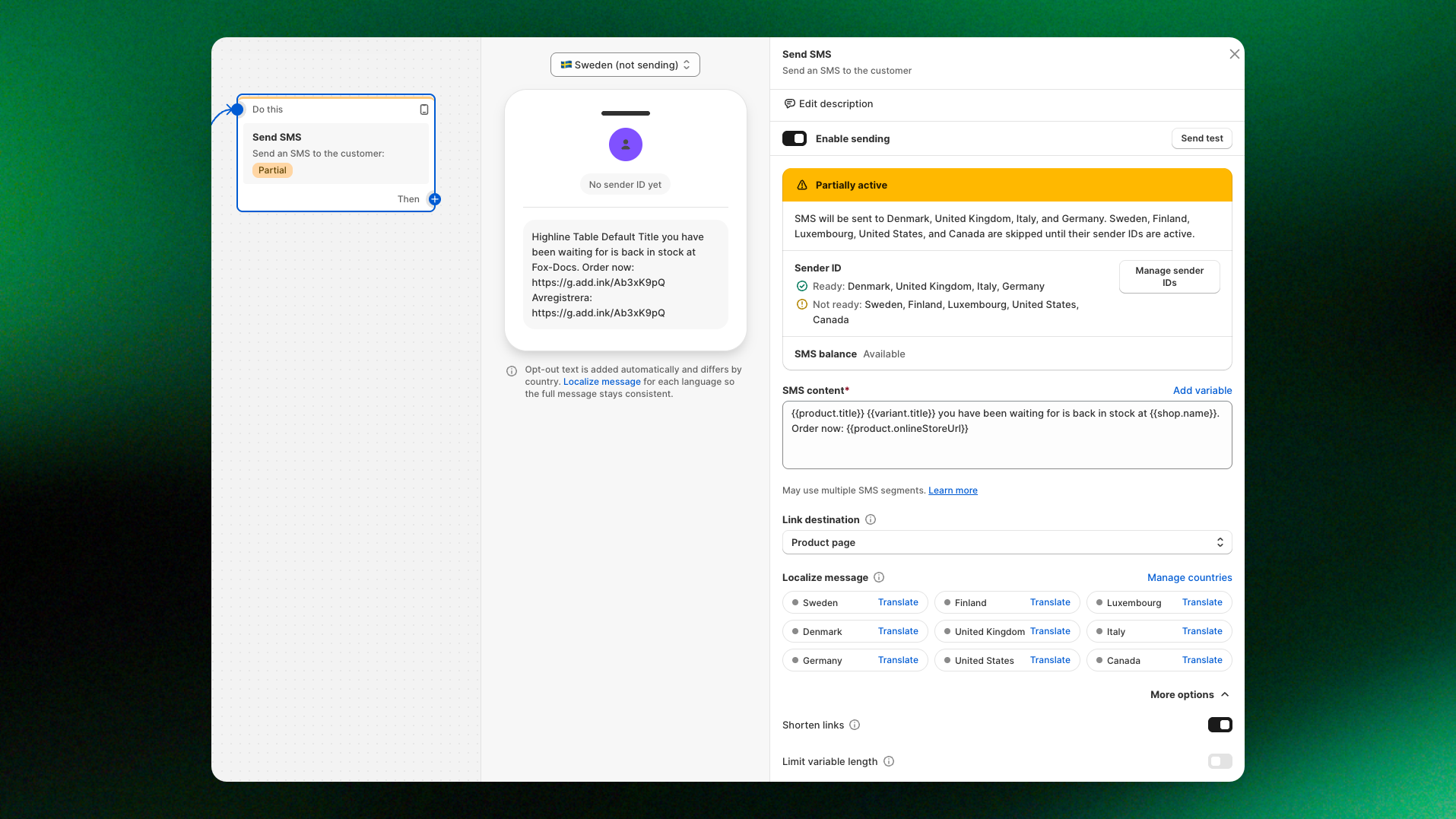
Add a **Send SMS** step to your restock workflow to text subscribers when their product is back. Use it on its own, or after **Send email** as a reminder.
*Example workflow: Product restock → Send email → Wait 1 hour → Send SMS.*
Make sure you've set up an **Active sender ID** for the countries you want to send SMS to and have enough funds in your **SMS balance**. Otherwise, XFlow won't send the messages.
***
## Step 1: Add Send SMS to your workflow
Open your restock workflow in XFlow's Workflow Builder.
1. Click **Add action (+)** where you want to send the SMS.
2. Select **Send SMS**.
3. The Send SMS settings panel will open.
4. Configure your message and sending preferences.
5. Click **Save** when you're done.
You can place Send SMS immediately after a product restock trigger or after another action.
For example, to send an email first and follow up with SMS an hour later: Product restock → Send email → Wait 1 hour → Send SMS
[*Learn more: Send SMS action*](https://docs.foxecom.com/xflow-app/workflows/understanding-workflow-actions#types-of-actions)
## Step 2: Configure your Send SMS action
### SMS settings
| Settings | Description |
| ------------------------- | ------------------------------------------------------------------ |
| **Enable sending** | Turns SMS sending on or off. Enabled by default. |
| **Status banner** | Shows whether SMS can be sent and which countries are eligible. |
| **Message** | Lets you write your SMS and add product or store variables. |
| **Link destination** | Directs customers to the product page or checkout. |
| **Shorten links** | Replaces long URLs with shorter links to save characters. |
| **Limit variable length** | Shortens long variable values to help control SMS length and cost. |
| **Localize message** | Lets you translate messages for different countries. |
| **Preview** | Shows how the SMS will appear on a customer's phone. |
| **Send test** | Sends a test message to your own phone, up to 3 tests. |
### Check your sending status
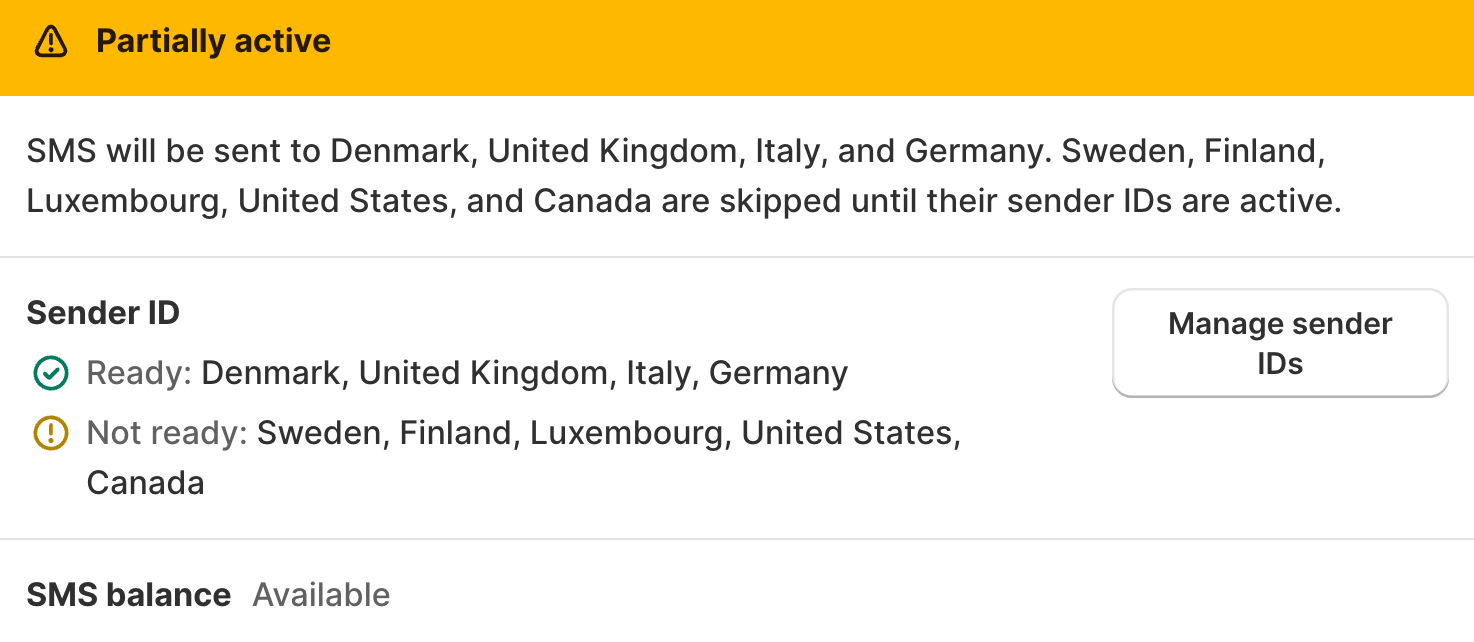
At the top of the Send SMS panel, you'll see a status banner showing whether your SMS action is ready.
| Status | What it means | What to do |
| --------------------------------------- | ----------------------------------------------------------- | ------------------------------------------------------------- |
| **Ready to send** | SMS can be sent to customers in your configured countries. | No action needed. |
| **Partially active** | SMS can only be sent to countries with an Active sender ID. | Click **Manage sender IDs** to activate additional countries. |
| **Not enough SMS balance** | No SMS can be sent because your balance is insufficient. | Click **Top up balance**. |
| **No country has an active sender ID** | None of your configured countries can receive SMS. | None of your configured countries can receive SMS. |
| **Set up a sender ID to start sending** | You haven't configured a sender ID yet. | Click **Set up sender ID**. |
| **Sending paused** | The Send SMS action is disabled. | Turn on **Enable sending**. |
If a customer reaches this action but their country doesn't have an Active sender ID, or your SMS balance is insufficient, XFlow skips the SMS and moves the customer to the next workflow step.
## Step 3: Write your SMS message
XFlow provides a default message you can customize:
`{{product.title}} {{variant.title}} you have been waiting for is back in stock at {{shop.name}}. Order now: {{product.onlineStoreUrl}}`
You can replace the text with your own message while keeping the product information dynamic.
### Add variables
Click **Add variables** in the message editor to insert information such as:
* **Product title:** The name of the restocked product.
* **Variant:** The specific product variant the customer subscribed to.
* **Purchase link:** A link customers can use to purchase the product.
* **Store name:** Your Shopify store name.
XFlow automatically replaces these variables with the corresponding information when it sends the SMS.
\[Owl Shoes] Classic Runner Size 9 you've been waiting for is back in stock. Order now: [https://owlshoes.com/products/classic-runner](https://owlshoes.com/products/classic-runner)
Reply STOP to opt out
### Choose where your link takes customers
Under **Link destination**, choose:
* **Product page:** Customers open the product page to review the item before purchasing.
* **Checkout page:** Customers are directed straight to checkout.
Choose the destination that best fits your restock notification.
### Keep your SMS short
SMS messages are charged by segment, so longer messages can cost more.
A standard SMS segment can contain up to 160 characters, but the actual segment length depends on the characters used.
Your total message length includes:
* Your written message.
* Product and store variables after their values are inserted.
* Product or checkout links.
* Emojis or special characters.
* The automatically added opt-out text.
If you see the warning **May use multiple SMS segments**, open **More options** and consider the following settings.
#### Shorten links
Turn on **Shorten links** to replace long product or checkout URLs with shorter links. This reduces the number of characters used by your SMS.
#### Limit variable length
Set a maximum character length for each variable.
For example, when **Limit variable length** is set to 20 characters:
* Original product title: Classic Runner Ultra Light Mesh Sneaker
* Shortened title: Classic Runner Ultra
This prevents unusually long product names from increasing your SMS length and cost.
For more details, see [*How SMS segments work for SMS alerts*](https://docs.foxecom.com/xflow-app/sms-settings/how-sms-segments-work-for-sms-alerts).
## Step 4: Localize your SMS for different countries
If you send SMS to customers in multiple countries, you can translate your message so they receive it in their own language.
You don't always need to localize:
| Your audience | Recommended setup |
| -------------------------------------------- | -------------------------------------------------------------- |
| One country | Write your default message in that country's language. |
| Multiple countries using the same language | Use one default message. |
| Multiple countries using different languages | Write a default message and add translations for each country. |
### Add a translation
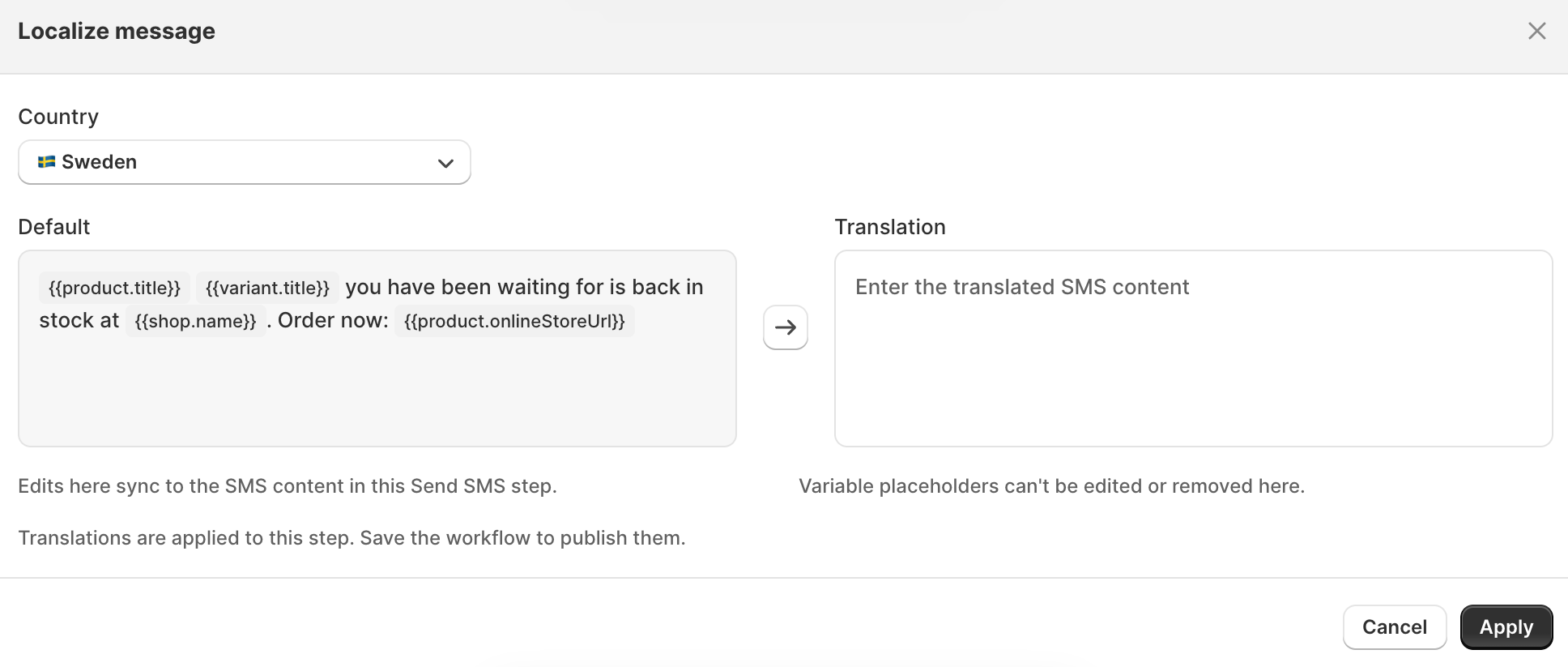
1. In the Send SMS panel, open **Localize message**.
2. Find the country you want to translate your message for.
3. Click **Translate**.
4. Edit the translated message in the editor on the right.
5. Keep all variables with their original names.
6. Click **Save translation**.
Variables appear as badges in the translation editor. You must keep all required variables unchanged, or XFlow won't let you save the translation.
### Understand translation status
Each country has a colored indicator:
* 🟢 **Green dot:** A translated message is available for this country.
* ⚫ **Grey dot:** No translation is saved. Customers in this country receive the default message.
Only countries added under **Settings > SMS** appear in the localization panel.
To add another country, click **Manage countries**.
### Why should you localize?
XFlow always adds the opt-out instructions in the customer's local language.
For example, if you send an English message to a customer in France without adding a French translation, the customer receives:
* Your restock notification in English.
* The opt-out instructions in French.
Translating the main message avoids mixing languages and makes your notification easier to understand.
## Step 5: Understand how XFlow sends SMS
When a customer reaches a Send SMS action, XFlow processes the message in this order:
1. **Check sending eligibility.** XFlow checks whether sending is enabled, the customer's country has an Active sender ID, and your SMS balance is sufficient.
2. **Select the message language.** XFlow uses the translation for the customer's country if one exists. Otherwise, it uses the default message.
3. **Replace variables.** XFlow inserts the actual product, variant, store, and link information.
4. **Add opt-out instructions.** XFlow automatically adds the required opt-out text in the customer's local language.
5. **Send and charge.** XFlow sends the message using the sender ID configured for that country and deducts the SMS segment cost from your balance.
If the sending requirements aren't met, XFlow skips the message instead of sending it.
**How opt-out messages work**
Every SMS must include instructions that tell customers how to stop receiving text messages.
**XFlow automatically adds these instructions**, so you don't need to write them yourself.
For a customer in the United States, the SMS may look like this:
| Part | Example | Added by |
| ------- | ----------------------------------------------------------------------------------------------------------------------------------------------------------- | ----------------------------------- |
| Sender | +1 833 555 0123 | Your configured sender ID |
| Message | \[Owl Shoes] Classic Runner Size 9 is back in stock. Shop now: [https://owlshoes.com/products/classic-runner](https://owlshoes.com/products/classic-runner) | Your message template and variables |
| Opt-out | Reply STOP to opt out | XFlow automatically |
**Important things to know:**
* Don't add your own "Reply STOP" line. XFlow already adds it, and duplicating it uses extra characters.
* The opt-out text is always in the customer's local language, even if your message isn't translated.
* Opt-out instructions count toward the total SMS length and segment cost.
* When a customer replies **STOP**, they're unsubscribed from your SMS and won't receive further text messages from your store.
* In the US and Canada, customers can reply **START** or **UNSTOP** to subscribe again.
When a customer opts out, their notification log shows the status **Unsubscribed**.
## Step 6: Preview and test your SMS
Before saving your action, check what customers will actually receive.
### Preview your message
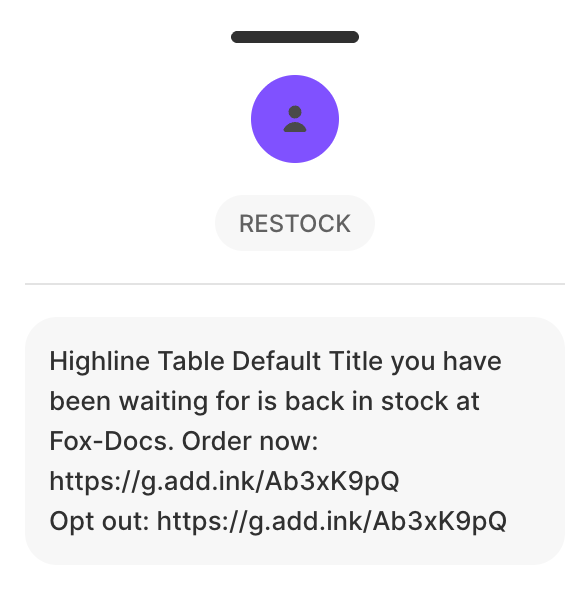 1. Click **Preview** in the Send SMS panel.
2. Select a country.
3. Review the SMS displayed in the phone preview.
4. Switch between countries to check any translations.
Pay attention to the message wording, product variables, links, and automatically added opt-out instructions.
### Send a test SMS
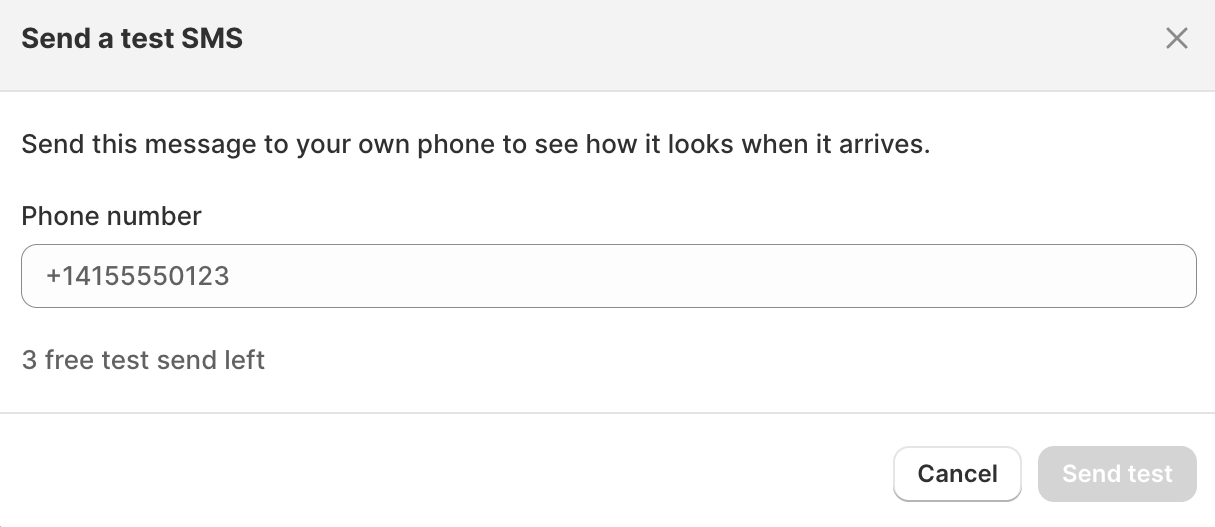
You can also send the message to your own phone.
1. Click **Send test**.
2. Enter or select your test phone number as prompted.
3. Send the test message.
4. Check how it appears on your phone.
You can send up to **3 test messages**. Once you're satisfied with the result, click **Save**.
## Step 7: Check SMS delivery and notification logs
After your workflow starts sending SMS, you can check what happened to individual notifications.
1. Open the customer's profile in XFlow.
2. Click **View notification logs**.
3. Select the **SMS** tab.
4. Review the message and its status.
The logs may show statuses such as:
1. Click **Preview** in the Send SMS panel.
2. Select a country.
3. Review the SMS displayed in the phone preview.
4. Switch between countries to check any translations.
Pay attention to the message wording, product variables, links, and automatically added opt-out instructions.
### Send a test SMS

You can also send the message to your own phone.
1. Click **Send test**.
2. Enter or select your test phone number as prompted.
3. Send the test message.
4. Check how it appears on your phone.
You can send up to **3 test messages**. Once you're satisfied with the result, click **Save**.
## Step 7: Check SMS delivery and notification logs
After your workflow starts sending SMS, you can check what happened to individual notifications.
1. Open the customer's profile in XFlow.
2. Click **View notification logs**.
3. Select the **SMS** tab.
4. Review the message and its status.
The logs may show statuses such as:
| Status | What it means |
| ---------------- | ----------------------------------------------------------------------- |
| **Delivered** | The SMS was delivered to the recipient. |
| **Clicked** | The customer clicked a link in the SMS. |
| **Failed** | The SMS couldn't be delivered. |
| **Unsubscribed** | The customer opted out of SMS notifications. |
| **Skipped** | XFlow didn't send the SMS because the sending requirements weren't met. |
Failed SMS are refunded to your SMS balance.
If an SMS was skipped, check that the customer belongs to a country with an Active sender ID, the Send SMS action is enabled, and your balance is sufficient.
## Related articles
Setup SMS sender IDs
SMS rates & Add funds to SMS balance
How SMS segments work for SMS alerts