# Register a toll-free number for SMS in the US and Canada
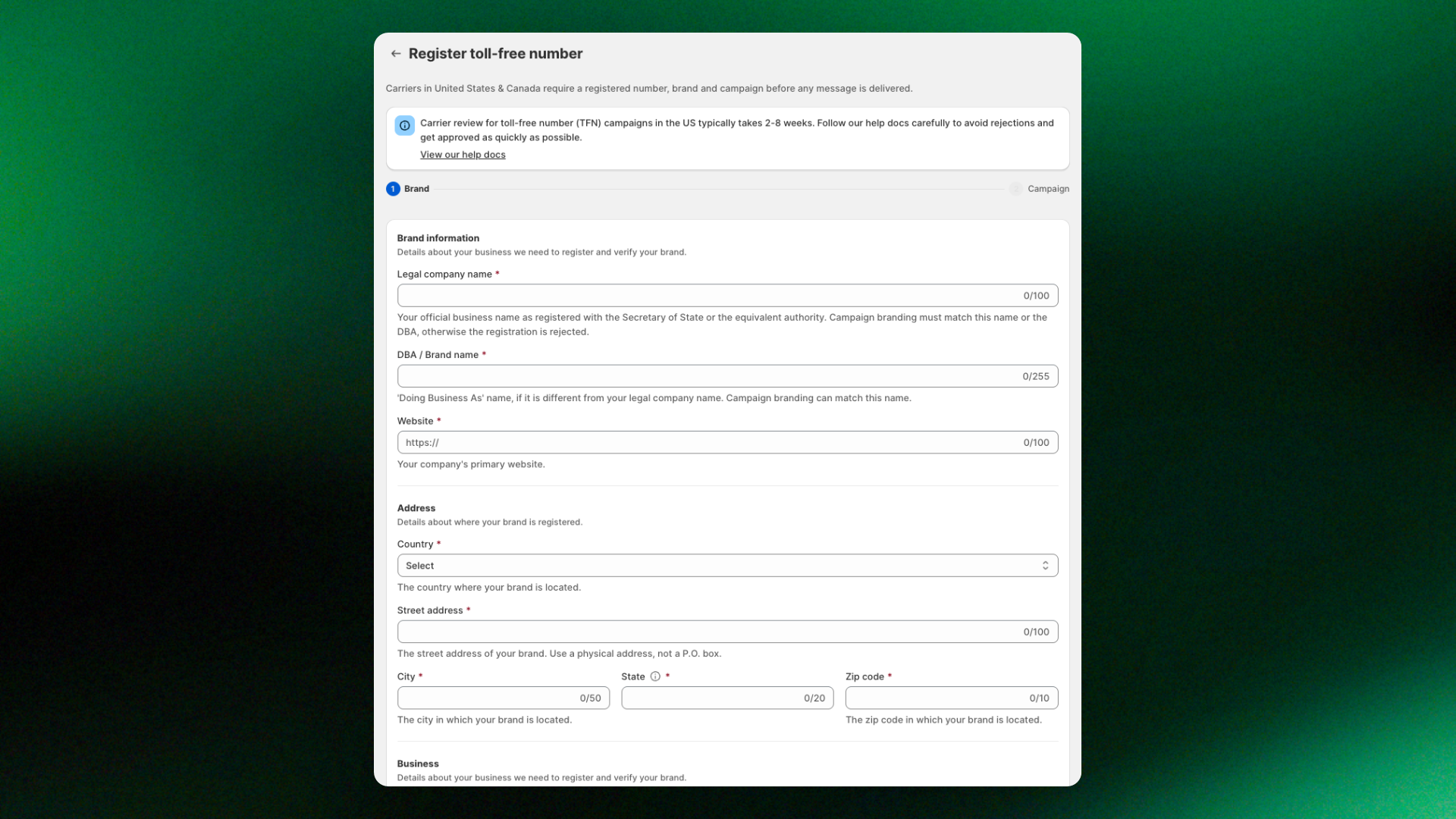
XFlow sends SMS notifications to customers in the US and Canada using a **toll-free number** (e.g., +1 833 555 0123).
Before you can start sending SMS, US and Canadian carriers require you to verify your toll-free number. To do this, you'll need to register your business, provide details about your SMS campaign, including what messages you'll send and how customers sign up to receive them.
Your toll-free number must be verified before you can send SMS notifications. Carriers automatically block messages from unverified numbers.
Until your registration shows **“active”**, customers in the US and Canada are skipped and won't get SMS. Your email alerts keep working as usual.
***
## How it works
1. You fill in your brand and campaign details in XFlow.
2. XFlow checks your submission, then sends it to our SMS partner.
3. SMS partner's compliance team reviews it against US and Canadian messaging rules.
4. SMS partner sends it to the carrier for final approval and toll-free verification.
5. Once approved, your number is **registered,** and you can start sending.
The whole process usually takes **2–8 weeks**. We email you at every stage, so you don't need to keep checking.
## Before you start: what you'll need
Having these ready is the best way to get approved the first time.
| **You'll need** | **Why it matters** |
| ------------------------------------------------------------------------------------------------ | --------------------------------------------------------------------------------------------------------------------- |
| Your **legal company name** and **tax ID** (EIN in the US, or your business registration number) | They must match your official business records exactly |
| A **business email on your own domain**, like [name@yourstore.com](mailto\:name@yourstore.com) | Carriers reject free email addresses such as Gmail or Yahoo. The email domain should match your company or brand name |
| A **live, public website** that shows your business name | Password-protected or "coming soon" stores are rejected |
| A **Privacy Policy** and **Terms of Service** linked from your website | Carriers check both. Add an SMS section to each (see below) |
| An **SMS opt-in** on your store, such as the phone field in your Notify me form | Carriers need proof that customers agreed to receive texts |
| A **screenshot of your opt-in form** (PDF, PNG or JPG, up to 1 MB) | You'll upload it as proof of opt-in |
**Restricted products:** US and Canadian carriers don't allow SMS for stores selling adult content, alcohol, firearms, tobacco or vape, cannabis or CBD. Content like this anywhere on your website can get your registration rejected.
## Make your opt-in compliant
Carriers check that customers clearly agreed to receive texts. Next to the phone number field in your sign-up form, show a short consent text that includes:
* Your store or brand name
* What you'll send (back-in-stock alerts)
* How often ("Msg frequency varies")
* "Msg & data rates may apply"
* How to opt out ("Reply STOP to unsubscribe") and get help ("Reply HELP for help")
* Links to your Terms of Service and Privacy Policy (not in a pop-up)
By submitting this form, I agree to receive back-in-stock marketing messages from BRAND\_NAME. Message frequency may vary. Message and data rates may apply. Reply STOP to unsubscribe any time. View our Terms of Service \[link] and Privacy Policy \[link]
## Step 1: Add the United States or Canada
1. Go to **Settings > SMS settings**.
2. Click **+ Add country** and choose **United States & Canada.**
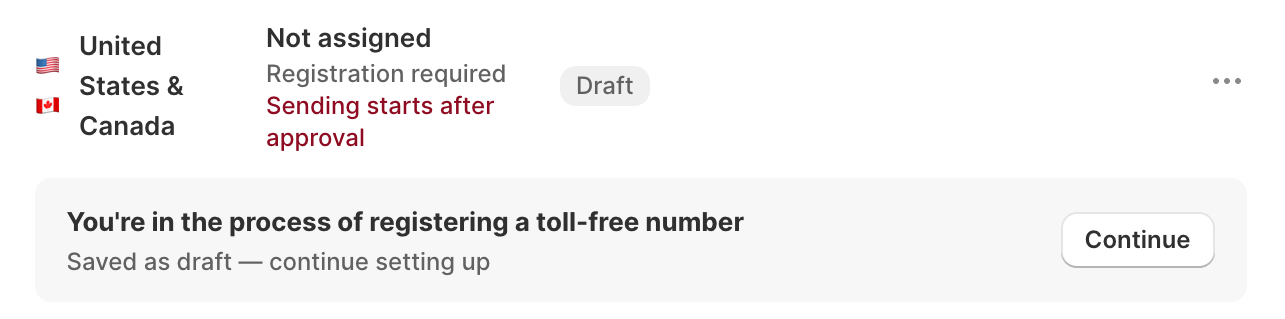
3. The country appears in your **SMS countries** table as **Draft**. Click **Continue registration** to start.
## Step 2: Register your brand
In this step, you'll provide your official business details so carriers can verify your identity. Make sure the information matches your business registration or tax records.
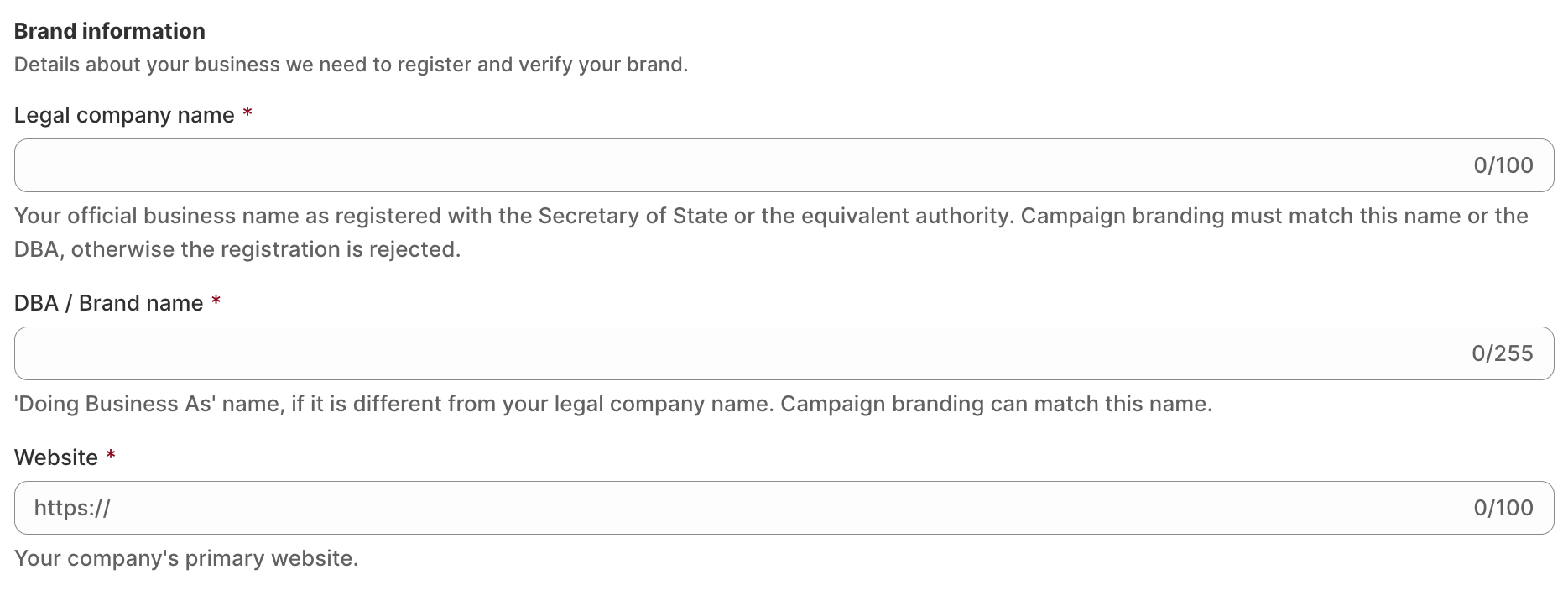
### Brand information
| Field | **What to enter** | Note / Example |
| ---------------------- | ----------------------------------------------------------------------------------------------------------- | ---------------------------------------------- |
| **Legal company name** | Your official business name, exactly as on your tax records | Example: Owl Shoes LLC |
| **DBA / Brand name** | The brand or store name customers recognize. If you don't have a separate DBA, use your legal company name. | Example: Owl Shoes |
| **Website** | Your live, public store URL, including `https://` | It must show your business name/ or brand name |
The brand name used in your SMS campaign must match your legal company name or registered DBA. A mismatch can cause your registration to be rejected.
Your website should also clearly show your business or brand identity.
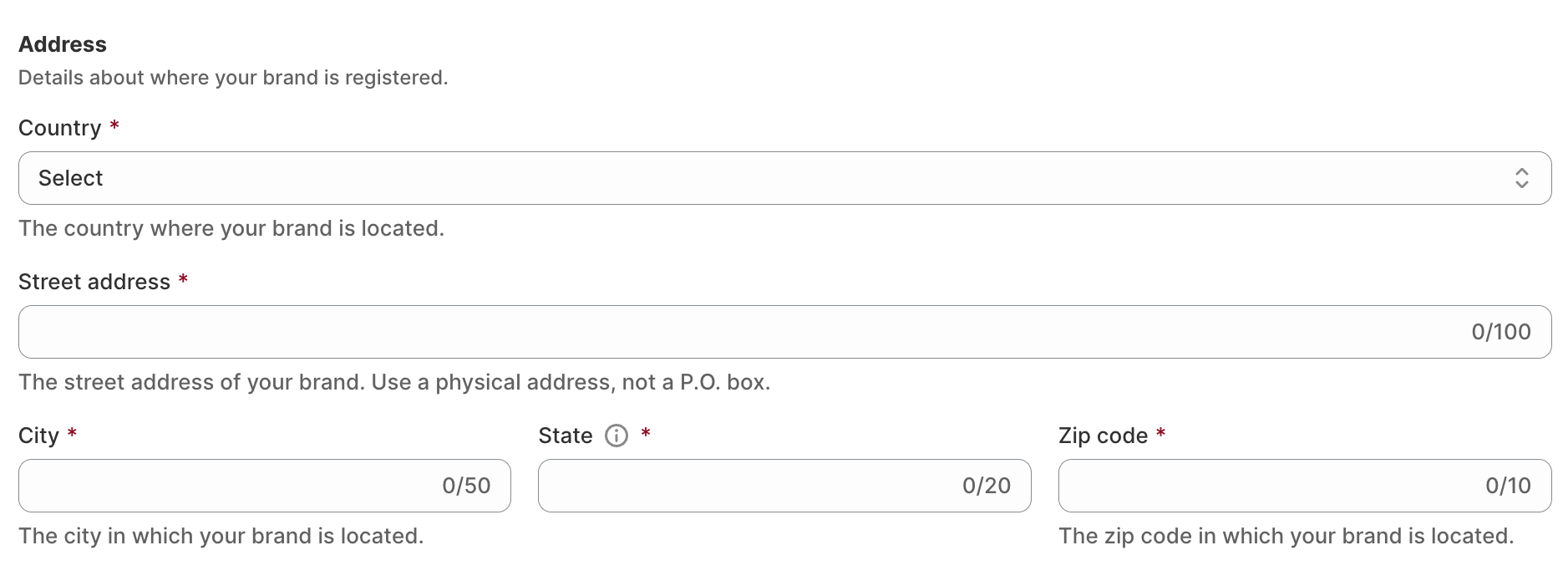
### Address
| Field | **What to enter** | Note / Example |
| ------------------ | ----------------------------------------------------------------- | ----------------------------------- |
| **Country** | The country where your business is located | Example: United States |
| **Street address** | Your registered physical business address. Do not use a P.O. box. | Example: 123 Main Street, Suite 200 |
| **City** | The city where your business is registered | Example: New York |
| **State** | Your state, province, or equivalent region | Example: NY (New York) |
| **Zip code** | Your postal or ZIP code | Example: 10001 |
Use the same address listed in your official business or tax records. Inconsistent information may delay verification or cause your registration to be rejected.
### Business
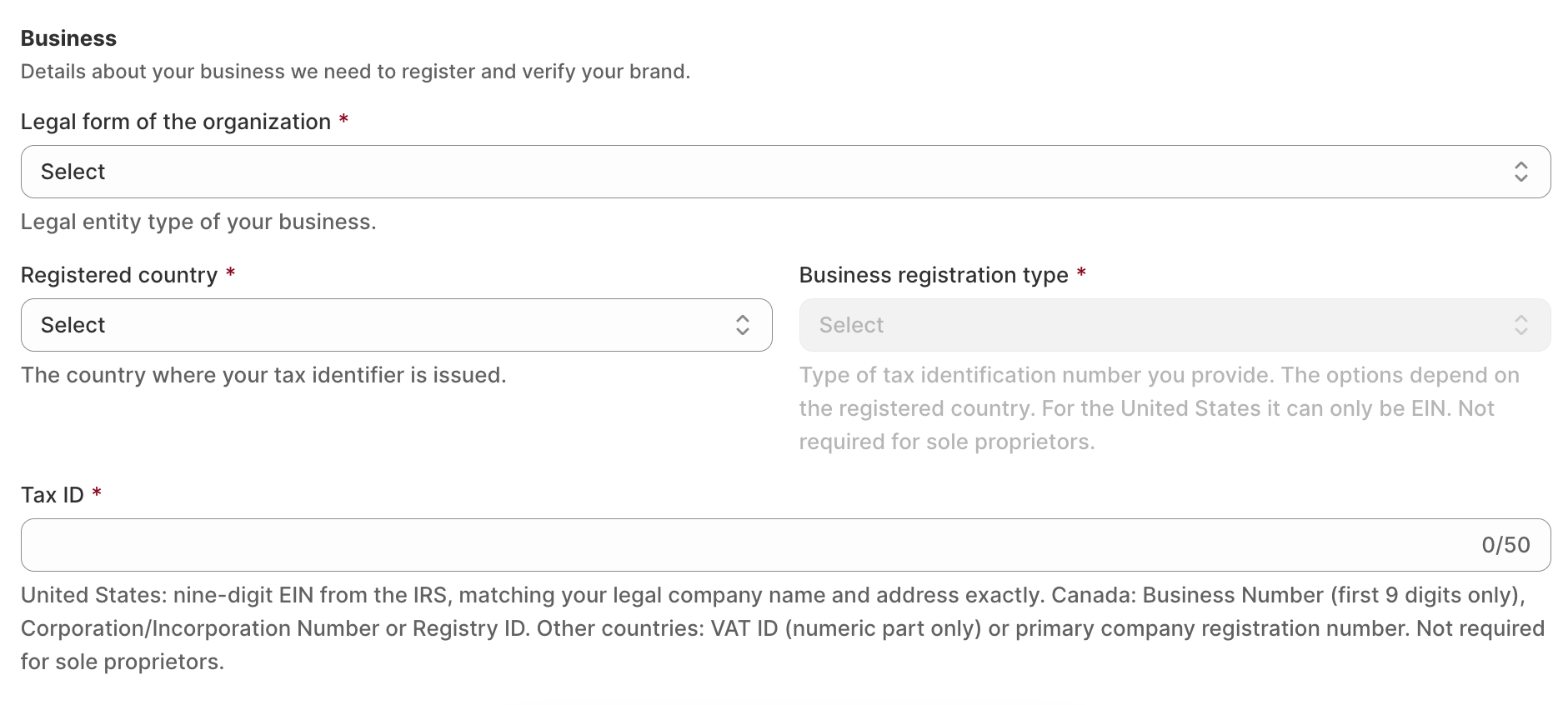
| Field | **What to enter** | Note / Example |
| ---------------------------------- | ---------------------------------------------------------------------------------- | ------------------------------------------------------------------------------------------------------------------------------------------------------------------------------------------------------------------------------------------------------------------------------------ |
| **Legal form of the organization** | Select the legal entity type of your business. | Options include Private company, Public company, Non-profit organization, Government, or Sole proprietor. |
| **Registered country** | The country where your business tax identification number was issued. | Example: United States. This determines which business registration types are available. |
| **Business registration type** | Select the type of tax identification or business registration number you provide. | Options vary by country. For the US, select EIN. This field is not required for sole proprietors where exempted. |
| **Tax ID** | Enter your official business tax ID or registration number. | **US:** 9-digit EIN issued by the IRS.
**Canada:** 9-digit Business Number (BN), Corporation/Incorporation Number, or Registry ID.
**Other countries:** Numeric portion of VAT ID or primary company registration number. Not required for sole proprietors. |
**Tax ID requirements by country:**
* **United States:** Enter your 9-digit Employer Identification Number (EIN), issued by the IRS. Your legal company name and address must match your EIN records. A Tax ID is not required for sole proprietors in this form.
* **Canada:** Enter your 9-digit Business Number (BN) only, without the Corporation/Incorporation Number or Registry ID.
* **Other countries:** Enter the numeric portion of your VAT ID or your primary company registration number, as applicable.
**For businesses registered outside the US or Canada:** Upload your business registration certificate in the **Opt-in file** section during campaign registration. This helps our compliance team verify your business information.
### Contact
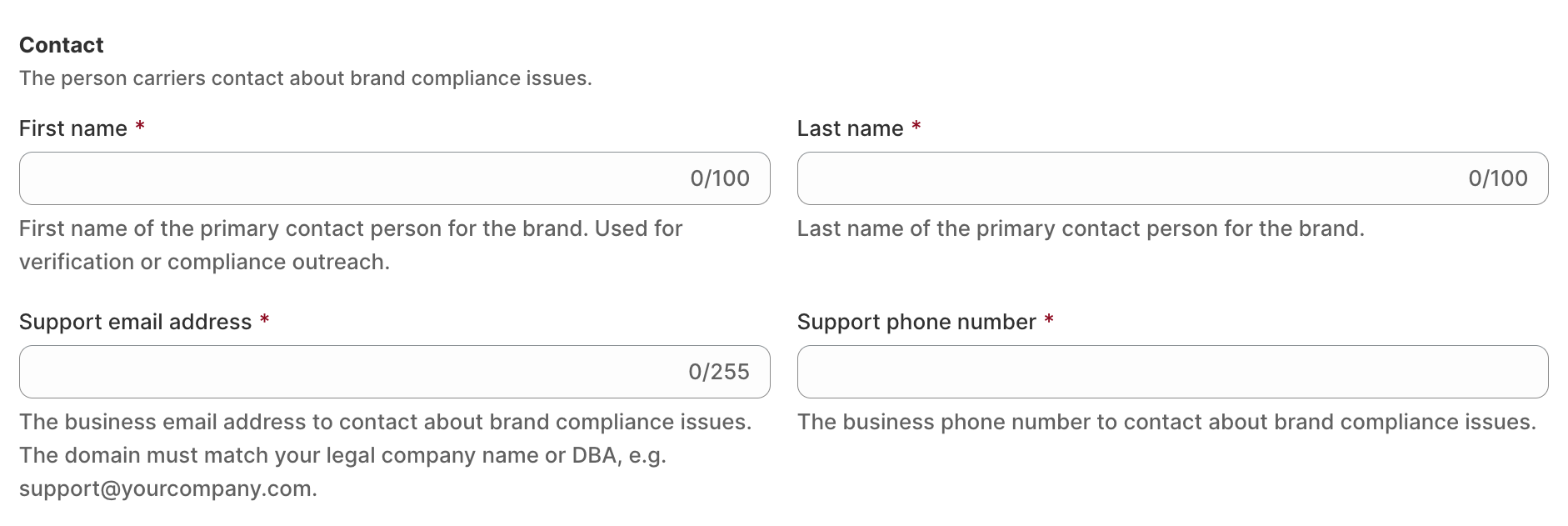
| Field | **What to enter** | Note / Example |
| ------------------------- | --------------------------------------------------------------- | -------------------------------------------------------------------------------------------------------------------------------- |
| **First name** | First name of the person carriers can contact | Example: John |
| **Last name** | Last name of the person carriers can contact | Example: Smith |
| **Support email address** | A business email address associated with your company or brand. | Example: [support@yourcompany.com](mailto\:support@yourcompany.com). The email domain must match your legal company name or DBA. |
| **Support phone number** | An active phone number where carriers can reach your business. | Example: +1 212 555 0123. Include your country code. |
Once you've completed all the required fields, click Continue to register your SMS campaign. Or select Save for later to finish your registration another time.
## Step 3: Describe your SMS campaign
Next, tell carriers what messages you plan to send and how customers consent to receiving them.
For XFlow, this registration covers **back-in-stock SMS notifications**, with or without promotional offers.
### Campaign information
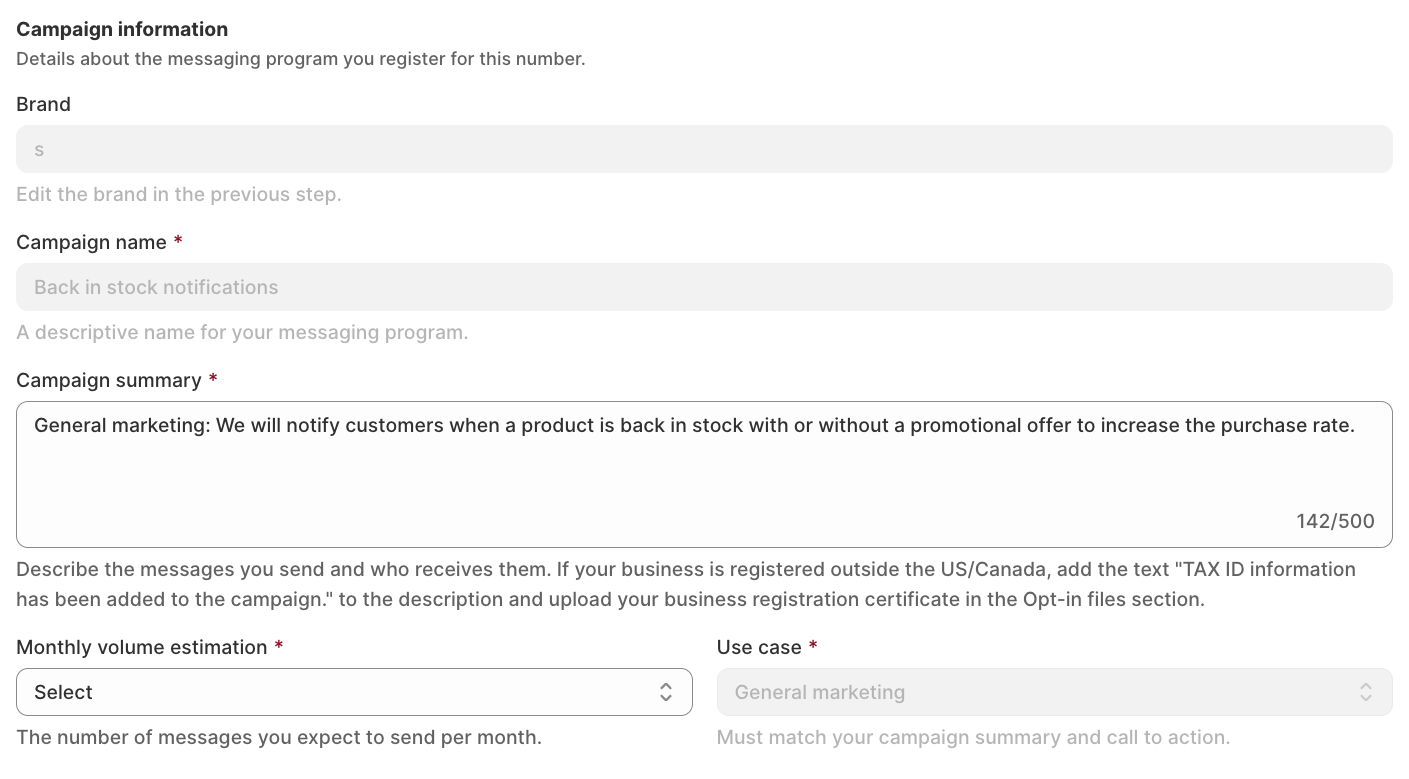
| Field | **What to enter** | Note / Example |
| ----------------------------- | --------------------------------------------------------------------------------------------------------------------------------- | ----------------------------------------------------------------------------------------------------------------------------------------------------------------------------------------------------------- |
| **Brand** | Automatically filled in from your brand registration. | To change it, go back to the previous step. Your brand name must appear in every SMS. |
| **Campaign name** | Pre-filled as "Back in stock notifications". | This field cannot be edited. |
| **Campaign summary** | Describe what the campaign promotes and who will receive them.
If multiple use cases will be promoted, describe each. | You only register back-in-stock SMS, so use this text: "*General marketing: We will notify customers when a product is back in stock, with or without a promotional offer, to increase the purchase rate*." |
| **Monthly volume estimation** | Estimate how many SMS messages you'll send per month. | Example: 100 messages. Choose the volume closest to your expected sending activity. |
| **Use case** | The purpose of your SMS campaign. | Pre-selected as "General marketing" and cannot be edited. |
**For businesses registered outside the US or Canada**, add the following sentence to the Campaign summary: *"TAX ID information has been added to the campaign."*
Upload your business registration certificate in the Opt-in files section to help verify your business.
### Opt-in experience
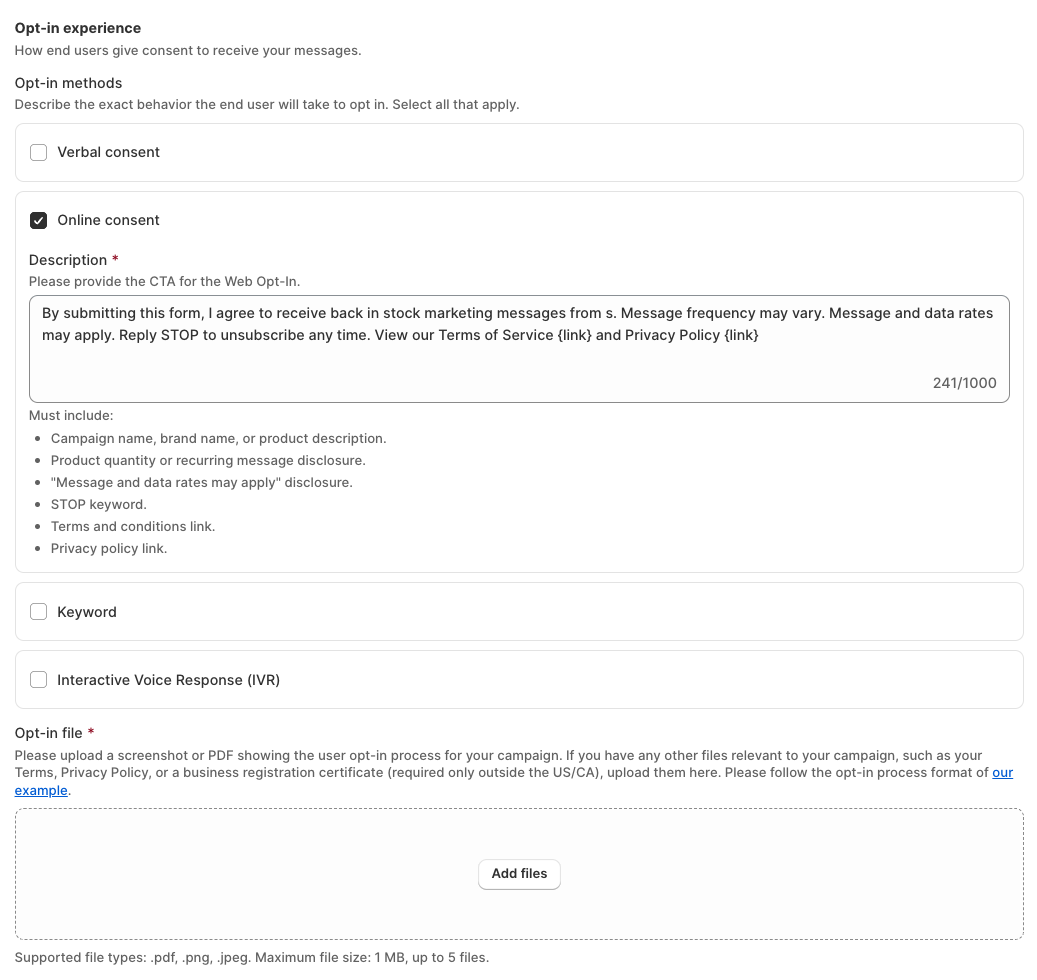
Explain how customers agree to receive SMS notifications from your store. Carriers use this information to verify that you've collected proper consent before sending messages.
Under **Opt-in methods**, select the method your store uses to collect SMS consent:
| Opt-in method | **Description** | Notes |
| ------------------------------------ | ------------------------------------------------------------------------ | --------------------------------------------------------------------------------------------------------------------- |
| **Verbal consent** | Customers agree to receive SMS during a conversation with your business. | Provide the script used to explain SMS consent and how customers agree. |
| **Online consent** | Customers subscribe through a form on your website. | Recommended for XFlow back-in-stock notifications. Describe the subscription form and include the consent disclosure. |
| **Keyword** | Customers text a specific keyword to subscribe. | Example: JOIN, START. Enter keywords in uppercase, separated by commas. |
| **Interactive Voice Response (IVR)** | Customers provide consent through an automated phone system. | Provide the voice script explaining the SMS program and how customers confirm their consent. |
For XFlow back-in-stock notifications, select Online consent if customers subscribe through the back-in-stock form on your Shopify store.
In the Description field, explain what customers agree to when subscribing. You can use this example:
By submitting this form, I agree to receive back-in-stock marketing messages from BRAND\_NAME. Message frequency may vary. Message and data rates may apply. Reply STOP to unsubscribe at any time. View our Terms of Service \[link] and Privacy Policy \[link].
Replace `BRAND_NAME` with your registered brand name and `[link]` with the corresponding URLs.
Your opt-in description must include:
* Your campaign name, brand name, or product description.
* Message frequency or recurring message disclosure.
* "Message and data rates may apply."
* STOP keyword for unsubscribing.
* Terms and Conditions link.
* Privacy Policy link.
The disclosure must accurately reflect the consent process customers see on your store. Customers must explicitly agree to receive marketing SMS. Consent should not be assumed from a purchase, and a marketing consent checkbox should not be preselected.
**Upload proof of opt-in**
In the Opt-in file section, upload a screenshot or PDF showing how customers subscribe to your SMS notifications.
Your file should clearly show:
* The back-in-stock subscription form on your storefront.
* The SMS consent checkbox and disclosure.
* The Terms of Service and Privacy Policy links.
| Requirement | Details |
| --------------------------- | ----------------------------------------------- |
| **Supported formats** | PDF, PNG, JPEG |
| **Maximum file size** | 1 MB per file |
| **Maximum number of files** | Customers text a specific keyword to subscribe. |
**For businesses outside the US or Canada:** Also upload your business registration certificate to support brand verification.
You can click **View example** in the registration form to see the expected opt-in documentation format.
Make sure the screenshot is clear and shows the complete consent text. Missing or unclear proof of opt-in is a common reason for registration rejection.
### Message flow
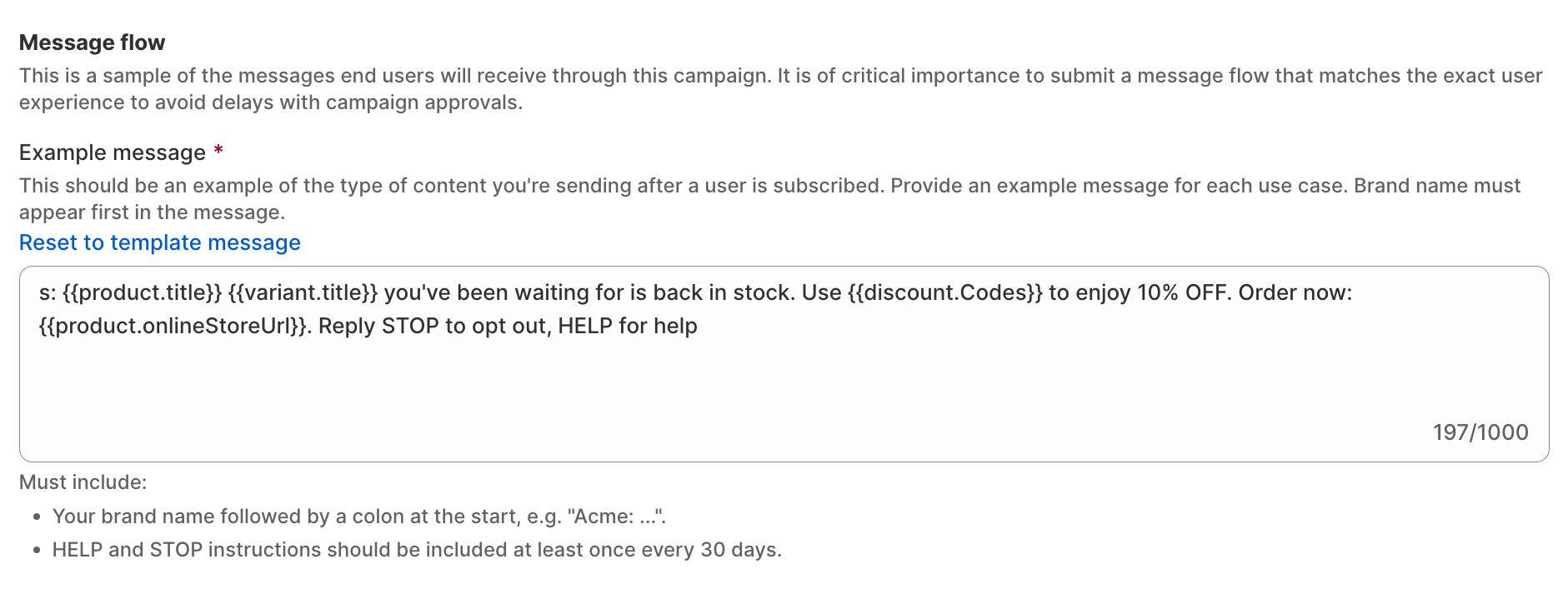
In the Message flow section, provide a sample of the back-in-stock SMS customers will receive after subscribing.
The example message is pre-filled. You can edit it to match your campaign, but make sure it includes:
* **Brand name:** Add your registered brand name followed by a colon (`:`) at the beginning of the message.
* **Opt-out and help instructions:** Include HELP and STOP instructions at least once every 30 days.
BRAND\_NAME: \{\{product.title}} \{\{variant.title}} you've been waiting for is back in stock. Use \{\{discount.Codes}} to enjoy 10% OFF. Order now: \{\{product.onlineStoreUrl}}. Reply STOP to opt out, HELP for help.
Replace `BRAND_NAME` with your registered brand name. The product, variant, discount, and URL variables will be populated with the relevant information when messages are sent.
### Support information
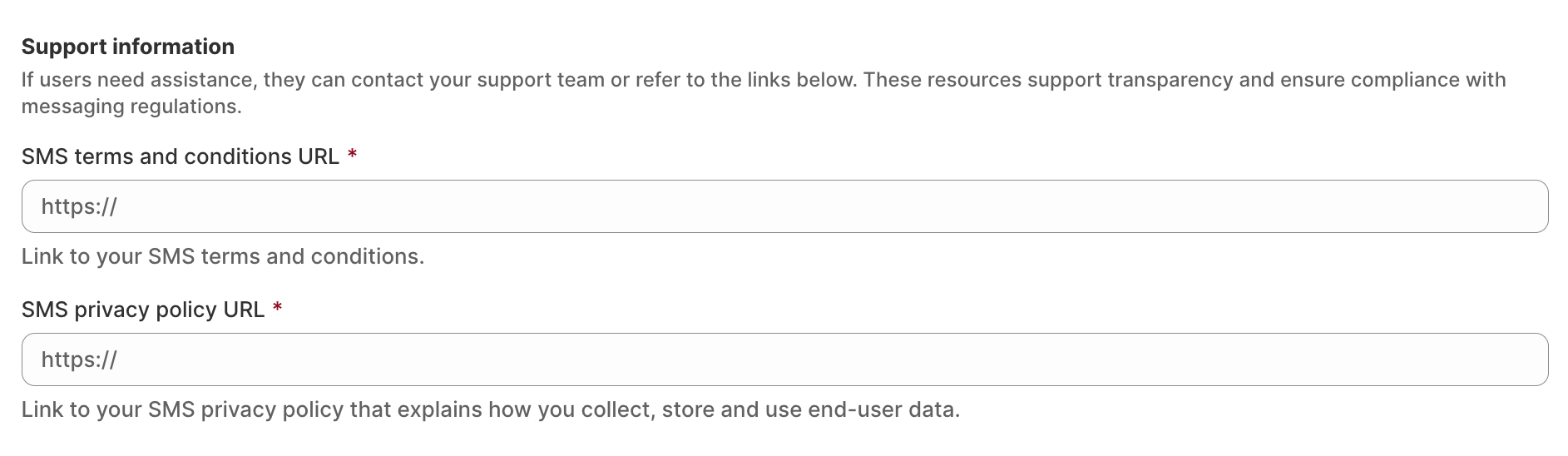
| Field | **What to enter** | Notes |
| -------------------------------- | ------------------------------------------------------------------------------------------------------------ | :-------------------------------------------------------------------------------------------------------- |
| **SMS terms and conditions URL** | A link to your SMS Terms and Conditions. | The page should explain your SMS program, message frequency, potential charges, and opt-out instructions. |
| **SMS privacy policy URL** | A link to your Privacy Policy explaining how customer data is collected, stored, and used for SMS messaging. | Make sure it covers SMS consent and data handling. |
### Contact email

| Field | **What to enter** | Notes |
| --------------------------- | ------------------------------------------------------------------------- | :---------------------------------------------------------------------------- |
| **Contact email addresses** | Email addresses of the people responsible for tracking your registration. | You can add up to 5 email addresses. Press Enter or click Add after each one. |
We'll send registration updates to these addresses, including submission confirmation, approval, rejection, or requests for additional information.
When everything looks right, click **Submit for approval**. Not ready yet? Click **Save for later** and return to finish your registration.
## Step 4: Track your registration status
After submission, you can check the progress of your toll-free number registration in XFlow.
| Status | **What it means** | What to do |
| ------------------------ | ----------------------------------------------------------------------------------------------- | :---------------------------------------------------------------------------- |
| **Draft** | You haven't submitted your registration yet. | Click Continue registration to complete it. |
| **Submitted for review** | Your submission is waiting for initial compliance screening, usually 1–3 business days. | Wait for updates by email. |
| **In review** | The compliance team is reviewing your business and campaign details, usually 1–2 business days. | Wait for updates by email. |
| **Submitted to carrier** | Your registration has been forwarded to the carrier for approval and number verification. | Wait for carrier approval. |
| **Registered** | Approved and verified. You can send SMS | Turn on SMS in your workflow |
| **Rejected** | Your registration was not approved. | Review the rejection reason, correct the information, and resubmit or appeal. |
| **Appealed** | Your appeal is being reviewed. | Wait for the result. Avoid submitting a duplicate registration. |
| **Deregistered** | Your approved number was deactivated, usually for a compliance issue | Submit a new registration to send again |
### How long does approval take?
Carrier review for US toll-free number campaigns typically takes 2–8 weeks. The exact time depends on the carrier and whether additional verification is needed.
We'll send updates to your registered contact email as your application progresses.
### Fix a rejected registration
If your registration is rejected, check the reason shown in XFlow before making changes.
Most issues involve incorrect business information, missing consent details, or a mismatch between your campaign description and sample messages.
| Common rejection reason | How to fix it |
| --------------------------------------------------- | ------------------------------------------------------------------------------------------------------------------------------------------------------ |
| Business information doesn't match official records | Check that your legal name, Tax ID, and registered address match your official records. |
| Brand name doesn't match | Use your legal company name or registered DBA consistently in your campaign and sample messages. |
| Campaign use case doesn't match the sample | Make sure both your campaign description and example SMS clearly describe back-in-stock notifications. |
| Missing or unclear opt-in | Include the full SMS consent disclosure and upload a clear screenshot of the subscription form. |
| Missing opt-out instructions | Add “Reply STOP to opt out” to your sample SMS. |
| Website or policy issues | Make sure your website is public and your Terms of Service and Privacy Policy links work. |
| Restricted content | Check whether your business sells products prohibited or restricted by carriers, such as adult products, alcohol, firearms, tobacco, cannabis, or CBD. |
After making the corrections, click **Edit and resubmit**.
If you believe the rejection was made in error, you can submit an appeal instead.
## Step 5: Start sending SMS after approval
Once your registration status changes to **Registered**, your verified toll-free number is ready to use in XFlow.
To start sending back-in-stock SMS notifications:
1. Open your back-in-stock workflow in XFlow.
2. Find the **Send SMS** action.
3. Turn on **Enable sending**.
4. Review your SMS content and save your workflow changes.
Your SMS notifications can now be sent to eligible subscribers who have agreed to receive them.
[*Learn more: Use the Send SMS action in a workflow*](https://docs.foxecom.com/xflow-app/sms-settings/use-the-send-sms-action-in-a-workflow)
**Important things to know after approval:**
* XFlow's US and Canada template starts with your store name in brackets, so customers know who's texting.
* Only send what you registered: back-in-stock alerts, with or without an offer. Sending other kinds of messages can get your number deactivated.
* When a customer replies **STOP**, the carrier blocks your number from texting them. If they later reply **START** or **UNSTOP**, they can receive your SMS again.
* Toll-free numbers send up to 10 messages per second. For big restocks, messages go out over a few minutes.