# Translate email templates
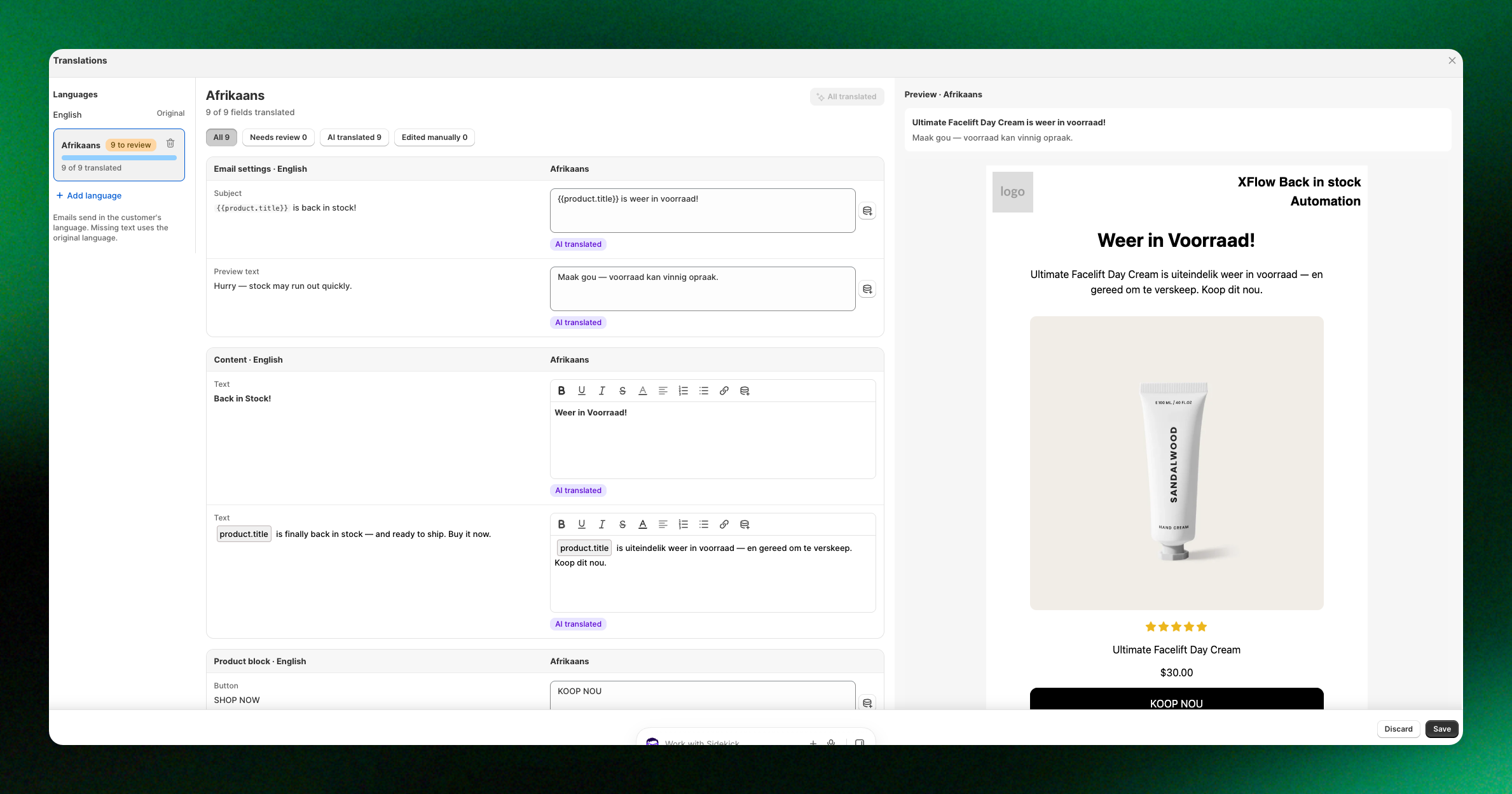
XFlow lets you send back-in-stock emails in your customers' storefront language. Instead of creating separate email templates for each language, you can translate one template into multiple languages using AI or edit the translations manually.
When an email is sent, XFlow automatically selects the appropriate language based on the storefront language your customer was using when they subscribed.
*Example: a customer browsing your store in French subscribes to a restock alert → the back-in-stock email arrives in French.*
This feature is available on the **Growth plan and above**.
***
## How to translate email templates in XFlow
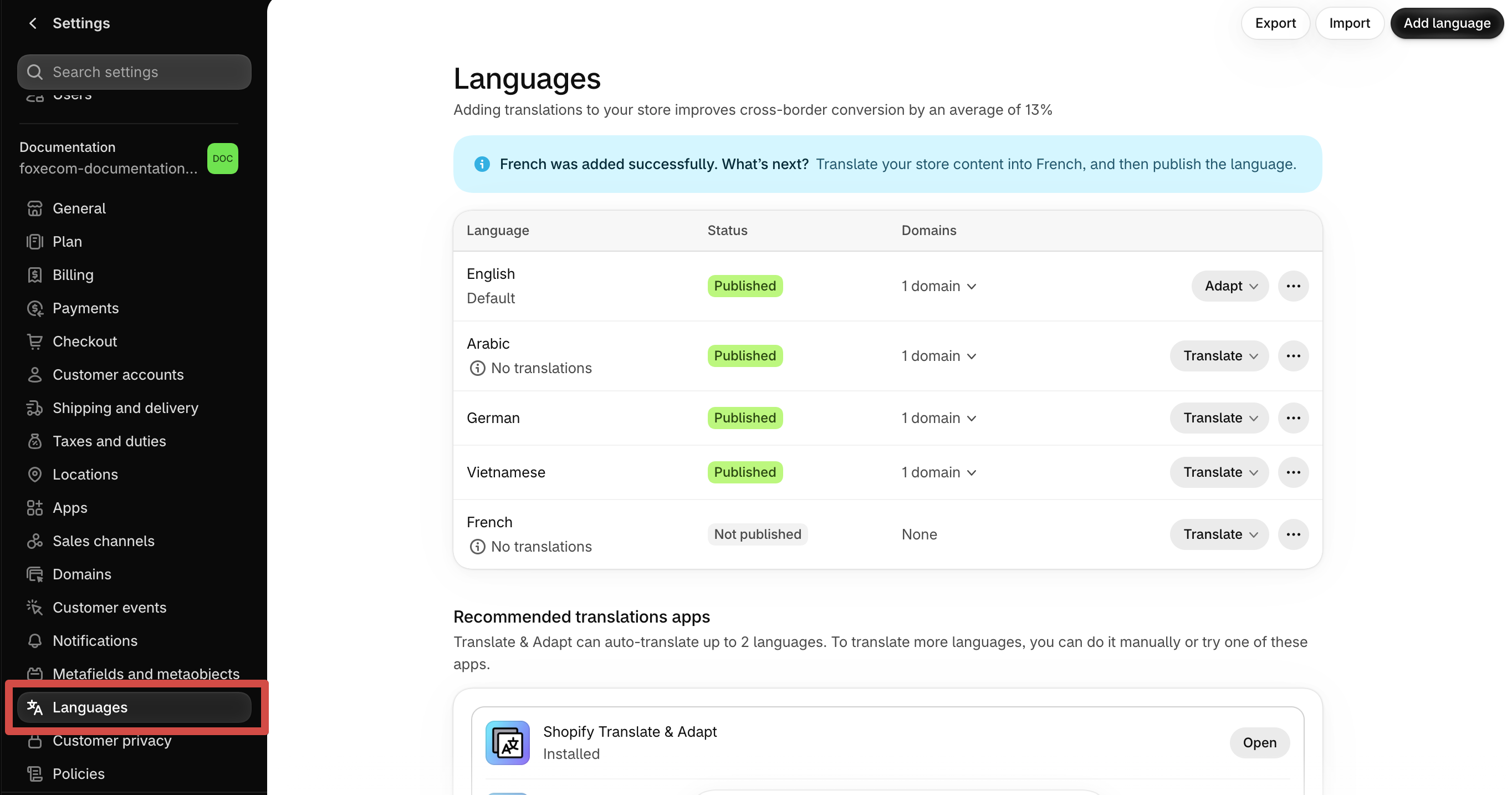
Make sure you've published your languages in **Shopify Settings > Languages** so XFlow can detect customers' storefront language and send emails in the matching language. [*Learn more*](https://help.shopify.com/en/manual/international/languages/manage-languages)
1. From your XFlow dashboard, go to **Email templates**.
2. Select the email template you want to translate.
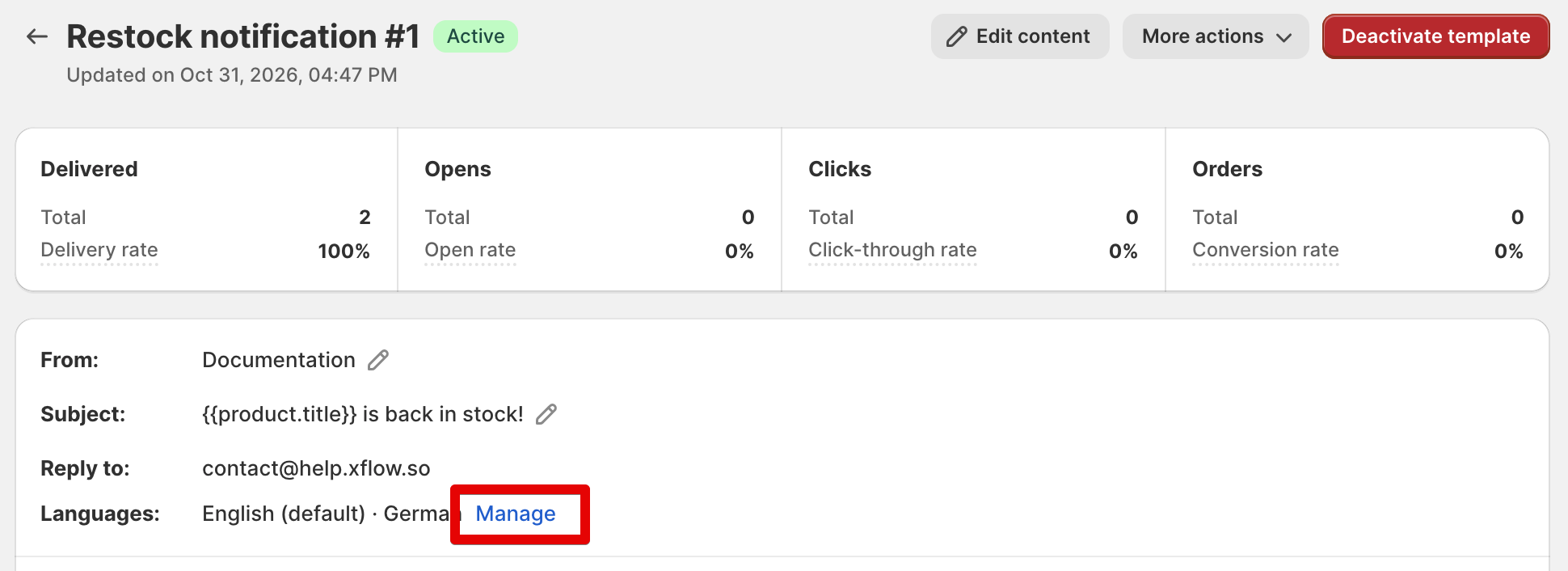
3. Click **Manage** in the **Languages** to open the Translations page.
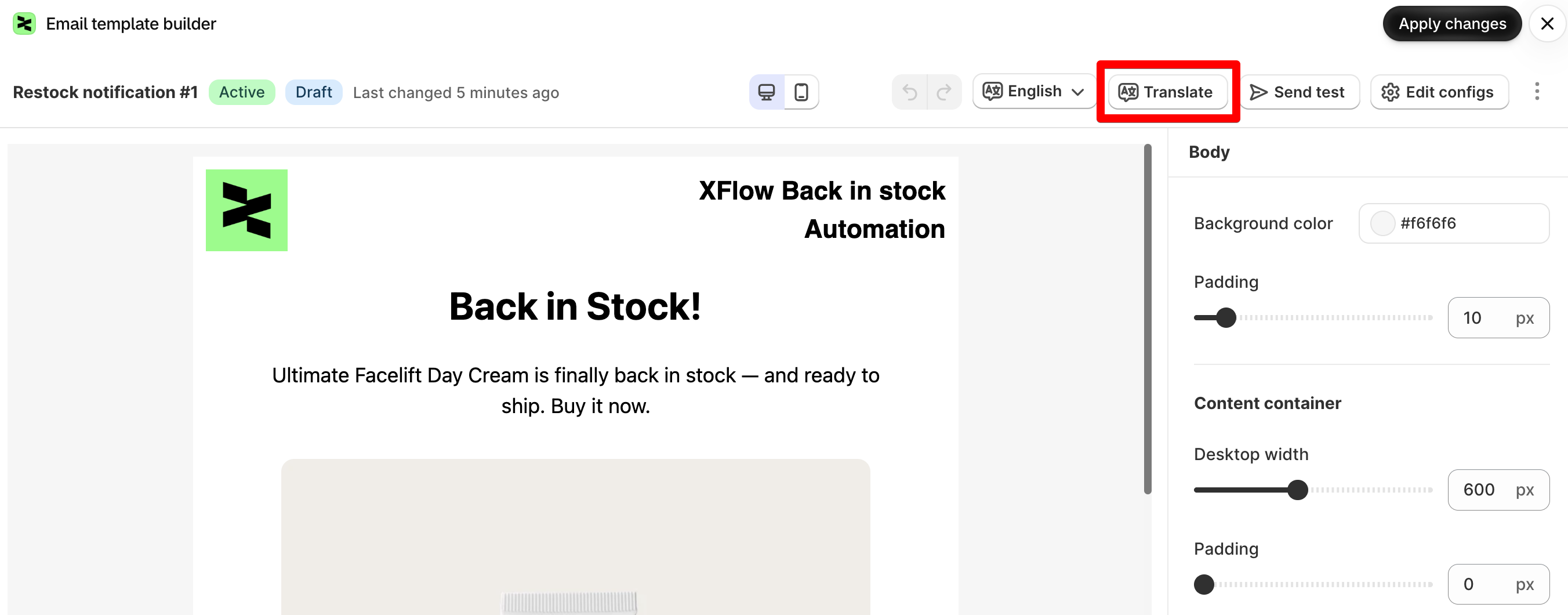
You can also access the Translations page directly from the email builder by clicking **Translations**.
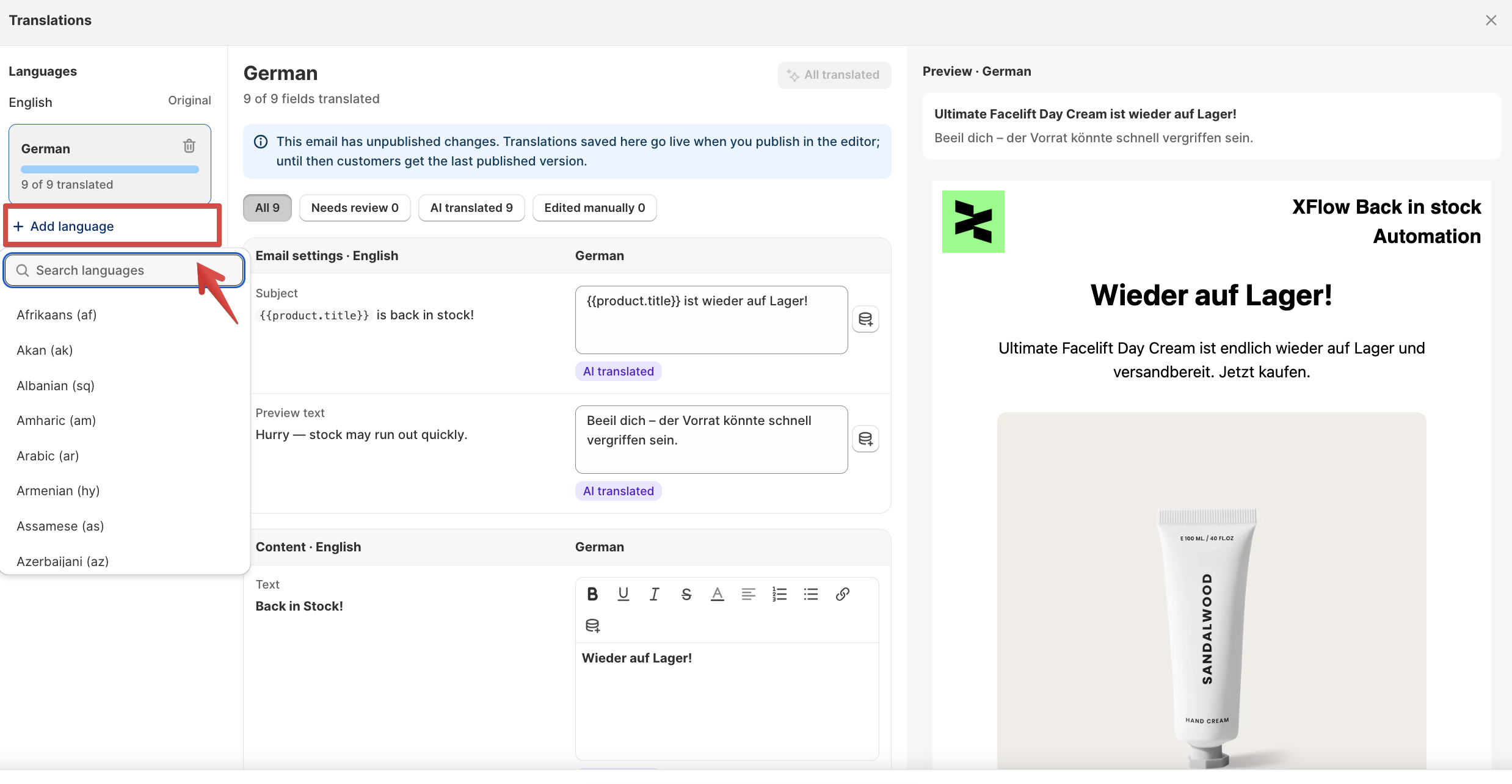
On the Translations page:
1. Click **Add language** in the left sidebar.
2. Select the language you want to add from your Shopify storefront languages.
3. The selected language will appear in your template's language list.
Each email template has its own list of languages, so you can choose which languages to support for each template.
Adding a language doesn't automatically translate your email. Until you add translations, customers will see the original content.
You can **remove a language** from the Translations page. This deletes its translations from the template.
Customers who previously received emails in that language will receive the original version unless another matching translation is available.
#### What can you translate?
XFlow supports translations for the following email content:
* **Email settings:** Subject line and preview text.
* **Text content:** Paragraphs, headings, and footer text.
* **Buttons:** Button labels, including Buy buttons and View detail buttons.
* **Images and videos:** Alt text.
* **Discount codes:** Displayed code or label.
* **Product ratings:** Review text.
* **Header:** Store name.
#### What's not translated?
The following elements remain the same across all language versions:
* **Email design:** Layout, colors, fonts, and images.
* **Links:** URLs in buttons, images, and other email elements.
* **Sender information:** From name, from email address, and reply-to address.
Dynamic Shopify data, such as product titles, descriptions, and variant names, is handled separately. XFlow retrieves existing translations from Shopify when sending emails instead of translating this content itself.
[Dynamic variables](https://docs.foxecom.com/xflow-app/email-templates/understanding-personalization-variables-in-email-templates) such as `{{product.title}}` must be preserved in translated content. If a required variable is missing, XFlow won't allow that field to be saved until it's restored. For example:
Original: `Good news! {{product.title}} is back in stock.`
Translated: `Bonne nouvelle ! {{product.title}} est de retour en stock.`
#### Option 1: Translate manually
1. Select your target language from the left sidebar.
2. Find the content you want to translate.
3. Enter the translated text in the field next to the original content.
4. Repeat for other fields.
5. Click **Save** to save your translations.
The translation editor organizes fields by section, including **Email settings**, **Content**, **Product block**, and **Footer**, making it easier to find and update specific content.
#### Option 2: Translate with AI
XFlow's AI translation feature helps you translate email content without writing every translation yourself.
1. Select the target language.
2. Click **Translate with AI** to translate untranslated or outdated fields.
3. Review the AI-generated translations.
4. Make any necessary edits.
5. Click **Save** to apply your translations.
AI translations are labeled **AI translated**, so you can easily distinguish them from manually edited content.
* AI uses the saved original template content. Save any changes to your original email before translating.
* AI-generated translations aren't saved automatically. Review and save them before use.
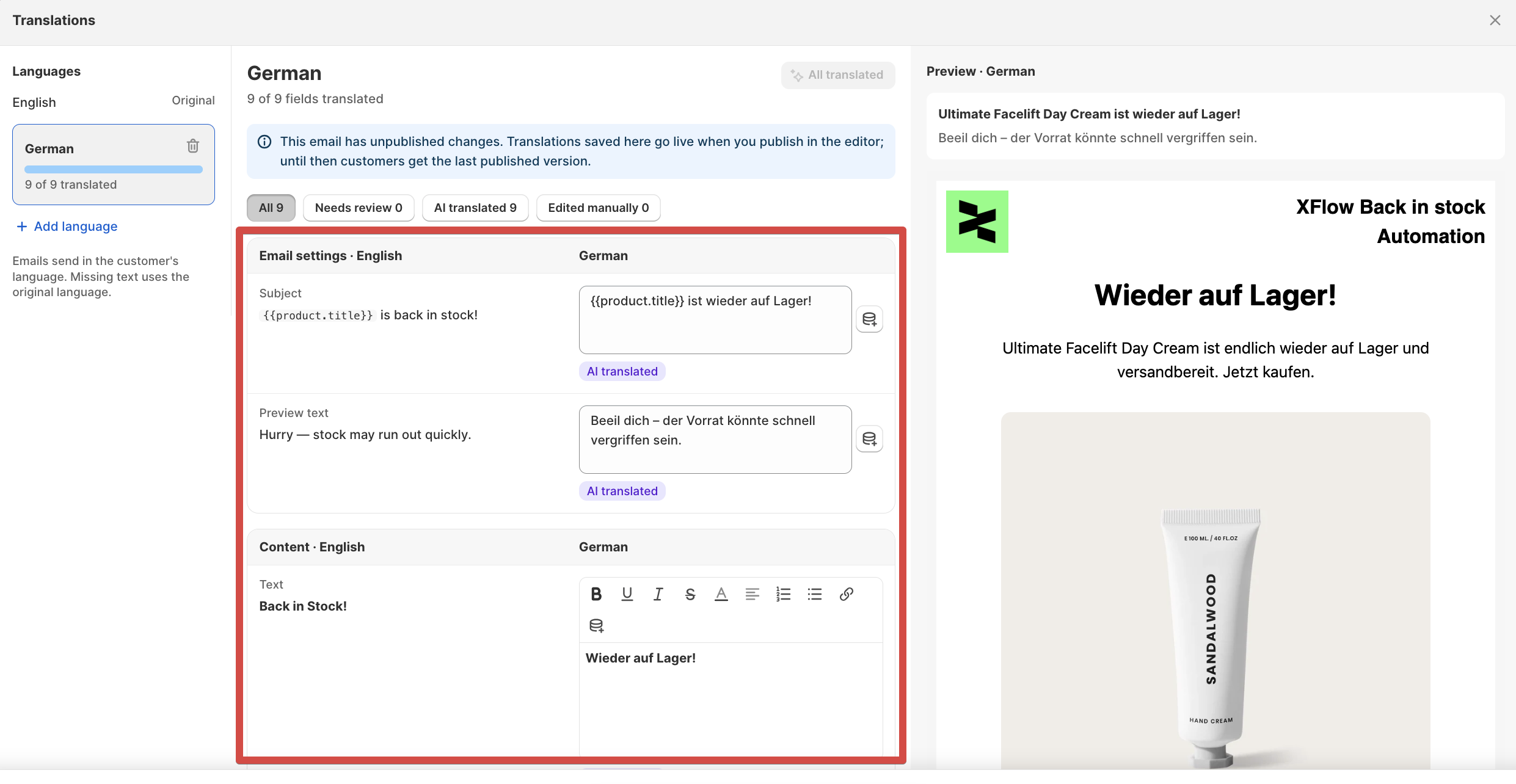
The Translations page helps you track which fields are ready and which still need attention.
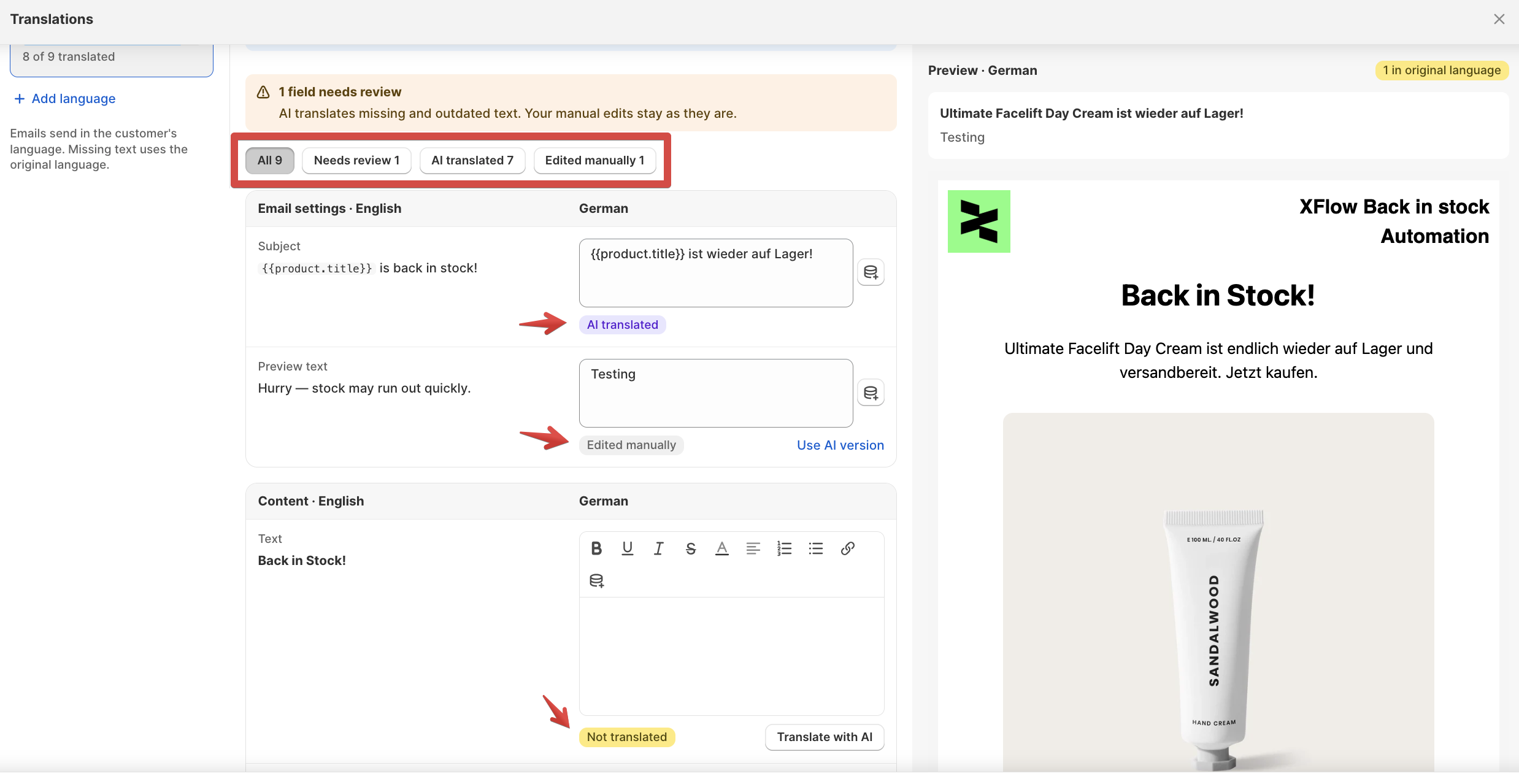
Each field can have one of the following statuses:
You can use the filters **All**, **Needs review**, **AI translated**, and **Edited manually** to find specific fields.
| Status | Meaning |
| ------------------- | --------------------------------------------------------------------- |
| **Not translated** | No translation has been added. The original text will be used. |
| **AI translated** | The translation was generated by AI. |
| **Edited manually** | The translation was entered or edited manually. |
| **Outdated** | The original text has changed since the translation was last updated. |
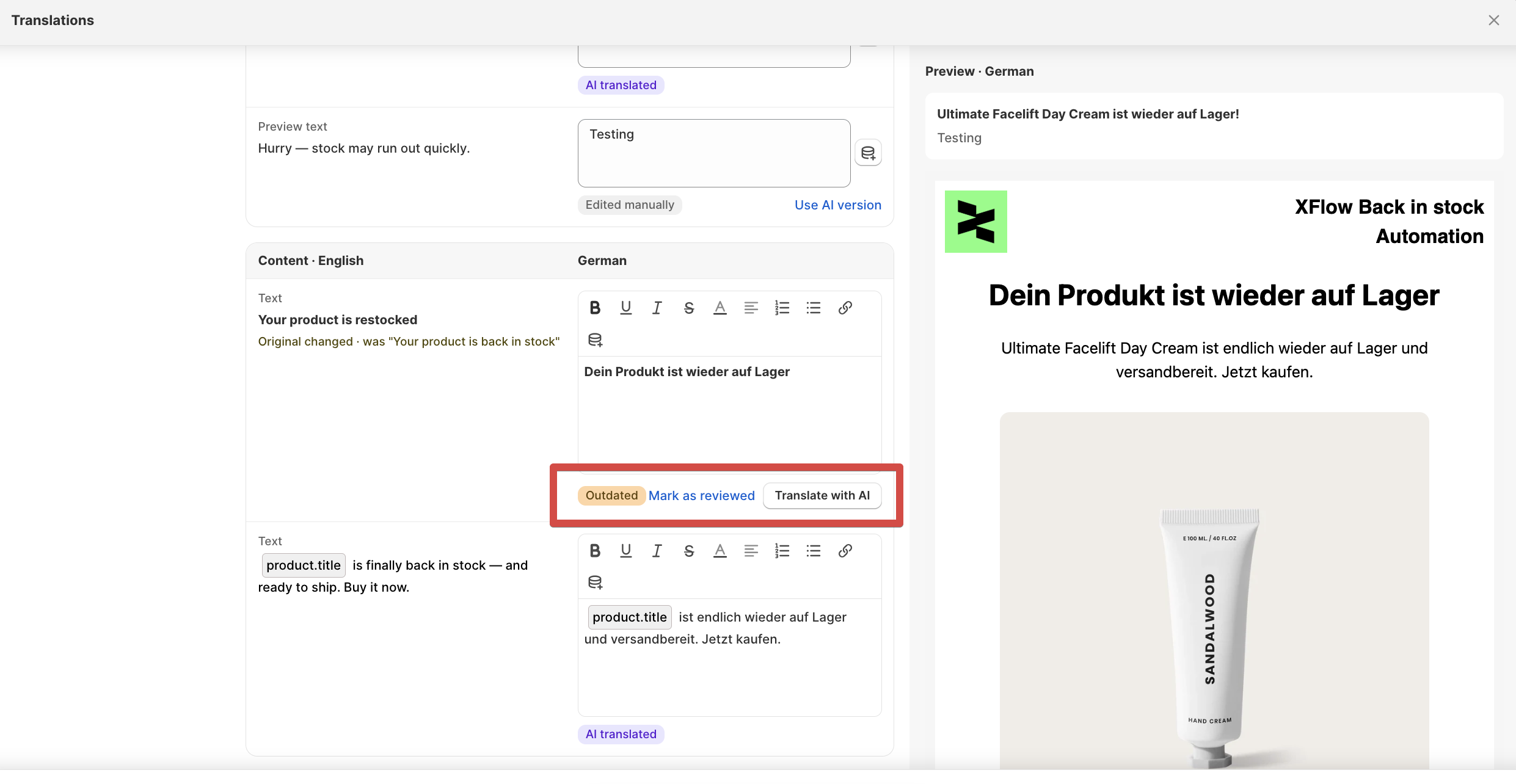
**What happens when a translation becomes outdated?**
If you edit the original text after translating it, XFlow marks the corresponding translation as **Outdated**.
To resolve it:
1. Open the target language on the Translations page.
2. Find the field marked **Outdated**.
3. Update the translated text, or select **Mark as reviewed** if the existing translation is still correct.
4. Click **Save**.
Outdated translations are still used when sending emails until you update them. Changes to layout, colors, images, fonts, or links don't mark translations as outdated.
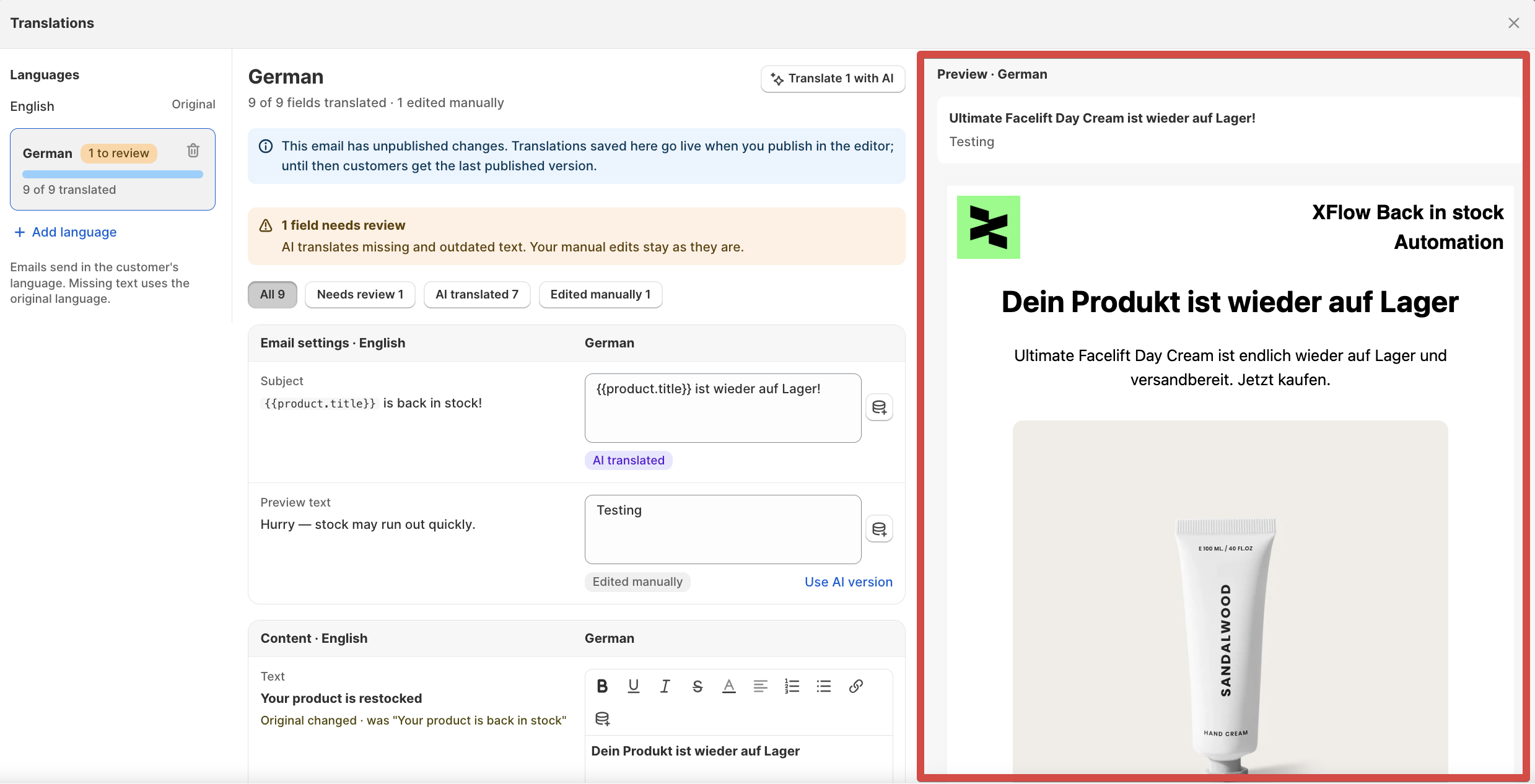
Before using a translated email, preview it to make sure everything looks correct.
1. Return to the email template detail page.
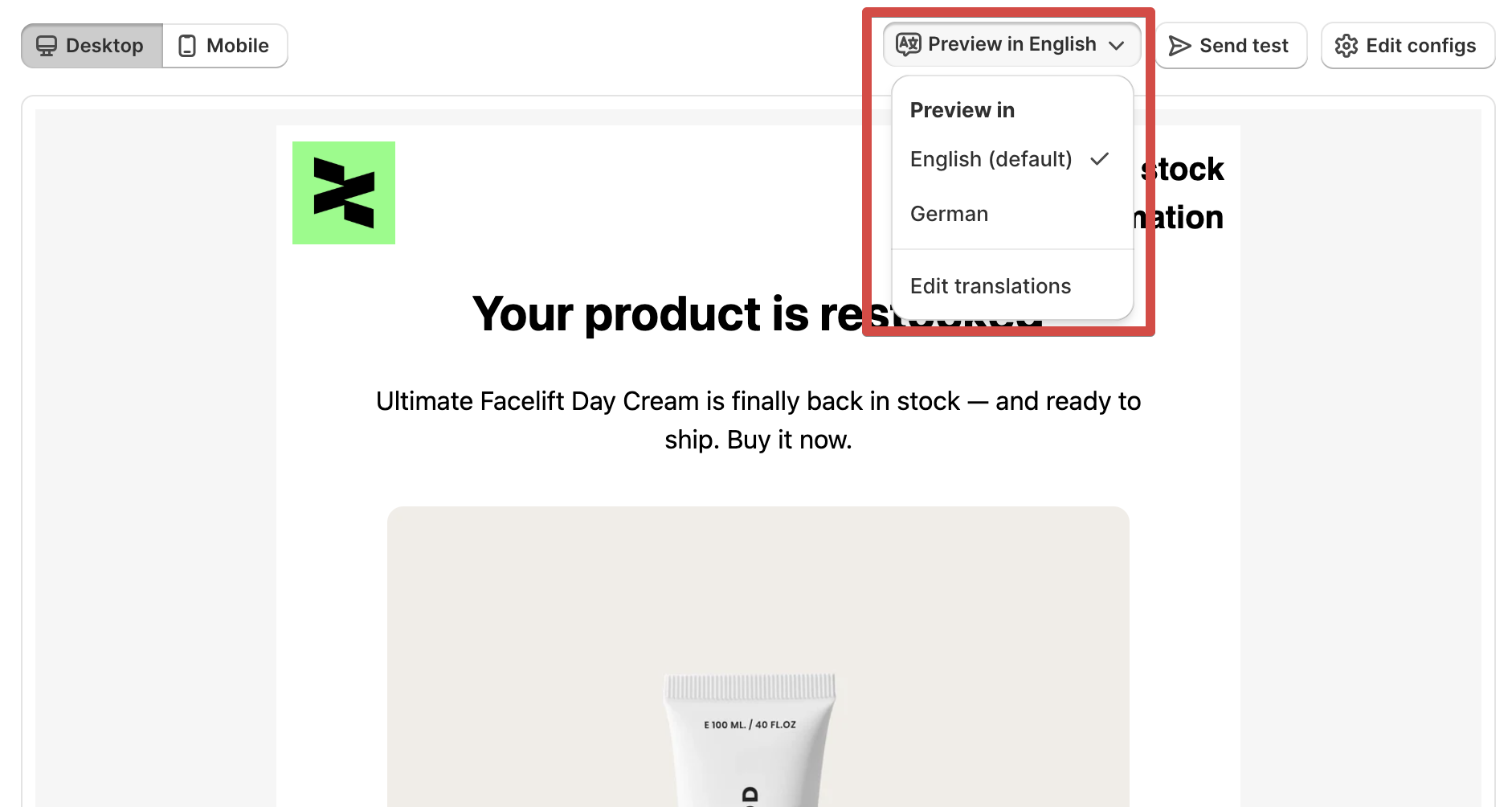
2. Use the **Preview in** dropdown to select a language.
3. Review the email content in your selected language.
4. Click **Send test** to [send a test email](https://docs.foxecom.com/xflow-app/email-templates/preview-and-test-your-email) in that language.
If some fields haven't been translated, XFlow displays the original text for those fields. The preview also indicates how many fields are still untranslated.
## How XFlow chooses the email language
XFlow automatically selects the email language based on the storefront language a customer used when subscribing to a back-in-stock notification, not their country or browser language.
When sending an email, XFlow:
1. **Checks the customer's language:** Uses the language recorded at sign-up, or the storefront URL for older subscriptions. If neither is available, it uses the store's original language.
2. **Finds a matching translation:** Sends the translated version if available. Regional languages are also supported (e.g., `pt-BR` can use a `pt` translation).
3. **Falls back to the original:** If a translation or individual field is missing, XFlow uses the original content. The email is still sent normally.
**You don't need to configure a separate workflow or campaign for each language.** XFlow automatically selects the appropriate translation when sending emails.
To make sure XFlow detects your customers' storefront language, go to **Shopify settings > Languages**, then add and publish the languages you want to support. [*Learn more*](https://help.shopify.com/en/manual/international/languages/manage-languages)
## How XFlow translates dynamic product variables from Shopify
When your email includes dynamic product information, such as product titles, descriptions, or variant names, XFlow automatically uses translations already stored in Shopify.
For example, if your email contains `{{product.title}}` and the product has a Dutch translation in Shopify, customers who subscribed through the Dutch storefront will see the product title in Dutch.
**Keep in mind:**
* **Translations must exist in Shopify.** XFlow doesn't translate product information itself. You can use apps like [Shopify Translate & Adapt](https://apps.shopify.com/translate-and-adapt) to manage these translations.
* **Missing translations fall back to the original.** If no Shopify translation is available, XFlow displays the original product information.
* **Prices, images, and other non-translatable data stay unchanged.**
* **Shopify permissions may need updating.** You may need to approve XFlow's updated permissions to enable translated product information.
Product translations work independently of email template translations. Even if your email template hasn't been translated, XFlow can still display translated product information when it's available in Shopify.
### What happens if you downgrade your plan?
Multi-language emails are available on Growth, Professional, and Custom plans.
If you downgrade to Free or Starter:
* Your existing translations are preserved.
* Emails are sent using the original language.
* Translated Shopify product information isn't used.
If you upgrade to Growth or higher again, your saved translations become available without needing to recreate them.
## FAQs
No. You can manage multiple language versions within a single email template. All versions share the same design and layout.
XFlow retrieves existing product translations from Shopify for supported variables, such as product titles and descriptions. If a translation isn't available, the original product information is used.
No. You need to translate the content manually or use Translate with AI. Adding a language alone doesn't translate the template.
XFlow uses the original language for untranslated fields. Your email will still be sent.
No. All translations share the same layout. To change the design, edit the original template in the email builder.
Text changes may mark corresponding translations as outdated. Design changes automatically apply across all language versions without affecting translation status.
## Related articles
Create an email template
Preview and test your email
Understanding personalization variables in email templates
Translate "Notify me" widget content