# Update your theme step by step
Go from a started update to your updated theme: decide the files Snapty couldn't settle, check the theme settings, build an unpublished copy, then check it and publish it. Your live theme stays as it is until you publish.
Guided updates currently support themes by **FoxEcom and Shopify**.
Start your update first, from **Updates** in Snapty. See [How guided theme updates work](https://docs.foxecom.com/snapty-app/theme-update/how-guided-theme-updates-work) to check your theme and plan are supported.
## Before you start
* **Review your customizations:** Go to **Health check** and click **See the \[number] files** to view files you've changed from the original theme. See [Fix health check issues](https://docs.foxecom.com/snapty-app/health-check/fix-health-check-issues).
* **Check available theme slots:** Make sure your Shopify theme library has room for another theme. You can check the **Themes in your store** count under [Your updates](https://docs.foxecom.com/snapty-app/theme-update/how-guided-theme-updates-work#your-updates).
## Step 1: Open the review
1. Open **Updates** in your Snapty dashboard.
2. Click **Continue your update** on your update card.
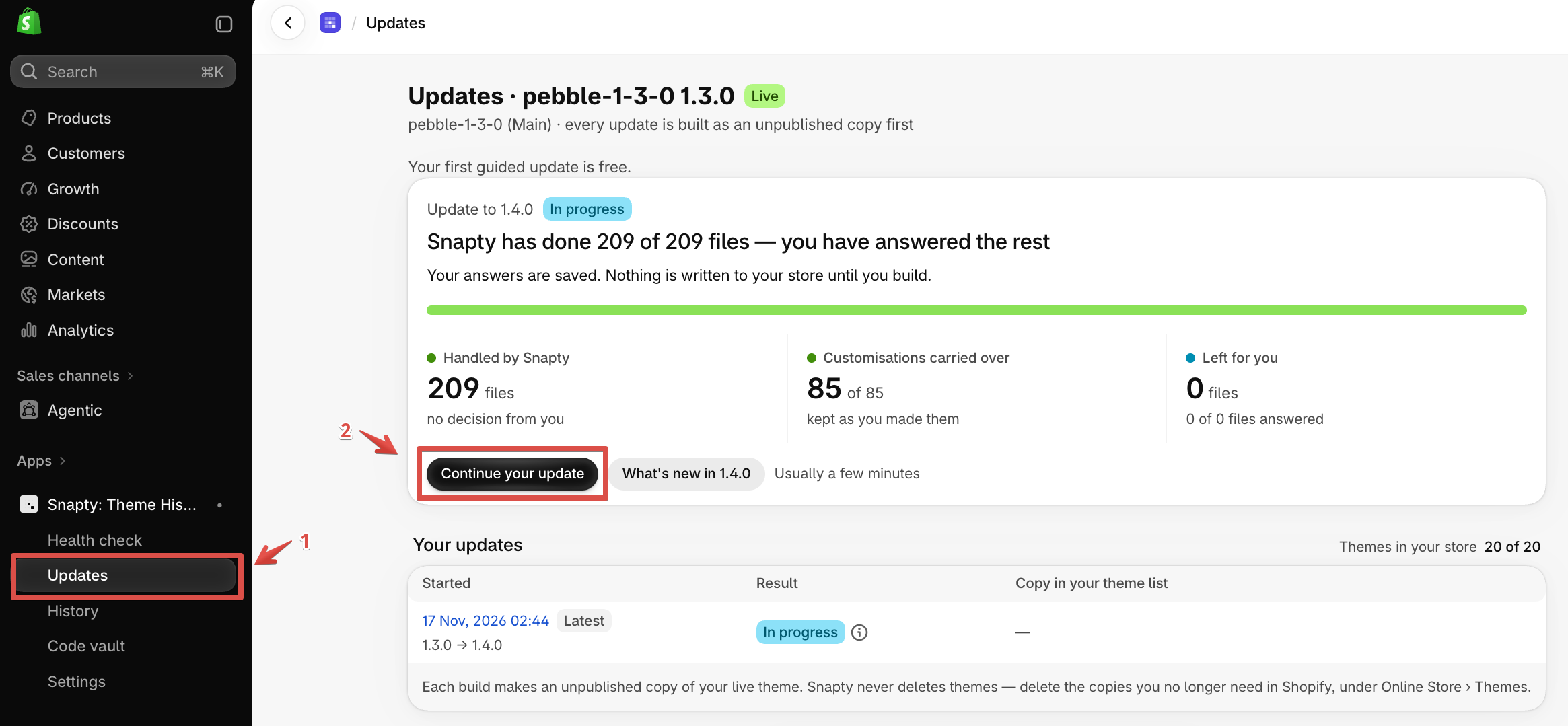
The update screen shows your progress and the changes needed to update your theme. Your answers are saved automatically, and your live theme stays unchanged until you build the update.
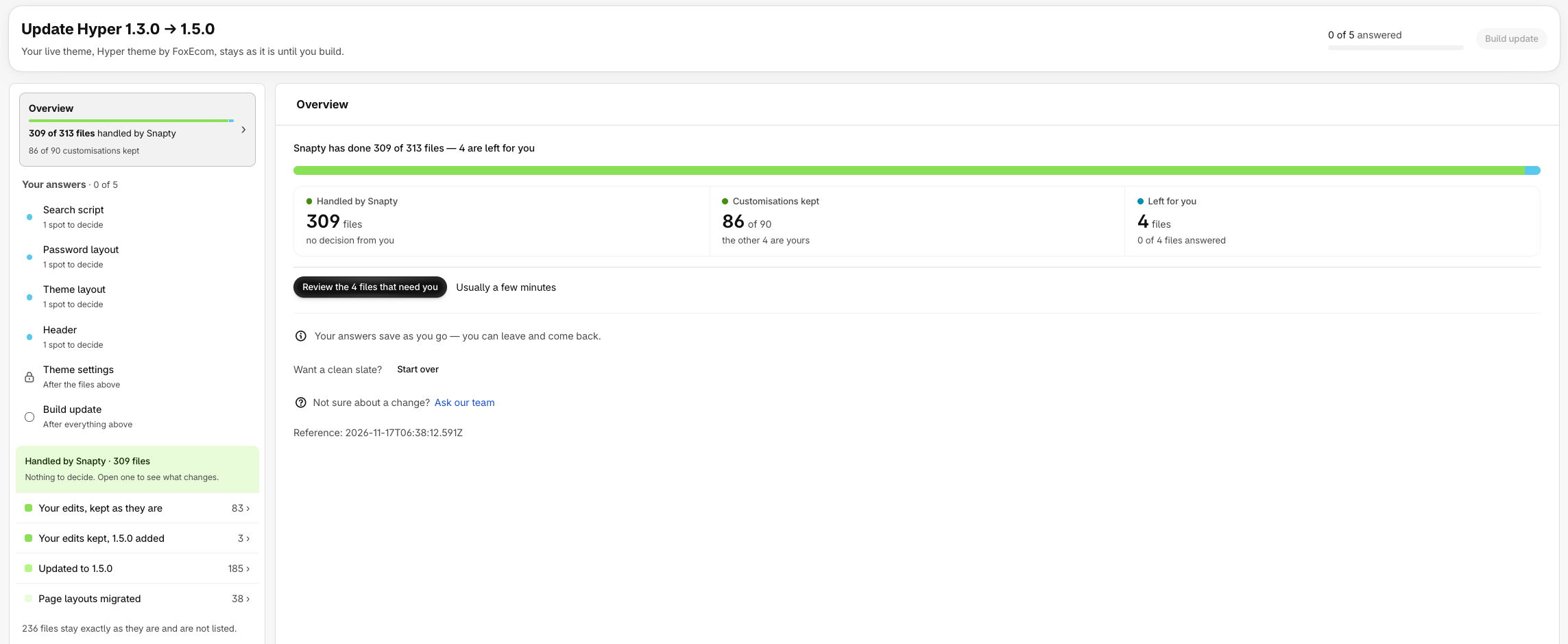
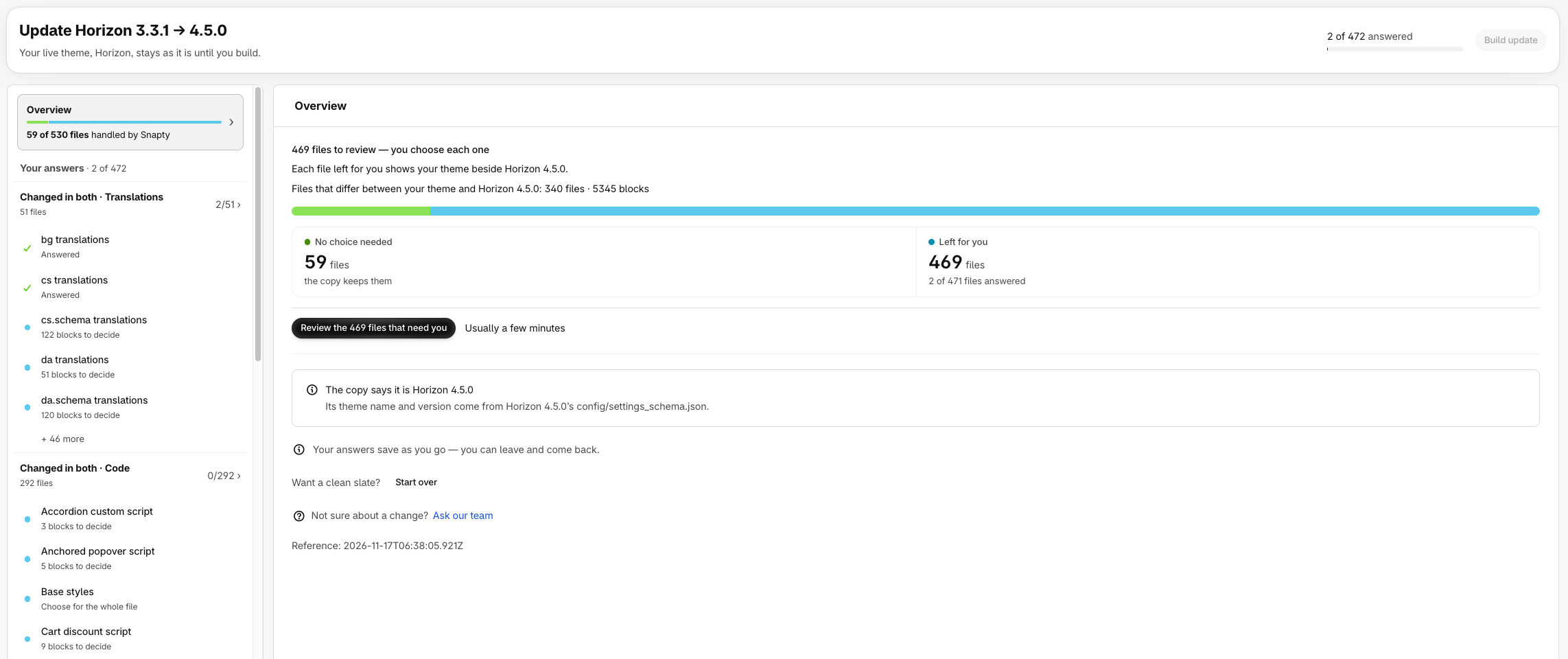
The screen has three main sections:
| Part | What it shows |
| ---------------- | ----------------------------------------------------------------------------------------- |
| **Header** | Your current and target theme versions, update progress, and the **Build update** button. |
| **Overview** | Files Snapty has handled automatically and files that still need your review. |
| **Your answers** | Files requiring your decisions, followed by **Theme settings** and **Build update**. |
To continue, click **Review the \[number] files that need you** in the Overview.
If you've already reviewed all files, click **Check the theme settings** instead and proceed to [Step 3: Check the theme settings](#step-3-check-the-theme-settings)
The progress count includes theme settings as one additional step. For example, 4 files to review will show **0 of 5 answered**.
## Step 2: Decide each file
Snapty handles as many files as possible automatically. You only need to review changes that require your decision.
Your answers are saved automatically, so you can leave and return anytime. Your live theme stays unchanged until you build and publish the update.
### Review files that need your decision
The **Your answers** section lists files that need your input. The review process differs slightly between FoxEcom and Shopify themes.
Snapty automatically handles most files. You'll only review changes where your customizations overlap with updates in the new version.
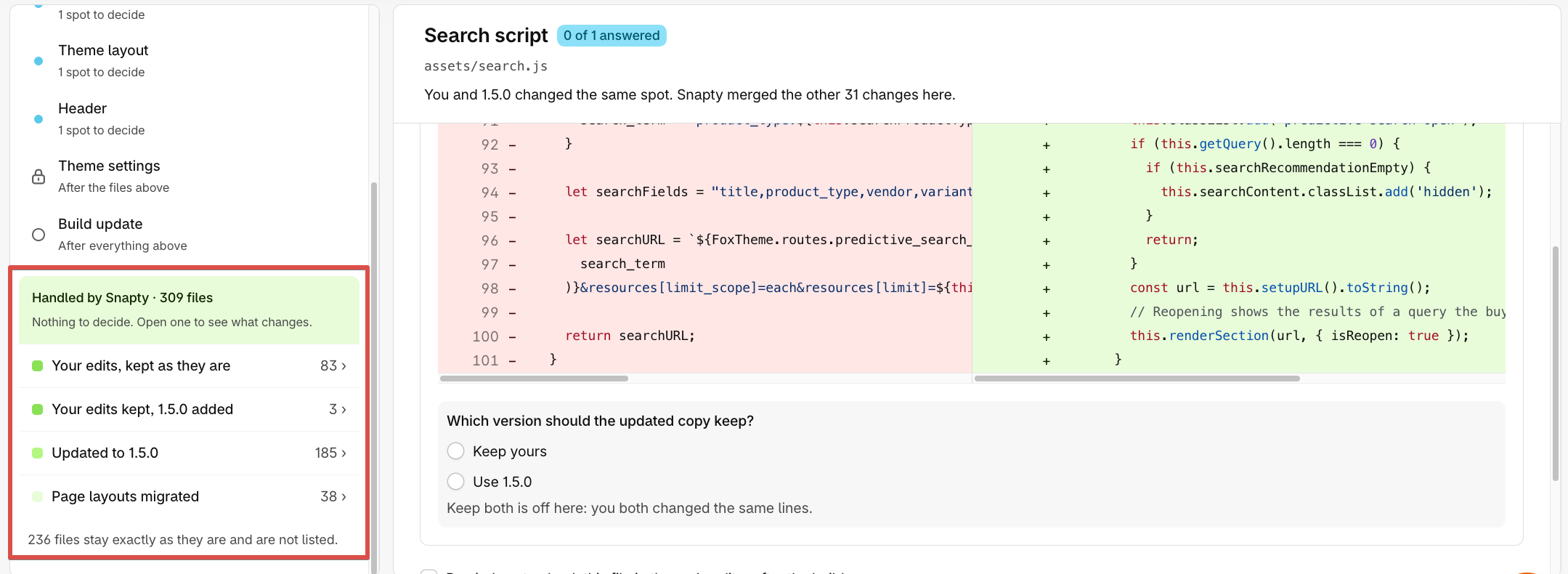
1. **Open a file:** Select a file under **Your answers** to see its name, path, and changes that need your decision.
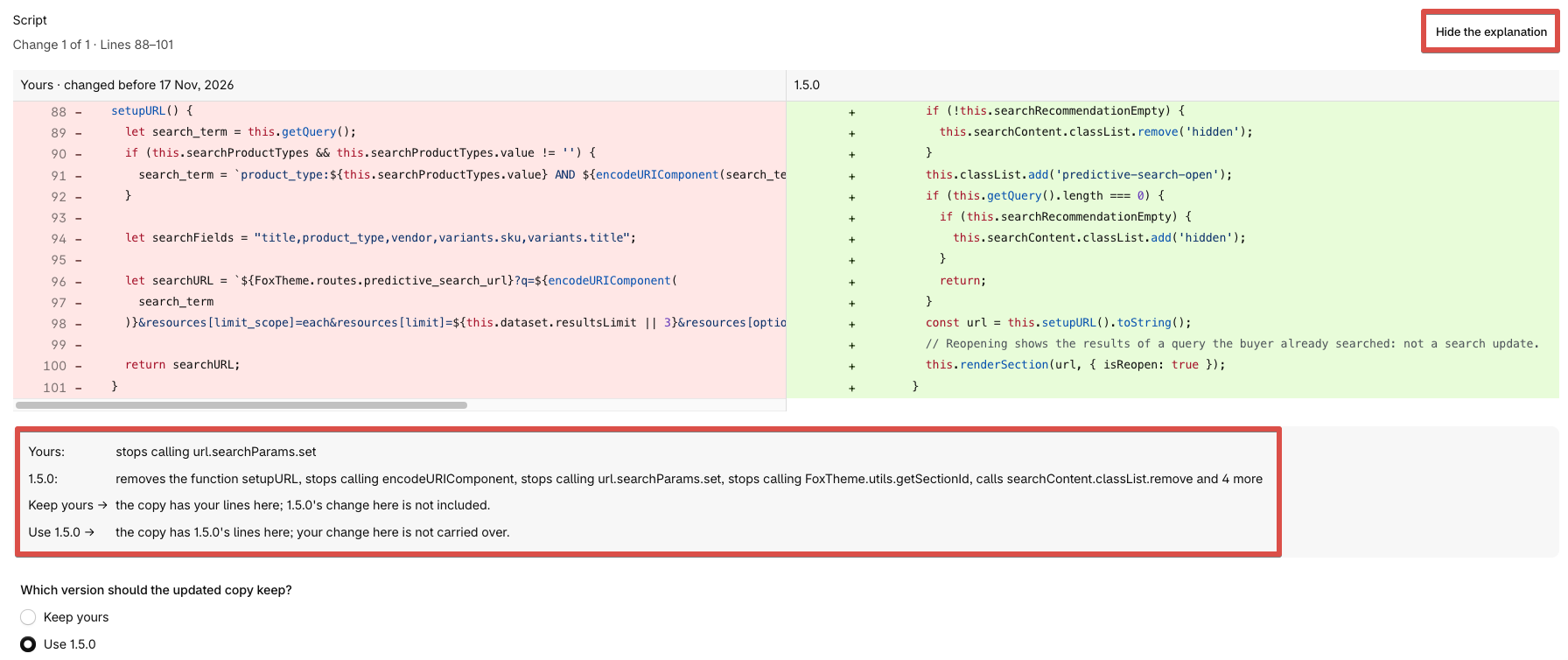
2. **Compare versions:** Review **Yours** (your current code) alongside **\[version]** (the new code). Removed lines appear in red (–), and added lines in green (+). Click **Explain this change** for more context.
3. **Make your choice:** Under **Which version should the updated copy keep?**, select:
| Option | When to choose it |
| ------------------ | ---------------------------------------------------------------------------------- |
| **Keep yours** | Preserve your existing customization. |
| **Use \[version]** | Apply the new version's fix or improvement. |
| **Keep both** | Keep changes from both versions when they don't conflict or modify the same lines. |
Your choice applies to the specific change. Other changes Snapty has already handled remain intact.
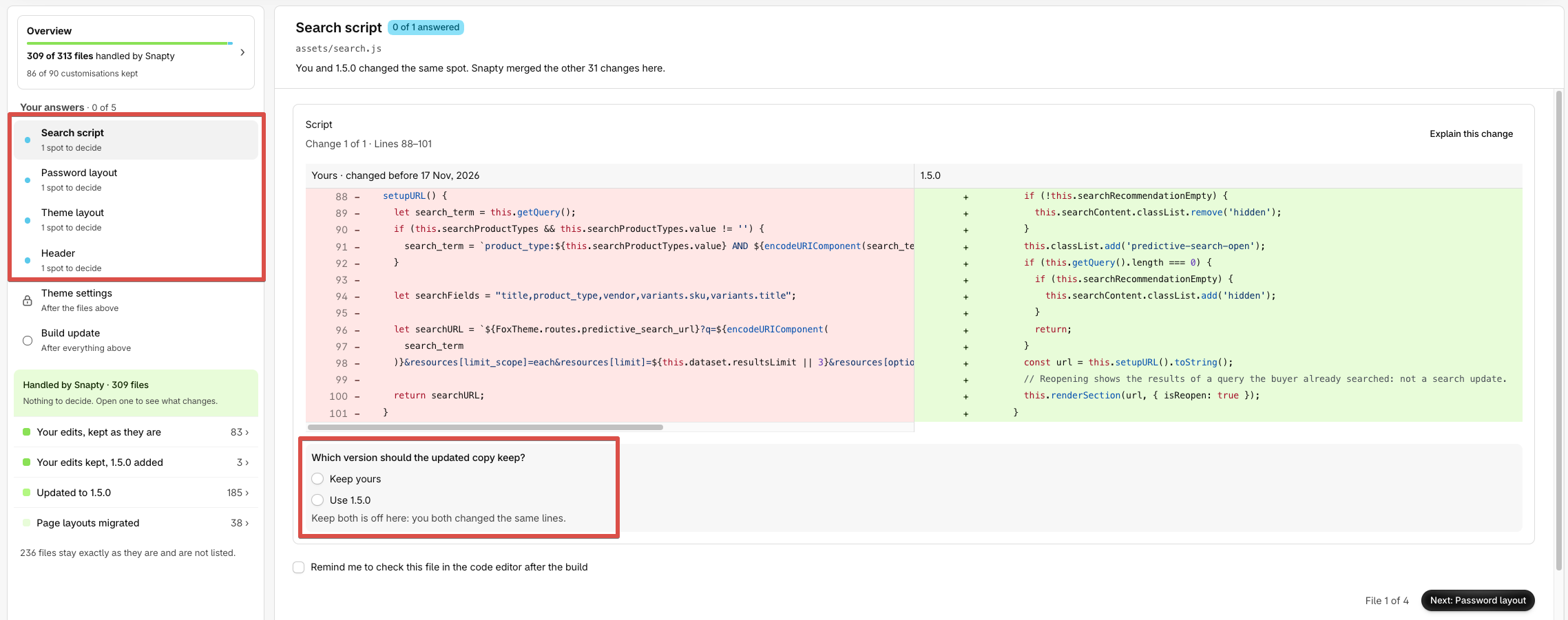
Snapty explains what changed in **Yours** and **\[version]**, plus what you'll keep or lose with each option. Review these explanations before choosing **Keep yours** or **Use \[version]**.
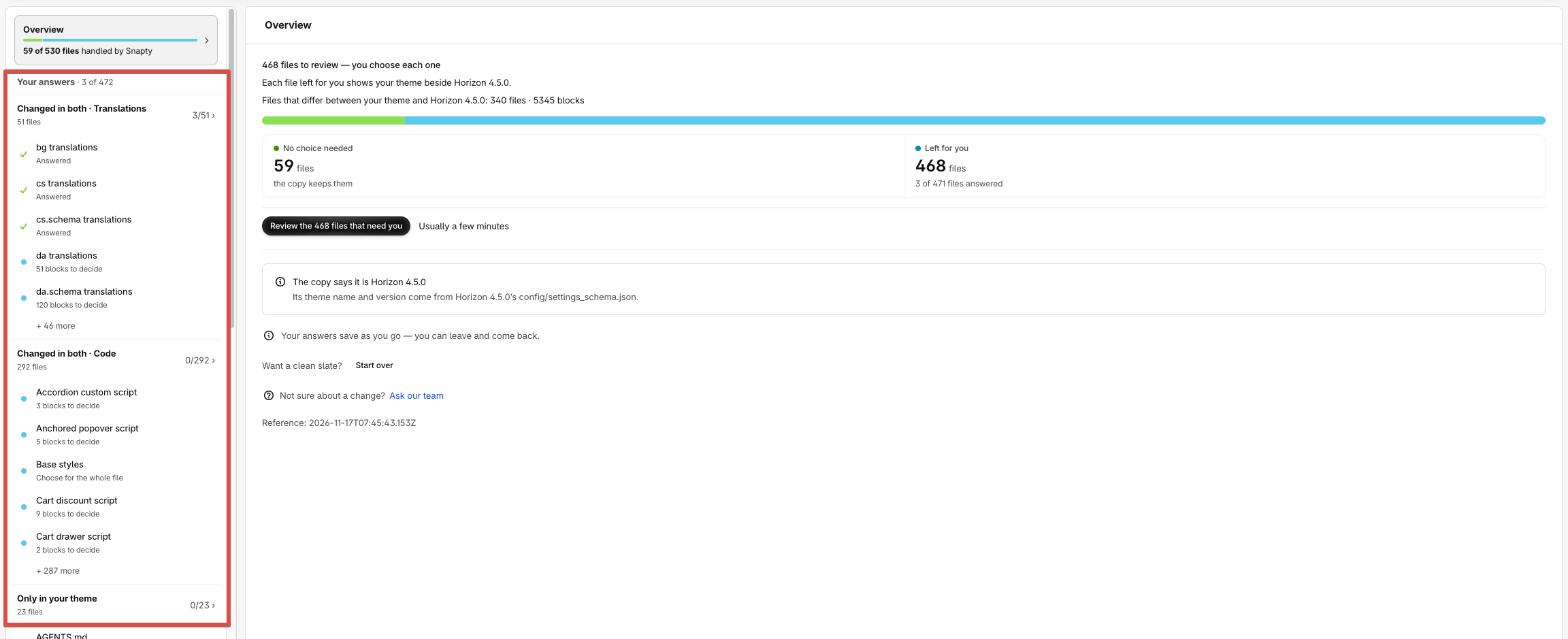
Snapty groups files that differ between your current theme and the new version. You'll review each file and decide what the updated copy should keep.
| Group | What's in it |
| ---------------------------------- | ------------------------------------------------------------------ |
| **Changed in both – Translations** | Translation files modified in both versions. |
| **Changed in both – Code** | Code files modified in both versions. |
| **Only in your theme** | Files that exist in your current theme but not in the new version. |
| **New in the new version** | Files added in the new version. |
#### Files changed in both versions
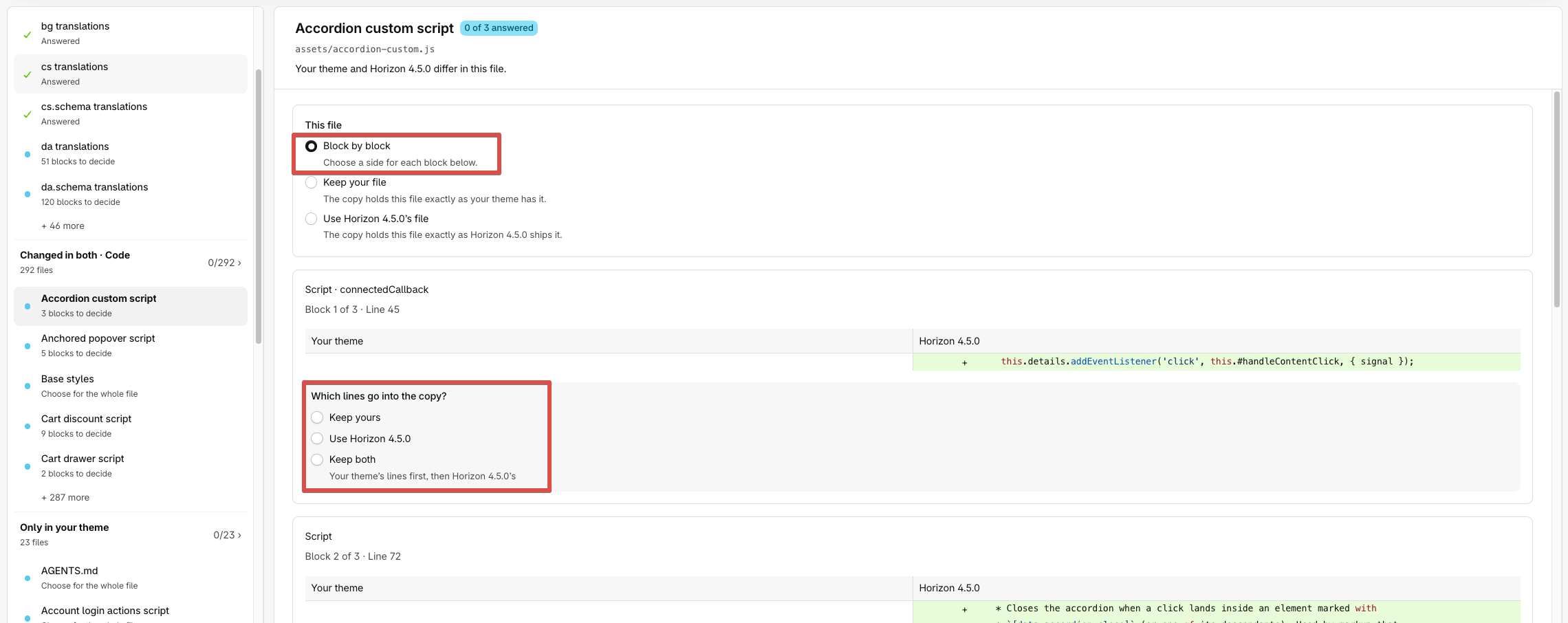
Select a file under **Changed in both – Translations** or **Changed in both – Code**. Under **This file**, choose how to handle the differences:
| Option | When to choose it |
| ---------------------------------- | ------------------------------------------------------------------------ |
| **Block by block** | Review each changed block individually and decide which version to keep. |
| **Keep your file** | Preserve the entire file exactly as it is in your current theme. |
| **Use** the new version's **file** | Replace the entire file with the new version. |
If you select **Block by block**:
* Compare **Your theme** with **\[version]** side by side.
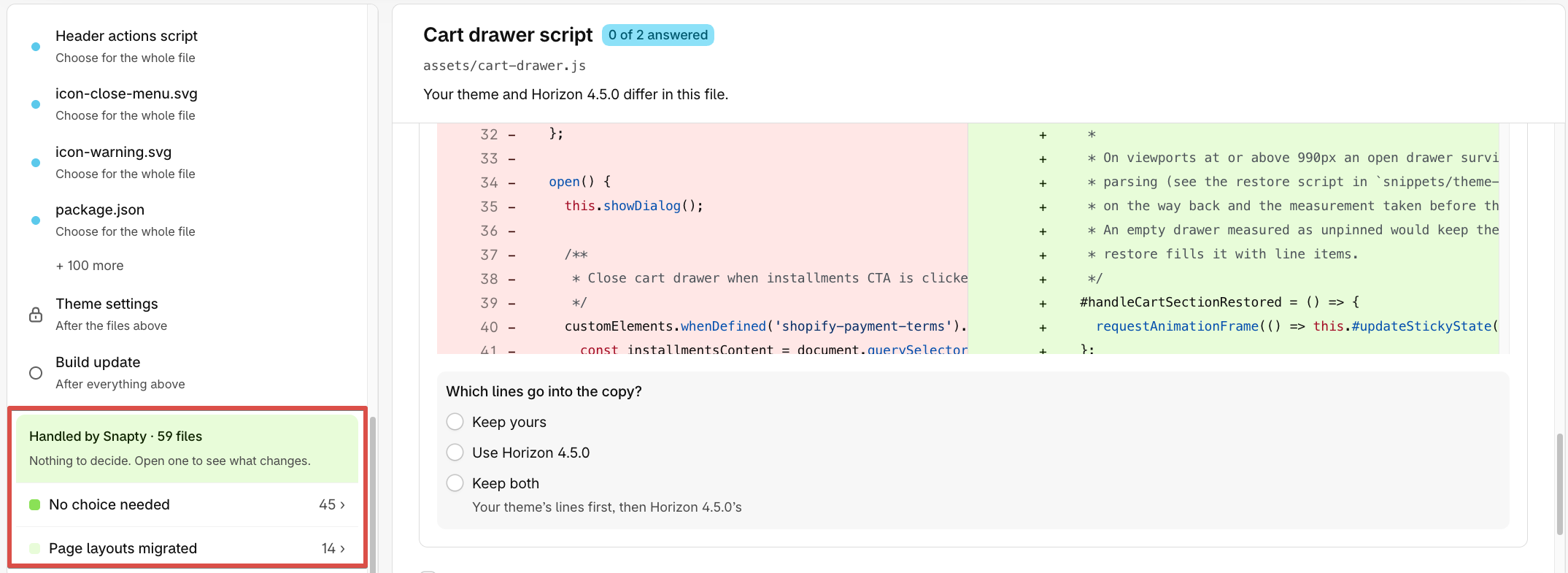
* Under **Which lines go into the copy?**, choose **Keep yours** or **Use \[version]** for each change.
* When available, select **Keep both** to include both versions
#### Files only in your theme
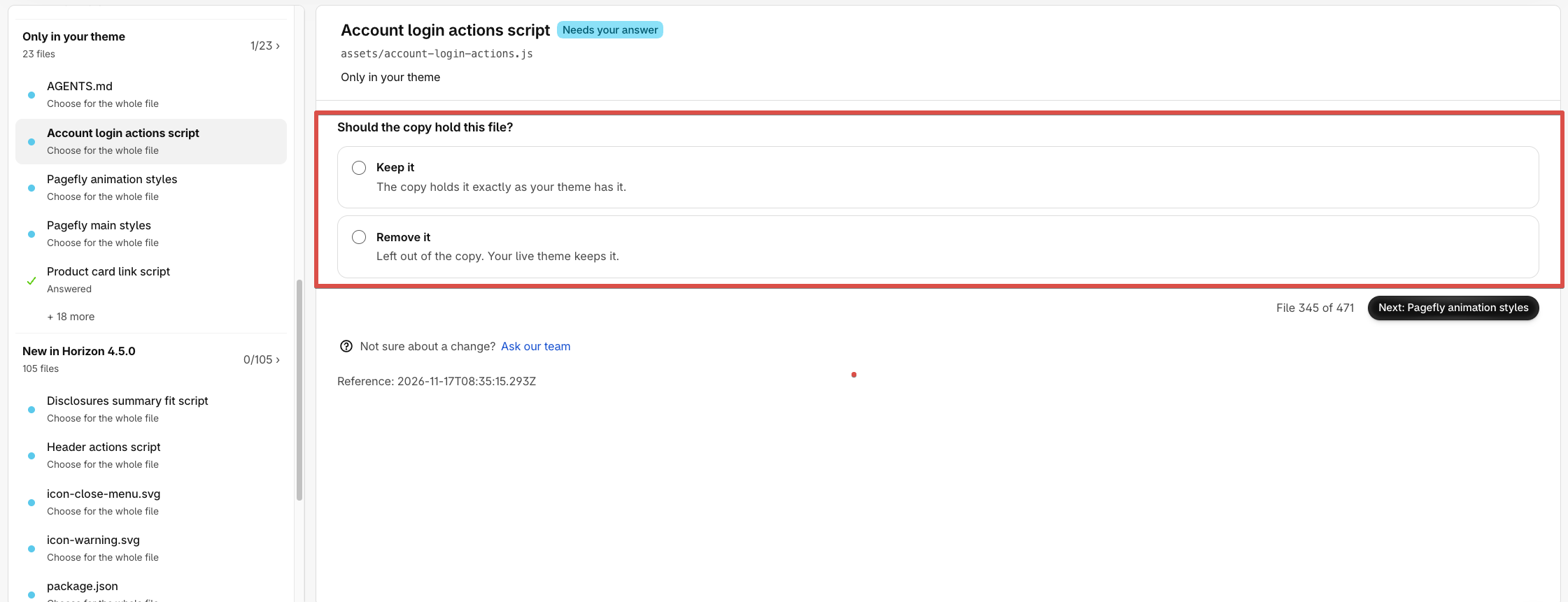
These files exist in your current theme but are missing from the new version. Under **Should the copy hold this file?**, choose:
| Option | What it does |
| ------------- | --------------------------------------------------------------------------- |
| **Keep it** | Includes the file in the updated copy, unchanged. |
| **Remove it** | Excludes the file from the updated copy. Your live theme remains unchanged. |
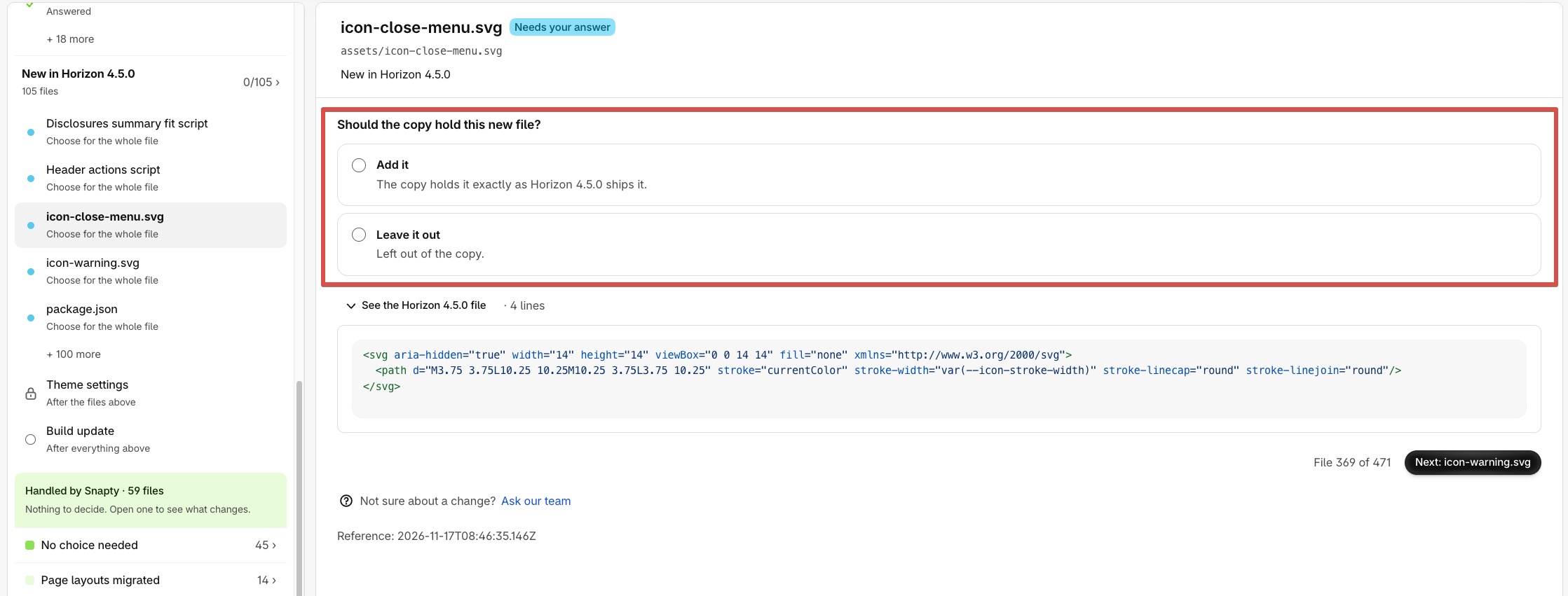
#### Files new in the new version
These files are included in the new theme version but don't exist in your current theme. Under **Should the copy hold this new file?**, choose:
| Option | What it does |
| ---------------- | --------------------------------------------- |
| **Add it** | Includes the new file in your updated copy. |
| **Leave it out** | Excludes the new file from your updated copy. |
Click **See the \[version] file** to preview its contents before deciding.
#### 
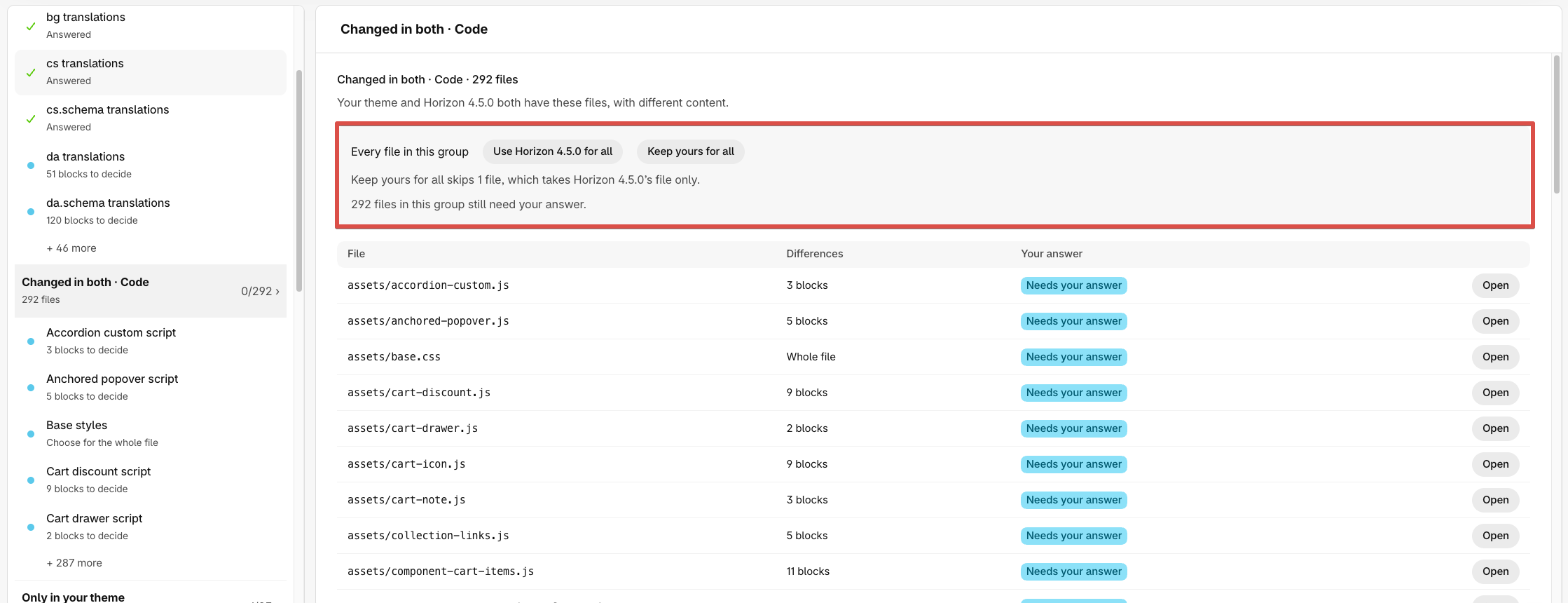
Click a file group to view all files and their review status. You can apply a choice to the entire group:
* **Changed in both – Translations / Code:** Select **Keep yours for all** or **Use \[version] for all**.
* **Only in your theme:** Select **Keep all** to preserve every file.
* **New in \[version]:** Select **Add all** to include every new file.
To make a different choice for a specific file, click **Open** and review it individually.
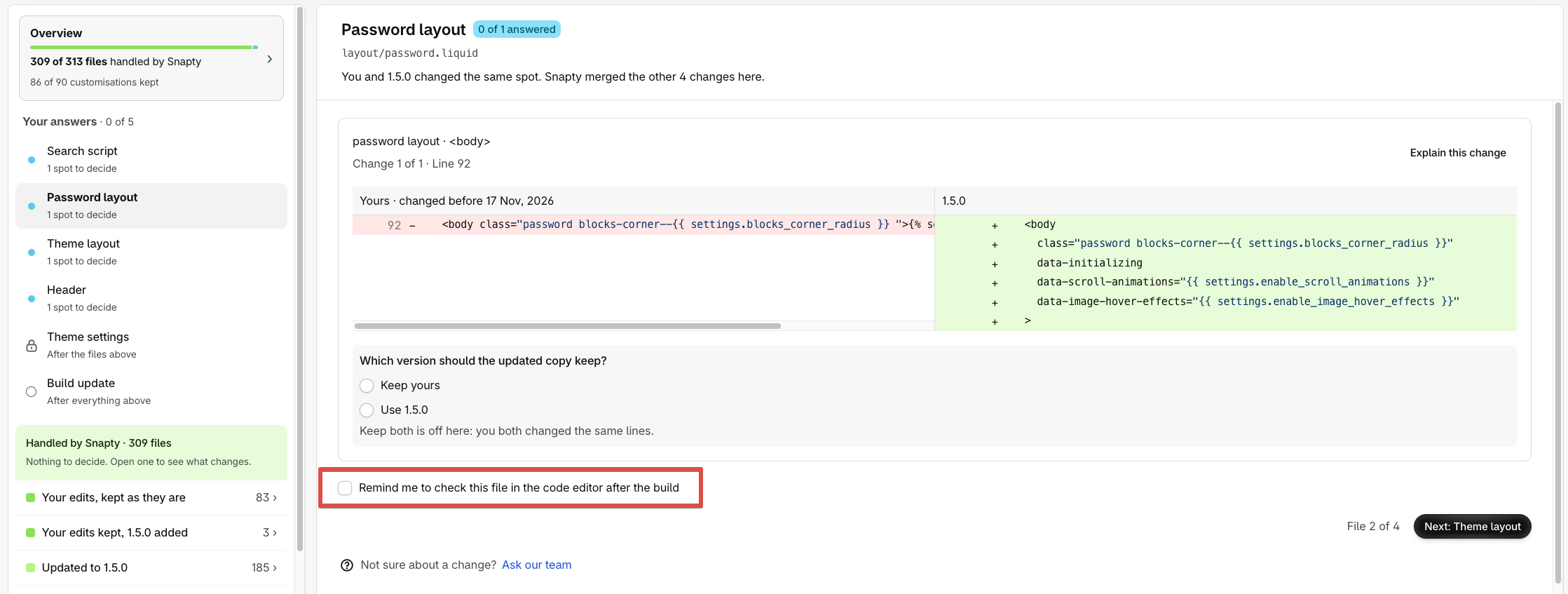
**Review files after the update**
For either theme type, select **Remind me to check this file in the code editor after the build** to review it later. To receive email reminders, enable notifications under **Settings > Notifications**. See [**Manage email notifications**](https://docs.foxecom.com/snapty-app/settings-and-your-data/manage-email-notifications) for details.
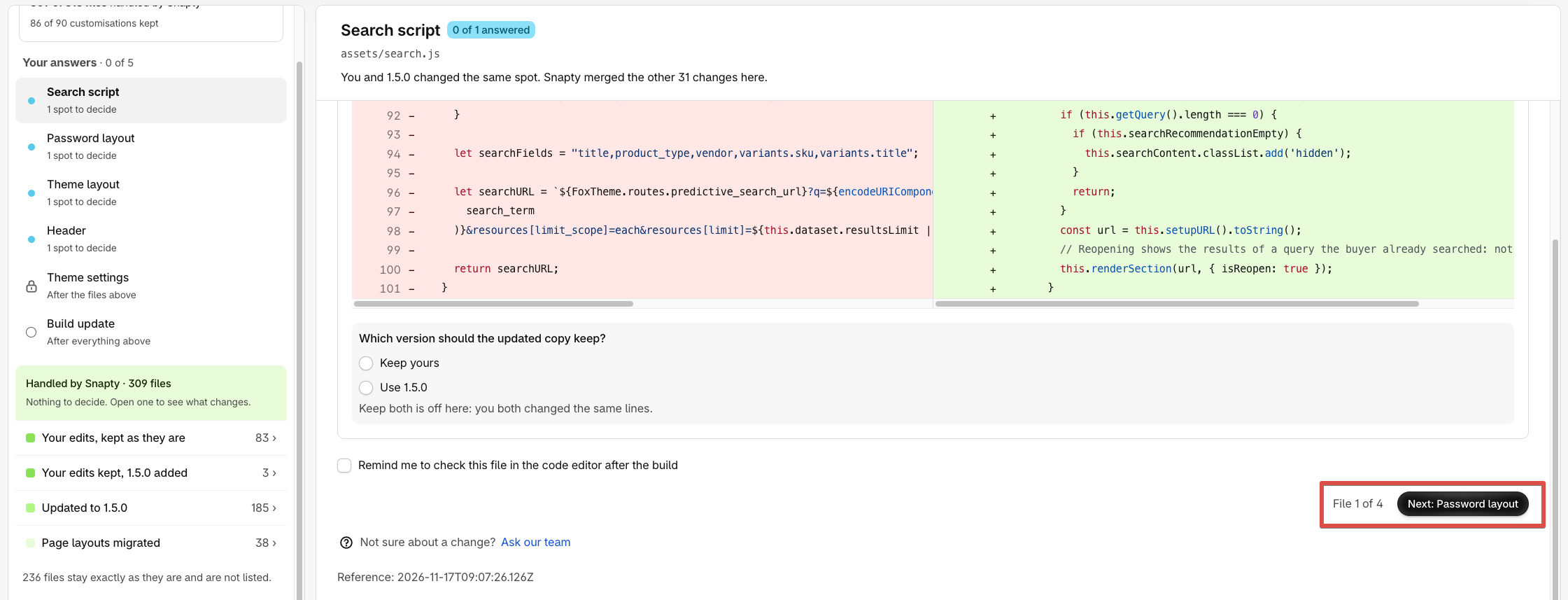
### Move to the next file
After making your decision, click **Next: \[file name]** to continue. The file counter shows your progress. Repeat until all files are reviewed.
### See what Snapty handled
Under **Handled by Snapty** in the left sidebar, you can review files that don't need your decision.
Click a group to view its files, use **Search by file path** to find a specific file, or click **View change** for details.
| Group | What happens | Shown for |
| ------------------------------------------ | -------------------------------------------------------------------------- | -------------- |
| **Your edits, kept as they are** | Your customizations remain unchanged. | FoxEcom themes |
| **Your edits kept,** new version **added** | Your customizations are preserved alongside the new version's changes. | FoxEcom themes |
| **Updated to** the new version | Files you haven't customized are updated to the new version. | FoxEcom themes |
| **No choice needed** | Files Snapty can keep without your input. | Shopify themes |
| **Page layouts migrated** | Your page layouts and section settings are transferred to the new version. | All themes |
For FoxEcom themes, Snapty also shows how many files remain unchanged and aren't listed.
## Step 3: Check the theme settings
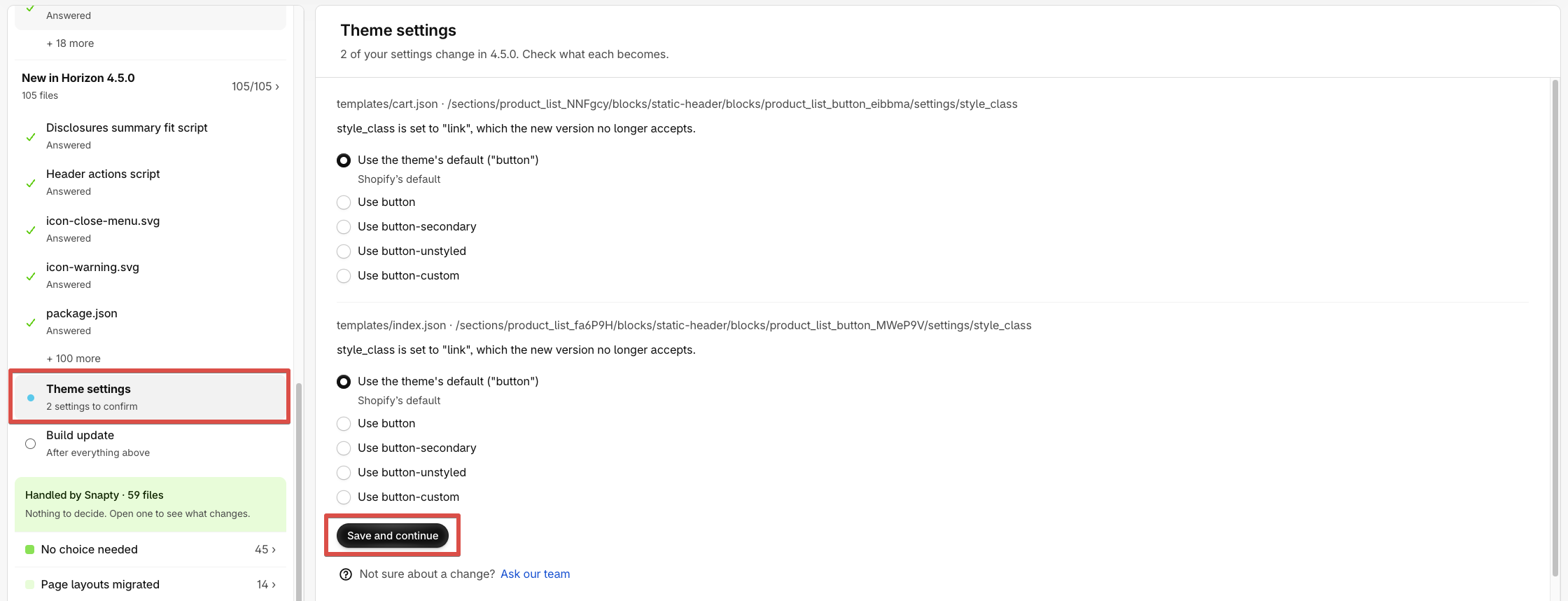
After reviewing all file changes, click **Check the theme settings** to review any settings affected by the update.
* **If some settings need attention:** Review each setting and choose the option you want to use in the updated theme.
* **If no settings need attention:** Look for the message "The update changes none of your settings." No changes are needed.
Click **Save and continue** to confirm your theme settings.
Once all file changes and theme settings are confirmed, **Build update** will become available.
## Step 4: Build the updated copy
1. Confirm all changes before building your updated theme.
2. Click **Build update** in the top-right corner.
3. Click **Build update** again to proceed.
4. Snapty will create an unpublished copy of your theme with the updates applied. This usually takes a few minutes, and you can track the progress on the screen.
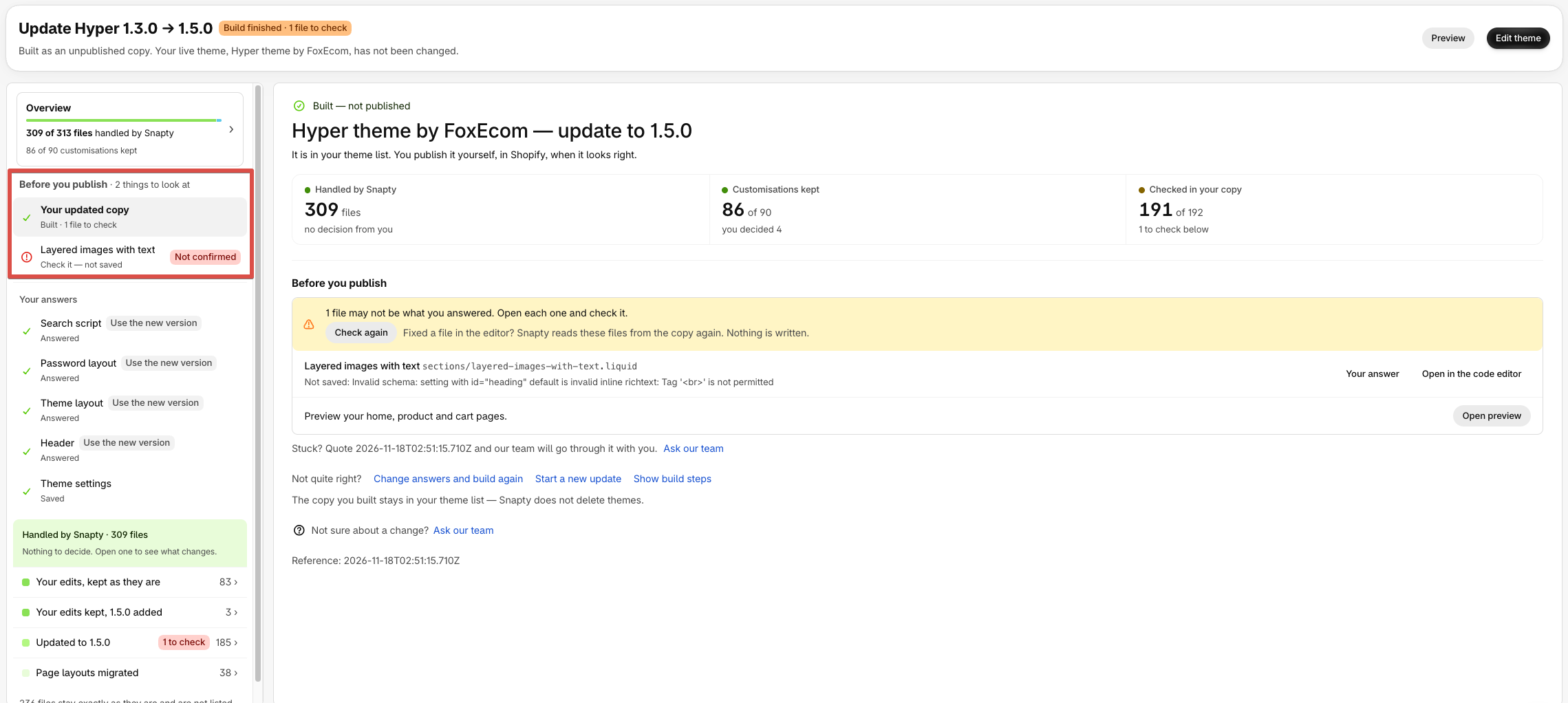
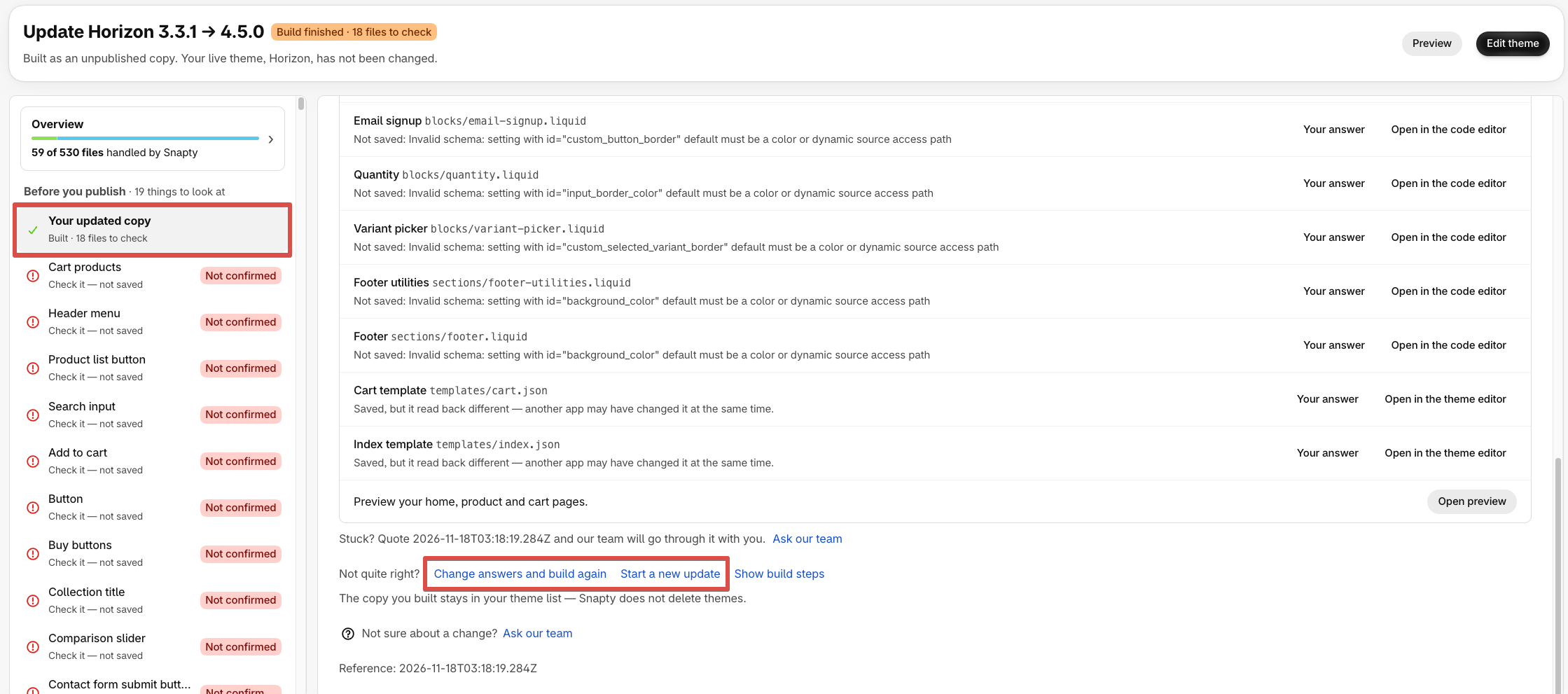
5. Click **Preview** or **Edit theme** to review the updated copy before publishing.
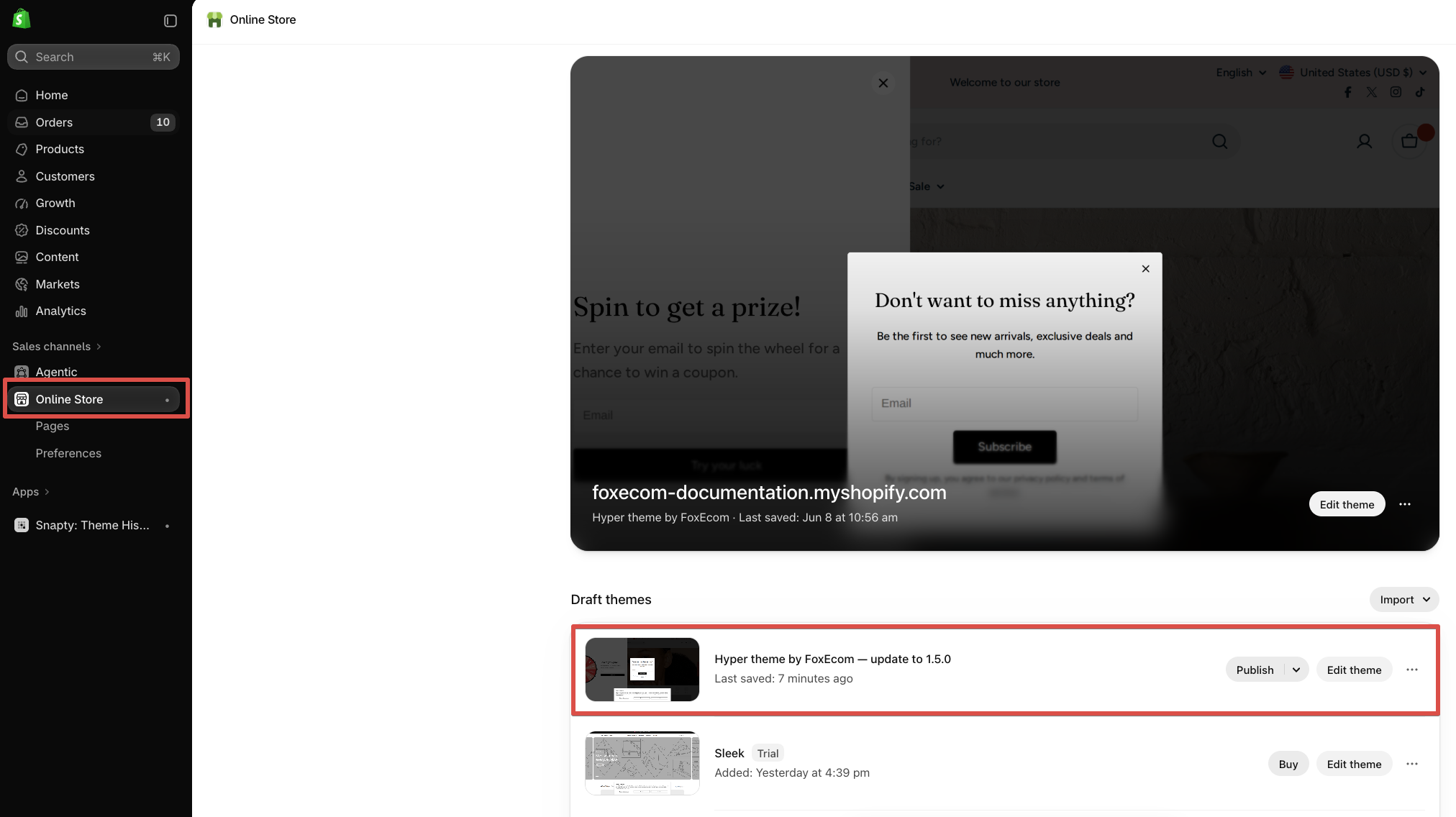
Your live theme remains unchanged. The updated copy will appear in **Shopify Admin → Online Store → Themes**, where you can publish it when you're ready.
**If the build fails:**
* **Theme limit reached:** Remove an unused theme from your theme library to free up space, then try again.
* **Other errors:** Click **Build again with the same answers** to retry. Your previous choices are kept.
* **Files need checking:** Review the flagged files and fix any issues before publishing.

## Step 5: Check the copy
1. Go to **Shopify Admin → Online Store → Themes** and find your updated theme copy.
2. Click **Preview** from the theme's actions menu in Shopify, or **Open preview** in Snapty to review your updated theme.
3. Check your homepage, product pages, collection pages, and any sections affected by the update.
4. Click **Publish** to make the updated theme live.
Pay most attention to pages that use the files you decided on, since those are where your version and the new one met.
## Step 6: Publish the updated theme
Snapty never publishes a theme for you. When the copy looks right, publish it yourself in Shopify.
### After you publish
| What | What happens |
| ----------------------- | -------------------------------------------------------------------------------------------------------------------------------------------- |
| **History** | Snapty starts recording the newly published theme with a fresh baseline. Your old theme's history stays, marked as no longer your live theme |
| **Code Vault snippets** | Your snippets stay in the Vault. Turn the Snapty app embeds on in the new theme, because app embeds are set per theme |
| **Health check** | Snapty monitors your newly published theme for file changes and potential issues. |
Until you [turn the Snapty app embeds](https://docs.foxecom.com/snapty-app/code-vault/add-code-to-your-storefront#turn-on-the-snapty-app-embeds) on in the newly published theme, your Code Vault snippets don't reach your storefront.
### Clean up old copies
Each build makes a new unpublished copy, and Snapty never deletes themes. Delete the copies you no longer need in Shopify, under **Online Store › Themes**.
## Start a new update
If you need to create another updated theme copy, you can:
* **Change answers and build again:** Keep your previous answers, adjust them as needed, and build a new copy.
* **Start a new update:** Clear all previous answers and start the update process from scratch.
Both options leave your live theme unchanged. Previously update copies remain in **Shopify Admin → Online Store → Themes**.
## FAQs
Yes. Your answers are saved automatically, so you can leave and return anytime. Click **Continue your update** to pick up where you left off.
No. Snapty makes an unpublished copy of your theme with the update applied. Your live theme stays as it is until you publish the copy.
It keeps the changes from both versions when they don’t conflict or change the same lines.
If you’ve reached the theme limit, remove an unused theme from your theme library and try again. For other errors, click **Build again with the same answers**. Your previous choices are saved. If Snapty flags files that need checking, review them before you publish.
Each build makes an unpublished copy of your theme, and Snapty never deletes themes. Delete the copies you no longer need in Shopify, under **Online Store › Themes**.
## Related articles
How guided theme updates work
Restore theme files or versions
I published a different theme — where did my history go?
Code Vault overview