# How guided theme updates work
Move your theme to its newest version and keep the customizations you've made. Snapty works out the update on your own files, asks you only about the changes it can't settle, and builds the result as an unpublished copy. Your live theme stays as it is until you publish.
Guided updates currently support themes by **FoxEcom and Shopify**. Your first one is free, and paid plans include more — see [Check if your theme and plan support guided updates](#check-if-your-theme-and-plan-support-guided-updates).
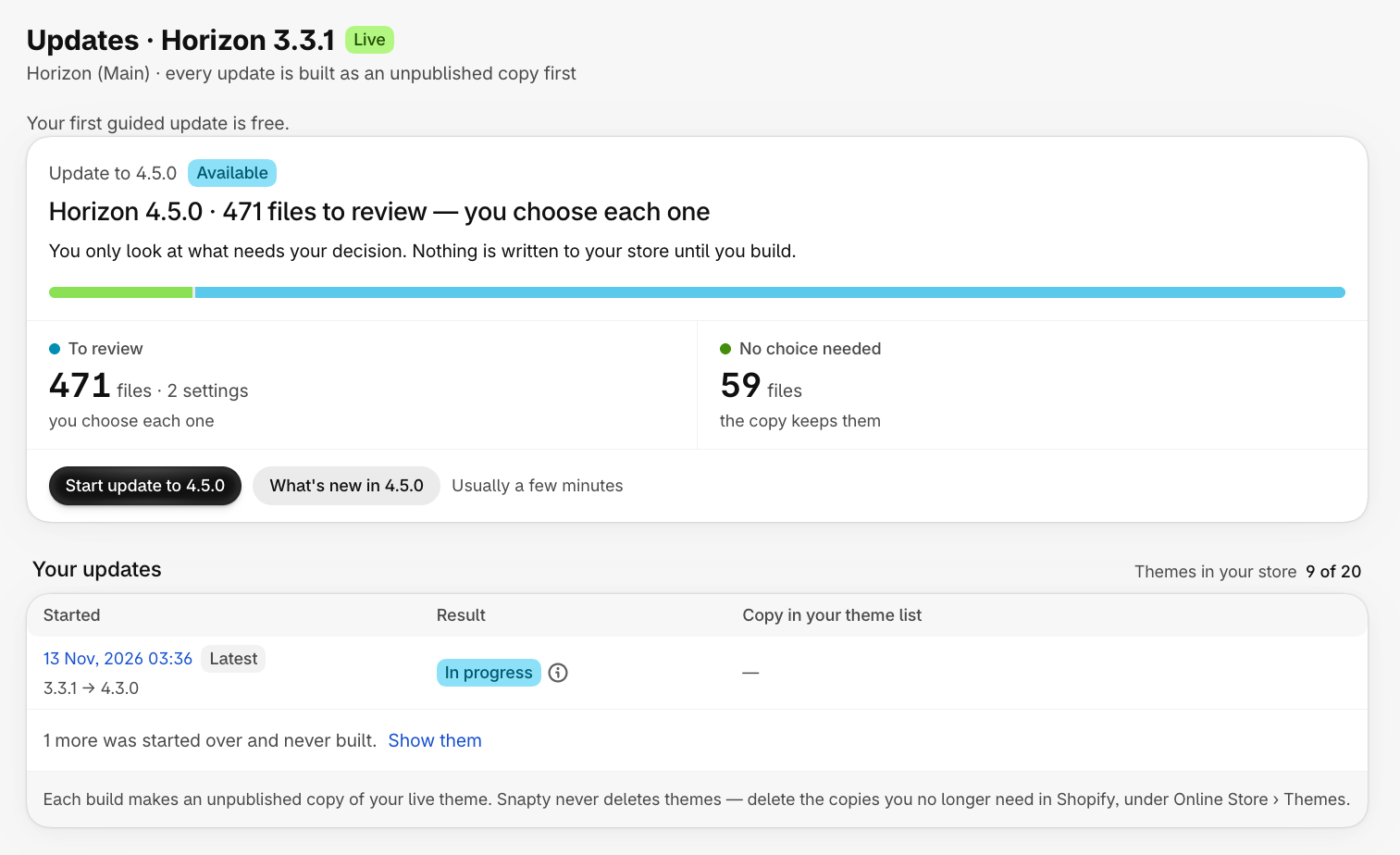
## Why use a guided update
Shopify keeps a theme on its update channel only while every file is in the state it shipped in, apart from theme settings and JSON templates. Once anything else is edited — by you, a developer or an app — your store leaves that channel for good, and Shopify doesn't tell you.
A guided update doesn't rely on that channel. Snapty compares your theme with the original version itself, so your edits can come with you.
| Compare | Guided update in Snapty | Shopify's own theme update |
| ------------------------------------- | ------------------------------------------------------ | ------------------------------------------------------ |
| **Updates themes with edited code** | Yes — even if you've changed the theme's code | No — code changes can prevent automatic updates |
| **Your customizations** | Carried over, or you decide file by file | Lost — replaced by the updated theme version |
| **Your live theme during the update** | Unchanged — the update is built as an unpublished copy | Unchanged — the update is built as an unpublished copy |
## Check if your theme and plan support guided updates
### Supported themes
Snapty currently supports guided updates for:
* **FoxEcom themes**
* **Shopify's free themes** and themes built from them
To carry your customizations into a new theme version, Snapty needs the original files from both the version you're using and the version you're updating to.
Snapty already has these files for supported themes, and we're working to support more themes.
The update preview and post-publish check also require a supported theme.
### Guided updates by plan
The number of guided updates you can run depends on your plan:
| Plan | Guided theme updates |
| ----------- | ---------------------- |
| **Free** | Your first one is free |
| **Starter** | 1 a month |
| **Pro** | Unlimited |
All plans also include update previews, post-publish checks, and settings transfer.
### How update limits work
If you're on the Starter plan, here's what you need to know:
* **Your update resets on the 1st of every month (UTC)**, regardless of your billing date.
* **Unused updates don't roll over** to the next month.
* **Only completed updates count.** If you stop halfway through, you won't lose your update.
For example, if you start an update but decide not to finish it, you can try again later without using up your monthly update.
## Check what's new
Before you update, see what you've been missing.
1. Go to **Updates** in Snapty.
2. Click **What's new in \[version]**. The version number matches your update.
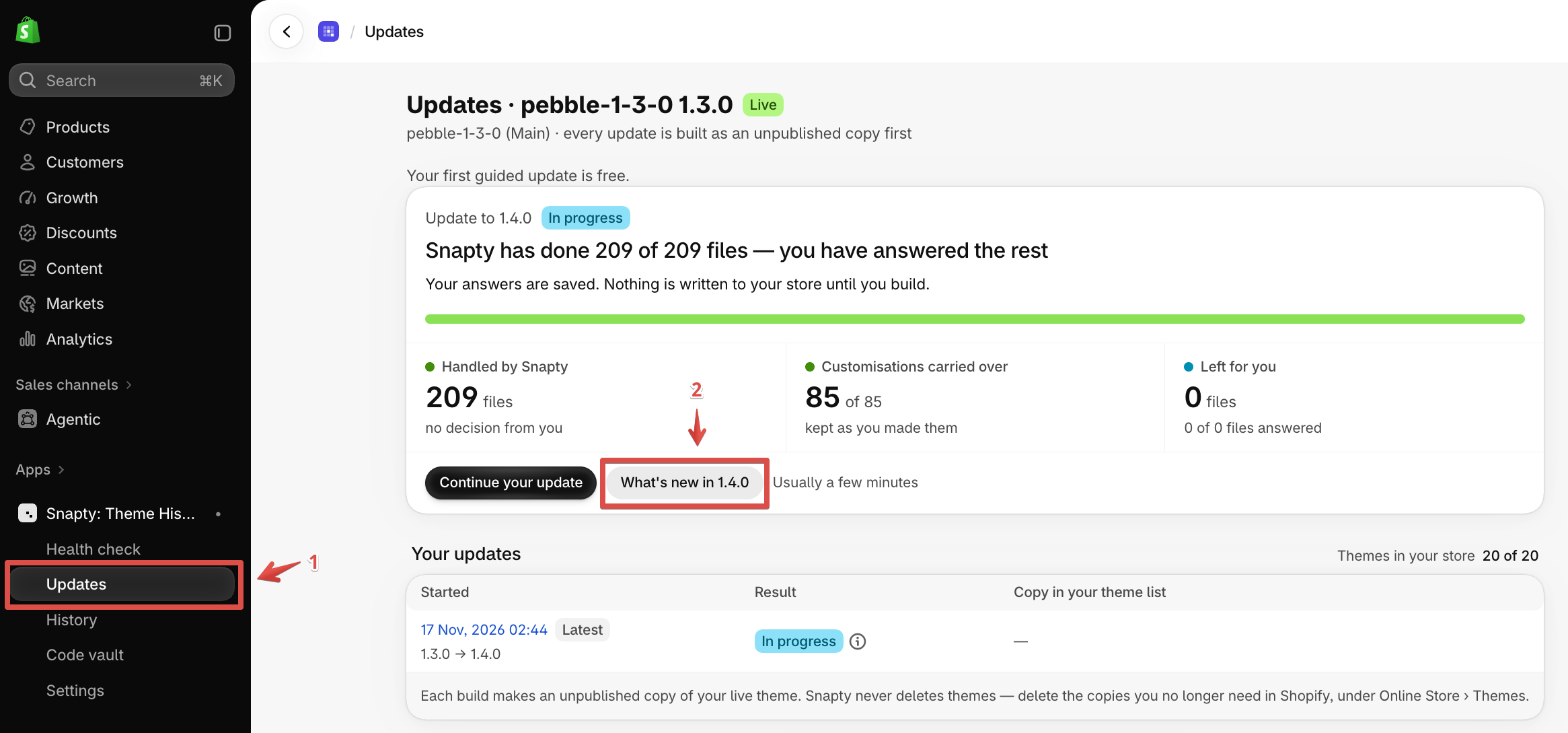
| Section | What it shows |
| ------------------------------ | ----------------------------------------------------------------------------------------------------------------------- |
| **Where you stand** | Your current theme version, when you installed it, the latest available version, and how many versions you're behind. |
| **What you have been missing** | A list of updates released since your version, starting with the newest. You can review what's changed in each version. |
For the full release notes, click **See what changed in every version** to view them on the Shopify Theme Store.
Your licence already covers every newer version of your theme, so updating doesn't mean buying it again.
### Guided update
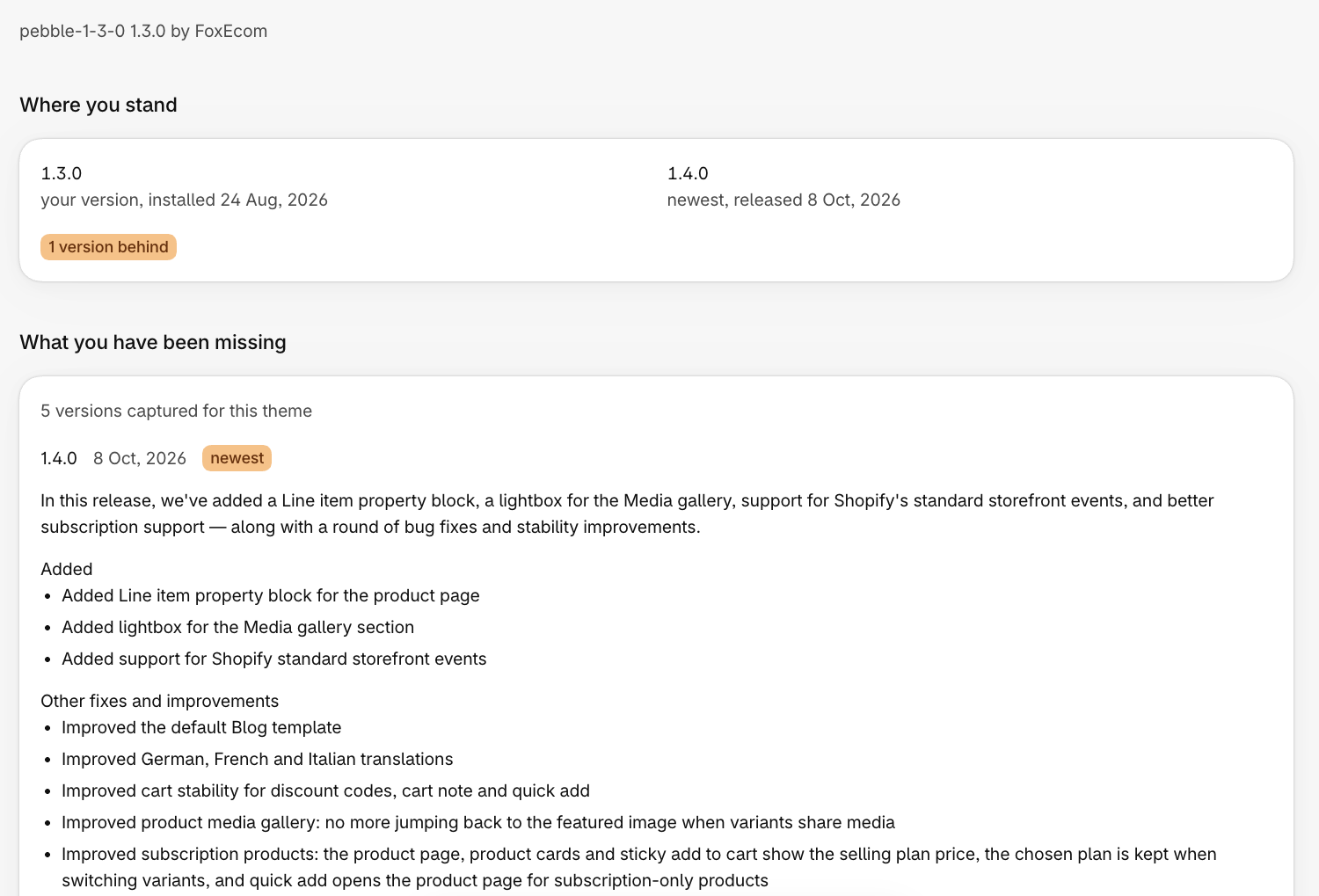
If you see **Not available yet**, Snapty can preview what an update would involve, but guided updates aren't available yet.
The numbers are based on your store's actual theme files and differ by theme provider.
**For FoxEcom themes:**
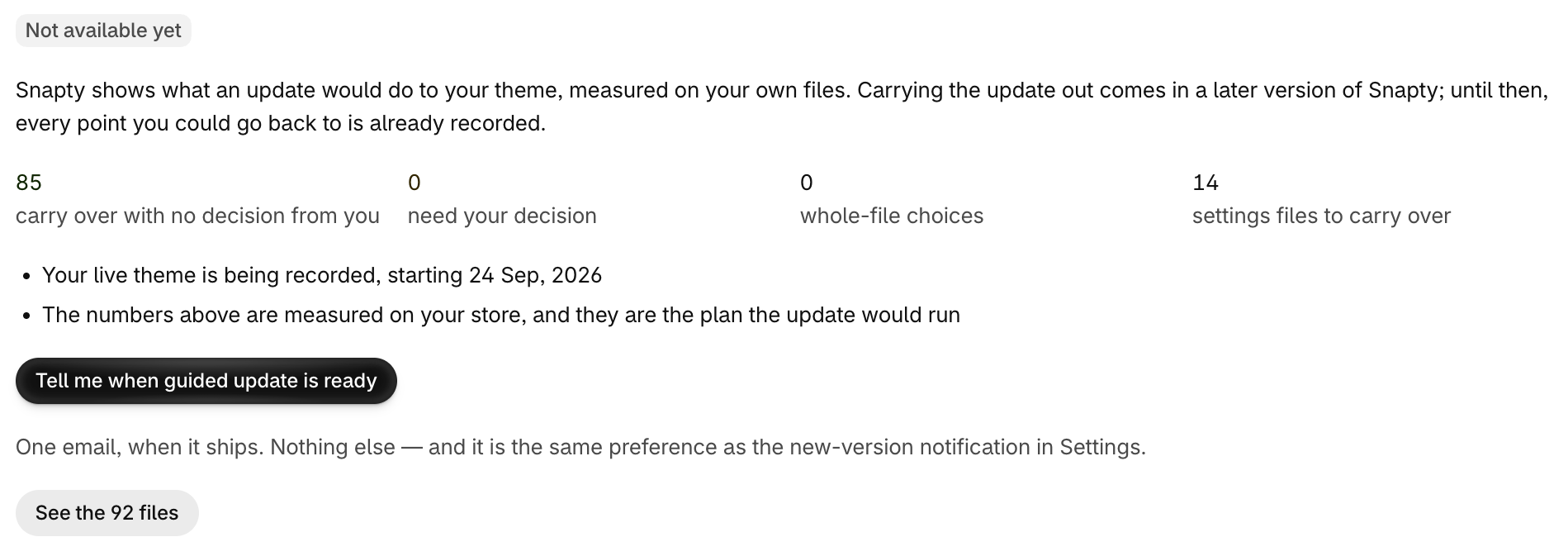
| Number | What it counts |
| ---------------------------------------- | ----------------------------------------------------- |
| **carry over with no decision from you** | Files Snapty can handle automatically. |
| **need your decision** | Changes you'd decide one by one |
| **whole-file choices** | Files where you'll choose which version to keep. |
| **settings files to carry over** | Settings files Snapty would move into the new version |
**For Shopify themes:**
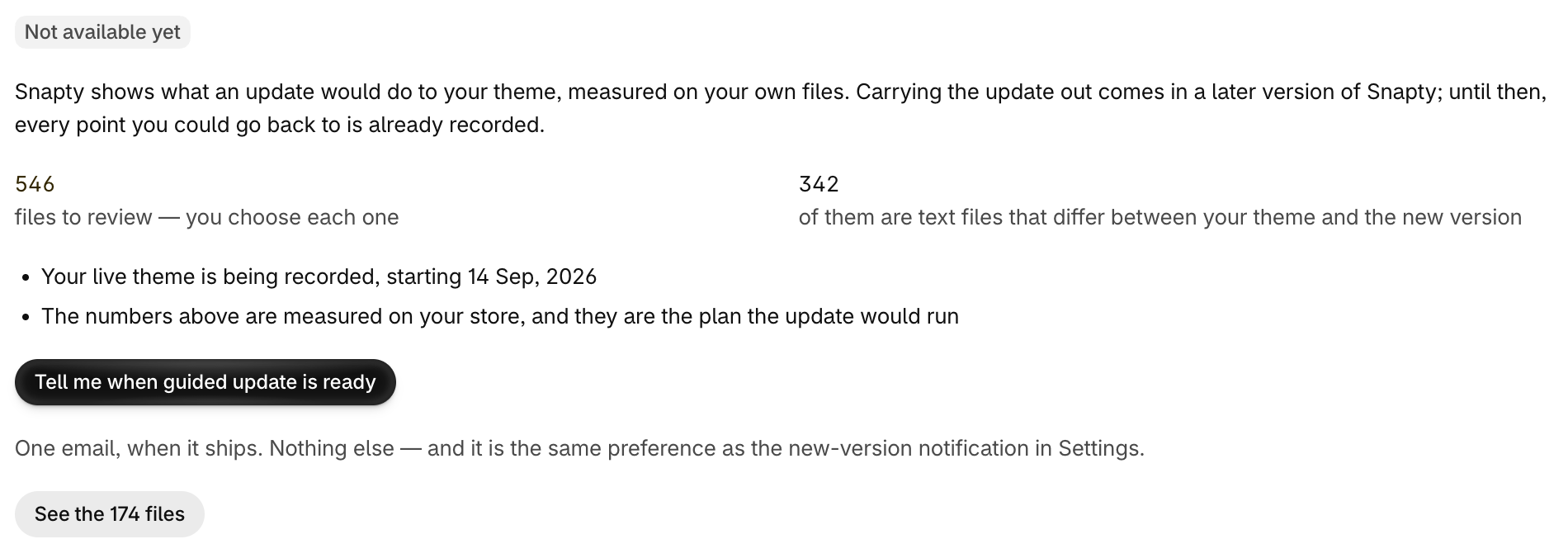
| Number | What it counts |
| -------------------------- | -------------------------------------------------------------- |
| **files to review** | Files you'll need to review individually. |
| **text files that differ** | Text files that differ between your theme and the new version. |
Click **See the \[number] files** to review the files involved, or **Tell me when guided update is ready** to receive an email when the feature launches.
Snapty is already recording your live theme, so you can refer back to previous versions.
## Understand your update status
### Read the update card
The card shows your update progress, files handled by Snapty, and previous update records.
| Number | What it means |
| ------------------------------- | ------------------------------------------------------------------ |
| **Handled by Snapty** | Files Snapty updated on its own, with no decision from you |
| **Customisations carried over** | Your existing customisations that Snapty has preserved. |
| **Left for you** | Files that need your decision and how many you've reviewed so far. |
Your answers are saved as you go. Nothing is written to your store until you build.
### Your updates
The **Your updates** list shows every update you've started.
| Column | What it shows |
| --------------------------- | ------------------------------------------------------------------------------------------------- |
| **Started** | When the update started and the versions involved. The **Latest** label marks your newest update. |
| **Result** | The update's current status, such as In progress. |
| **Copy in your theme list** | The unpublished theme copy created after building. A dash (—) appears until then. |
Each build makes an unpublished copy of your live theme, and Snapty never deletes themes. Delete the copies you no longer need in Shopify, under **Online Store › Themes**.
The page also shows **Themes in your store**, so you can check how many theme slots are in use.
## Next step
Ready to update? Follow [Update your theme step by step](https://docs.foxecom.com/snapty-app/theme-update/update-your-theme-step-by-step) to decide each file, check your theme settings, build the copy and publish it.
## FAQs
No. Your answers are saved in Snapty, and nothing is written to your store until you build. The build makes an unpublished copy, and you decide when to publish it.
Yes. Your answers save as you go. Click **Continue your update** to pick up where you left off.
No. Your licence already covers every version of your theme.
History, restore, the Code Vault and settings transfer work on any theme. Only the guided update, its preview and the check after you publish need a supported theme.
No. Only completed updates count toward your plan's limit, so you can try again later without using up your update.
## Related articles
Update your theme step by step
Check your theme health
What is Snapty
History & Restore overview
Code Vault overview