# Manage email notifications
Choose the email address Snapty sends alerts to, and which alerts you get. You hear about a broken storefront or a stopped update even when you're not in the app.
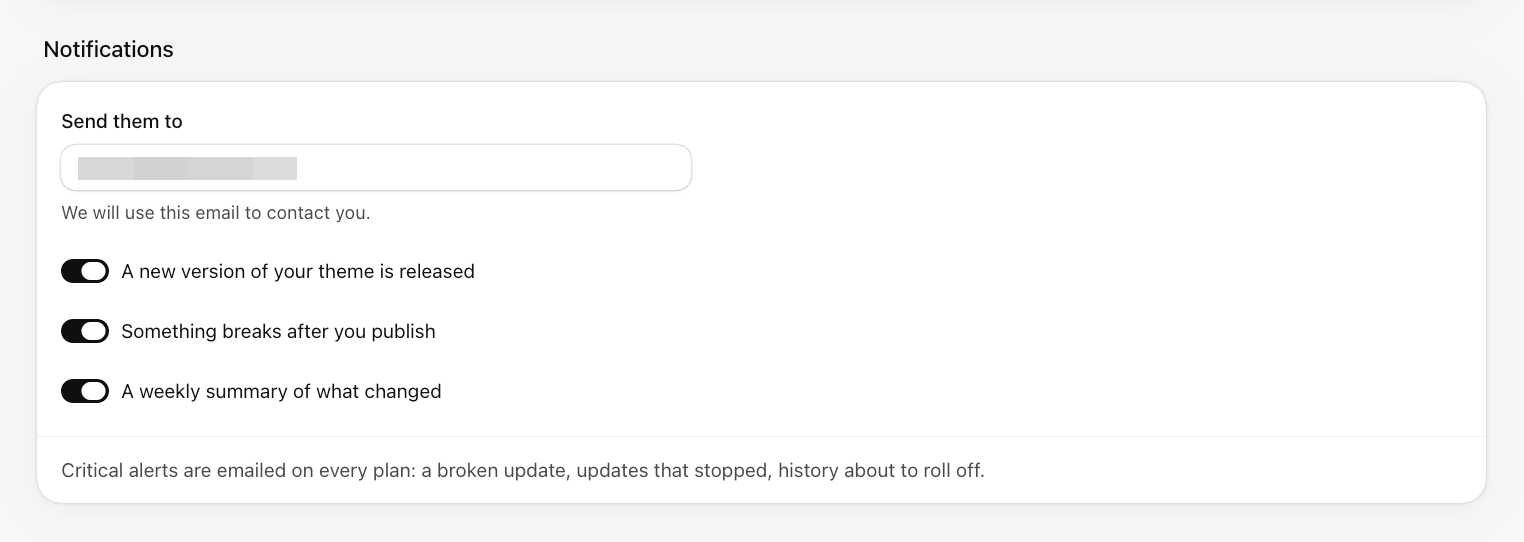
## Which emails Snapty sends
Snapty sends alerts by email, because you're not in the app when a change happens.
### Emails you can turn on or off
These three have a toggle under **Notifications**:
| Email | When it's sent |
| ------------------------------------------- | ---------------------------------------------------------------- |
| **A new version of your theme is released** | When a newer version of your theme is released. |
| **Something breaks after you publish** | When Snapty detects a potential issue after you publish a theme. |
| **A weekly summary of what changed** | Once a week, with a summary of changes detected in your theme. |
### Critical alerts
Critical alerts are always sent, immediately, on every plan — they have no toggle.
* **A broken update**
* **Updates that stopped** — Snapty detects that your theme is no longer eligible for its vendor's updates
* **History about to roll off** — at least 7 days before your oldest recordings expire
## Choose where alerts go
Alerts go to your shop's contact email unless you set a different one.
1. Click **Settings** in the left nav of the Snapty app.
2. Under **Notifications**, click the **Send them to** field.
3. Enter the email address.
4. Click **Save**.
5. To go back to your shop's contact email, clear the field and click **Save**.
The line under the field reads *We will use this email to contact you.*
**What the line under the field means**
| What the line says | Where alerts go |
| --------------------------------------------------------------------------------------------- | --------------------------------------------- |
| *We use your shop email* `you@example.com` *to contact you.* | Your shop's contact email. The field is empty |
| *We will use this email to contact you.* | The address you entered |
| *We do not have an email for this store yet. Add one here and we will use it to contact you.* | Nowhere, until you add an address |
If the line says Snapty has no email for your store, alerts have nowhere to go until you add one.
## Choose which types of emails you will get
1. Go to **Snapty → Settings → Notifications**.
2. Turn each email notification on or off based on your preferences.
3. Click **Save**.
To undo changes you haven't saved, click **Discard**. The card goes back to what you last saved.
If you turn off **A weekly summary of what changed**, routine changes aren't emailed — you read them on the **History** screen.
## If saving fails
Check your email address and try saving again. Your previous settings remain unchanged.
Reload the page and try again. If the issue persists, contact our support team.
## FAQs
No. You can turn off the three emails under **Notifications**, but critical alerts — a broken update, updates that stopped, and history about to roll off — are emailed on every plan.
Not on Free — routine changes arrive as a weekly summary. Starter and Pro email routine changes as they happen.
Not on Free. Starter and Pro add extra recipients, Slack and webhook.
## Related articles
Settings overview
The History screen
Manage your data