# View theme history
See what changed in your live theme and when, take a snapshot whenever you want one, and keep the snapshots you may need to restore later.
## Check your theme history
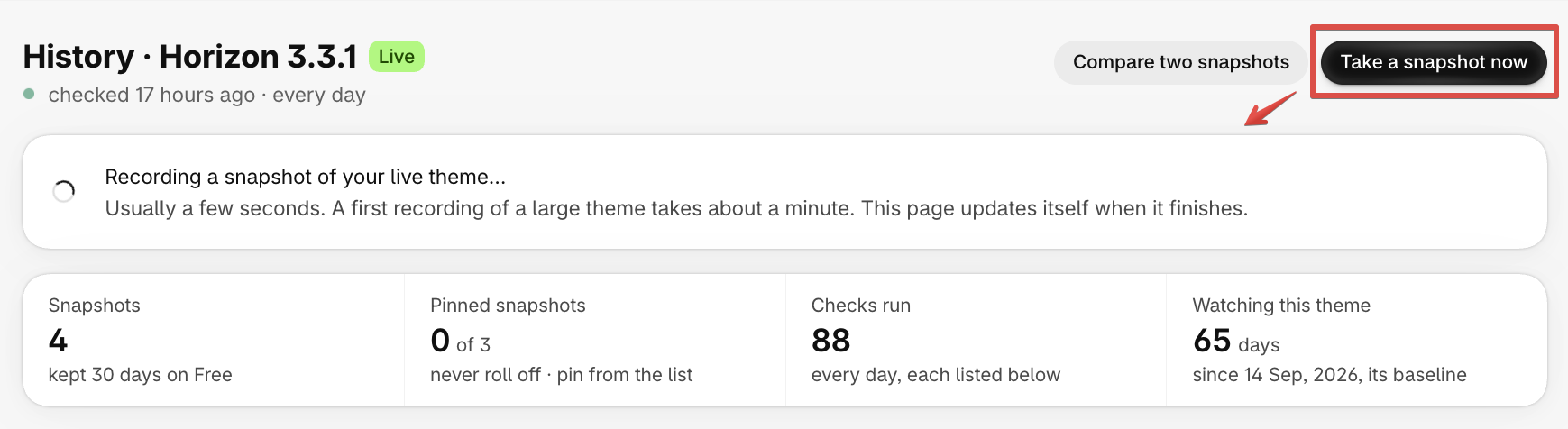
1. Open **Snapty → History**.
2. Check the status below your theme name to see when Snapty last checked your theme and how often checks run.
3. Review the four key metrics at the top.

| Number | What it tells you |
| ----------------------- | -------------------------------------------------------------------------------------- |
| **Snapshots** | Number of saved theme snapshots and how long your plan keeps them. |
| **Pinned snapshots** | Number of snapshots you've pinned. Pinned snapshots won't expire automatically. |
| **Checks run** | Total number of checks Snapty has performed, including checks with no changes. |
| **Watching this theme** | How long Snapty has monitored your theme, starting from its first snapshot (baseline). |
## Take a snapshot
1. Go to **Snapty → History** and click **Take a snapshot now**.
2. Snapty checks your live theme for changes since the latest snapshot. This usually takes a few seconds, and the page updates automatically when finished.
3. Depending on the result:
* **If changes are found:** A new snapshot appears at the top of the list, labeled *you asked*.
* **If nothing changed:** No new snapshot is created.
Snapty doesn't create a duplicate snapshot when nothing changed, so your list only shows real changes.
## Review snapshots
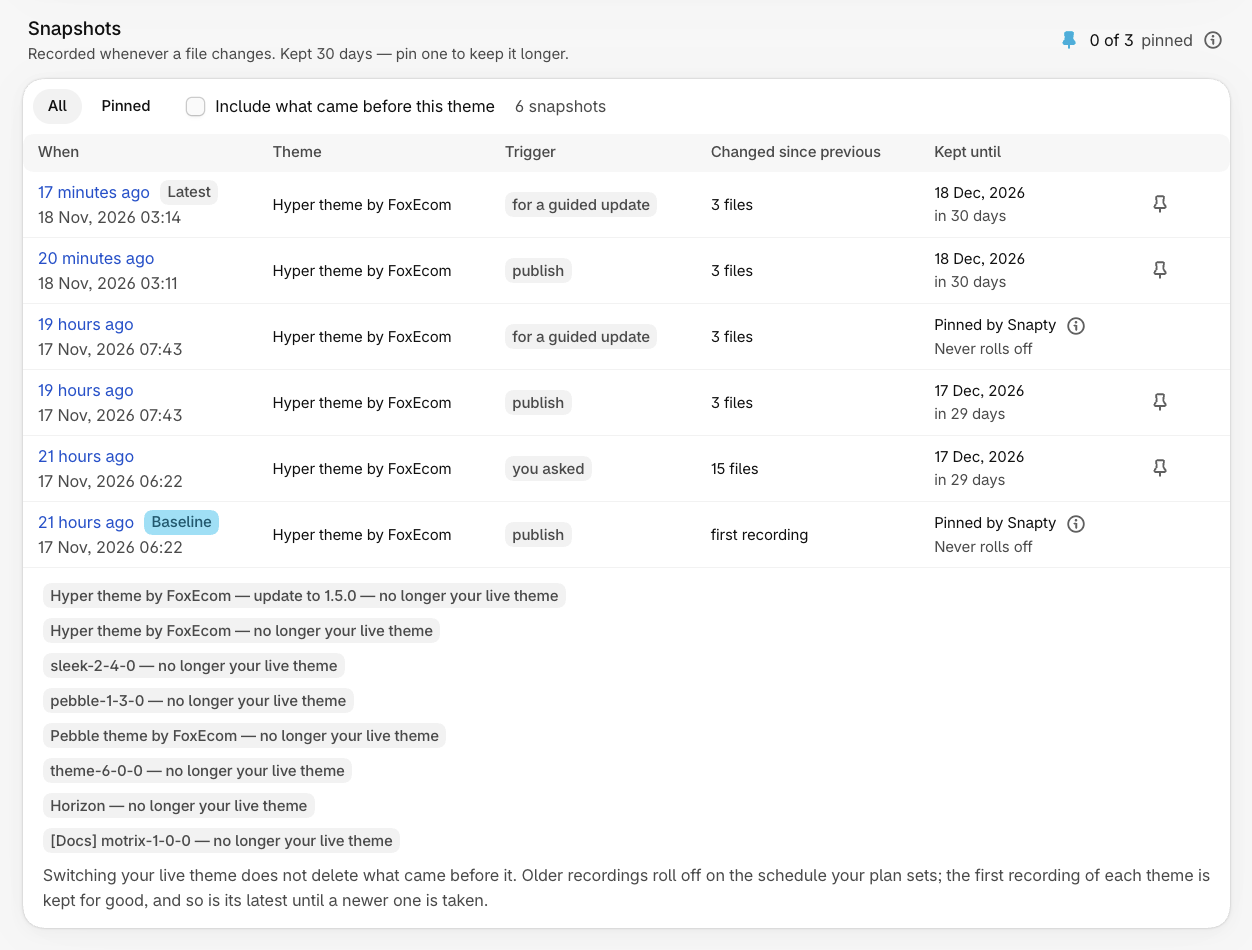
The **Snapshots** list shows all recorded versions of your theme, with the newest first.
| Column | What it shows |
| -------------------------- | ------------------------------------------------------------------ |
| **When** | When the snapshot was created. Click the date to view its details. |
| **Theme** | The theme the snapshot belongs to. |
| **Trigger** | What caused Snapty to record the snapshot. |
| **Changed since previous** | Number of files that differ from the previous snapshot. |
| **Kept until** | When the snapshot expires, unless it's pinned. |
### Understand snapshot triggers
| Trigger | Meaning |
| ----------------------- | --------------------------------------------------------------------------------- |
| **first seen** | The first snapshot of this theme — its baseline |
| **on schedule** | An automatic check detected changes. How often Snapty checks depends on your plan |
| **publish** | You published a theme, so Snapty recorded the new live theme |
| **you asked** | You clicked **Take a snapshot now** |
| **before a restore** | Snapty recorded the theme just before a restore wrote into it |
| **for a guided update** | Snapty recorded the theme for an update. |
| **before an update** | Snapty checked your theme before an update started. |
Two labels mark special rows:
* **Latest** — the newest snapshot.
* **Baseline** — the first snapshot Snapty took of this theme. Every later change is measured from it.
To see only the snapshots you pinned, click **Pinned**.
To see what changed inside a snapshot, see [Compare theme snapshots](https://docs.foxecom.com/snapty-app/history-and-restore/compare-theme-snapshots).
### See snapshots from themes you used before
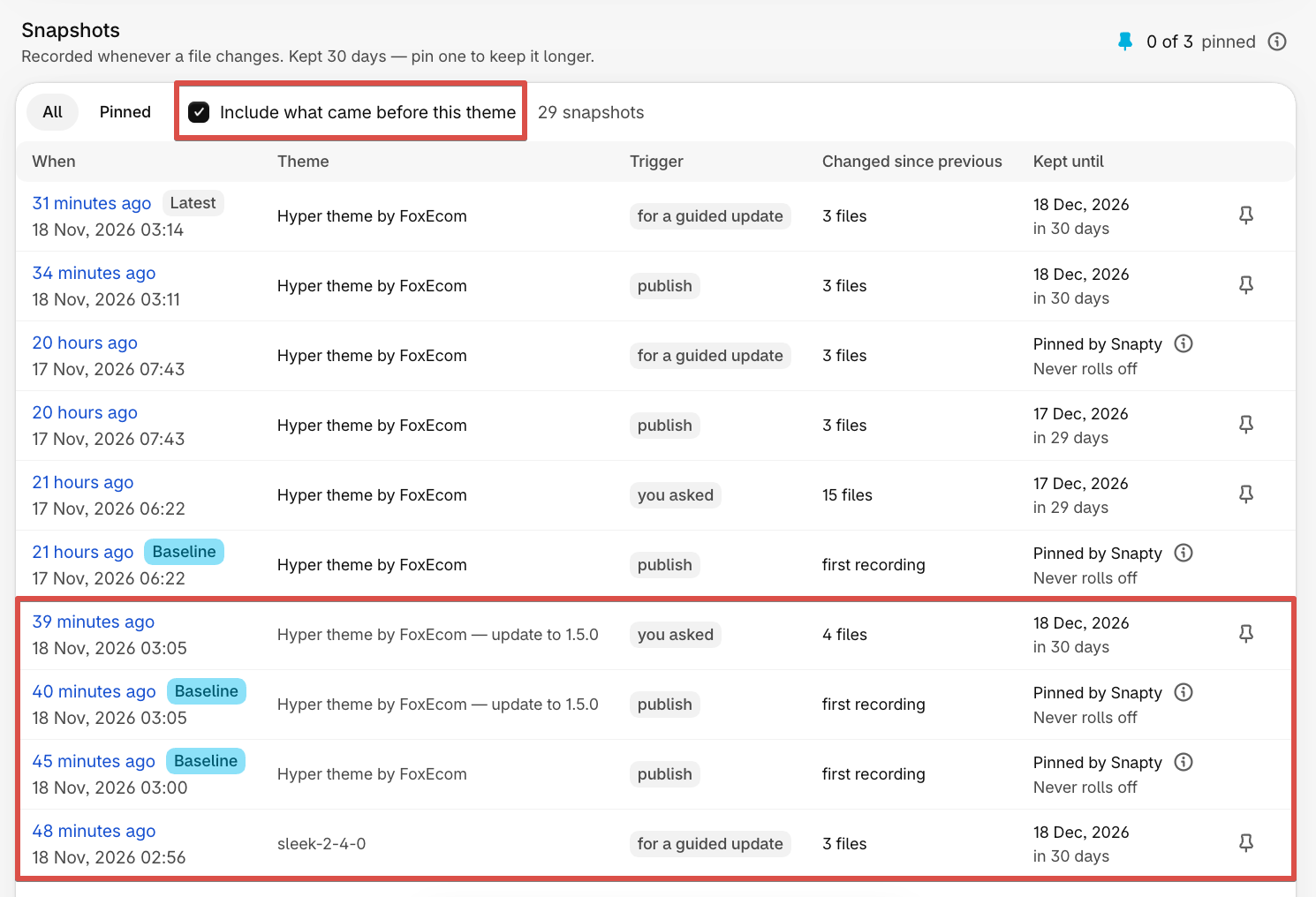
Select **Include what came before this theme**. The list adds snapshots from themes that were live before, with their name in the **Theme** column.
Below the list, each earlier theme is marked **no longer your live theme**. You can still open, compare and restore from these snapshots.
## Review recent activity
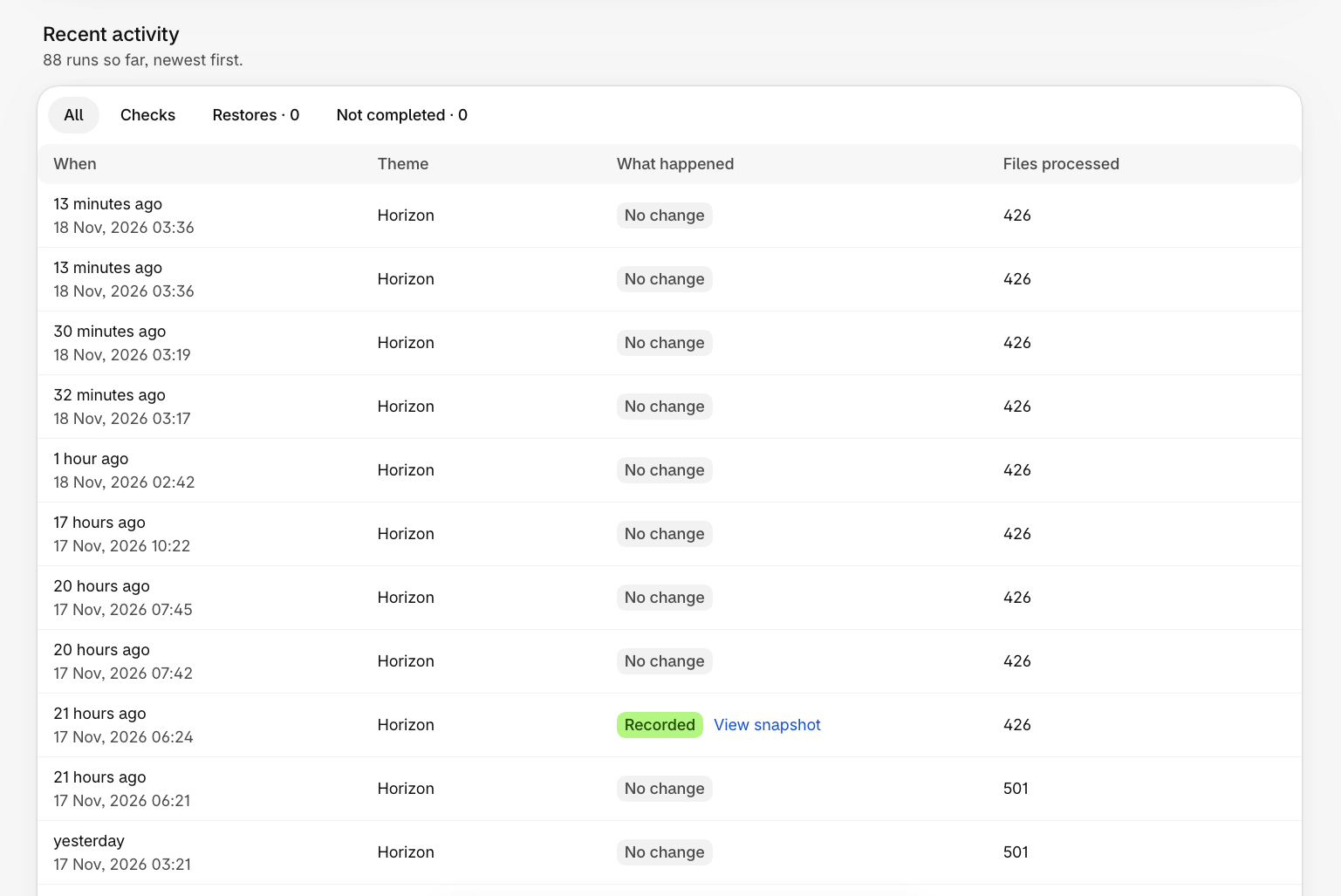
**Recent activity** lists every check and restore Snapty has run, newest first, including the checks that found nothing to record. Use it to confirm Snapty is running when your snapshot list hasn't changed for a while.
1. Scroll to **Recent activity** on **History**.
2. Click a filter to narrow the list.
| Filter | What it shows |
| ----------------- | ----------------------------------------------------- |
| **All** | Every check and restore |
| **Checks** | Only checks |
| **Restores** | Only restores, with how many there are |
| **Not completed** | Only runs that didn't finish, with how many there are |
History shows only the newest runs, for example **Showing 20 of 88**. Click **View all activity** to see every run.
### Read the activity list
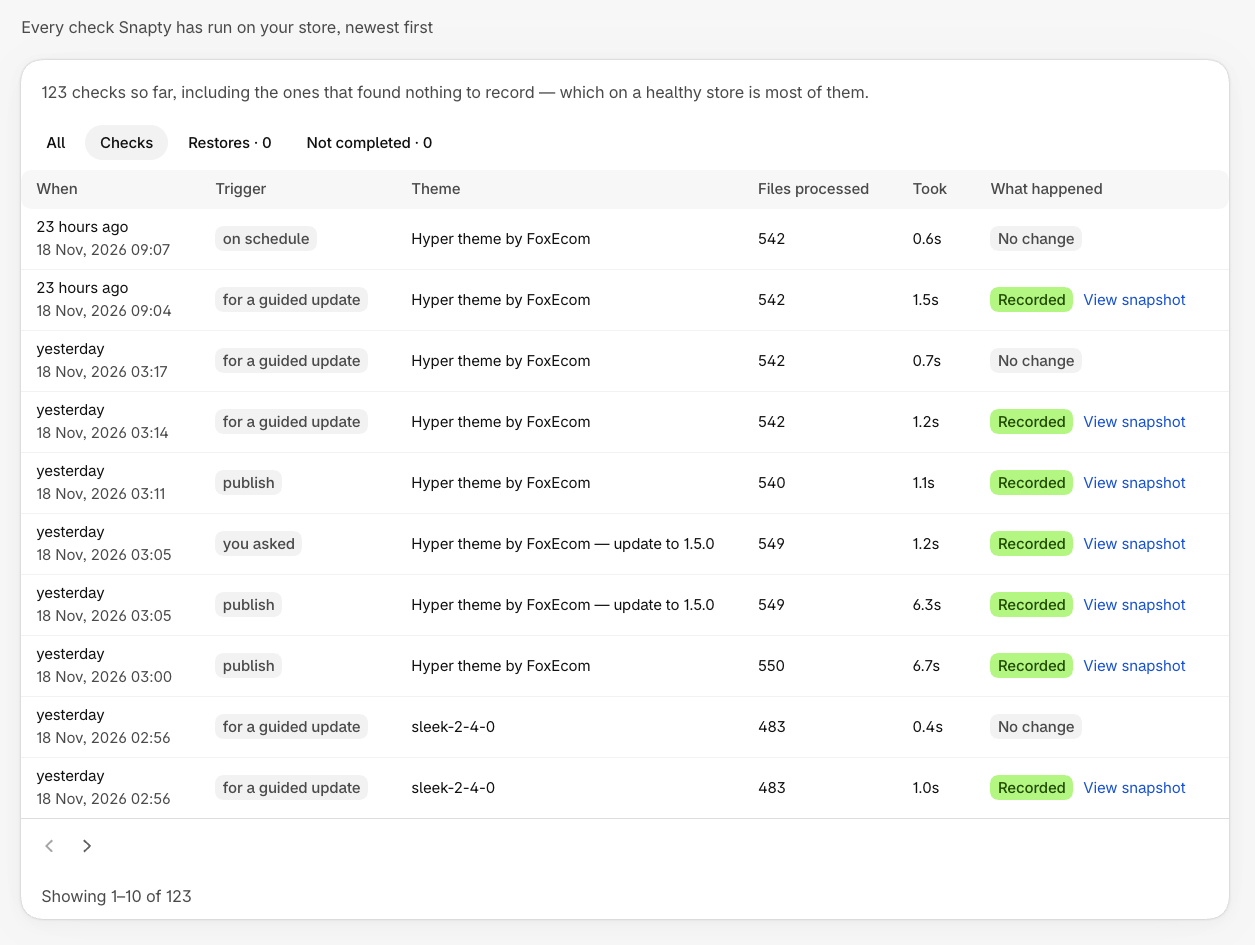
See all the checks Snapty has run on your store:
| Column | What it shows |
| ------------------- | --------------------------------------------------------------------------------------- |
| **When** | The date and time the check finished. |
| **Trigger** | What started the check, such as a scheduled check, a manual request, or a theme update. |
| **Theme** | The theme that was checked. |
| **Files processed** | The number of theme files Snapty checked. |
| **Took** | How long the check took. Blank if the check is still running. |
| **What happened** | The check result, including whether changes were recorded. |
### Results of a check
| Result | What it means |
| --------------------- | ----------------------------------------------------------------------------------------------------------------------- |
| **Recorded** | Snapty detected changes and saved a new snapshot. Click **View snapshot** to see what changed. |
| **No change** | All files match the latest snapshot. No new snapshot was needed. |
| **Running** | Snapty is still checking your theme. |
| **Partly unreadable** | Snapty saved a snapshot, but couldn't read some files. These files are marked as unreadable. |
| **Failed** | Snapty couldn't finish checking your theme. Your store wasn't affected. |
| **Interrupted** | The check stopped because Snapty restarted. Your store wasn't affected, and the next scheduled check will run as usual. |
### Results of a restore
A restore row shows what kind it was — **restore, one file** or **restore, whole version** — and the theme it wrote into. A one-file restore also shows the file path.
| Result | What it means |
| -------------------- | ----------------------------------------------------------------------------------------------------- |
| **Restored** | The file or the version is back |
| **Already in place** | The file already held the recorded content, so Snapty wrote nothing. This isn't a failure |
| **Not confirmed** | Snapty couldn't confirm whether the restore succeeded. Check the details below the result to see why. |
If a check or restore doesn't complete successfully, Snapty will show a message explaining what went wrong and how to fix it.
| What the line says | What to do |
| ---------------------------------------------------------------------------- | ---------------------------------------------------------------------------------------------------------- |
| **The check stopped before it finished reading your theme** | Your store wasn't affected. Snapty will check again on schedule. If this keeps happening, contact support. |
| **Snapty could not confirm which theme is live, so the check never started** | Snapty couldn't identify your live theme. It will try again during the next scheduled check. |
| **Shopify refused the write** | Open Snapty from your Shopify admin, approve the required permissions, and try restoring again. |
| **The file was written and the theme does not report the recorded content** | Check the file in your theme editor. If it wasn't restored correctly, try again. |
| **Shopify was still working when Snapty stopped waiting** | Check the file in your theme editor to see if the change was applied. If not, try restoring again. |
| **The recorded copy is no longer in storage** | Choose a newer snapshot that contains the same file. |
| **This snapshot holds no recorded copy of that file** | The file didn't exist when this snapshot was created. Choose a newer snapshot. |
| **That version is no longer recorded** | This snapshot is no longer stored, so it can't be restored. |
| **The recorded file belongs to a different theme** | Choose a snapshot from the theme you want to restore. |
| **The copy was made and some recorded files are not in it** | The saved copy is still usable, but some files are missing. Review the important files before publishing. |
## Manage snapshot retention
How often Snapty checks your theme, how long it keeps snapshots and how many you can pin depend on your plan:
| Plan detail | Free | Starter | Pro |
| -------------------- | ------- | ------------- | ------------ |
| **Theme checked** | Daily | Every 6 hours | Every 15 min |
| **Snapshots kept** | 30 days | 90 days | 1 year |
| **Pinned snapshots** | Up to 3 | Up to 10 | Up to 50 |
The **Kept until** column shows when each snapshot rolls off.
After that date, you can't open or restore from the snapshot. Nothing on your store changes when a snapshot rolls off.
### Pin a snapshot to keep it
1. Find the snapshot in **Snapshots**.
2. Click the pin icon at the end of its row.
A pinned snapshot stays until you unpin it, even after your plan's history window. You can unpin a snapshot from the same list on **History**.
### Snapshots Snapty keeps for you
Snapty pins these for you on every plan, including Free. They don't count toward your plan's pins:
| Snapshot | How long it's kept |
| ---------------------------------- | -------------------------------------------------------------- |
| **Baseline** | Forever — the row shows **Pinned by Snapty · Never rolls off** |
| **before a restore** | Forever, so you can always undo that restore |
| **The latest snapshot of a theme** | Until a newer one is taken |
### Watch for expiry warnings
Seven days before your oldest snapshots start rolling off, **History** shows a warning. Snapty never removes snapshots without telling you first. Pin any snapshot you want to keep before its date.
## FAQs
Snapty checked your theme and found nothing new. It doesn't create a duplicate snapshot when nothing changed, so your list only shows real changes. The check itself is listed in **Recent activity** as **No change**.
You can no longer open or restore from it. Nothing on your store changes. Seven days before your oldest snapshots roll off, **History** shows a warning, so you can pin the ones you want to keep.
Pin it. A pinned snapshot stays until you unpin it. You can pin up to 3 snapshots on Free, 10 on Starter and 50 on Pro.
No. Your baseline and every **before a restore** snapshot are kept forever on every plan, and they don't count toward your pins.
It's still there, marked as no longer your live theme. Select **Include what came before this theme** to see those snapshots.
## Related articles
History & Restore overview
Compare theme snapshots
Restore theme files or versions