# Restore theme files or versions
Put back a theme file or a whole theme version from a snapshot, without changing what your customers see until you're ready.
Before you restore, compare the snapshot with your theme to check it holds the version you want. See [Compare theme snapshots](https://docs.foxecom.com/snapty-app/history-and-restore/compare-theme-snapshots).
## Restore a single file
1. Open the snapshot you want to restore from **History**, then select the file you want to recover.
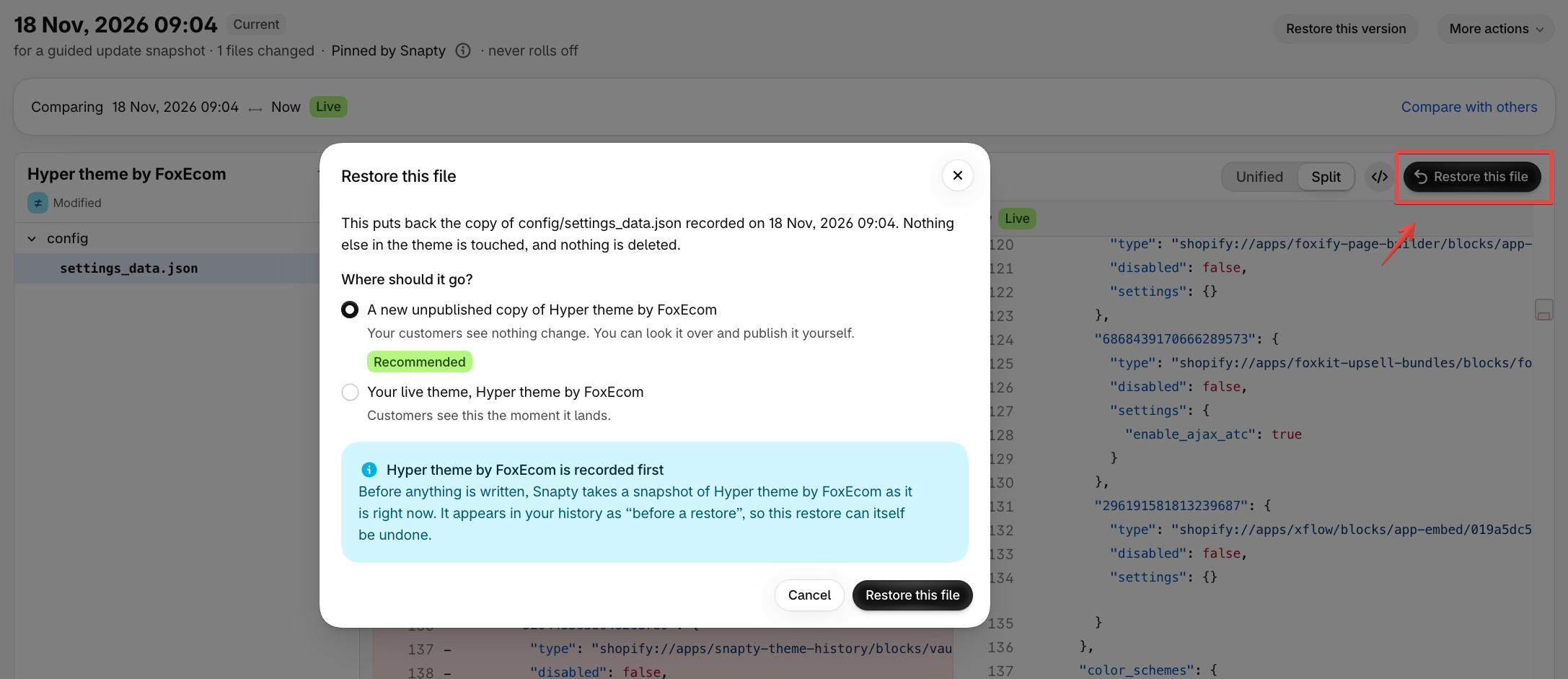
2. Click **Restore this file** in the top-right corner.
3. Choose where to restore the file:
* **A new unpublished copy of your theme (Recommended):** Review the restored file before publishing. Your live store stays unchanged. Only the selected file is restored. No other theme files are changed or deleted.
* **Your live theme:** Apply the restored file directly to your live store. Customers will see the change immediately.
4. Click **Restore this file** to confirm. If you choose your live theme, Snapty shows an additional warning before restoring.
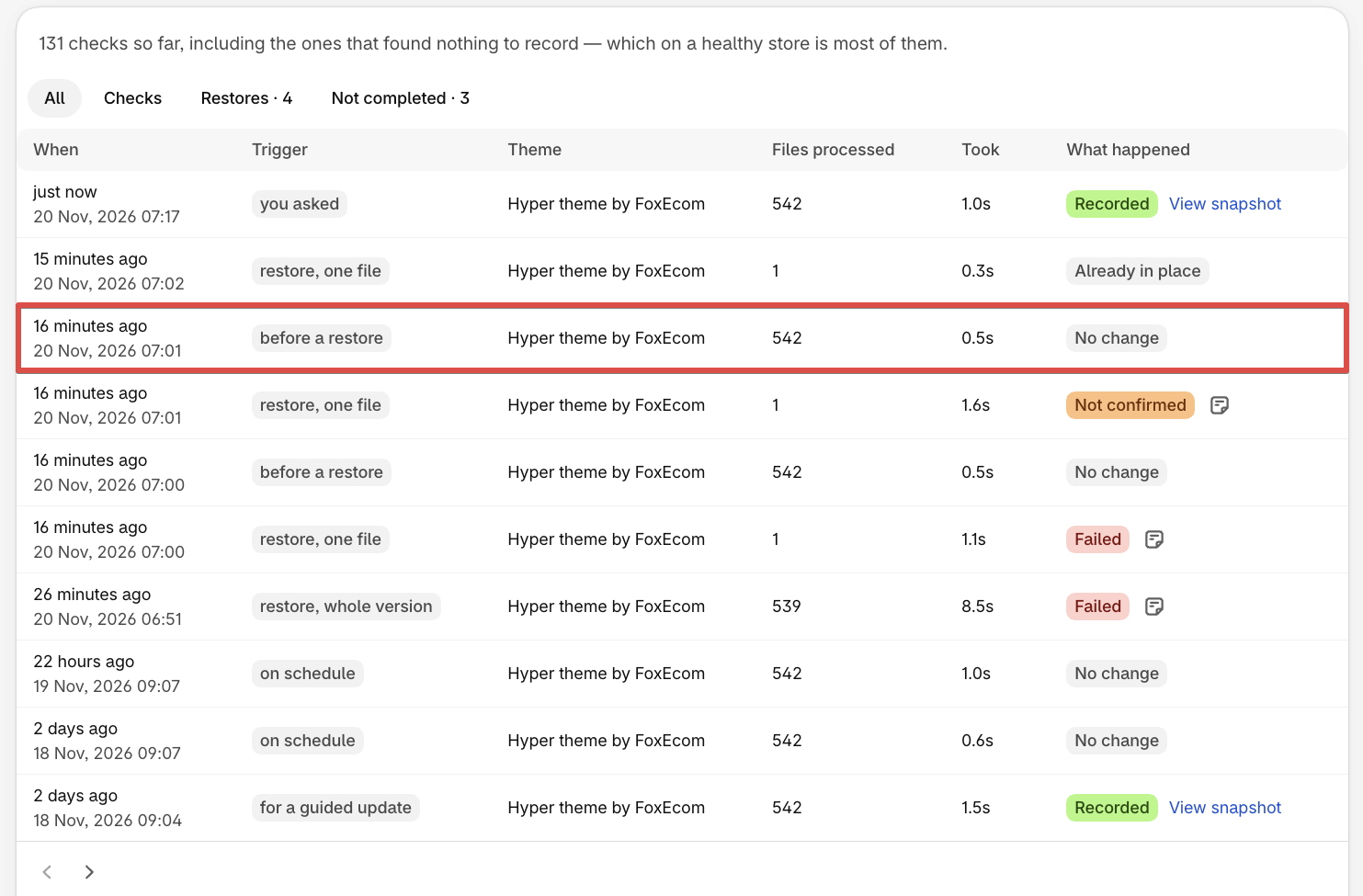
Before restoring, Snapty saves a backup in **History** so you can undo the change. If the file is already identical, nothing changes, and **Recent activity** shows **Already in place**.
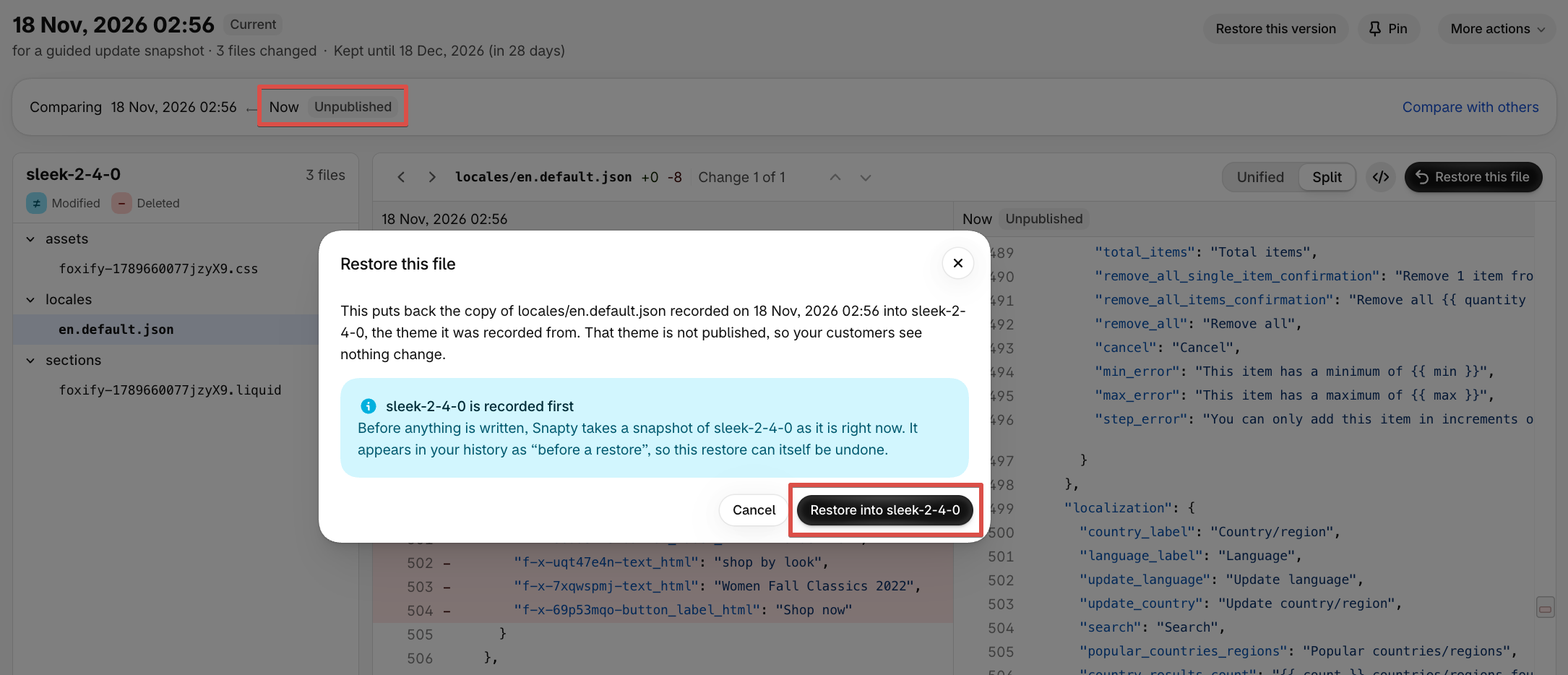
**If the snapshot belongs to an unpublished theme**, Snapty restores the file directly to that same theme. You won't need to choose a destination. Review the details, then click **Restore into \[theme name]** to confirm.
Your live theme remains unchanged, so customers won't see any changes.
## Restore an entire theme version
1. Go to **History** and click a snapshot in the **When** column, or select **View snapshot** in **Recent activity**.
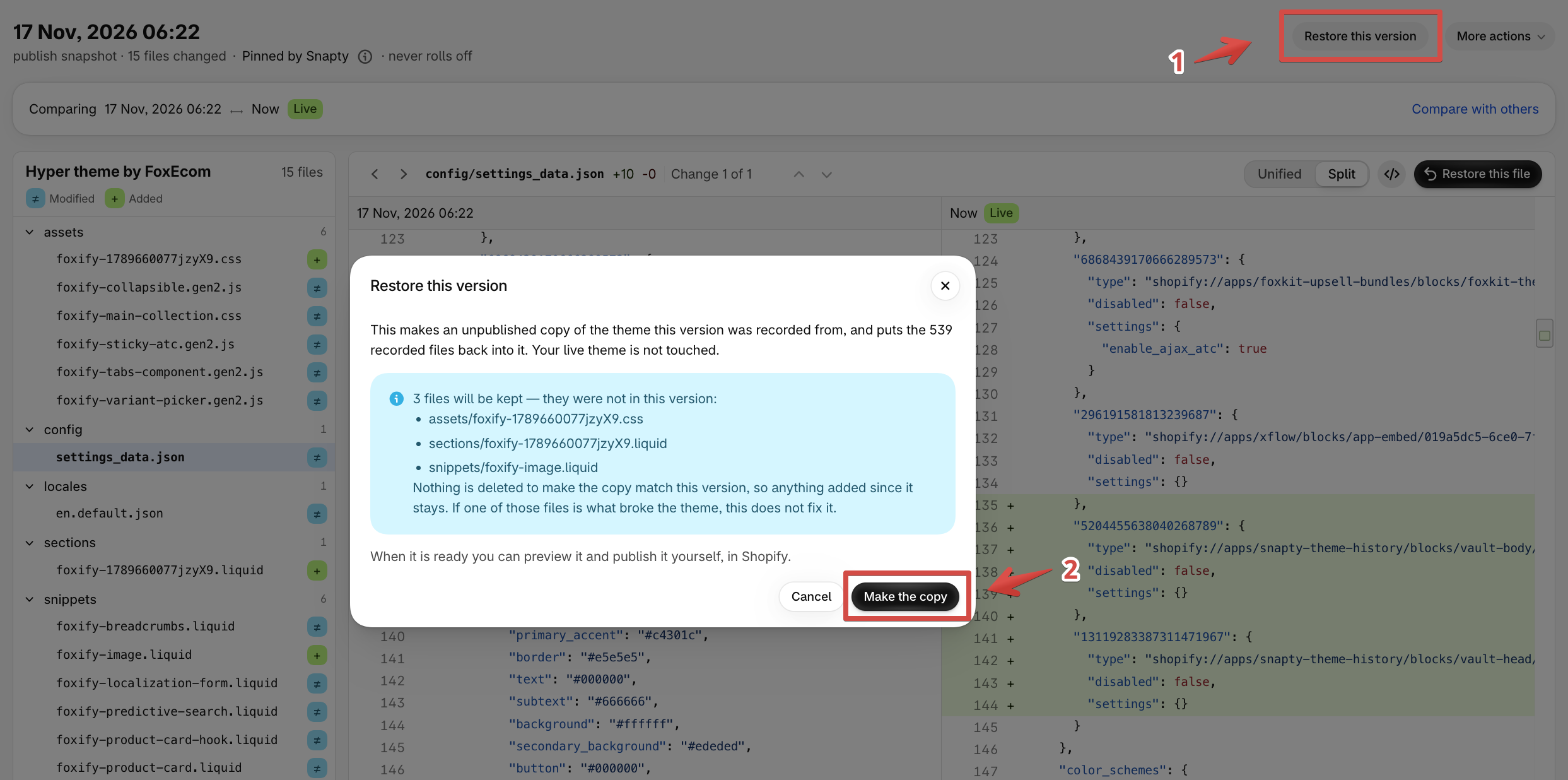
2. Click **Restore this version** in the top-right corner.
3. Review the restore details and click **Make the copy**. This creates an unpublished theme copy without affecting your live theme.
Restoring a snapshot creates an unpublished copy of the theme without affecting your live theme. You can preview and publish the restored copy in Shopify.
| List on the confirm step | What it means |
| ---------------------------------------------------------------------- | ------------------------------------------------------------------------------------------------------------- |
| **N files will be kept — they were not in this version** | Files added after the snapshot stay in the copy. If one of them broke your theme, this restore doesn't fix it |
| **N recorded files are no longer in storage** | These files have aged out. The copy keeps what the theme holds for them now |
| **N recorded templates point at sections this version does not carry** | Shopify won't write these templates, so the copy keeps the current ones |
Snapty duplicates the theme, writes the recorded files into the copy, and checks each file arrived. **Recent activity** then shows **Restored**, or **Not confirmed** if some files didn't land. A **Not confirmed** copy is still usable — check the files that matter before you publish it.
## Preview and publish a restored theme
A restored copy is never published for you.
1. Go to **Online Store > Themes** in your Shopify admin.
2. Find the restored copy in your theme library.
3. Preview the copy.
4. Check the pages the restored files affect.
5. Publish the copy when it looks right.

## Undo a single file restore
If you restored a single file and want to undo the change, you can bring back its previous version:
1. Open the snapshot with the trigger **before a restore** on **History**.
2. Click the file you restored.
3. Click **Restore this file**.
The **before a restore** snapshot never rolls off, so you can undo the restore at any time.
Restoring an entire theme version creates a new copy without changing your existing theme, so there's nothing to undo.
## Restore limitations
Restoring brings back saved files, but it doesn't undo every change made to your theme.
Here are a few things to keep in mind:
| Limitation | What it means for you |
| ---------------------------------------------------- | ---------------------------------------------------------------------------------------------------------------------------------------------------------- |
| **New files aren't deleted** | Snapty never deletes a file. If a file added after the snapshot broke your theme, remove it yourself in Shopify's code editor |
| **A whole version never overwrites your live theme** | It always goes into a new unpublished copy |
| **The original theme must still exist** | If the theme was deleted from Shopify, you can still read its snapshots, but you can't restore from them |
| **Files can't go into a different theme** | A file from one theme can break another. Snapty refuses the restore before anything is read |
| **Rolled-off snapshots can't be restored** | Pin a snapshot to keep it past your plan's history window. See [View theme history](https://docs.foxecom.com/snapty-app/history-and-restore/view-theme-history#manage-snapshot-retention) |
✅ **Done when:** the file or the theme copy holds the version you wanted, and you've published the copy if you want it live.
## FAQs
Not unless you choose it. A whole version always goes into a new unpublished copy. A single file goes into a new unpublished copy, or into your live theme only if you choose your live theme and confirm.
For a single file, yes. Snapty saves a **before a restore** snapshot first, and it never rolls off. Open it and restore the file again. A whole-version restore makes a new copy and leaves your existing themes alone, so there's nothing to undo.
The problem is most likely in a file added after the snapshot. A restore deletes nothing, so that file is still in the copy. The confirm step lists those files by name. Remove the file yourself in Shopify's code editor.
Snapty only writes into the theme the snapshot came from, because a file from one theme can break another. The theme must also still exist in Shopify, and the snapshot must not have rolled off.
No. No plan limits how often you restore.
## Related articles
Compare theme snapshots
View theme history
History & Restore overview