# Compare theme snapshots
Find out exactly what changed in your theme, file by file and line by line, before you decide what to restore.
## Compare a snapshot with your current theme
Open any snapshot to see how your theme has changed since that recording was taken.
### Open a snapshot
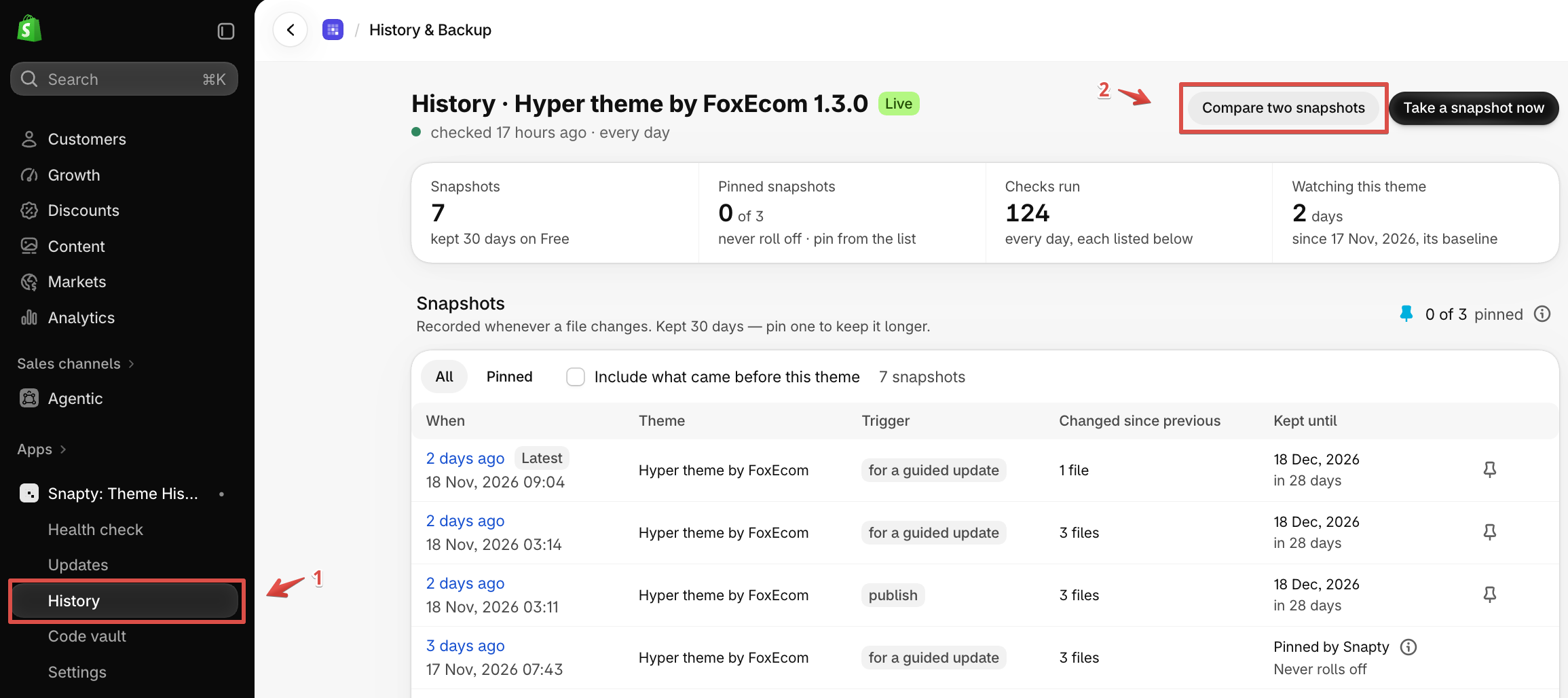
1. Go to **History**.
2. Click a snapshot in the **When** column, or select **View snapshot** from **Recent activity**.
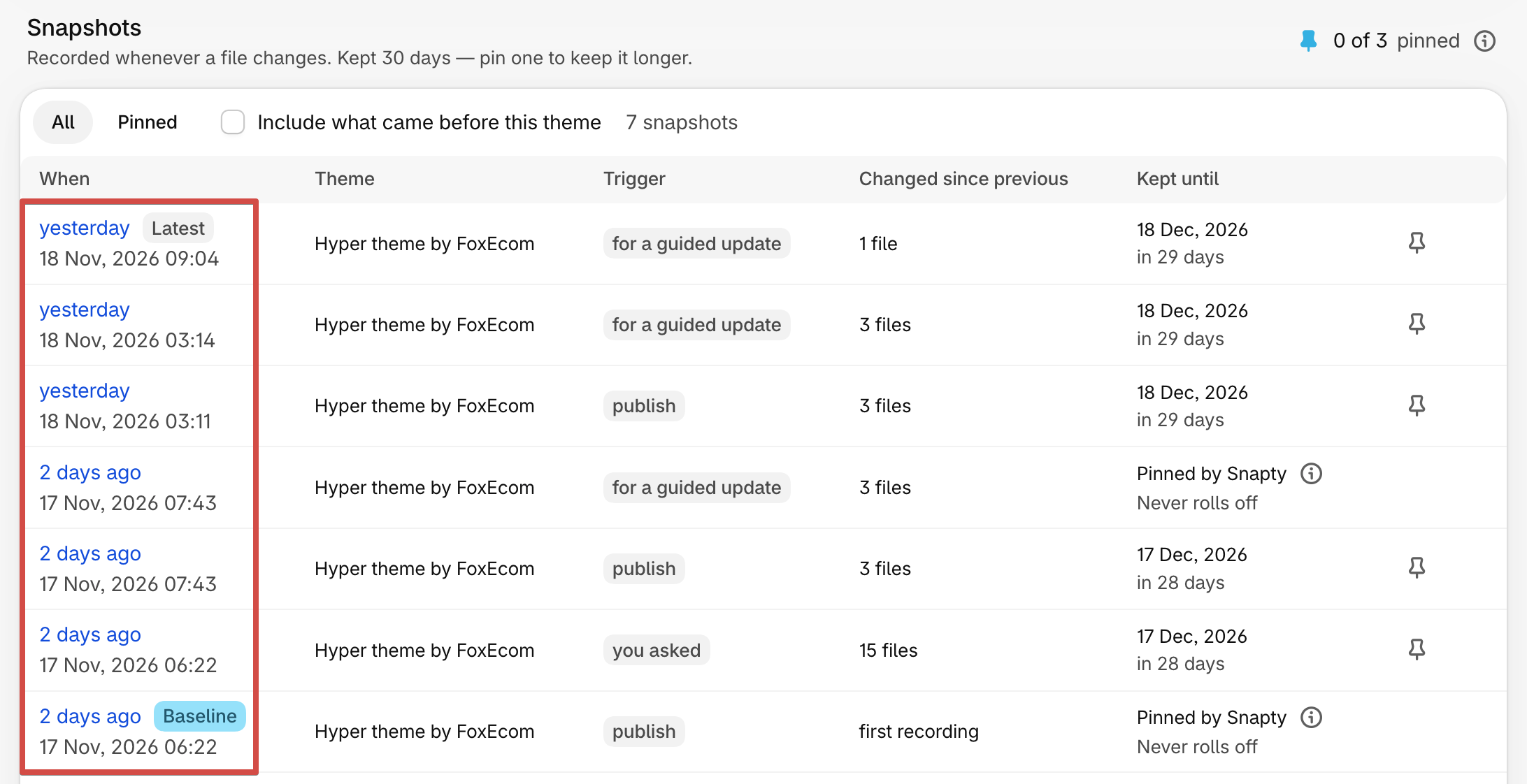
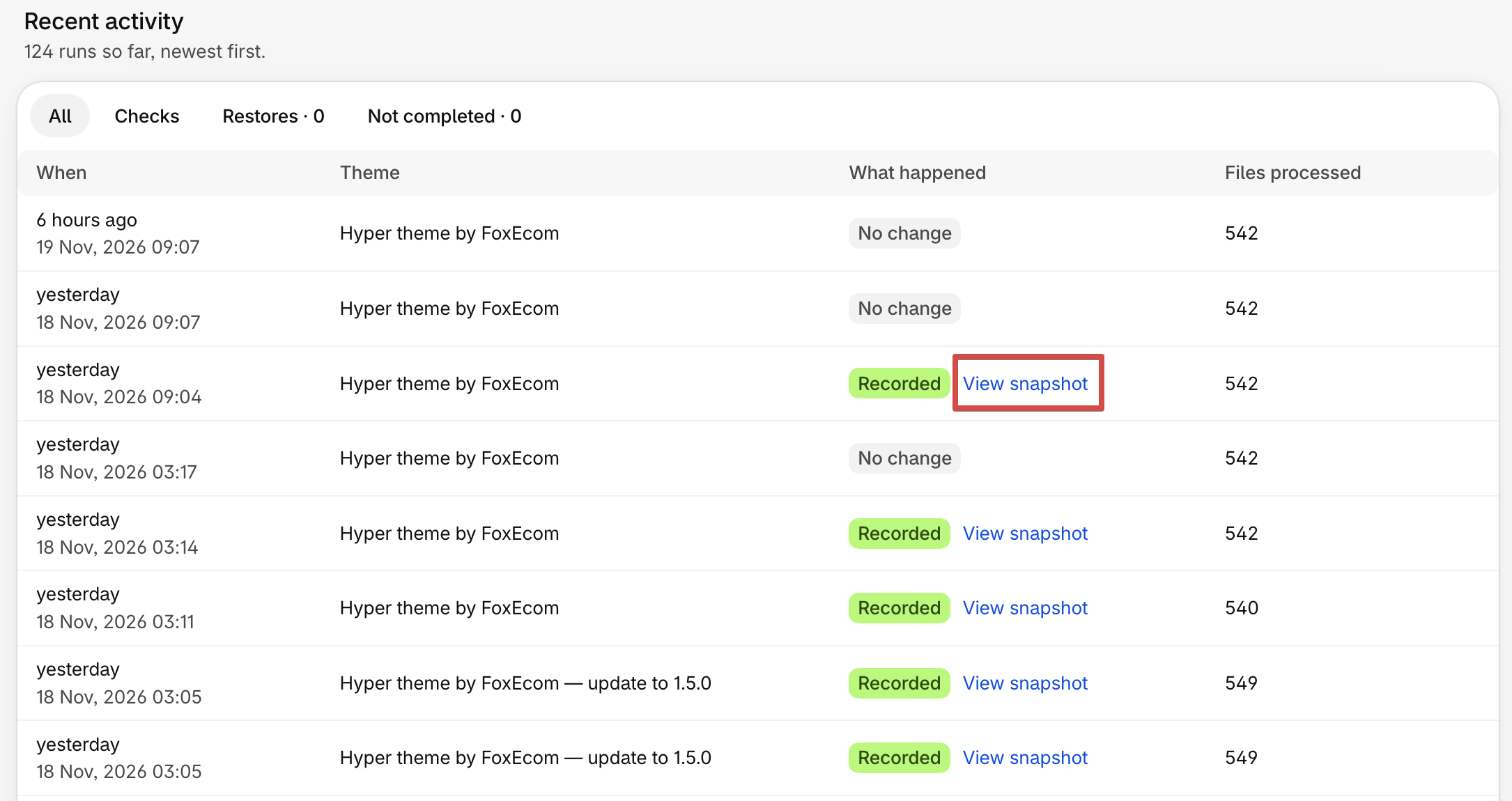
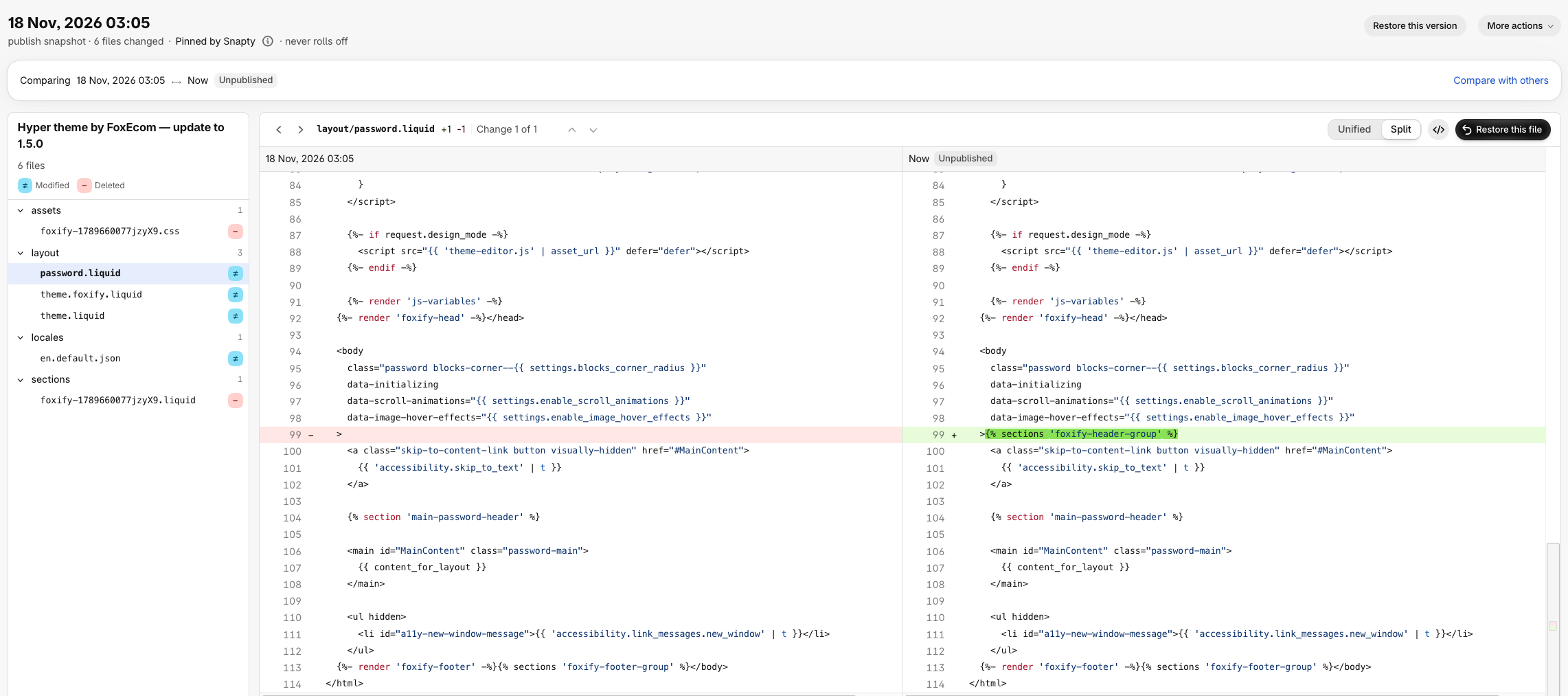
Snapty opens the snapshot and compares it with the theme's current version. You'll see the snapshot date, what triggered it, and which files have changed.
### Understand what you're comparing
The comparison shows two versions of the same theme:
* **Left:** The saved snapshot, showing your theme at that point in time.
* **Right:** The current version of that theme, labeled **Now**.
Your current theme isn't always your live theme.
If the snapshot belongs to an older or unpublished theme, Snapty compares it with that same theme, not your current live theme. The **Live** label appears beside **Now** only when the compared theme is live.
If the original theme has been deleted from Shopify, Snapty uses the previous snapshot for comparison instead and lets you know.
If both versions are identical, Snapty shows that there are no differences. You can also click **Compare with others** to choose a different snapshot.
## Compare two snapshots
Want to see what changed between two specific dates? Compare any two snapshots from the same theme, even if other snapshots were recorded in between.
On the **History** page, click **Compare two snapshots** in the top-right corner.
Under **From**, select the older snapshot. Under **To**, select the newer snapshot.
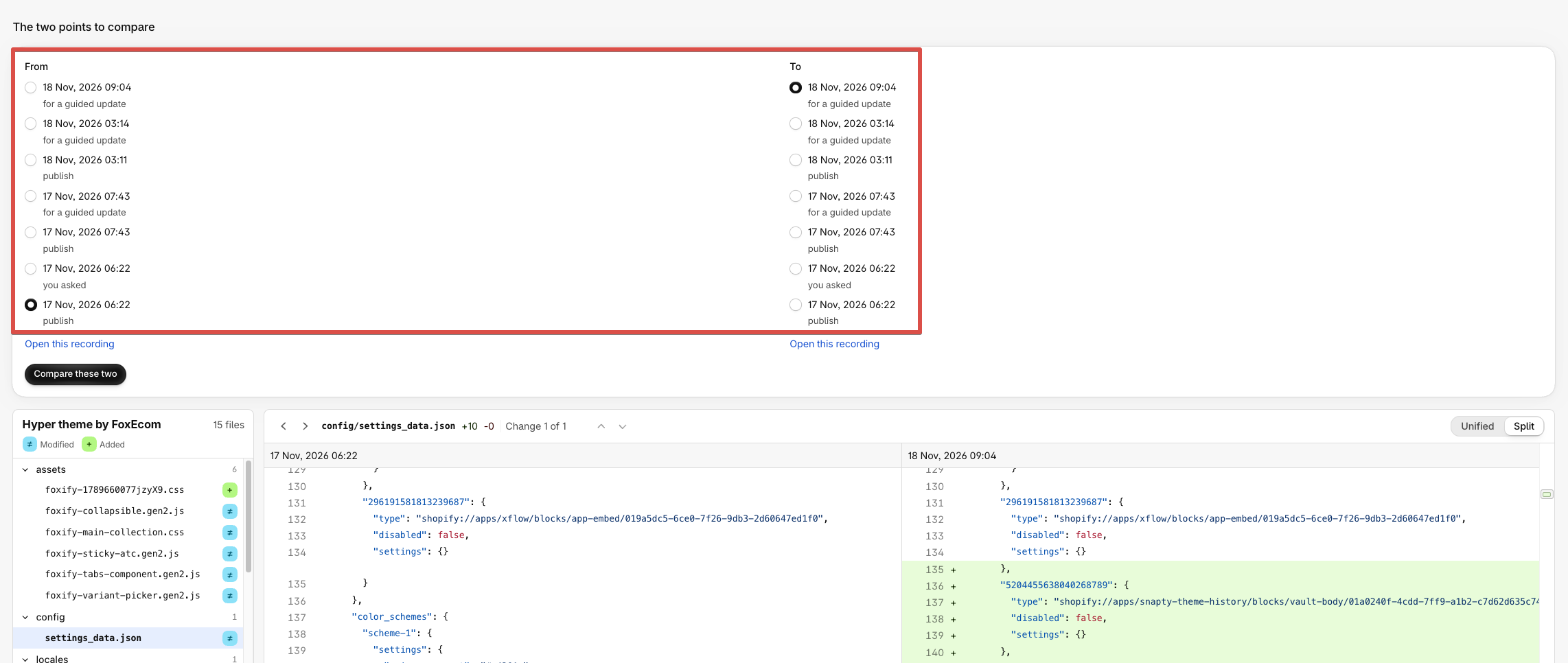
Snapty shows which files differ between the two selected snapshots. For example, you can compare:
* **Baseline vs. latest snapshot:** See what has changed since Snapty started recording your theme.
* **Before vs. after an app install:** Identify files that changed between snapshots taken around the installation.
* **Before vs. after publishing:** Review changes between snapshots surrounding a theme publish event.
Snapty compares the saved versions at your two selected points in time. If a file changed and was later returned to its original content, it won't appear as changed in the final comparison.
Click **Compare these two** to see which theme files were added, modified, or deleted between the two snapshots.
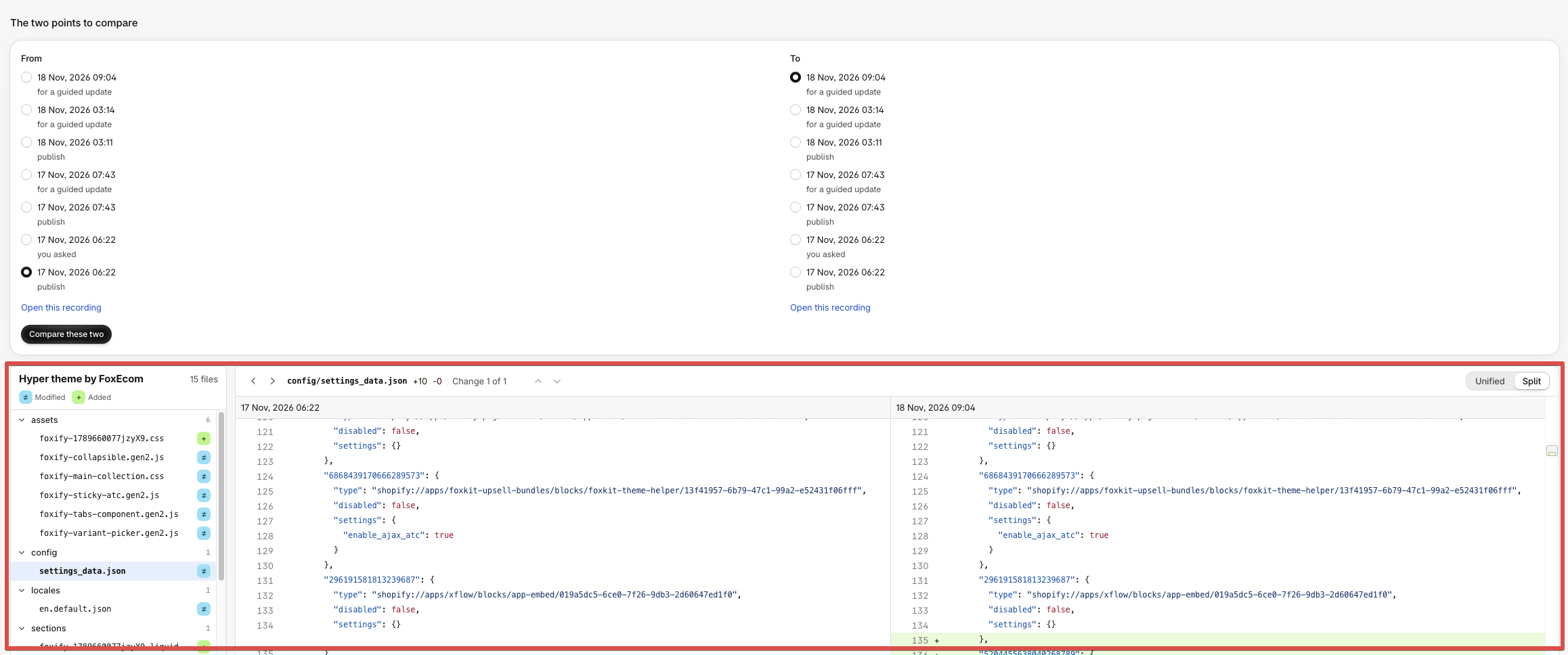
You can't restore directly from this comparison. To restore a saved version, click **Open this recording** beneath the snapshot you want.
## Review file changes
Both comparison methods let you see which theme files changed and inspect their differences.
### Find the changed files
The file list shows the theme name, how many files changed, and the files grouped by folder. A mark beside each file tells you what happened to it:
| Mark | Meaning |
| -------------- | --------------------------------------------------------------- |
| **≠ Modified** | The file exists in both versions, but its content is different. |
| **+ Added** | The file only exists in the newer version |
| **- Deleted** | The file only exists in the older version |
### Read the differences
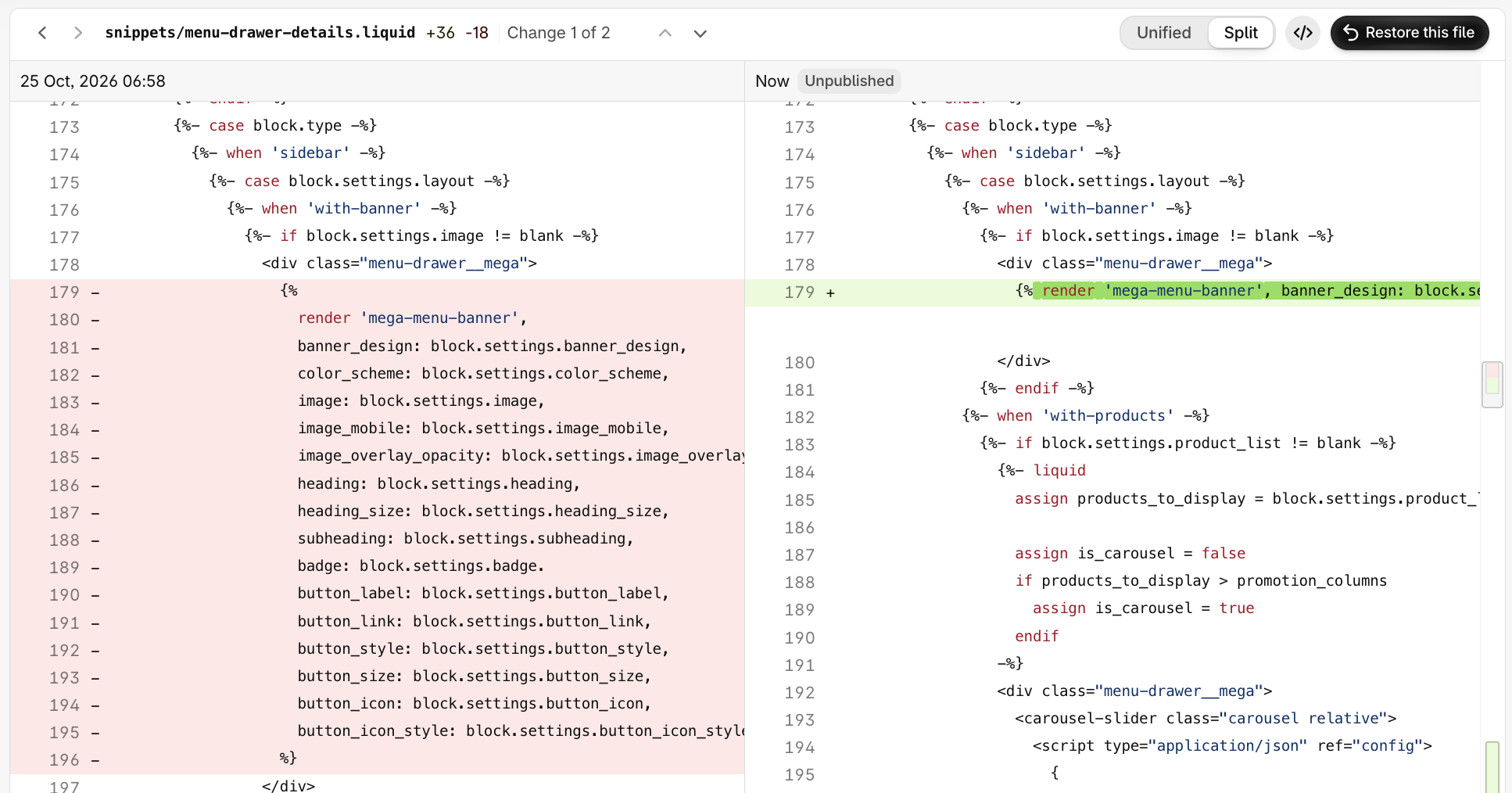
When you select a file, Snapty shows the code differences between the two versions.
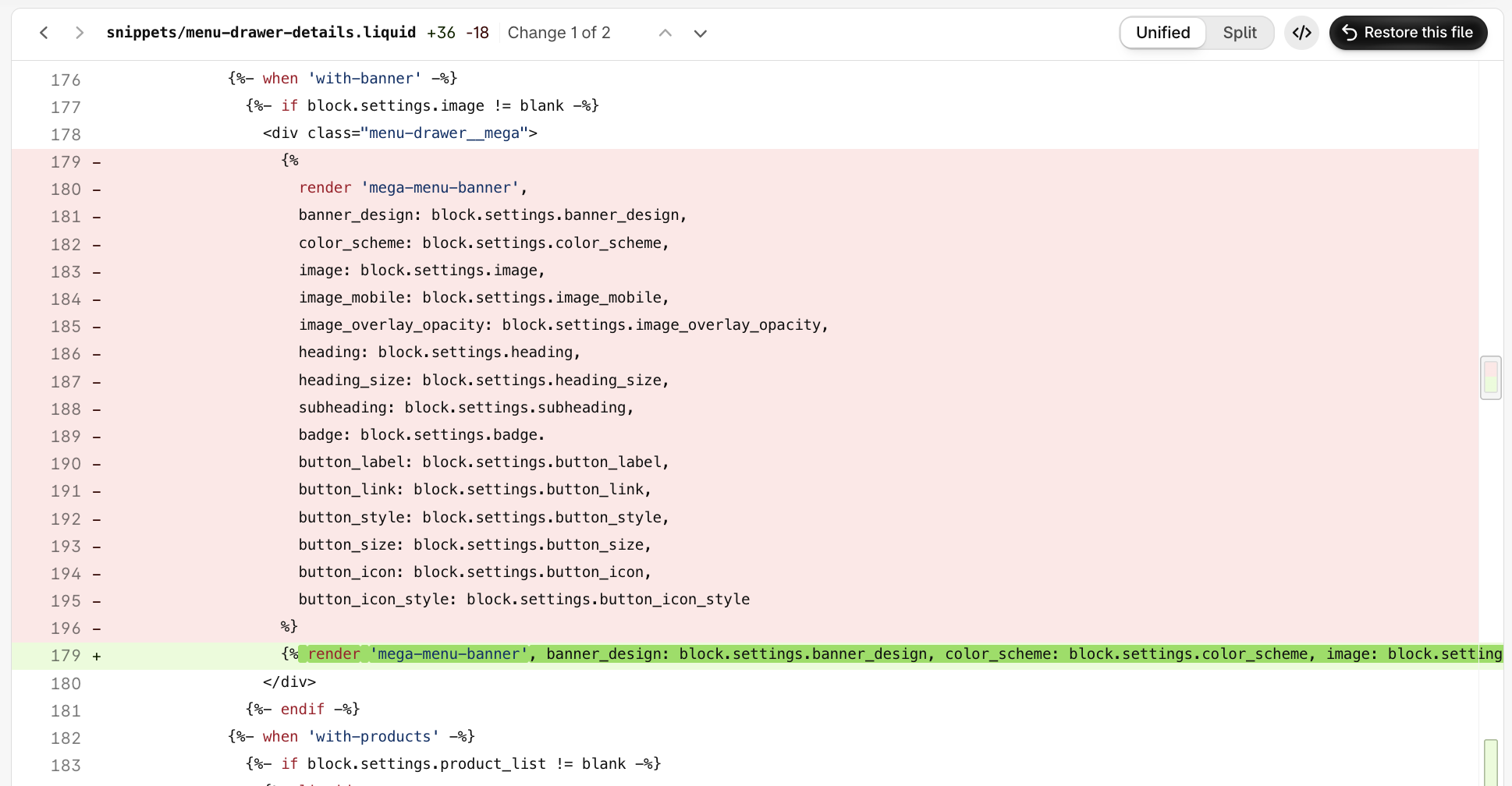
* **Green (+):** Lines added in the newer version.
* **Red (−):** Lines removed from the older version.
The file header also shows the number of lines added and removed. For example, **+12 -1** means 12 lines were added and one line was removed.
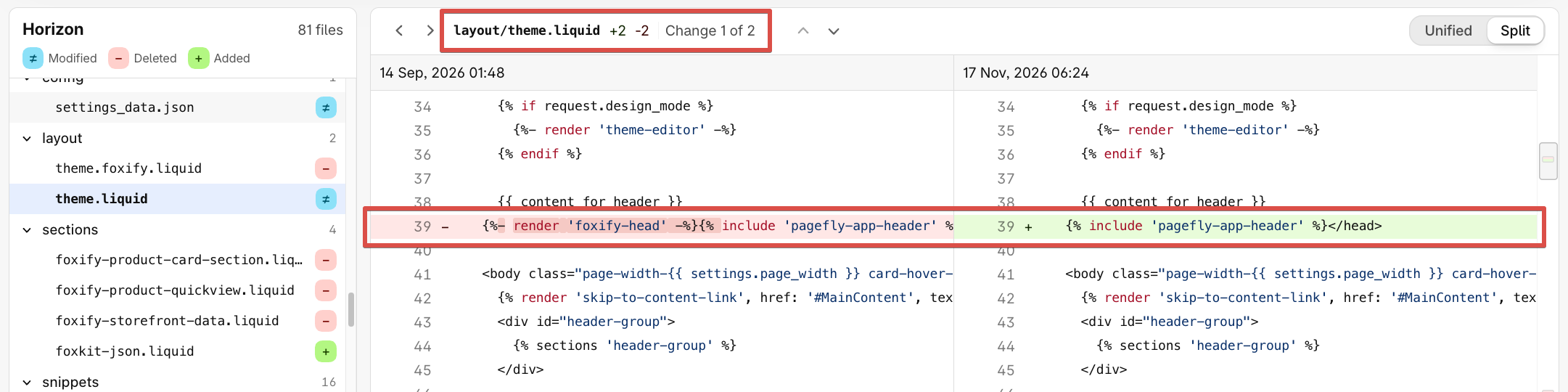
Use these controls to explore the changes:
| Control | What it does |
| ----------------------- | ------------------------------------------------- |
| **Split / Unified** | Switch between the two ways of showing both versions: side by side, or in one column |
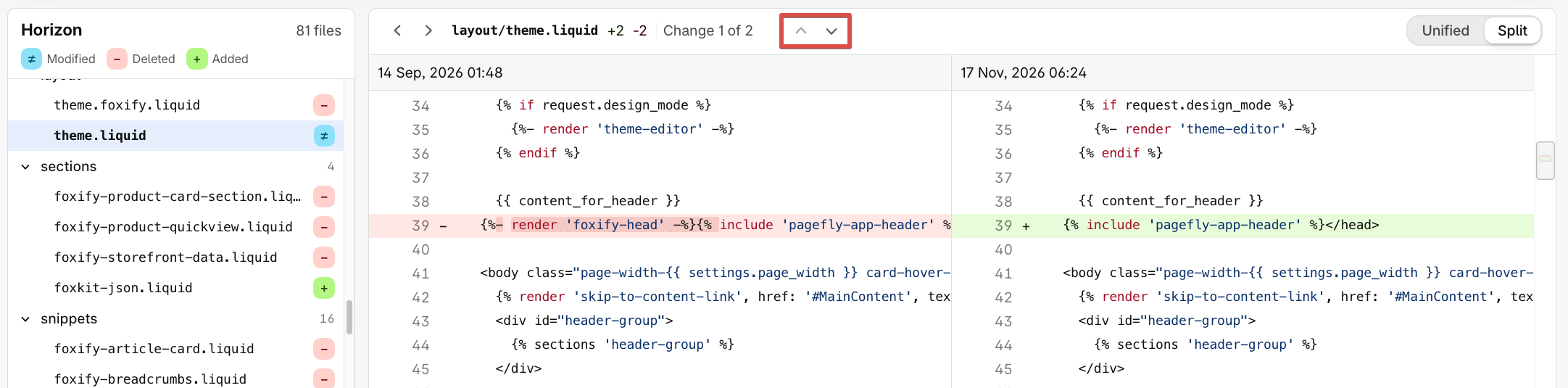
| **Up / down controls** | Jump between the changed parts of a long file |
| **Left / right arrows** | Move to the previous or next changed file |
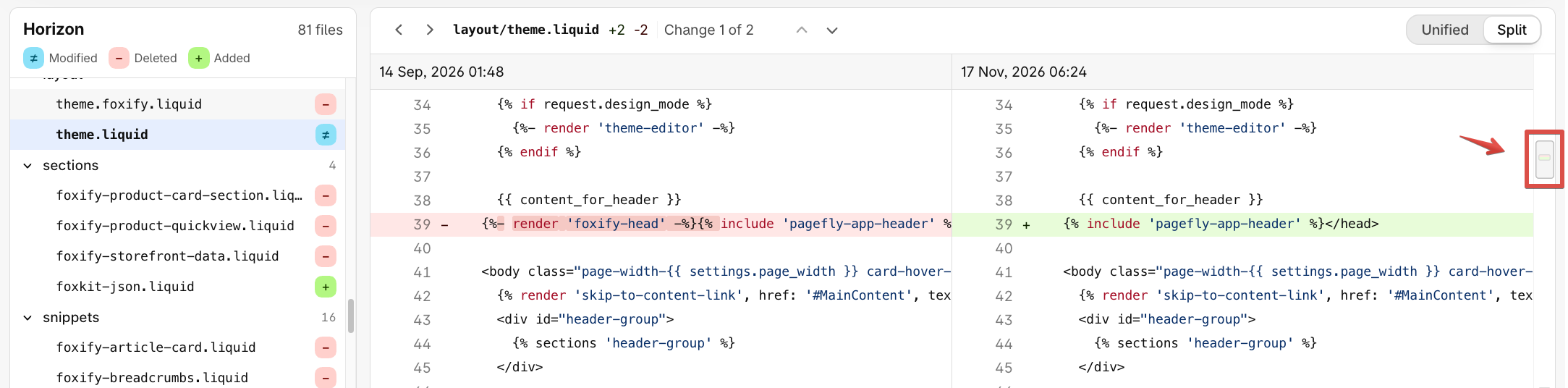
If a file contains many changes, the **Up / down controls** indicator helps you track which changed section you're viewing.
Not every file can be displayed as a code comparison. When this happens, Snapty explains why.
| What you see | Why |
| ------------------------------------------------------ | ------------------------------------------------------------------------------------ |
| **Binary files record their size only** | Images, fonts, and other binary files can't be compared as text. |
| **This file is too large to compare line by line** | Both versions are recorded, but the file is too large for a line-by-line comparison. |
| **Line-by-line differences are not available yet** | The change is recorded, but a detailed comparison isn't available. |
| **This file's stored contents could not be read back** | Snapty couldn't read the saved content. Try again. |
| **This file is too long to show in full** | Only part of the file is displayed, along with its total line count. |
These messages don't mean the file change was lost. They explain why the detailed code comparison isn't available or is limited.
### Decide which version to restore
Once you've reviewed the differences, you can identify which snapshot contains the version you want back.
When comparing a snapshot with the current version of its theme:
* **Left side:** The saved version from the snapshot.
* **Right side:** The theme's current version.
If the saved version contains the code you want to recover, open that snapshot and use its restore options.
If it doesn't, return to **History** and check a different snapshot.
For step-by-step instructions, see [**Restore theme files or versions**](https://docs.foxecom.com/snapty-app/history-and-restore/restore-theme-files-or-versions).
Reviewing a comparison doesn't change your theme. You must choose a restore action to bring back a saved version.
## FAQs
No. Reviewing a comparison doesn't change your theme. Your theme changes only when you choose a restore action.
Snapty compares the saved versions at your two selected points in time. If a file changed and was later returned to its original content, it doesn't appear as changed.
Images, fonts and other binary files can't be compared as text, and very large files may be too large for a line-by-line comparison. Snapty tells you which reason applies, and the change itself is still recorded.
Not from a comparison of two snapshots. Click **Open this recording** beneath the snapshot you want, then use its restore options.
Snapty compares a snapshot with the same theme it came from. The **Live** label appears beside **Now** only when that theme is your live theme.
## Related articles
Restore theme files or versions
View theme history
History & Restore overview