# Fix health check issues
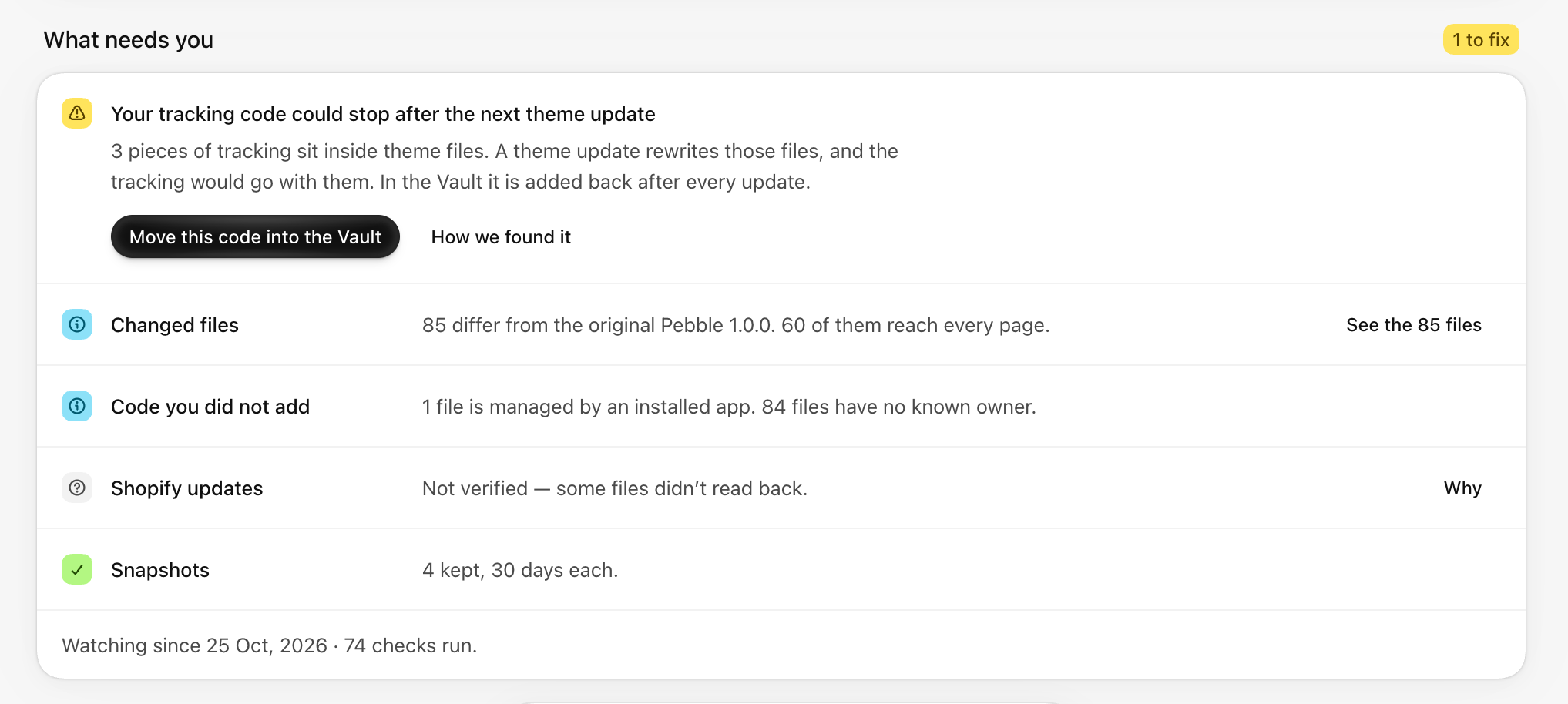
Clear what Health check flags before your next theme update, so your tracking keeps working and you know where every changed file came from.
| What you see in Health check | Go to |
| ------------------------------------------------------------- | ---------------------------------------------- |
| **Your tracking code could stop after the next theme update** | [Protect tracking code](#protect-tracking-code) |
| **Changed files** | [Review changed files](#review-changed-files) |
| **Code you did not add** | [Check unknown code](#check-unknown-code) |
## Protect tracking code
Tracking code that sits inside theme files is lost when a theme update rewrites those files. Health check flags it with **Your tracking code could stop after the next theme update**. Code in the Code Vault is added back after every update instead.
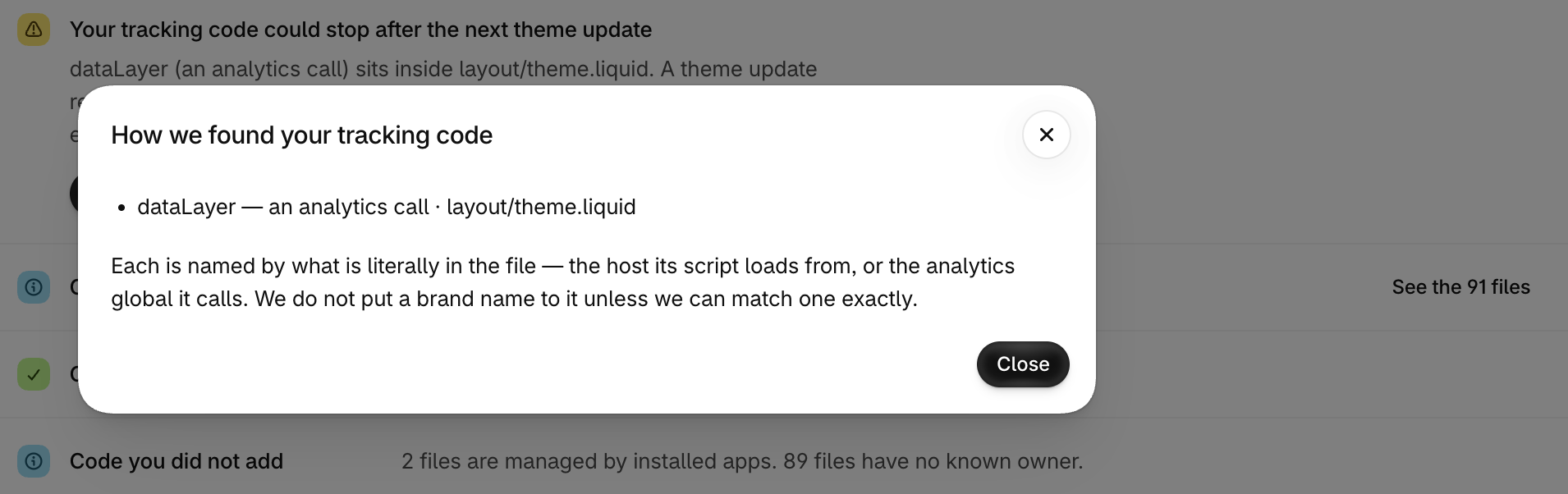
Click **How we found it**. Each item shows:
* The name found in the file, for example an app handle, a script host, or the analytics name the code calls.
* What kind of code it is, for example **an app block** or **a tracking image**.
* The file it sits in, for example `config/settings_data.json`.
Snapty names a piece of tracking only by what's literally in the file. It adds a brand name only when it can match one exactly.
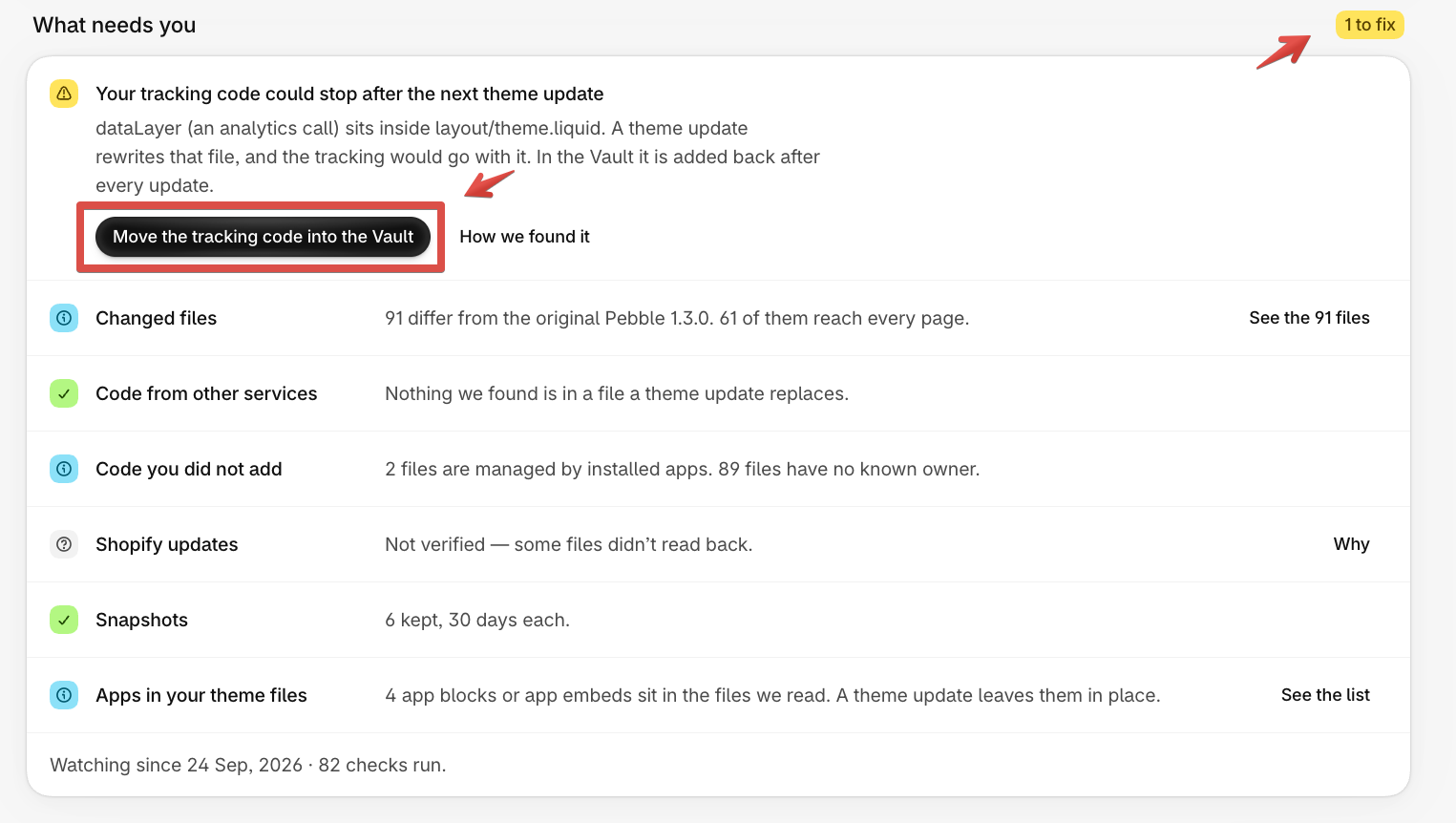
1. Go to **What needs you** in Health check.
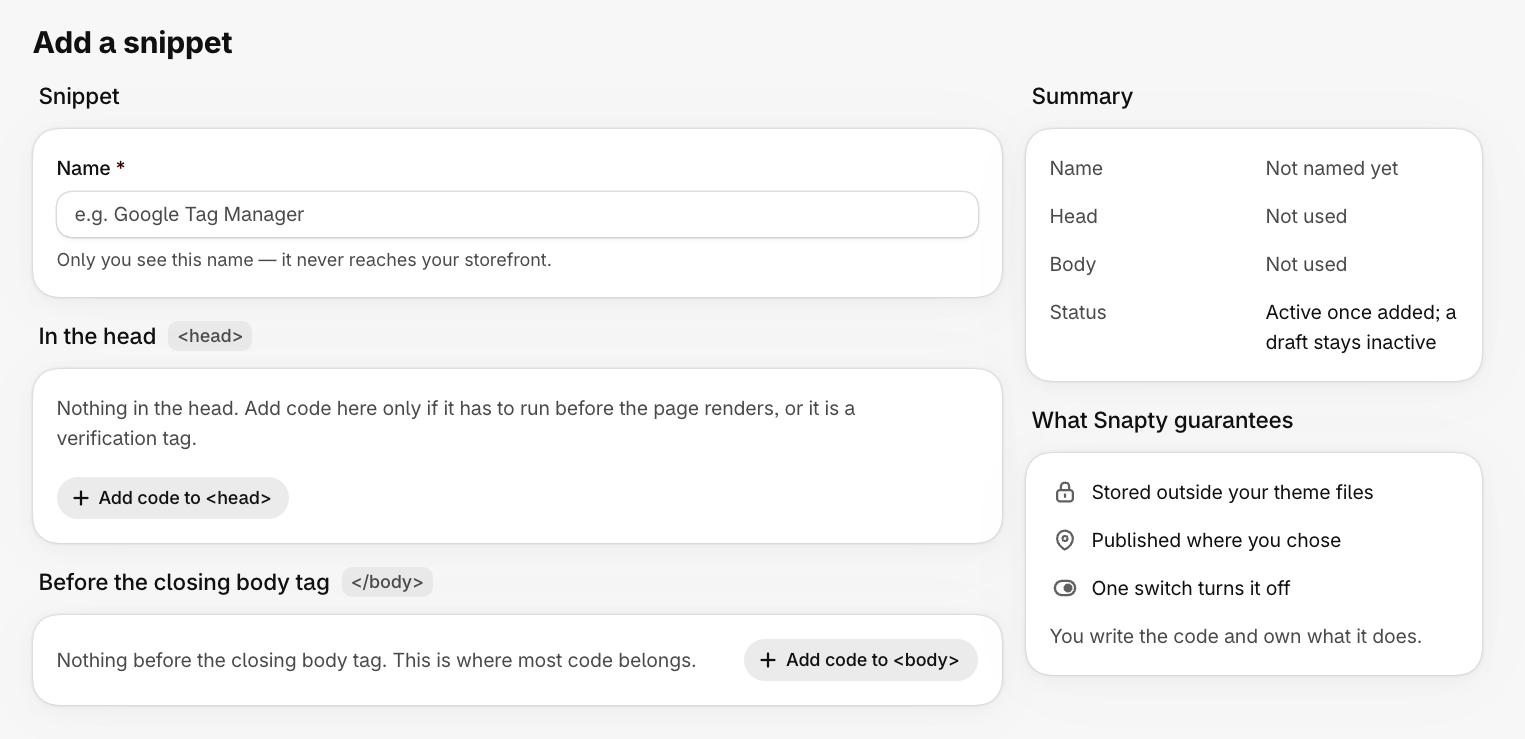
2. Click **Move this code into the Vault**. Snapty opens **Code vault › Add a snippet**.
3. Add the code as a snippet: name it, choose where it loads, paste the code, and save it.
Learn more: [Add code to your storefront](https://docs.foxecom.com/snapty-app/code-vault/add-code-to-your-storefront)
Code in the Vault reaches your storefront through a Shopify app embed instead of a theme file, so it stays intact when you update or switch themes, as long as the [Snapty app embed is enabled in your theme](https://docs.foxecom.com/snapty-app/code-vault/add-code-to-your-storefront#turn-on-the-snapty-app-embeds).
You've successfully moved your tracking code! In Snapty's Health Check, **Tracking code** should now show a green checkmark with the message *"Nothing we found is in a file a theme update replaces."*
To confirm your code is working on your live storefront, see [**Check that your code is on your storefront**](https://docs.foxecom.com/snapty-app/code-vault/add-code-to-your-storefront#check-that-your-code-is-on-your-storefront).
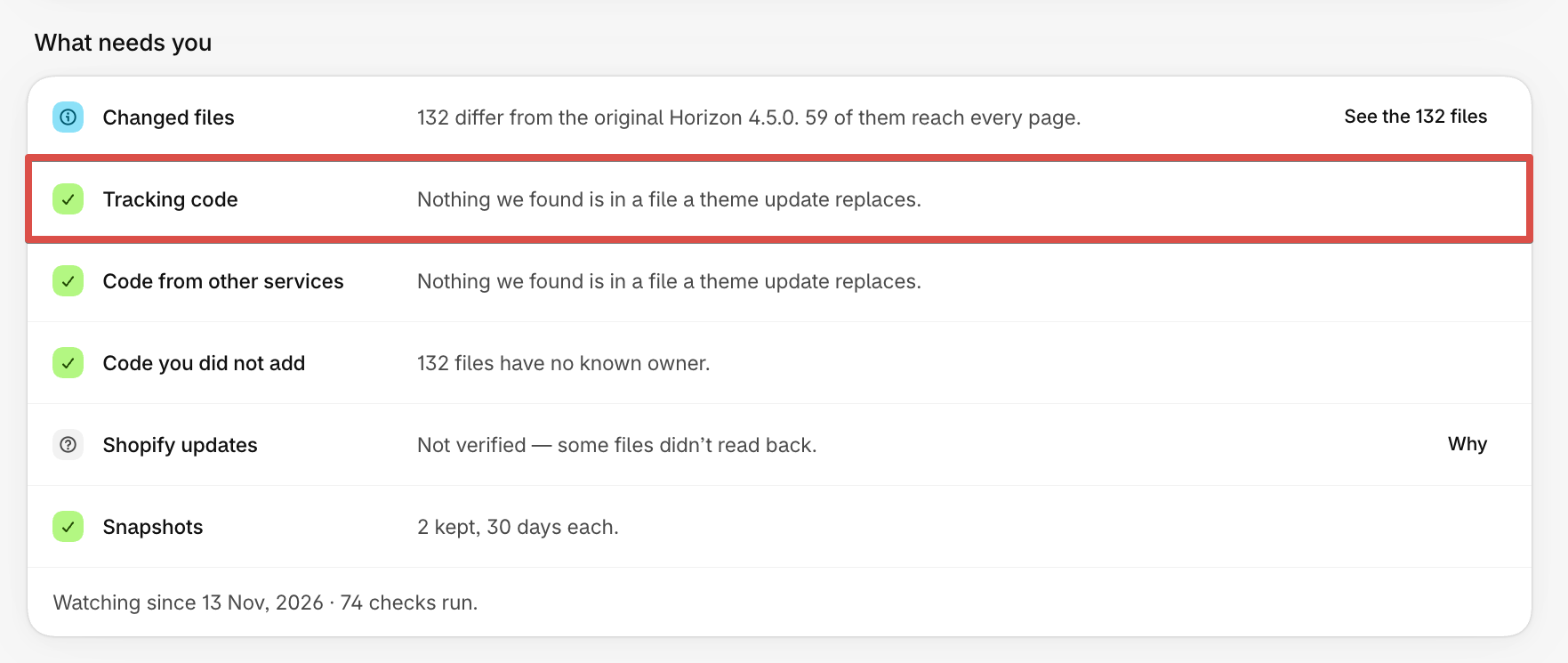
Code in the Vault reaches your storefront only while the Snapty app embeds are on in your live theme. App embeds are off by default after you install an app. See [Turn on the Snapty app embeds](https://docs.foxecom.com/snapty-app/code-vault/add-code-to-your-storefront#turn-on-the-snapty-app-embeds) for the steps.
## Review changed files
When you [update your Shopify theme](https://help.shopify.com/en/manual/online-store/themes/managing-themes/updating-themes), custom code changes in theme files may not carry over to the new version. Shopify preserves theme settings and JSON templates, but other code customizations may need to be added again.
Before updating, review your **Changed files** to identify which files you've customized and what changes you need to bring into the new theme version.
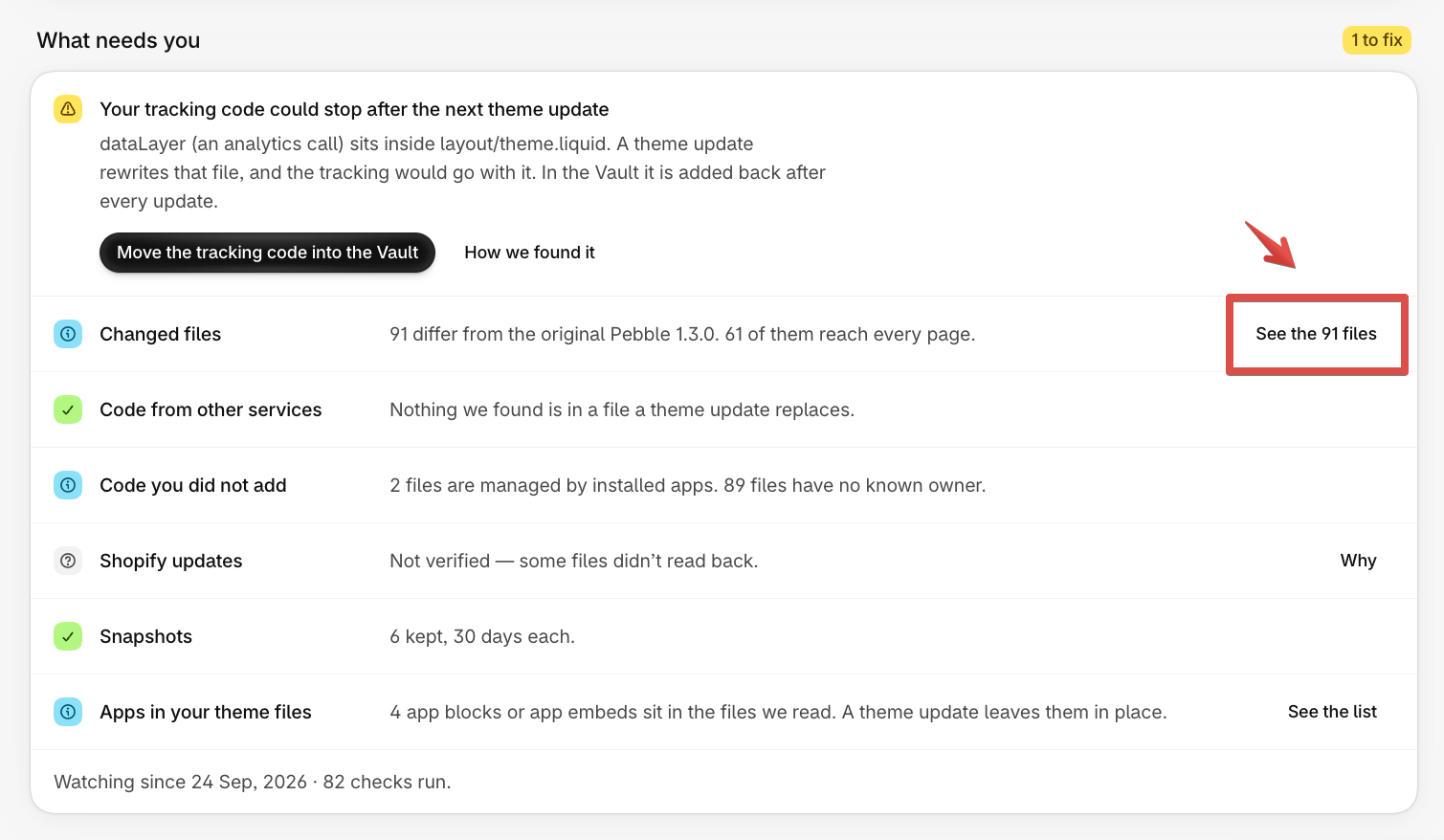
1. Find **Changed files** under **What needs you**.
2. Click **See the \[number] files**. The number matches your theme.
The list shows every file that differs from the original version of your theme.
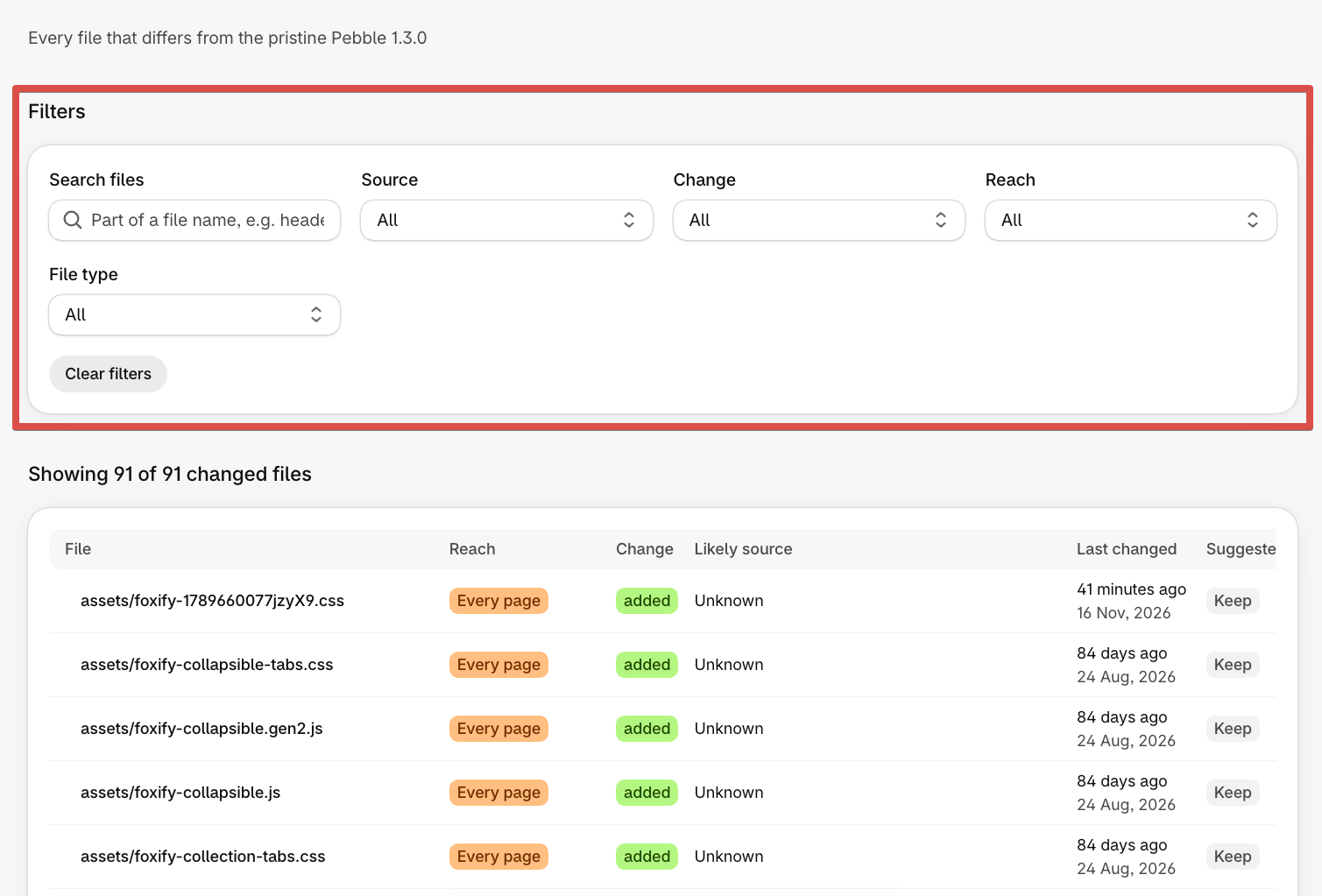
Use **Search files** or the **Source**, **Change**, **Reach** and **File type** filters. Click **Clear filters** to see every file again.
1. Review the **Suggested action** for each file to understand what needs attention before updating.
2. If you find unfamiliar files, follow [Check unknown code](#check-unknown-code) below to investigate them.
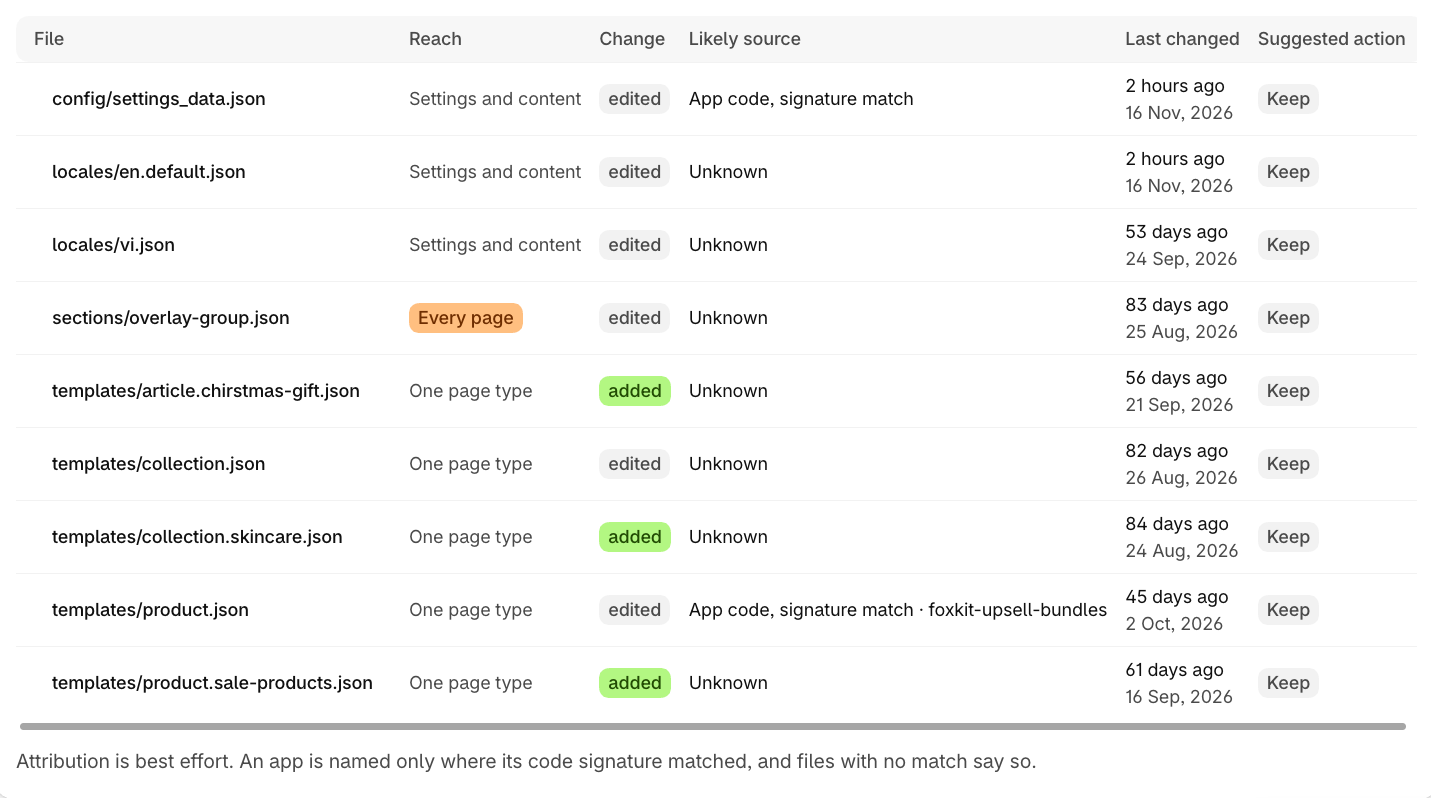
**What each column tells you**
| Column | What it tells you |
| -------------------- | -------------------------------------------------------------------------------------- |
| **Reach** | Where the file shows up: **Every page**, **One page type**, or **Wherever it is used** |
| **Change** | Whether the file was **added** or **edited** compared with the original. |
| **Likely source** | The app the file belongs to, when its code matches one. **Unknown** means no match |
| **Last changed** | When the file last changed |
| **Suggested action** | What Snapty suggests you do with the file, for example **Keep**. |
The changed files page is read-only, so you can filter and explore without changing your theme.
## Check unknown code
**Code you did not add** splits changed code into two groups:
| Group | What it means |
| ------------------------------- | -------------------------------------------------------------------------------------------------------------------------------------------------- |
| **Managed by an installed app** | Snapty matched the code to an app you have installed |
| **No known owner** | Snapty couldn't match the code to any app. This can be your own edits, a developer's work, or an app whose code signature Snapty doesn't recognize |
Matching is best effort. An app is named only when its code signature matches, so **Unknown** doesn't mean the code is harmful.
**What to do when you don't recognize a change**
Snapty records what changed and when, but not who made the change. To find out where a file came from:
1. Set **Source** to **Unknown** in the changed files list. See [Review changed files](#review-changed-files).
2. Check the **Last changed** date against when you installed an app or a developer worked on your theme.
3. Open the file's history to see the exact lines that changed. See [Compare theme snapshots](https://docs.foxecom.com/snapty-app/history-and-restore/compare-theme-snapshots).
If the change shouldn't be there, you can put the earlier version back. See [Restore theme files or versions](https://docs.foxecom.com/snapty-app/history-and-restore/restore-theme-files-or-versions).
## FAQs
A Health check may be incomplete if **Checks finished · 30 days** shows fewer completed checks than the total number run, or a red mark appears in the **Last 30 days** chart.
Try these steps:
1. Click **Run a check now**.
2. Check whether the new scan finishes.
If your checks repeatedly fail to finish, contact our support team for assistance.
**Not verified — some files didn't read back** means Snapty couldn't confirm whether your theme can still receive updates through Shopify.
Click **Why** in the **Shopify updates** row to learn more about how Shopify determines theme update eligibility.
You can still use Snapty's guided update process, which doesn't depend on Shopify's built-in update availability.
Moving code to the Vault doesn't automatically remove the original code from your theme files.
If the tracking code still exists in a theme file that could be replaced during an update, Health check may continue to flag it.
To resolve this:
1. Confirm that the snippet is saved in the **Code Vault** and the Snapty app embeds are enabled.
2. Verify that the code works on your live storefront.
3. Remove the original code from your theme file once you've confirmed the Vault version works.
4. Run another Health check to see whether the warning clears.
See [**Add code to your storefront**](https://docs.foxecom.com/snapty-app/code-vault/add-code-to-your-storefront) for verification steps.
Health check warnings highlight potential issues you should review before updating, such as tracking code that may be lost or customizations that need attention.
Review the affected files and protect any code you still need before proceeding.
For step-by-step instructions, see [**How guided theme updates work**](https://docs.foxecom.com/snapty-app/theme-update/how-guided-theme-updates-work).
Not necessarily. **Keep** is Snapty's suggested action, but you should still review whether the customization is needed.
For example, you may no longer need code left behind by an uninstalled app or an old test snippet.
Before removing or leaving out any customization, confirm that it isn't used by your storefront or another installed app.
## Related articles
Check your theme health
Code Vault overview
Add code to your storefront
Restore theme files or versions