# Check your theme health
Find out whether your live theme is safe to update: which files changed, which tracking code could be lost, and what needs you next. This page walks you through each part of the Health check screen so you can read your results in a few minutes.
## What is Health check?
Health check monitors your live Shopify theme to identify file changes, tracking code that could be lost during updates, and code changes from unknown sources.
It helps you:
* **Track theme changes:** See which files have been added or modified.
* **Identify tracking risks:** Find tracking code that could be lost during a theme update.
* **Review unfamiliar code:** Identify changes that cannot be matched to a known source.
* **Monitor theme activity:** Review completed checks, file changes, and snapshots.
What Snapty compares your theme against depends on the theme:
| Your theme | Snapty compares it against |
| ------------------------ | ---------------------------------------------------------------------------------------------------------------------------------------------------- |
| **FoxEcom themes** | The theme's original version |
| **Other Shopify themes** | The first recorded state of each live theme, called the baseline. If you switch to a different live theme, Snapty sets a new baseline for that theme |
Use it when:
* You're about to update your theme and want to know what your customizations are before you start.
* You installed an app or a developer edited your theme, and you want to see which files changed.
* You want to make sure your tracking code keeps working after the next theme update.
**How is this different from History & Restore?**
| Compare | Health check | History & Restore |
| -------------------- | ----------------------------------------------------------------------------------------- | ------------------------------------------------------------------------------- |
| **Best for** | Seeing what's at risk in your theme right now and what to fix first | Comparing two snapshots line by line, or putting a file or a whole version back |
| **Compares against** | The original version for FoxEcom themes, or the initial recorded version for other themes | Your earlier snapshots |
## Automatic and manual checks
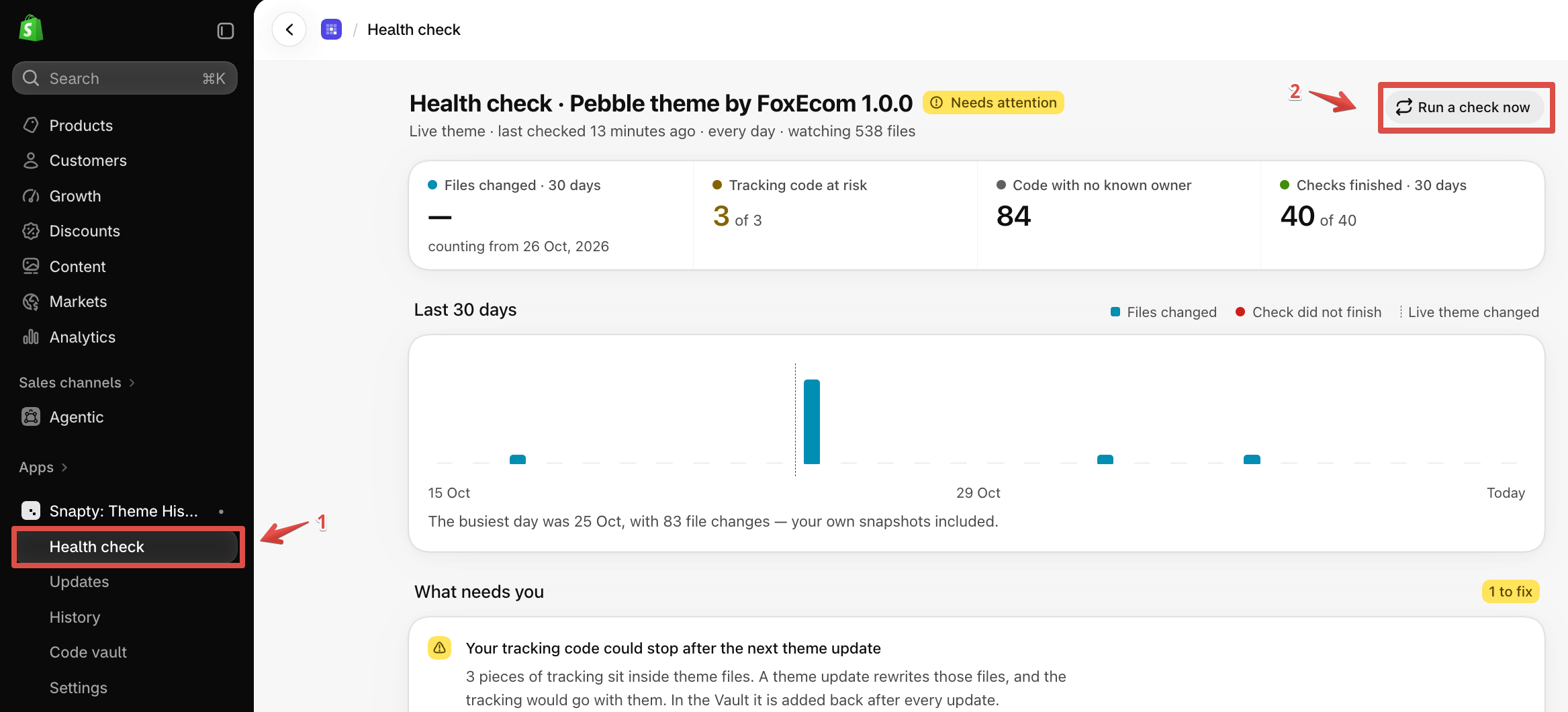
Snapty checks your live theme automatically every day. To see your theme's latest condition right away, run a check yourself:
1. Open **Snapty** in your Shopify admin.
2. Go to **Health check**.
3. Click **Run a check now** in the upper-right corner.
## Read the dashboard
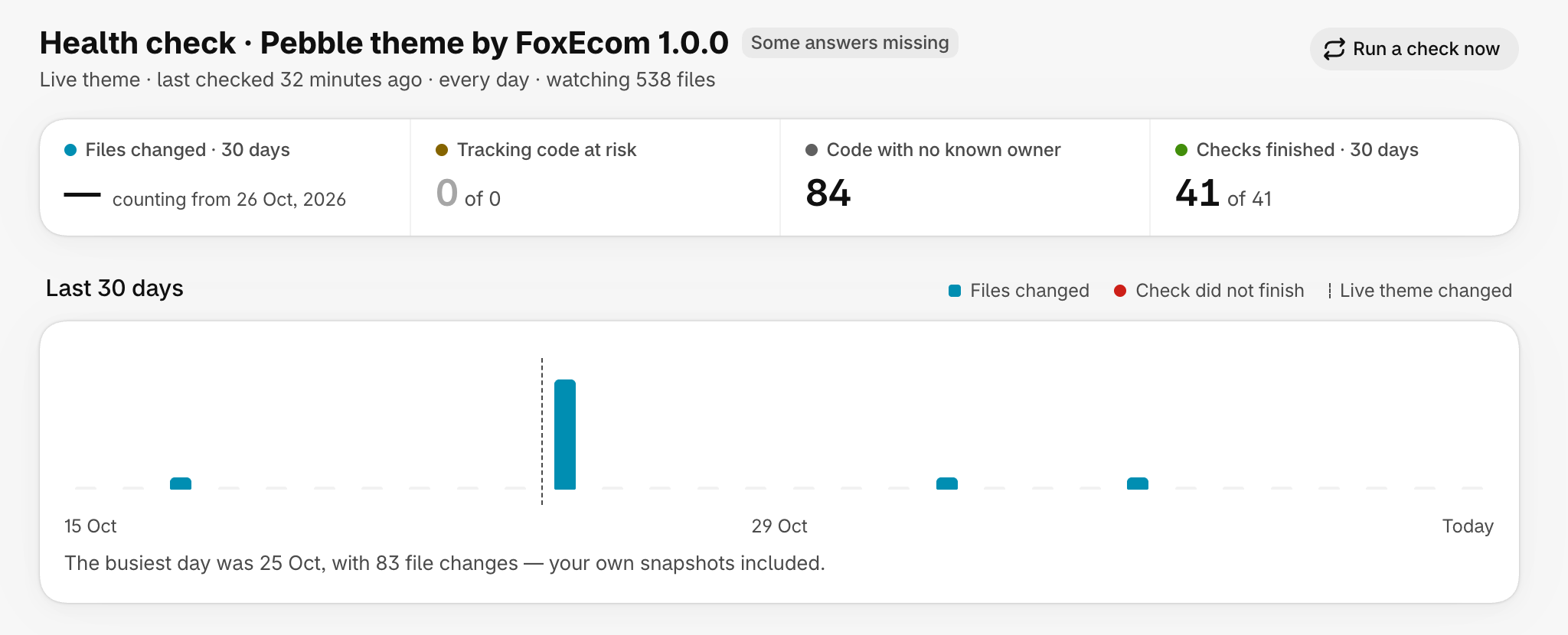
The top of the Health check page shows your live theme's name and version, when it was last checked, how often automatic checks run, and how many theme files Snapty monitors.
### Status
The badge next to your theme name shows your theme's overall status.
| Status | What it means | What to do |
| ------------------------ | -------------------------------------------------------------------------------------------------------------------------- | --------------------------------------------------------------------------------------------------------------------------- |
| **Needs attention** | At least one item under **What needs you** needs fixing. The badge on that card, such as **1 to fix**, tells you how many. | Work through **What needs you** from the top. See [Fix health check issues](https://docs.foxecom.com/snapty-app/health-check/fix-health-check-issues) |
| **Some answers missing** | Snapty couldn't fully verify certain health check results, so some information may be incomplete. | Review the available results and click **Run a check now** to check again. If the status remains, contact our support team. |
### Key numbers
Four numbers give you your theme's condition at a glance. What each one means for you is explained under Health check results below.
| Number | What it tells you |
| ----------------------------- | ------------------------------------------------------------------------------------------------------------ |
| **Files changed · 30 days** | How many theme files changed in the last 30 days, and when Snapty started tracking changes from the baseline |
| **Tracking code at risk** | Pieces of tracking code inside theme files that a theme update could remove |
| **Code with no known owner** | Changed files Snapty can't match to an installed app |
| **Checks finished · 30 days** | How many of the last 30 days' checks finished. If the first number is lower, some checks didn't finish |
### Last 30 days chart
The chart shows one column per day, from 30 days ago to **Today**. Use it to see when changes happened.
| Mark | What it means |
| ------------------------------------ | -------------------------------------------------------------------------------------- |
| **Files changed (blue bar)** | How many files changed that day. A taller bar means more changes |
| **Check did not finish (red)** | A daily check that didn't complete, so that day's results are missing |
| **Live theme changed (dashed line)** | The day your live theme changed (for example, the day you published a different theme) |
## Understand Health check results
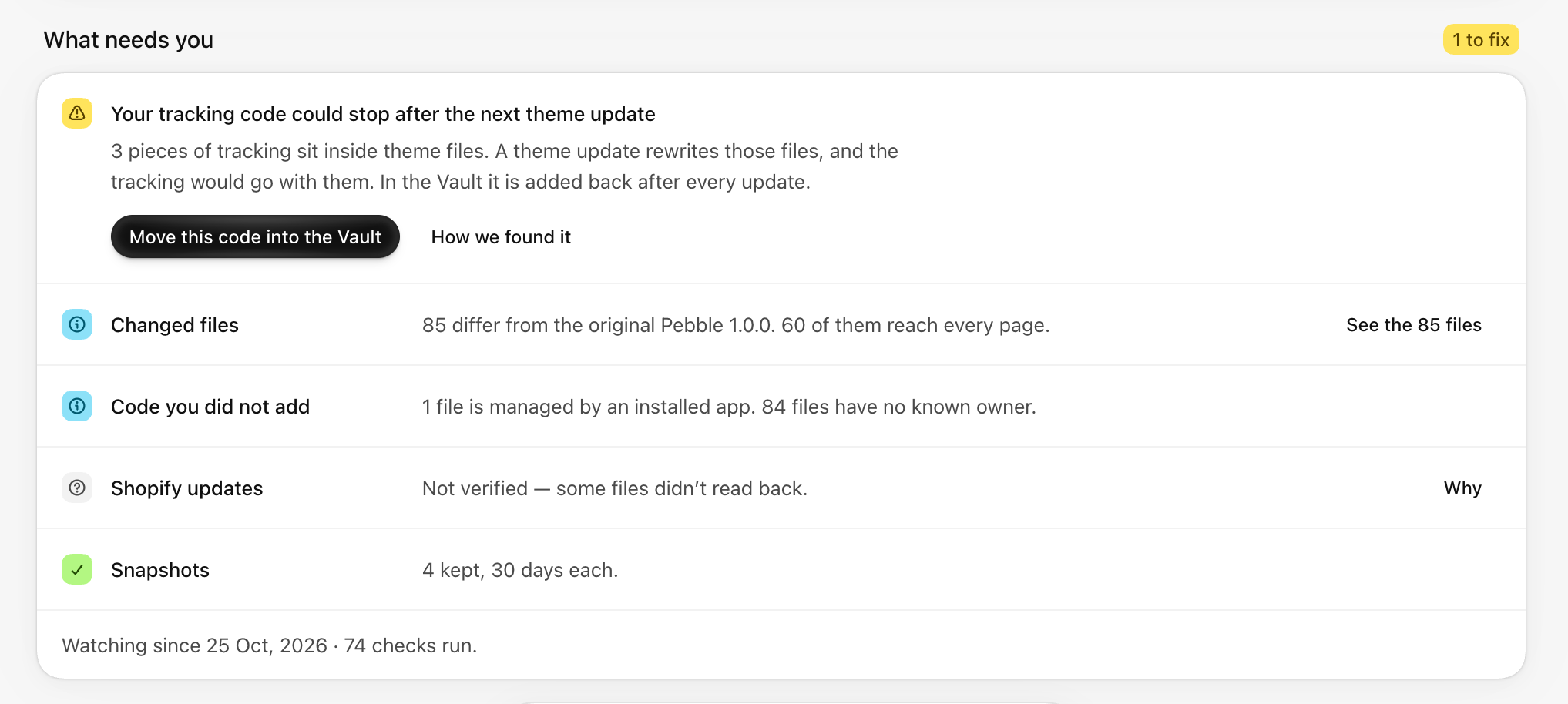
The **What needs you** section breaks down what Health check found. Some results need you to act; others tell you about your theme's current state.
### Tracking code at risk
The warning **Your tracking code could stop after the next theme update** means Snapty found tracking code inside theme files. A theme update rewrites those files, and the tracking would go with them.
Click **How we found it** to see each tracking entry, the file it sits in, and the code signature Snapty used to recognize it. For example:
* An app block in `config/settings_data.json`
* A tracking script in a Liquid snippet
* A tracking image or external script
Snapty names each entry by what it finds in the file. It only adds a brand name when it can match one exactly.
Click **Move this code into the Vault**. See [Fix health check issues](https://docs.foxecom.com/snapty-app/health-check/fix-health-check-issues#protect-tracking-code) for the full steps.
### Changed files
Shows how many files differ from the original version of your theme, and how many of them can affect every page of your storefront. *For example, "85 differ from the original Pebble 1.0.0. 60 of them reach every page."*
Click **See the 85 files** (the number matches yours) to open the full list.
| Column | What it shows |
| -------------------- | ------------------------------------------------------------------------------ |
| **File** | The name and location of the changed file |
| **Reach** | Where the file may affect your storefront, such as every page or one page type |
| **Change** | Whether the file was added, edited, or otherwise changed |
| **Likely source** | The source Snapty could identify, or **Unknown** if there's no reliable match |
| **Last changed** | When the file change was recorded |
| **Suggested action** | What Snapty recommends for the file |
To narrow the list, filter by file name, source, change type, reach, or file type.
The changed files page is read-only. Reviewing files here doesn't change your theme.
### Code you did not add
Splits changed code by who it belongs to: files managed by an installed app, and files with no known owner. *For example, "1 file is managed by an installed app. 84 files have no known owner."*
A file with no known owner isn't necessarily harmful or unwanted. It can be a legitimate customization that Snapty can't match to a source.
Review unfamiliar files in the **Changed files** list, especially if you've recently installed an app, hired a developer, or edited your theme.
### Shopify updates
Shows whether Snapty could verify that Shopify can still update your theme. When Snapty can't verify it, you see **Not verified** and the reason:
| What you see | What it means |
| ----------------------------------------------------------------------- | --------------------------------------------------------------------------------------------------------------------------------------------------------------------- |
| **Not verified — the original Horizon 4.5.0 isn't in Snapty's library** | Snapty doesn't have the original version of your theme to check against. The message names your theme and version. This happens with themes other than FoxEcom themes |
| **Not verified — some files didn't read back** | Snapty couldn't finish the check because some theme files couldn't be read back |
A **Not verified** result doesn't by itself mean your theme can't get Shopify updates. Click **Why** to learn how Shopify decides which themes it keeps updating.
Once any theme file other than theme settings and JSON templates is edited — by you, a developer or an app — Shopify stops offering updates for that theme for good, and doesn't tell you.
Use Snapty's guided theme update, when your theme supports it, to compare your theme with a newer version and choose which customizations to carry over. See [How guided theme updates work](https://docs.foxecom.com/snapty-app/theme-update/how-guided-theme-updates-work).
### Snapshots
Shows how many snapshots Snapty keeps and for how long. For example, **4 kept, 30 days each** means Snapty keeps four snapshots, each for 30 days.
Snapshots record your theme's state over time. Use them in History & Restore to review earlier changes or put back previous file versions.
## FAQs
A Health check may be incomplete if **Checks finished · 30 days** shows fewer completed checks than the total number run, or a red mark appears in the **Last 30 days** chart.
Click **Run a check now** to run it again. If your checks repeatedly fail to finish, contact our support team.
Snapty couldn't confirm whether your theme can still receive updates through Shopify. This happens when Snapty doesn't have the original version of your theme, or when some theme files couldn't be read back.
Click **Why** in the **Shopify updates** row to learn how Shopify decides which themes it keeps updating. You can still use Snapty's guided update, which doesn't depend on Shopify's built-in update availability.
No. A file with no known owner isn't necessarily harmful or unwanted. It can be your own edit, a developer's work, or an app whose code signature Snapty doesn't recognize.
No. The changed files page is read-only, so you can filter and explore without changing your theme.
## Related articles
Fix health check issues
How guided theme updates work
Code Vault overview
History & Restore overview
What is Snapty