# Manage code snippets
Find, edit, deactivate and delete the snippets in your Code Vault. Changes reach your storefront from the next page load.
## Find a snippet
Go to **Code vault** in the left nav. Under **What the Vault is holding**, the list shows every snippet you have:
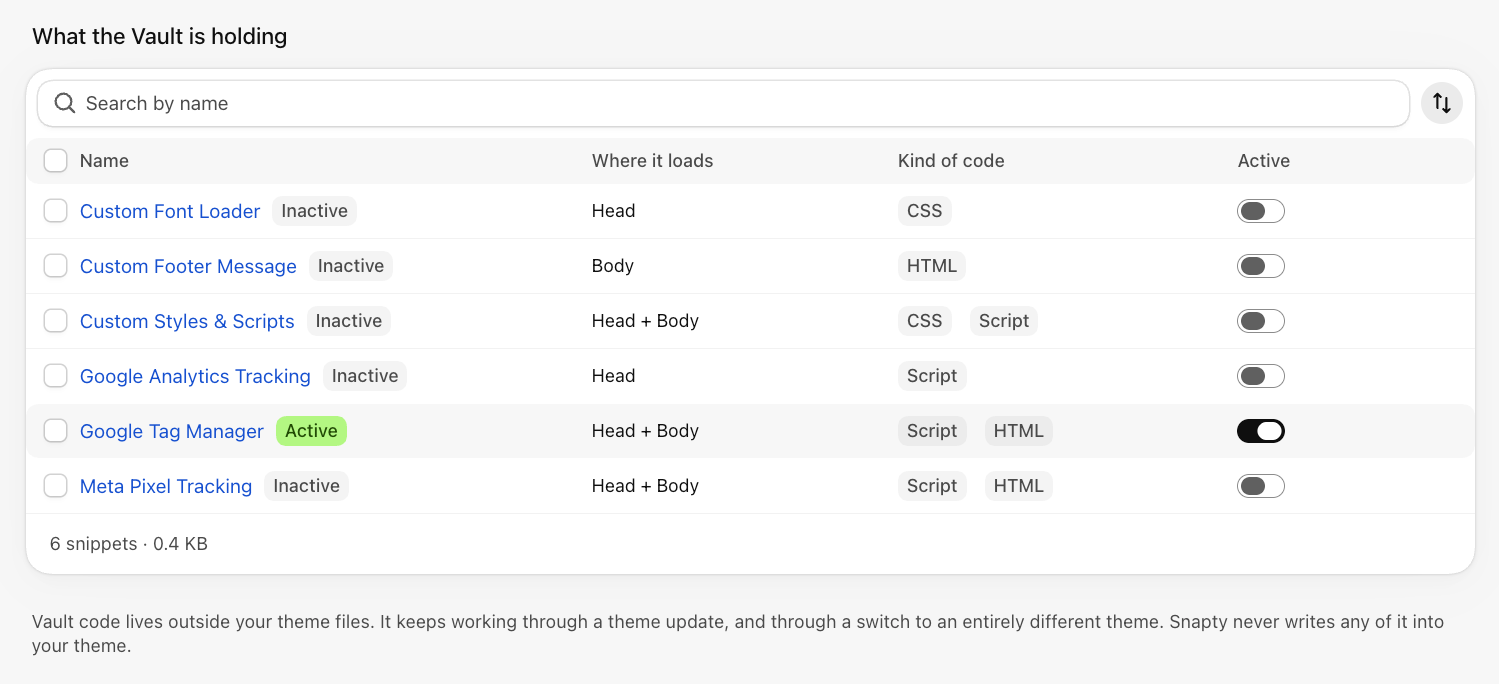
| Column | What it holds |
| ------------------ | -------------------------------------------------------------------------------------------------------------------- |
| **Name** | The name you gave it, with an **Active** or **Inactive** badge. Only you see it |
| **Where it loads** | **Head**, **Body**, or **Head + Body** when the snippet has code in both |
| **Kind of code** | **Script**, **CSS** or **HTML**. A snippet with code in both places can show two, for example **Script** and **CSS** |
| **Active** | A toggle that activates or deactivates the snippet |
Type in **Search by name** above the list to find a snippet. Names never reach your storefront, so name each snippet for how you'll look for it.
## Edit a snippet
1. Click the snippet's name in the list.
2. Change the name or the code. You get the same fields and checks as when you [add a snippet](https://docs.foxecom.com/snapty-app/code-vault/add-code-to-your-storefront).
3. Click **Save** in the **Unsaved changes** bar at the top of the screen.
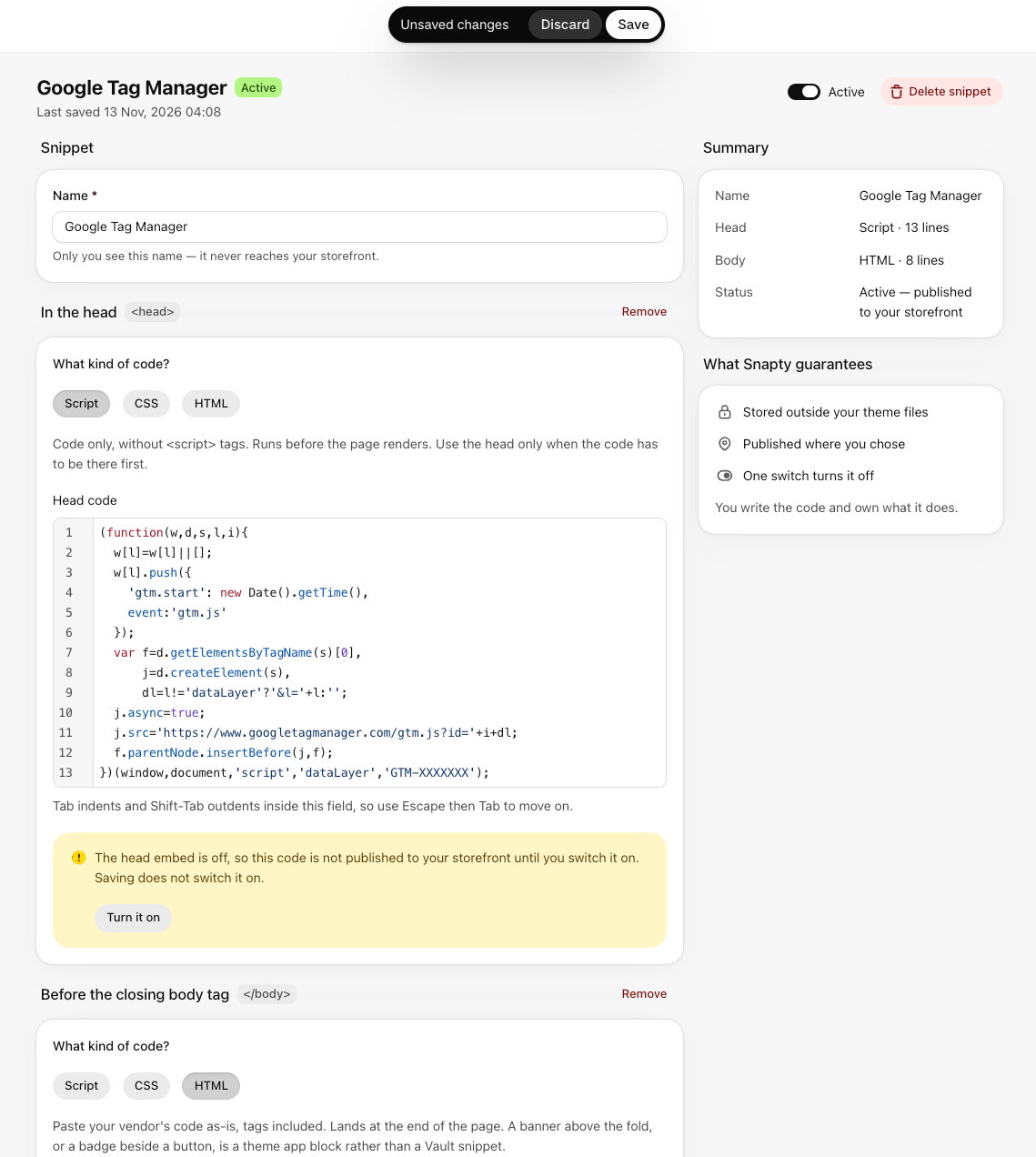
To drop your changes instead, click **Discard**. Saving publishes the change; if it can't be published, nothing is saved. **Last saved** under the snippet's name shows when you last saved it.
## Activate or deactivate a snippet
Use the **Active** toggle in the snippet's row, or at the top right of the snippet's screen. Snapty asks you to confirm either way.
> **Deactivate *\[snippet name]*?**
> It is taken off your storefront from the next page load. Your code is kept exactly as you saved it, so you can turn it back on at any time.
Deactivate a snippet when you want it to stop but might want it back. Nothing is deleted — Snapty keeps the code and its history.
An inactive snippet shows an **Inactive** badge, and its screen says *"This snippet is inactive. It is not published to your storefront until you turn it on. Your code is kept exactly as you saved it."* The **Summary** panel shows *Inactive — not published*.
> **Activate *\[snippet name]*?**
> It is published to your storefront from the next page load. Nothing else about it changes.
The snippet loads again from the next page load, if the embed for its placement is on.
## Change several snippets at once
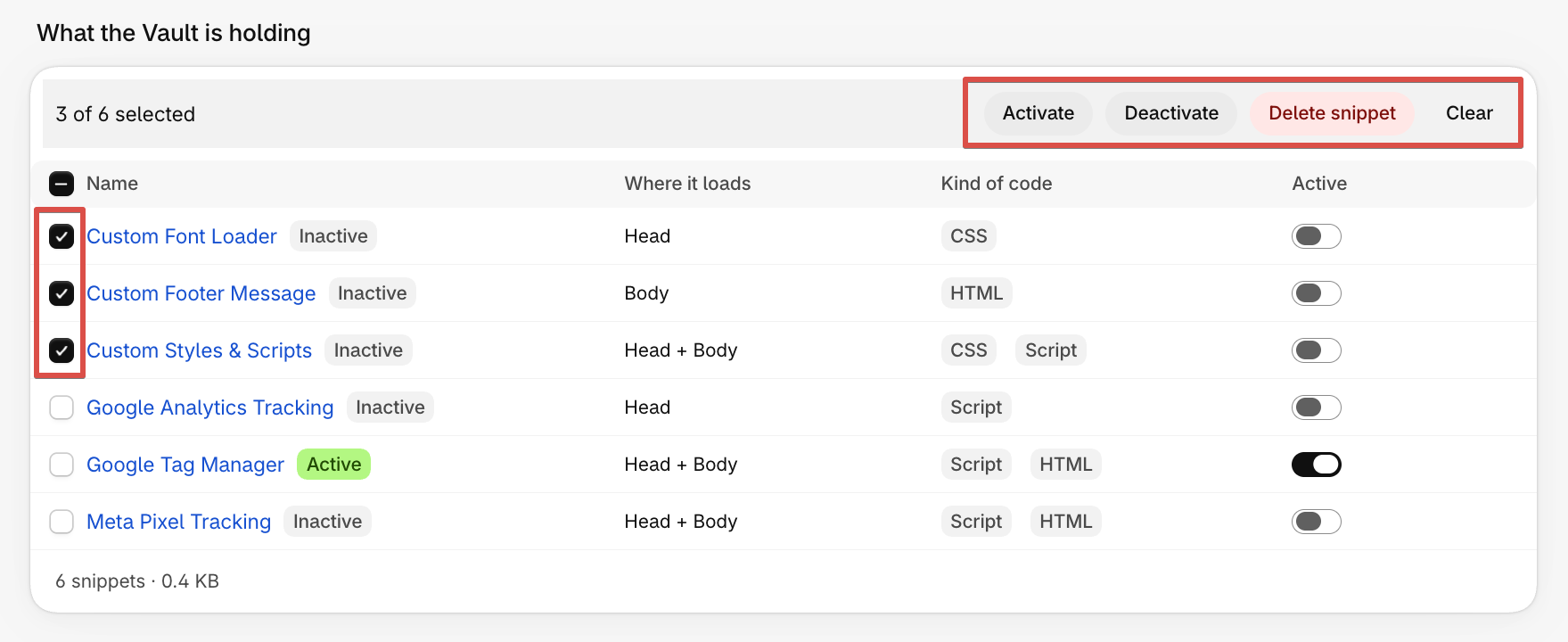
Tick the checkboxes beside several snippets, then click **Activate**, **Deactivate** or **Delete snippet** above the list. Each bulk change republishes your storefront once. To unselect them all, click **Clear**.
## Delete a snippet
Click **Delete snippet** at the top right of the snippet's screen. Snapty asks you to confirm:
> **Delete *\[snippet name]*?**
> This removes the snippet and its head and body code for good, and takes it off your storefront. If you only want it to stop, deactivate it instead — that keeps everything.
Deleting can't be undone, and no copy of the code is kept. Deactivate the snippet instead if you might want it back.
The Vault isn't a theme file, so History never recorded a deleted snippet.
## Page weight and the snippet limit
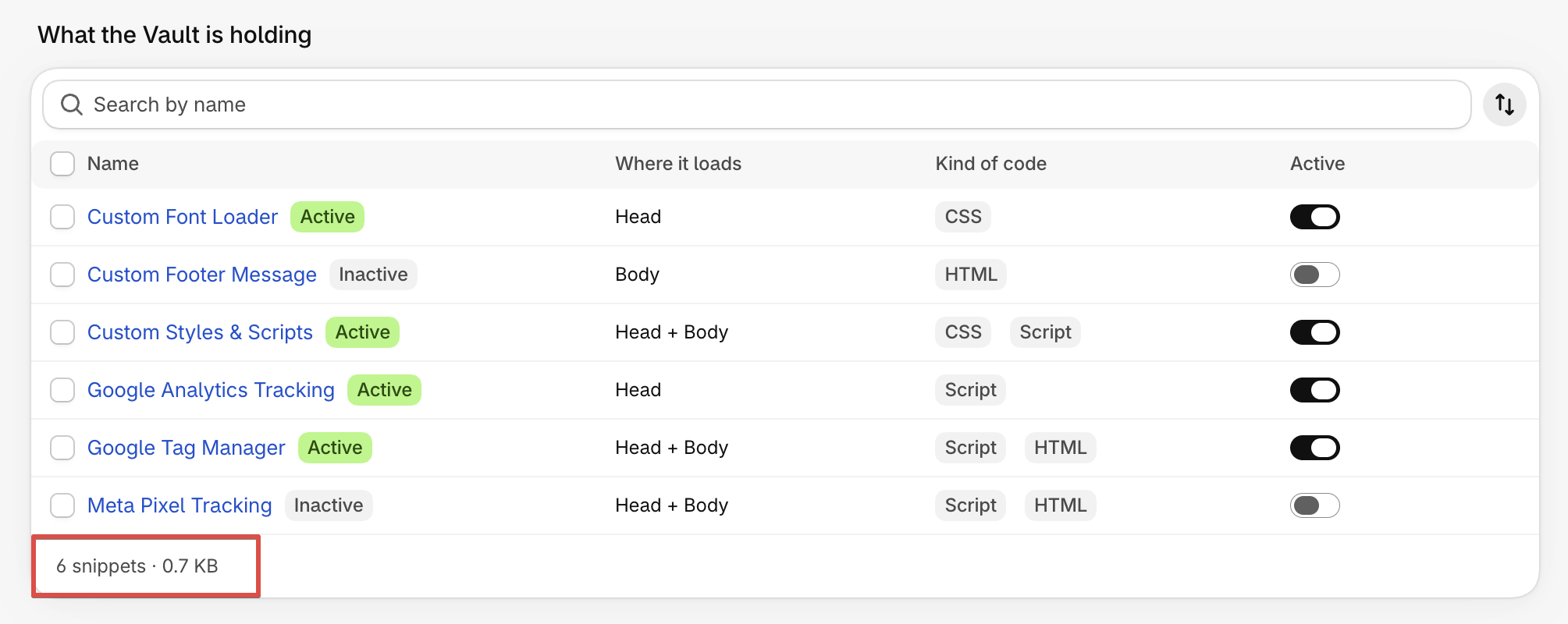
| Limit | What to know |
| ----------------- | --------------------------------------------------------------------------------------------------------------------------------------------------- |
| **Page weight** | Shows the total size of your active snippets. Only active code adds weight to your storefront. |
| **Snippet limit** | The Free plan allows up to **5 snippets**. Deactivating a snippet doesn't free up a slot, but deleting it does. Paid plans will have higher limits. |
## Troubleshooting
The Snapty app embeds are most likely off in your published theme. Check **App embeds** on the **Code vault** screen, then [turn on the Snapty app embeds](https://docs.foxecom.com/snapty-app/code-vault/add-code-to-your-storefront#turn-on-the-snapty-app-embeds). Also check that the snippet shows **Active**, not **Inactive**.
The **Summary** panel says *Active — published to your storefront* even while an embed is off, so check **App embeds** too.
App embeds are set per theme. Turn on both Snapty embeds in the new theme. Your snippets are unchanged — they're in the Vault, not in either theme.
A red message under the code field names what's blocking the save. See [Choose the right kind of code](https://docs.foxecom.com/snapty-app/code-vault/add-code-to-your-storefront#choose-the-right-kind-of-code).
Snapty can't see your code run. Check your storefront's page source, or use the platform's own tool. See [Check that your code is on your storefront](https://docs.foxecom.com/snapty-app/code-vault/add-code-to-your-storefront#check-that-your-code-is-on-your-storefront).
The Free plan allows up to **5 snippets**, and deactivating a snippet doesn't free up a slot. Delete a snippet you no longer need to make room.
## Related articles
Code Vault overview
Add code to your storefront