# Add code to your storefront
Add a tracking script, custom CSS or vendor markup to every page of your store without editing a theme file. You add the code in Snapty, turn on the Snapty app embeds once, then check that the code is on your storefront.
## Before you start
* Have the code from your vendor ready, for example [Google Tag Manager](https://help.shopify.com/en/manual/reports-and-analytics/google-analytics/google-tag-manager) or [Meta Pixel](https://help.shopify.com/en/manual/promoting-marketing/analyze-marketing/meta-pixel).
* Decide where it loads. **Before the closing body tag** is right for most code: it runs at the end of the page, so it doesn't hold up what shoppers see first. Use **In the head** only when the vendor asks for ``, or the code must run before the page renders.
* The free plan holds up to 5 snippets.
## Add a snippet
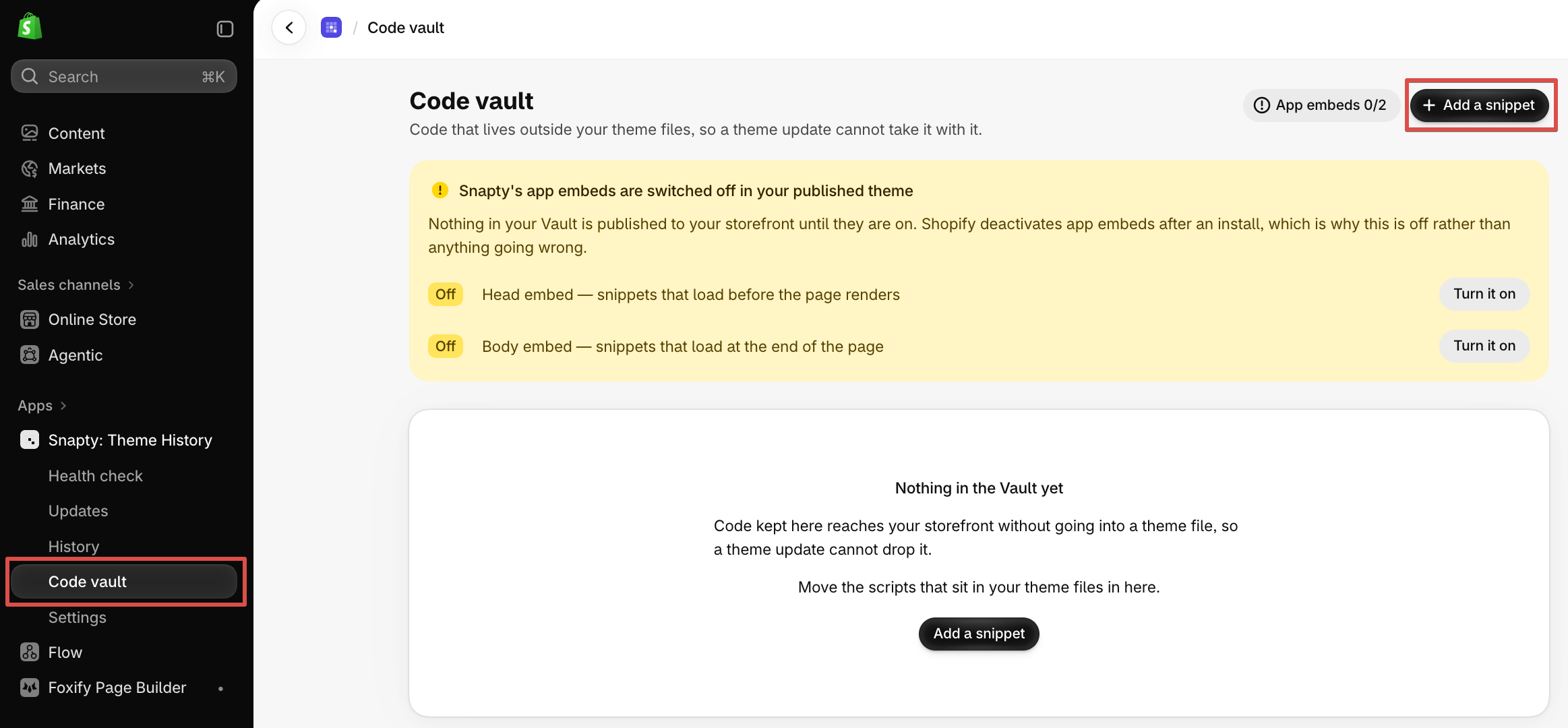
Click **Add a snippet** on the **Code vault** screen in Snapty.
Enter a **Name**, for example *Google Tag Manager*. Only you see it — it never reaches your storefront.
Click **Add code to** `` under **Before the closing body tag**, or **Add code to** `` under **In the head**.
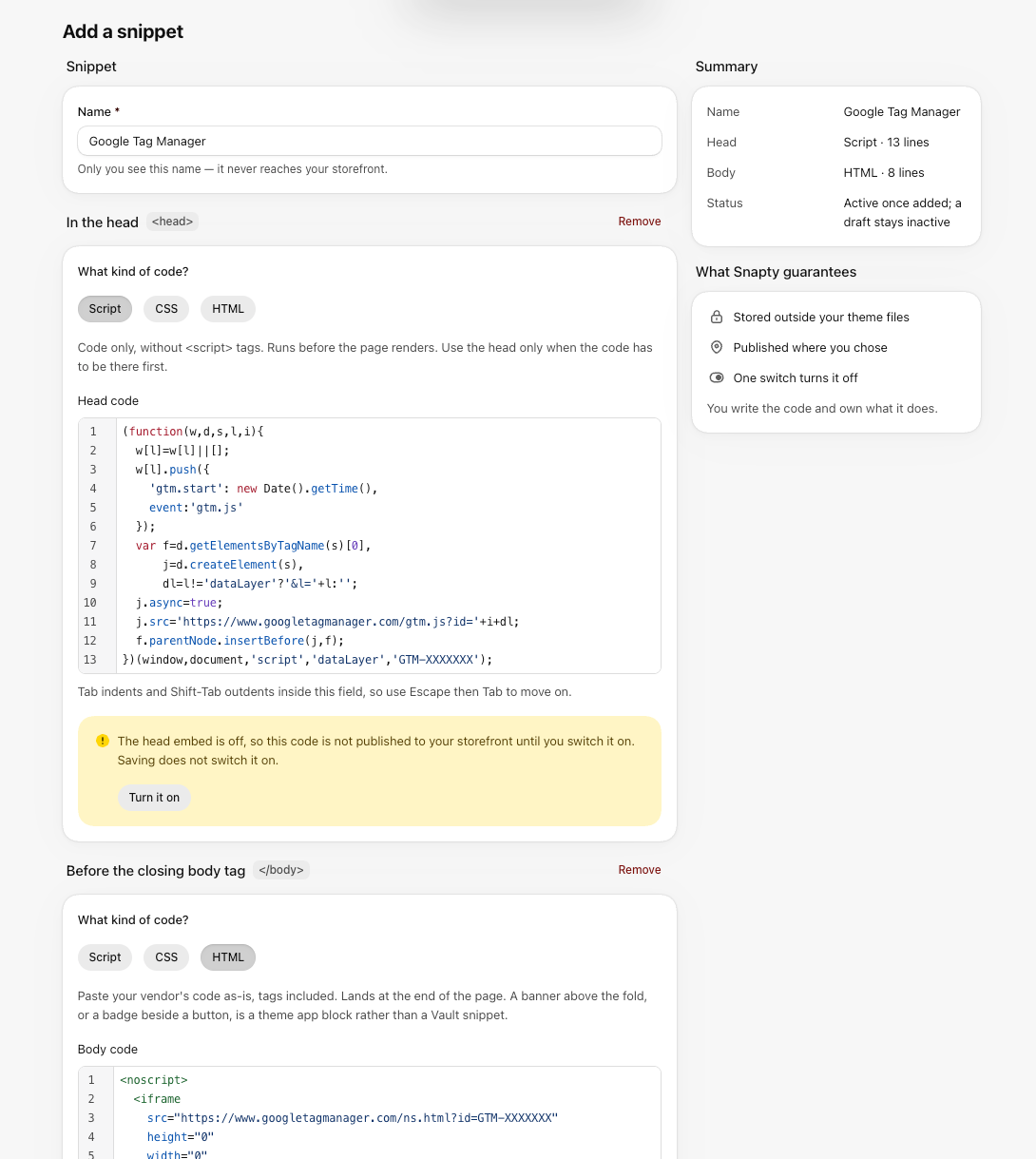
Choose **Script**, **CSS** or **HTML** under **What kind of code?**. See [Choose the right kind of code](#choose-the-right-kind-of-code).
Paste the code from your vendor into the code field.
Click **Save** to save and activate it, or **Save as draft** to save it inactive.
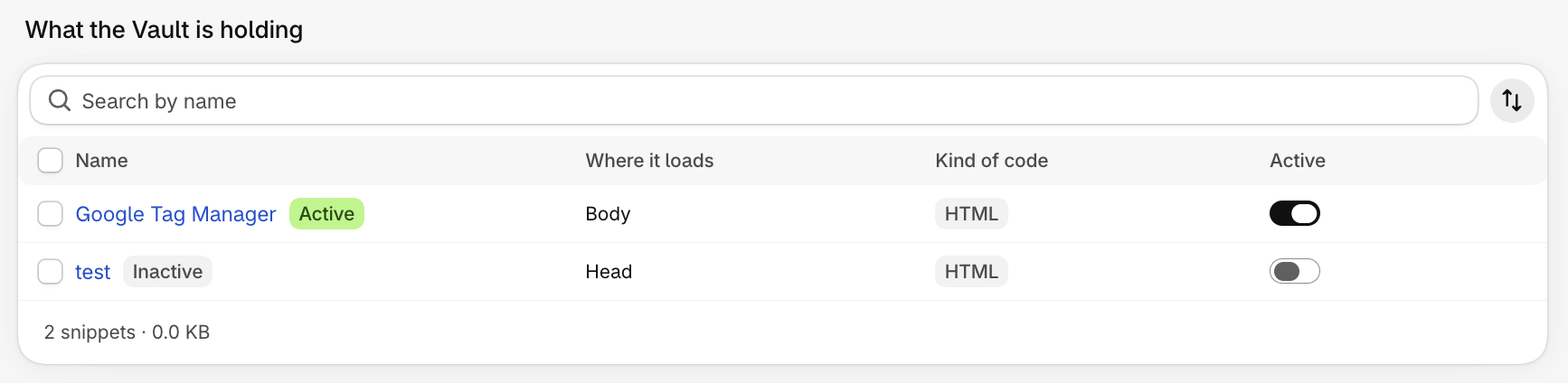
A snippet can have code in both places. Add code to each section before you save, or click **Remove** to take a section out.
The **Summary** panel shows your snippet's name, code location (head or body), code type, and current status.
In the code editor, press **Tab** to indent or **Shift + Tab** to remove an indent. To move to the next field, press **Esc**, then **Tab**.
## Choose the right kind of code
Paste the JavaScript only, without the `