# Products bundle

<figure><img src="https://3064615700-files.gitbook.io/~/files/v0/b/gitbook-x-prod.appspot.com/o/spaces%2F3yE7VVjvl0MgK6awOPKB%2Fuploads%2FN1KYUB4Jzz1ipHyfpuEq%2Fimage.png?alt=media&#x26;token=0e523d37-f436-457d-bb90-8b0dc1d2a193" alt=""><figcaption></figcaption></figure>

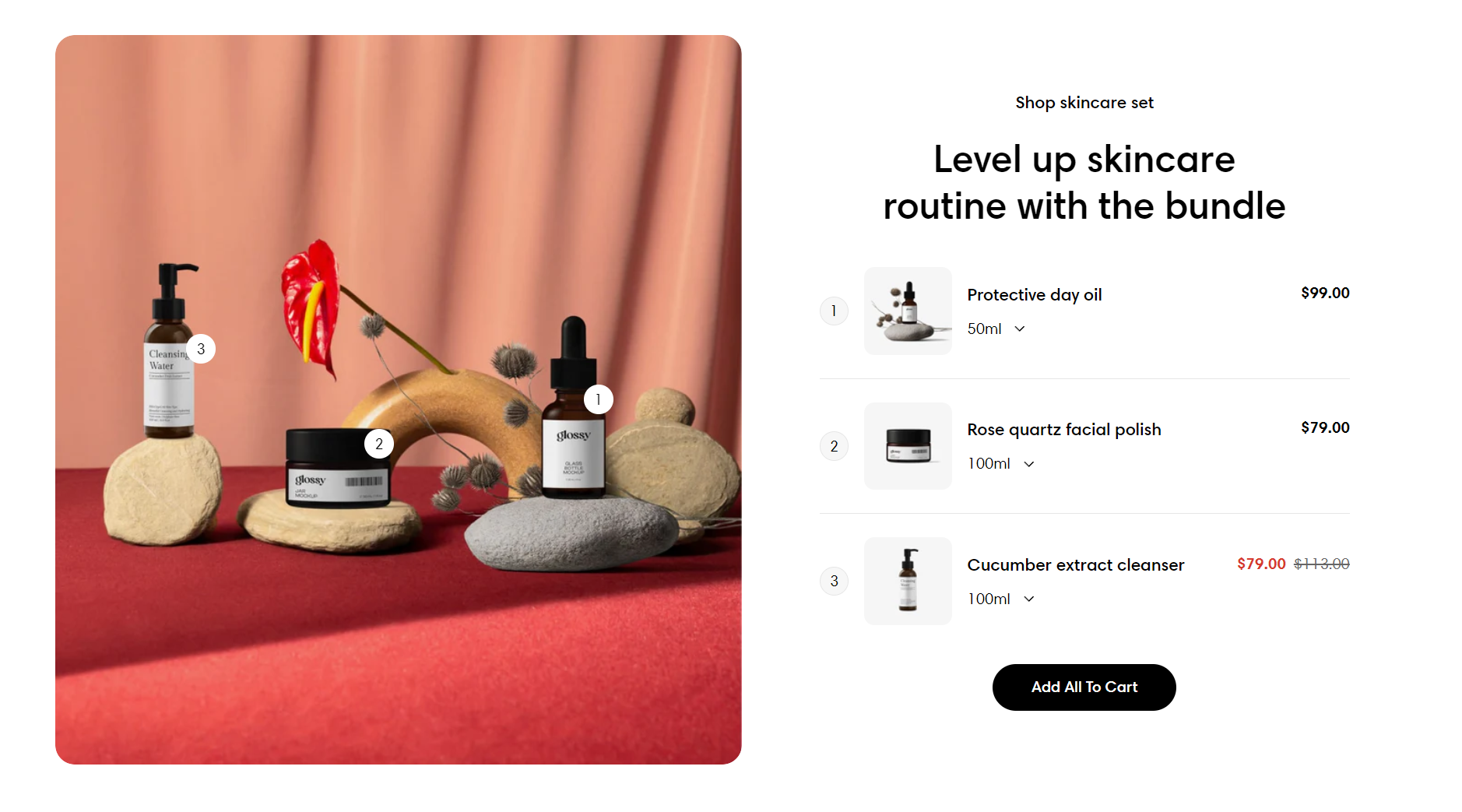
You can bundle multiple products or services together and sell them as a package deal.

The **Products bundle** section in Sleek theme provides a special hover effect that highlights your products and draws customers' attention.

## How to add a Products bundle section

{% hint style="success" %}
**Steps:**

1. In the theme editor (**Customize**) > click **Add section**
2. Select **Products bundle.**
3. Make necessary changes.
4. **Save.**
   {% endhint %}

## How to edit a Products bundle section

### Section settings

#### General

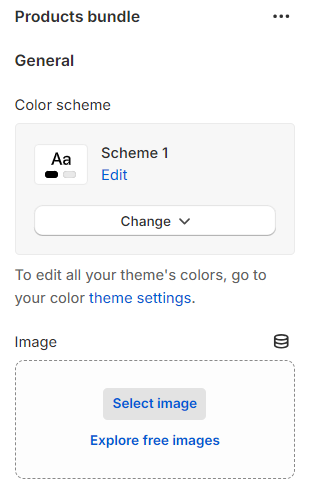
Adjust the **Color scheme** for this section.

{% hint style="info" %}
In Shopify, the [Color scheme](https://help.shopify.com/en/manual/online-store/themes/theme-structure/color-scheme) (a set of colors) of your store can be set within the [Theme settings](https://help.shopify.com/en/manual/online-store/themes/theme-structure/theme-settings). It helps group elements and their respective colors, making your store visually appealing and cohesive. You can apply the color schemes to different sections throughout your online store with a color scheme picker.&#x20;
{% endhint %}

<figure><img src="https://3064615700-files.gitbook.io/~/files/v0/b/gitbook-x-prod.appspot.com/o/spaces%2F3yE7VVjvl0MgK6awOPKB%2Fuploads%2FvuTDpJGXBQcRXCfItBvv%2Fimage.png?alt=media&#x26;token=41f14184-8cd6-410e-a791-b086f7b94208" alt=""><figcaption></figcaption></figure>

Select an appropriate **Image** that is relevant to all the products in the bundle or has the products' appearance in it. This will help you accurately position the hotspots.

#### Section header

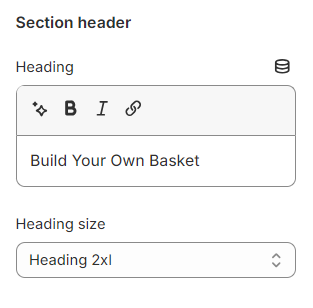
Use the provided text fields to add a suitable **Heading**.

* Leave it blank if you do not want to display it

You can also change the **Heading size** to:

* Heading xs
* Heading sm
* Heading md
* Heading lg
* Heading xl
* Heading 2xl
* Display md
* Display lg
* Display xl
<figure><img src="https://3064615700-files.gitbook.io/~/files/v0/b/gitbook-x-prod.appspot.com/o/spaces%2F3yE7VVjvl0MgK6awOPKB%2Fuploads%2F3ZWyTTUGm4InoxpfbTut%2Fimage.png?alt=media&#x26;token=a91d5eb8-8f4b-4ab2-a0a6-806b9cdcf43d" alt=""><figcaption></figcaption></figure>

#### Highlight text

[How to apply Highlight text to the section heading and block headings?](https://docs.foxecom.com/sleek-theme/pages-global-sections/general-settings#highlight-text)

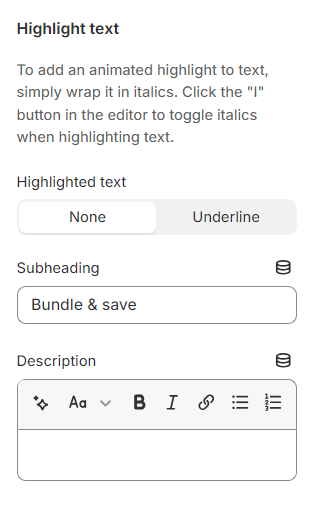
Use the provided text fields to add a suitable **Subheading** and **Description**.

* Leave them blank if you do not want to display them
<figure><img src="https://3064615700-files.gitbook.io/~/files/v0/b/gitbook-x-prod.appspot.com/o/spaces%2F3yE7VVjvl0MgK6awOPKB%2Fuploads%2Fu1vSkdkS1xViFdcFKta2%2Fimage.png?alt=media&#x26;token=010f1385-1c27-4a88-bb1f-4cbdd2bc9760" alt=""><figcaption></figcaption></figure>

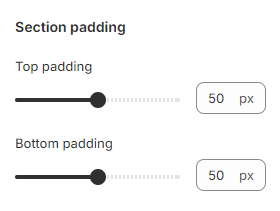
#### **Section padding**

You can modify the spacing above and below the section by adjusting the slider to change the values of the **Top padding** and **Bottom padding**.
<figure><img src="https://3064615700-files.gitbook.io/~/files/v0/b/gitbook-x-prod.appspot.com/o/spaces%2F3yE7VVjvl0MgK6awOPKB%2Fuploads%2FDBzfsvvuEWnCv1BruzJJ%2Fimage.png?alt=media&#x26;token=88c3468a-8c58-4f82-bf78-6e9a8ba80954" alt=""><figcaption></figcaption></figure>

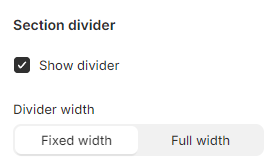
#### Section divider

This divider line provides a clear boundary between the current section and the above.

To activate the divider line, enable the :white\_check\_mark: **Show divider** checkbox.&#x20;

You can choose a suitable **Divider width** for it (Fixed width/ Full width).
<figure><img src="https://3064615700-files.gitbook.io/~/files/v0/b/gitbook-x-prod.appspot.com/o/spaces%2F3yE7VVjvl0MgK6awOPKB%2Fuploads%2FiAmnpPgi2GkofQSRTn7P%2Fimage.png?alt=media&#x26;token=54417385-045a-41a8-be0b-443029c47e18" alt=""><figcaption></figcaption></figure>

### Block settings

#### Product

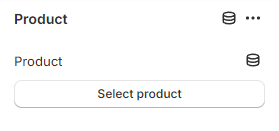
When you hover over a specific product in the bundle, the corresponding hotspot will stand out among the other hotspots on the main image.
<figure><img src="https://content.gitbook.com/content/3yE7VVjvl0MgK6awOPKB/blobs/BryBQbb5mrxfocUDtQ3I/image.png" alt=""><figcaption></figcaption></figure>

Choose a desirable/ active **Product** from your Shopify Products to bundle together.

#### Hotspot

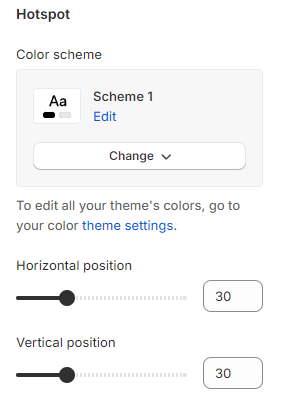
When you hover over a particular hotspot on the main image, the product corresponding to it will stand out among the other blurred products.
<figure><img src="https://3064615700-files.gitbook.io/~/files/v0/b/gitbook-x-prod.appspot.com/o/spaces%2F3yE7VVjvl0MgK6awOPKB%2Fuploads%2FPA4pAlwHNXgvePLNkfGt%2Fimage.png?alt=media&#x26;token=aedff361-4ae2-4d8b-aa2b-2b4255478f56" alt=""><figcaption></figcaption></figure>

This setting allows you to select a Color scheme for the Hotspot.&#x20;

In addition, to tag hotspots on the background image, use the **Vertical** and **Horizontal position** to adjust the hotspot icon position.

***

<figure><img src="https://3064615700-files.gitbook.io/~/files/v0/b/gitbook-x-prod.appspot.com/o/spaces%2F3yE7VVjvl0MgK6awOPKB%2Fuploads%2FCUsSjb0C17R7p2e4MiL1%2Flivechat883x471%20(1).png?alt=media&#x26;token=1ad5a821-413a-4e9b-a7f5-850fc173bcd3" alt=""><figcaption><p><a href="https://apps.shopify.com/xflow?utm_source=foxecom&#x26;utm_medium=sleek_helpdocs&#x26;utm_campaign=banner">Install XFlow Back In Stock Automation FREE</a></p></figcaption></figure>


---

# Agent Instructions: Querying This Documentation

If you need additional information that is not directly available in this page, you can query the documentation dynamically by asking a question.

Perform an HTTP GET request on the current page URL with the `ask` query parameter:

```
GET https://docs.foxecom.com/sleek-theme/theme-sections/products-bundle.md?ask=<question>
```

The question should be specific, self-contained, and written in natural language.
The response will contain a direct answer to the question and relevant excerpts and sources from the documentation.

Use this mechanism when the answer is not explicitly present in the current page, you need clarification or additional context, or you want to retrieve related documentation sections.