# Testimonials: Slider
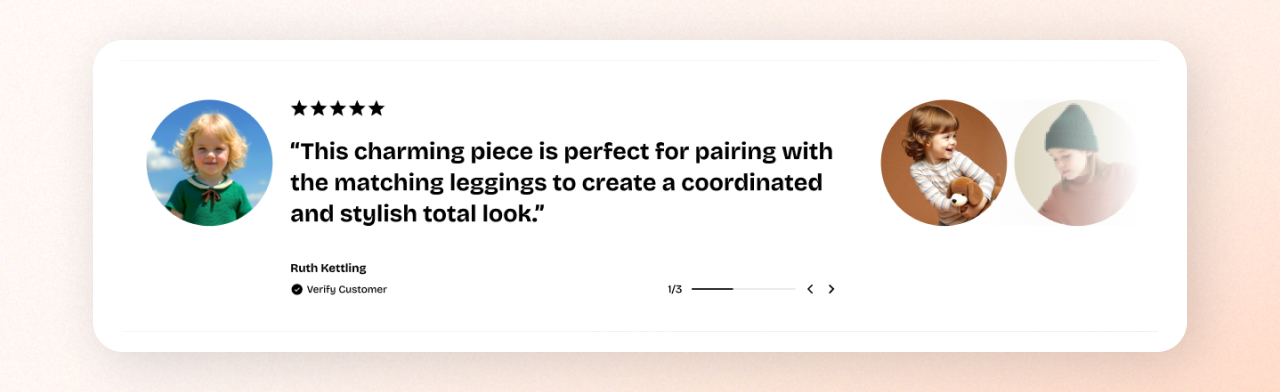
Tell a customer's story one review at a time, with a large photo, the review, and the reviewer's name. Customers move between reviews using the thumbnails, which suits long reviews and editorial storytelling.
## How to customize the Testimonials: Slider section
1. Open the page where you want to display the section in the theme editor by clicking **Edit theme**.
2. Click **Add section**.
3. Select **Testimonials: Slider**.
4. Click a **Testimonial** block. To add another review, click **Add block** under the section and select **Testimonial**.
5. Click **Select** next to **Image** to add the review photo.
6. Click the **Text** block inside the testimonial to enter the review.
7. Click the **Information** block inside the testimonial to enter the reviewer's name and bio.
8. Repeat steps 4–7 for each review.
9. Click **Save**.
## Section settings
### Layout
| Setting | Description | Options |
| ----------------------- | ---------------------------------------------------- | -------------------------------------------------------------------------------------------------------------------------- |
| **Container** | Controls the width of the section content. | **Full:** Uses the available page width.
**Fixed:** Keeps the content within the theme's fixed container width. |
| **Auto-rotate content** | Moves to the next review automatically. | **On** or **Off**. |
| **Change slides every** | Sets how long each review stays before the next one. | **2-10 seconds.**
*Available when **Auto-rotate content** is turned on.* |
### Appearance
| Setting | Description | Options |
| ---------------- | ----------------------------------------------------------------------------------------------------------------- | :-------------------------------- |
| **Color scheme** | Applies a theme color scheme to the section. Learn more in [Colors](https://docs.foxecom.com/pebble-theme/theme-settings/colors). | Select an available color scheme. |
### Padding
Controls the top and bottom spacing separately for desktop and mobile.
| Setting | Description | Options |
| ----------- | ------------------------------------------------------------- | :------------------------- |
| **Devices** | Selects which device-specific padding values you are editing. | **Desktop** or **Mobile**. |
| **Top** | Controls the space above the section content. | **0–100px**. |
| **Bottom** | Controls the space below the section content. | **0–100px**. |
## Blocks
### Testimonial
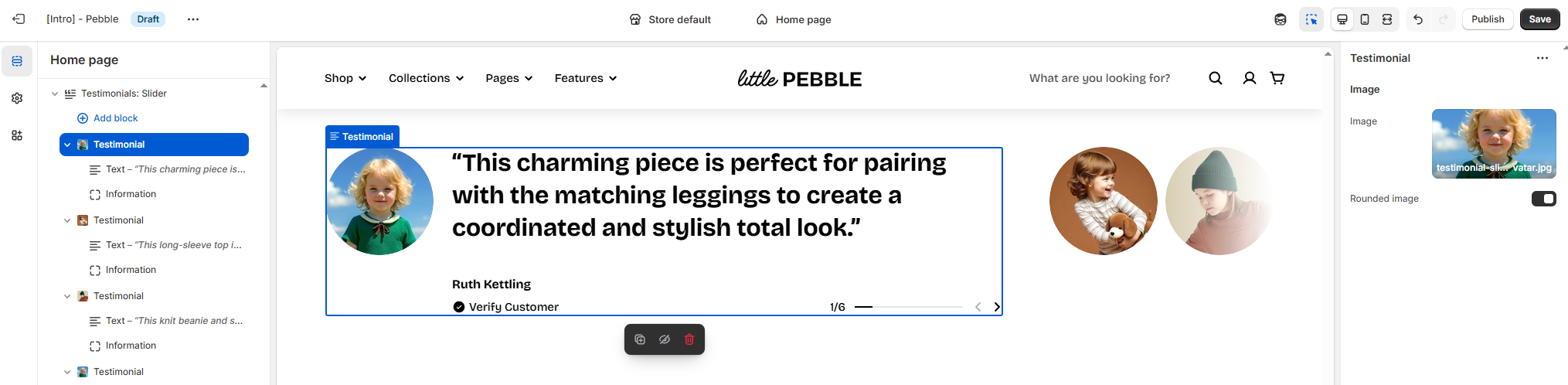
Each **Testimonial** block shows one review with its photo. The photo also appears as a thumbnail that customers click to open that review.
| Setting | Description | Options |
| ----------------- | ----------------------------------------------- | ------------------------------------------------------------ |
| **Image** | Sets the review photo. | Select or upload an image, or click **Explore free images**. |
| **Rounded image** | Controls whether the photo has rounded corners. | **On** or **Off**. |
Each **Testimonial** includes two built-in blocks: **Text** and **Information**.
#### Text
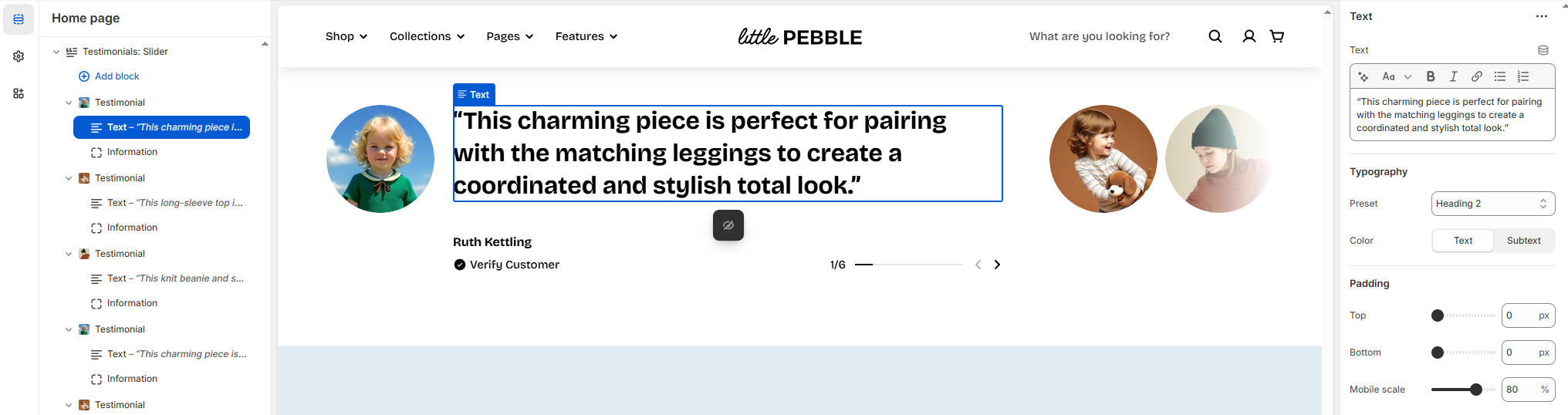
The **Text** block shows the review. [*See the **Text block documentation** for all available settings*](https://docs.foxecom.com/pebble-theme/theme-blocks/text).
| Setting | Description | Options |
| ---------------- | ---------------------------------------- | ------------------------ |
| **Text** | Sets the review text. | Enter your text. |
| **Preset** | Sets the typography style of the review. | Choose a preset style |
| **Color** | Sets the color of the review text. | **Text** or **Subtext**. |
| **Top** | Controls the space above the review. | **0–100px**. |
| **Bottom** | Controls the space below the review. | **0–100px**. |
| **Mobile scale** | Scales the padding on mobile. | **20–100%**. |
#### Information
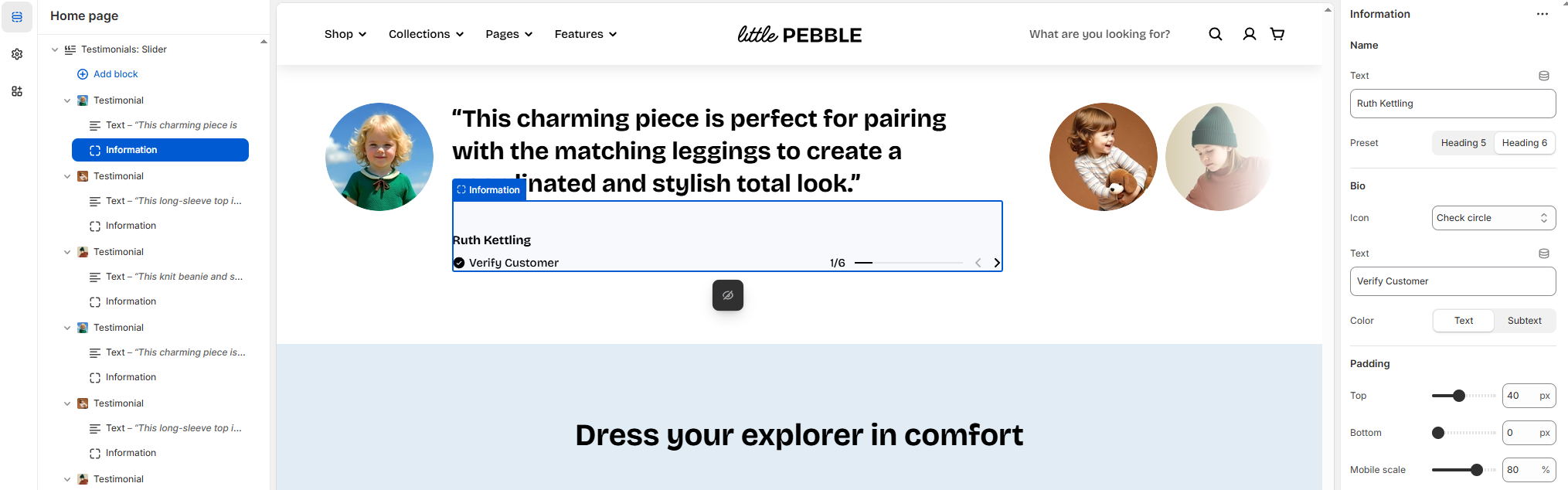
The **Information** block shows who wrote the review. Learn more in the [Testimonial block documentation](https://docs.foxecom.com/pebble-theme/theme-blocks/testimonial).
| Setting | Description | Options |
| ------------------ | ----------------------------------------- | ------------------------------------------------------------ |
| **Image** (Avatar) | Sets the reviewer's avatar. | Select or upload an image, or click **Explore free images**. |
| **Width** | Sets the avatar width on desktop. | **30–100px**. |
| **Width mobile** | Sets the avatar width on mobile. | **30–100px**. |
| **Text** (Name) | Sets the reviewer's name. | Enter your text. |
| **Preset** | Sets the typography style of the name. | **Heading 5** or **Heading 6**. |
| **Icon** | Sets the icon shown next to the bio. | Select an icon, such as **Check circle**. |
| **Text** (Bio) | Sets a short line about the reviewer. | Enter your text, such as **Verified Buyer**. |
| **Color** | Sets the color of the bio. | **Text** or **Subtext**. |
| **Top** | Controls the space above the information. | **0–100px**. |
| **Bottom** | Controls the space below the information. | **0–100px**. |
| **Mobile scale** | Scales the padding on mobile. | **20–100%**. |
To remove a review, open its **Testimonial** block and click **Remove block**.
## Tips and best practices
* Use photos with the same aspect ratio for every review so the slides and thumbnails line up.
* Always add a name or identifier, such as **Verified Buyer**, because a named reviewer makes the review more trustworthy.