# Image comparison
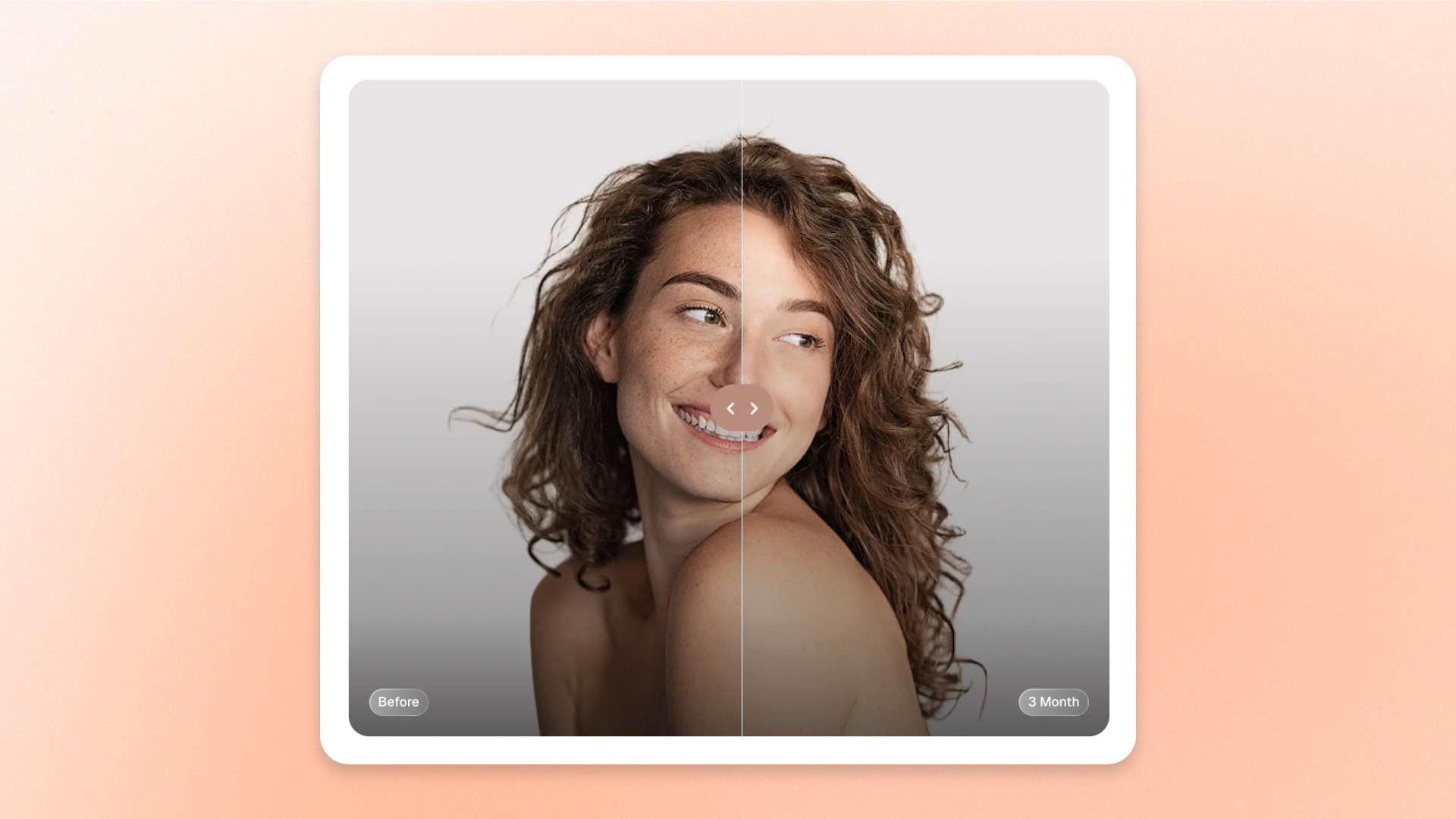
The **Image comparison** block displays two images side by side or stacked vertically to help shoppers compare visual differences. Use it to showcase **before-and-after results, product transformations, design changes, or different versions of a product**.
The block includes two built-in Image blocks, **Image – Before** and **Image – After**, each with its own image, heading, and color scheme.
## Settings
### Layout
Controls how the two images are arranged and displayed across devices.
| Setting | Description | Options |
| ----------------------- | ---------------------------------------------------------- | ------------------------------------------------------------------------------------------------------------------------------------------------- |
| **Direction** | Controls how the Before and After images are arranged. | **Horizontal**: Displays the images side by side.
**Vertical**: Stacks the images one above the other. |
| **Aspect ratio** | Controls the aspect ratio of the images on desktop. | **Auto:** Uses the image’s original proportions.
**Square (1/1), Portrait (4/5), Portrait (3/4), Landscape (16/9), or Landscape (4/3).** |
| **Aspect ratio mobile** | Controls the aspect ratio of the images on mobile devices. | **Auto, Square (1/1), Portrait (4/5), Portrait (3/4), Landscape (16/9), or Landscape (4/3).** |
### Appearance
Controls the color scheme and corner rounding of the Image comparison block.
| Setting | Description | Options |
| ----------------- | ---------------------------------------------- | ---------------------------- |
| **Color scheme** | Sets the color scheme of the block. | Select a theme color scheme. |
| **Corner radius** | Controls how rounded the image corners appear. | **0–32px** |
## Image comparison – items
The **Image comparison** block includes two built-in static Image blocks: **Image – Before** and **Image – After**.
Each Image block represents one side of the comparison. Both are part of the required structure and cannot be removed or reordered. Additional nested blocks cannot be added.
### Image
Controls the images and headings displayed on each side of the comparison.
| Setting | Description | Options |
| ---------------- | ------------------------------------------- | ------------------------------------------------------------------ |
| **Image** | Sets the image displayed on desktop. | Select an image from the Shopify file library or upload a new one. |
| **Image mobile** | Sets the image displayed on mobile devices. | Select an image from the Shopify file library or upload a new one. |
| **Heading** | Sets the label displayed for the image. | Enter custom text, such as **Before** or **After**. |
### Appearance
Controls the color scheme of each individual Image block.
| Setting | Description | Options |
| ---------------- | ---------------------------------------------------- | ---------------------------- |
| **Color scheme** | Sets the color scheme of the individual image block. | Select a theme color scheme. |
## Tips and best practices
* Use images with the same subject, angle, and lighting to make visual differences easy to recognize.
* Keep the main subject in the same position in both images for a clear, accurate comparison.
* Choose the same **Aspect ratio** for both images to keep the comparison balanced.
* Keep the **Heading** short and descriptive, such as "Before" and "After" or "Original" and "Updated".
* Use **Horizontal** direction for side-by-side comparisons, or **Vertical** when tall images need more space.
* Check the mobile preview to ensure important details aren't cropped and both images remain easy to compare.