# Image
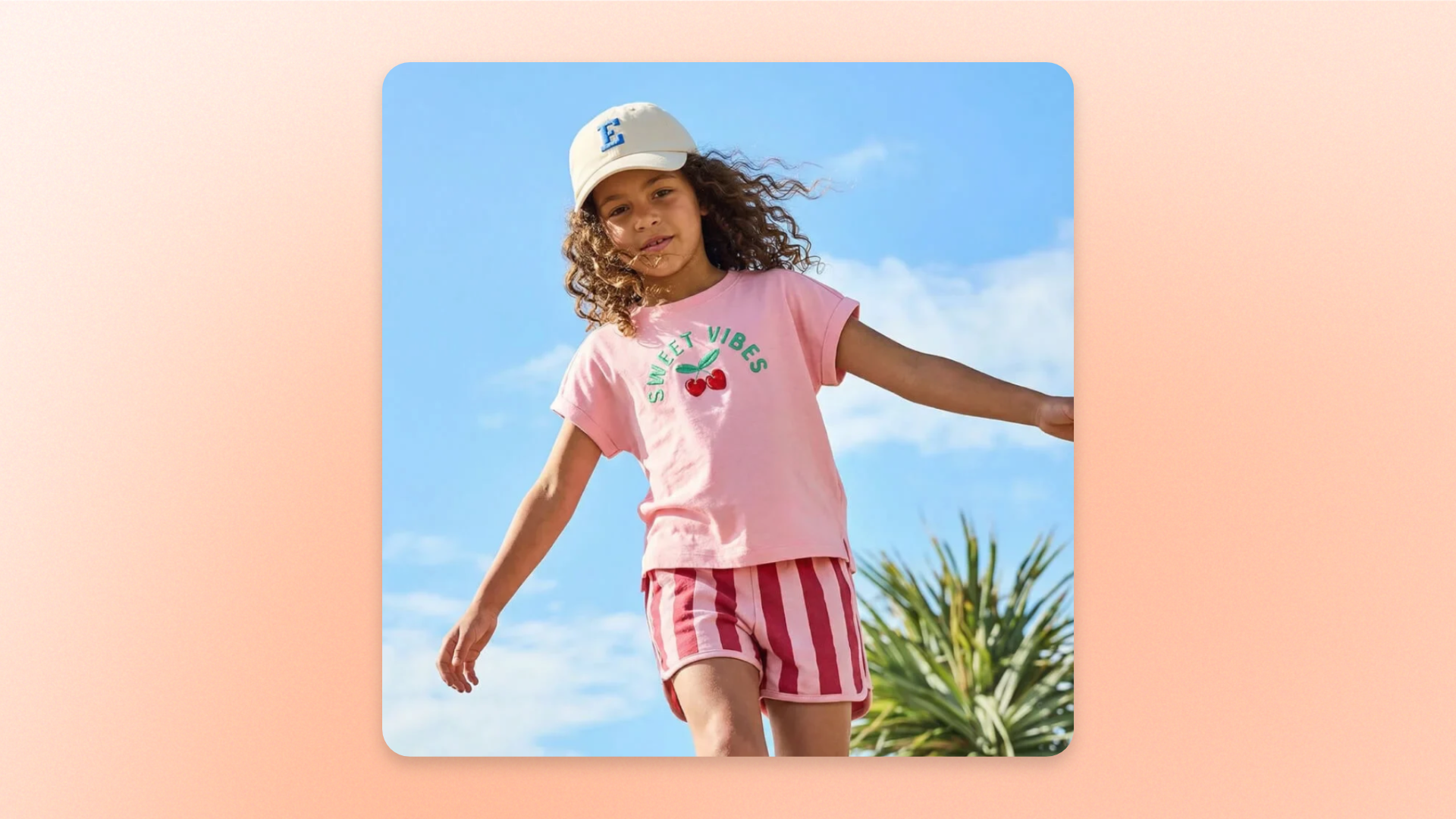
The **Image** block displays an image inside a section with controls for desktop and mobile images, sizing, appearance, borders, and spacing.
Use it for **product visuals, lifestyle images, promotional graphics, banners, or supporting imagery** within custom layouts.
You can also upload a separate image for mobile devices and add a link to make the image clickable.
## Settings
### General
| Setting | Description | Options |
| ---------------- | ----------------------------------------- | --------------------------------------------------------------------------- |
| **Image** | Sets the image displayed on desktop. | Select or upload an image. |
| **Image mobile** | Sets a separate image for mobile devices. | Select or upload an image.
Leave blank to use the desktop image. |
| **Link** | Adds a clickable link to the image. | Paste or select a link. |
### Size
| Setting | Description | Options |
| ----------------------- | ------------------------------------------------- | ------------------------------------------------------------------------------------------------------------------------------------------------------------------------ |
| **Aspect ratio** | Controls the image proportions on desktop. | **Auto:** Uses the image’s original proportions.
**Square (1/1), Portrait (4/5), Portrait (3/4), Landscape (16/9), Landscape (4/3),** or **Landscape (21/9)** |
| **Aspect ratio mobile** | Controls the image proportions on mobile devices. | **Auto, Square (1/1), Portrait (4/5), Portrait (3/4), Landscape (16/9), Landscape (4/3),** or **Landscape (21/9)** |
| **Width** | Controls the image width on desktop. | **Fit:** Sizes the image to fit its content.
**Fill:** Fills the available width.
**Custom:** Uses a **Custom width** from **0–100%**. |
| **Width mobile** | Controls the image width on mobile devices. | **Fit:** Sizes the image to fit its content.
**Fill:** Fills the available width.
**Custom:** Uses a **Custom width** from **0–100%**. |
### Appearance
| Setting | Description | Options |
| ----------- | ---------------------------------------- | ----------------- |
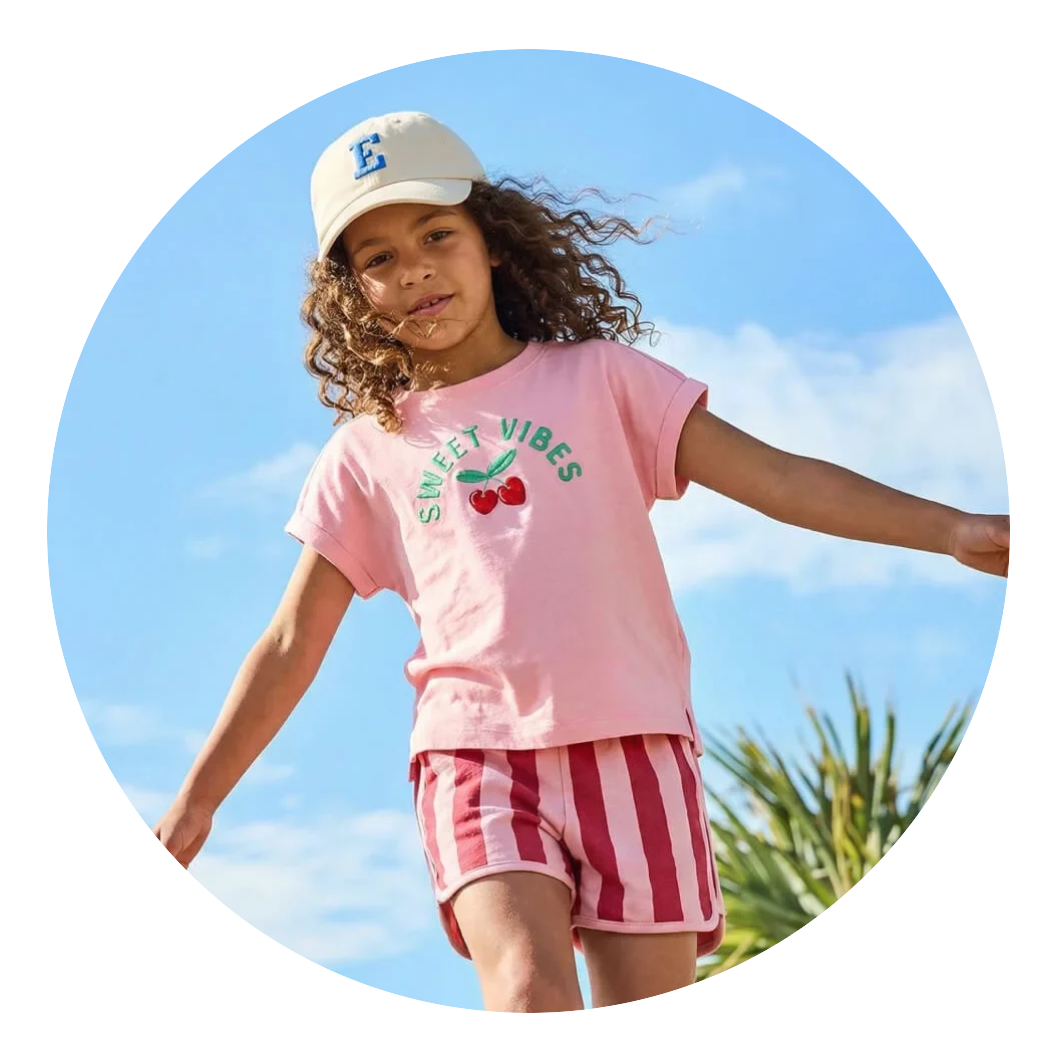
| **Rounded** | Rounds the uploaded image into a circle. | **On** or **Off** |
Rounded - ON
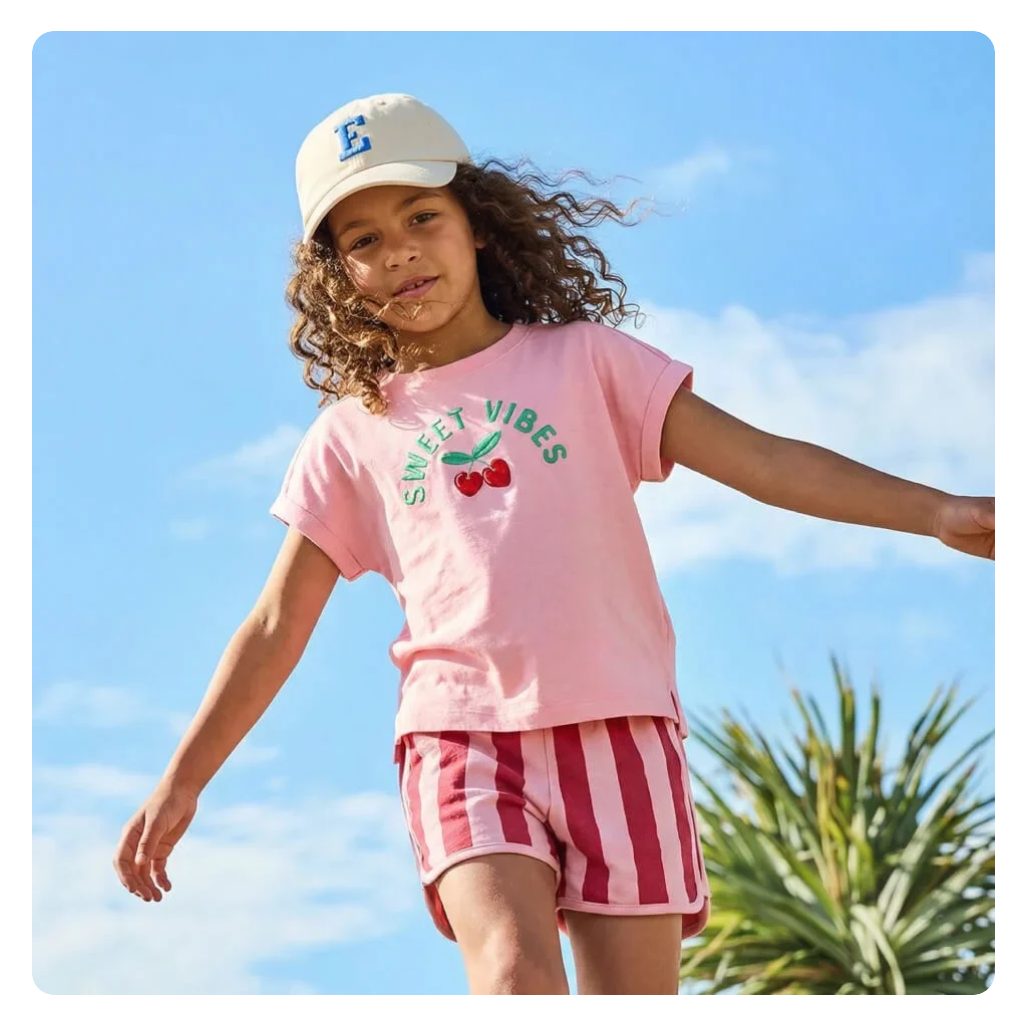
Rounded - OFF
### Borders
| Setting | Description | Options |
| ------------------ | -------------------------------------------------------- | ----------------------------------------------------------------------- |
| **Border** | Controls whether a border is displayed around the image. | **None** or **Solid** |
| **Border width** | Sets the thickness of the border. | **0–10px.**
*Available when **Border** is set to **Solid**.* |
| **Border opacity** | Controls the transparency of the border. | **0–100%.**
*Available when **Border** is set to **Solid**.* |
| **Corner radius** | Sets a custom corner radius for the image. | **0–32px.**
*Available when **Rounded** is turned **Off**.* |
### Padding
Controls the space around the Image block. Padding can be adjusted separately for each side.
| Setting | Description | Options |
| ---------------- | ---------------------------------------------------------------------- | ---------------------------------------------------------------------------- |
| **Top** | Sets the space above the image. | **0–100px** |
| **Bottom** | Sets the space below the image. | **0–100px** |
| **Left** | Sets the space on the left side of the image. | **0–100px** |
| **Right** | Sets the space on the right side of the image. | **0–100px** |
| **Mobile scale** | Adjusts all padding values on mobile relative to their desktop values. | **20–100%**: Select the percentage of the desktop padding to keep on mobile. |
## Tips and best practices
* Use different **desktop and mobile images** when a separate crop improves framing or readability on smaller screens.
* Keep **aspect ratios consistent** when displaying multiple Image blocks together for a cleaner, more balanced layout.
* Use **Fill** when the image should span the available width, or **Custom** when you need more precise control over its size.
* Turn on **Rounded** when you want a rounded image shape. Keep it off if you want to control the corners manually with **Corner radius**.