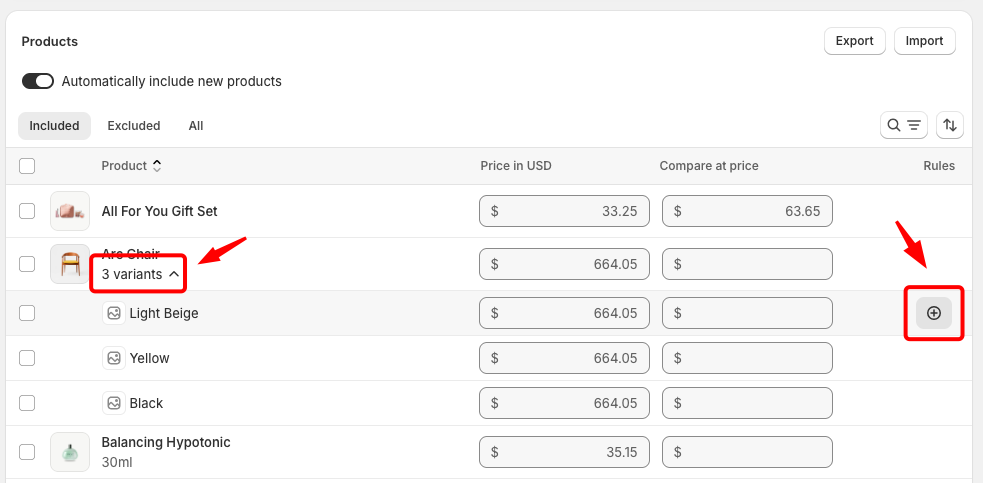
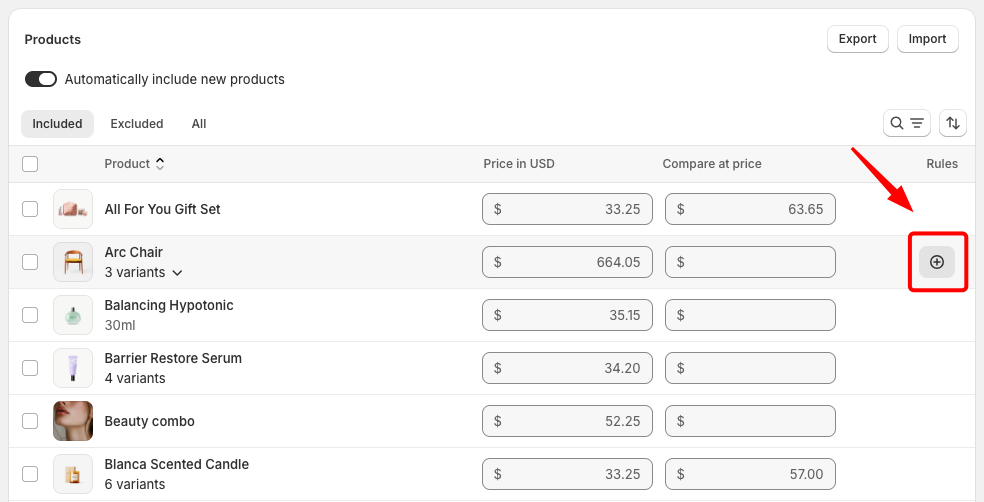
# Set up quantity rules and volume pricing in B2B Leverage quantity rules and volume pricing on Shopify to establish specific quantity requirements or offer tiered price discounts for your B2B orders. **Quantity rules** and **Volume pricing** are managed together, but can also be used independently based on your business needs. ![image](https://docs-assets.foxecom.app/pebble-theme/Fox-BG%20Light%20(8)_pBs9icX0.jpg) ***For example:*** * If you want to sell a product in specific increments to your B2B customers or limit the quantity a customer can purchase at once, you can set [quantity rules](https://help.shopify.com/en/manual/b2b/catalogs/quantity-pricing#quantity-rules). * If you want to offer price discounts to customers who purchase a certain quantity of a product, you can set up [volume pricing](https://help.shopify.com/en/manual/b2b/catalogs/quantity-pricing#volume-pricing). ## Set quantity rules and volume pricing for your products using catalogs ### Create a B2B catalog **Steps:** 1. From your Shopify admin, go to **Markets** > [**Catalogs**](https://admin.shopify.com/catalogs). 2. Click the catalog that you want to edit or [**create a new catalog**](https://help.shopify.com/en/manual/b2b/catalogs/creating-catalogs#create-a-catalog) if one is not available. 3. Edit the **Pricing** sections to create pricing plans for your B2B customers. ![image](https://docs-assets.foxecom.app/pebble-theme/image_AUU0DqmU.png) ### Select a product to add quantity rules and volume pricing To configure quantity rules and volume pricing, click **+ Add** next to the product or product variant that you want to edit. * To apply quantity rules to **all variants** of a product, hover over the product and click **+ Add**. * To apply quantity rules to a **specific variant**, click the variants link below the product name, then hover over the variant and click **+ Add**.
![image](https://docs-assets.foxecom.app/pebble-theme/image_XYEf72kv.png) ![image](https://docs-assets.foxecom.app/pebble-theme/image_KIoIgiXL.png)
You can set quantity rules and volume pricing in the **Catalogs** section of your Shopify admin, or by [importing a CSV](https://help.shopify.com/en/manual/b2b/catalogs/creating-catalogs#export-and-import-catalogs).
### Set up quantity rules Use the quantity rules section to control how customers can purchase products. * **Increment**: Enter the quantity increment that customers must purchase in. * **Minimum**: Enter the minimum quantity that customers are required to purchase. * **Maximum** *(optional)*: Enter the maximum quantity that customers can purchase in a single order. ![image](https://docs-assets.foxecom.app/pebble-theme/image_4pIKF1eO.png) **Note:** All quantity rules set in your catalogs apply to each product's variants independently, not to the product as a whole. *For example:* If you set a minimum quantity rule for a product with multiple color variants, then the customer needs to purchase at least that quantity of all the same color variants. 🎉 You have successfully created quantity rules! ![image](https://docs-assets.foxecom.app/pebble-theme/gifpebble4_189soQsT.gif) ### Set up volume pricing Use volume pricing to offer discounted pricing based on purchase quantity. 1. In the **Volume pricing** section, click **+ Add quantity price breaks**. 2. In the **Quantity** field, enter the quantity threshold for the first price break. Price break quantities must be greater than the minimum order quantity and must be a multiple of the increment value set in the quantity rules. 3. Optional: To create additional pricing tiers, click **Add break**, then enter the quantity and price for each additional price break. 4. In the **Price** field, enter the corresponding price. ![image](https://docs-assets.foxecom.app/pebble-theme/image_YtW8AaJz.png) **Note:** All volume pricing set in your catalogs applies to each product's variants independently, not to the product as a whole. *For example:* If you have a volume pricing set, then a customer needs to purchase the required quantity of a specific variant to meet volume pricing requirements. 🎉 You have successfully created volume pricing! ![image](https://docs-assets.foxecom.app/pebble-theme/gifpebble2_chCVywxM.gif)
For more details, you can visit the **Shopify help center** page: [Setting up quantity rules and volume pricing](https://help.shopify.com/en/manual/b2b/catalogs/quantity-pricing)