# Quick order list
_NY7J5gVx.jpg)
**Quick order list** section is designed to help customers **quickly browse and order multiple product variants** from a single table view. It’s especially useful for wholesale stores, B2B setups, or any product with several variants like colors or sizes.
You can use this section for B2B customers to help them quickly order multiple product variants.
[*Learn more*](https://help.shopify.com/en/manual/b2b)
## How to add a Quick order list section to your Shopify store
This section is available on **product pages** and shows all available variants of the current product in a table layout, with columns for:
* **Variant name**
* **Quantity selector**
* **Price per unit**
* **Variant total**
Customers can quickly adjust quantities for multiple variants and proceed to checkout with ease.
Steps:
1. In the theme editor (**Customize**), open the template selector.
2. Locate **Products**, and select a product template you want to make changes to.
3. On the left-sidebar, add **Quick order list** section.
4. Make necessary changes > **Save.**
## How to customize a Quick order list section
### Section settings
| Setting | Description | Example |
| --- | --- | --- |
| **Show image** | Display the product thumbnail image. | 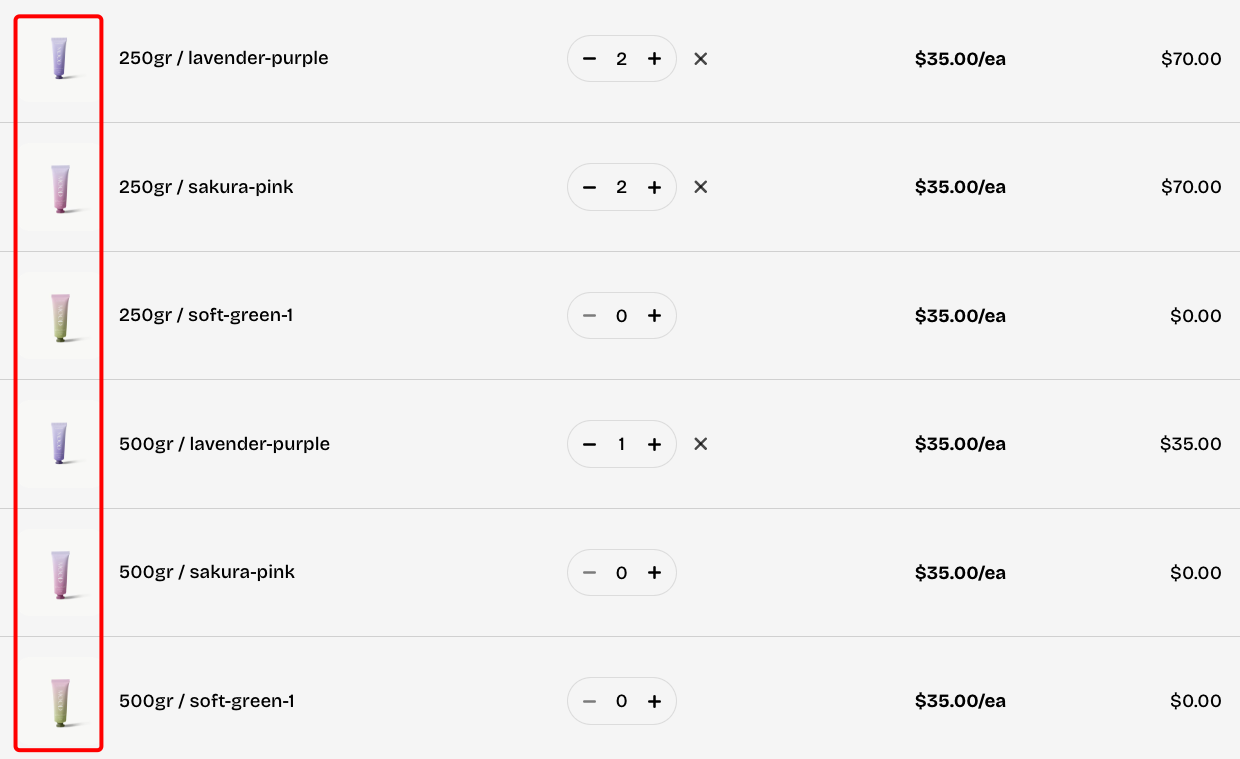 |
| **Show SKU** | Display the product SKU code below the product title. | 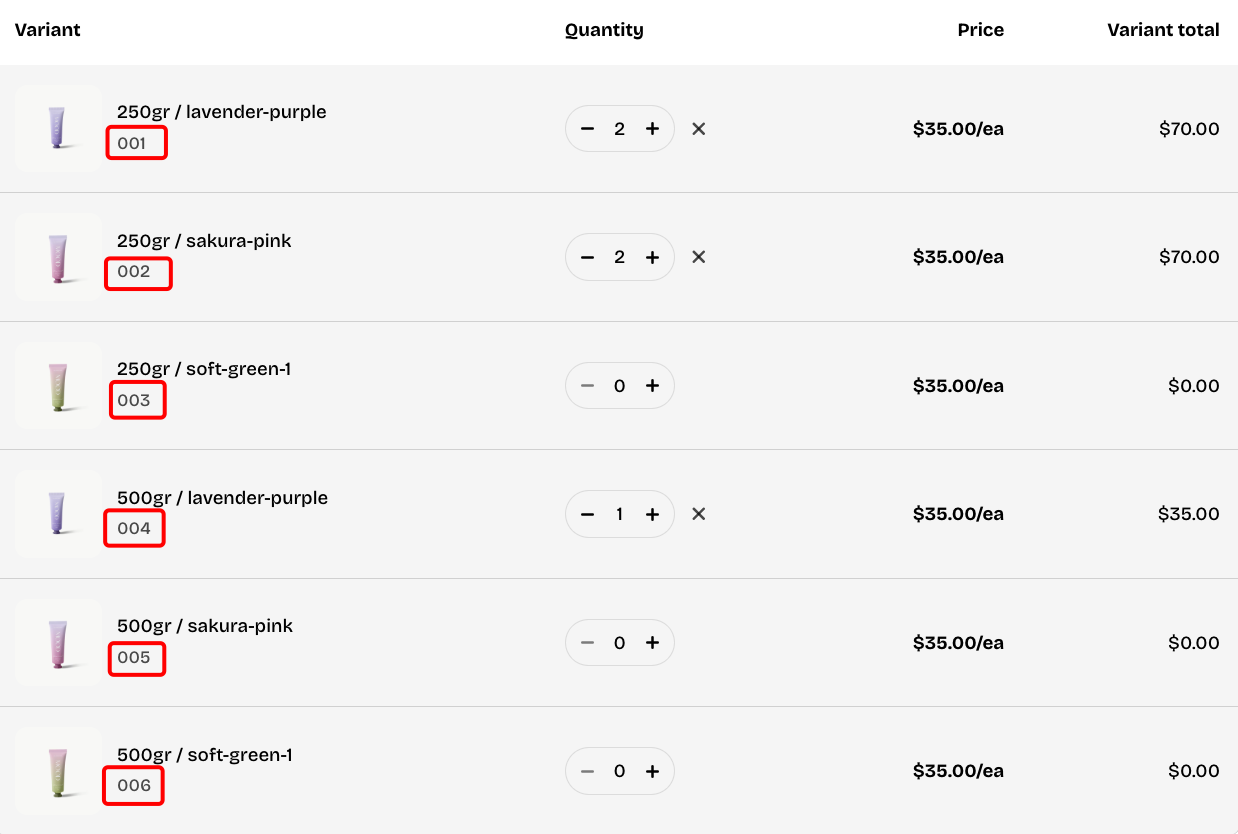 |
✨ Check out other Quick order list section settings: [Common settings available in most sections](https://docs.foxecom.com/pebble-theme/theme-sections/overview#common-settings-available-in-most-sections)
### Block settings
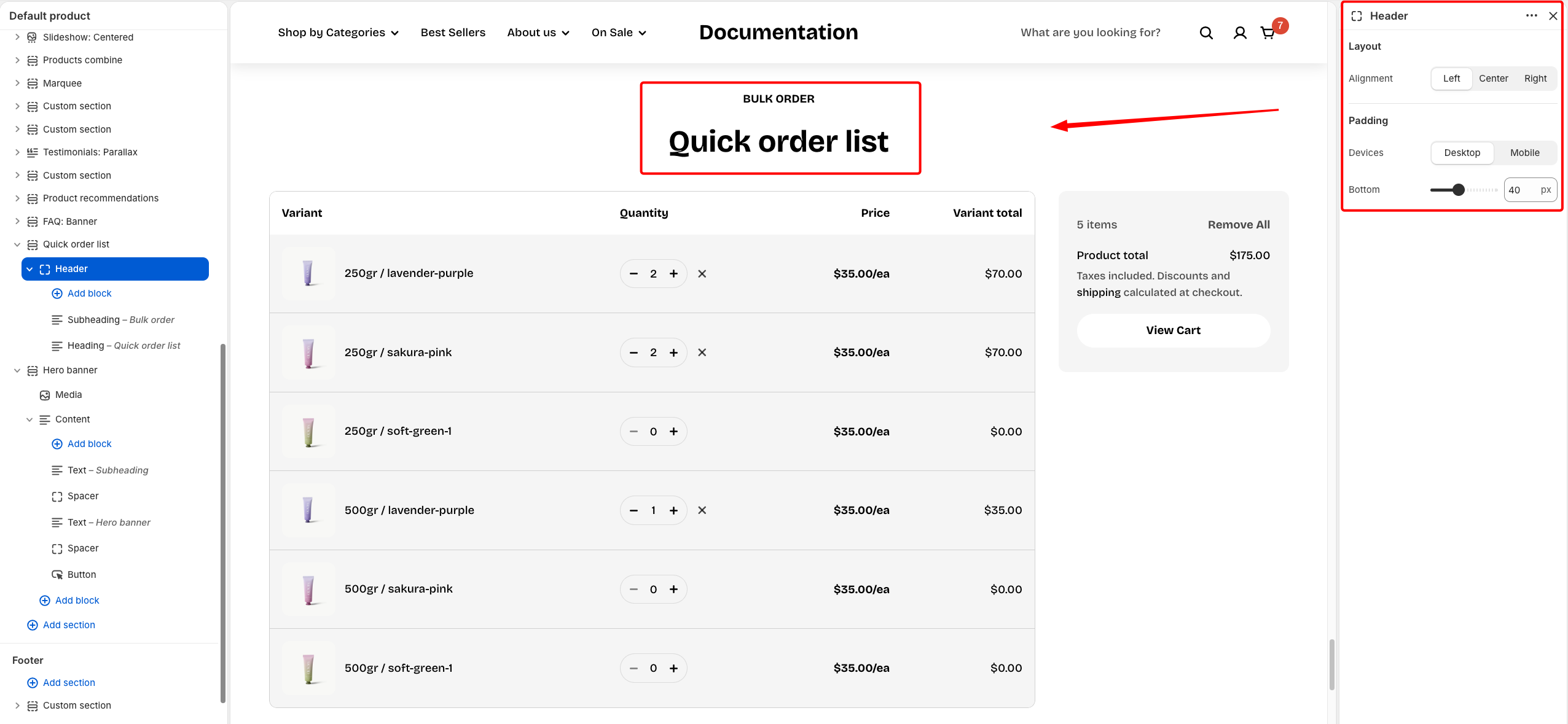
The **Header** block lets you introduce the section with titles, text, images, or buttons. Use it to create a strong opening and guide customers through the comparison.
* **Heading** – Add a main title
* **Subheading** – Provide supporting text above or below the heading
* **Text** – Include additional descriptions or details
* **Image** – Display an image or icon
* **Button** – Add a call-to-action
📝 Learn more: [Basic](https://docs.foxecom.com/pebble-theme/theme-blocks/basic)