# Typography
**Typography** controls how text appears throughout your storefront.
From this section, you can choose your store fonts, adjust text sizing, and customize the appearance of headings, buttons, navigation, product information, and other text elements.
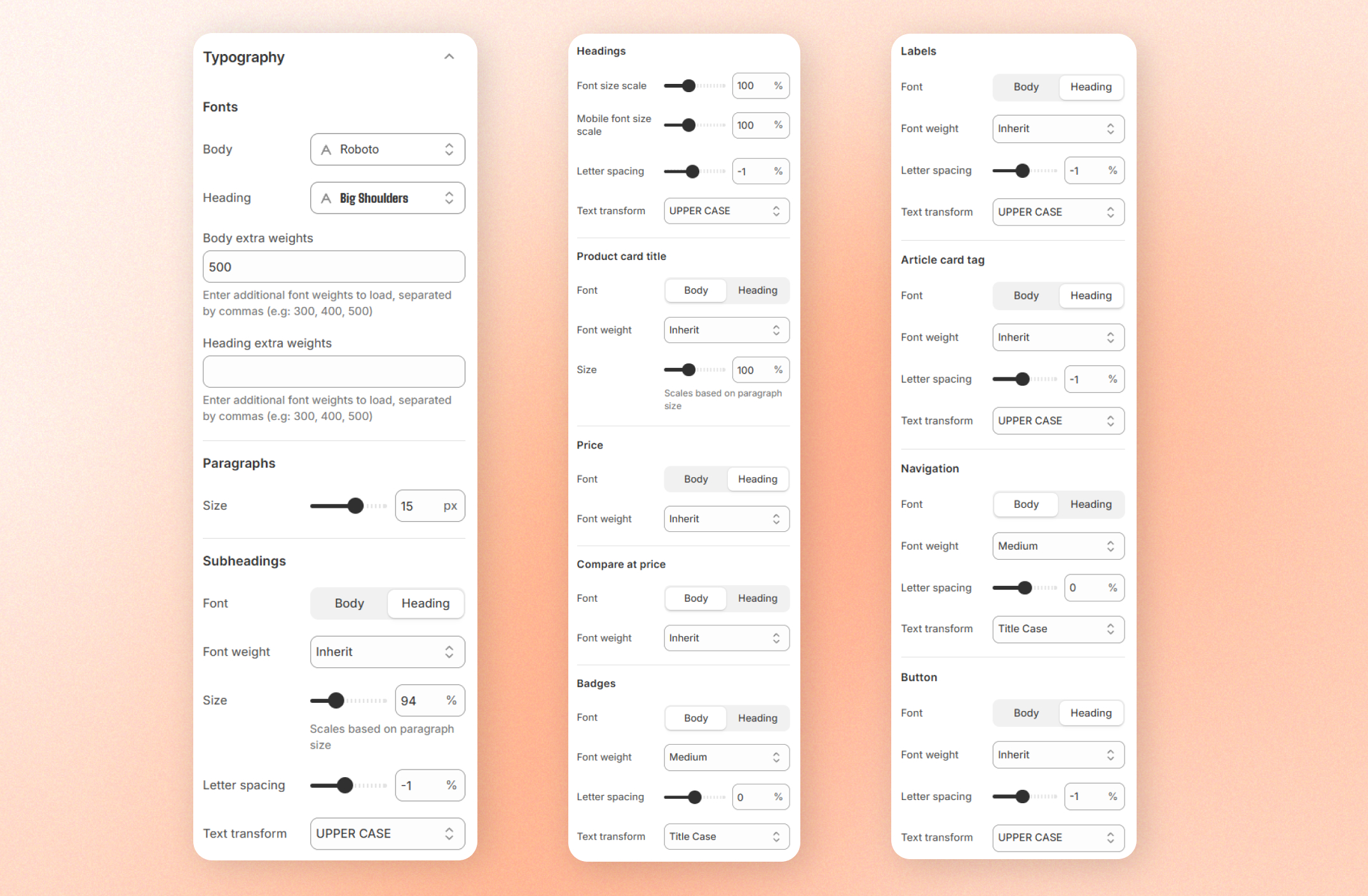
## Fonts
Choose the fonts used across your storefront.
| Setting | Description | Options |
| ------------------------- | -------------------------------------------------------------------------------------------------------------------------- | ------------------------------------------------------------------------ |
| **Body** | Select the font used for body text, such as paragraphs, product descriptions, and most standard text throughout the theme. | Select a font |
| **Heading** | Select the font used for headings and, by default, many emphasized text elements such as prices, badges, and buttons. | Select a font |
| **Body extra weights** | Load additional font weights for the Body font. | Enter the font weights separated by commas (for example: `300,400,500`). |
| **Heading extra weights** | Load additional font weights for the Heading font. | Enter values separated by commas |
To learn more about system fonts and how they work with your theme, visit [Shopify's system fonts documentation](https://shopify.dev/docs/storefronts/themes/architecture/settings/fonts#system-fonts).
Only load the extra weights you plan to use, as each additional weight increases the amount of font data downloaded by visitors. As with body fonts, loading unnecessary weights may slightly affect page loading performance.
## Paragraphs
Set the base typography for paragraph text.
| Setting | Description | Options |
| -------- | ------------------------------------------------------------------------------------------------------------------------------------------------------------------------- | ----------- |
| **Size** | Set the base text size for paragraphs. Many other text sizes are calculated relative to this value, so increasing it also scales much of the text across your storefront. | 10px - 18px |
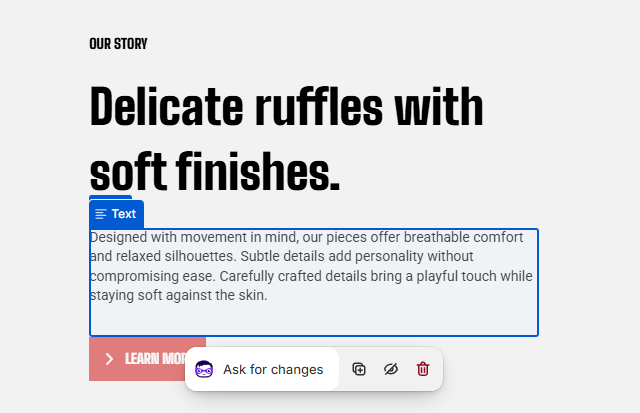
An example Text block
## Subheadings
Customize the typography used for subheadings.
| Setting | Description | Options |
| ------------------ | ------------------------------------------------------------------------------------------------------------------------------------------ | -------------------------------------------------------------------------- |
| **Font** | Choose whether subheadings use the Body or Heading font selected in [**Fonts**](https://docs.foxecom.com/motrix-theme/theme-settings/typography#fonts). | Body / Heading |
| **Font weight** | Adjust the thickness of subheading text. Choose **Inherit** to use the **default weight** of the selected font. | Inherit / Light / Regular / Medium / Semi bold / Bold / Extra bold / Black |
| **Size** | Set the subheading text size relative to the paragraph size. | 70% - 150% |
| **Letter spacing** | Adjust the spacing between letters in subheadings. | -10% to 10% |
| **Text transform** | Choose how subheading text capitalization is displayed. | As typed / Title Case / UPPER CASE / lower case |
## Headings
All headings use the **Heading** font selected in [**Fonts**](https://docs.foxecom.com/motrix-theme/theme-settings/typography#fonts).
| Setting | Description | Option |
| -------------------------- | ----------------------------------------------------- | ----------------------------------------------- |
| **Font size scale** | Adjust the size of all headings throughout the theme. | 70% - 150% |
| **Mobile font size scale** | Adjust heading sizes on mobile devices only. | 70% - 150% |
| **Letter spacing** | Increase or decrease the spacing between letters. | -10% to 10% |
| **Text transform** | Choose how heading text capitalization is displayed. | As typed / Title Case / UPPER CASE / lower case |
## Per-component text styles
Customize typography for specific text elements across your storefront.
Each component may include one or more typography options depending on the component.
| Component | What it controls | Setting options |
| ---------------------- | ------------------------------------------------------------------------------------------------------------ | ------------------------------------------------------------ |
| **Product card title** | Customize the typography for product names displayed on product cards in collection grids and image sliders. | Select Font, Font weight, Size |
| **Price** | Customize the typography for the current selling price displayed throughout your storefront. | Select Font, Font weight |
| **Compare-at price** | Customize the typography for the original price displayed with a strikethrough for discounted products. | Select Font, Font weight |
| **Badges** | Customize the typography for product badges such as Sale, Sold out, New, Hot, and Popular. | Select Font, Font weight, Letter Spacing, and Text transform |
| **Labels** | Customize the typography for labels displayed on image cards and spotlight product cards. | Select Font, Font weight, Letter Spacing, and Text transform |
| **Article card tag** | Customize the typography for **category tags** displayed on blog article cards. | Select Font, Font weight, Letter Spacing, and Text transform |
| **Navigation** | Customize the typography for **menu links** in the header and mobile menu. | Select Font, Font weight, Letter Spacing, and Text transform |
| **Buttons** | Customize the typography for text displayed on buttons throughout the theme. | Select Font, Font weight, Letter Spacing, and Text transform |