# Product compare
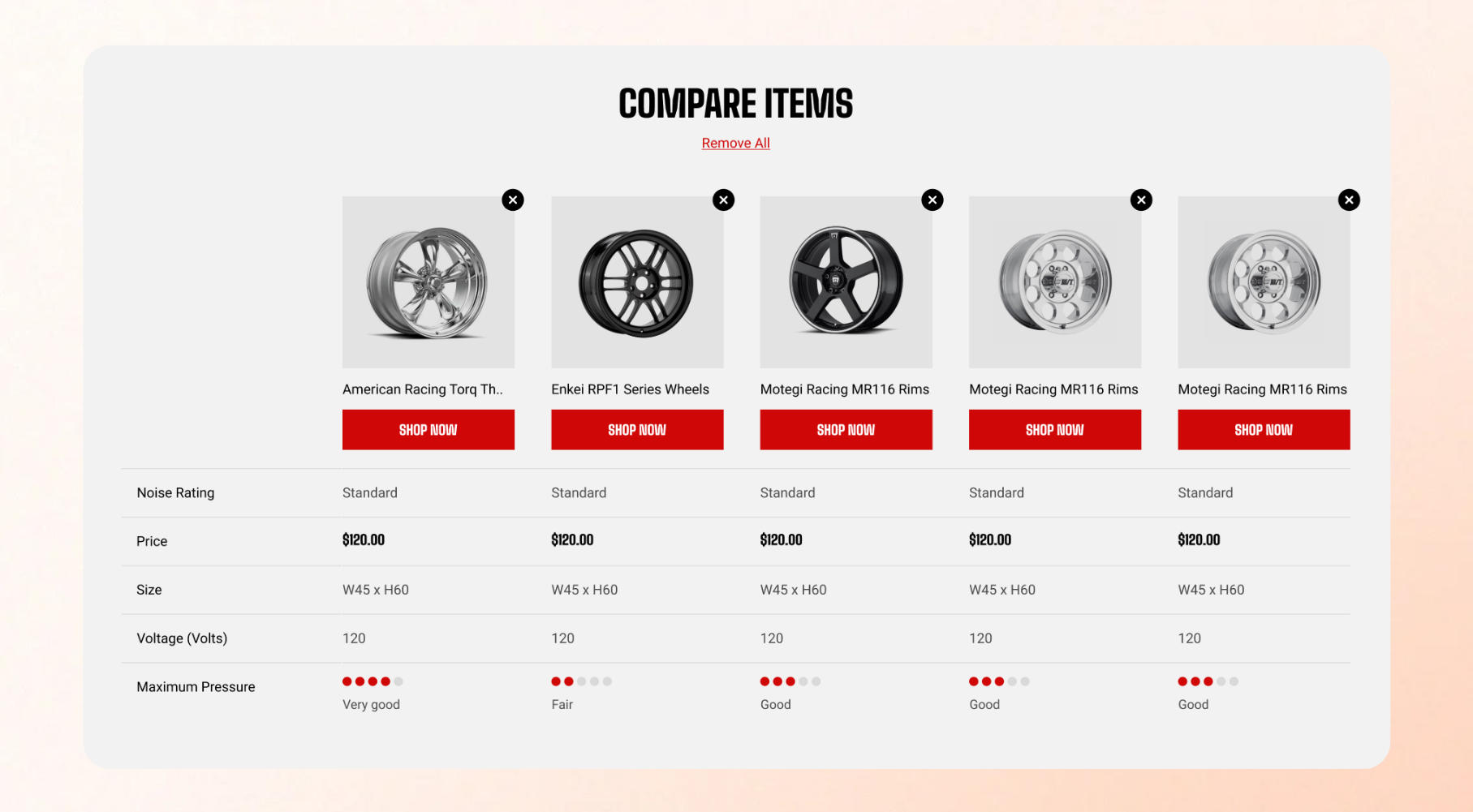
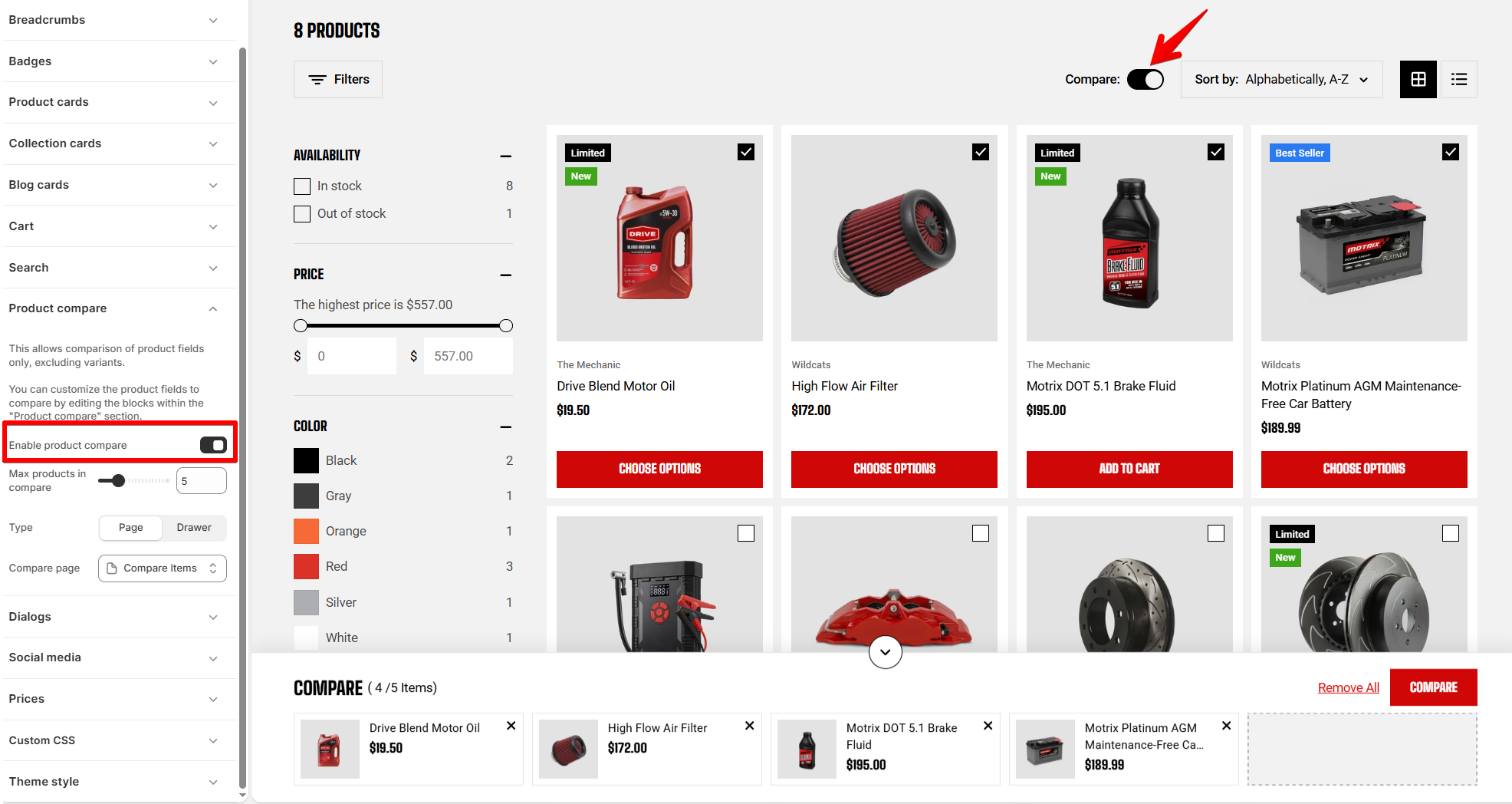
**Product compare** lets shoppers select multiple products and view their information side by side. The comparison focuses on **product-level information** and does not compare different variants of the same product.
Use these settings to enable the feature and control how the comparison is displayed.
## How to create a Compare page
This setup is important when you select **Product Compare type is Page** in theme settings.
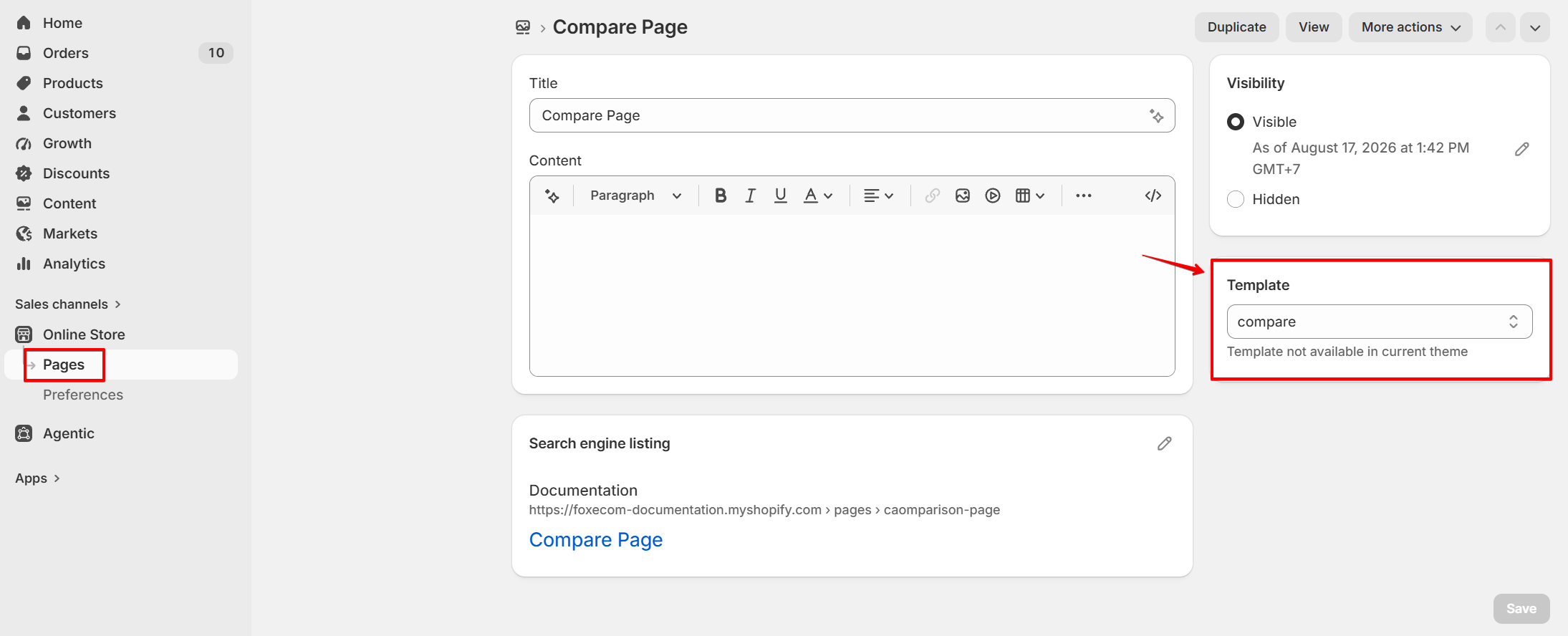
1. Go to **Online Store > Pages** in Shopify Admin.
2. Click **Add page**.
3. Enter a title for your product comparison page.
4. In the **Template** section, select **Compare** template. [You can customize your Compare page in the theme editor.](https://docs.foxecom.com/motrix-theme/theme-settings/product-compare#customize-comparison-details)
5. **Save** the page.
Select the **Compare** template provided by the **Motrix theme** when creating your product comparison page. This template is required for the product comparison table to display correctly. If you use a different template, the product comparison may not display.
## Product compare settings
| Setting | Description | Option |
| --------------------------- | ----------------------------------------------------------------------------------------------------------------- | -------------------------------------------------------------------------------------------------------------------------------------- |
| **Enable product compare** | Turn on product comparison and add a **Compare** control to product cards. | On / Off |
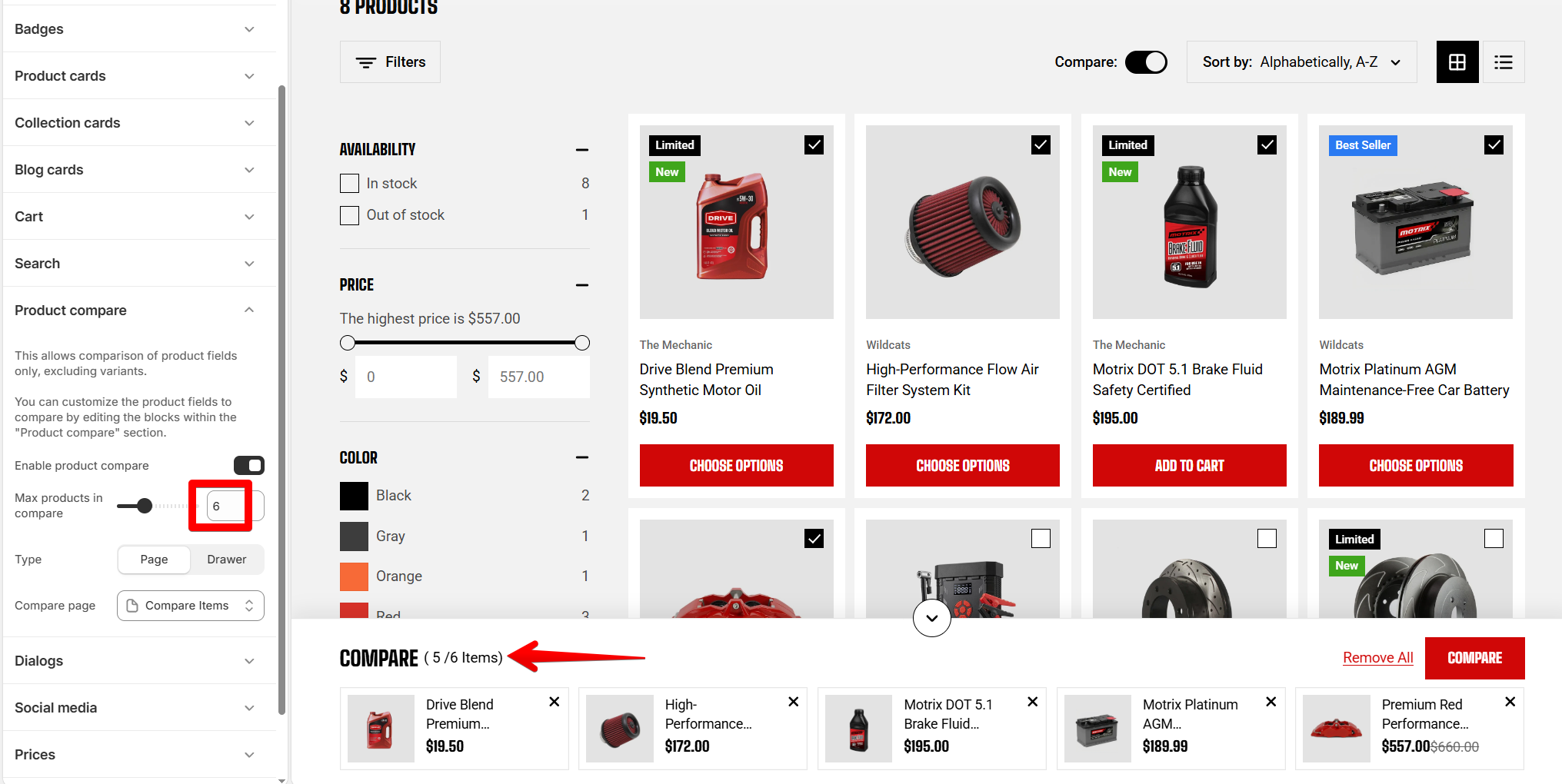
| **Max products in compare** | Set the maximum number of products a shopper can compare simultaneously. | 2 - 15 |
| **Type** | Choose how the comparison is displayed | **Drawer:** Opens the comparison in a panel over the current page.
**Page:** Takes shoppers to a dedicated comparison page. |
| **Compare page** | Select the page that displays the product comparison. This setting appears when **Type** is set to **Page**. | Select a page |
Enable product compare
Max products in compare
Keeping the **limit around five products** makes the comparison easier to read, especially on mobile devices.
Keeps customers in the collection they were browsing, so they can close it and keep shopping.
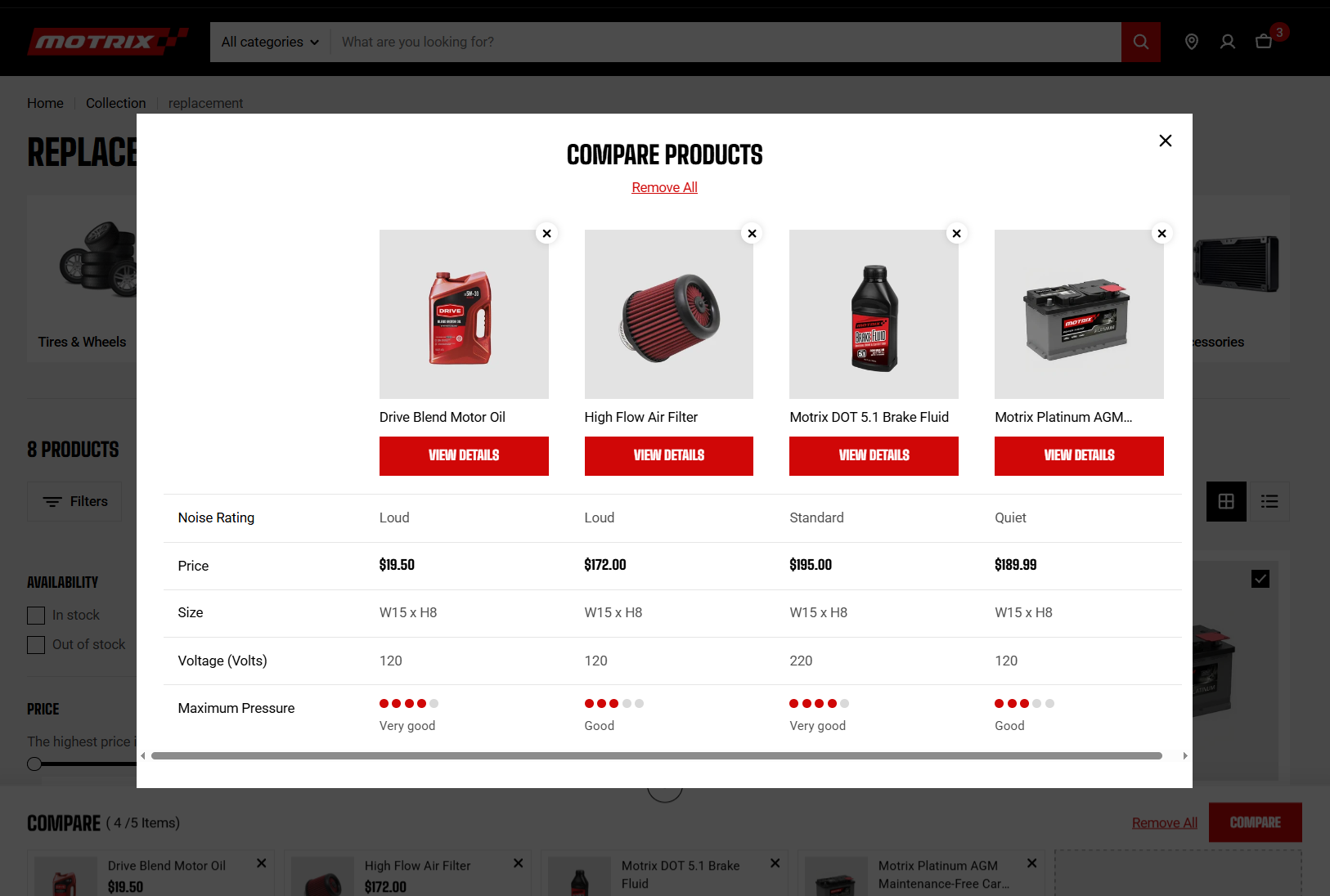
Gives the table more room and a link that customers can share or return to. Pick Drawer unless you are comparing a lot of rows.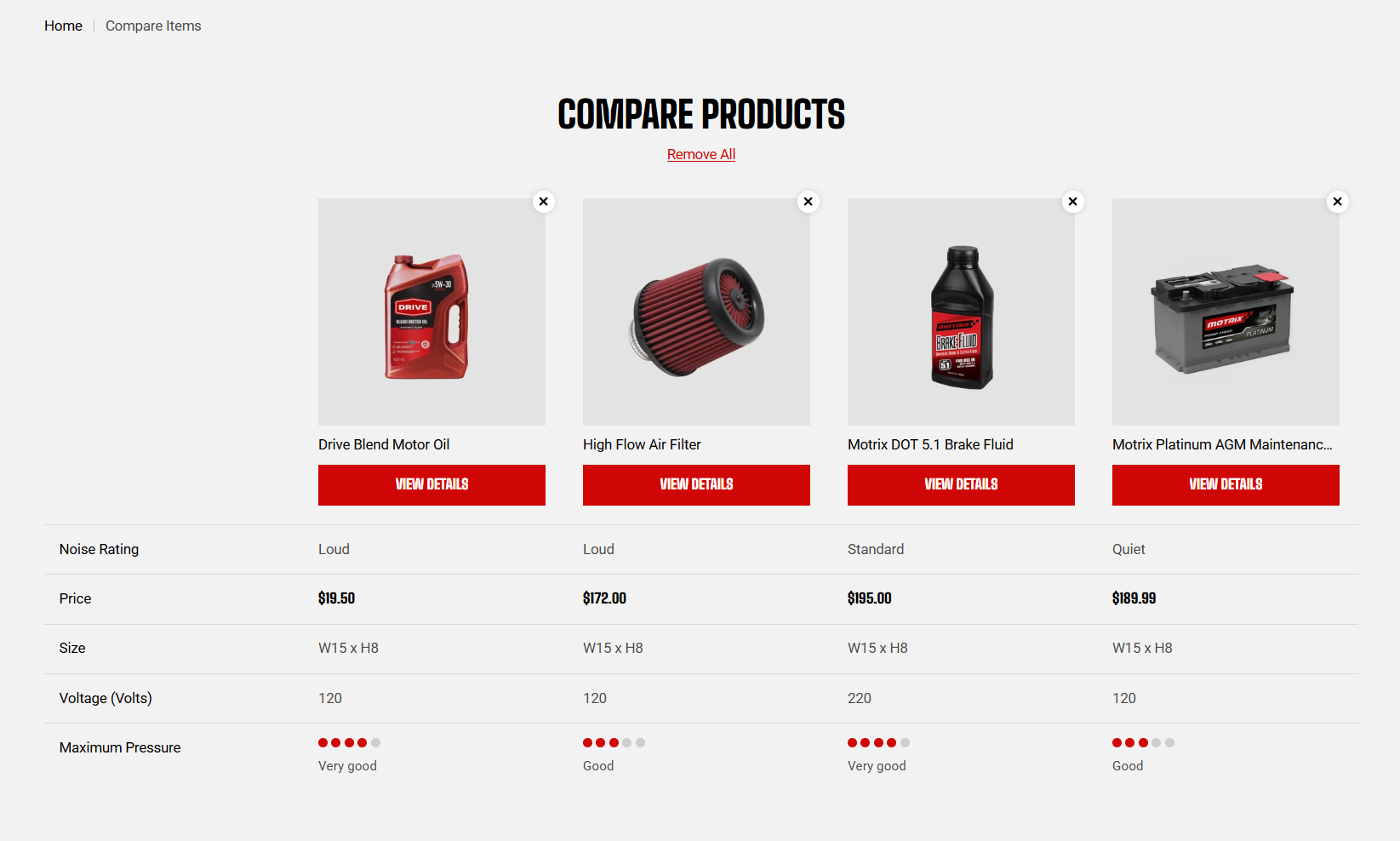
## Customize comparison details
The product fields shown in the comparison are controlled separately from these theme settings.
To choose which information shoppers can compare, open the **Product compare** section in the theme editor > **Overlay group**.
Learn more: [Product compare](https://docs.foxecom.com/motrix-theme/overlay-group/product-compare) in Overlay group.