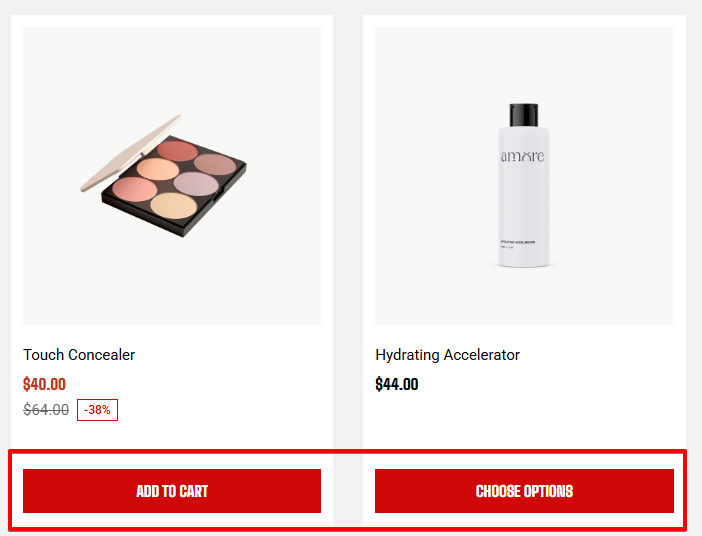
# Product cards
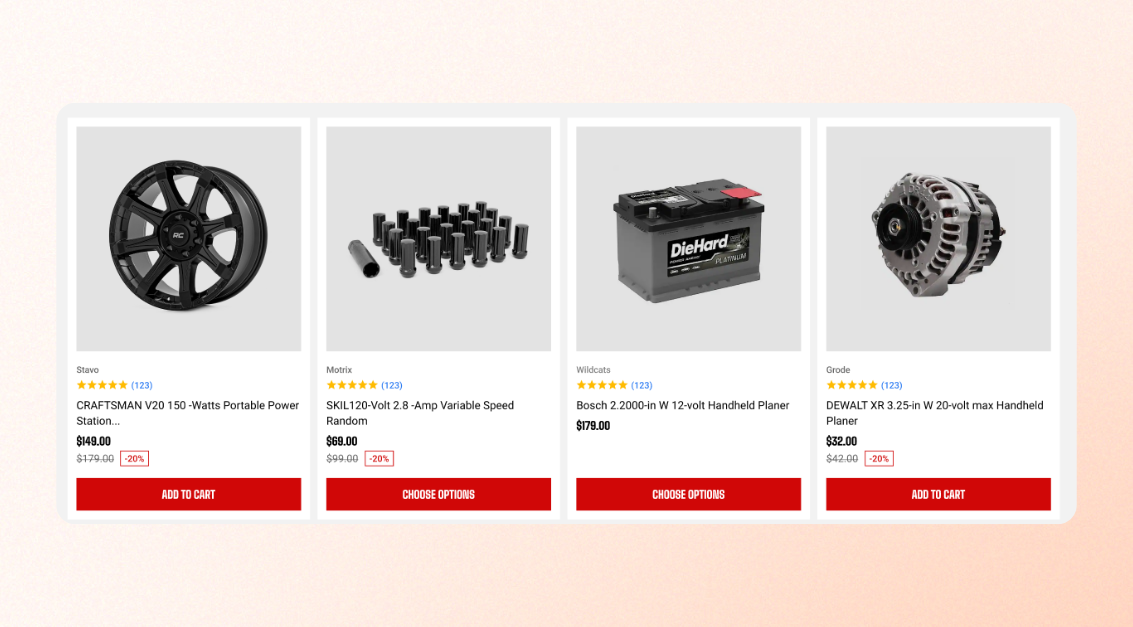
**Product cards** appear throughout your storefront, including collection pages, featured collections, search results, and product recommendations.
Use these settings to customize how product cards look and what information and actions they display.
## Card style
Customize the overall appearance of product cards.
| Setting | Description | Options |
| ---------------- | ----------------------------------------------------------------------------------------------------------- | --------------------- |
| **Style** | Choose how product cards are displayed. | Default / Box |
| **Color scheme** | Choose the color scheme used for boxed product cards. This setting is available only when **Style \= Box**. | Select a color scheme |
Place products directly on the page background

Displays each product inside a separate container. 
## Media
Control how product images appear on product cards.
| Setting | Description | Options |
| --------------------------------- | ----------------------------------------------------------------------------------------------------------------------------------------------------------------------------------------------------------------------------------------------------- | ------------------- |
| **Aspect ratio** | Choose whether to preserve each product image's original proportions or crop images to a consistent shape. | Auto / Fixed ratios |
| **Corner radius** | Control how rounded the corners of product images appear. | 0px - 32px |
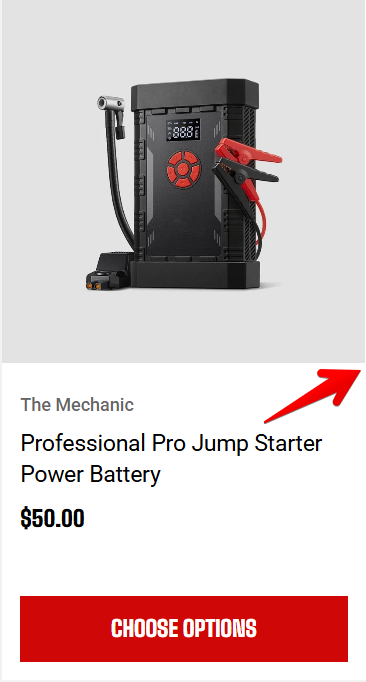
| **Extend image to the card edge** | Extend the image to the card's edge by removing the space around it while keeping the card padding around the text below.
This setting applies **only to the vertical layout**; cards with the image beside the content remain unchanged. | On / Off |
| **Show second image on hover** | Show the product's second image when customers hover over the product card on desktop. | On / Off |

## Content
Choose which product information appears on each product card.
| Setting | Description | Options |
| ----------------------- | --------------------------------------------------- | --------------------- |
| **Alignment** | Align product information within the card. | Left / Center / Right |
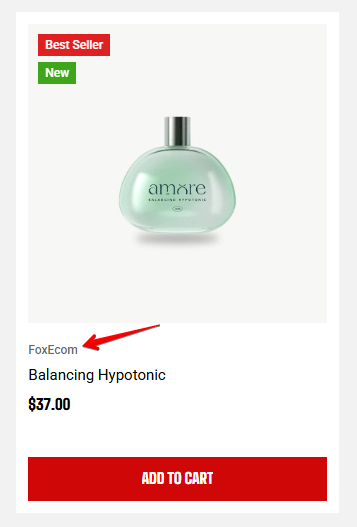
| **Show product vendor** | Display the product vendor above the product title. | On / Off |
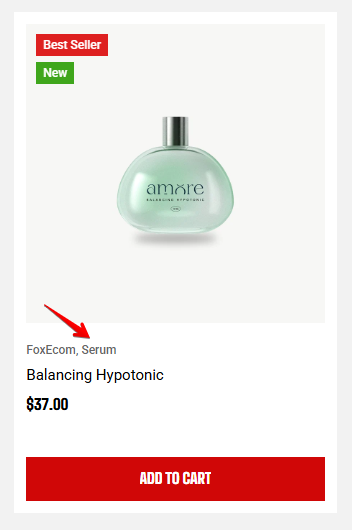
| **Show product type** | Display the product type on the product card. | On / Off |


Show product vendor
Show product type
## Badges
Control how badges appear on product cards.
| Setting | Description | Options |
| ------------------------ | ---------------------------------------------------------------------------------------------------------------------- | ------------------------------------------------------------------------------------------------------ |
| **Layout** | Choose how multiple badges are arranged on the product card. | Vertical / Horizontal |
| **Show custom badges** | Display custom badges configured in [**Theme settings > Badges**.](https://docs.foxecom.com/motrix-theme/theme-settings/badges) | On / Off |
| **Show sold out badge** | Display a badge when a product is out of stock. | On / Off |
| **Show sale badge** | Display a badge for discounted products. | On / Off |
| **Sale badge type** | Choose how the discount is displayed on the sale badge. | Text / Percentage / Fixed amount |
| **Sale badge placement** | Choose where to display the sale badge. | **Media**: Show badges on product image
**Content**: Show badges below product information |


**Custom badges** such as New, Hot, and Popular are shown **only when the product is in stock**.
When a product is sold out, the **Sold out** badge is shown instead, and other custom badges are hidden.
**Sale** and **Sold out** badges are displayed automatically based on the product's pricing and availability. Control whether these badges appear from **Theme settings →** [**Product cards**](https://docs.foxecom.com/motrix-theme/theme-settings/product-cards).
Learn more: How to set up Badges
## Swatches
Control how product variant swatches appear on product cards.
| Setting | Description | Options |
| --------------------- | ---------------------------------------------------------------------- | ----------- |
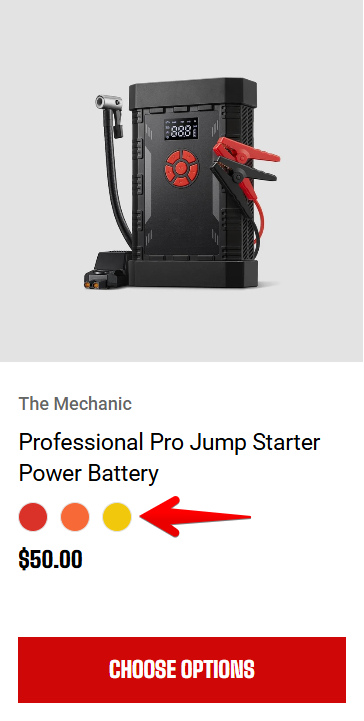
| Show swatches | Show or hide color swatches on product cards. | On / Off |
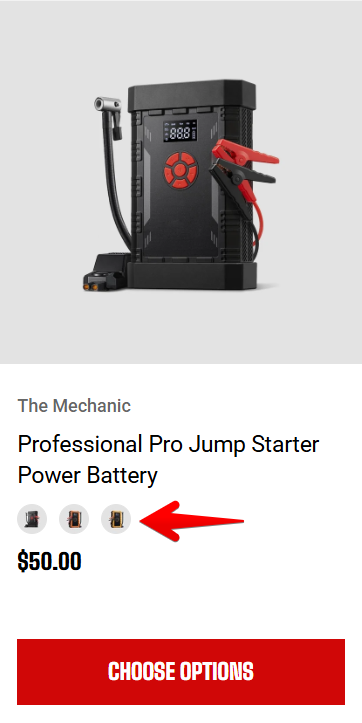
| Show variant images | Use variant images instead of colors or patterns for swatches. | On / Off |
| Swatch width | Set the size of each swatch. | 20px -100px |
| Maximum items to show | Limit the number of visible swatches before displaying a +N indicator. | 1 - 6 |
Show swatches
Show variant images
## Actions
Configure **quick shopping features** available on product cards.
### Quick add
| Setting | Description | Options |
| ---------------------------- | ------------------------------------------------------------------------------------------------------------------------------------------------------- | ------------------------ |
| **Show quick add** | Show or hide the Quick Add button on desktop devices. | On / Off |
| **Show quick add on mobile** | Show or hide Quick Add on mobile devices. | On / Off |
| **Quick add placement** | Choose where to display the Quick Add button.
When placed on the product image, the button appears when customers **hover** over the image. | Below content / On Media |
| **Quick add style** | Choose the button style when Quick add placement is set to On product image. This setting applies to desktop only. | Text only / Icon only |
| **Quick add color scheme** | Choose the color scheme used for the Quick Add button. | Select a color scheme |
| Setting | Description | Options |
| ----------------------------- | ---------------------------------------------------------------------------- | --------------------- |
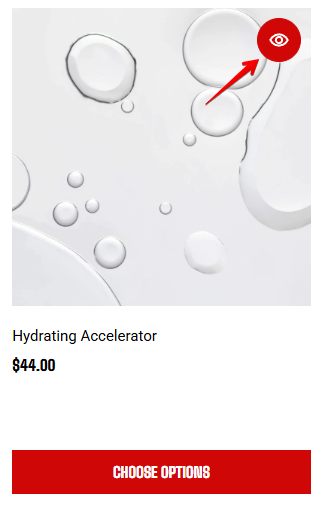
| **Show quick view** | Let customers preview a product in a popup without leaving the current page. | On / Off |
| **Show quick view on mobile** | Enable Quick View on mobile devices. | On / Off |
| **Quick view color scheme** | Choose the color scheme used for the Quick View button. | Select a color scheme |