# Overview
## What are Theme settings?
**Theme settings** control the global design system of your store. Instead of styling each page one by one, you set your layout, fonts, colors, spacing, card styles, and other design elements once here, and Motrix applies them everywhere.
### What theme settings do
Anything you change in **Theme settings** applies **store-wide**, on every page and in every section that uses it. For example:
* Change your **Colors** and every section, card, and dialog that uses that color scheme updates at once.
* Change your **Typography** and all headings, body text, and buttons follow the new fonts.
* Change your **Product cards** and the same card design applies on collection pages, search results, featured collections, and product recommendations.
#### **Theme settings vs. Section settings:**
* **Theme settings** \= global rules (design system) applied across the whole store.
* **Section settings** \= local content and layout for one section on one page.
Section settings usually inherit from theme settings, then let you override a specific value where needed.
## How to open theme settings
1. From your Shopify admin, go to **Online Store > Themes**.
2. Find the Motrix theme and click **Edit theme**.
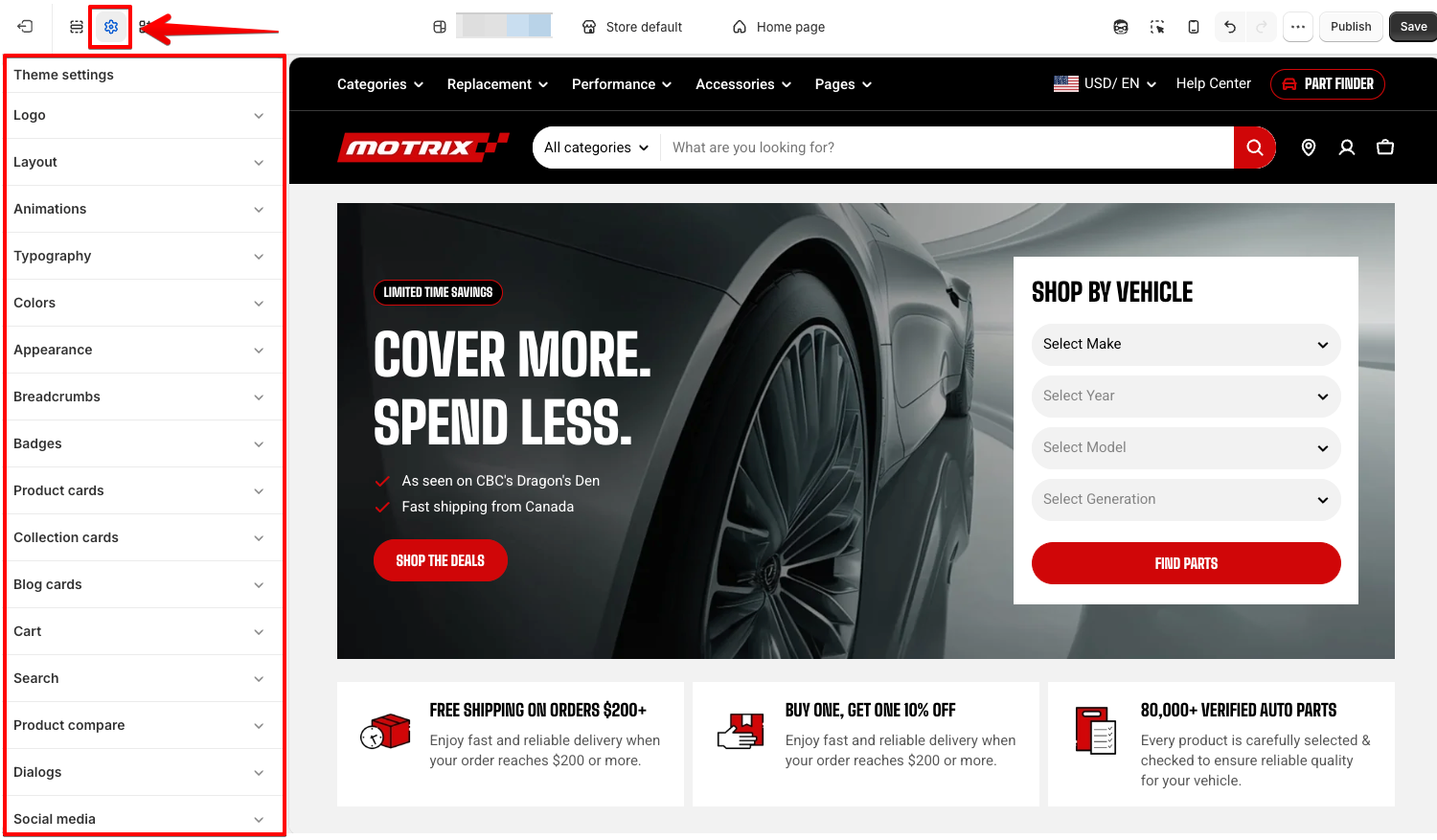
3. In the theme editor, click **Theme settings** (the gear icon in the top bar).
4. Select the group you want to edit and make your changes.
5. Click **Save**.
## Explore Motrix theme settings
Use the following Theme settings to customize your Motrix store:
Animations
Appearance
Badges
Breadcrumbs
Blog cards
Cart
Collection cards
Colors
Dialogs
Layout
Logo
Prices
Product cards
Product compare
Search
Social media
Typography
## Where to start
If you are setting up Motrix for the first time, we recommend this order:
1. **Logo** — upload your logo and favicon.
2. **Colors** — build the color schemes your brand uses.
3. **Typography** — pick your heading and body fonts.
4. **Appearance** and **Layout** — set page width, corner radius, and button style.
5. **Product cards**, **Collection cards**, and **Blog cards** — design how content is presented.
6. **Cart**, **Search**, **Badges**, and **Product compare** — tune the shopping experience.