# Testimonials
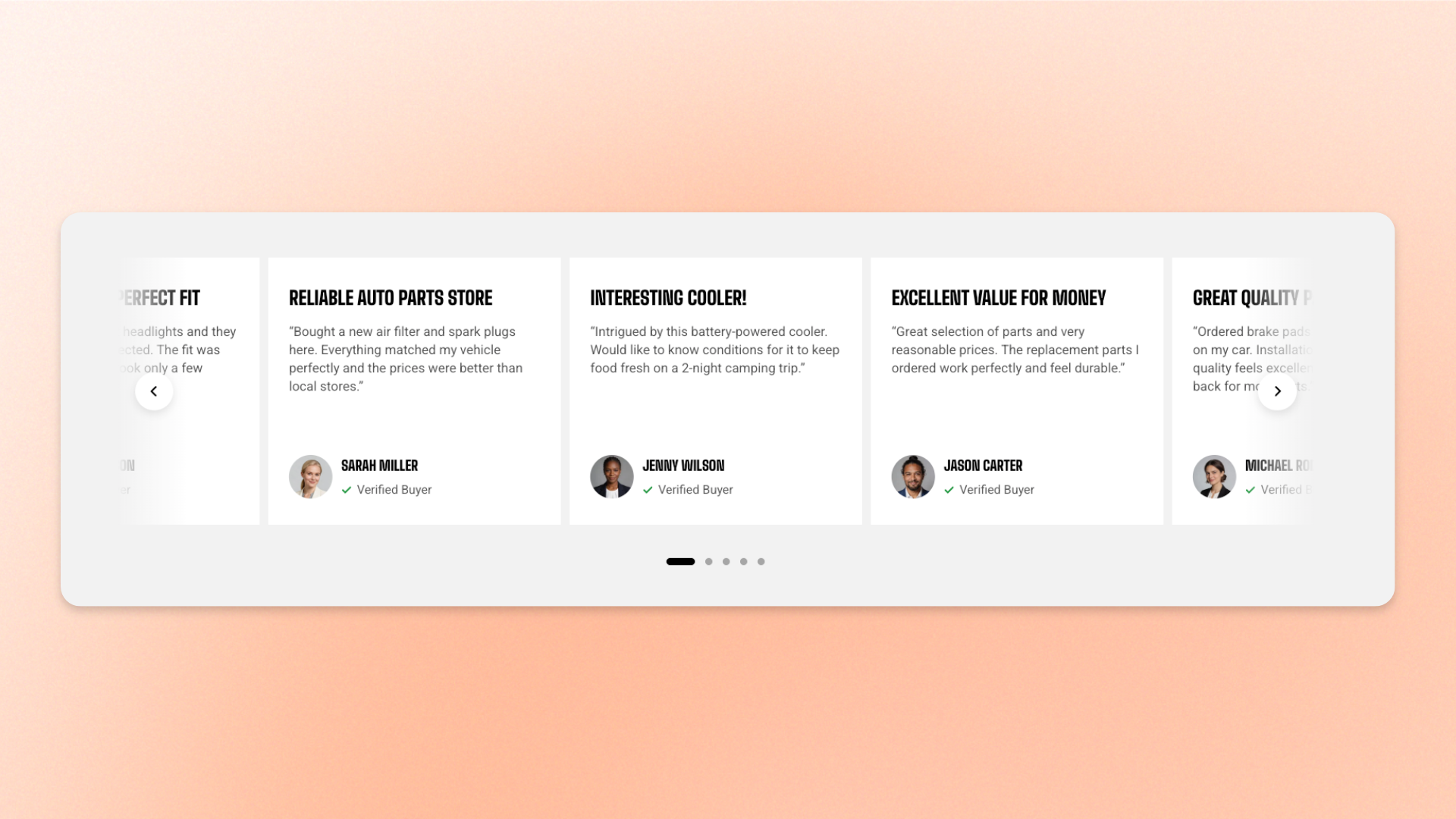
The **Testimonials** section displays customer reviews in a carousel of cards. Each testimonial can include review content, a rating or icon, customer information, and optional image or video media.
Use this section to add social proof to your homepage or landing pages, highlight customer experiences, or connect individual testimonials with featured products.
## Presets
The section includes two presets:
* **Testimonials: Peek** — displays testimonial cards in a carousel with part of the next card visible.
* **Testimonials: Centered** — displays testimonial cards in a centered carousel layout, keeping the active testimonial in focus.
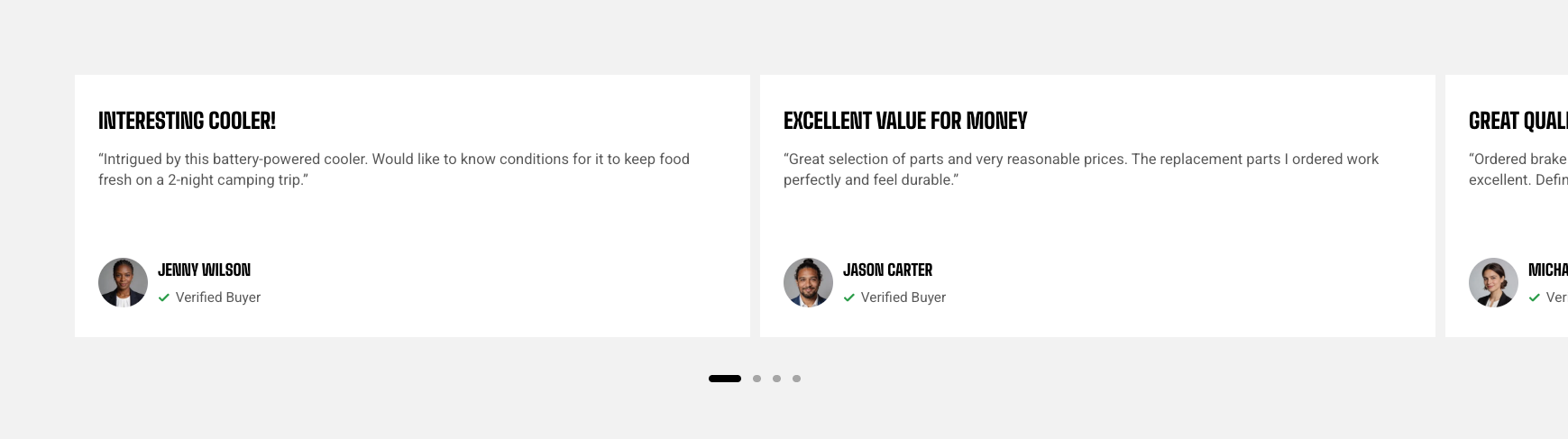
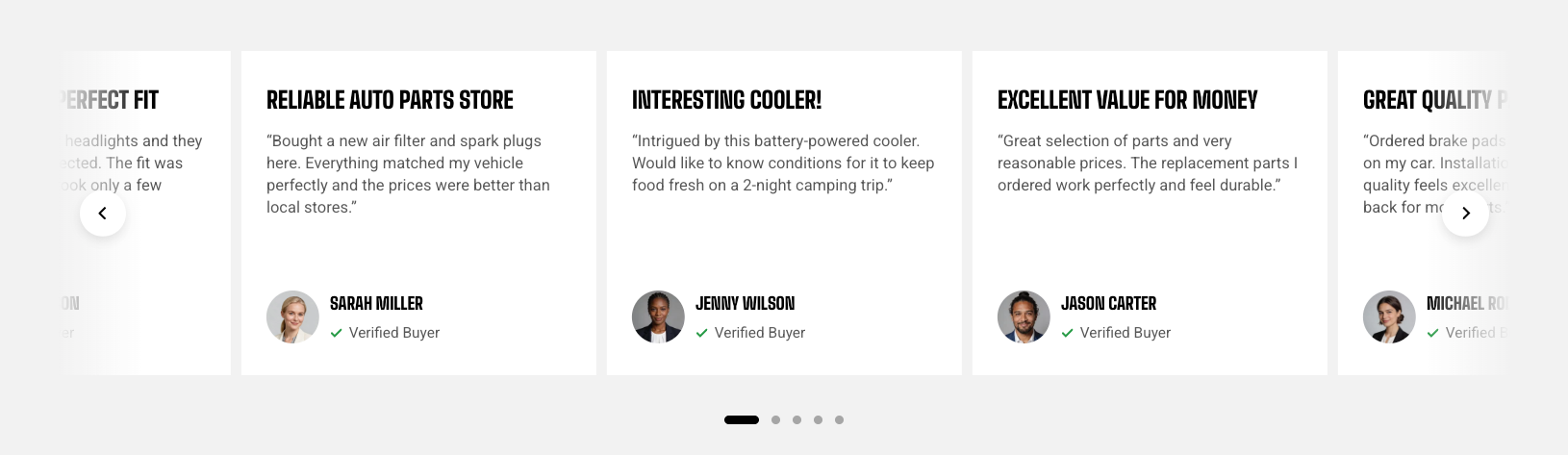
Both presets use the same Testimonials settings and blocks. You can further customize the layout, carousel behavior, and testimonial cards after adding either preset.
## How to customize the Testimonials section
1. In the theme editor (**Edit theme**), open the page where you want to display the section.
2. Click **Add section** and select **Testimonials: Peek** or **Testimonials: Centered**.
3. Configure the section layout and carousel behavior.
4. Customize the **Header** content if needed.
5. Add, remove, or reorder **Testimonial** blocks.
6. For each testimonial, customize its **Media**, review **Content**, and customer **Information**.
7. Adjust the mobile layout, appearance, spacing, and animations if needed.
8. Click **Save**.
## Section settings
### Layout
Controls the overall width of the section and how many testimonial cards appear across larger screens.
| Setting | Description | Options |
| -------------- | -------------------------------------------------------------------------------- | -------------------------------------------------------------------------------------------------------------------------- |
| **Container** | Controls the width of the section content. | **Full:** Uses the available page width.
**Fixed:** Keeps the content within the theme's fixed container width. |
| **Columns** | Sets the number of testimonial cards displayed across the row on larger screens. | **2–6 columns.** |
| **Column gap** | Controls the horizontal space between testimonial cards on larger screens. | **0–100px.** |
### Carousel settings
Controls carousel navigation and how neighboring testimonial cards are displayed.
| Setting | Description | Options |
| --------------------------------- | ---------------------------------------------------------------------------------------------------------------------------------------- | ----------------------------------------------------------------------------------------------------------------------- |
| **Control type** | Controls the navigation displayed for the carousel on larger screens. | **None, Dots, Arrows + dots, Floating arrows,** or **Floating arrows + dots**. |
| **Control type on mobile** | Controls the carousel navigation used on mobile devices. | **Same as desktop** or select an available control type. |
| **Control alignment** | Controls the horizontal position of the carousel controls. | **Left, Center,** or **Right**.
*Available when the selected **Control type** includes navigation controls.* |
| **Overflow content** | Controls whether cards extending beyond the content area remain visible. | **Hidden:** Clips cards at the content edge.
**Visible:** Allows part of the next card to remain visible. |
| **Show edge fade** | Adds a soft fade at the edge of the carousel to indicate that more products are available. | **On** or **Off**. |
| **Show thumbnail on mobile** | Displays a thumbnail strip above the testimonial carousel on mobile. Customers can tap a thumbnail to move directly to that testimonial. | **On** or **Off**.
*The thumbnail strip is shown only when every Testimonial has media.* |
| **Enable center mode on desktop** | Centers the active testimonial card and allows the carousel to loop continuously. | **On** or **Off**.
*Desktop only. Available when **Overflow content** is set to **Hidden**.* |
**Center mode** works best with an odd number of testimonial cards, so one card can stay centered while neighboring cards remain visible on both sides.
### Mobile layout
Controls how testimonial cards are displayed and navigated on mobile devices.
| Setting | Description | Options |
| ---------------------------- | ------------------------------------------------------------------------------------------ | ------------------------------------------------------------------------------------------------------------- |
| **Enable swipe on mobile** | Controls whether customers can swipe horizontally through testimonial cards on mobile. | **On** or **Off**. |
| **Show edge fade on mobile** | Adds a soft fade at the screen edge to indicate that more testimonial cards are available. | **On** or **Off**.
*Available when **Enable swipe on mobile** is turned on.* |
| **Custom column width** | Lets you manually control the width of each testimonial card on mobile. | **On** or **Off**.
*Available when **Enable swipe on mobile** is turned on.* |
| **Custom width** | Sets the width of each testimonial card on mobile. | **20–90%.**
*Available when **Enable swipe on mobile** and **Custom column width** are turned on.* |
| **Mobile columns** | Sets the number of testimonial cards displayed per row on mobile. | **1 column** or **2 columns**.
*Available when **Custom column width** is turned off.* |
| **Horizontal gap** | Controls the horizontal space between testimonial cards on mobile. | **0–100px.** |
Turn on **Custom column width** and use a value below **90%** if you want part of the next testimonial to remain visible and encourage customers to swipe.
### Appearance
Controls the overall color scheme of the section.
| Setting | Description | Options |
| ---------------- | -------------------------------------------- | --------------------------------- |
| **Color scheme** | Applies a theme color scheme to the section. | Select an available color scheme. |
### Padding
Controls the vertical spacing around the section separately for desktop and mobile.
| Setting | Description | Options |
| ----------- | ------------------------------------------------------------- | -------------------------- |
| **Devices** | Selects which device-specific padding values you are editing. | **Desktop** or **Mobile**. |
| **Top** | Controls the space above the section content. | **0–100px.** |
| **Bottom** | Controls the space below the section content. | **0–100px.** |
### Animation
These settings are available when animations are enabled in **Theme settings**. Learn more: [Animations](https://docs.foxecom.com/motrix-theme/theme-settings/animations).
| Setting | Description | Options |
| --------------------------- | -------------------------------------------------------------------------------------------------- | -------------------------------------------------------------------------------- |
| **Items** | Controls the entrance animation applied to the testimonial cards as they enter the viewport. | **None, Fade in, Fade up, Fade down, Slide in (left), or Slide in (right)** |
| **Reveal items one by one** | Makes testimonial cards animate into view one after another instead of appearing at the same time. | **On** or **Off**.
*Available when **Items** is not set to **None**.* |
## Blocks
The **Testimonials** section uses a built-in **Header** block and repeatable **Testimonial** blocks.
### Header
The **Header** appears above the testimonial carousel and can be used for the section title, supporting copy, or a call to action.
It can't be removed or reordered, but you can customize its content by adding, removing, and arranging supported blocks inside it.
#### Header settings
| Setting | Description | Options |
| ------------- | ------------------------------------------------------------- | ------------------------------- |
| **Alignment** | Controls the horizontal alignment of the Header content. | **Left, Center,** or **Right**. |
| **Devices** | Selects which device-specific padding values you are editing. | **Desktop** or **Mobile**. |
| **Bottom** | Controls the space below the Header content. | **0–100px.** |
#### Header blocks
You can add and arrange the following theme blocks inside the Header:
* [**Image**](https://docs.foxecom.com/motrix-theme/theme-blocks/image) — Adds an image to the header content.
* [**Heading/Subheading/Text**](https://docs.foxecom.com/motrix-theme/theme-blocks/text) — Adds a heading, supporting text, or descriptive text.
* [**Button**](https://docs.foxecom.com/motrix-theme/theme-blocks/button) — Adds a call-to-action button.
### Testimonial
Each **Testimonial** block creates one customer review card.
You can add, remove, and reorder Testimonial blocks to control how many reviews appear and the order in which they are displayed.
#### Testimonial settings
| Setting | Description | Options |
| ------------------------ | --------------------------------------------------------------------------------------------- | ----------------------------------------------------------------------------------------------------- |
| **Inherit color scheme** | Uses the section's color scheme for this testimonial instead of a separate card color scheme. | **On** or **Off**. |
| **Color scheme** | Applies a separate theme color scheme to the testimonial card. | Select an available color scheme.
*Available when **Inherit color scheme** is turned off.* |
| **Corner radius** | Controls how rounded the testimonial card corners appear. | **0–32px.**
*Available when **Inherit color scheme** is turned off.* |
#### Testimonial blocks
Each Testimonial contains three built-in areas:
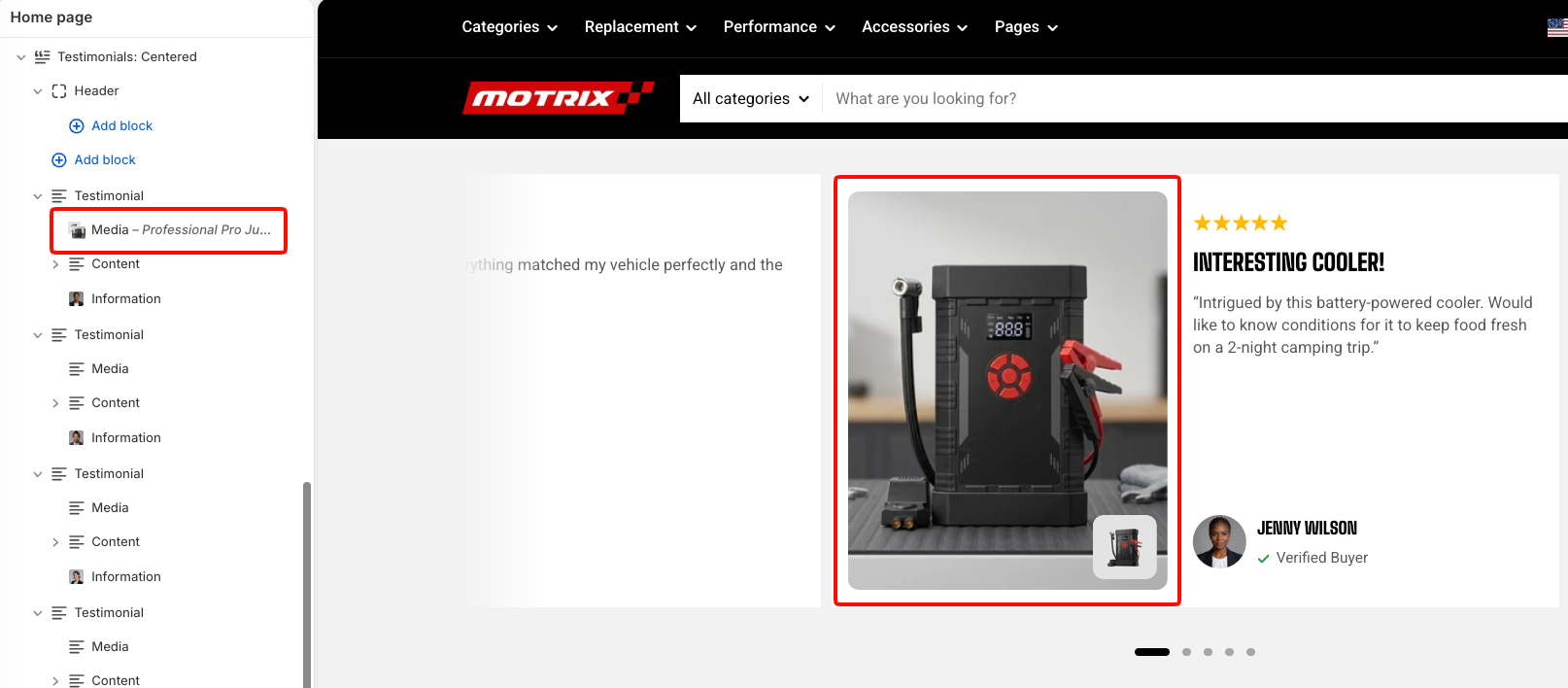
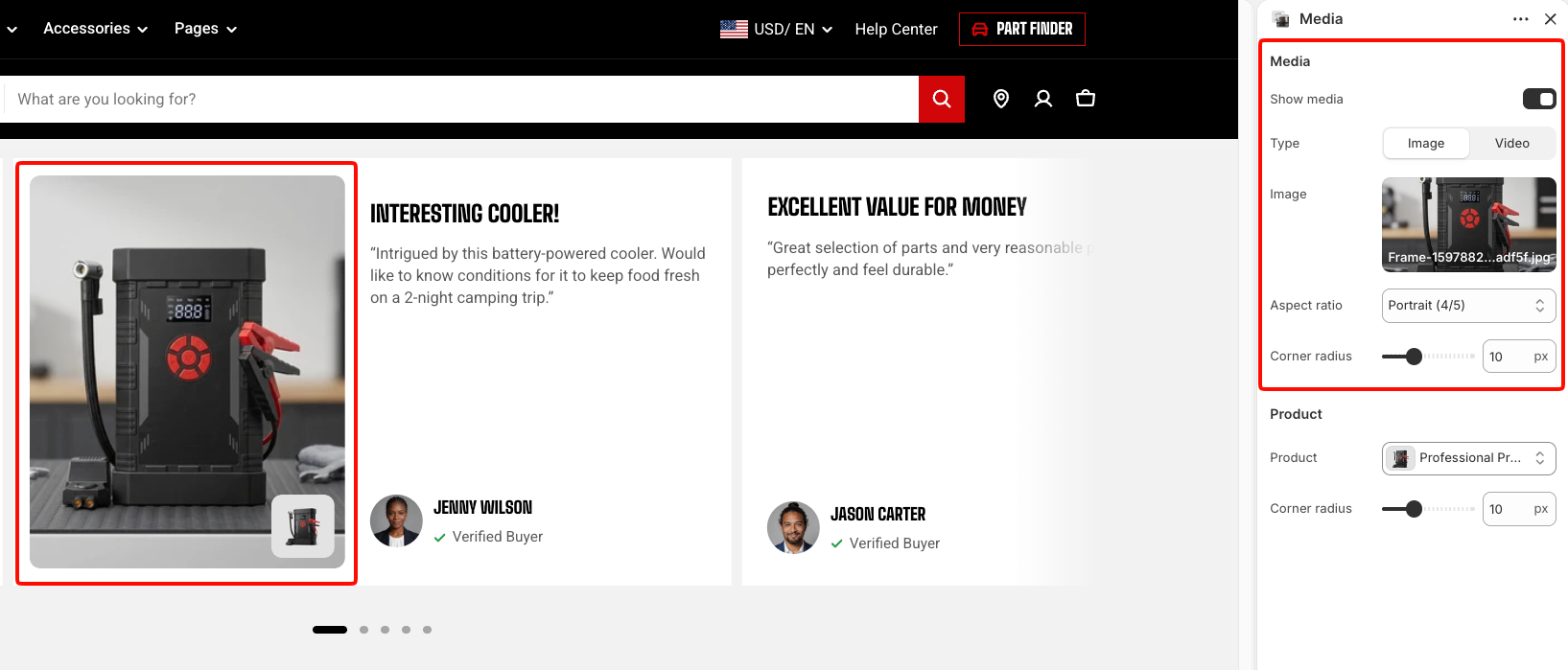
* **Media** — Adds an optional image or video and can associate the testimonial with a product.
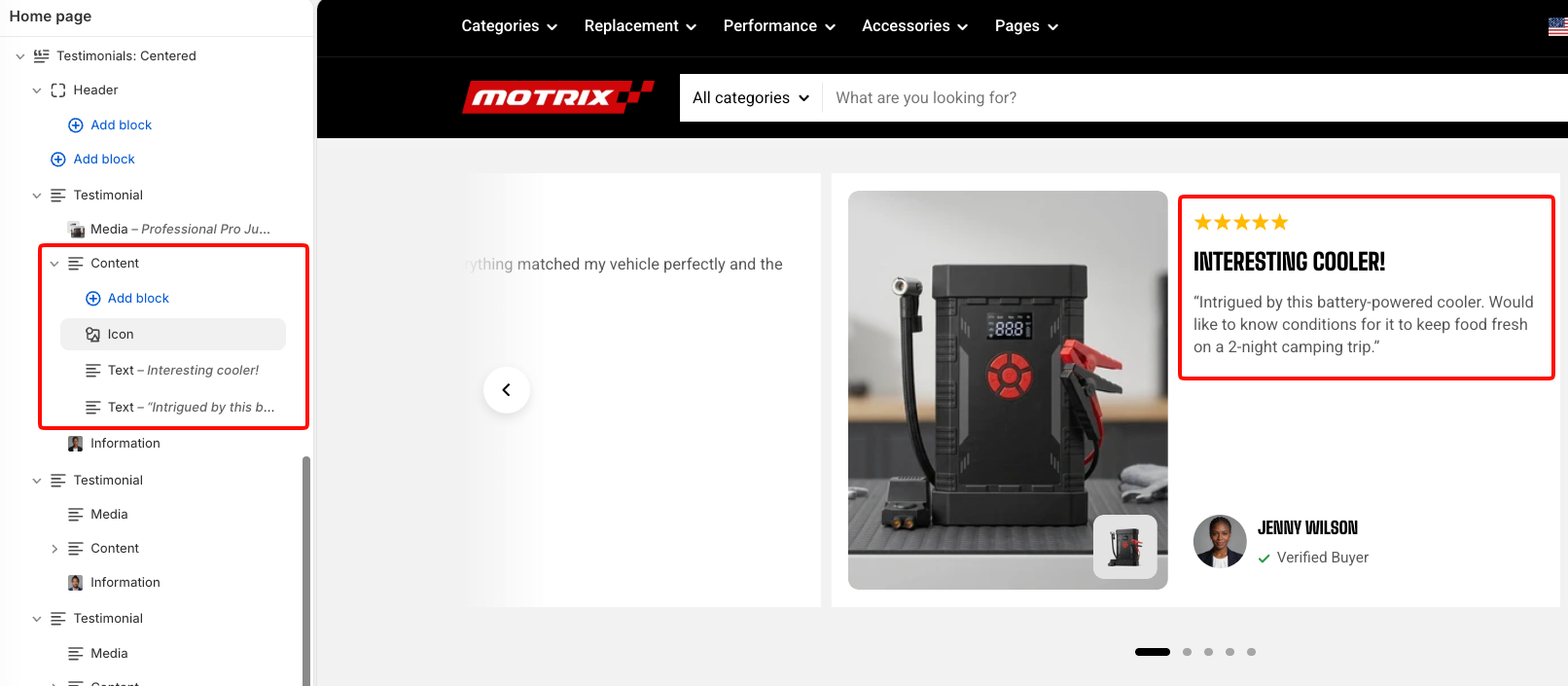
* **Content** — Contains the main review content, rating, and supporting text.
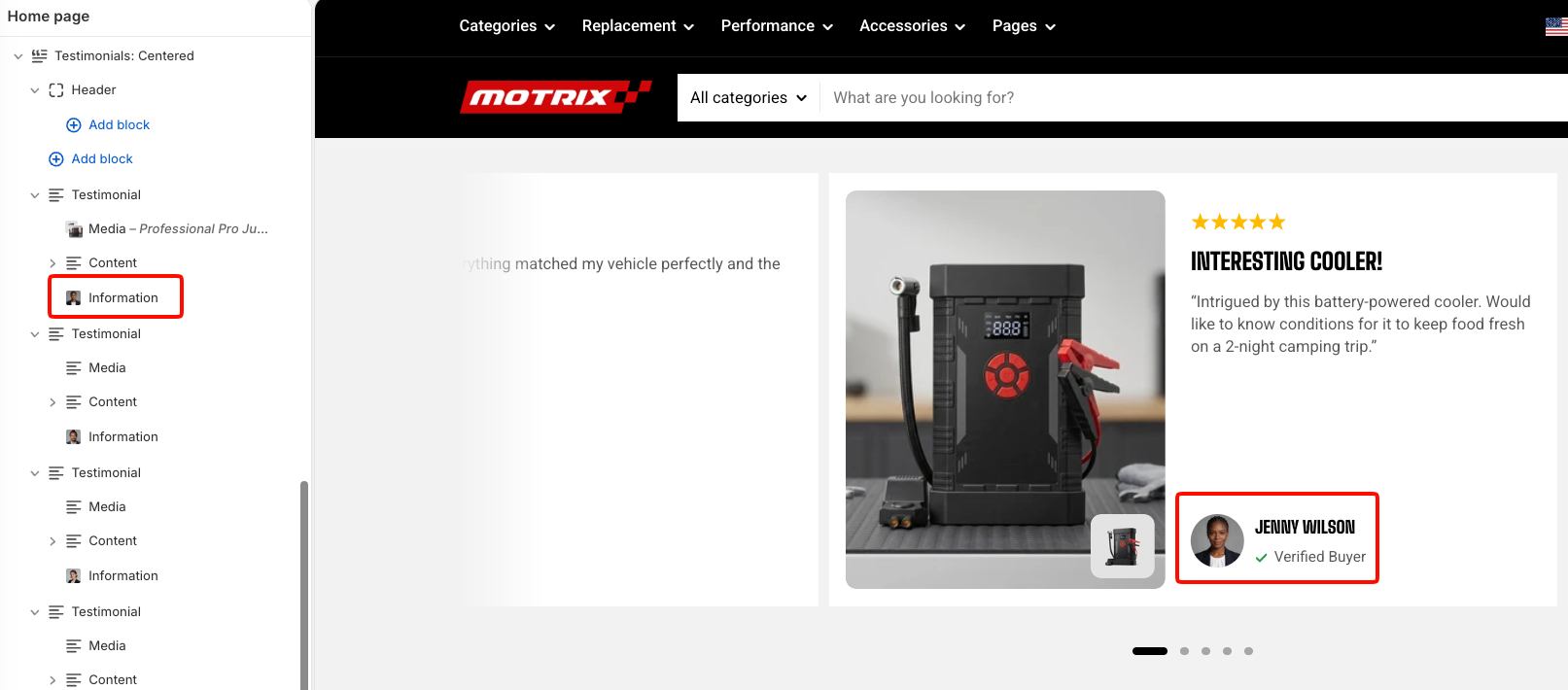
* **Information** — Displays customer details such as avatar, name, and verification or bio text.
### Testimonial - Media
The **Media** area controls the optional image or video displayed with a testimonial.
#### Media
| Setting | Description | Options |
| ----------------- | --------------------------------------------------- | ------------------------------------------------------------------------------------------------------------------------------------------------------- |
| **Show media** | Shows or hides the Media area for this testimonial. | **On** or **Off**. |
| **Type** | Selects the type of media displayed. | **Image** or **Video**. |
| **Image** | Selects the testimonial image. | Select an image.
*Available when **Type** is set to **Image**.* |
| **Video** | Selects the testimonial video. | Select a video.
*Available when **Type** is set to **Video**.* |
| **Aspect ratio** | Controls the shape of the testimonial media. | **Auto:** Uses the image's original proportions.
**Square (1/1), Portrait (4/5), Portrait (3/4), Landscape (4/3),** or **Landscape (16/9)**. |
| **Corner radius** | Controls how rounded the media corners appear. | **0–32px.** |
#### Product
You can optionally associate a testimonial with a product.
| Setting | Description | Options |
| ----------- | ----------------------------------------------------- | ----------------- |
| **Product** | Selects the product associated with this testimonial. | Select a product. |
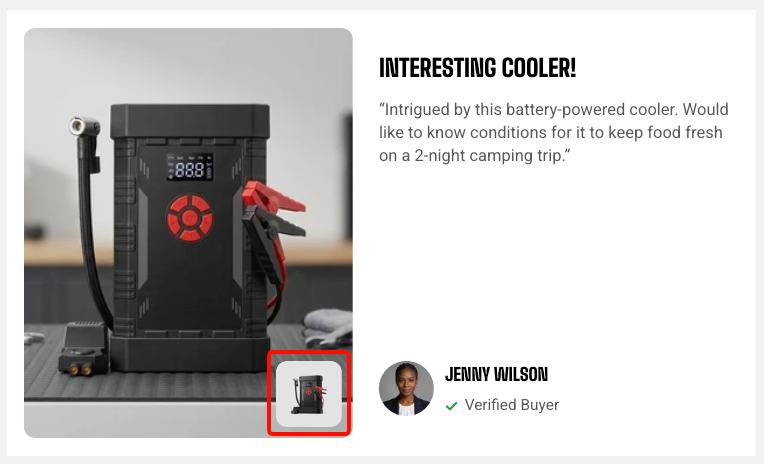
If you plan to use **Show thumbnail on mobile**, add an image or video to every Testimonial. The thumbnail strip stays hidden when any testimonial has no media.
### Testimonial - Content
The **Content** area contains the main review message and other supporting content.
#### Content settings
| Setting | Description | Options |
| ------------------ | ------------------------------------------------------------------------------------- | ----------- |
| **Row gap** | Controls the vertical space between blocks inside the Content area on larger screens. | **0–60px.** |
| **Row gap mobile** | Controls the vertical space between Content blocks on mobile devices. | **0–60px.** |
#### Content blocks
You can add, remove, and reorder the following blocks inside Content:
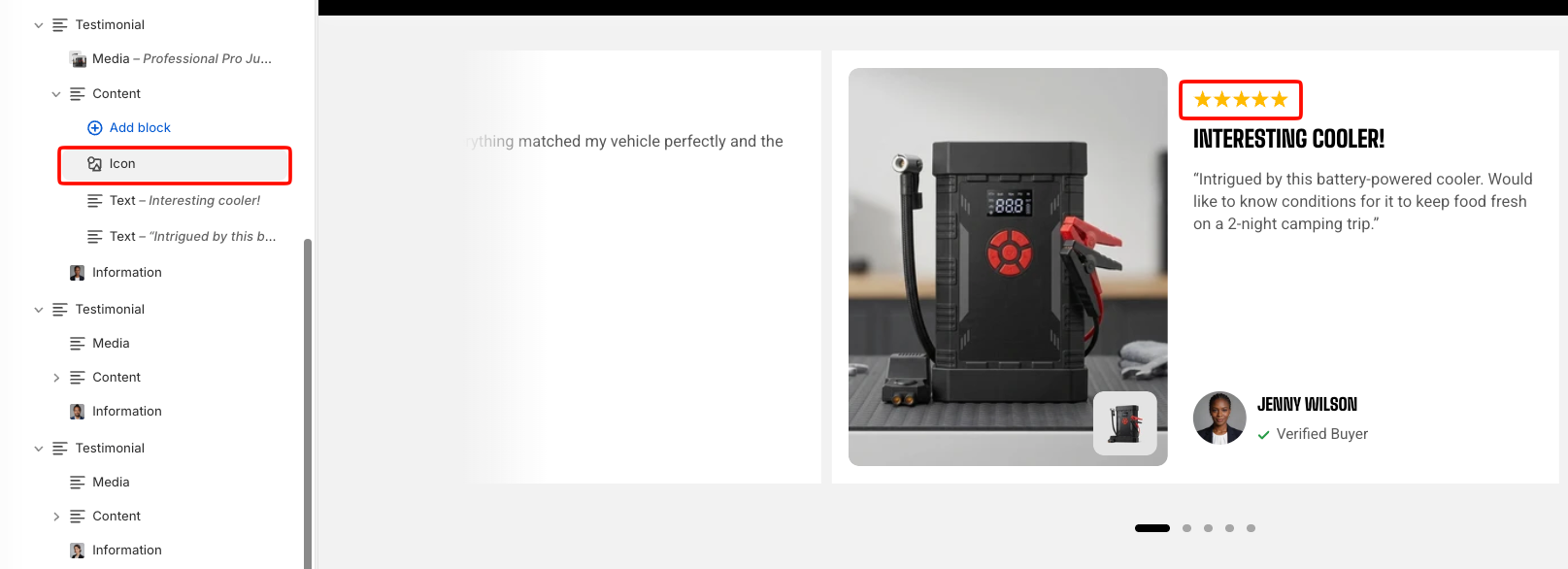
* **Icon** — Adds an icon such as a star rating.
| Setting | Description | Options |
| --------- | -------------------------------------------------------------- | ------------------------------------------------------ |
| **Icon** | Sets the number of stars displayed for the testimonial rating. | **1 star, 2 stars, 3 stars, 4 stars,** or **5 stars**. |
| **Color** | Sets the color of the star rating. | Select a color. |
* [**Heading/Subheading/Text**](https://docs.foxecom.com/motrix-theme/theme-blocks/text) — Adds testimonial content, such as a review title, supporting message, customer quote, or descriptive text.
**For example**: You can combine an **Icon** set to a 5-star rating with a short heading and the customer's full review underneath.
### Testimonial - Information
The **Information** area displays details about the customer who provided the testimonial.
#### Avatar
| Setting | Description | Options |
| ---------------- | -------------------------------------------- | ---------------- |
| **Image** | Selects the customer's avatar image. | Select an image. |
| **Width** | Controls the avatar width on larger screens. | **30–100px.** |
| **Width mobile** | Controls the avatar width on mobile devices. | **30–100px.** |
#### Name
| Setting | Description | Options |
| ---------- | ------------------------------------------------------ | ---------------------------------------------- |
| **Text** | Sets the customer's name. | Enter custom text or connect a dynamic source. |
| **Preset** | Controls the heading style used for the customer name. | **Heading 5** or **Heading 6**. |
#### Bio
Use the Bio settings for supporting information such as **Verified Buyer**, customer role, location, or another short label.
| Setting | Description | Options |
| --------- | --------------------------------------------------------------------------- | ---------------------------------------------- |
| **Icon** | Selects the icon displayed with the Bio text. | Select an available icon. |
| **Color** | Sets a custom color for the Bio icon. Leave blank to use the default color. | Select a color. |
| **Text** | Sets the supporting customer information. | Enter custom text or connect a dynamic source. |
| **Color** | Controls which theme text color is used for the Bio text. | **Text** or **Subtext**. |
## FAQs
#### Why are fewer testimonial cards shown than the number of Columns I selected?
The **Columns** setting defines the maximum number of testimonial cards displayed on larger screens. The section adjusts the number of visible cards responsively based on the available screen width. Columns above **3** mainly take effect on very wide screens over **1440px**. Typical desktop screens may display up to 3 testimonial cards, while tablets usually display 2.
#### Why isn't the testimonial thumbnail strip showing on mobile?
**Show thumbnail on mobile** works only when every Testimonial has media. Make sure **Show media** is enabled and an image or video is selected for every testimonial. If even one testimonial has no media, the thumbnail strip remains hidden.
#### Why can't I enable center mode?
**Enable center mode on desktop** is available when **Overflow content** is set to **Hidden**. Center mode applies only to desktop. Mobile devices continue using the standard mobile layout and navigation settings.
#### Can I use both images and videos in the same Testimonials section?
Yes. The **Type** setting is configured separately for each Testimonial, so one card can use an image while another uses a video.