# Step carousel
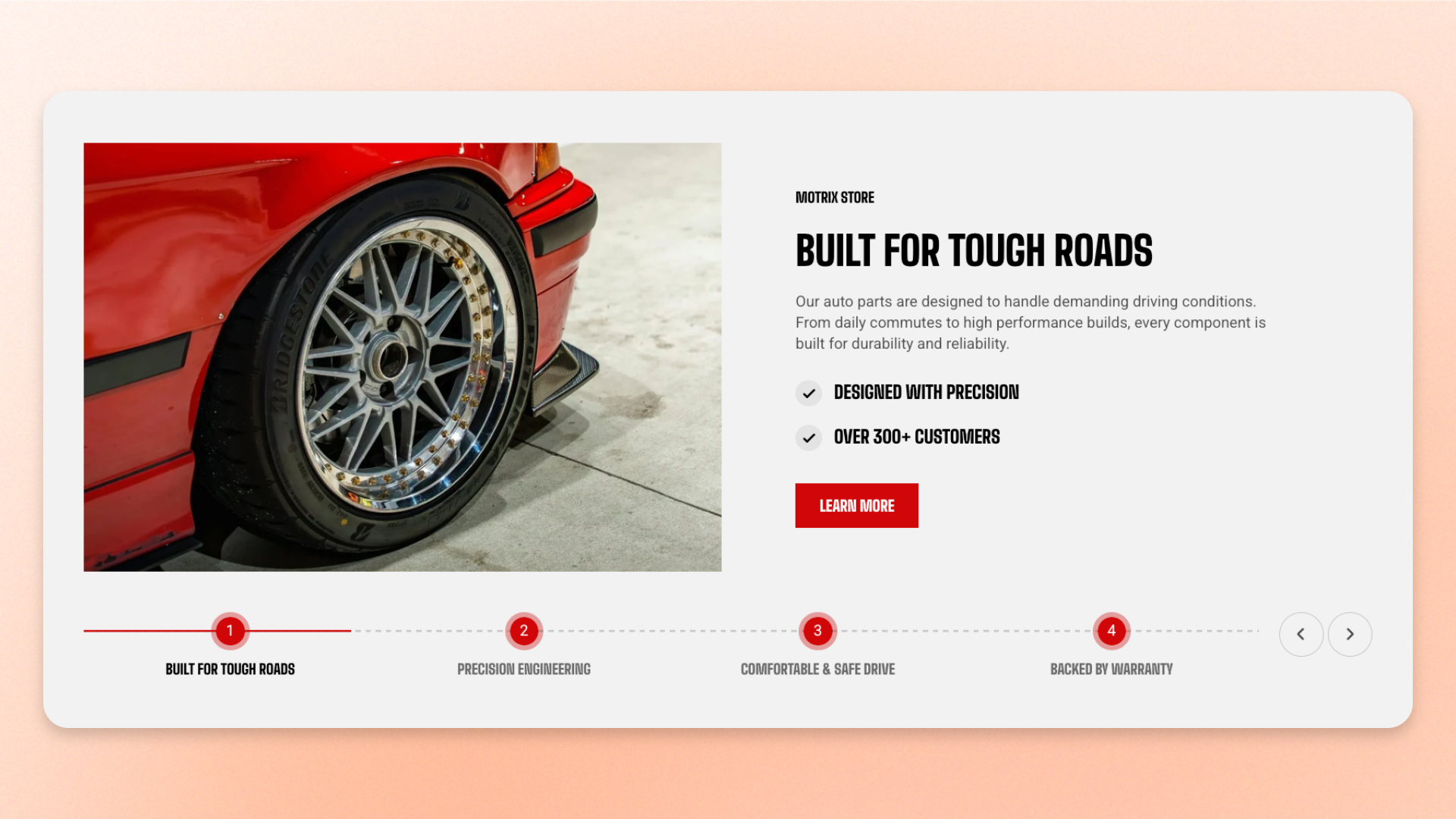
The **Step carousel** section presents content as a sequence of full-width slides, with a numbered step row that shows customers where they are and lets them jump directly to another step.
Each Slide can combine images, video, text, icons, lists, buttons, and other supported theme blocks. Use this section for how-it-works guides, onboarding flows, product processes, tutorials, or other step-by-step stories on a homepage or landing page.
## How is this different from Process steps?
## How to customize the Step carousel
1. In the theme editor (**Edit theme**), open the page where you want to display the section.
2. Click **Add section** and select **Step carousel**.
3. Configure the section width, carousel behavior, appearance, and spacing.
4. Add, remove, or reorder **Slide** blocks.
5. For each Slide, enter a **Step label** and configure its layout and appearance.
6. Add and arrange the content blocks you want inside each Slide.
7. Click **Save**.
## Section settings
### Layout
Controls the overall width of the section.
| Setting | Description | Options |
| ------------- | ------------------------------------------ | -------------------------------------------------------------------------------------------------------------------------- |
| **Container** | Controls the width of the section content. | **Full:** Uses the available page width.
**Fixed:** Keeps the content within the theme's fixed container width. |
### Carousel settings
Controls whether Slides advance automatically and how long each Slide remains visible.
| Setting | Description | Options |
| ----------------------- | ------------------------------------------------------------------------------------------- | ----------------------------------------------------------------------------------- |
| **Auto-rotate content** | Automatically advances through the Slides and loops back to the first Slide after the last. | **On** or **Off**. |
| **Change slides every** | Sets how long each Slide remains visible before automatically advancing. | **2–10 seconds.**
*Available when **Auto-rotate content** is turned on.* |
Auto-rotate content also makes the carousel loop, so it carries on from the first step after the last. With autoplay off there is no loop, and the arrows switch off at the first and last step — which is what you want for something that reads as a sequence.
### Appearance
Controls the section color scheme, border, and corners.
| Setting | Description | Options |
| ------------------ | ------------------------------------------------ | ----------------------------------------------------------------------- |
| **Color scheme** | Applies a theme color scheme to the section. | Select an available color scheme. |
| **Border** | Controls whether the section has an outline. | **None** or **Solid**. |
| **Border width** | Controls the thickness of the section border. | **0–10px.**
*Available when **Border** is set to **Solid**.* |
| **Border opacity** | Controls the opacity of the section border. | **0–100%.**
*Available when **Border** is set to **Solid**.* |
| **Corner radius** | Controls how rounded the section corners appear. | **0–32px.** |
### Padding
Controls the spacing around the section separately for desktop and mobile.
| Setting | Description | Options |
| ----------- | ------------------------------------------------------------------------- | -------------------------------------------------------------------------- |
| **Devices** | Selects which device-specific padding values you are editing. | **Desktop** or **Mobile**. |
| **Top** | Controls the space above the section content. | **0–100px**. |
| **Bottom** | Controls the space below the section content. | **0–100px**. |
| **Left** | Controls the space between the content and the left edge of the section. | **0–100px**.
*Available when **Container** is set to **Full**.* |
| **Right** | Controls the space between the content and the right edge of the section. | **0–100px**.
*Available when **Container** is set to **Full**.* |
## Blocks
### Slide
One step. Each slide is a two-part layout you fill yourself — typically an image on one side and a group of text on the other — plus the label that names it in the row below.
#### Content
| Setting | Description | Options |
| -------------- | ----------------------------------------------------------------- | ---------------------------------------------- |
| **Step label** | Sets the label displayed for this Slide in the numbered step row. | Enter custom text or connect a dynamic source. |
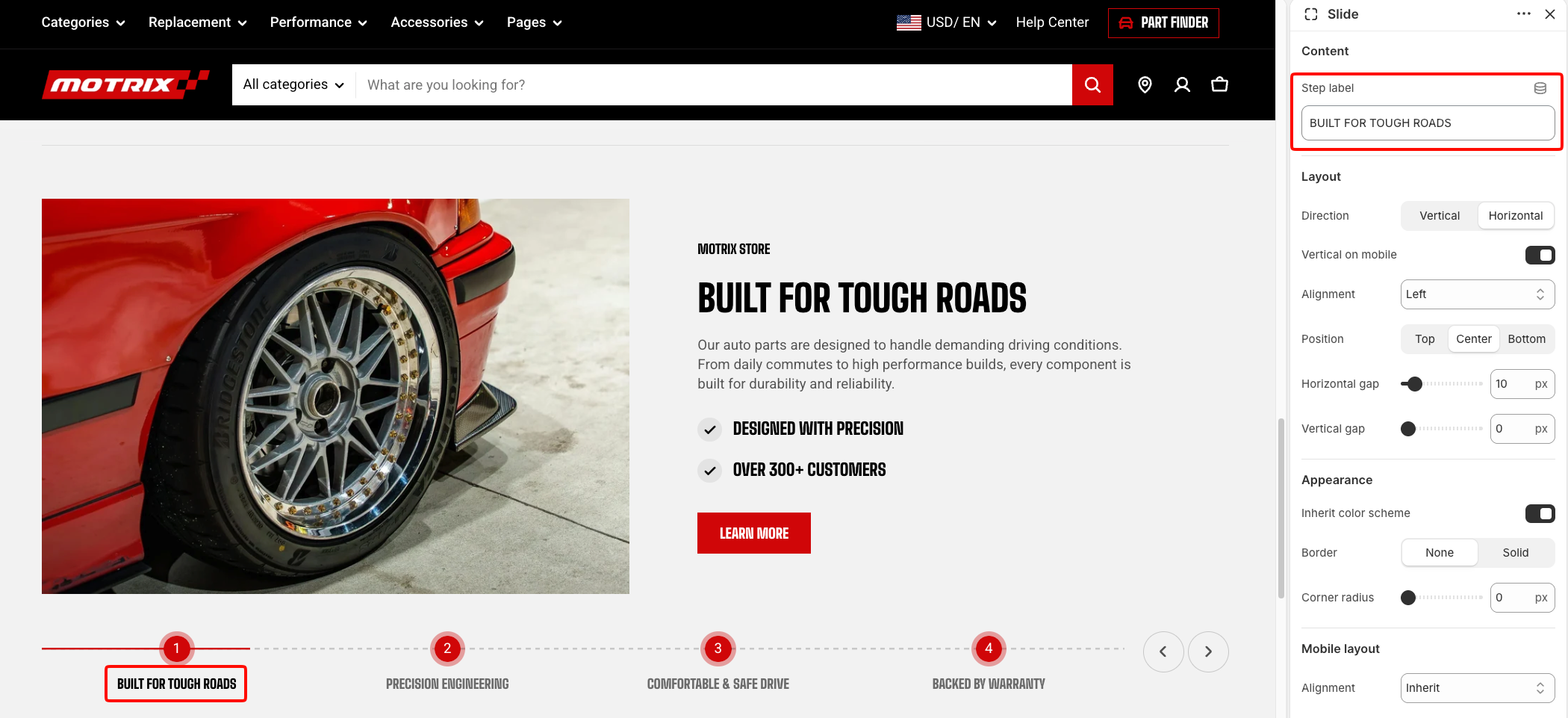
Keep Step labels short and consistent so customers can quickly understand the sequence, such as **Choose**, **Customize**, **Order**, and **Enjoy**.
#### Layout
Controls how blocks are arranged inside the Slide on larger screens.
| Setting | Description | Options |
| ---------------------- | --------------------------------------------------------------------------- | ------------------------------------------------------------------------------------------------------ |
| **Direction** | Controls whether the Slide content is arranged vertically or horizontally. | **Vertical** or **Horizontal**. |
| **Vertical on mobile** | Changes a horizontal desktop layout to a vertical layout on mobile devices. | **On** or **Off**.
*Available when **Direction** is set to **Horizontal**.* |
| **Alignment** | Controls how blocks are aligned within the Slide. | **Left, Center,** or **Right**.
**Space between** is also available for horizontal layouts. |
| **Position** | Controls the vertical position of content within a horizontal Slide. | **Top, Center,** or **Bottom**.
*Available when **Direction** is set to **Horizontal**.* |
| **Horizontal gap** | Controls the horizontal space between blocks. | **0–100px.** |
| **Vertical gap** | Controls the vertical space between blocks. | **0–100px.** |
#### Appearance
Controls the color scheme, border, and corners of the individual Slide.
| Setting | Description | Options |
| ------------------------ | ------------------------------------------------------------- | ----------------------------------------------------------------------------------------------------- |
| **Inherit color scheme** | Uses the Step carousel section's color scheme for this Slide. | **On** or **Off**. |
| **Color scheme** | Applies a separate theme color scheme to the Slide. | Select an available color scheme.
*Available when **Inherit color scheme** is turned off.* |
| **Border** | Controls whether the Slide has an outline. | **None** or **Solid**. |
| **Border width** | Controls the thickness of the Slide border. | **0–10px.**
*Available when **Border** is set to **Solid**.* |
| **Border opacity** | Controls the opacity of the Slide border. | **0–100%.**
*Available when **Border** is set to **Solid**.* |
| **Corner radius** | Controls how rounded the Slide corners appear. | **0–32px.** |
#### Mobile layout
Controls the alignment and spacing of Slide content on mobile devices.
| Setting | Description | Options |
| ------------------ | ------------------------------------------------------- | --------------------------------------------------------------- |
| **Alignment** | Controls the content alignment on mobile. | **Inherit,** **Left, Center,** **Right**, or **Space between.** |
| **Horizontal gap** | Controls the horizontal space between blocks on mobile. | **0–100px.** |
| **Vertical gap** | Controls the vertical space between blocks on mobile. | **0–100px.** |
#### Padding
Controls the internal spacing of each Slide separately for desktop and mobile.
| Setting | Description | Options |
| ----------- | ---------------------------------------------------------------- | -------------------------- |
| **Devices** | Selects which device-specific padding values you are editing. | **Desktop** or **Mobile**. |
| **Top** | Controls the space above the Slide content. | **0–100px**. |
| **Bottom** | Controls the space below the Slide content. | **0–100px**. |
| **Left** | Controls the space between the Slide content and its left edge. | **0–100px**. |
| **Right** | Controls the space between the Slide content and its right edge. | **0–100px**. |
### What goes inside a slide
Slides take theme blocks, so the contents are up to you. The preset builds each one from:
* [Image](https://docs.foxecom.com/motrix-theme/theme-blocks/image) — the picture for this step, at half the slide's width.
* [Group](https://docs.foxecom.com/motrix-theme/theme-blocks/group) — the other half, holding the text.
* [Text](https://docs.foxecom.com/motrix-theme/theme-blocks/text) — a tagline, a heading, and a paragraph inside that group.
* [Icon list](https://docs.foxecom.com/motrix-theme/theme-blocks/icon-list) — a short list of points with check icons.
* [Button](https://docs.foxecom.com/motrix-theme/theme-blocks/button) — where this step leads.
## FAQs
#### Why are there no arrows on my section?
Either there is only one slide, or you are looking at a phone. The arrows appear on desktop and only when there is more than one step. On a phone shoppers swipe, or tap a label in the row.
#### Why are the arrows grayed out?
You are on the first or last step. Without autoplay the carousel does not loop, so there is nowhere further to go in that direction.
#### How many step labels show at once?
Up to four on desktop and three on tablet. Add more steps than that and the row scrolls, which still works but means some labels are out of sight.
#### The page jumps when I move between steps.
The slides are different heights. Even out the amount of copy, or set the same image ratio on each, so every step takes the same space.