# Slideshow
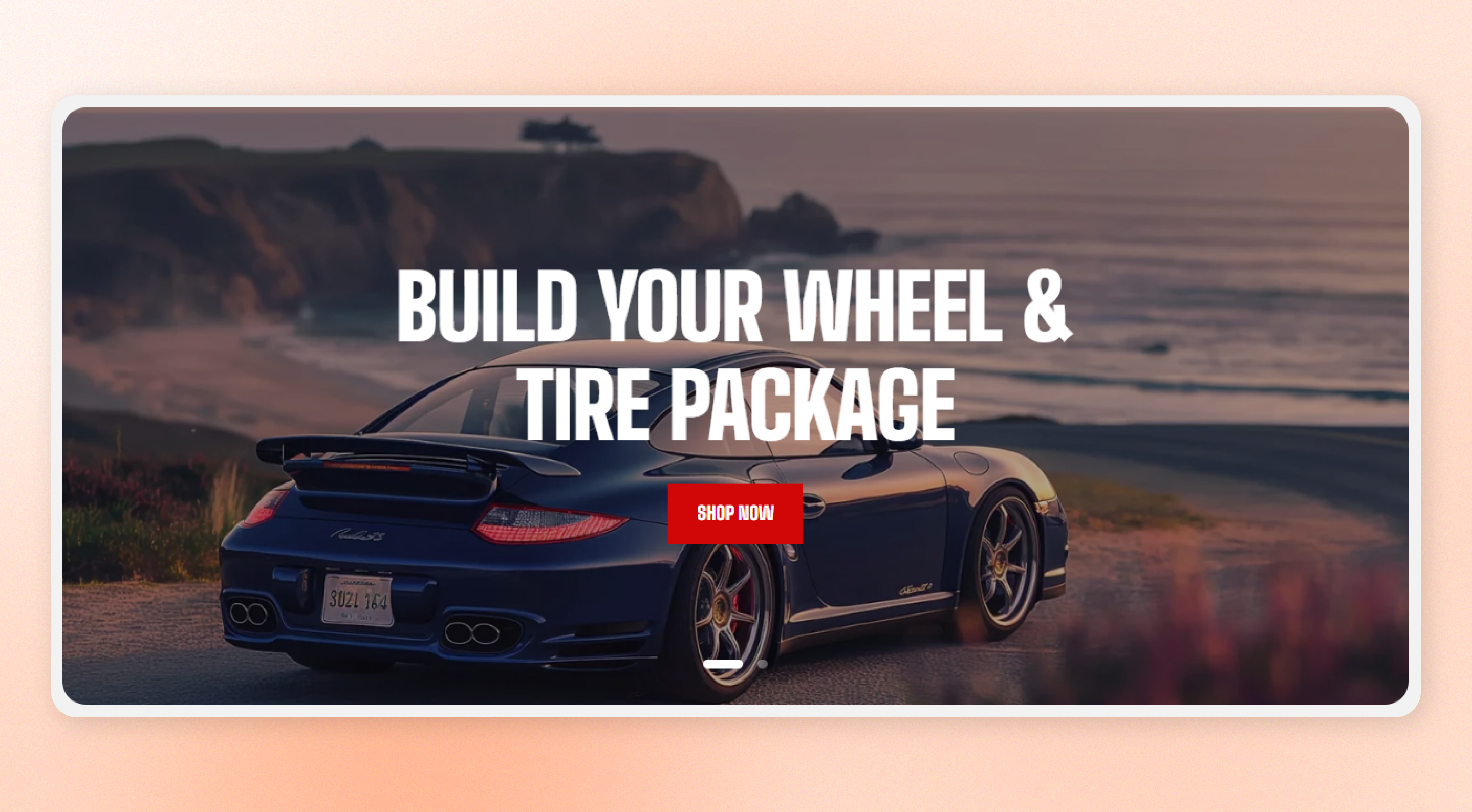
Display a series of full-size slides that transition between images or videos with overlaid text and buttons.
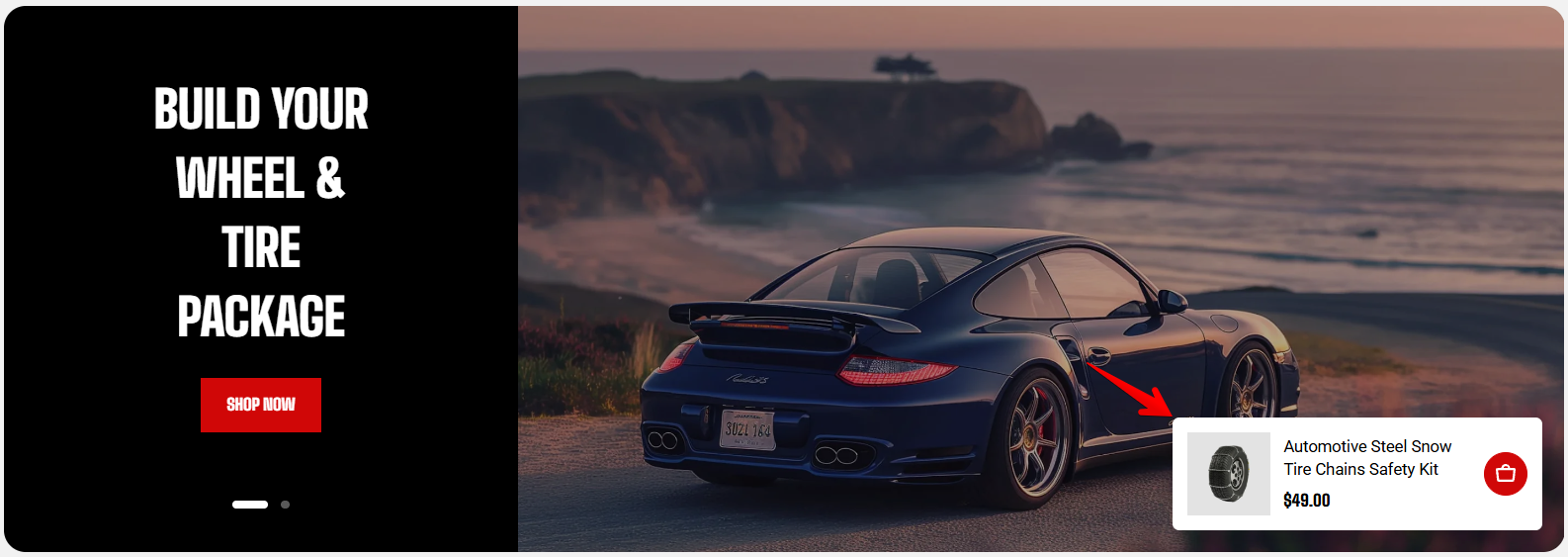
Use it to highlight campaigns, promotions, or key messages at the top of your home page. Choose **Standard** to place content over the media, or **Split** to display the content and media side by side.
## How to customize the Slideshow
1. Go to **Online Store > Themes** in Shopify Admin.
2. Find your theme and click **Edit theme**.
3. Open the page where the **Slideshow** section is used.
4. Select a [Slideshow preset](#presets) from the section list.
5. Adjust the [section settings](https://docs.foxecom.com/motrix-theme/theme-sections/slideshow#section-settings), including layout, mobile settings, carousel behavior, and spacing.
6. Select a [**Slide** ](https://docs.foxecom.com/motrix-theme/theme-sections/slideshow#blocks-slide)block to customize its media, content, and other slide-specific settings.
7. Save your changes.
## Presets

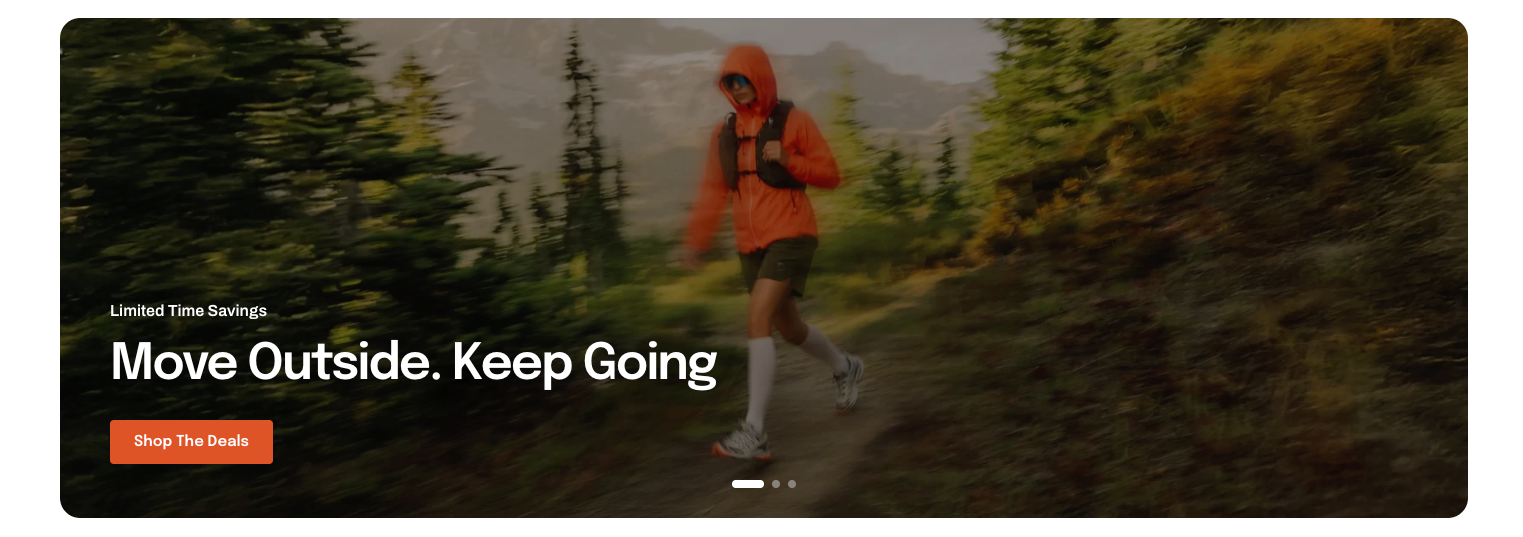
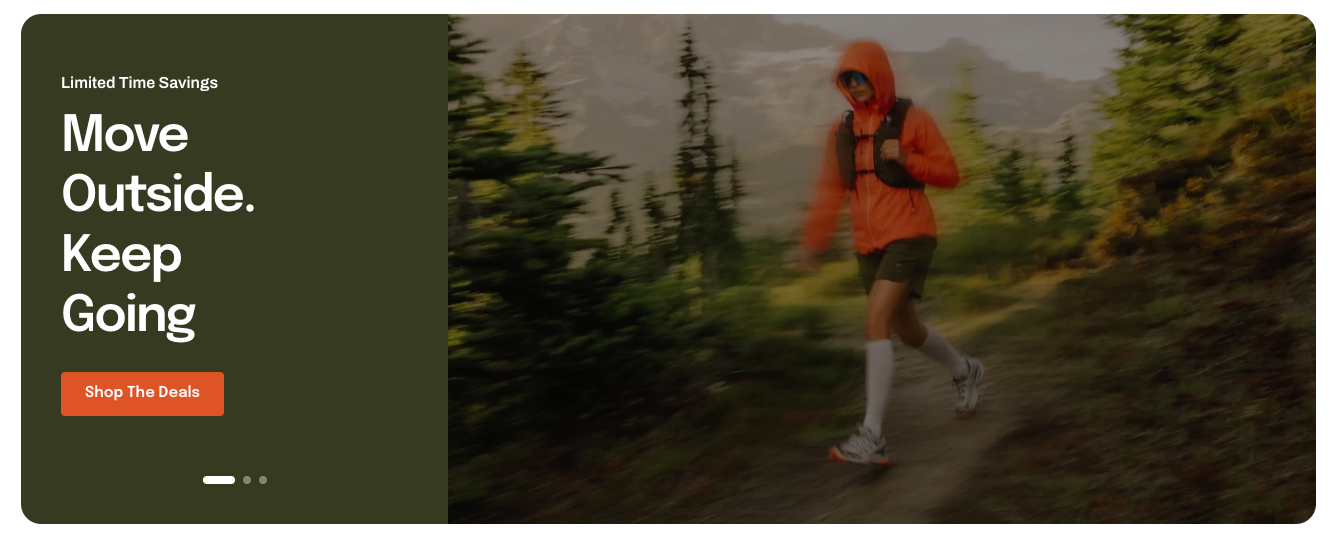

The **Slideshow** section includes **four ready-made presets**. Choose one as a starting point, then customize its slides and settings to match your store.
* **Slideshow: Minimal** - A clean slideshow with a simple layout that keeps the focus on the slide media and essential content.
* **Slideshow: Centered** - A centered slideshow layout with the content positioned prominently over the slide media. Auto-rotate is enabled for this preset.
* **Slideshow: Split** - A split layout that places the content in one panel and the slide media beside it. Use it when you want to give the text and media separate areas.
* **Slideshow: Editorial** - An editorial-style slideshow that gives the slide content a more prominent, magazine-inspired presentation alongside the media.
## Section settings
### Layout
| Setting | Description | Options |
| -------------------- | ----------------------------------------------------------------------------------------------------------------------------- | ------------------------------------------------------------------------------------------------------------------------------ |
| **Layout** | Choose how the slide content and media are arranged. | **Standard** places content over the media
**Split** displays the content in a separate panel beside the media. |
| **Container** | Choose whether the slideshow spans the full screen width or stays within the page width. | Fixed / Full |
| **Content position** | Set where the slide content sits within the page. This setting appears when **Container is Full** and **Layout is Standard**. | Inside / Outside |
| **Height** | Choose how the slideshow height is determined. | **Custom** uses a fixed height and crops the media to fill it
**Auto** follows the first slide's media proportions. |
| **Custom height** | Set the desktop slideshow height. This setting appears when **Height is Custom**. | 200px - 1000px |

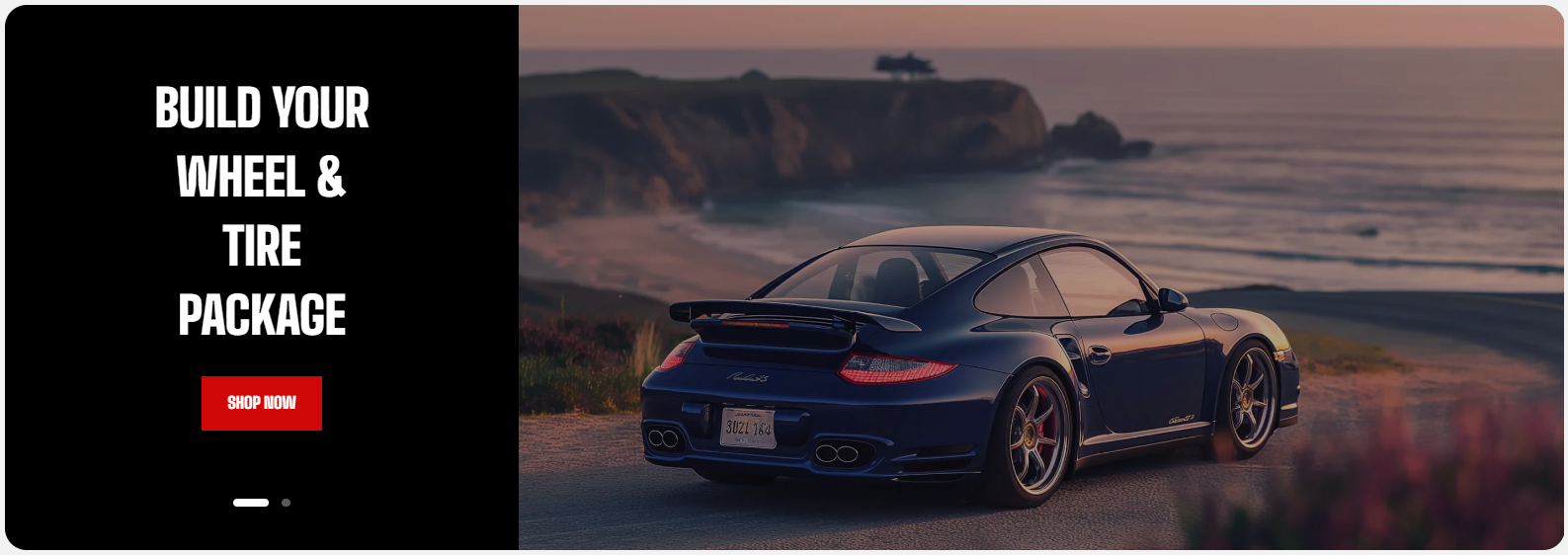
When using **Height: Auto**, place the image with the proportions you want to use first because the slideshow follows the first slide's media.
### Mobile settings
| Setting | Description | Options |
| ----------------- | ------------------------------------------------------------------------------------------------------------------------------------------------------- | ---------------------------------- |
| **Height** | Choose how the slideshow height is determined on mobile. Custom uses a fixed height, while Auto follows the first slide's media. | Custom / Auto |
| **Custom height** | Set the mobile slideshow height. This setting appears when mobile Height is Custom. | 200px - 600px |
| **Media height** | Set the height of the media area in the Split layout. Choose Auto, a custom height, or a fixed aspect ratio. This setting appears when Layout is Split. | Auto / Custom / Square / Landscape |
| **Custom height** | Set the mobile media height when Media height is Custom. | 200px - 600px |
Use **a mobile-specific image** when important content in the desktop image would be cropped on smaller screens.
### Carousel settings
| Setting | Description | Options |
| ----------------------- | ----------------------------------------------------------------------------------------------------------------------------- | --------------------- |
| **Auto-rotate content** | Automatically move to the next slide after a set amount of time. | On / Off |
| **Change slides every** | Set how long each slide stays visible before moving to the next one. This setting appears when **Auto-rotate content is on**. | 2s - 10s |
| **Control type** | Choose the style of the slideshow navigation controls. | Default |
| **Control alignment** | Set where the arrows, counter, and dots appear. | Left / Center / Right |
Use a shorter rotation time for simple slides and a longer time when customers need more time to read the content.
### Appearance
| Setting | Description | Options |
| ----------------- | --------------------------------------------------------------------------------- | ---------- |
| **Corner radius** | Round the corners of the slideshow. This setting appears when Container is Fixed. | 0px - 32px |
### Padding
| Setting | Description | Options |
| ----------- | ------------------------------------------------ | ---------------- |
| **Devices** | Choose the device type to customize padding for. | Desktop / Mobile |
| **Top** | Set the spacing above the slideshow. | 0px - 100px |
| **Bottom** | Set the spacing below the slideshow. | 0px - 100px |
## Blocks - Slide
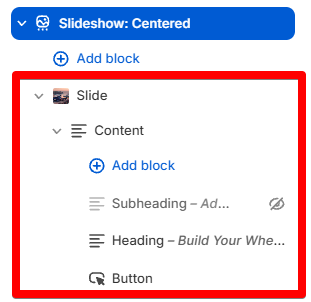
The **Slideshow** section uses **Slide** blocks to build the slideshow. Add multiple slides to create a rotating presentation, and customize the [**media** ](https://docs.foxecom.com/motrix-theme/theme-sections/slideshow#media)and [**content** ](https://docs.foxecom.com/motrix-theme/theme-sections/slideshow#content-settings)of each slide independently.
### Slide settings
The settings control the background media for this **Slide**. Each slide can have its own **image** or **video**, a separate mobile image, and an optional overlay to improve content readability.
#### Media
The **Media** settings control the background media for this **Slide**. Each slide can have its own image or video, a separate mobile image, and an optional overlay to improve content readability.
| Setting | Description | Options |
| ----------------- | -------------------------------------------------------------------------------------------------------------------------------------------------- | ---------------- |
| **Type** | Choose the type of background media for this slide. | Image / Video |
| **Image** | Upload the image used as the background for this slide on desktop. | Select image |
| **Image mobile** | Upload a separate image for this slide on mobile devices. Use a mobile-specific image when the desktop image doesn't crop well on smaller screens. | Select image |
| **Video** | Upload the video used as the background for this slide on desktop. | Select video |
| **Media overlay** | Add an overlay to the slide media to improve contrast between the background and slide content. | Color / Gradient |
| **Overlay style** | Choose the type of overlay applied to the slide media. | Color / Gradient |
| **Overlay color** | Choose the color used for the media overlay. | Select color |
#### Content
| Setting | Description | Options |
| ------------------- | ----------------------------------------------------------------------------------------------------------------------- | --------------------------------------------------------------------------------------------------------------------------- |
| **Product** | Select a product to display as a featured product card on the slide. This setting is **only used in the Split layout**. | Select a product |
| **Position** | Set where the slide content appears on desktop. | Top left / Top center / Top right / Middle left / Middle center / Middle right / Bottom left / Bottom center / Bottom right |
| **Position mobile** | Set where the slide content appears on mobile. | Top / Middle / Bottom |
Show a feature product on Slideshow
#### Appearance
| Setting | Description | Options |
| ------------------------ | ---------------------------------------------------------------------------------------------- | --------------------- |
| **Color scheme** | Choose the color scheme used for this slide's content. | Select a color scheme |
| **Enable preload image** | Loads the slide image earlier so it appears faster when the block is near the top of the page. | On / Off |
**Enable preload image** only when the image is visible as soon as the page opens. Avoid enabling it for images that customers need to scroll to.
### Content settings
The Content settings control the content area of this Slide. Add and arrange available blocks to build the message customers see on the slide.
Keep slide content easy to scan. Avoid adding too many blocks, as this can make the slide feel crowded. Use a short **Heading**, **Text** for essential information, and a **Button** when you want customers to navigate to another page.
#### Layout
| Setting | Description | Options |
| -------------------- | ------------------------------------------------------------- | --------------------- |
| **Alignment** | Set the horizontal alignment of the slide content on desktop. | Left / Center / Right |
| **Alignment mobile** | Set the horizontal alignment of the slide content on mobile. | Left / Center / Right |
| **Row gap** | Set the vertical space between content blocks on desktop. | 0px - 100px |
| **Row gap mobile** | Set the vertical space between content blocks on mobile. | 0px - 100px |
#### Size
| Setting | Description | Options |
| ----------------------- | ------------------------------------------------------------------------------------------- | ------------------- |
| **Width** | Set the width of the slide content area on desktop. | Fit / Fill / Custom |
| **Custom width** | Set a custom width for the slide content area when Width is set to Custom. | 0% - 100% |
| **Width mobile** | Set the width of the slide content area on mobile. | Fit / Fill / Custom |
| **Custom width mobile** | Set a custom width for the slide content area on mobile when Width mobile is set to Custom. | 0% - 100% |
Use **Fit** for short messages and **Fill** when you need more room for longer content.
#### Appearance
| Setting | Description | Options |
| -------------------------- | --------------------------------------------------------------------------------------------------------------------- | --------------------- |
| **Inherit color scheme** | Use the color scheme assigned to the slide for the content area. | On / Off |
| **Color Scheme** | Choose the color scheme used for this slide's content. This setting appear when **Inherit color scheme if disabled.** | Select a color scheme |
| **Transparent background** | Make the content area's background transparent so the slide media shows through. | On / Off |
| **Border** | Choose whether to display a border around the content area. | None / Solid |
| **Corner radius** | Set the corner radius of the content area. | 0px - 32px |
#### Padding
| Setting | Description | Options |
| ---------- | -------------------------------------------------- | ----------- |
| **Top** | Set the spacing above the slide content. | 0px - 100px |
| **Bottom** | Set the spacing below the slide content. | 0px - 100px |
| **Left** | Set the spacing to the left of the slide content. | 0px - 100px |
| **Right** | Set the spacing to the right of the slide content. | 0px - 100px |
#### Animation
| Setting | Description | Options |
| -------- | --------------------------------------------------------- | ------------------------------------------------------------------------- |
| **Type** | Choose the animation used when the slide content appears. | None / Fade in / Fade up / Fade down / Slide in (left) / Slide in (right) |
## FAQs
**Why does the slideshow height change when I reorder my slides?** When **Height** is set to **Auto**, the slideshow follows the media proportions of the first slide. Reordering the slides can therefore change the overall height.
**How can I make all slides the same height?** Set **Height** to **Custom** and choose the height you want. The media will be cropped to fill the selected height.