# Shop the look
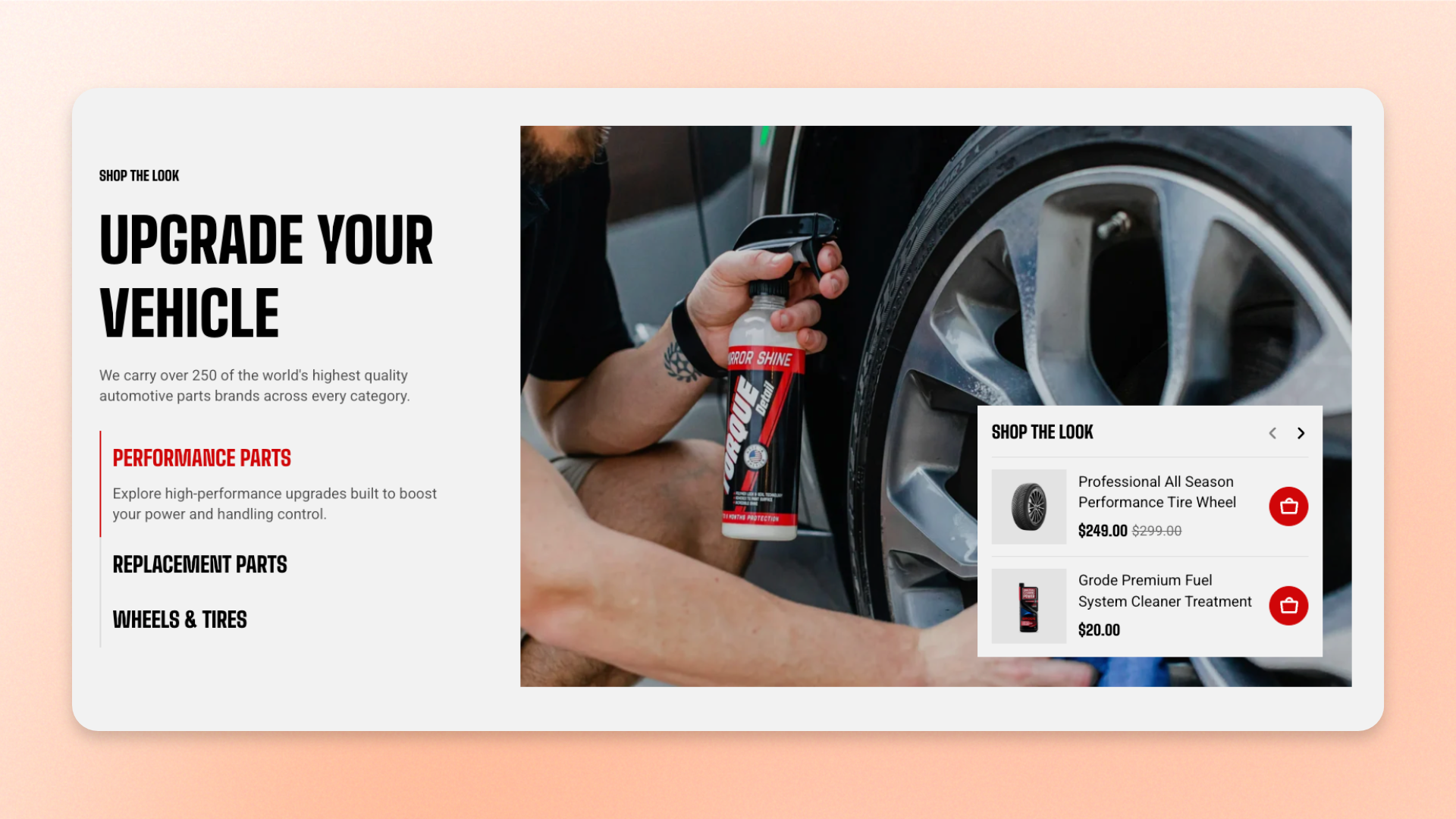
Shoppers buy the picture, not the part. The **Shop the look** section leads with a photograph and puts the products in it within reach: pick a look from the list, see the image, add what is in it to the cart. It suits anything sold as a set — an outfit, a build, a room, a routine.
Add several looks and the list becomes a set of tabs. Add one and the section is simply a photo with its products beside it.
## How to customize the Shop the look
1. In the theme editor (**Edit theme**), open the page where you want to display the section.
2. Click **Add section** and select **Shop the look**.
3. Configure the section width, appearance, and spacing.
4. Customize the **Header** content if needed.
5. Add or reorder **Shop the look item** blocks for each look you want to showcase.
6. For each item, add a label, description, image, and the products customers can shop.
7. Click **Save**.
## Section settings
### Layout
Controls the width of the section content.
| Setting | Description | Options |
| ------------- | ------------------------------------------ | -------------------------------------------------------------------------------------------------------------------------- |
| **Container** | Controls the width of the section content. | **Full:** Uses the available page width.
**Fixed:** Keeps the content within the theme's fixed container width. |
### Product cards
| Setting | Description | Options |
| ---------------------------- | ----------------------------------------------------------------- | -------------------------------------- |
| **Product title line limit** | Trims long product names to 1, 2, or 3 lines in the product list. | **No limit/ 1 line/ 2 lines/ 3 lines** |
**Tip**: the product rows sit over the photo, so keep the limit at 1 or 2. Names running to three lines push the card taller and start covering the part of the image you chose it for.
### Appearance
Controls the color scheme, border, and corners of the section.
| Setting | Description | Options |
| ------------------ | ------------------------------------------------ | ----------------------------------------------------------------------- |
| **Color scheme** | Applies a theme color scheme to the section. | Select an available color scheme. |
| **Border** | Controls whether the section has an outline. | **None** or **Solid**. |
| **Border width** | Controls the thickness of the section border. | **0–10px**.
*Available when **Border** is set to **Solid**.* |
| **Border opacity** | Controls the opacity of the section border. | **0–100%**.
*Available when **Border** is set to **Solid**.* |
| **Corner radius** | Controls how rounded the section corners appear. | **0–32px**. |
### Padding
Controls the spacing around the section separately for desktop and mobile.
| Setting | Description | Options |
| ----------- | ------------------------------------------------------------------------- | -------------------------------------------------------------------------- |
| **Devices** | Selects which device-specific padding values you are editing. | **Desktop** or **Mobile**. |
| **Top** | Controls the space above the section content. | **0–100px**. |
| **Bottom** | Controls the space below the section content. | **0–100px**. |
| **Left** | Controls the space between the content and the left edge of the section. | **0–100px**.
*Available when **Container** is set to **Full**.* |
| **Right** | Controls the space between the content and the right edge of the section. | **0–100px**.
*Available when **Container** is set to **Full**.* |
Tablet and other in-between screen sizes use responsive values between the desktop and mobile settings.
## Blocks
The **Shop the look** section uses a built-in static **Header** block for section-level content and private, repeatable **Shop the look item** blocks for individual looks.
### Header
The **Header** block contains content applying to the section as a whole.
It can't be removed or reordered, but you can customize its content by adding, removing, and arranging supported blocks inside it.
#### Header settings
| Setting | Description | Options |
| ------------- | ------------------------------------------------------------- | ------------------------------- |
| **Alignment** | Controls the horizontal alignment of the Header content. | **Left, Center,** or **Right**. |
| **Devices** | Selects which device-specific padding values you are editing. | **Desktop** or **Mobile**. |
| **Bottom** | Controls the space below the Header content. | **0–100px.** |
#### Header blocks
You can add and arrange the following theme blocks inside the Header:
* [**Button**](https://docs.foxecom.com/motrix-theme/theme-blocks/button) — Adds a call-to-action button.
* [**Heading/Subheading/Text**](https://docs.foxecom.com/motrix-theme/theme-blocks/text) — Adds a heading, supporting text, or descriptive text.
* [**Image**](https://docs.foxecom.com/motrix-theme/theme-blocks/image) — Adds an image.
Use the Header to introduce the overall collection or theme of the looks. Keep look-specific information inside each **Shop the look item**.
### Shop the look item
The **Shop the look item** is a private, repeatable block used specifically by the Shop the look section. Each item creates one look that customers can browse.
You can add, remove, and reorder these blocks to control the available looks and the order in which they appear.
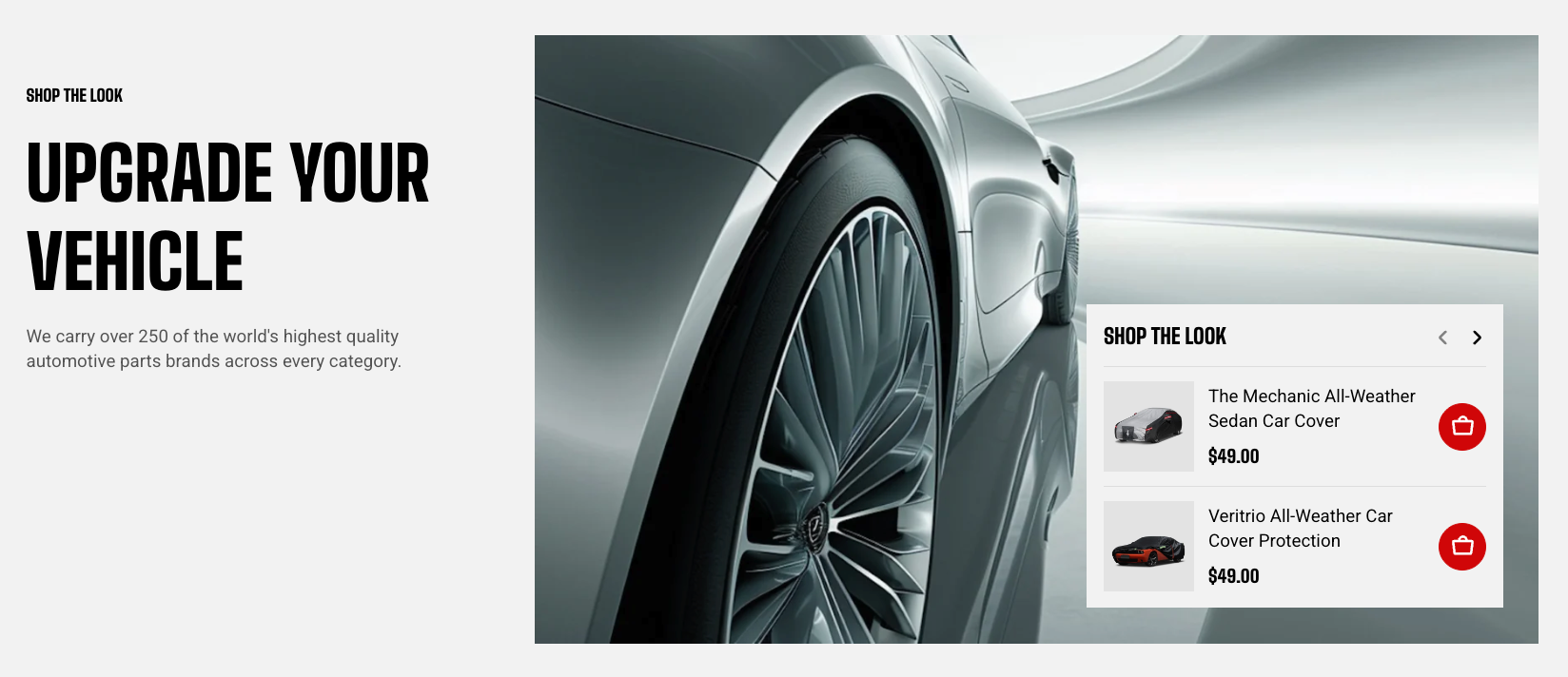
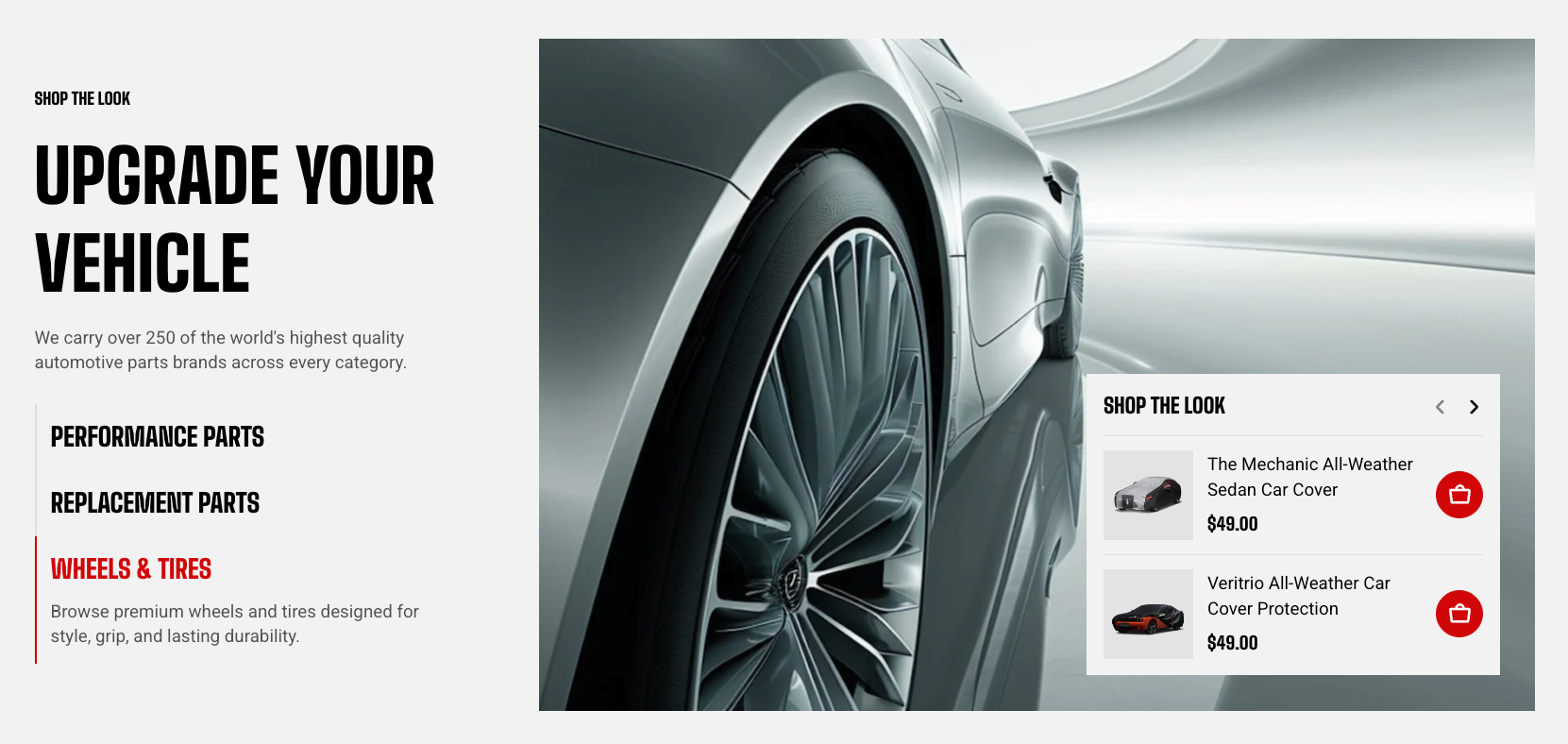
#### Shop the look item - Content
Controls the text and products associated with the look.
| Setting | Description | Options |
| --------------- | ------------------------------------------------------------ | ---------------------------------------------------------- |
| **Label** | Sets the name used to identify the look in the look list. | Enter custom text. |
| **Description** | Adds supporting information about the look. | Enter custom text.
*Displayed on desktop only.* |
| **Panel title** | Sets the heading displayed with the shoppable product panel. | Enter custom text. |
| **Products** | Selects the products displayed in the shoppable panel. | Select up to **6 products**. |
Keep the **Label** short and descriptive. On mobile, the label is the main text customers use to identify and switch between looks.
#### Shop the look item - Media
Controls the lifestyle image used for the look.
| Setting | Description | Options |
| ----------------------- | ------------------------------------------- | ------------------------------------------------------------------------------------------------------------------------------------------------------- |
| **Image** | Sets the main image displayed for the look. | Select an image. |
| **Image mobile** | Sets a separate image for mobile devices. | Select an image, or leave blank to use the main image. |
| **Aspect ratio** | Controls the image ratio on desktop. | **Auto:** Uses the image's original proportions.
**Square (1/1), Portrait (4/5), Portrait (3/4), Landscape (4/3),** or **Landscape (16/9)**. |
| **Aspect ratio mobile** | Controls the image ratio on mobile devices. | **Auto, Square (1/1), Portrait (4/5), Portrait (3/4), Landscape (4/3),** or **Landscape (16/9)**. |
#### Shop the look item - Appearance
Controls the visual style of the individual look.
| Setting | Description | Options |
| ----------------- | --------------------------------------------- | --------------------------------- |
| **Color scheme** | Applies a theme color scheme to the look. | Select an available color scheme. |
| **Corner radius** | Controls how rounded the look corners appear. | **0–32px.** |
#### Shop the look item - Advanced
| Setting | Description | Options |
| ------------------------ | ------------------------------------------------------------------------------------------------------------ | ------------------ |
| **Enable preload image** | Loads the look image earlier to help it appear faster when the section is visible as soon as the page loads. | **On** or **Off**. |
Use **Enable preload image** only when the Shop the look section is visible when the page first loads. Avoid enabling it for sections farther down the page.
## FAQs
#### What happens if I add only one Shop the look item?
With one item, the section displays that look directly. Add at least two **Shop the look item** blocks if you want customers to switch between multiple looks.
#### Does every look load when the page opens?
No. Only the first look renders up front; the rest load when a shopper opens them, so extra looks cost very little in page weight.
#### Can I change how wide the photo is?
No. The split between the list and the photo comes from the design. Container is the only width control, and it applies to the section as a whole.
#### Can shoppers add a whole look to the cart at once?
Products are added one at a time from the list. For a set bought together in one action, use one of the bundle sections instead: [Product bundle](https://docs.foxecom.com/motrix-theme/theme-sections/product-bundle), [Product bundle: Choose](https://docs.foxecom.com/motrix-theme/theme-sections/product-bundle-choose), [Product bundle: Gradation](https://docs.foxecom.com/motrix-theme/theme-sections/product-bundle-gradation).