# Product tabs
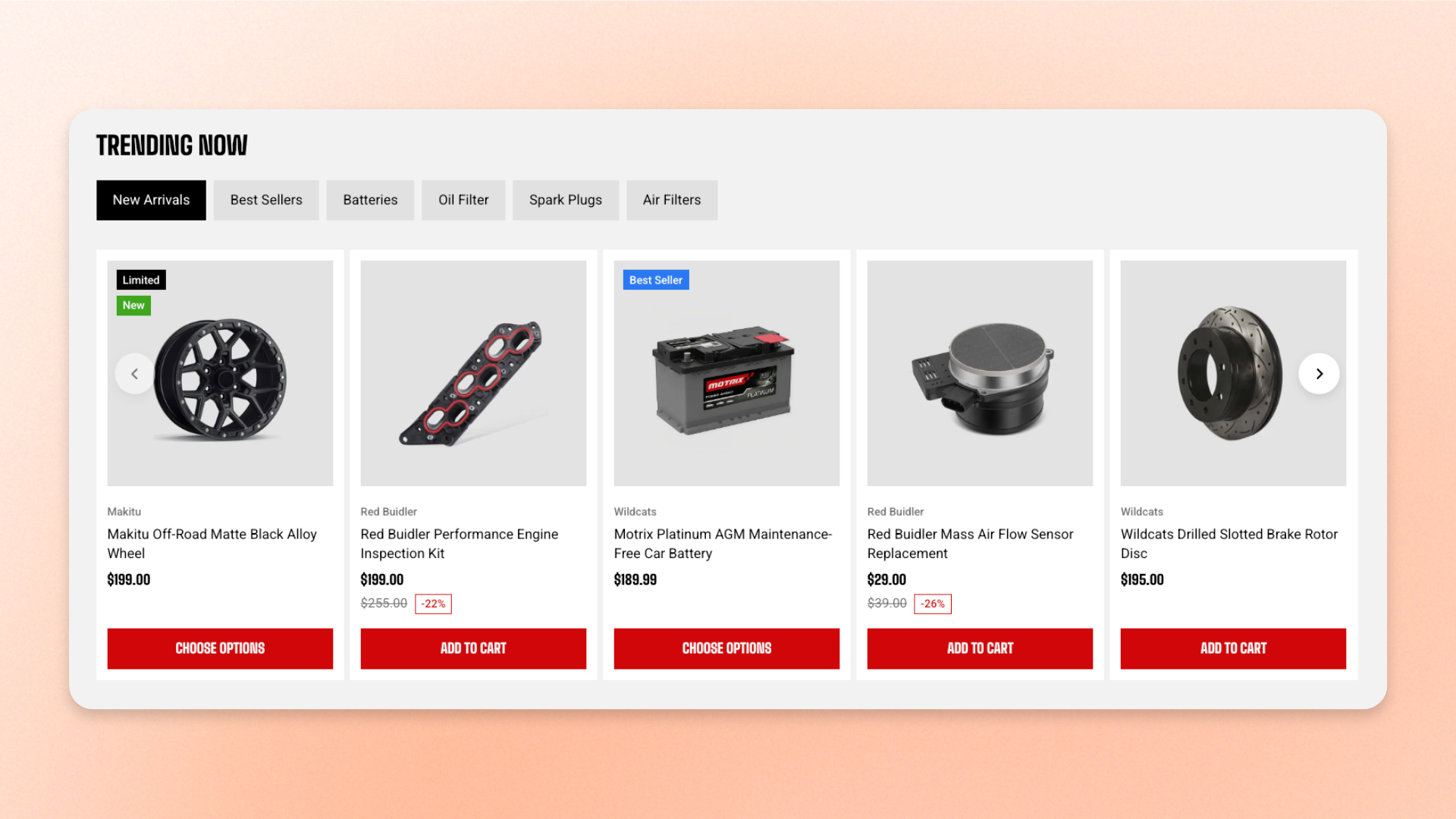
The **Product tabs** section displays products from multiple collections in switchable tabs, helping customers browse different product ranges without leaving the page.
Each tab displays products from one collection in a **Grid** or **Carousel**. Use it to highlight groups such as **New arrivals**, **Best sellers**, **Featured products**, or different product categories in one compact section.
You can add up to **6 tabs**, control how many products appear in each tab, customize the layout and tab style, configure the mobile experience, and adjust the section appearance.
## Presets
The section includes two presets:
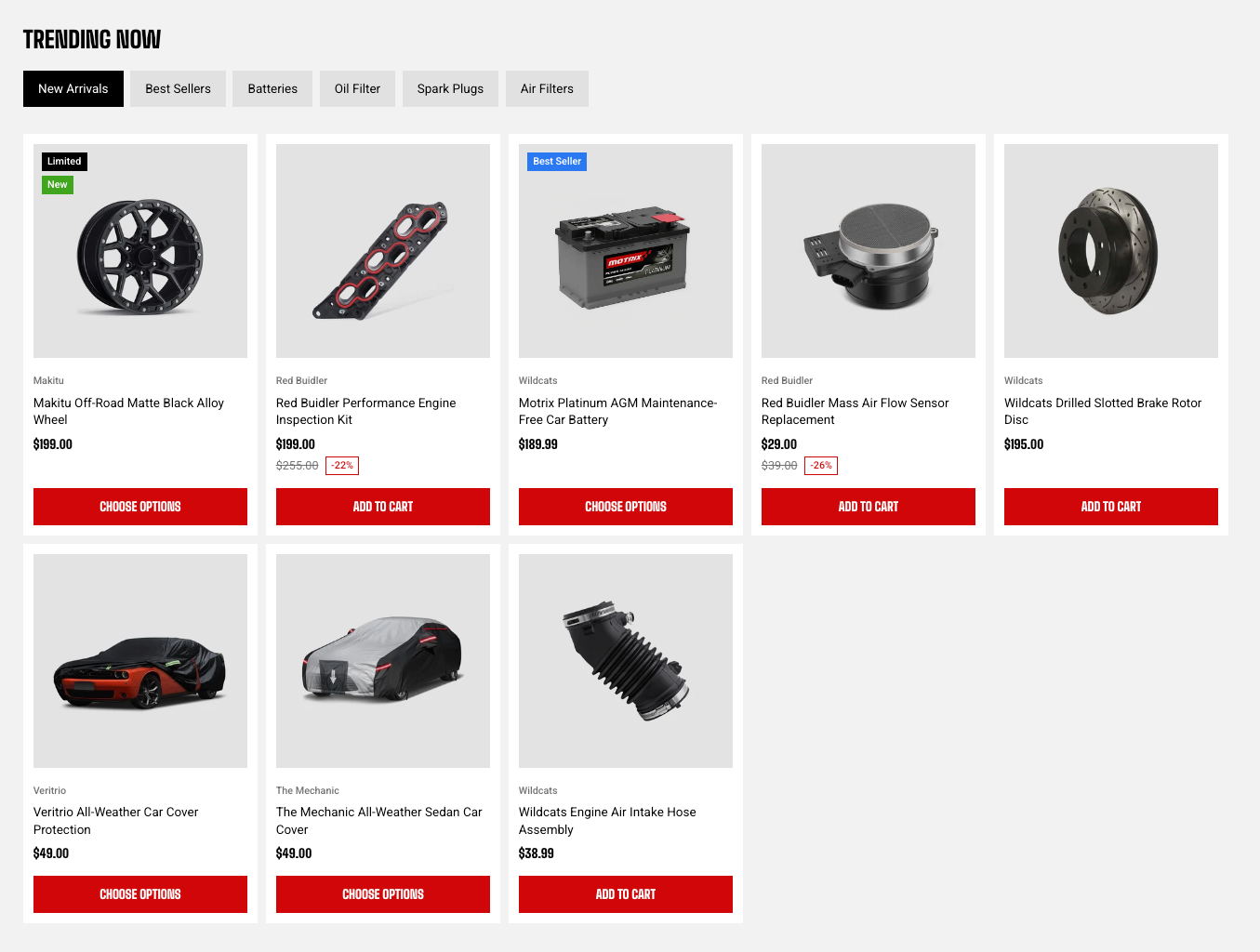
* **Product tabs: Grid** — displays each tab's products in rows.
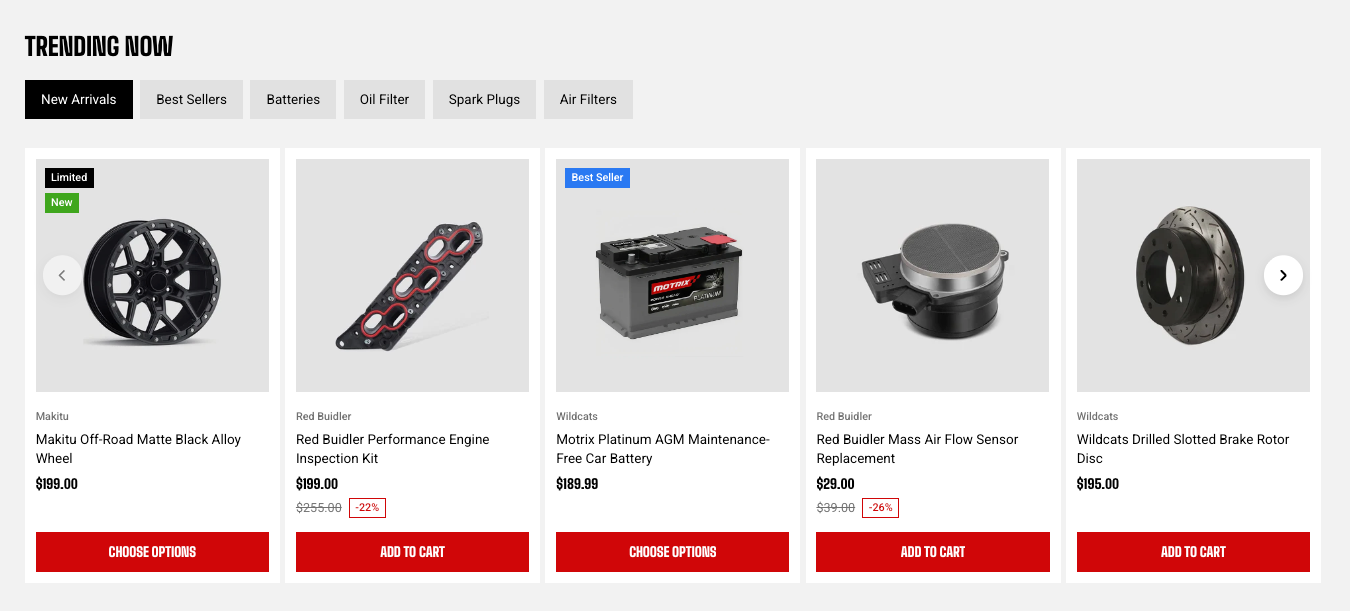
* **Product tabs: Carousel** — displays each tab's products in a horizontally navigable carousel.
Both presets use the same section settings. You can switch between them at any time using the **Type** setting.
## How is this different from Collection tabs?
## How to customize the Product tabs
1. In the theme editor (**Edit theme**), open the page where you want to display the section.
2. Click **Add section** and select **Product tabs: Grid** or **Product tabs: Carousel**.
3. Add a **Collection** block for each tab, then select the collection and enter a custom **Title** if needed.
4. Configure the product count, layout, tab style, spacing, and mobile display.
5. Customize the section heading and appearance if needed.
6. Click **Save**.
## Section settings
### Container
Controls the width of the section content.
| Setting | Description | Options |
| ------------- | ------------------------------------------ | -------------------------------------------------------------------------------------------------------------------------- |
| **Container** | Controls the width of the section content. | **Full:** Uses the available page width.
**Fixed:** Keeps the content within the theme's fixed container width. |
### Section header
Controls the heading displayed with the tabs.
| Setting | Description | Options |
| -------------------- | ----------------------------------------------------- | -------------------------------------------------------------------------------------------------------------------------------------------------------------------------------------------------------------- |
| **Heading** | Sets the section heading displayed with the tabs. | Enter custom text. |
| **Preset** | Sets the overall typography style of the heading. | **Heading 1–6** or **Custom** |
| **Font size** | Sets the heading size on desktop. | **10–100px**.
*Available when **Preset** is set to **Custom**.* |
| **Font size mobile** | Sets the heading size on mobile devices. | **10–60px**.
*Available when **Preset** is set to **Custom**.* |
| **Text transform** | Controls how letter casing is applied to the heading. | **Inherit:** Follows the theme setting.
**As typed:** Keeps the original casing.
**Title Case, UPPER CASE, or lower case**.
*Available when **Preset** is set to **Custom**.* |
### Layout
Controls how products are displayed inside each tab.
| Setting | Description | Options |
| ------------------ | -------------------------------------------------------------------------- | --------------------------------------------------------------------- |
| **Product count** | Sets the maximum number of products displayed in each tab. | **1–16 products.** |
| **Type** | Controls how the products are arranged. | **Grid** or **Carousel**. |
| **Columns** | Sets the number of product cards displayed across a row on larger screens. | **2–6 columns**. |
| **Horizontal gap** | Controls the horizontal space between product cards. | **0–100px**. |
| **Vertical gap** | Controls the vertical space between rows of product cards. | **0–100px**.
*Available when **Type** is set to **Grid**.* |
### Carousel settings
These settings are available when **Type** is set to **Carousel**.
**Carousel** is used on desktop and tablet. On mobile, the section follows the **Mobile layout** settings instead, using either a grid or swipeable row. Carousel arrows and dots are not shown on mobile.
| Setting | Description | Options |
| --------------------- | ----------------------------------------------------------------------------------- | ----------------------------------------------------------------------------------------------------------------------- |
| **Control type** | Controls the navigation shown for the carousel. | **None, Dots, Arrows + dots, Floating arrows,** or **Floating arrows + dots**. |
| **Control alignment** | Controls the horizontal position of the carousel controls. | **Left, Center,** or **Right**.
*Available when the selected **Control type** includes navigation controls.* |
| **Overflow content** | Controls whether product cards extending beyond the content area remain visible. | **Hidden:** Clips cards at the content edge.
**Visible:** Allows part of the next card to remain visible. |
| **Show edge fade** | Adds a soft fade at the carousel edge to indicate that more products are available. | **On** or **Off**. |
**Tip:** Set **Overflow content** to **Visible** and turn on **Show edge fade** when you want to hint that more products can be viewed.
### Mobile layout
Controls how product cards are displayed on mobile devices.
| Setting | Description | Options |
| ---------------------------- | ---------------------------------------------------------------------------------- | ------------------------------------------------------------------------------------------------------------- |
| **Enable swipe on mobile** | Controls whether customers can swipe horizontally through product cards on mobile. | **On** or **Off**. |
| **Show edge fade on mobile** | Adds a soft fade at the screen edge to indicate that more products are available. | **On** or **Off**.
*Available when **Enable swipe on mobile** is turned on.* |
| **Custom column width** | Lets you manually control the width of each product card on mobile. | **On** or **Off**.
*Available when **Enable swipe on mobile** is turned on.* |
| **Custom width** | Sets the width of each product card on mobile. | **20–90%**.
*Available when **Enable swipe on mobile** and **Custom column width** are turned on.* |
| **Mobile columns** | Sets the number of product cards displayed per row on mobile. | **1 column** or **2 columns**.
*Available when **Custom column width** is turned off.* |
| **Horizontal gap** | Controls the horizontal space between product cards on mobile. | **0–100px**. |
| **Vertical gap** | Controls the vertical space between rows of product cards on mobile. | **0–100px**.
*Available when **Enable swipe on mobile** is turned off.* |
**Tip:** Turn on **Custom column width** and use a value below **90%** to keep part of the next product card visible and encourage customers to swipe.
### Tabs
Controls the appearance and position of the tab navigation.
| Setting | Description | Options |
| -------------------- | ------------------------------------------------------------------ | --------------------------------------------------------------------------------------------------------------------------------------------------------------------------------------------- |
| **Tab style** | Controls the visual style of the tab labels. | **Solid, Outline, Underline,** or **Dropdown**. |
| **Tab position** | Controls where the tabs appear in relation to the section heading. | **Same row as heading** or **Below heading**. |
| **Preset** | Applies a predefined text style to the tab labels. | **Inherit** follows the section heading's text style.
**Default, Heading 1–6, or Custom**
*Available for supported tab styles, such as **Underline** and **Dropdown**.* |
| **Font** | Controls the font used for tab labels. | **Body** or **Heading**.
*Available when the selected tab style supports custom typography and **Preset** is set to **Custom**.* |
| **Font size** | Sets the tab label size on desktop. | **10–100px**.
*Available when **Preset** is set to **Custom**.* |
| **Font size mobile** | Sets the tab label size on mobile devices. | **10–60px**.
*Available when **Preset** is set to **Custom**.* |
| **Text transform** | Controls the capitalization of the tab labels. | **Inherit, As typed, Title Case, UPPER CASE,** or **lower case**.
*Available when **Preset** is set to **Custom**.* |
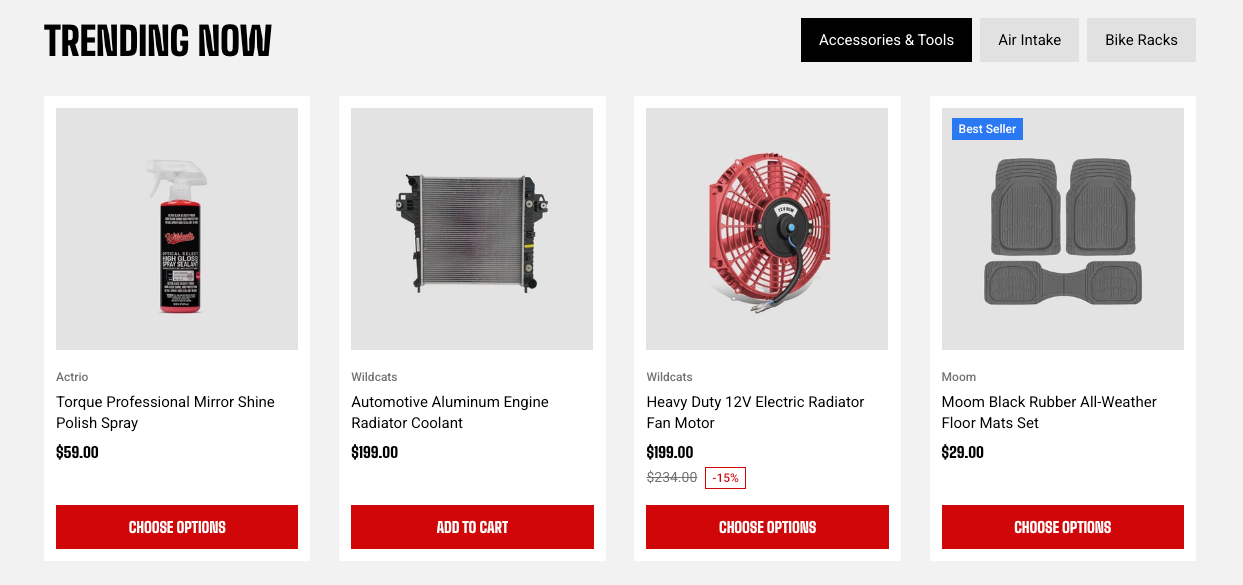
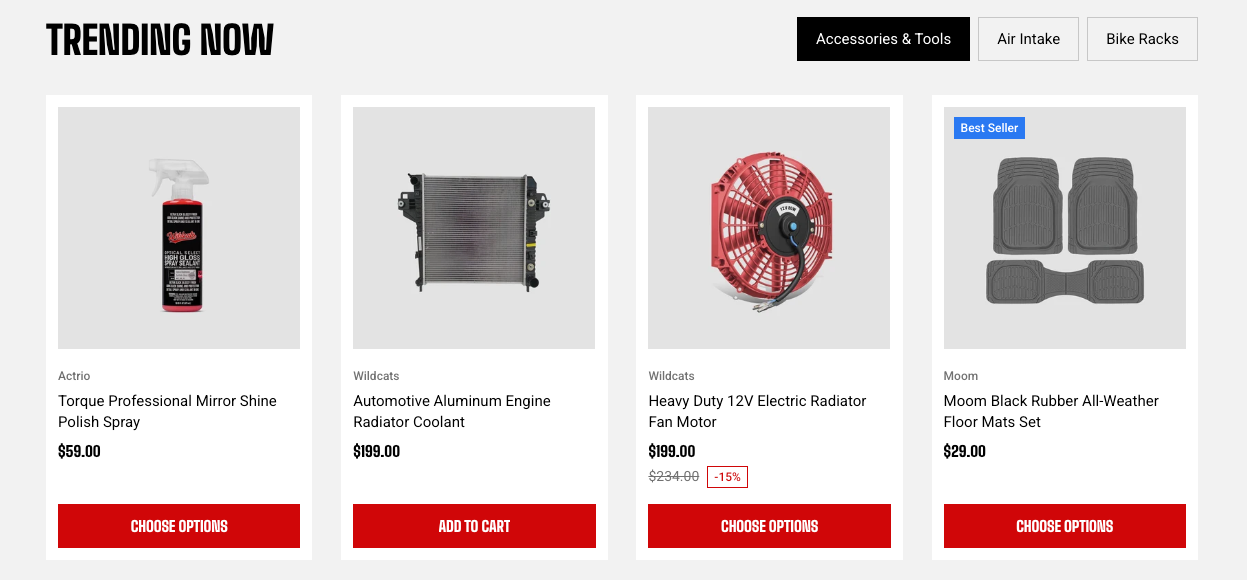
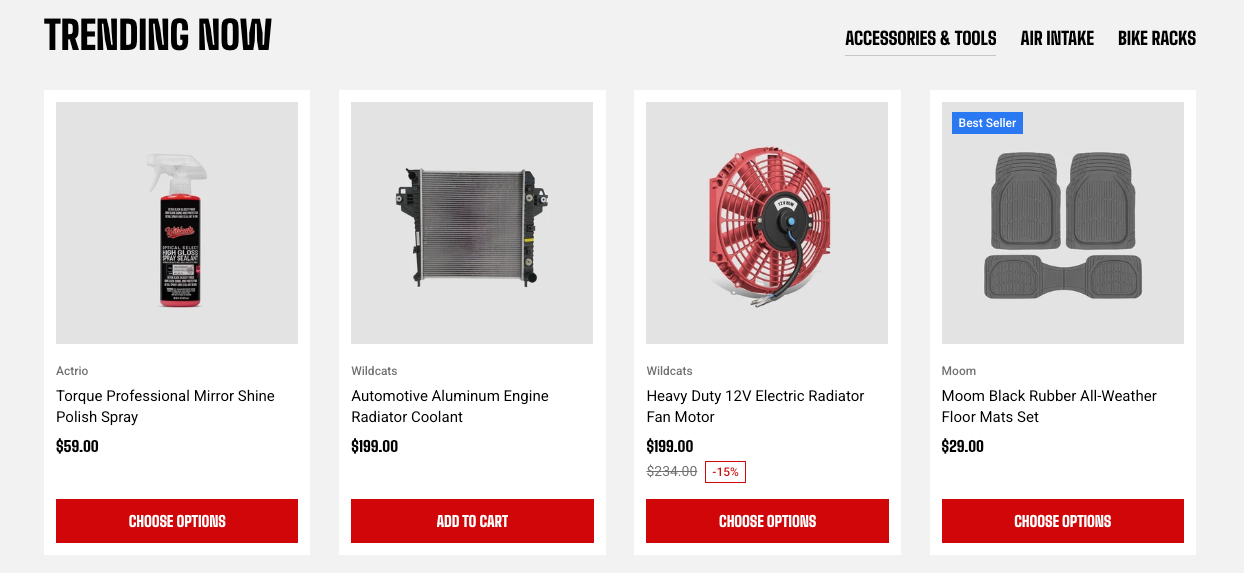
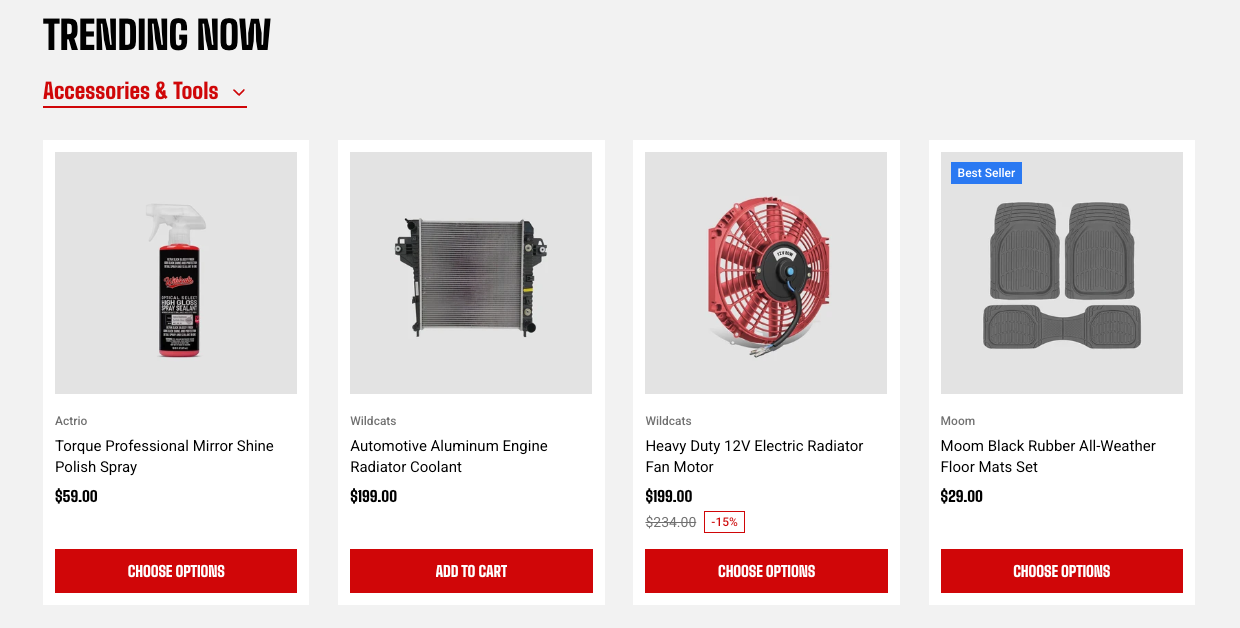
**Underline** and **Dropdown** tabs inherit the section heading's typography by default. Set **Preset** explicitly if you want the tab labels to use a different text style, such as smaller labels beside a large heading.
### Appearance
Controls the color scheme, border, and corners of the section.
| Setting | Description | Options |
| ------------------ | ------------------------------------------------ | ----------------------------------------------------------------------- |
| **Color scheme** | Applies a theme color scheme to the section. | Select an available color scheme. |
| **Border** | Controls whether the section has an outline. | **None** or **Solid**. |
| **Border width** | Controls the thickness of the section border. | **0–10px**.
*Available when **Border** is set to **Solid**.* |
| **Border opacity** | Controls the opacity of the section border. | **0–100%**.
*Available when **Border** is set to **Solid**.* |
| **Corner radius** | Controls how rounded the section corners appear. | **0–32px**. |
### Padding
Controls the spacing around the section separately for desktop and mobile.
| Setting | Description | Options |
| ----------- | ------------------------------------------------------------------------- | -------------------------------------------------------------------------- |
| **Devices** | Selects which device-specific padding values you are editing. | **Desktop** or **Mobile**. |
| **Top** | Controls the space above the section content. | **0–100px**. |
| **Bottom** | Controls the space below the section content. | **0–100px**. |
| **Left** | Controls the space between the content and the left edge of the section. | **0–100px**.
*Available when **Container** is set to **Full**.* |
| **Right** | Controls the space between the content and the right edge of the section. | **0–100px**.
*Available when **Container** is set to **Full**.* |
Tablet and other in-between screen sizes use responsive values between the desktop and mobile settings.
### Animation
These settings are available when animations are enabled in **Theme settings**. Learn more: [Animations](https://docs.foxecom.com/motrix-theme/theme-settings/animations).
| Setting | Description | Options |
| --------------------------- | ---------------------------------------------------------------------------------------------- | -------------------------------------------------------------------------------- |
| **Heading** | Controls the entrance animation applied to the section heading. | **None, Fade in, Fade up, Fade down, Slide in (left), or Slide in (right)** |
| **Heading delay** | Sets how long the heading waits before its animation starts. | **0–2000ms**.
*Available when **Heading** is not set to **None**.* |
| **Items** | Controls the entrance animation applied to the product cards. | **None, Fade in, Fade up, Fade down, Slide in (left), or Slide in (right)** |
| **Reveal items one by one** | Makes product cards animate into view one after another instead of appearing at the same time. | **On** or **Off**.
*Available when **Items** is not set to **None**.* |
### Advanced
#### Custom columns
Use **Custom columns** when you need more control over the number of cards displayed at different screen sizes.
| Setting | Description | Options |
| ------------------ | -------------------------------------------------------------------- | --------------------------------------------------------------------- |
| **Custom columns** | Overrides the number of columns displayed at different screen sizes. | Enter values using `breakpoint:number` and separate them with commas. |
For example:
```
mb:1,md:2,lg:3,xl:4,xxl:5
```
Use this option only when the standard **Columns** and **Mobile columns** settings do not provide the layout you need.
## Blocks
### Collection
One tab. Add up to eight and drag them to reorder — the first in the sidebar is the tab shoppers land on.
| Setting | Description | Options |
| -------------- | --------------------------------------------------------------------- | -------------------- |
| **Collection** | Selects the collection whose products are displayed in this tab. | Select a collection. |
| **Title** | A label for the tab. Leave it blank to use the collection's own name. | Enter custom text. |
If no collection is selected, placeholder product cards may appear so you can preview the layout while setting up the section.
**Tip:** Give each tab a short, clear **Title** or select a **Collection** before publishing. If both are left empty, the tab is automatically labeled by its position, such as **Tab 1**, **Tab 2**, or **Tab 3**.
## FAQs
**Will adding multiple Product tabs slow down the page?**
No. Only the first tab renders up front; the rest load when a shopper opens them, so adding tabs costs very little in page weight.
**Can each tab show a different number of products?**
No. Product count applies to the whole section, so every tab shows the same number. A collection with fewer products than that shows what it has.
**How do I change how the product cards look?**
In Theme settings > [Product cards](https://docs.foxecom.com/motrix-theme/theme-settings/product-cards). Image ratio, hover behavior, badges, swatches, and quick add are global, so every section showing products uses the same card.
**Can I choose which products appear, or their order?**
Not here. Each tab shows the first products in its collection, in the order set on the collection itself. Change it in Shopify admin > Products > Collections. See: [Change the default sorting of a collection](https://docs.foxecom.com/hyper-theme/guides/products-and-collections/change-the-default-sorting-of-a-collection)