# Product showcase carousel
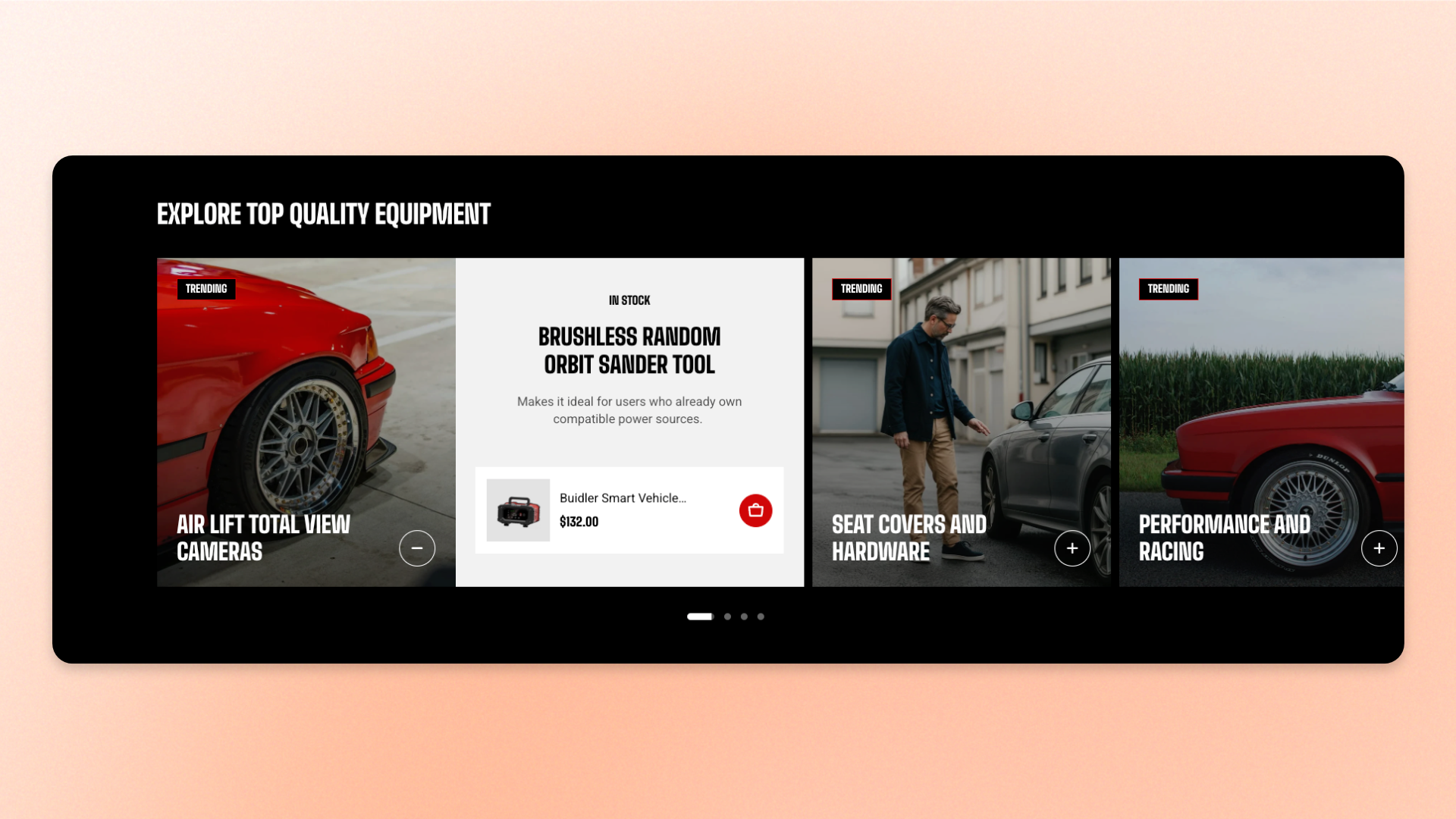
A product grid tells shoppers what you sell. This section tells them why it matters: each slide gets an image, a label, a headline, and room for a few lines of copy, so a handful of products can be presented rather than listed.
Use it for hero products, a seasonal story, or the three or four items you want shoppers to remember.
## How to customize the Product showcase carousel
1. In the theme editor (**Edit theme**), open the page where you want to display the section.
2. Click **Add section** and select **Product showcase carousel**.
3. Configure the section layout, image ratio, and carousel behavior.
4. Customize the **Header** content if needed.
5. Add, remove, or reorder **Slide** blocks, then customize the **Media** and **Content** inside each slide.
6. Click **Save**.
## Section settings
### Layout
Controls the section width and spacing between slides.
| Setting | Description | Options |
| --------------------- | --------------------------------------------------------------- | -------------------------------------------------------------------------------------------------------------------------- |
| **Container** | Controls the width of the section content. | **Full:** Uses the available page width.
**Fixed:** Keeps the content within the theme's fixed container width. |
| **Column gap** | Controls the horizontal space between slides on desktop. | **0–40px**. |
| **Column gap mobile** | Controls the horizontal space between slides on mobile devices. | **0–40px**. |
### Media
Controls the shape of slide images separately for desktop and mobile.
| Setting | Description | Options |
| ----------------------- | ------------------------------------------------------------ | ----------------------------------------------------------------------------------------------------------------------------------------------------------------------------- |
| **Aspect ratio** | Controls the aspect ratio of slide images on desktop. | **Auto:** Uses the image's original proportions.
**Square (1/1), Portrait (4/5), Portrait (3/4), Landscape (16/9),** **Landscape (21/9),** or **Landscape (4/3)**. |
| **Aspect ratio mobile** | Controls the aspect ratio of slide images on mobile devices. | **Auto**, **Square (1/1), Portrait (4/5), Portrait (3/4), Landscape (16/9), Landscape (21/9),** or **Landscape (4/3)**. |
**Best practice**: pick a fixed ratio rather than Auto. Auto follows each image, so slides shot at different shapes end up different heights and the strip loses its line. Portrait 4:5 is what the section is designed around.
### Carousel settings
Controls the carousel navigation and automatic slide rotation.
| Setting | Description | Options |
| ----------------------- | ------------------------------------------------------------------------ | ----------------------------------------------------------------------------------------------------------------------- |
| **Control type** | Controls the navigation shown for the carousel. | **None, Dots, Arrows + dots, Floating arrows,** or **Floating arrows + dots**. |
| **Control alignment** | Controls the horizontal position of the carousel controls. | **Left, Center,** or **Right**.
*Available when the selected **Control type** includes navigation controls.* |
| **Auto-rotate content** | Controls whether the carousel automatically advances to the next Slide. | **On** or **Off**. |
| **Change slides every** | Sets how long each Slide remains visible before automatically advancing. | **2–10 seconds**.
*Available when **Auto-rotate content** is turned on.* |
The controls are desktop only, and appear only when there is more than one slide. On phones shoppers swipe the strip directly. The row also loops, so it carries on from the first slide after the last.
### Appearance
Controls the color scheme, border, and corners of the section.
| Setting | Description | Options |
| ------------------ | ------------------------------------------------ | ----------------------------------------------------------------------- |
| **Color scheme** | Applies a theme color scheme to the section. | Select an available color scheme. |
| **Border** | Controls whether the section has an outline. | **None** or **Solid**. |
| **Border width** | Controls the thickness of the section border. | **0–10px**.
*Available when **Border** is set to **Solid**.* |
| **Border opacity** | Controls the opacity of the section border. | **0–100%**.
*Available when **Border** is set to **Solid**.* |
| **Corner radius** | Controls how rounded the section corners appear. | **0–32px**. |
### Padding
Controls the top and bottom spacing separately for desktop and mobile.
| Setting | Description | Options |
| ----------- | ------------------------------------------------------------- | -------------------------- |
| **Devices** | Selects which device-specific padding values you are editing. | **Desktop** or **Mobile**. |
| **Top** | Controls the space above the section content. | **0–100px**. |
| **Bottom** | Controls the space below the section content. | **0–100px**. |
Tablet and other in-between screen sizes use responsive values between the desktop and mobile settings.
## Blocks
The Product showcase carousel uses a **static Header block** for section-level content and **private Slide blocks** for the carousel items.
### Header
The **Header** block appears above the carousel.
It can't be removed or reordered, but you can customize its content by adding, removing, and arranging supported blocks inside it.
#### Header settings
| Setting | Description | Options |
| ------------- | ------------------------------------------------------------- | ------------------------------- |
| **Alignment** | Controls the horizontal alignment of the Header content. | **Left, Center,** or **Right**. |
| **Devices** | Selects which device-specific padding values you are editing. | **Desktop** or **Mobile**. |
| **Bottom** | Controls the space below the Header content. | **0–100px.** |
#### Header blocks
You can add and arrange the following theme blocks inside the Header:
* [**Button**](https://docs.foxecom.com/motrix-theme/theme-blocks/button) — Adds a call-to-action button.
* [**Heading/Subheading/Text** ](https://docs.foxecom.com/motrix-theme/theme-blocks/text)— Adds a heading, supporting text, or descriptive text.
* [**Image**](https://docs.foxecom.com/motrix-theme/theme-blocks/image) — Adds an image.
Use the Header for content that applies to the carousel as a whole, such as a section title, introduction, or call to action.
### Slide
One product in the showcase. Add a slide for each and drag them to reorder.
Controls the appearance of the individual Slide:
| Setting | Description | Options |
| ----------------- | ---------------------------------------------- | ----------- |
| **Corner radius** | Controls how rounded the Slide corners appear. | **0–32px**. |
Every slide is built from two fixed parts, which you edit but cannot remove or rearrange:
* **Media** — The slide image, with a badge and a heading laid over it.
* **Content** — The text panel: a subheading, a heading, and a paragraph, each editable as its own text block. Carries its own color scheme and spacing.
#### Slide - Media
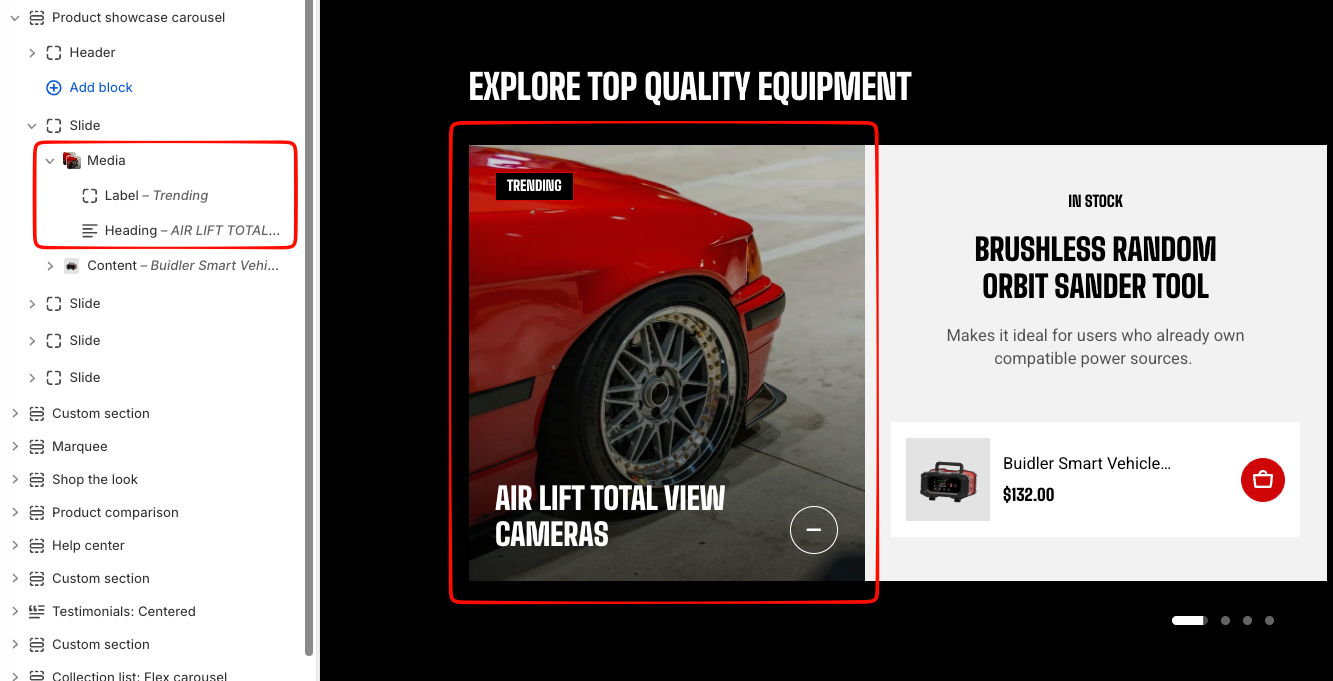
##### **Media settings**
| Setting | Description | Options |
| ---------------- | ----------------------------------------------- | ------------------------------------------------------ |
| **Image** | Sets the main image displayed in the Slide. | Select an image. |
| **Image mobile** | Sets a separate image for mobile devices. | Select an image, or leave blank to use the main image. |
| **Color scheme** | Applies a theme color scheme to the Media area. | Select an available color scheme. |
The image shape is controlled by the section-level **Aspect ratio** and **Aspect ratio mobile** settings.
##### **Media blocks**
Available blocks:
* **Label** — Adds a short piece of text to highlight information such as a category, status, or tag.
| Setting | Description | Options |
| :---------------- | ---------------------------------------------- | ------------------ |
| **Text** | Sets the text displayed in the label. | Enter custom text. |
| **Corner radius** | Controls how rounded the label corners appear. | **0–32px**. |
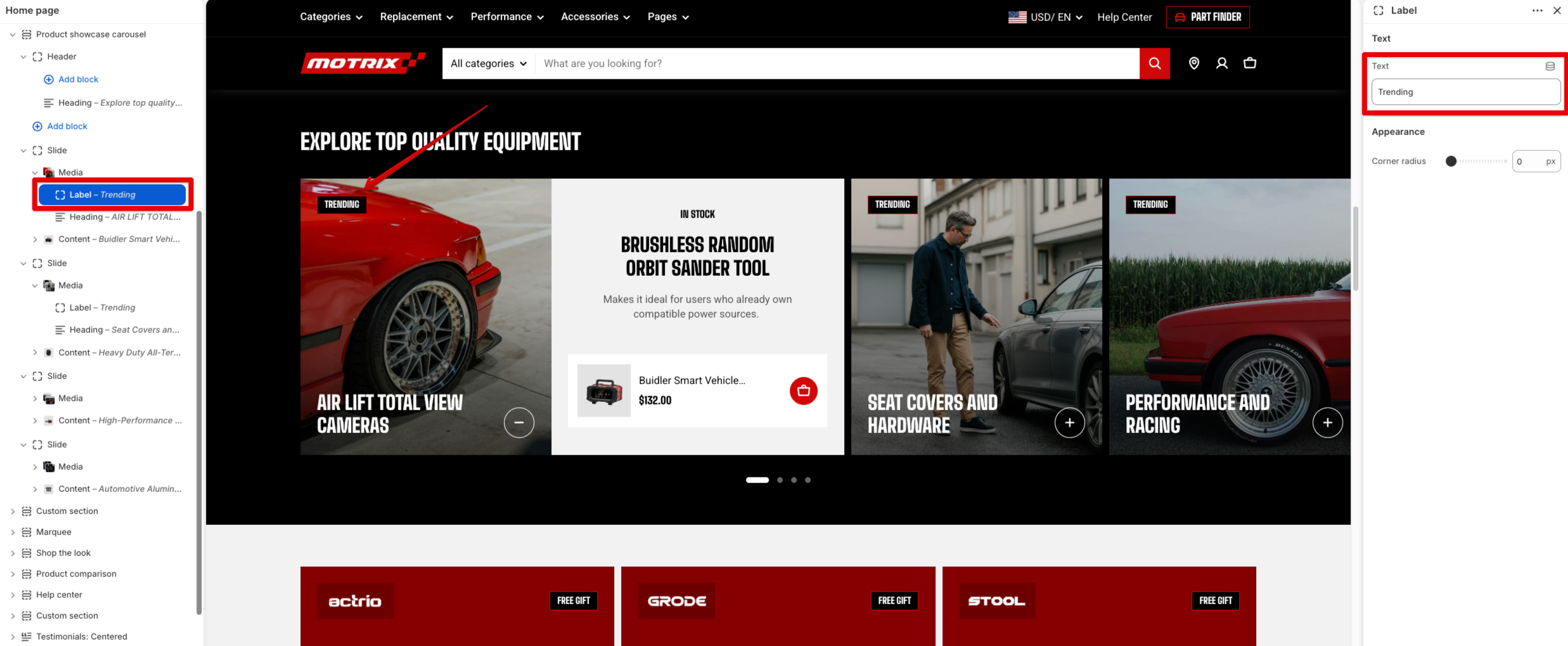
* **Heading** — Adds a prominent title to the Media area, such as the featured product name or campaign message.
For its typography, spacing, color, and animation settings, refer to the [**Text block**](https://docs.foxecom.com/motrix-theme/theme-blocks/text) documentation.
#### Slide - Content
The **Content** block is included in every Slide and can't be removed or reordered.
Use it to build the supporting information displayed alongside the Media area.
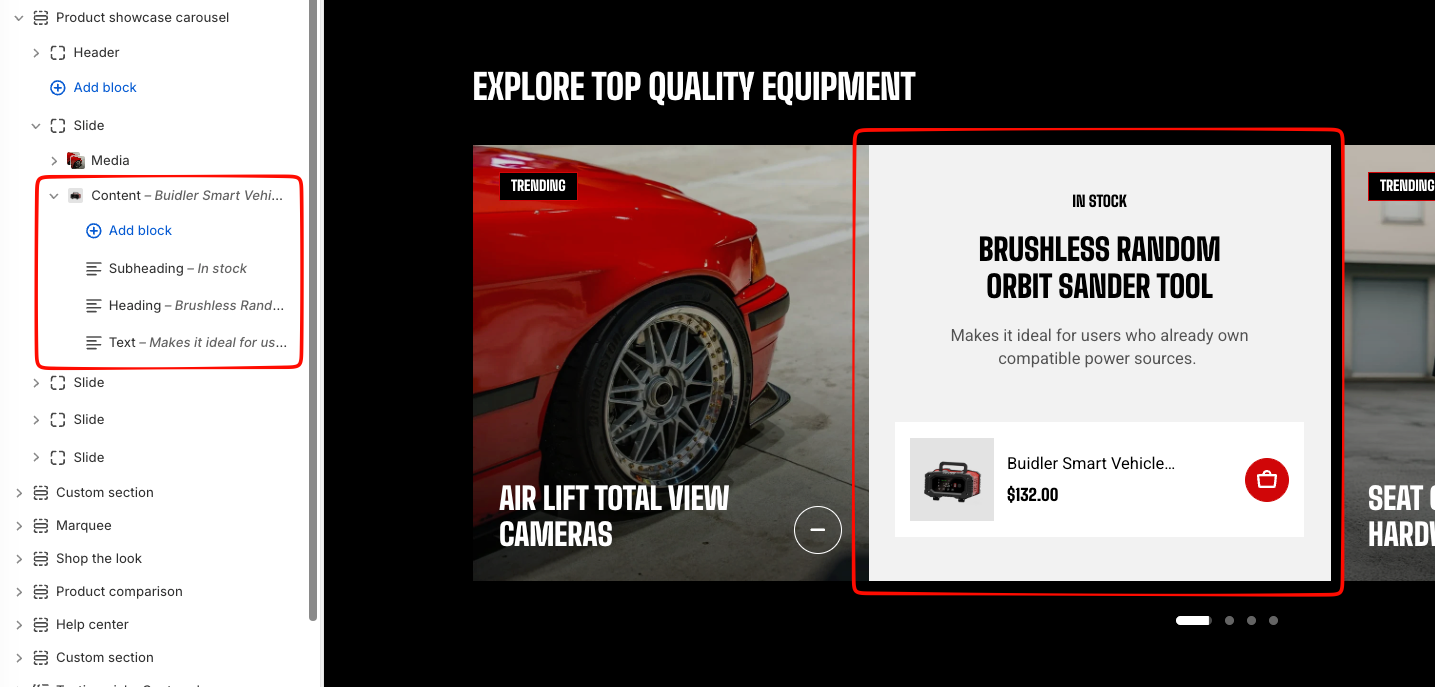
##### **Content settings**
| Setting | Description | Options |
| ------------------ | --------------------------------------------------------------------- | ------------------------------------------------- |
| **Row gap** | Controls the vertical space between content blocks on desktop. | **0–100px.** |
| **Row gap mobile** | Controls the vertical space between content blocks on mobile devices. | **0–100px.** |
| **Product** | Selects the product associated with this Slide. | Select a product from your store. |
| **Color scheme** | Applies a theme color scheme to the Content area. | Applies a theme color scheme to the Content area. |
##### **Content blocks**
You can add:
* [**Heading/Subheading/Text**](https://docs.foxecom.com/motrix-theme/theme-blocks/text) — Adds a heading, supporting text, or descriptive text.
Add, remove, or reorder these blocks to create the content for each Slide.
## FAQs
#### Why are there no arrows on my carousel?
Either there is only one slide, or you are looking at a phone. Controls appear on desktop and only when there is more than one slide to move between.
#### How many columns can I show?
There is no column setting. How many slides fit is part of the design, and adding more slides makes the strip longer rather than the slides narrower.
#### Can I link a slide to a product?
Yes, through the button on the slide. Its style is set for the whole section; its label and link belong to the slide.
#### Can I use a video instead of an image?
The slide media is an image. For a video-led story, use a section built around video instead.