# Product feature showcase
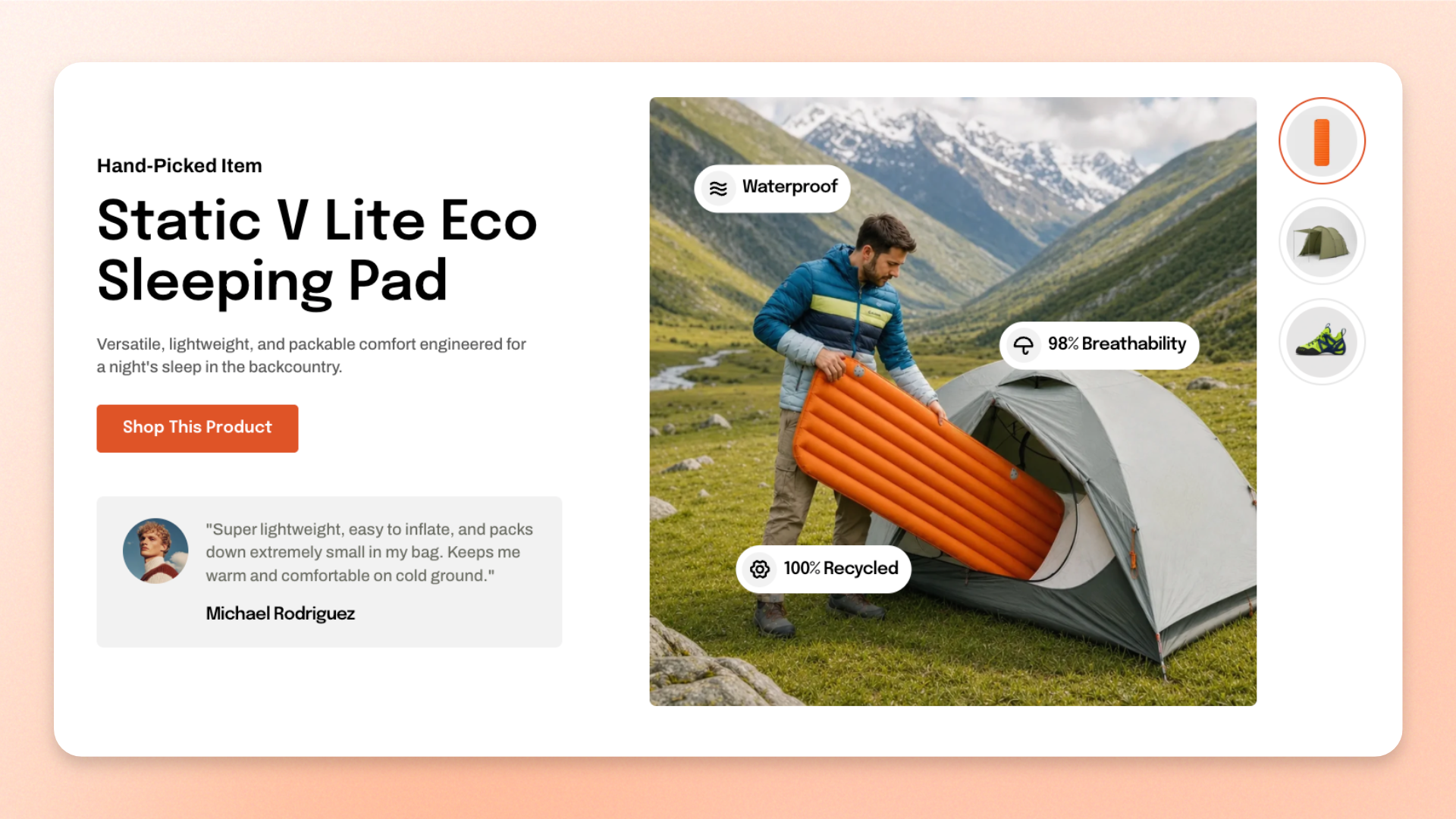
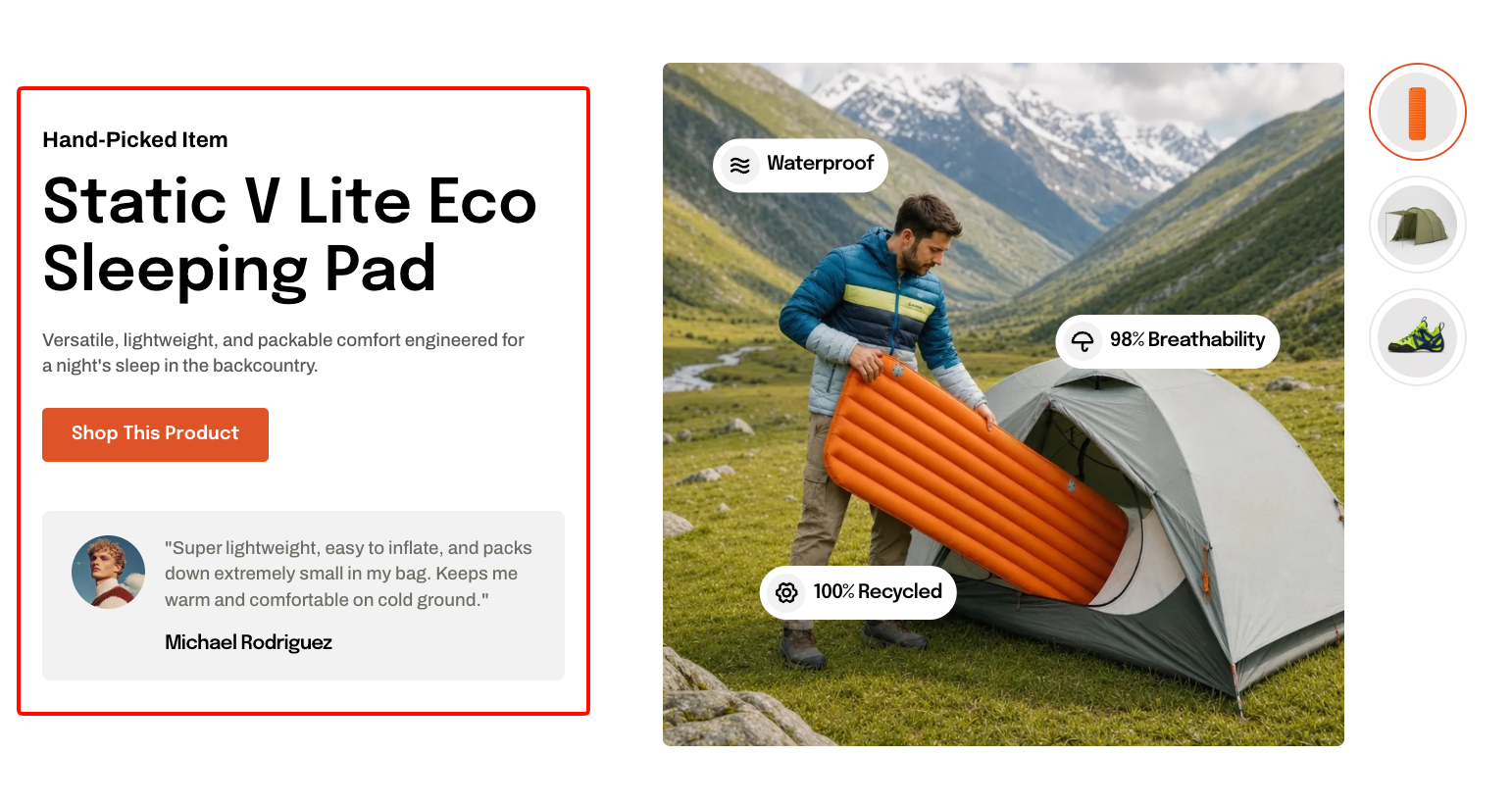
The **Product feature showcase** section highlights product features through a combination of large media, feature badges, descriptive content, and customer proof.
Each **Feature item** works as one complete product story with its own thumbnail, media, badges, content, and optional testimonial. Customers can switch between Feature items using the thumbnail triggers, and the entire panel updates together.
Use this section to explain product benefits, highlight materials or specifications, showcase key selling points, or tell a product story on a homepage, landing page, or product page.
## How to customize the Product feature showcase
1. In the theme editor (**Edit theme**), open the page where you want to display the section.
2. Click **Add section** and select **Product feature showcase**.
3. Configure the section layout, appearance, and spacing.
4. Add, remove, or reorder **Feature item** blocks.
5. For each Feature item, select its **Thumbnail**.
6. Open **Feature media** to select the main image and add **Feature badge** blocks.
7. Open **Feature content** to customize the heading, supporting text, button, and **Testimonial inline**.
8. Click **Save**.
## Section settings
### Layout
Controls the position of the media relative to the content.
| Setting | Description | Options |
| ------------------ | -------------------------------------------------------------- | ---------------------- |
| **Media position** | Controls which side of the section displays the Feature media. | **Left** or **Right**. |
### Appearance
Controls the section color scheme, border, and corners.
| Setting | Description | Options |
| ------------------ | ------------------------------------------------ | ----------------------------------------------------------------------- |
| **Color scheme** | Applies a theme color scheme to the section. | Select an available color scheme. |
| **Border** | Controls whether the section has an outline. | **None** or **Solid**. |
| **Border width** | Controls the thickness of the section border. | **0–10px**.
*Available when **Border** is set to **Solid**.* |
| **Border opacity** | Controls the opacity of the section border. | **0–100%**.
*Available when **Border** is set to **Solid**.* |
| **Corner radius** | Controls how rounded the section corners appear. | **0–32px**. |
### Padding
Controls the vertical spacing around the section separately for desktop and mobile.
| Setting | Description | Options |
| ----------- | ------------------------------------------------------------- | -------------------------- |
| **Devices** | Selects which device-specific padding values you are editing. | **Desktop** or **Mobile**. |
| **Top** | Controls the space above the section content. | **0–100px**. |
| **Bottom** | Controls the space below the section content. | **0–100px**. |
## Blocks
The **Product feature showcase** section uses repeatable **Feature item** blocks. Each Feature item represents one complete product feature story. Customers switch between Feature items using the thumbnail triggers displayed beside the showcase.
### Feature item
Each **Feature item** has its own **thumbnail** and contains **two built-in static blocks**:
* **Feature media** — Displays the main image and its Feature badges.
* **Feature content** — Displays the supporting text, button, and testimonial.
These two blocks are always present and can't be removed or reordered.
| Setting | Description | Options |
| ------------- | --------------------------------------------------------------------------- | ---------------- |
| **Thumbnail** | Selects the image displayed in the thumbnail trigger for this Feature item. | Select an image. |
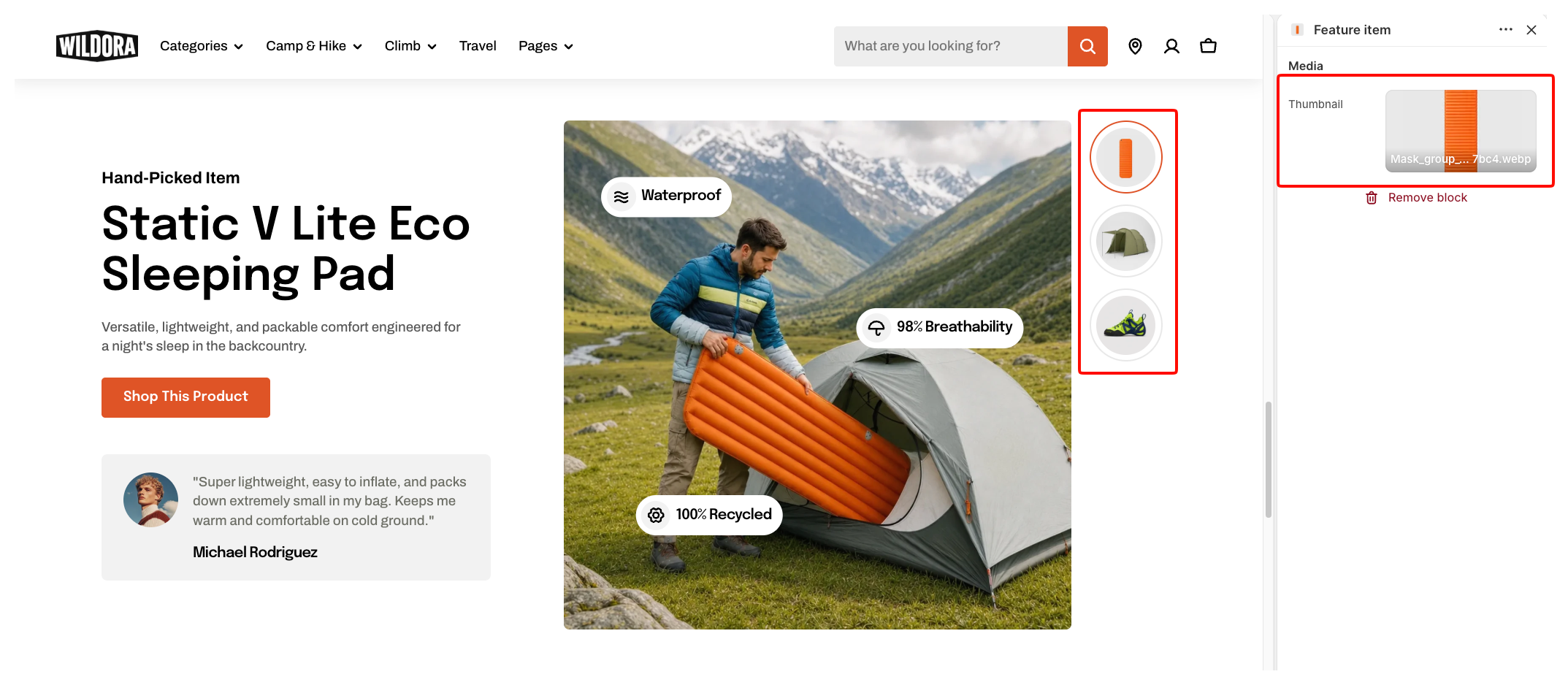
**Tip:** Use a distinct thumbnail for each Feature item so customers can quickly recognize and switch between different product stories.
### Feature item - Feature media
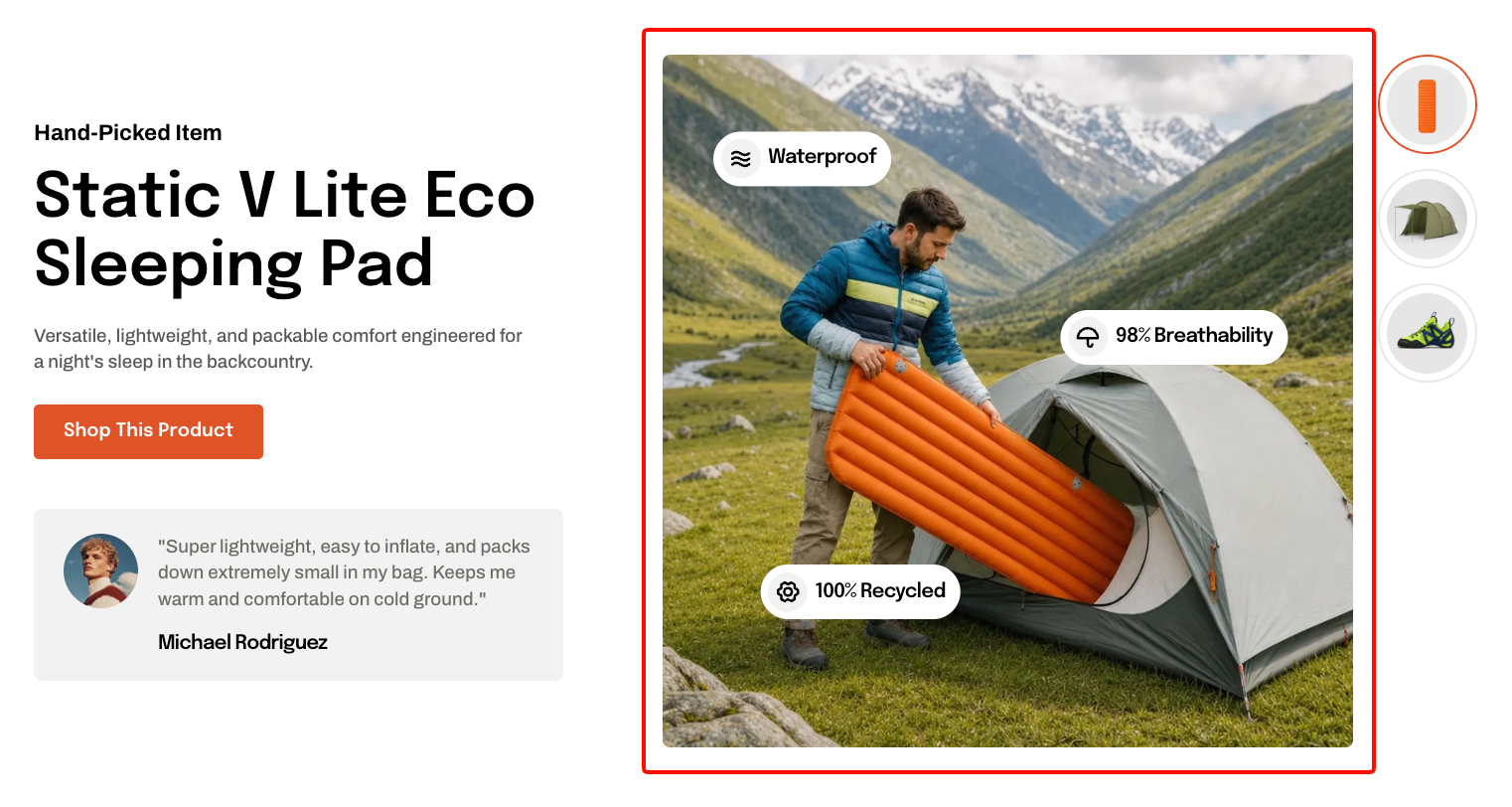
The **Feature media** block controls the main visual displayed for the Feature item.
| Setting | Description | Options |
| ------------------------ | ------------------------------------------------------------------------------------------------------ | ------------------------------------------------------------------------------------------------------------------------------------------------------------------------- |
| **Image** | Selects the main image displayed for the Feature item. | Select an image. |
| **Image mobile** | Selects a separate image for mobile devices. | Select an image, or leave blank to use the main image. |
| **Aspect ratio** | Controls the image aspect ratio on larger screens. | **Auto:** Uses the image's original proportions.
**Square (1/1), Portrait (4/5), Portrait (3/4), Landscape (16/9), Landscape (21/9),** or **Landscape (4/3)**. |
| **Aspect ratio mobile** | Controls the image aspect ratio on mobile devices. | **Auto, Square (1/1), Portrait (4/5), Portrait (3/4), Landscape (16/9), Landscape (21/9),** or **Landscape (4/3)**. |
| **Corner radius** | Controls how rounded the media corners appear. | **0–32px.** |
| **Enable preload image** | Preloads the Feature media image when the section is visible on initial page load to help improve LCP. | **On** or **Off**. |
Use the same aspect ratio across Feature items to keep the layout consistent when customers switch between them.
Use **Enable preload image** only when the Product feature showcase is visible when the page first loads. Avoid enabling it when the section appears further down the page.
The Feature media block supports repeatable **Feature badge** blocks.
#### Feature badge
A **Feature badge** displays an icon and short text label over the Feature media.
Use Feature badges to call out product specifications, materials, benefits, certifications, or other key details such as **Waterproof**, **98% Breathability**, or **100% Recycled**.
You can add, remove, and reorder **Feature badges** inside each **Feature media** block.
| Setting | Description | Options |
| ----------------------- | -------------------------------------------------------------------------------------------------- | -------------------------------------------------------------------------------- |
| **Icon** | Selects the built-in icon displayed in the Feature badge. | Select an available icon. |
| **Image icon** | Selects a custom image to use as the badge icon. | Select an image. |
| **Text** | Sets the label displayed inside the Feature badge. | Enter custom text or connect a dynamic source. |
| **Color scheme** | Applies a theme color scheme to the Feature badge. | Select an available color scheme. |
| **Type** | Controls the entrance animation applied to the Feature badge when its Feature item becomes active. | **None, Fade in, Fade up, Fade down, Slide in (left),** or **Slide in (right)**. |
| **Delay (ms)** | Delays the start of the badge animation. | **0–2000ms.**
*Available when **Type** is not set to **None**.* |
| **Devices** | Selects which device-specific position values you are editing. | **Desktop** or **Mobile**. |
| **Horizontal position** | Controls the badge position from left to right over the media. | **0–100%.** |
| **Vertical position** | Controls the badge position from top to bottom over the media. | **0–100%.** |
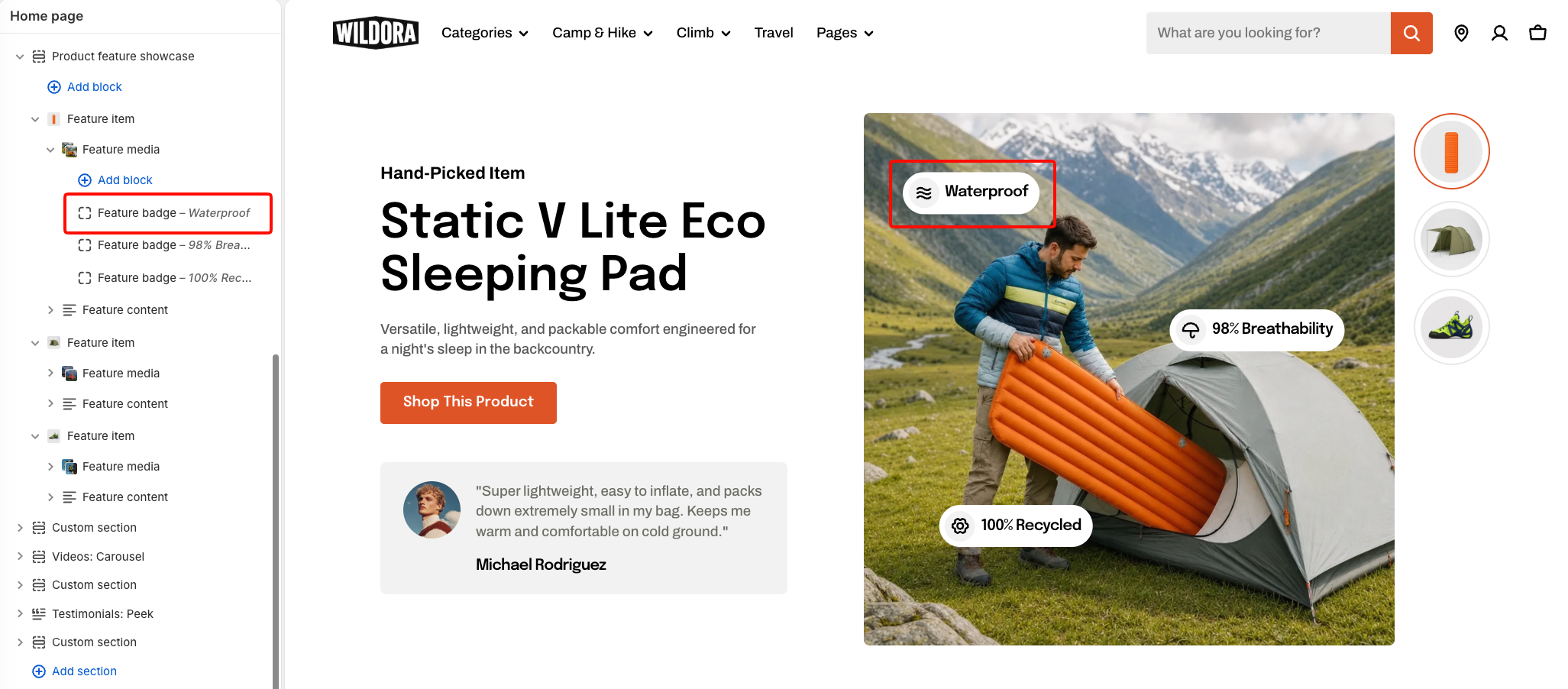
Keep Feature badge labels short so they remain easy to scan and fit naturally over the media.
### Feature item - Feature content
The **Feature content** block contains the supporting content displayed beside the Feature media.
| Setting | Description | Options |
| ------------------ | --------------------------------------------------------------------- | ------------ |
| **Row gap** | Controls the vertical space between content groups on larger screens. | **0–100px.** |
| **Row gap mobile** | Controls the vertical space between content groups on mobile devices. | **0–100px.** |
It includes **five built-in static blocks**. These blocks are always present and can't be removed or reordered, but you can customize their content and settings.
The built-in static blocks are:
* [**Heading/Subheading/Text**](https://docs.foxecom.com/motrix-theme/theme-blocks/text) — Adds the heading, supporting text, or product description.
* [**Button**](https://docs.foxecom.com/motrix-theme/theme-blocks/button) — Adds a call-to-action button.
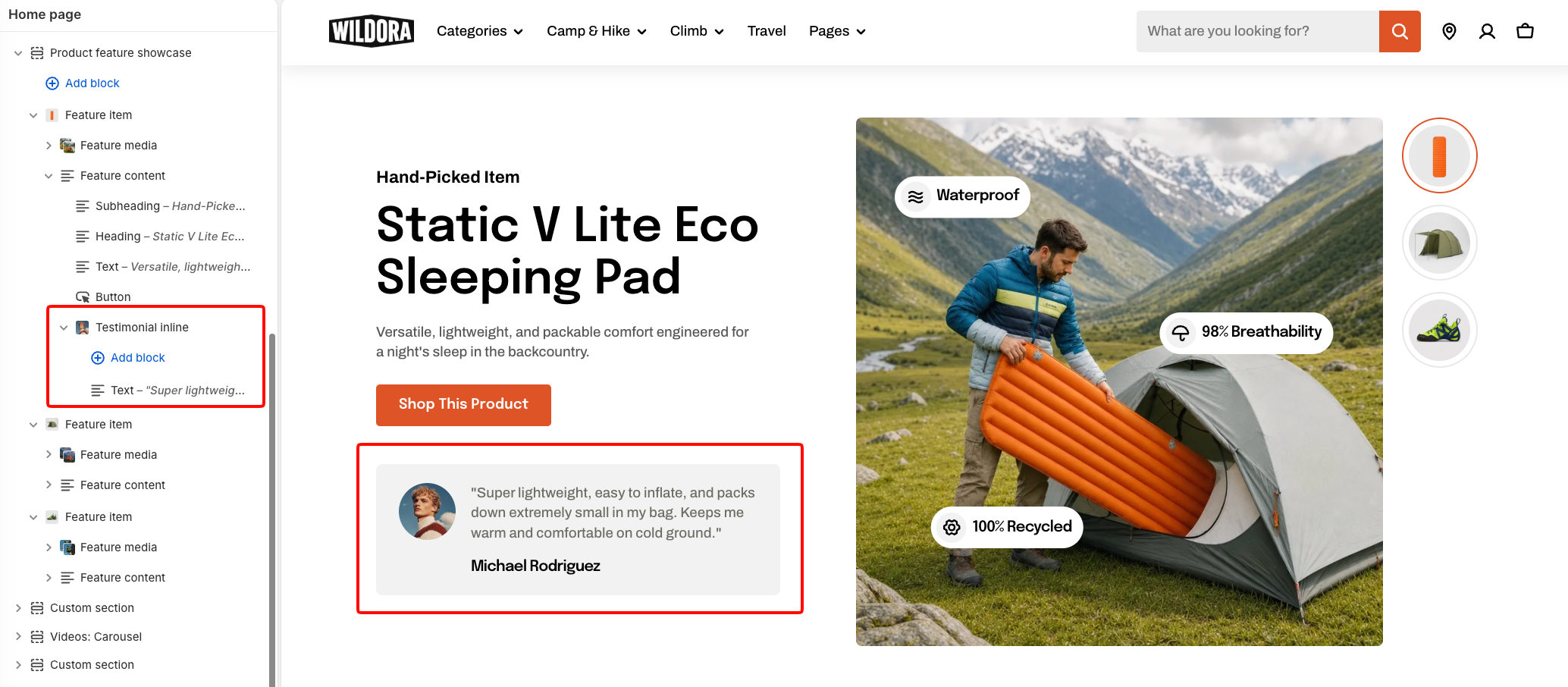
* **Testimonial inline** — Adds a compact customer testimonial below the main content.
#### Testimonial inline
The **Testimonial inline** block displays a compact customer testimonial inside the Feature content.
It can include testimonial content, an avatar, customer name, supporting bio information, its own appearance, and entrance animation.
| Setting | Description | Options |
| ------------------------ | ------------------------------------------------------------------------------------------------ | ----------------------------------------------------------------------------------------------------- |
| **Row gap** | Controls the vertical space between blocks inside the testimonial on larger screens. | **0–60px.** |
| **Row gap mobile** | Controls the vertical space between testimonial blocks on mobile devices. | **0–60px.** |
| **Image** | Selects the customer's avatar image. | Select an image. |
| **Width** | Controls the avatar width on larger screens. | **30–100px.** |
| **Width mobile** | Controls the avatar width on mobile devices. | **30–100px.** |
| **Text** | Sets the customer's name. | Enter custom text or connect a dynamic source. |
| **Preset** | Controls the heading style used for the customer name. | **Heading 5** or **Heading 6**. |
| **Icon** | Selects the icon displayed before the Bio text. | Select an available icon. |
| **Color** | Sets a custom color for the Bio icon. | Select a color, or leave blank to use the default. |
| **Text** | Sets the supporting customer information. | Enter custom text or connect a dynamic source. |
| **Color** | Controls the theme text color used for the Bio text. | **Text** or **Subtext**. |
| **Inherit color scheme** | Uses the surrounding section's color scheme for the testimonial. | **On** or **Off**. |
| **Color scheme** | Applies a separate theme color scheme to the testimonial. | Select an available color scheme.
*Available when **Inherit color scheme** is turned off.* |
| **Corner radius** | Controls how rounded the testimonial corners appear. | **0–32px.**
*Available when **Inherit color scheme** is turned off.* |
| **Type** | Controls the entrance animation applied to the testimonial when its Feature item becomes active. | **None, Fade in, Fade up, Fade down, Slide in (left),** or **Slide in (right)**. |
| **Delay (ms)** | Delays the start of the testimonial animation. | **0–2000ms.**
*Available when **Type** is not set to **None**.* |
Use the Bio settings for supporting customer information such as a role, location, or **Verified Buyer** label.
You can add and arrange the following theme blocks inside **Testimonial inline**:
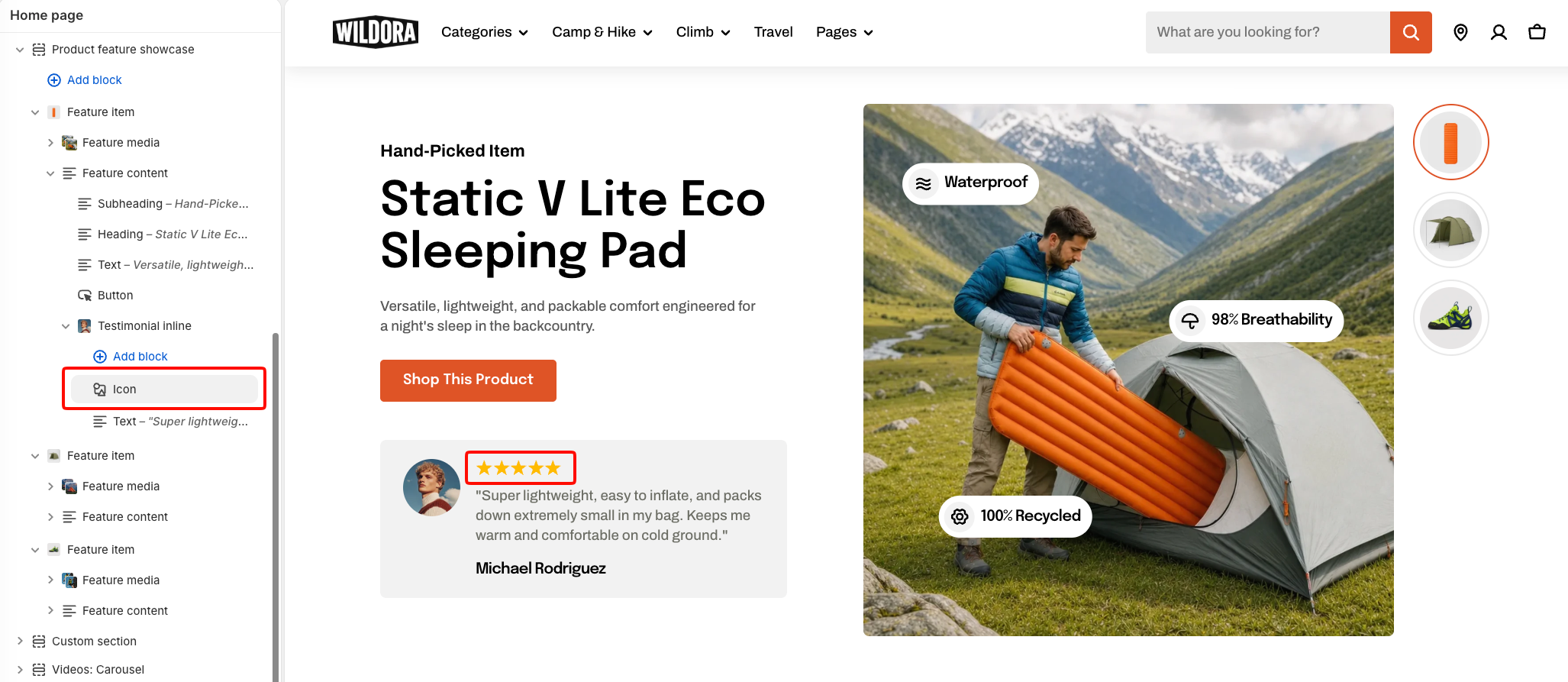
* **Icon** — Adds an icon or rating.
| Setting | Description | Options |
| --------- | -------------------------------------------------------------- | ------------------------------------------------------ |
| **Icon** | Sets the number of stars displayed for the testimonial rating. | **1 star, 2 stars, 3 stars, 4 stars,** or **5 stars**. |
| **Color** | Sets the color of the star rating. | Select a color. |
* [**Heading/Subheading/Text**](https://docs.foxecom.com/motrix-theme/theme-blocks/text) — Adds testimonial content, such as a review title, supporting message, customer quote, or descriptive text.
For example: You can combine an **Icon** set to a 5-star rating with a short heading and the customer's full review underneath.
## FAQs
#### How do customers switch between Feature items?
Each Feature item has its own Thumbnail displayed beside the showcase.When a customer selects a thumbnail, the corresponding Feature item's Feature media, Feature badges, Feature content, and testimonial are shown together.
#### Why do I only see one feature panel?
Each **Feature item** creates one product feature panel. If the section contains only one Feature item, customers see only that panel. Add additional Feature items to let customers switch between multiple product stories.
#### Do Feature badges belong to the whole section or to an individual Feature item?
Feature badges belong to the **Feature media** inside a specific Feature item. When customers switch Feature items, that item's media and Feature badges change together with its content.
#### Why does the layout shift when I switch between Feature items?
Different image aspect ratios or significantly different amounts of content can change the height of each Feature item. For a more consistent layout, use the same **Aspect ratio** across Feature items and keep the amount of content relatively balanced.