# Product bundle: Gradation
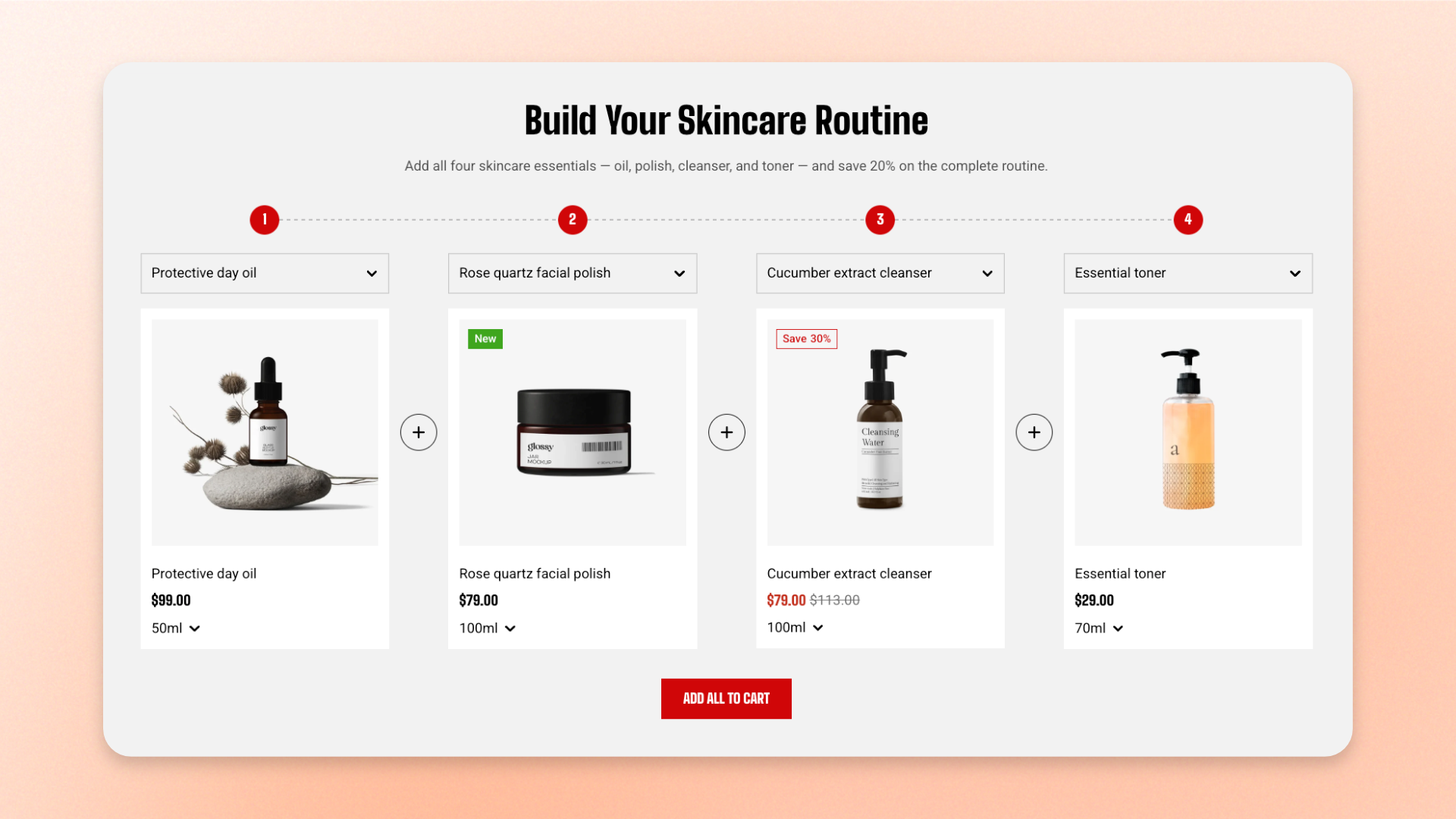
The **Product bundle: Gradation** section presents a bundle as a sequence of product steps, such as 1 + 2 + 3 + 4. Each step displays one product, helping customers understand how the products work together as part of a routine, kit, or set.
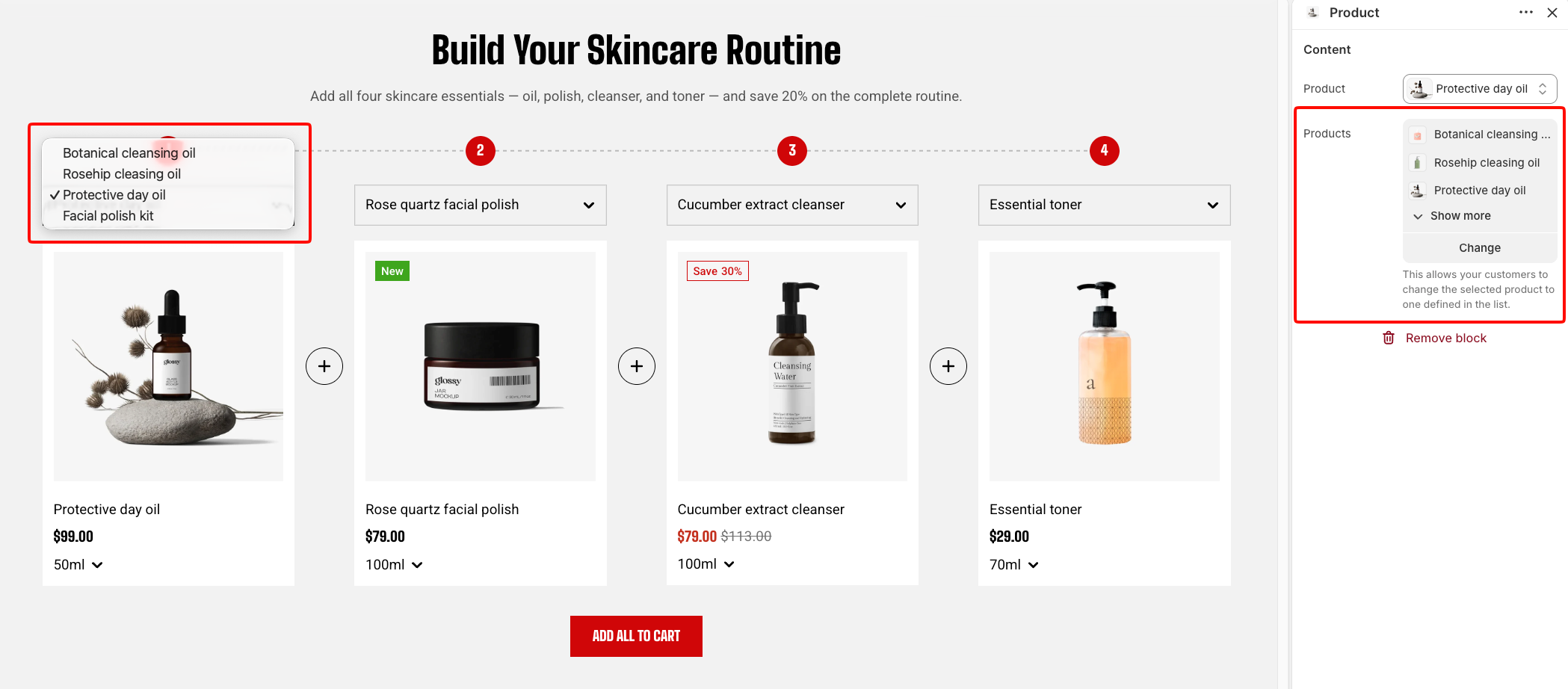
Each step can also include alternative products that customers can switch between directly in the section. When ready, customers can use **Add all to cart** to add the product currently selected in every step at once.
## How is this different from Product bundle: Choose?
## How to customize the Product bundle: Gradation
1. In the theme editor (**Edit theme**), open the page where you want to display the section.
2. Click **Add section** and select **Product bundle: Gradation**.
3. Add a **Product** block for each bundle step and select the product for that step.
4. Add alternative products to a step if you want customers to switch between options.
5. Configure the layout, mobile display, appearance, and spacing.
6. Customize the section header if needed.
7. Click **Save**.
The section presents the bundle and adds it to the cart. It does not discount anything — if you are promising a saving for buying the set, create an automatic discount in Shopify admin > Discounts to match.
## Section settings
### Layout
Controls how the bundle steps are arranged on larger screens.
| Setting | Description | Options |
| ----------------------- | -------------------------------------------------------------------------------------------------------------------------------------------------------------------- | -------------------------------------------------------------------------------------------------------------------------- |
| **Container** | Controls the width of the section content. | **Full:** Uses the available page width.
**Fixed:** Keeps the content within the theme's fixed container width. |
| **Columns** | Sets the number of steps displayed across a row on larger screens. If there are more steps than visible columns, customers can navigate through the remaining steps. | **2–6 columns.** |
| **Horizontal** | Controls the horizontal space between steps. | **0–100px.** |
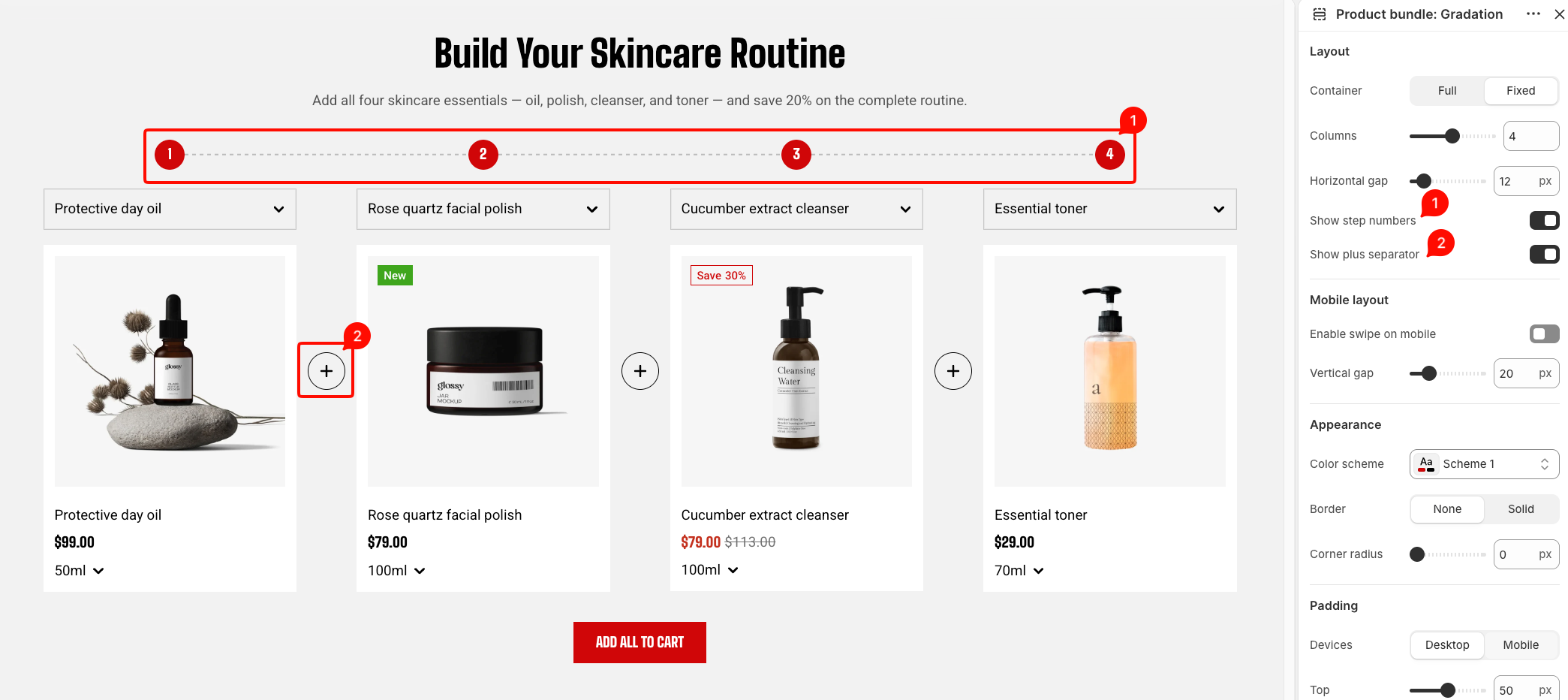
| **Show step numbers** | Displays a numbered badge above each step. | **On** or **Off**. |
| **Show plus separator** | Displays a + symbol between steps to visually connect them as one bundle. | **On** or **Off**. |
The plus sign lives in the gap between steps, so turning it on widens that gap to make room. Expect the row to loosen up when you switch it on, and tighten when you switch it off.
### Mobile layout
Controls how the bundle steps are displayed on mobile devices.
| Setting | Description | Options |
| -------------------------- | ------------------------------------------------------------------------------------------------------ | ------------------------------------------------------------------------------------------------------------- |
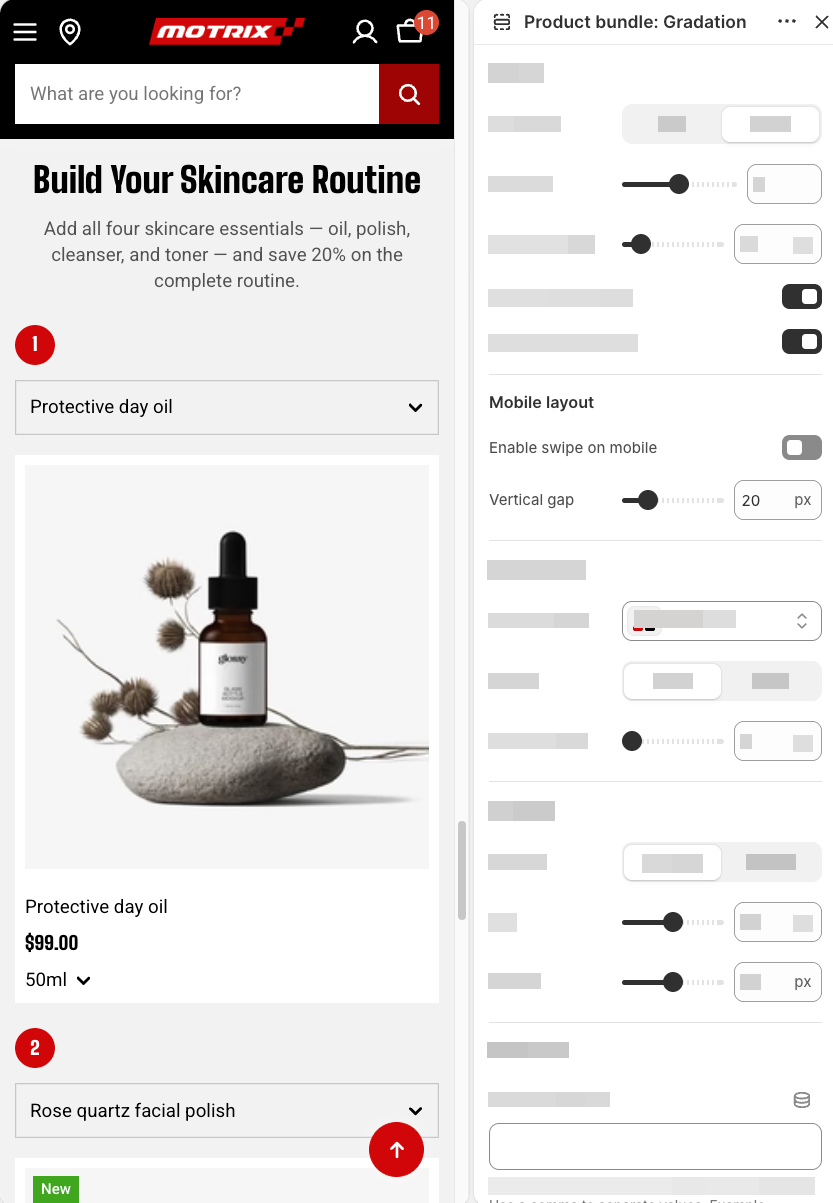
| **Enable swipe on mobile** | Controls whether customers can swipe horizontally through bundle steps on mobile. | **On** or **Off**. |
| **Custom column width** | Lets you manually control the width of each step card on mobile. | **On** or **Off**.
*Available when **Enable swipe on mobile** is turned on.* |
| **Custom width** | Sets the width of each step on mobile. | **20–90%**.
*Available when **Enable swipe on mobile** and **Custom column width** are turned on.* |
| **Mobile columns** | Sets the number of steps displayed per row on mobile. Customers can swipe through the remaining steps. | **1 column** or **2 columns**.
*Available when **Custom column width** is turned off.* |
| **Horizontal gap** | Controls the horizontal space between steps on mobile. | **0–100px**. |
| **Vertical gap** | Controls the vertical space between rows of steps on mobile. | **0–100px**.
*Available when **Enable swipe on mobile** is turned off.* |
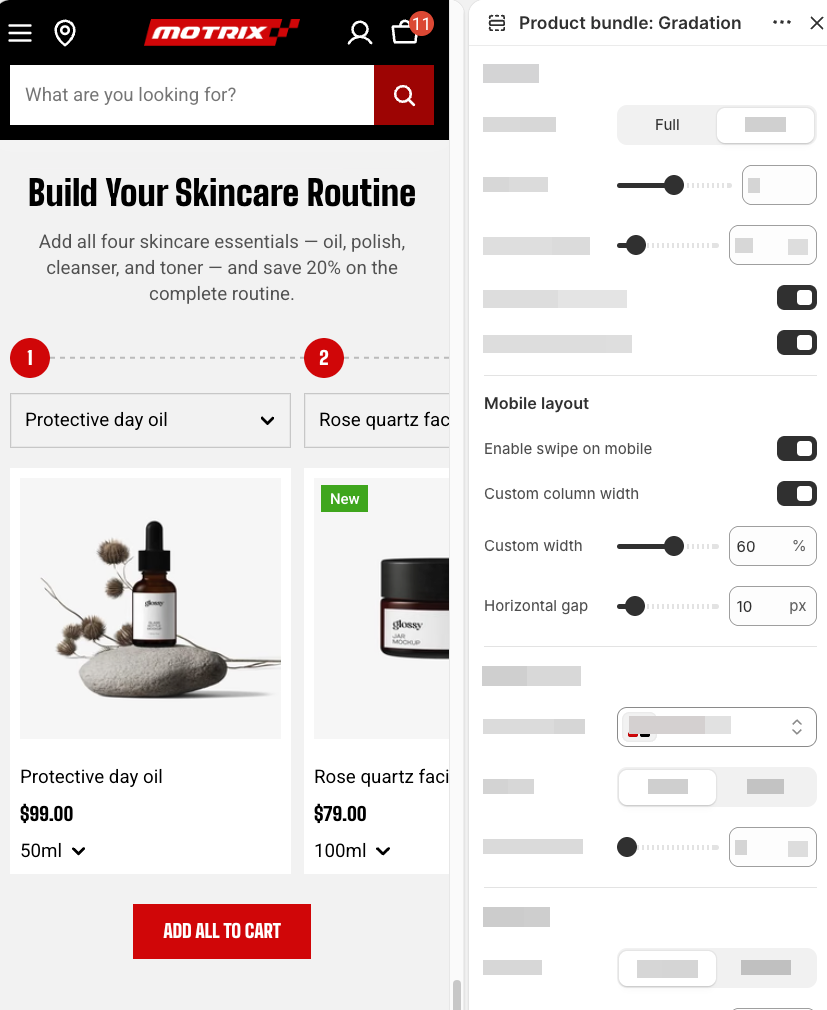
 **Best practice**: the 42% default is deliberate — it puts two steps and the plus between them on screen at once, which is what keeps the bundle reading as a set rather than a list. Going above 60% loses that.
### Appearance
Controls the color scheme, border, and corners of the section.
**Best practice**: the 42% default is deliberate — it puts two steps and the plus between them on screen at once, which is what keeps the bundle reading as a set rather than a list. Going above 60% loses that.
### Appearance
Controls the color scheme, border, and corners of the section.
| Setting | Description | Options |
| ------------------ | ------------------------------------------------ | ----------------------------------------------------------------------- |
| **Color scheme** | Applies a theme color scheme to the section. | Select an available color scheme. |
| **Border** | Controls whether the section has an outline. | **None** or **Solid**. |
| **Border width** | Controls the thickness of the section border. | **0–10px.**
*Available when **Border** is set to **Solid**.* |
| **Border opacity** | Controls the opacity of the section border. | **0–100%.**
*Available when **Border** is set to **Solid**.* |
| **Corner radius** | Controls how rounded the section corners appear. | **0–32px.** |
### Padding
Controls the spacing around the section separately for desktop and mobile.
| Setting | Description | Options |
| ----------- | ------------------------------------------------------------------------- | -------------------------------------------------------------------------- |
| **Devices** | Selects which device-specific padding values you are editing. | **Desktop** or **Mobile**. |
| **Top** | Controls the space above the section content. | **0–100px**. |
| **Bottom** | Controls the space below the section content. | **0–100px**. |
| **Left** | Controls the space between the content and the left edge of the section. | **0–100px**.
*Available when **Container** is set to **Full**.* |
| **Right** | Controls the space between the content and the right edge of the section. | **0–100px**.
*Available when **Container** is set to **Full**.* |
### Advanced
#### Custom columns
Use **Custom columns** when you need more control over the number of steps displayed at different screen sizes.
| Setting | Description | Options |
| ------------------ | -------------------------------------------------------------------- | --------------------------------------------------------------------- |
| **Custom columns** | Overrides the number of columns displayed at different screen sizes. | Enter values using `breakpoint:number` and separate them with commas. |
For example:
```
mb:1,md:2,lg:3,xl:4,xxl:5
```
Use this option only when the standard **Columns** and mobile layout settings do not provide the layout you need.
## Blocks
The **Product bundle: Gradation** section includes a built-in static **Header** block followed by repeatable **Product** blocks.
The **Header** is part of the section structure and can't be removed or reordered. **Product** blocks can be added, removed, or reordered to build the bundle steps.
### Header
Use the **Header** block to build the introductory content displayed above the bundle steps.
It can't be removed or reordered, but you can customize its content by adding, removing, and arranging supported blocks inside it.
#### Header settings
| Setting | Description | Options |
| ------------- | ------------------------------------------------------------- | ------------------------------- |
| **Alignment** | Controls the horizontal alignment of the Header content. | **Left, Center,** or **Right**. |
| **Devices** | Selects which device-specific padding values you are editing. | **Desktop** or **Mobile**. |
| **Bottom** | Controls the space below the Header content. | **0–100px.** |
#### Header blocks
You can add and arrange the following theme blocks inside the Header:
* [**Image**](https://docs.foxecom.com/motrix-theme/theme-blocks/image) — Adds an image to the header content.
* [**Heading/Subheading/Text**](https://docs.foxecom.com/motrix-theme/theme-blocks/text) — Adds a heading, supporting text, or descriptive text.
* [**Button**](https://docs.foxecom.com/motrix-theme/theme-blocks/button) — Adds a call-to-action button.
### Product
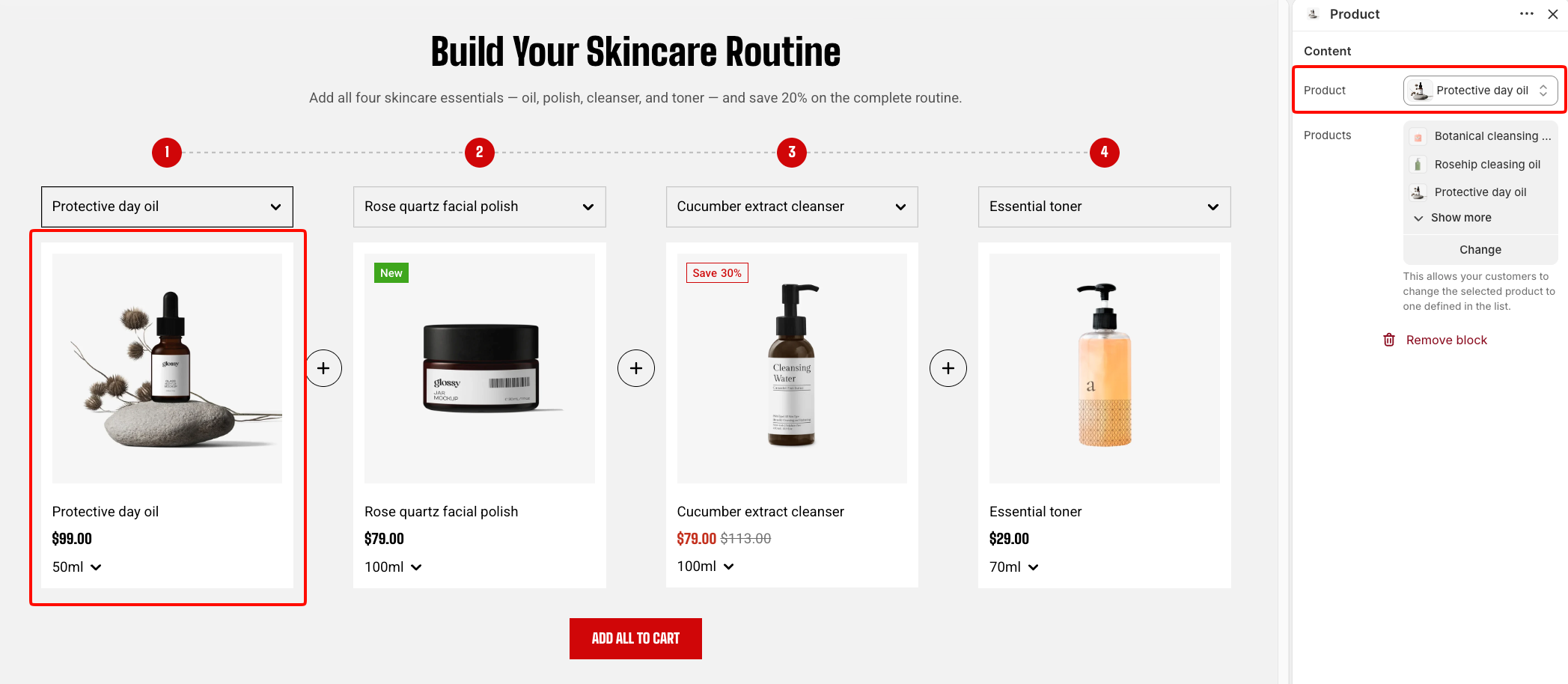
Each **Product** block represents one step in the bundle.
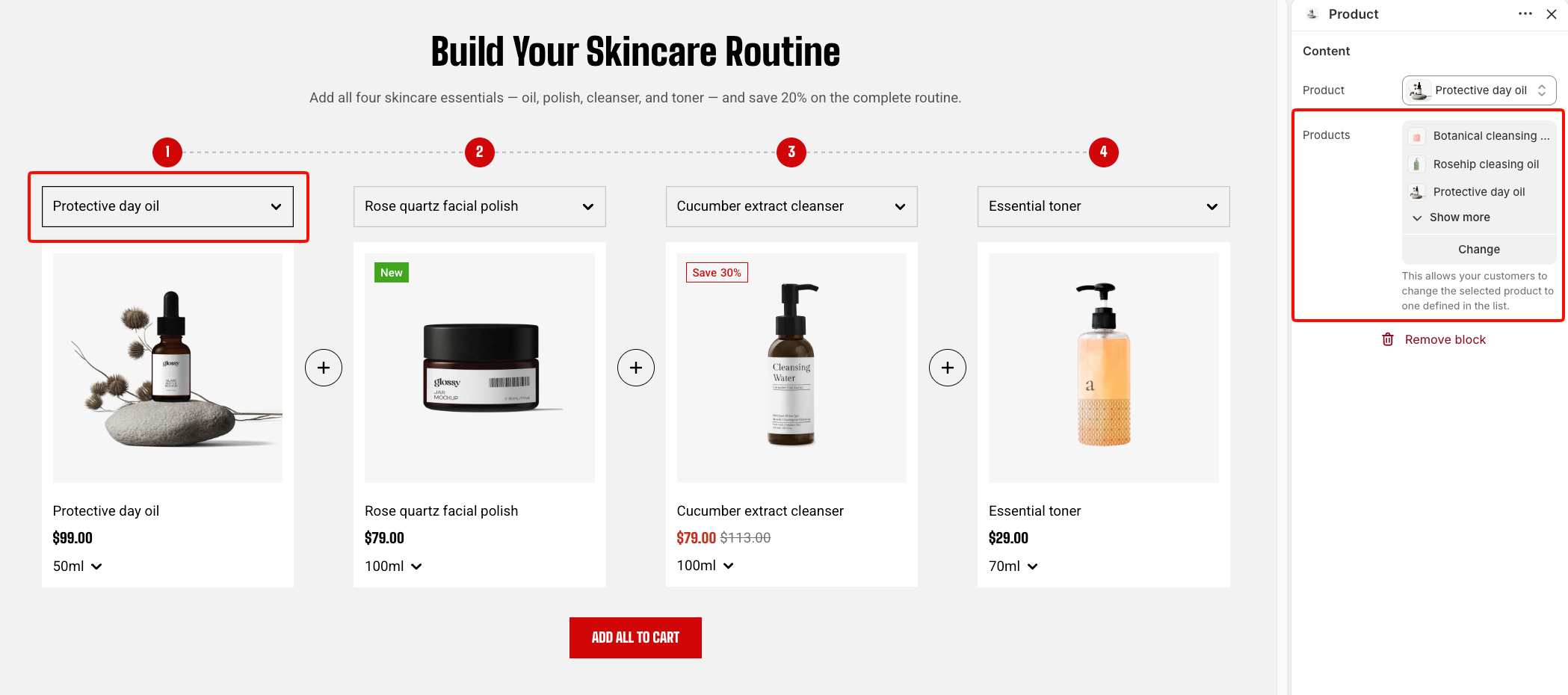
Select the default product for the step, then optionally select alternative products that customers can switch between without leaving the section.
| Setting | Description | Options |
| ------------ | ----------------------------------------------------------------------- | ---------------------------- |
| **Product** | Selects the default product displayed for this step. | Select a product. |
| **Products** | Selects the alternative products customers can switch to for this step. | Select one or more products. |
**Tips:** Order the steps the way a customer would think about the purchase — the main item first, then what goes with it. The numbering makes that order look intentional, so an arbitrary one is noticeable.
## FAQs
#### **What happens if one of the products is out of stock?**
If one of the products currently selected in the bundle is out of stock, customers can still view and interact with the section, but **Add all to cart will not complete the bundle**. When customers click **Add all to cart**, the section checks the availability of every selected product. If an item is unavailable:
* The products are not added as a complete bundle.
* An error message appears below the button and identifies the product that is sold out.
* If that step includes alternative products, the customer can switch to an available option and try **Add all to cart** again.
* If no alternative is available, the bundle cannot be added until that product is back in stock or you replace it with another available product in the theme editor.
 #### Is the discount applied automatically?
No. The section adds the products to the cart at their normal prices. Any saving has to be set up as an automatic discount in Shopify admin. Learn more about [Shopify Discounts](https://help.shopify.com/en/manual/discounts)
#### What does Add all to cart add?
Add all to cart adds the product currently selected in every step. If a customer switches one or more steps to alternative products, those selected alternatives are added instead of the original products.
#### Can shoppers swap a product for a different one?
That depends on how you configure each step. A step set to one product is fixed; a step offering a choice lets the shopper switch what fills it.
#### Is the discount applied automatically?
No. The section adds the products to the cart at their normal prices. Any saving has to be set up as an automatic discount in Shopify admin. Learn more about [Shopify Discounts](https://help.shopify.com/en/manual/discounts)
#### What does Add all to cart add?
Add all to cart adds the product currently selected in every step. If a customer switches one or more steps to alternative products, those selected alternatives are added instead of the original products.
#### Can shoppers swap a product for a different one?
That depends on how you configure each step. A step set to one product is fixed; a step offering a choice lets the shopper switch what fills it.