# Product bundle: Choose
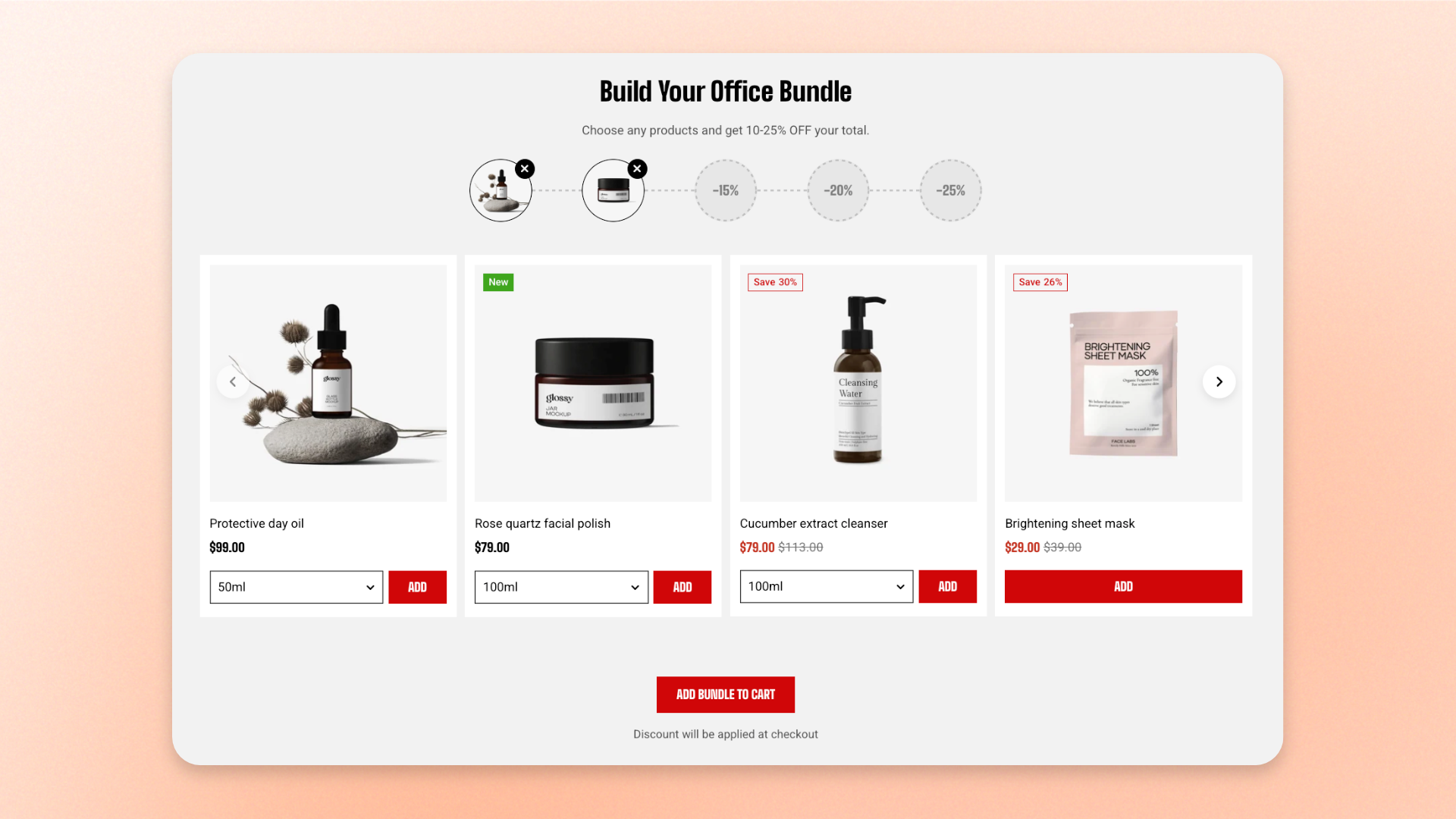
The **Product bundle: Choose** section lets customers build their own from products you have chosen, and rewards them for adding more. It suits ranges where the items are interchangeable — skincare, coffee, snacks, desk accessories — and turns a single purchase into three or four.
## How it works for shoppers
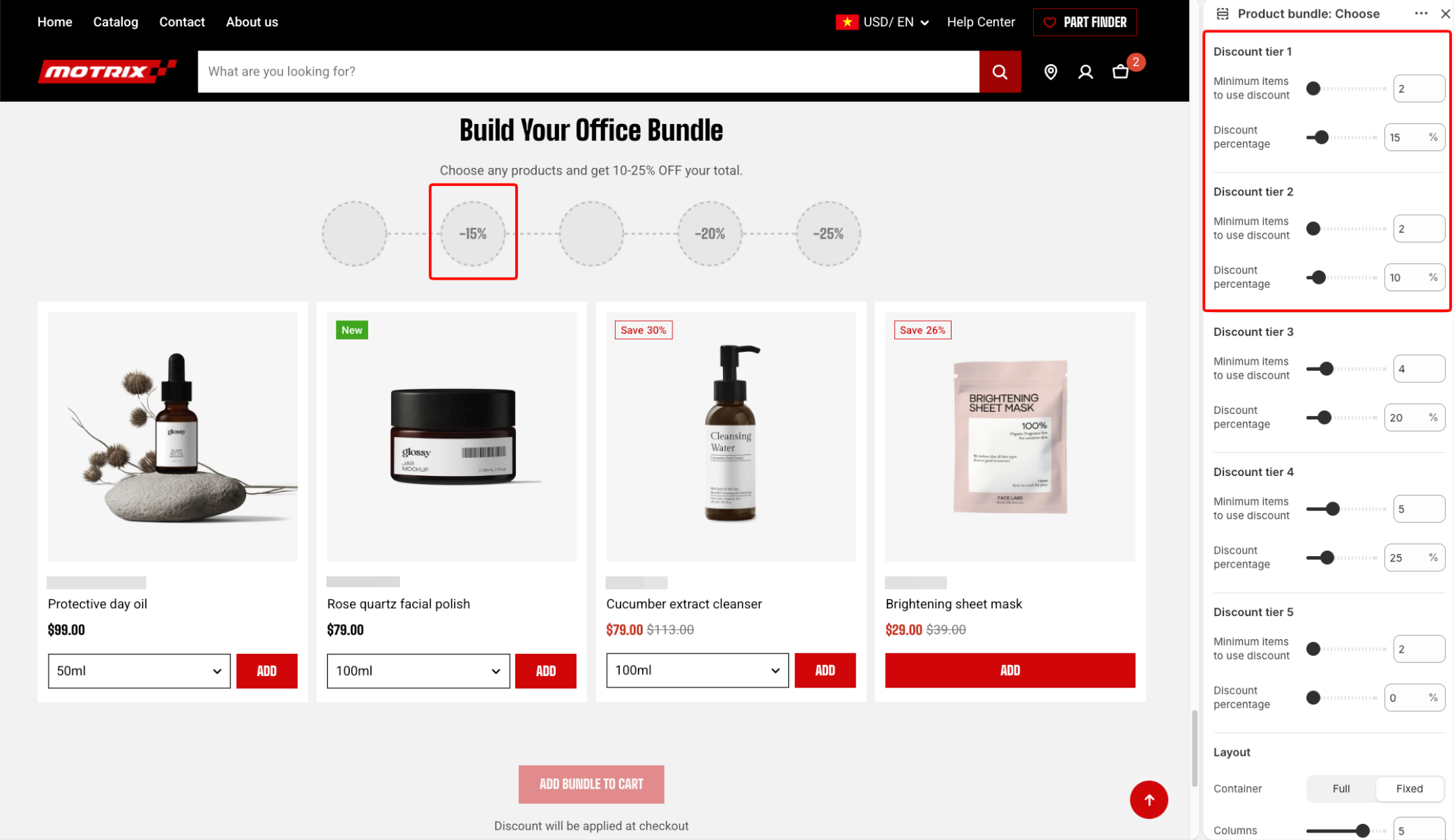
One per item the bundle can hold, with the discount marked on the slot that unlocks it.
Each one fills the next slot, and can be removed from the slot again.
The button stays disabled until they reach the first discount tier, then adds everything at once.
The tiers here are display only. They tell shoppers what they will save; they do not reduce anything. Create a matching automatic discount in Shopify admin > [Discounts](https://help.shopify.com/en/manual/discounts), or customers will see a saving that never arrives at checkout.
## How to customize the Product bundle: Choose
1. In the theme editor (**Edit theme**), open the page where you want to display the section.
2. Click **Add section** and select **Product bundle: Choose**.
3. Select the products customers can choose from and set the maximum number of items.
4. Configure the discount tiers if needed.
5. Customize the layout, product cards, mobile display, and appearance.
6. Customize the section header if needed.
7. Click **Save**.
## Section settings
### Content
Controls which products customers can choose and how many can be added to the bundle.
| Setting | Description | Options |
| ------------------------------ | ------------------------------------------------------------------------- | ----------------------------- |
| **Products** | Selects the products customers can choose from. | Select up to **12 products**. |
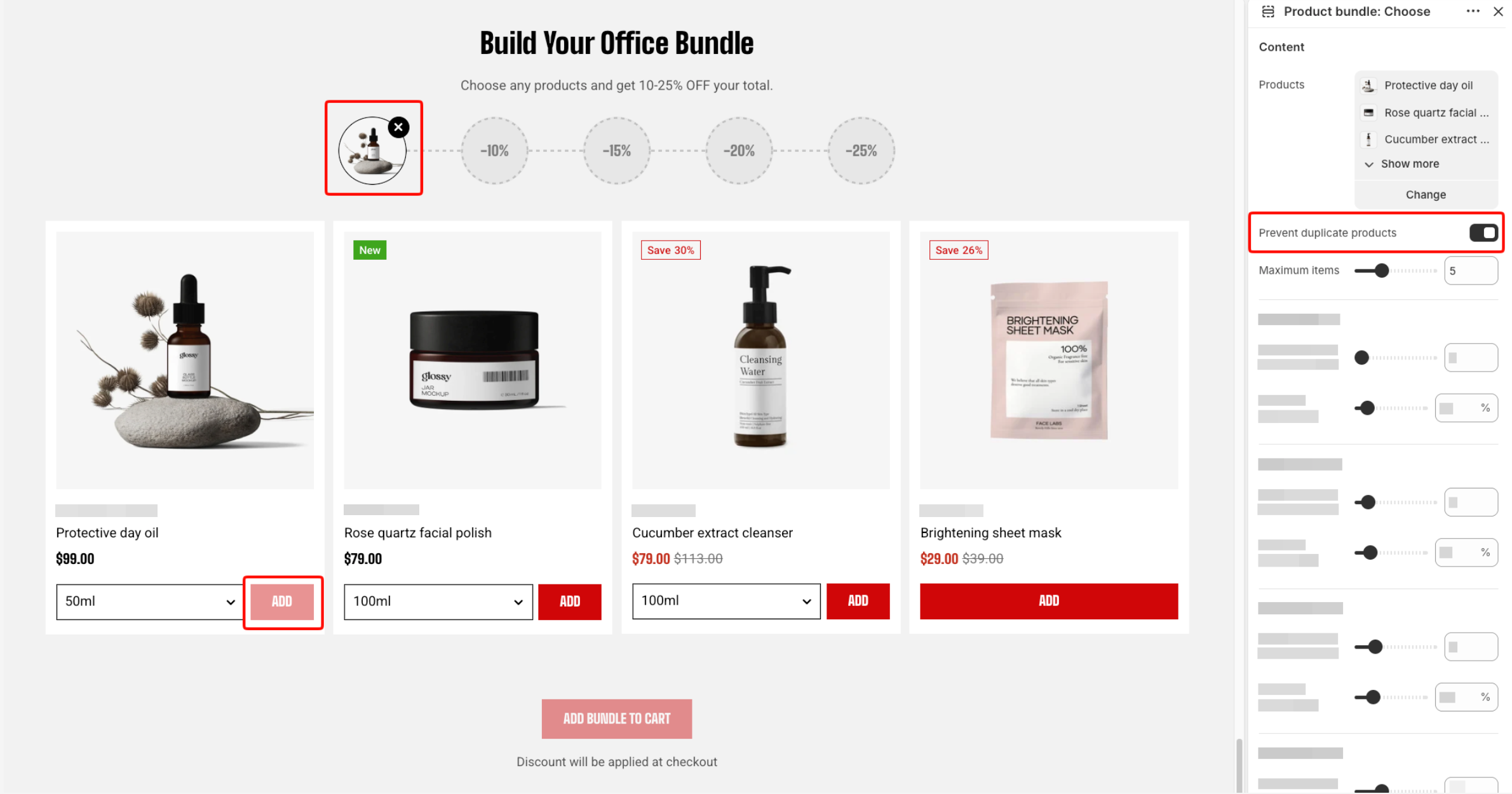
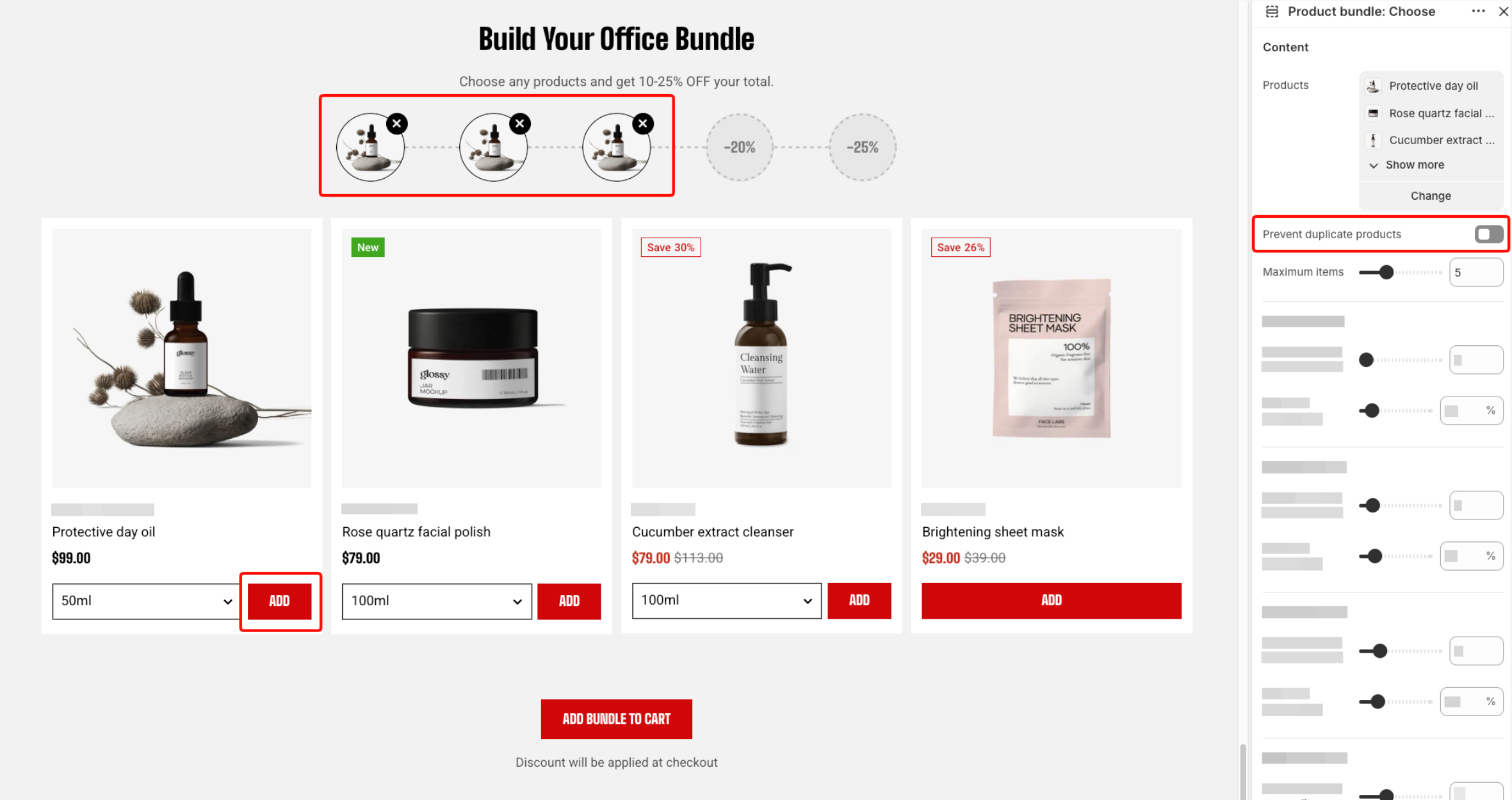
| **Prevent duplicate products** | Prevents the same product from being added to the bundle more than once. | **On** or **Off**. |
| **Maximum items** | Sets the maximum number of products customers can add to the bundle tray. | **2–12 items.** |
### Discount tiers
Use the **5 discount tiers** to show increasing savings as customers add more products to their bundle. Each tier uses the same two settings.
| Setting | Description | Options |
| --------------------------------- | -------------------------------------------------------------------------- | --------------- |
| **Minimum items to use discount** | Sets the number of selected products required to reach this discount tier. | **2–12 items.** |
| **Discount percentage** | Sets the percentage displayed for this tier in the bundle tray. | **0–100%.** |
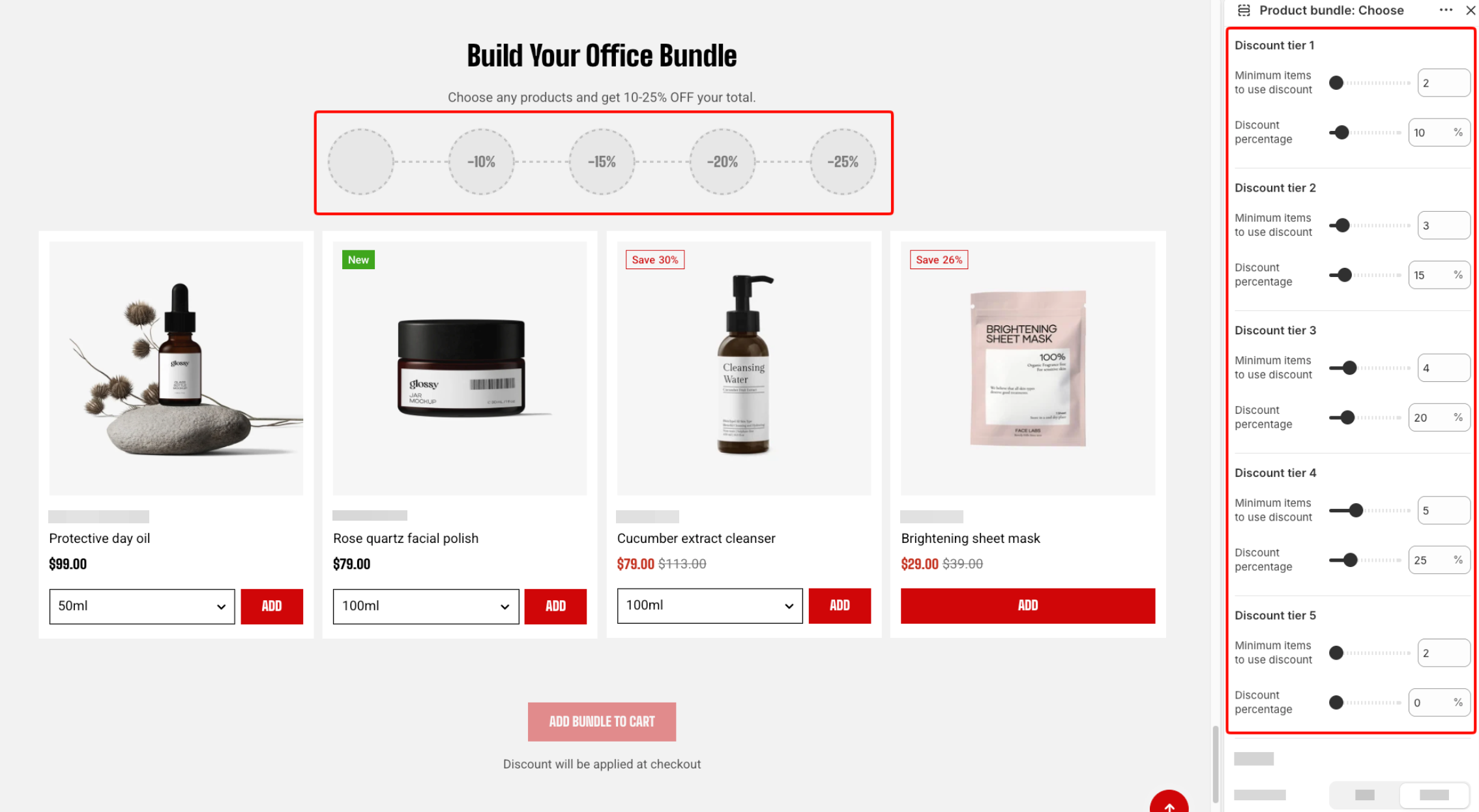
A discount tier is ignored when its **Discount percentage** is **0%**, or when its **Minimum items to use discount** is higher than **Maximum items**.
The **Add to cart** button becomes available once customers reach the minimum item count of the lowest active tier.
Give each tier a different minimum. Two tiers on the same number leaves only the higher percentage showing, and the other is silently ignored.
### Layout
Controls how the available product cards are displayed on larger screens.
| Setting | Description | Options |
| ------------------ | -------------------------------------------------------------------------- | -------------------------------------------------------------------------------------------------------------------------- |
| **Container** | Controls the width of the section content. | **Full:** Uses the available page width.
**Fixed:** Keeps the content within the theme's fixed container width. |
| **Columns** | Sets the number of product cards displayed across a row on larger screens. | **2–6 columns.** |
| **Horizontal gap** | Controls the space between product cards. | **0–100px.** |
On smaller desktop screens, the number of visible columns adjusts automatically when needed, with additional products available through horizontal navigation.
### Mobile layout
Controls how the available products are displayed on mobile devices. Customers see one or two product cards at a time and can swipe horizontally through the remaining products.
| Setting | Description | Options |
| ------------------ | --------------------------------------------------------------------------------------------------------------------------- | ------------------------------ |
| **Columns** | Sets the number of product cards displayed across the screen on mobile. Customers can swipe through the remaining products. | **1 column** or **2 columns**. |
| **Horizontal gap** | Controls the space between product cards on mobile. | **0–100px.** |
### Product cards
Controls the appearance and information shown on the product cards in this section.
These settings let you customize the cards for this section. You can also configure the default product card styling globally in **Theme settings >** [**Product cards**](https://docs.foxecom.com/motrix-theme/theme-settings/product-cards).
| Setting | Description | Options |
| ----------------------- | ------------------------------------------------------ | --------------------------------------------------------------------------------------------------------------------------------------------------------------------------------------------------------------------------------------------------------------------------- |
| **Aspect ratio** | Controls the shape of the product card images. | **Use global settings**: Follows the aspect ratio set in **Theme settings > Product cards**.
**Auto:** Uses the image's original proportions.
**Square (1/1)**, **Portrait (4/5)**, **Portrait (3/4)**, **Landscape (16/9)**, or **Landscape (4/3)**. |
| **Text line limit** | Limits the number of lines used for the product title. | **No limit**, **1 line**, **2 lines**, or **3 lines**. |
| **Show product vendor** | Displays the product vendor on each card. | **On** or **Off**. |
| **Show product type** | Displays the product type on each card. | **On** or **Off**. |
### Appearance
Controls the color scheme, border, and corners of the section.
| Setting | Description | Options |
| ------------------ | ------------------------------------------------ | ----------------------------------------------------------------------- |
| **Color scheme** | Applies a theme color scheme to the section. | Select an available color scheme. |
| **Border** | Controls whether the section has an outline. | **None** or **Solid**. |
| **Border width** | Controls the thickness of the section border. | **0–10px.**
*Available when **Border** is set to **Solid**.* |
| **Border opacity** | Controls the opacity of the section border. | **0–100%.**
*Available when **Border** is set to **Solid**.* |
| **Corner radius** | Controls how rounded the section corners appear. | **0–32px.** |
### Padding
Controls the spacing around the section separately for desktop and mobile.
| Setting | Description | Options |
| ----------- | ------------------------------------------------------------------------- | -------------------------------------------------------------------------- |
| **Devices** | Selects which device-specific padding values you are editing. | **Desktop** or **Mobile**. |
| **Top** | Controls the space above the section content. | **0–100px**. |
| **Bottom** | Controls the space below the section content. | **0–100px**. |
| **Left** | Controls the space between the content and the left edge of the section. | **0–100px**.
*Available when **Container** is set to **Full**.* |
| **Right** | Controls the space between the content and the right edge of the section. | **0–100px**.
*Available when **Container** is set to **Full**.* |
### Advanced
#### Custom columns
Use **Custom columns** when you need more control over the number of cards displayed at different screen sizes.
| Setting | Description | Options |
| ------------------ | -------------------------------------------------------------------- | --------------------------------------------------------------------- |
| **Custom columns** | Overrides the number of columns displayed at different screen sizes. | Enter values using `breakpoint:number` and separate them with commas. |
For example:
```
mb:1,md:2,lg:3,xl:4,xxl:5
```
Use this option only when the standard **Columns** and **Mobile columns** settings do not provide the layout you need.
## Blocks
The **Product bundle: Choose** section includes a built-in static **Header** block.
### Header
A built-in block above the bundle, holding a heading and a subtitle. It is part of the section, so it cannot be removed — clear the text to hide it. There are no other blocks to add.
#### Header settings
| Setting | Description | Options |
| ------------- | ------------------------------------------------------------- | ------------------------------- |
| **Alignment** | Controls the horizontal alignment of the Header content. | **Left, Center,** or **Right**. |
| **Devices** | Selects which device-specific padding values you are editing. | **Desktop** or **Mobile**. |
| **Bottom** | Controls the space below the Header content. | **0–100px.** |
#### Header blocks
You can add and arrange the following theme blocks inside the Header:
* [**Image**](https://docs.foxecom.com/motrix-theme/theme-blocks/image) — Adds an image to the header content.
* [**Heading/Subheading/Text**](https://docs.foxecom.com/motrix-theme/theme-blocks/text) — Adds a heading, supporting text, or descriptive text.
* [**Button**](https://docs.foxecom.com/motrix-theme/theme-blocks/button) — Adds a call-to-action button.
## FAQs
#### The discount isn't applied at checkout.
The tiers in this section are a display of the offer, not the offer itself. Create an automatic discount in **Shopify admin > Discounts** with the same thresholds and percentages, and check the two agree whenever you change one. Learn more: [Shopify Help - Discounts](https://help.shopify.com/en/manual/discounts)
#### What happens if one of the products is out of stock?
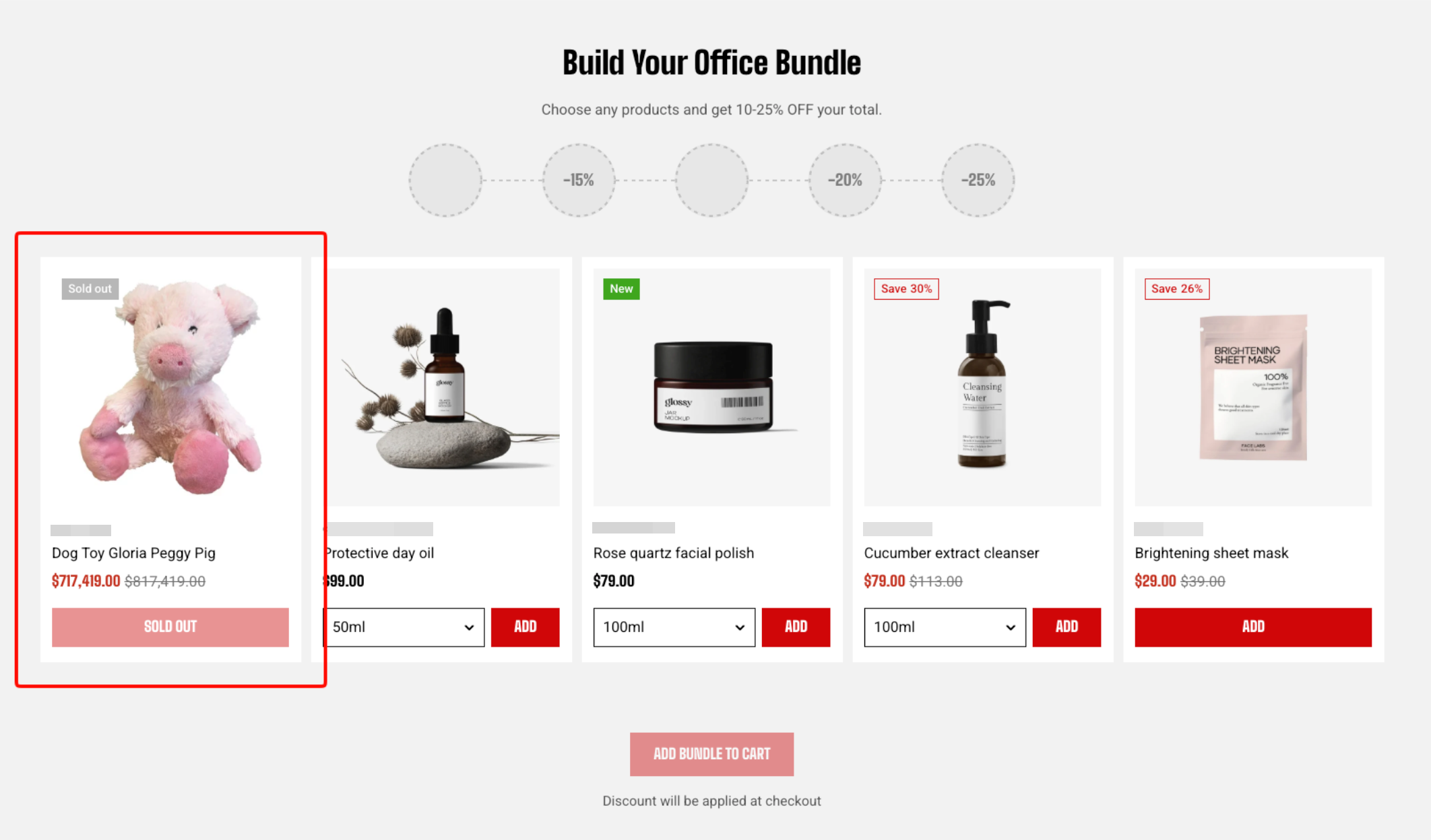
If a product or selected variant is out of stock, customers cannot add it to the bundle. The product can still appear in the selection row, depending on the product's availability settings, but the **Add** action is unavailable for sold-out variants. If the product comes back in stock, customers can add it to the bundle again.
 #### Why is the Add bundle to cart button grayed out?
The shopper has not reached the first discount tier yet. It unlocks at the lowest minimum among your active tiers.
#### One of my tiers isn't showing.
Either its percentage is 0, its minimum is higher than Maximum items, or another tier shares the same minimum and has a higher percentage.
#### Why can't I add more than 12 products?
Twelve is the limit for the selection row. The bundle is meant to be a curated set — if shoppers need to browse, send them to a collection instead.
#### Can shoppers add the same product twice?
Only with Prevent duplicate products turned off. With it on, the Add button will be greyed out if the item has already been added once.
#### Why is the Add bundle to cart button grayed out?
The shopper has not reached the first discount tier yet. It unlocks at the lowest minimum among your active tiers.
#### One of my tiers isn't showing.
Either its percentage is 0, its minimum is higher than Maximum items, or another tier shares the same minimum and has a higher percentage.
#### Why can't I add more than 12 products?
Twelve is the limit for the selection row. The bundle is meant to be a curated set — if shoppers need to browse, send them to a collection instead.
#### Can shoppers add the same product twice?
Only with Prevent duplicate products turned off. With it on, the Add button will be greyed out if the item has already been added once.