# Product bundle
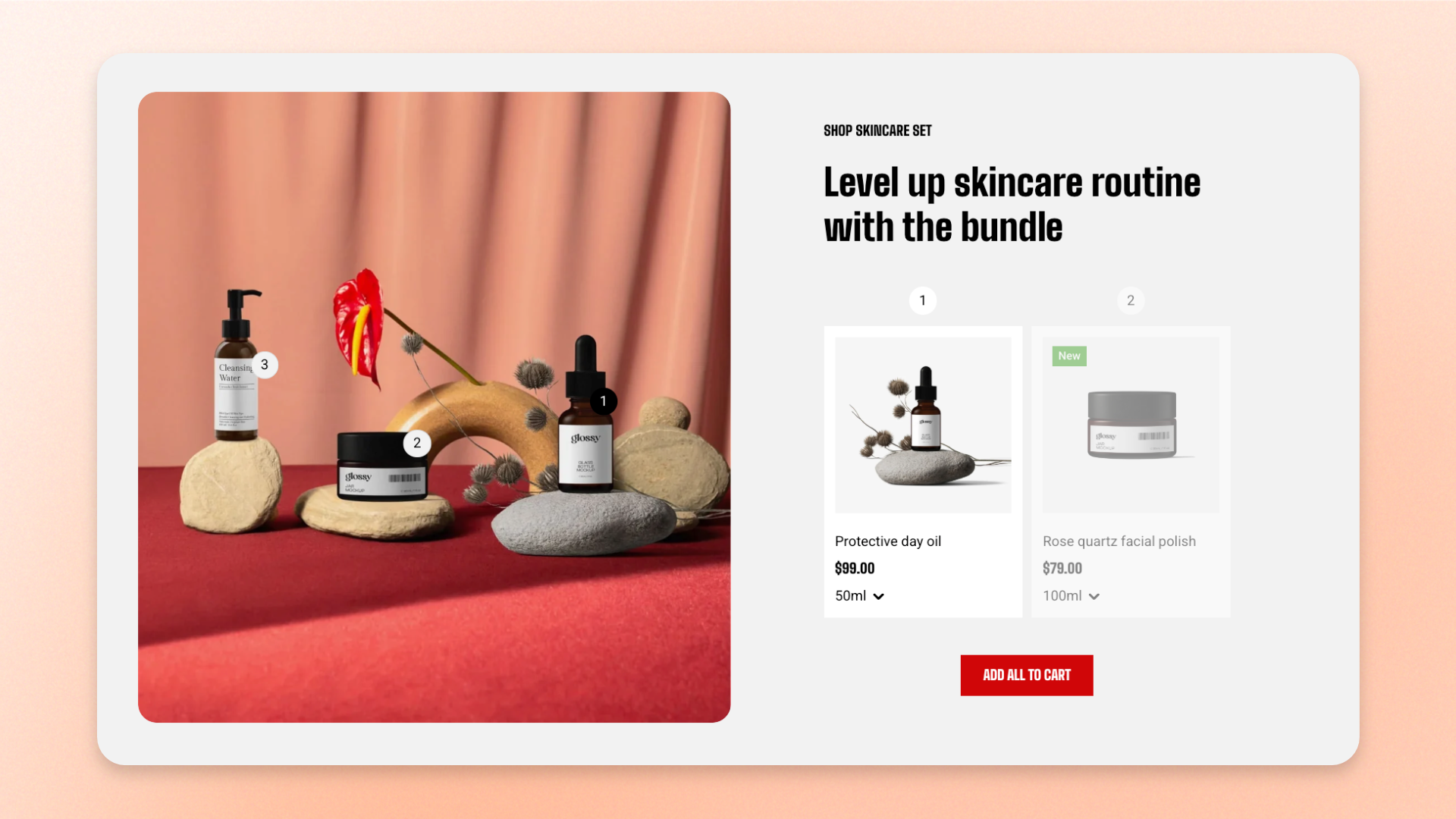
The **Product bundle** section presents a group of products as one shoppable set. It combines a large banner image with numbered hotspots and matching numbered product cards, helping customers understand how the products work together.
Customers can select products from the set and use **Add all to cart** to add the bundle at once. Use this section to showcase a styled look, complete setup, room set, product kit, or other products designed to be purchased together.
## How to customize the Product bundle
1. In the theme editor (**Edit theme**), open the page where you want to display the section.
2. Click **Add section** and select **Product bundle**.
3. Customize the section header and select a banner image.
4. Add **Product** blocks, select the products, and position their hotspots on the banner.
5. Configure the layout, appearance, and spacing.
6. Click **Save**.
## Section settings
### Layout
Controls the arrangement of the banner and product content on larger screens.
| Setting | Description | Options |
| ---------------------------------------- | ---------------------------------------------------------------------------------------------------------------- | ---------------------- |
| **Desktop image position** | Controls which side of the product cards the banner appears on. | **Left** or **Right**. |
| **Enable banner full height on desktop** | Stretches the banner to match the height of the product area instead of keeping the image's natural proportions. | **On** or **Off**. |
### Product cards
Controls additional display options for the product cards.
| Setting | Description | Options |
| --------------------------------- | --------------------------------------------------------------------------------------- | ------------------ |
| **Hide product badges on mobile** | Hides sale and other product badges on mobile, where the smaller cards have less space. | **On** or **Off**. |
### Appearance
Controls the color scheme, border, and corners of the section.
| Setting | Description | Options |
| --------------------------------- | ------------------------------------------------------------------------------------------------------------------------- | ----------------------------------------------------------------------- |
| **Use color scheme in container** | Applies the selected color scheme and border only to the banner-and-products container instead of the full section width. | **On** or **Off**. |
| **Color scheme** | Applies a theme color scheme to the section. | Select an available color scheme. |
| **Border** | Controls whether the section has an outline. | **None** or **Solid**. |
| **Border width** | Controls the thickness of the section border. | **0–10px**.
*Available when **Border** is set to **Solid**.* |
| **Border opacity** | Controls the opacity of the section border. | **0–100%**.
*Available when **Border** is set to **Solid**.* |
| **Corner radius** | Controls how rounded the section corners appear. | **0–32px**. |
### Padding
Controls the vertical spacing around the section separately for desktop and mobile.
| Setting | Description | Options |
| ----------- | ------------------------------------------------------------- | -------------------------- |
| **Devices** | Selects which device-specific padding values you are editing. | **Desktop** or **Mobile**. |
| **Top** | Controls the space above the section content. | **0–100px**. |
| **Bottom** | Controls the space below the section content. | **0–100px**. |
## Blocks
The **Product bundle** section includes two built-in static blocks, [Header](#header) and [Banner](#banner), followed by repeatable [Product](#product) blocks.
The **Header** and **Banner** are part of the section structure and can't be removed or reordered. **Product** blocks can be added, removed, or reordered to build the bundle.
### Header
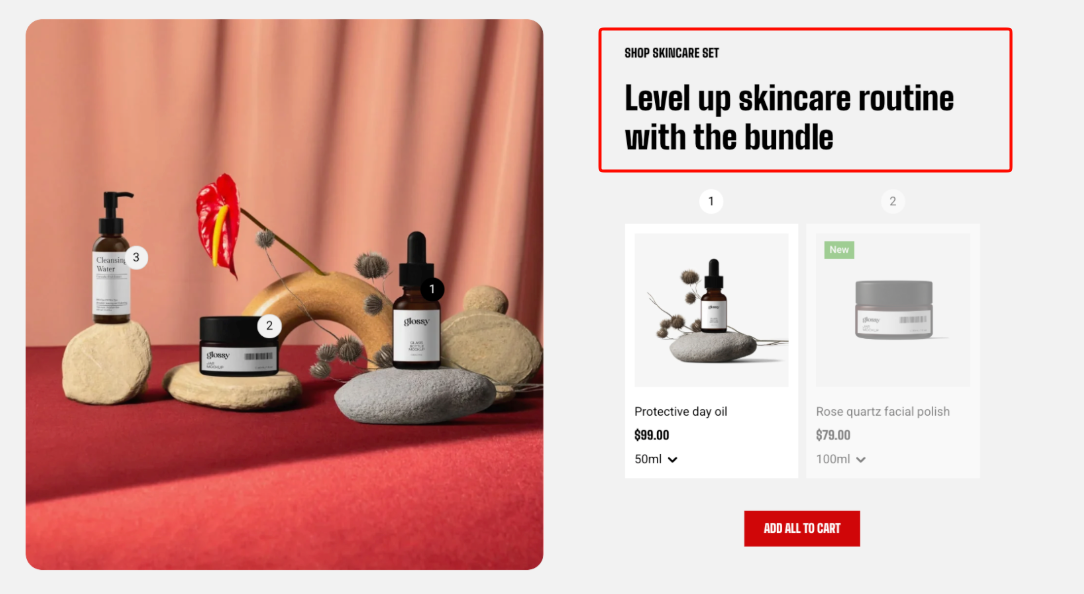
The **Header** is a built-in static block used for introductory content above the product cards.
You can add:
* [**Heading/Subheading/Text**](https://docs.foxecom.com/motrix-theme/theme-blocks/text) — Adds a heading, supporting text, or descriptive text.
Add, remove, or reorder these child blocks to customize the section header.
### Banner
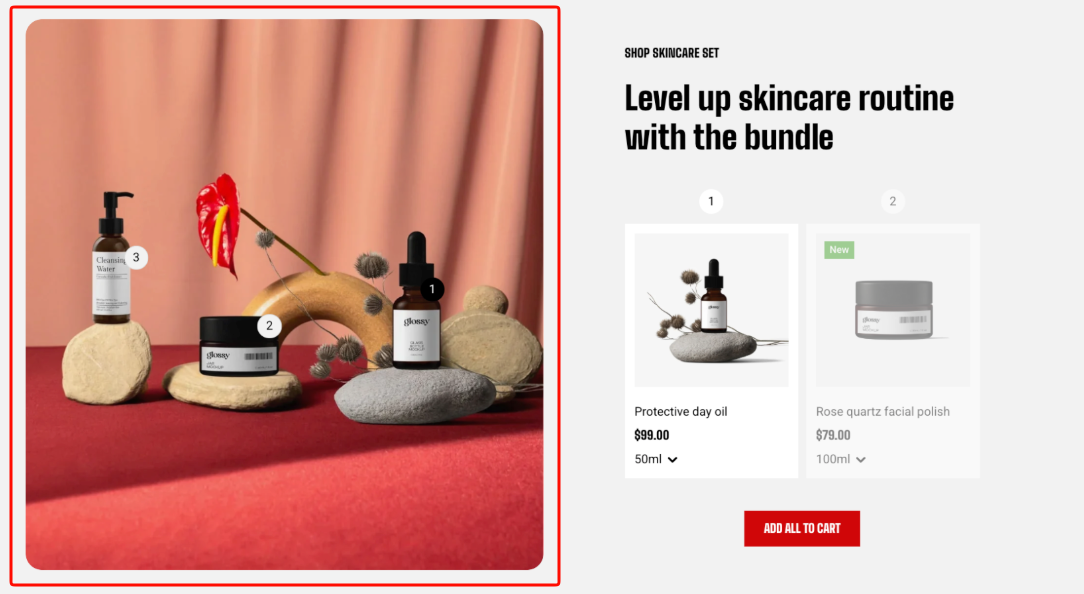
The **Banner** is a built-in static block that controls the main lifestyle or bundle image where the numbered product hotspots appear.
| Setting | Description | Options |
| ------------------------ | --------------------------------------------------------------------------------------------------- | ------------------------------------------------------------------------------------------------------------------------------------------------------------------------------- |
| **Image** | Sets the banner image used on desktop and larger screens. | Select an image. |
| **Image mobile** | Sets a separate banner image for mobile devices. | Select an image, or leave blank to use the main image. |
| **Aspect ratio** | Controls the banner image ratio on larger screens. | **Auto:** Uses the image's original proportions.
**Square (1/1), Portrait (4/5), Portrait (3/4), Landscape (16/9),** **Landscape (4/3)**, or **Landscape (21.9/3).** |
| **Aspect ratio mobile** | Controls the banner image ratio on mobile devices. | **Auto**, **Square (1/1)**, **Portrait (4/5)**, **Portrait (3/4)**, **Landscape (16/9)**, **Landscape (4/3)**, or **Landscape (21/9)**. |
| **Corner radius** | Controls how rounded the banner corners appear. | **0–20px**. |
| **Enable preload image** | Preloads the banner image to help improve LCP when the section is visible near the top of the page. | **On** or **Off**. |
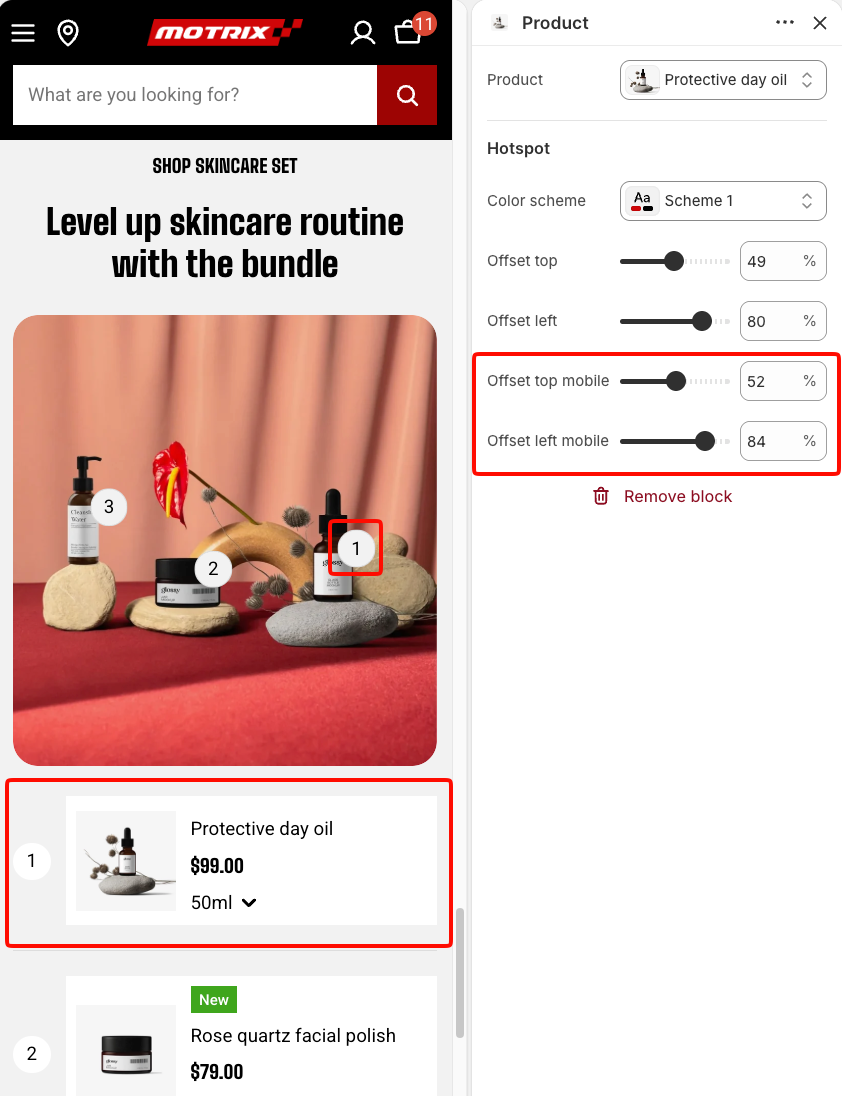
If you use a different mobile image, check the mobile hotspot positions separately so each marker still points to the correct product.
Use **Enable preload image** only when the Product bundle section is visible when the page first loads. Avoid enabling it when the section appears further down the page.
### Product
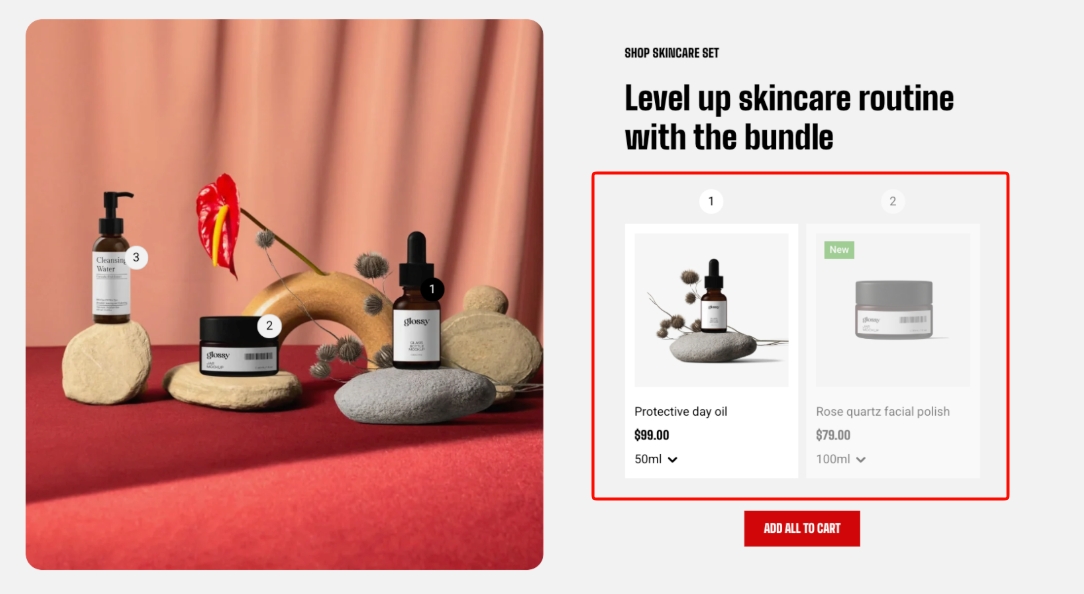
Each **Product** block adds one product to the bundle, along with a matching numbered hotspot on the banner.
The hotspot number and product card number follow the order of the Product blocks. Reordering the blocks automatically updates the numbering.
| Setting | Description | Options |
| ---------------------- | ------------------------------------------------------------------------ | --------------------------------- |
| **Product** | Selects the product included in the bundle. | Select a product. |
| **Color scheme** | Applies a theme color scheme to the product hotspot. | Select an available color scheme. |
| **Offset top** | Sets the hotspot's vertical position on the banner for larger screens. | **0–100%.** |
| **Offset left** | Sets the hotspot's horizontal position on the banner for larger screens. | **0–100%.** |
| **Offset top mobile** | Sets the hotspot's vertical position on the banner on mobile. | **0–100%.** |
| **Offset left mobile** | Sets the hotspot's horizontal position on the banner on mobile. | **0–100%.** |
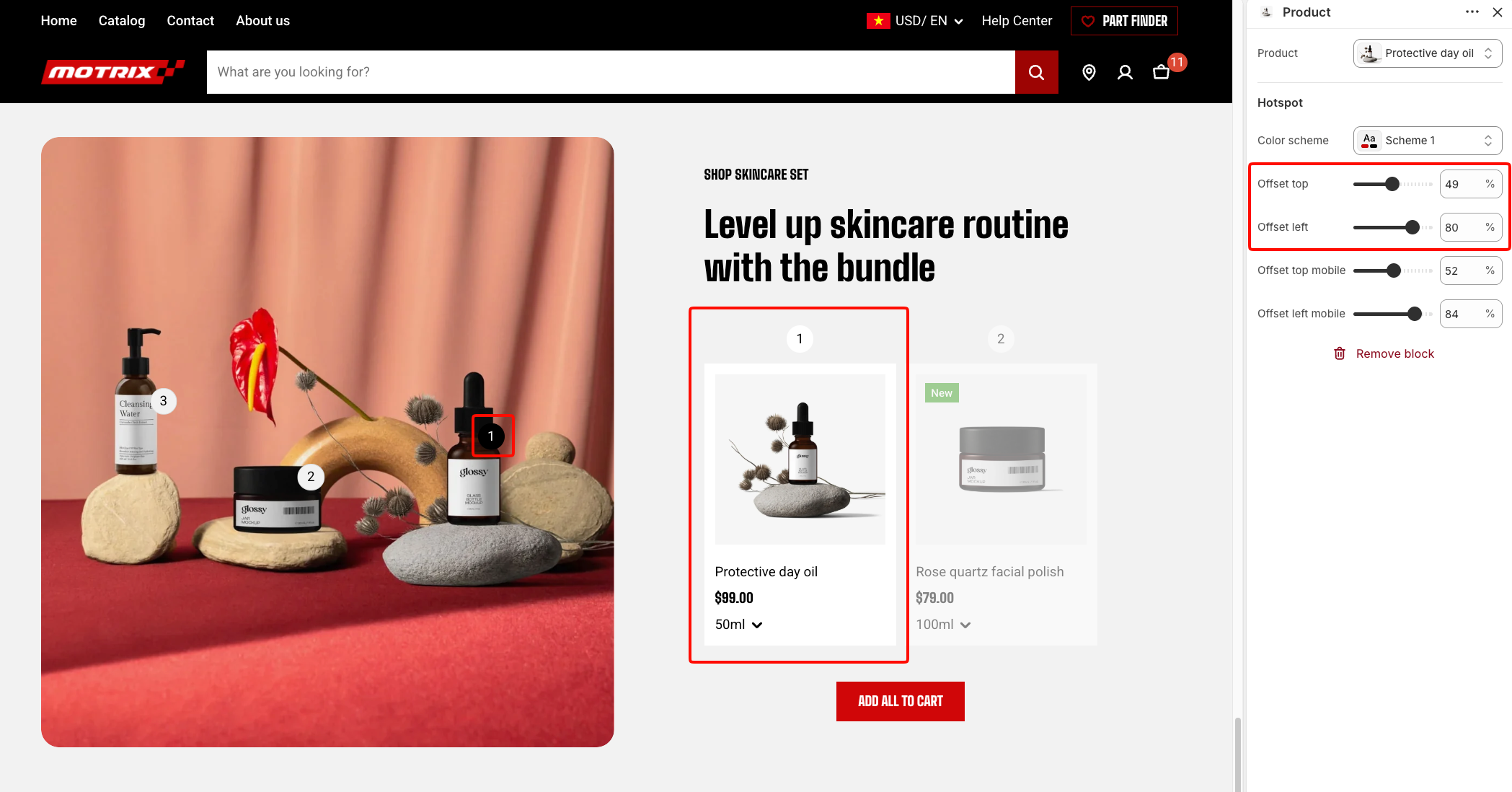
The product card itself uses the theme's global product card settings. Its layout, content, and appearance are configured in **Theme settings >** [**Product cards**](https://docs.foxecom.com/motrix-theme/theme-settings/product-cards).
Hotspot positions are percentage-based, so check them again after replacing the banner image or changing its aspect ratio.
## FAQs
#### What happens when I add more than two products?
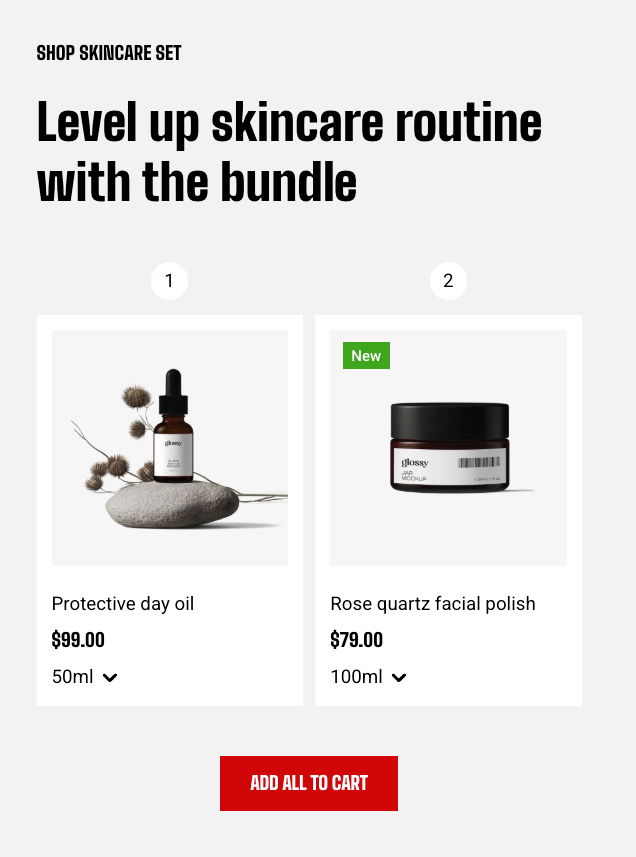
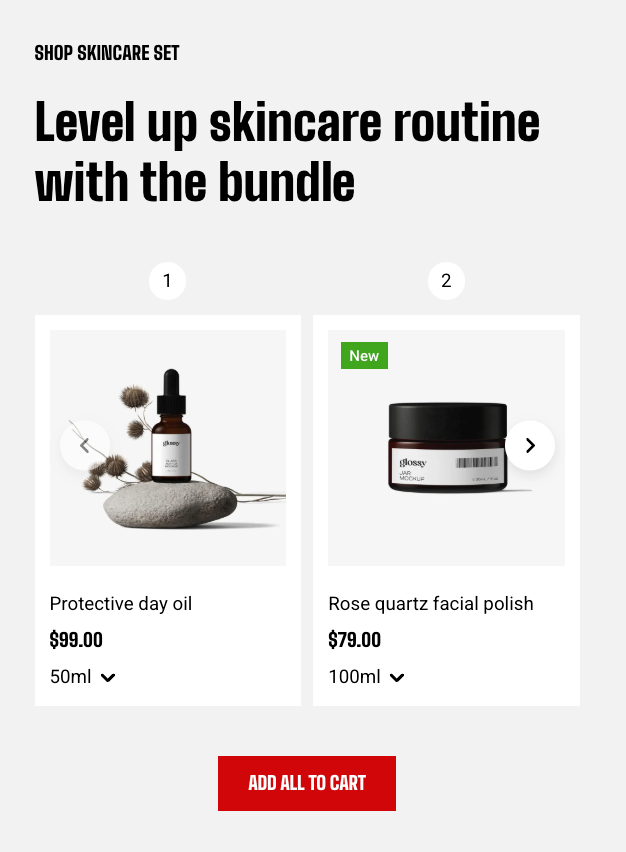
Two product cards are displayed side by side. From the third product onward, the product list continues as a carousel so customers can browse more products without overcrowding the layout.
2 Products
\> 2 Products
#### Why did the hotspot numbers change?
Hotspot numbers follow the order of the **Product** blocks. Reordering the blocks automatically updates both the hotspot numbers and their matching product card numbers.
#### Why are my hotspots no longer aligned with the banner?
Hotspot positions are percentage-based. If you replace the banner image, change its aspect ratio, or use a different mobile image, you may need to adjust the hotspot positions again. Desktop and mobile hotspot positions are configured separately.