# Product bought together
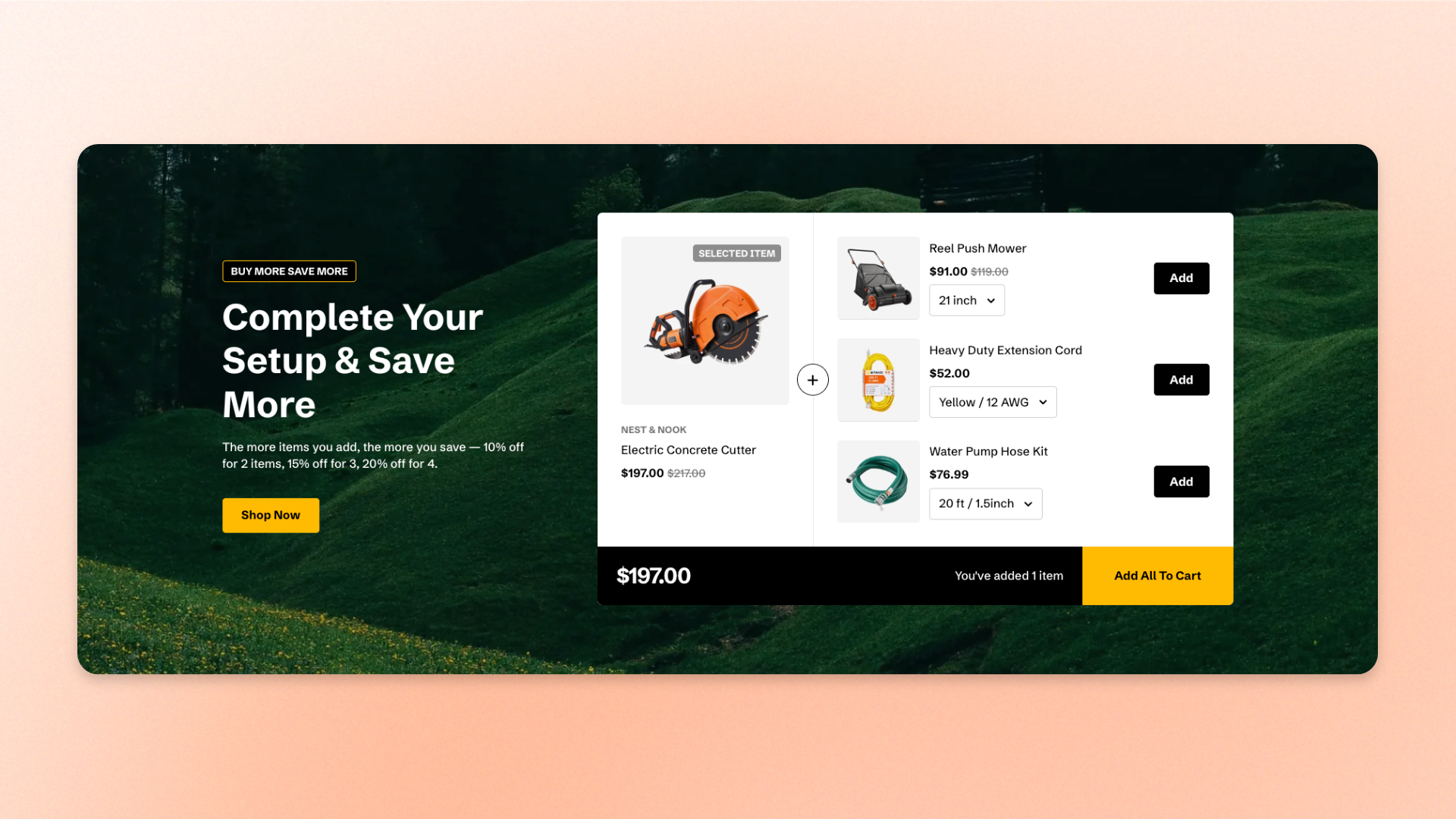
The **Product bought together** section lets customers purchase a featured product with related products as a bundle.
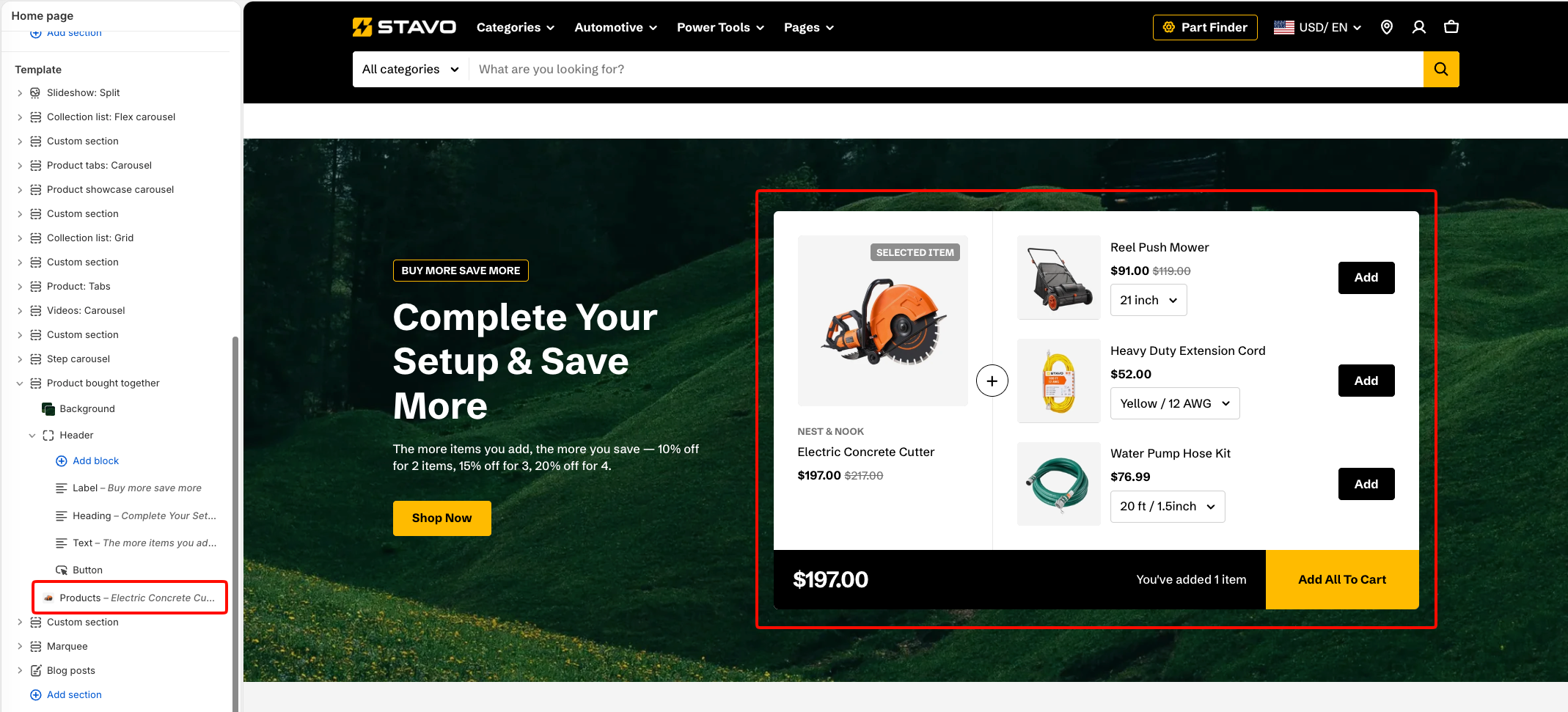
It combines a promotional content area with a product panel. Customers can select or remove related products, view the bundle total and savings, and add all selected items to the cart at once.
On a **product page**, the section automatically uses the current product as the featured product. On a **homepage or landing page**, you can manually select the featured product.
## How to customize the Product bought together
1. In the theme editor (**Edit theme**), open the page where you want to display the section.
2. Click **Add section**.
3. Select **Product bought together**.
4. Customize the section layout and appearance.
5. Select **Background** to configure the section background.
6. Select **Header** to customize the promotional content.
7. Select **Products** to choose the featured and companion products, configure the product layout, and set discount tiers.
8. Click **Save**.
## Section settings
### Layout
Controls the overall width and spacing between the promotional content and product panel.
| Setting | Description | Options |
| --------------------- | -------------------------------------------------------------------------------------- | -------------------------------------------------------------------------------------------------------------------------- |
| **Container** | Controls the width of the section content. | **Full:** Uses the available page width.
**Fixed:** Keeps the content within the theme's fixed container width. |
| **Column gap** | Controls the space between the Header content and the product panel on larger screens. | **0–80px.** |
| **Column gap mobile** | Controls the space between the section content on mobile devices. | **0–80px.** |
### Appearance
Controls the color scheme and border of the section.
| Setting | Description | Options |
| ------------------ | ------------------------------------------------------------------------------------------------------------------- | ----------------------------------------------------------------------- |
| **Color scheme** | Applies a theme color scheme to the section. Choose one that keeps the Header content readable over the background. | Select an available color scheme. |
| **Border** | Controls whether the section has an outline. | **None** or **Solid**. |
| **Border width** | Controls the space between the section content on mobile devices. | **0–10px.**
*Available when **Border** is set to **Solid**.* |
| **Border opacity** | Controls the opacity of the section border. | **0–100%.**
*Available when **Border** is set to **Solid**.* |
### Padding
Controls the vertical spacing around the section separately for desktop and mobile.
| Setting | Description | Options |
| ----------- | ------------------------------------------------------------- | -------------------------- |
| **Devices** | Selects which device-specific padding values you are editing. | **Desktop** or **Mobile**. |
| **Top** | Controls the space above the section content. | **0–200px.** |
| **Bottom** | Controls the space below the section content. | **0–200px.** |
## Blocks
The **Product bought together** section uses three built-in static blocks: [Background](#background), [Header](#header), and [Products](#products).
### Background
The image or video behind the section, spanning its full width. It carries an overlay you can turn on to darken the media so the text above stays readable.
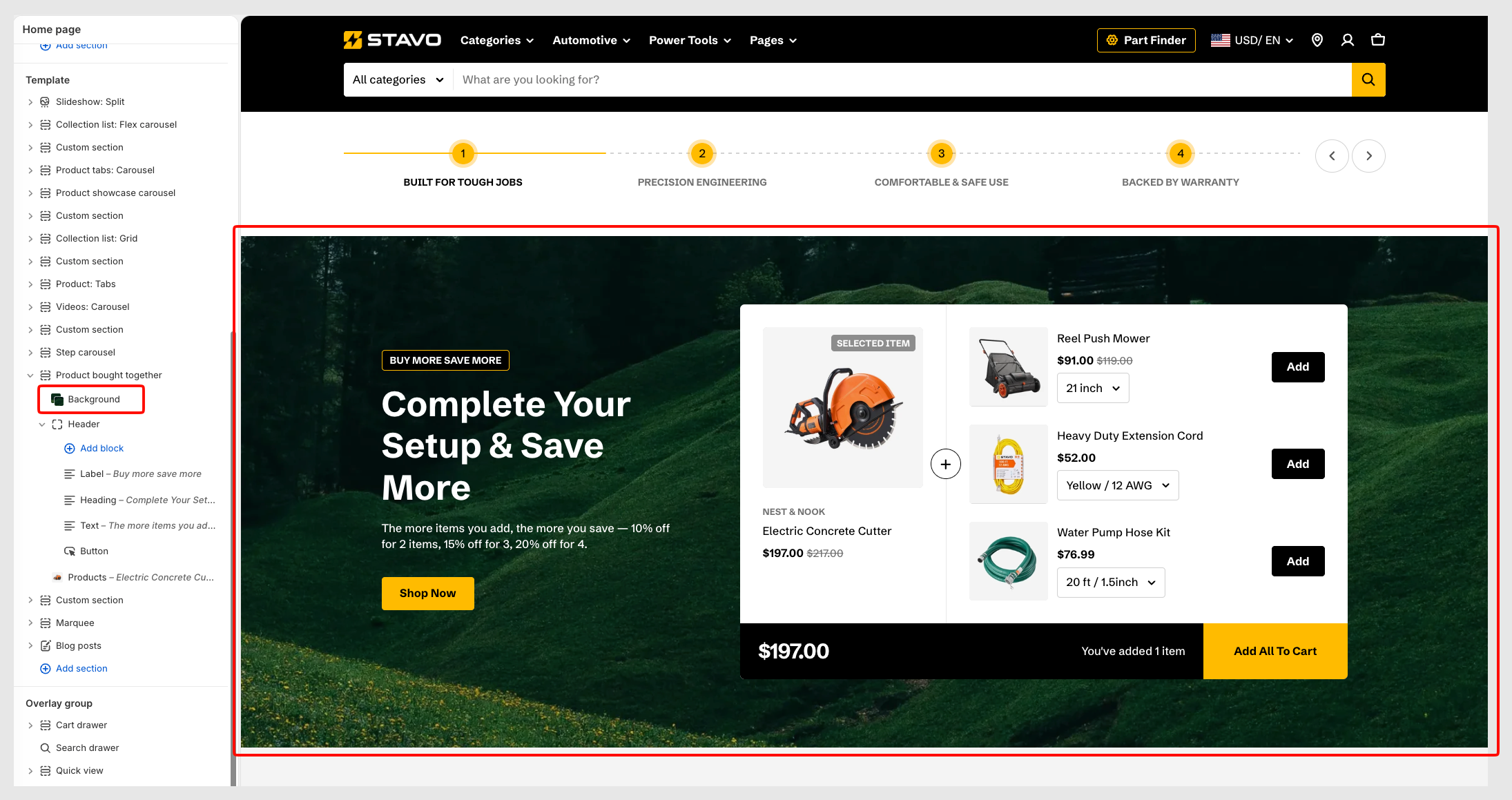
#### Type
| Setting | Description | Options |
| -------- | --------------------------------------------------- | ------------------------------ |
| **Type** | Selects the type of background used by the section. | **None, Image,** or **Video**. |
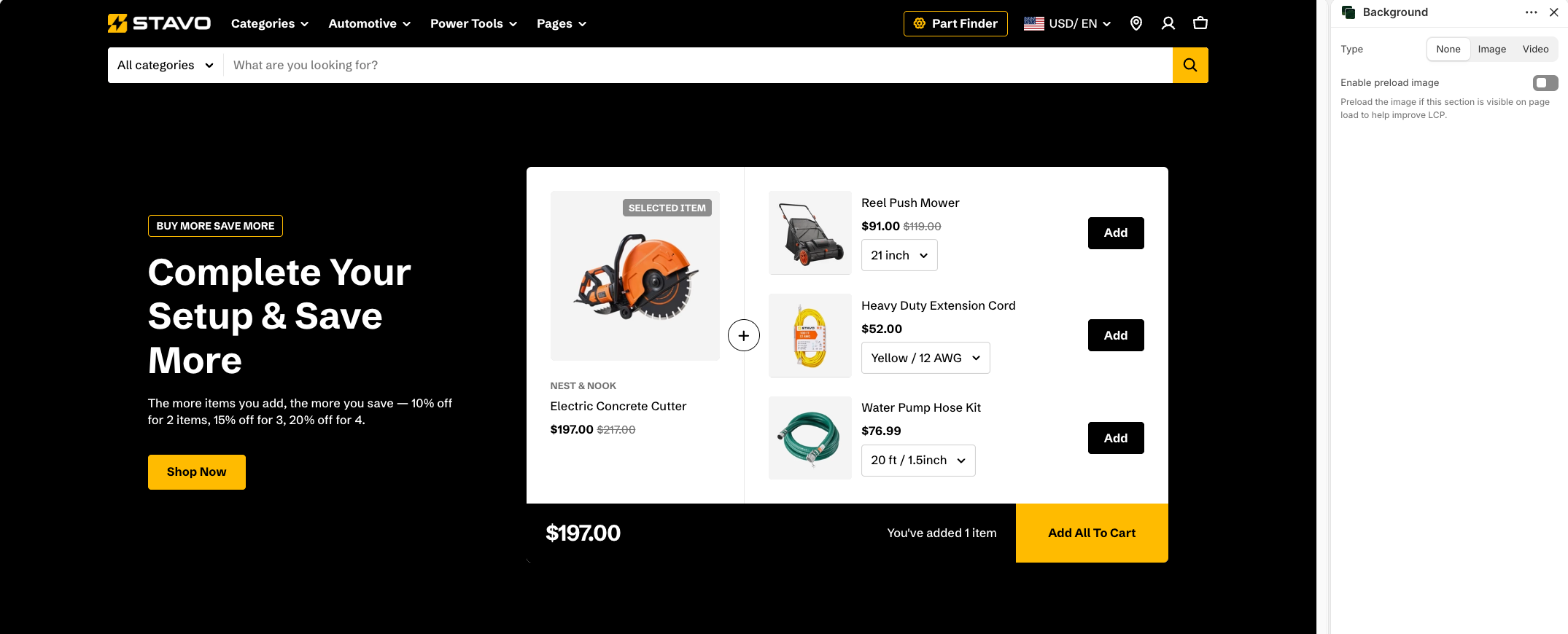
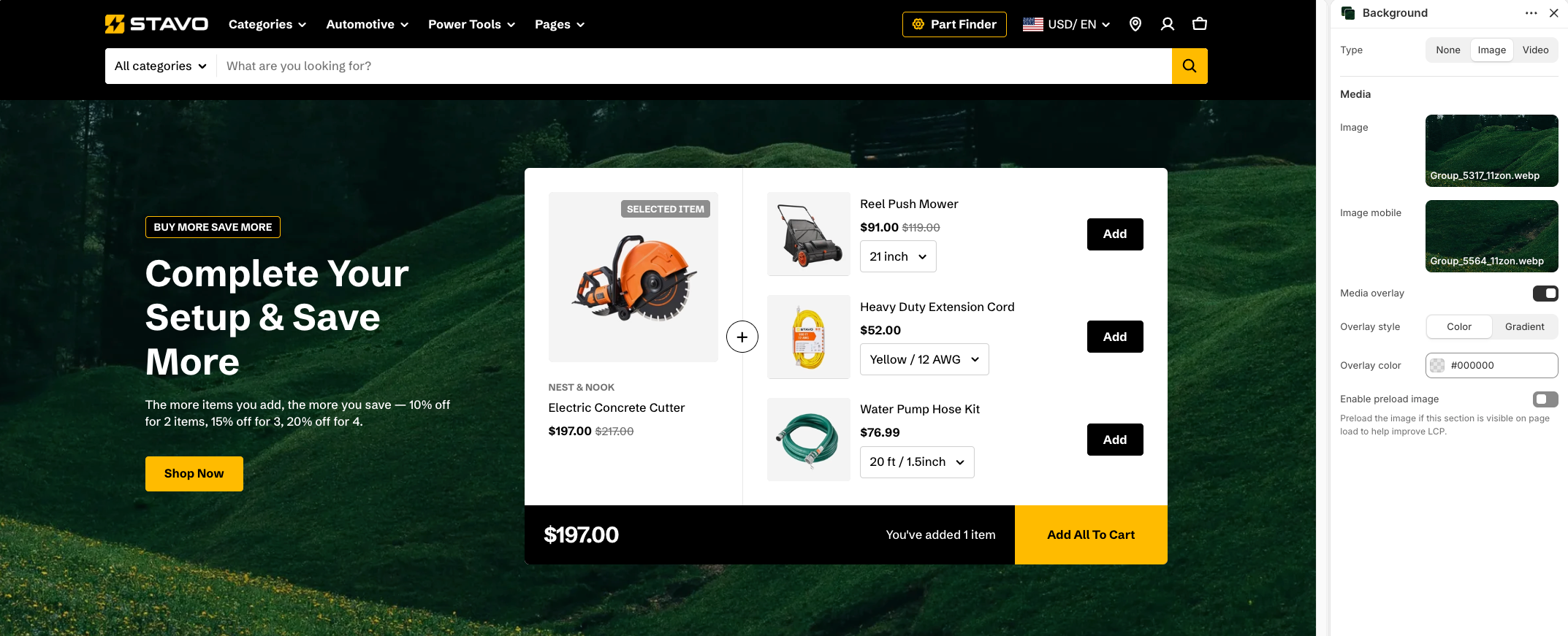
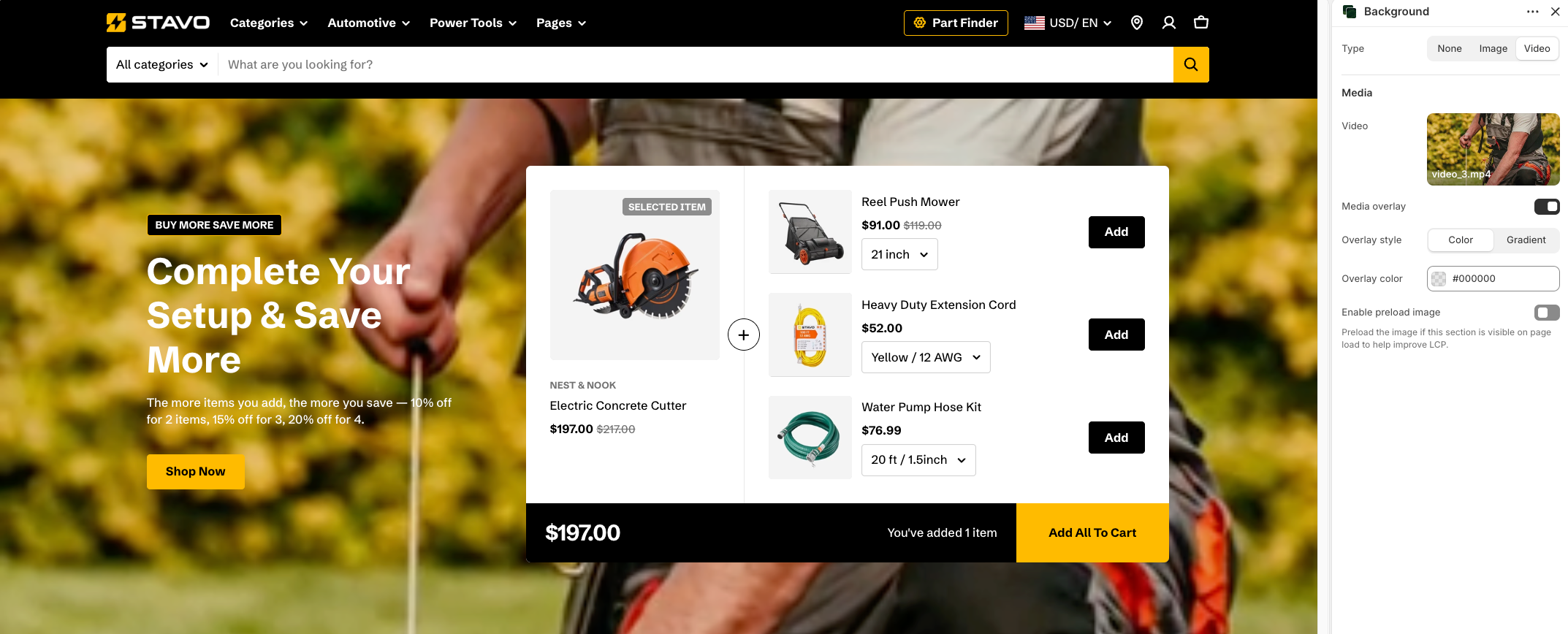
**Tip:** pick an image with a quiet area where the heading falls. An overlay can rescue a busy photo, but one heavy enough to do that usually flattens the image into a gray block.
#### Media
The available media settings depend on the selected **Type**.
| Setting | Description | Options |
| ------------------------ | --------------------------------------------------------------------------------------- | ----------------------------------------------------------------------------------------------------- |
| **Image** | Selects the background image used on larger screens. | Select an image.
*Available when **Type** is set to **Image**.* |
| **Image mobile** | Selects a separate background image for mobile devices. | Select an image.
*Available when **Type** is set to **Image**.* |
| **Video** | Selects the video used as the section background. | Select a video.
*Available when **Type** is set to **Video**.* |
| **Media overlay** | Adds an overlay above the background media to improve content readability. | **On** or **Off**. |
| **Overlay style** | Controls the type of overlay applied to the background. | **Color** or **Gradient**.
*Available when **Media style** is enable.* |
| **Overlay color** | Selects the solid overlay color. | Select a color.
*Available when **Overlay style** is set to **Color**.* |
| **Gradient color** | Selects the gradient used for the overlay. | Select or customize a gradient.
*Available when **Overlay style** is set to **Gradient**.* |
| **Enable preload image** | Preloads the section image when it is visible on initial page load to help improve LCP. | **On** or **Off**. |
Use **Enable preload image** only when the Product bought together section is visible when the page first loads. Avoid enabling it when the section appears further down the page.
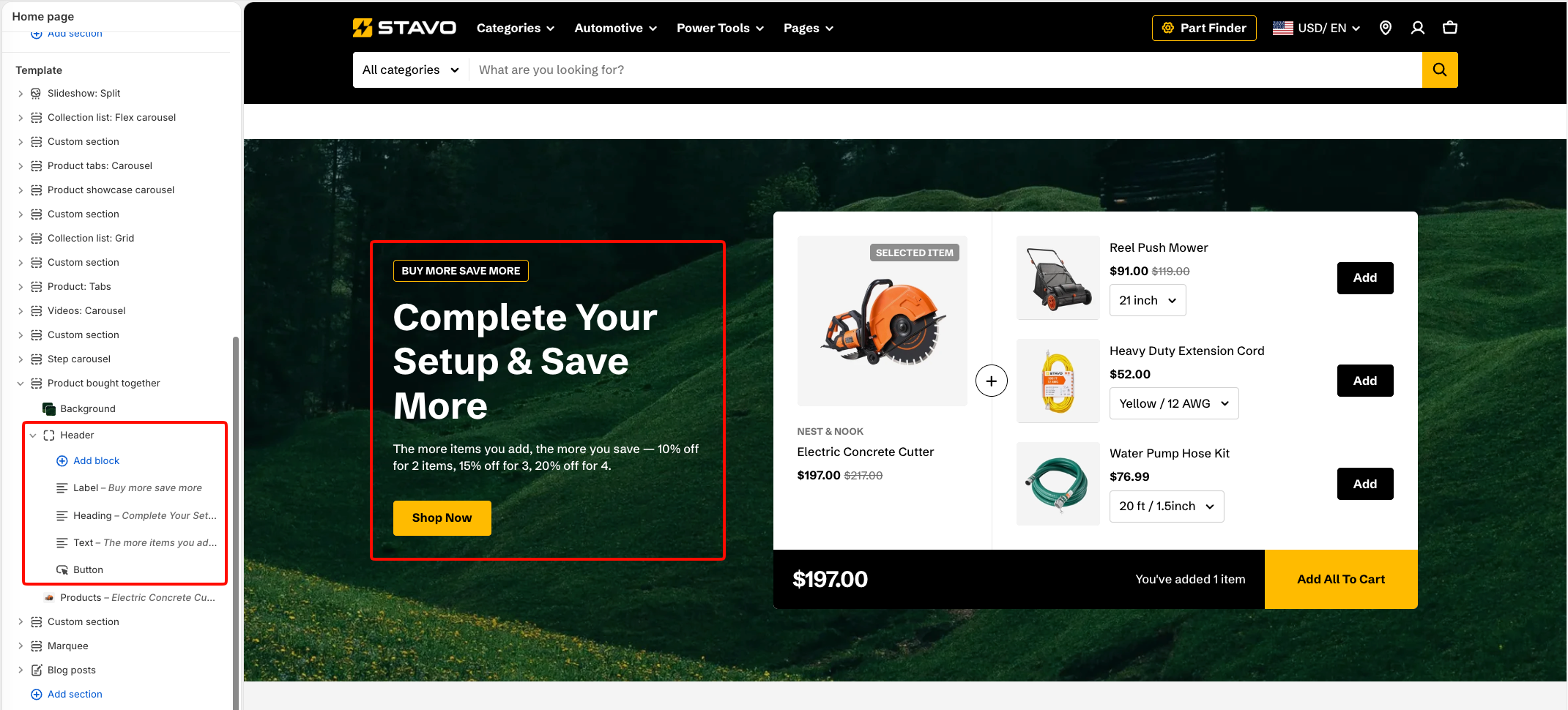
### Header
The left column: a subheading, a heading, a paragraph, and a button. Each is a text or button block inside the header, so you edit them individually and can clear any you do not need.
### Products
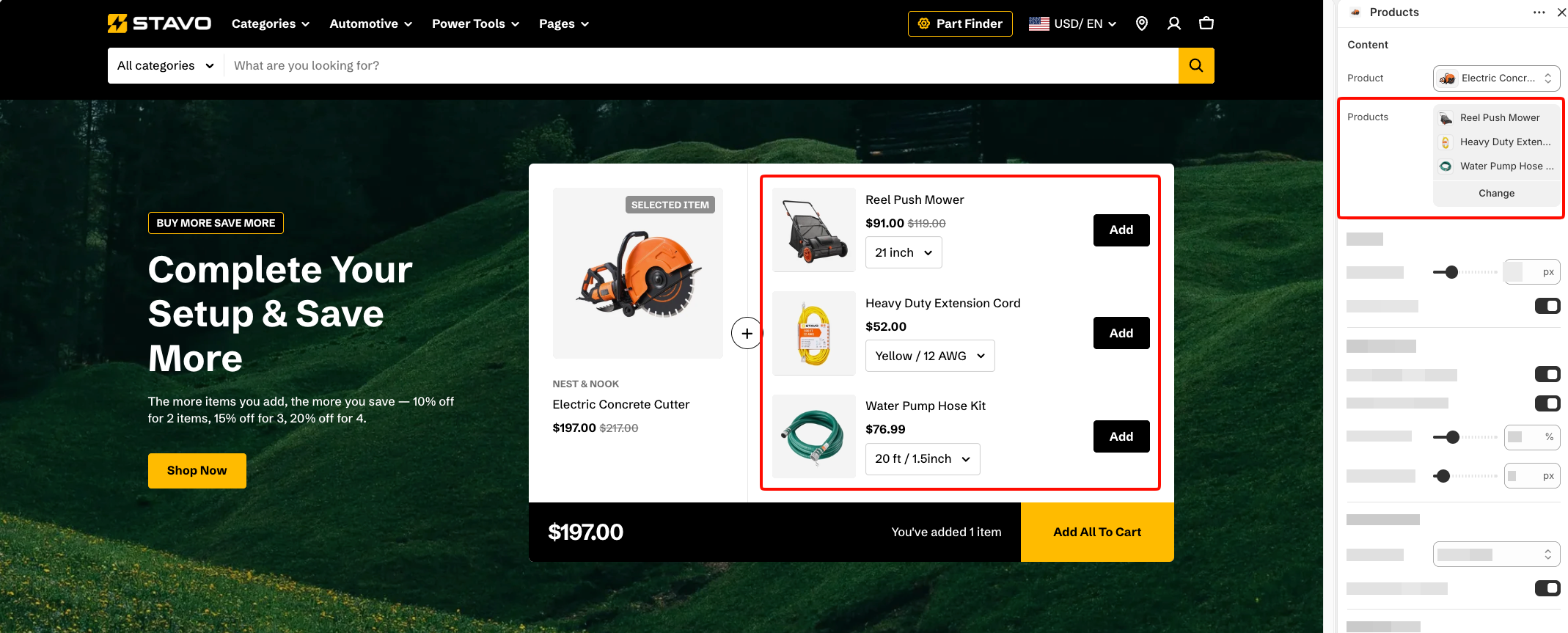
The right column: the products in the bundle, with the option to add them together.
#### Products - Content
| Setting | Description | Options |
| ------------ | ------------------------------------------------------------------------------------ | ----------------------------------------------------------------------------------------------------------------------------- |
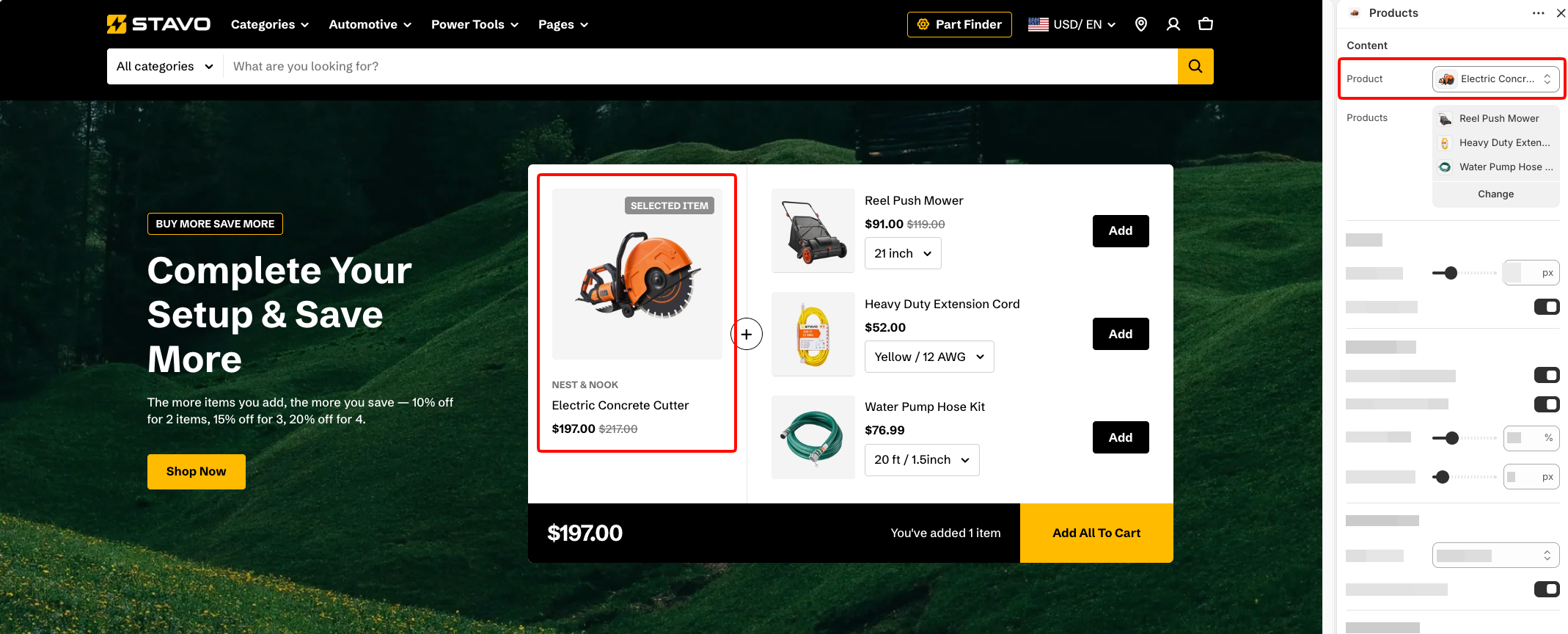
| **Product** | Selects the featured product. The featured product is always included in the bundle. | Select a product.
On a **product page**, leave this setting empty to use the current page's product automatically. |
| **Products** | Selects the companion products customers can add to the bundle. | Select one or more products. |
Product
Products
#### Products - Layout
| Setting | Description | Options |
| ------------------ | --------------------------------------------------------------------------------- | ------------------ |
| **Vertical gap** | Controls the vertical space between companion products. | **0–100px.** |
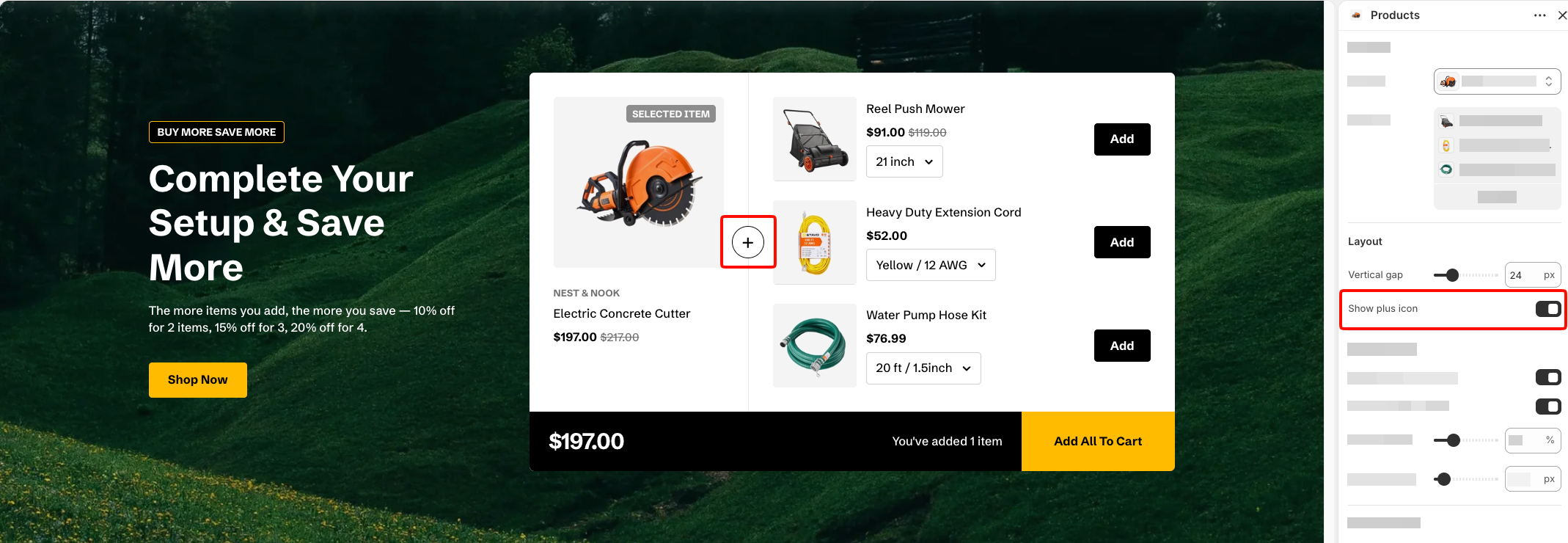
| **Show plus icon** | Shows or hides the plus icon between the featured product and companion products. | **On** or **Off**. |
#### Products - Mobile layout
Controls how the companion products are displayed on mobile devices.
| Setting | Description | Options |
| -------------------------- | -------------------------------------------------------------------------------------- | ------------------------------------------------------------------------------------------------------------- |
| **Enable swipe on mobile** | Lets customers swipe horizontally through companion products on mobile. | **On** or **Off**. |
| **Custom column width** | Lets you manually control the width of each product card when mobile swipe is enabled. | **On** or **Off**.
*Available when **Enable swipe on mobile** is turned on.* |
| **Custom width** | Sets the width of each product card on mobile. | **20–90%.**
*Available when **Enable swipe on mobile** and **Custom column width** are turned on.* |
| **Mobile columns** | Sets the number of product cards displayed per row on mobile. | **1 column** or **2 columns**.
*Available when **Custom column width** is turned off.* |
| **Horizontal gap** | Controls the horizontal space between product cards on mobile. | **0–100px.** |
| **Vertical gap** | Controls the vertical space between rows of product cards on mobile. | **0–100px.**
*Available when **Enable swipe on mobile** is turned off.* |
Turn on **Custom column width** and use a value below **90%** if you want part of the next product card to remain visible and encourage customers to swipe.
#### Products - Product cards
Controls the appearance of companion product cards.
These settings let you customize the cards for this section. You can also configure the default product card styling globally in **Theme settings >** [**Product cards**](https://docs.foxecom.com/motrix-theme/theme-settings/product-cards).
| Setting | Description | Options |
| ----------------------- | --------------------------------------------------- | ---------------------------------------------------------------------------------------------------------------------------------------------------------------------------------------------------------------------------------------------- |
| **Aspect ratio** | Controls the aspect ratio of product images. | **Use global settings:** Uses the image ratio configured in Theme settings.
**Auto:** Uses the image's original proportions.
**Square (1/1), Portrait (4/5), Portrait (3/4), Landscape (16/9),** or **Landscape (4/3)**. |
| **Show product vendor** | Shows or hides the product vendor on product cards. | **On** or **Off**. |
#### Products - Discount tiers 1 to 5
You can configure up to **5 discount tiers**. Each tier defines the number of selected items required to reach that tier and the discount percentage associated with it.
The section uses these values to calculate and display the customer's current bundle savings.
| Setting | Description | Options |
| --------------------------------- | ------------------------------------------------------------------------------ | ----------------------------------- |
| **Minimum items to use discount** | Sets how many bundle items must be selected before this discount tier applies. | Enter the required number of items. |
| **Discount percentage** | Sets the savings percentage displayed for this tier. | **0–100%.** |
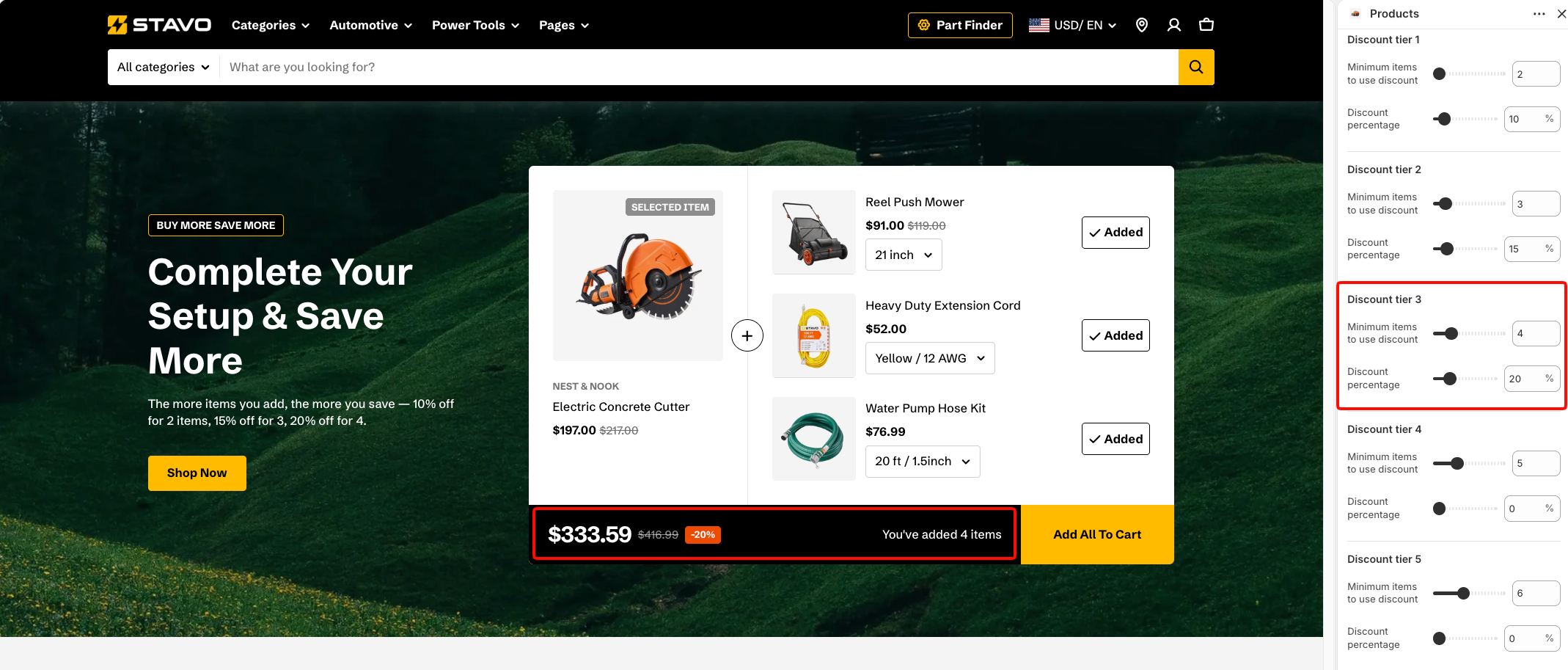
The section shows the bundle and takes the order. It does not create the discount — set that up in Shopify admin > Discounts, and make sure what you promise in the header matches what checkout actually applies. [Learn more about Discounts](https://help.shopify.com/en/manual/discounts)
#### Products - Summary bar
The summary bar displays the current bundle total, the number of selected items, and the **Add all to cart** action.
| Setting | Description | Options |
| ---------------- | ------------------------------------------------------- | --------------------------------- |
| **Color scheme** | Applies a theme color scheme to the bundle summary bar. | Select an available color scheme. |
#### Products - Appearance
Controls the appearance of the product panel.
| Setting | Description | Options |
| ------------------ | ------------------------------------------------------ | ----------------------------------------------------------------------- |
| **Color scheme** | Applies a theme color scheme to the product panel. | Select an available color scheme. |
| **Border** | Controls whether the product panel has an outline. | **None** or **Solid**. |
| **Border width** | Controls the thickness of the panel border. | **0–10px.**
*Available when **Border** is set to **Solid**.* |
| **Border opacity** | Controls the opacity of the panel border. | **0–100%.**
*Available when **Border** is set to **Solid**.* |
| **Corner radius** | Controls how rounded the product panel corners appear. | **0–32px.** |
#### Products - Padding
Controls the spacing inside the product panel separately for desktop and mobile.
| Setting | Description | Options |
| ----------- | ------------------------------------------------------------------------------- | -------------------------- |
| **Devices** | Selects which device-specific padding values you are editing. | **Desktop** or **Mobile**. |
| **Top** | Controls the space above the product panel content. | **0–100px**. |
| **Bottom** | Controls the space below the product panel content. | **0–100px**. |
| **Left** | Controls the space between the content and the left edge of the product panel. | **0–100px**. |
| **Right** | Controls the space between the content and the right edge of the product panel. | **0–100px**. |
## FAQs
#### How is the featured product selected?
On a **product page**, leave the **Product** setting empty to automatically use the current product. On other pages, select the featured product manually.
#### Does the discount apply automatically?
Only if you have set one up in Shopify. The section displays the bundle; the pricing rule lives in Shopify admin > Discounts.
For each tier:
1. Go to **Shopify admin > Discounts** and click **Create discount**.
2. Select **Amount off products**, depending on how you want the discount applied.
3. Set the discount method to **Automatic discount**.
4. Choose **Percentage** and enter the same value as the tier's **Discount percentage**.
5. Set the minimum quantity requirement to match **Minimum items to use discount**.
6. Choose the eligible products or collections if needed.
7. Review the discount's combination settings and active dates.
8. Click **Save**, then repeat for the other tiers you want to offer.
9. Test the bundle on your storefront and at checkout to make sure the displayed savings and applied discount match.
Shopify automatic discounts are applied in the cart and at checkout when their eligibility conditions are met. When multiple eligible discounts can't combine, Shopify uses the best available discount or combination for the customer.
#### Why is my background image cropped differently on mobile?
The section is much taller than it is wide on a phone, so the image is cropped to fill it. Check the phone view before settling on an image — the part you care about may be outside the crop.