# Process steps
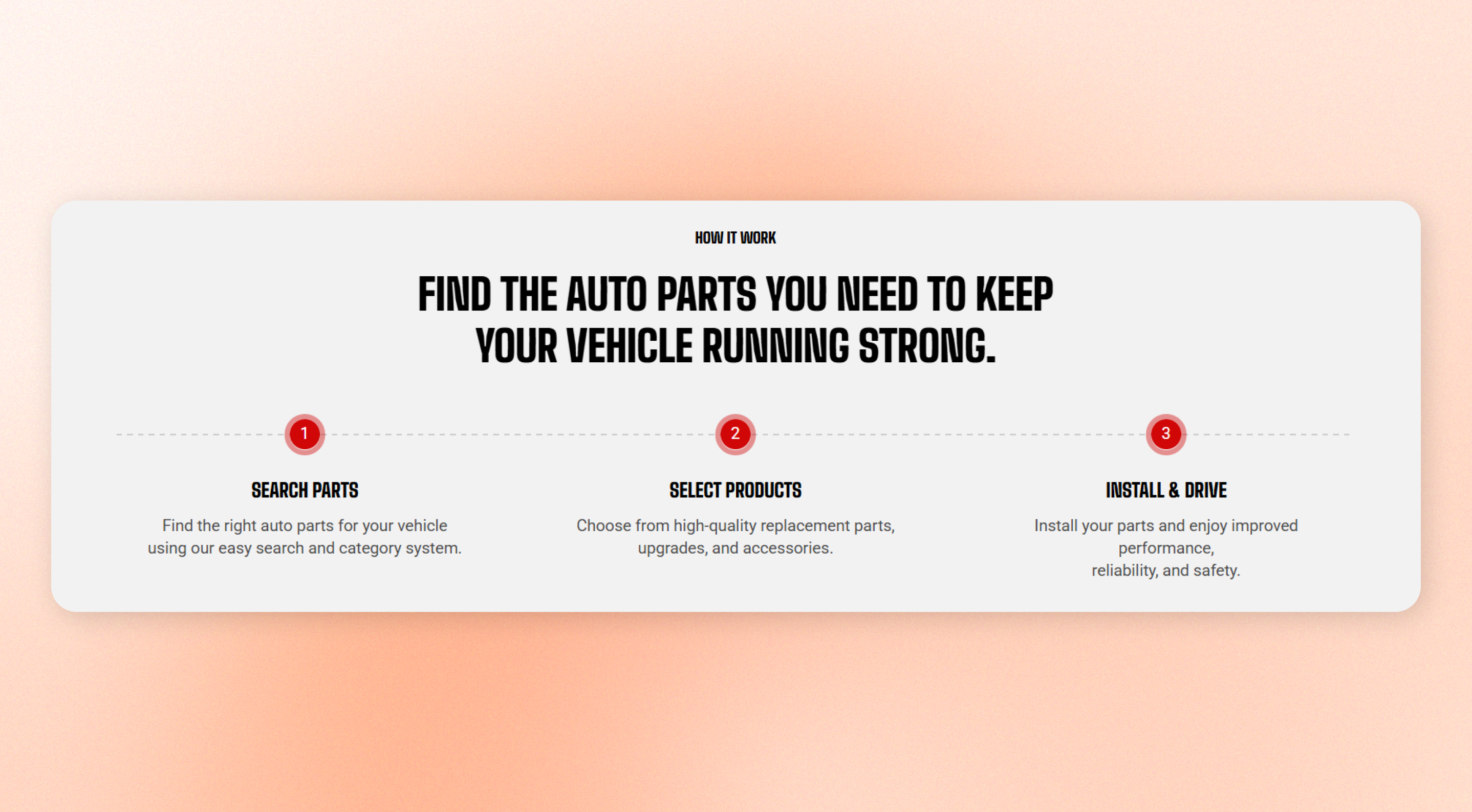
When a purchase involves more than adding to cart — finding the right fit, sending something in, booking an install — shoppers hesitate because they cannot picture the process. This section lays it out in three or four numbered steps, connected in a line, so the whole thing is visible at a glance.
Numbering is automatic. Reorder the steps and they renumber themselves.
## How to customize the Process steps
1. Go to **Online Store > Themes** in Shopify Admin.
2. Find your theme and click **Edit theme**.
3. Open the page where the **Process steps** section is used.
4. Select **Process steps** from the section list.
5. Adjust the [section settings](https://docs.foxecom.com/motrix-theme/theme-sections/process-steps#section-settings) and individual [step blocks](https://docs.foxecom.com/motrix-theme/theme-sections/process-steps#blocks).
6. Save your changes.
## Section settings
### Layout
| Setting | Description | Options |
| ------------------ | -------------------------------------------------------------------------------------------------------- | --------------------- |
| **Container** | Choose whether the section spans the available width or uses a fixed content width. | Fixed / Full / Custom |
| **Custom width** | Set the custom width of the section. This setting appears when Container is set to Custom. | 500px - 1200px |
| **Columns** | Set how many steps appear across on large screens. | 2 - 6 |
| **Horizontal gap** | Set the space between step cards. The connector line between the step numbers stretches across this gap. | 0px - 100px |
| **Alignment** | Align the step number and text within each card. | Left / Center / Right |
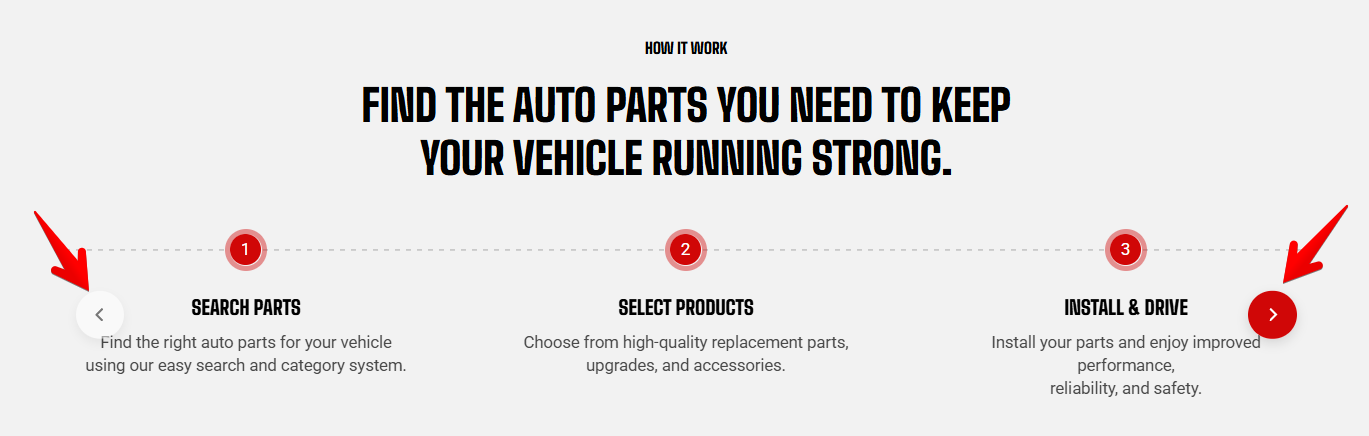
Desktop columns applies to very wide screens. Below 1440 px the row is capped at three, so a setting of 4 or more shows as three on most laptops — and once you have more steps than fit, the row becomes a carousel rather than wrapping to a second line.
**Best practice:** three steps is the sweet spot, and four is the practical limit. A process that genuinely needs six steps is usually better explained on its own page than in a row of cards.
Process step carousel
### Mobile layout
| Setting | Description | Options |
| -------------------------- | ------------------------------------------------------------------------------------------------------------------------------------------------------------------------------------------------- | ----------- |
| **Enable swipe on mobile** | Let customers swipe horizontally through the steps on mobile. When **disabled**, the steps stack **vertically**. | On / Off |
| **Custom column width** | Use a custom card width in the mobile swipe layout. A portion of the next step remains visible to encourage customers to swipe. This setting appears when **Enable swipe on mobile is on**. | On / Off |
| **Custom width** | Set the width of each step card on mobile. This setting appears when **Custom column width and mobile swipe are on**. | 20% - 90% |
| **Mobile columns** | Choose how many steps appear at a time in the mobile swipe layout. This setting appears when mobile swipe is on and **Custom column width is off**. | 1 / 2 |
| **Horizontal gap** | Set the space between step cards in the mobile swipe layout. This setting appears when **mobile swipe is on**. | 0px - 100px |
| **Vertical gap** | Set the space between stacked steps. This setting appears when **mobile swipe is off**. | 0px - 100px |
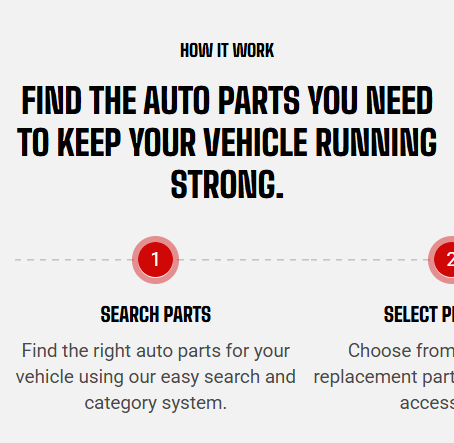
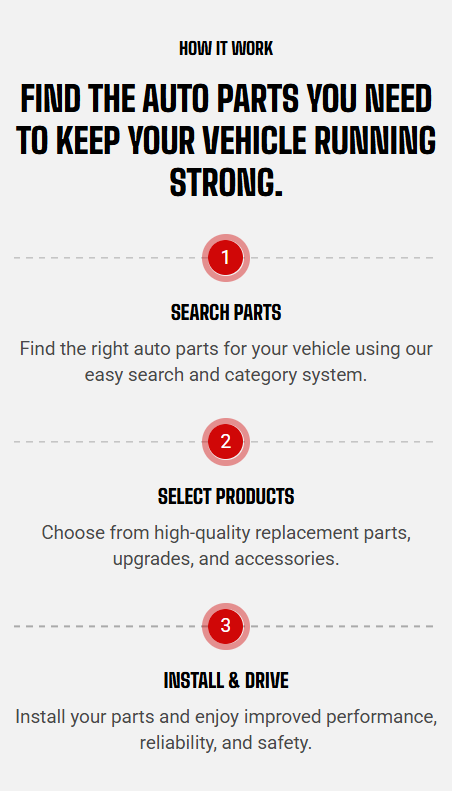
**Tip:** swipe keeps the steps reading as a sequence on a phone, which stacking loses. Turn it off only if each step carries enough text that a full screen each is warranted.
### Appearance
| Setting | Description | Options |
| ------------------ | ----------------------------------------------------------------------------- | --------------------- |
| **Color scheme** | Apply a theme color scheme to the section. | Select a color scheme |
| **Number color** | The color of the numbered markers and the ring around them. | Select a color |
| **Border** | Show or hide the section border. | None / Solid |
| **Border width** | Set the border thickness. This setting appears when a border is enabled. | 0px - 10px |
| **Border opacity** | Set how visible the border is. This setting appears when a border is enabled. | 0% - 100% |
| **Corner radius** | Round the section corners. | 0px - 32px |
The number itself is drawn in black or white, whichever reads better against the color you pick. You do not set it, and it updates as soon as you change Number color.
### Padding
Choose **Desktop** or **Mobile**, then set the **top, bottom, left, and right** spacing around the section.
The left and right sliders only appear when Container is set to Full. On Fixed and Custom the container already sets the side margins.
## Blocks
### Header
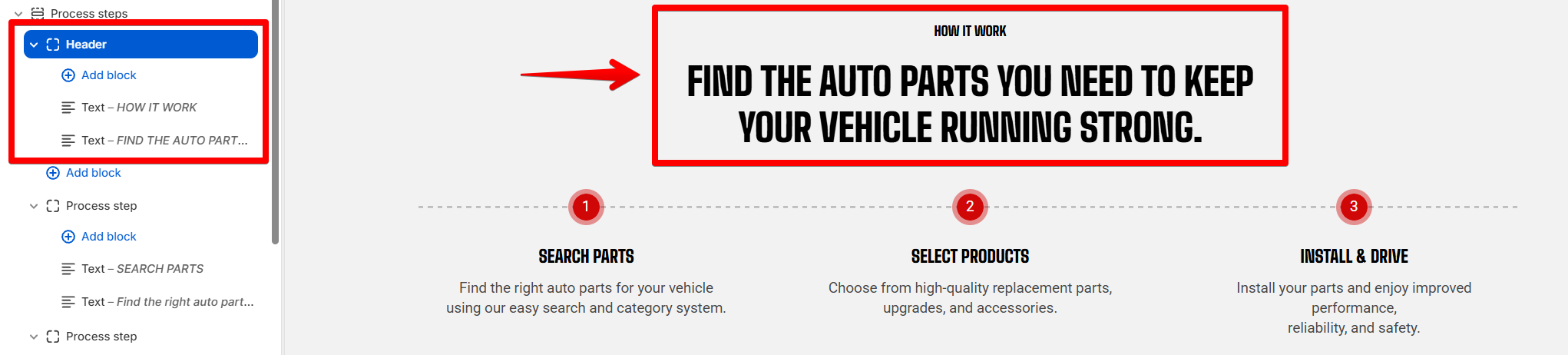
Displays the heading area above the steps. Use it to introduce the content or provide context before customers see the section.
It can't be removed or reordered, but you can customize its content by adding, removing, and arranging supported blocks inside it.
#### Header settings
| Setting | Description | Options |
| ------------- | ------------------------------------------------------------- | ------------------------------- |
| **Alignment** | Controls the horizontal alignment of the Header content. | **Left, Center,** or **Right**. |
| **Devices** | Selects which device-specific padding values you are editing. | **Desktop** or **Mobile**. |
| **Bottom** | Controls the space below the Header content. | **0–100px.** |
#### Header blocks
You can add and arrange the following theme blocks inside the Header:
* [**Button**](https://docs.foxecom.com/motrix-theme/theme-blocks/button) — Adds a call-to-action button.
* [**Heading/Subheading/Text**](https://docs.foxecom.com/motrix-theme/theme-blocks/text) — Adds a heading, supporting text, or descriptive text.
* [**Image**](https://docs.foxecom.com/motrix-theme/theme-blocks/image) — Adds an image.
Header includes blocks such as [text](https://docs.foxecom.com/motrix-theme/theme-blocks/text), heading, [button](https://docs.foxecom.com/motrix-theme/theme-blocks/button), label, and [image](https://docs.foxecom.com/motrix-theme/theme-blocks/image). Add, reorder, or remove these pieces to build your message.
### Process step
One step in the sequence, holding a heading and a description. Add up to six and drag them to reorder — the numbers follow the order in the sidebar, so you never edit a number yourself.
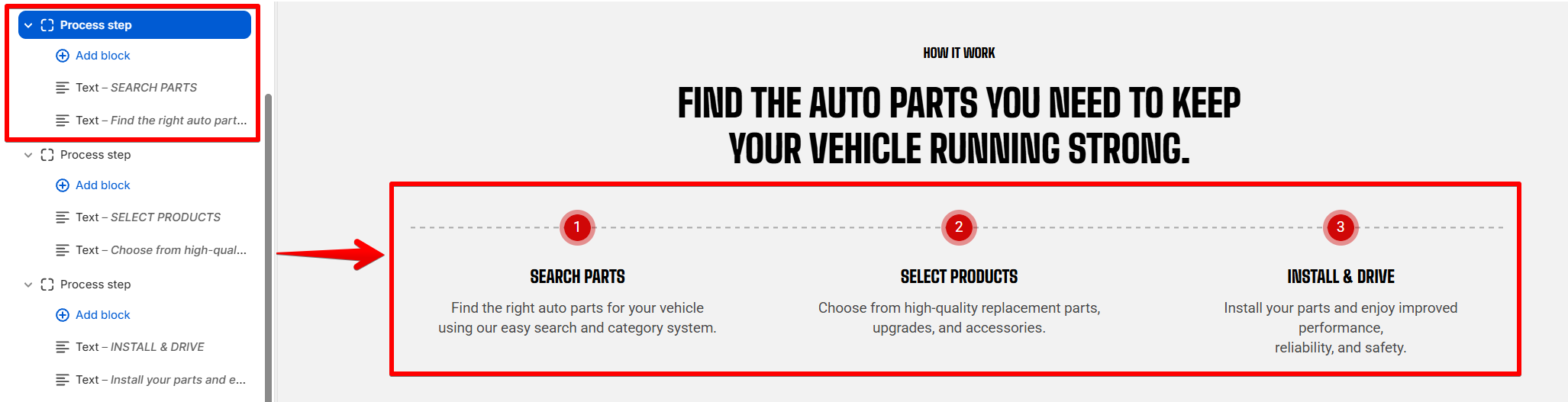
Keep **step headings short** and use a consistent sentence structure, such as **Search parts → Select products → Install & drive**, so customers can scan the process as one sequence.
## FAQs
#### How many steps can I add?
Add up to **six** process step blocks. The step **numbers update automatically** when you add, remove, or reorder them.
#### Why aren't all my steps showing in one row?
The number of steps shown across depends on your **Columns** setting and screen width. On most desktop screens, up to three steps appear in a row. On wider screens, more steps can appear.
If you want all your steps to appear in one row on wider screens, increase **Columns** to match the number of **Process step** blocks you've added. Extra steps may still appear in a carousel on smaller screens or when there isn't enough space.
#### Can I change the step numbers?
No. Numbering comes from the order of the blocks, so move the step instead and everything renumbers.
#### Can I add an image or icon to a step?
The step is built around its number, heading, and description. For cards with icons or images, use the [Icon boxes](https://docs.foxecom.com/motrix-theme/theme-sections/icon-boxes) section instead.