# Overview
For general guidance on modifying sections, refer to Shopify help: [Sections and blocks](https://help.shopify.com/manual/online-store/themes/theme-structure/sections-and-blocks)
## What are theme sections?
Theme sections are customizable components that you use to build the layout and content of your storefront. Each section is designed for a specific purpose, such as showcasing products, displaying images and videos, highlighting benefits, or adding a newsletter signup.
**Sections can include** **blocks**, which let you add and organize individual pieces of content within a section. For example, the **Slideshow** section uses **Slide** blocks, while the **Media gallery** section uses **Gallery item** blocks.
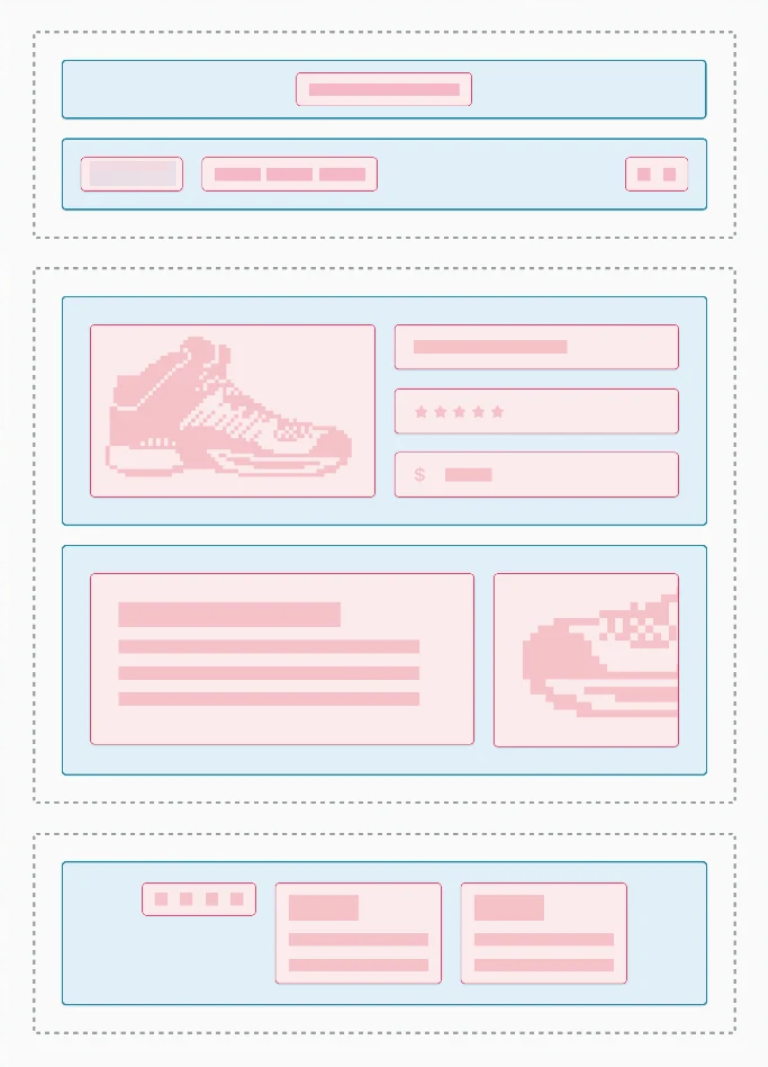 Customize sections and their blocks directly in the Shopify theme editor. You can add, remove, rearrange, and adjust available settings without editing code.
The sections and blocks available to you depend on the Motrix theme and its version. Some blocks are designed for specific sections, while others may be available across multiple sections.
Customize sections and their blocks directly in the Shopify theme editor. You can add, remove, rearrange, and adjust available settings without editing code.
The sections and blocks available to you depend on the Motrix theme and its version. Some blocks are designed for specific sections, while others may be available across multiple sections.
See [Motrix theme blocks](https://docs.foxecom.com/motrix-theme/theme-blocks/overview)
Use **template sections** when you want to build the main content of a specific page.
Use **section groups** for shared areas such as the **Header** and **Footer** that appear across multiple pages.
| | Sections in templates | Sections in section groups |
| --------------------- | ---------------------------------------------------------------------------------------- | ------------------------------------------------------------------------ |
| **Where they appear** | Inside a specific page or template, such as a product, collection, or homepage template. | In shared areas of the storefront, such as the Header and Footer. |
| **What they control** | The main content and layout of an individual page or template. | Content that appears across multiple pages using the same section group. |
| **Examples** | Hero banner, Featured collection, Testimonials, Media gallery | Header, Mega menu, Footer |
| **How changes work** | Changes affect the pages or templates that use that template. | Changes usually apply across all pages that use the section group. |
| **Maximum sections** | Up to **25 sections** per JSON template. | Up to **25 sections** per section group. |
| **Typical use** | Build the content structure of individual storefront pages. | Build reusable areas that appear across the storefront. |
## Types of sections
| | Static sections | Dynamic sections |
| ------------------------- | ------------------------------------------------------------------------------------- | -------------------------------------------------------------------------------------------------------------- |
| **What they are** | Sections that are fixed in a specific location of a template or section group. | Sections that merchants can add, remove, and reorder in the theme editor. |
| **Where they appear** | In a predefined location within the theme layout. | In the main content area of a template or a section group that supports dynamic sections. |
| **Can you add more?** | Usually no. The theme controls where and how many instances can appear. | Yes, as long as the theme and Shopify limits allow it. |
| **Can you reorder them?** | No, their position is controlled by the theme. | Yes, you can usually drag and drop them to change their order. |
| **Can you remove them?** | Not from the theme editor when they are required by the theme. | Yes, you can remove them from the theme editor. |
| **Examples** | A fixed Header or Footer section included by the theme. | Hero banner, Featured collection, Testimonials, Media gallery, and other sections added from the theme editor. |
| **Typical use** | Essential or structural content that the theme needs to place in a specific location. | Flexible page content that merchants want to arrange based on their store's needs. |
## How sections work in the theme editor
Inside the theme editor, you can:
* **Add a section** — Choose a section from Motrix's available library.
* **Reorder sections** — Drag and drop sections to change the page structure.
* **Customize settings** — Adjust the layout, appearance, spacing, and other section settings.
* **Add blocks** — Add and customize content within a section when supported. [Learn more about blocks.](https://docs.foxecom.com/motrix-theme/theme-blocks/overview)
* **Duplicate or remove sections** — Reuse a layout or remove sections you no longer need.
Changes appear in the theme editor preview as you customize your page. Click **Save** when you're ready to publish your changes.
## Explore Motrix sections
### Hero & Promotional
Create prominent visual areas to introduce your store, promote products, or highlight key messages.
### Products & Collections
Showcase products and collections, highlight product details, and help customers discover products that match their needs.
### Content & Storytelling
Share useful information, explain products or processes, answer common questions, and build trust with customer feedback.
### Media & Visual Shopping
Use images and visual layouts to showcase your products, collections, and store content in engaging ways.
### Custom & Flexible
Add custom content or layouts when the available theme sections do not provide what you need.