# Media gallery
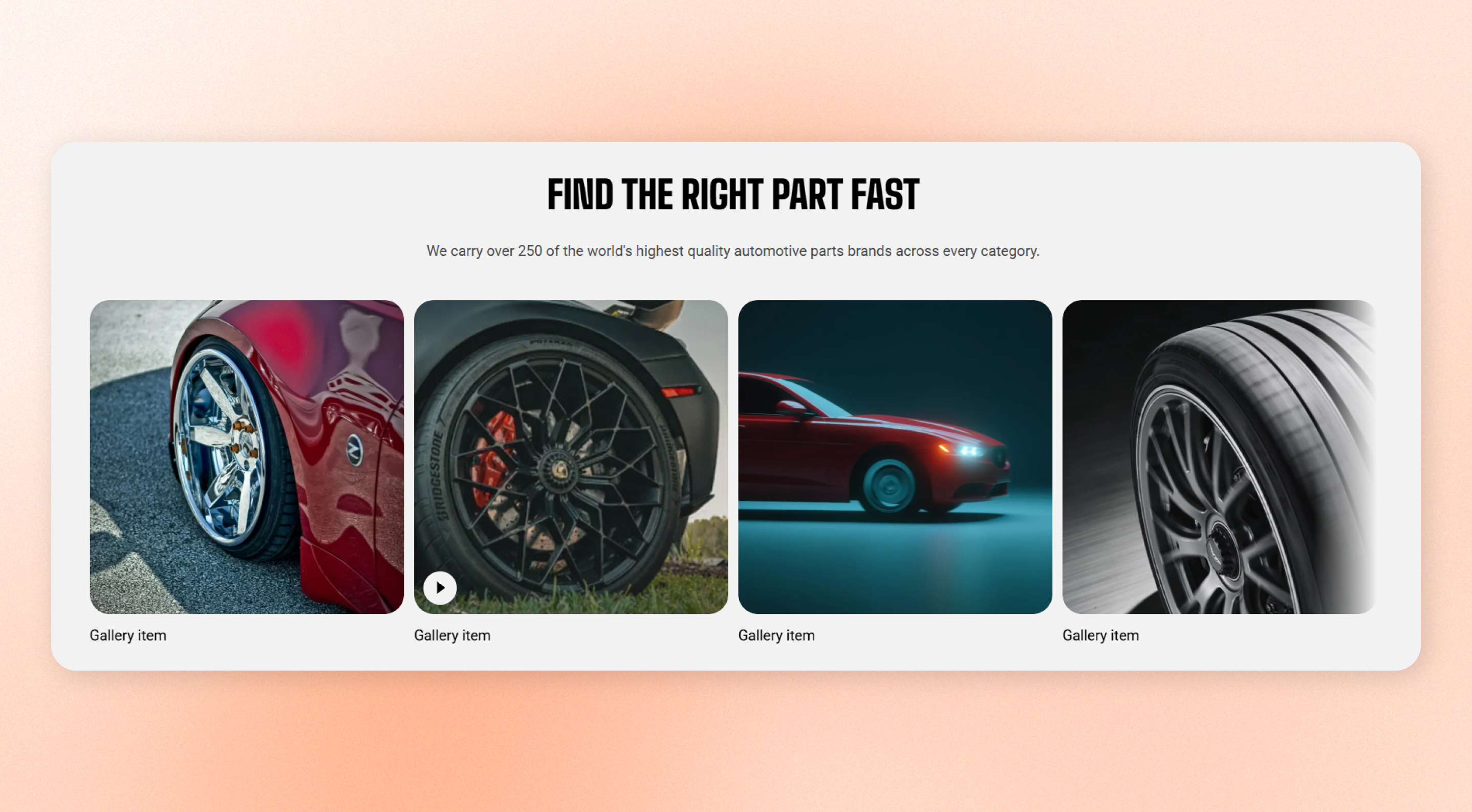
Display a collection of image and video tiles with optional captions. Choose a grid or carousel layout, then add a heading and description above the gallery when needed. Use it for lookbooks, social-style galleries, product inspiration, or short brand videos.
## How to customize the Media gallery
1. Go to **Online Store > Themes** in Shopify Admin.
2. Find your theme and click **Edit theme**.
3. Open the page where the **Media gallery** section is used.
4. Select **Media gallery** from the section list.
5. Adjust the [section settings](https://docs.foxecom.com/motrix-theme/theme-sections/media-gallery#section-settings), including layout, carousel, mobile, appearance, spacing, and other section settings.
6. Select a [**Gallery item**](https://docs.foxecom.com/motrix-theme/theme-sections/media-gallery#gallery-item) block to customize its media, heading, typography, and appearance.
7. Save your changes.
## Section settings
### Layout
| Setting | Description | Options |
| ------------------ | ----------------------------------------------------------------------------------------------------------------- | --------------------------------------------------------------------------------------------- |
| **Container** | Choose whether the gallery stays within the page width or spans the available width. | Fixed / Full |
| **Type** | Choose how the gallery tiles are displayed. | **Grid** arranges tiles in rows
**Carousel** lets customers navigate through them. |
| **Columns** | Set how many tiles appear across on large screens. Narrower desktop screens may show fewer columns automatically. | 2 - 6 |
| **Horizontal gap** | Set the horizontal space between tiles. | 0px - 100px |
| **Vertical gap** | Set the vertical space between rows. This setting appears when **Type is Grid**. | 0px - 100px |
Use fewer columns when your captions or media need more room. Check the gallery at different desktop widths before finalizing the layout.
### Carousel settings
These settings appear when **Type** is **Carousel**.
| Setting | Description | Options |
| --------------------- | --------------------------------------------------------------------------------------------- | ---------------------------------------------------------------------------- |
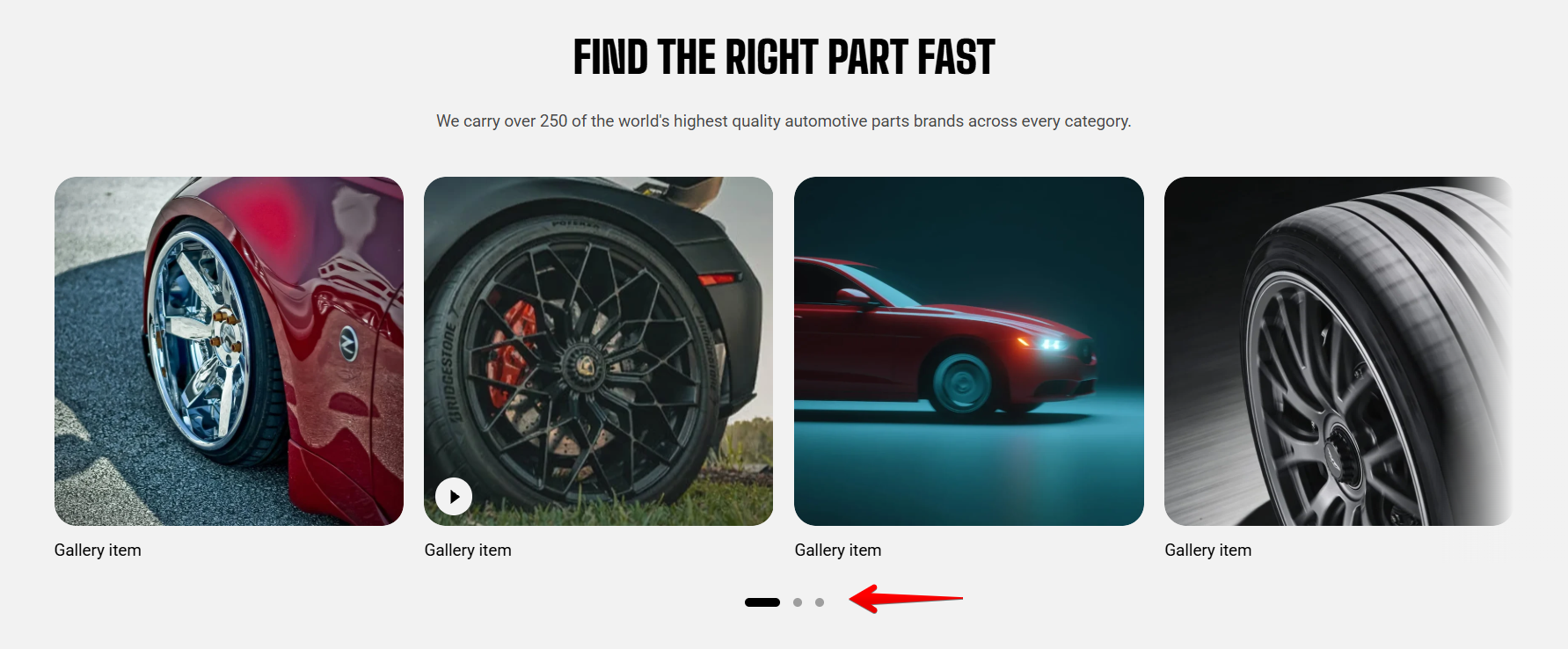
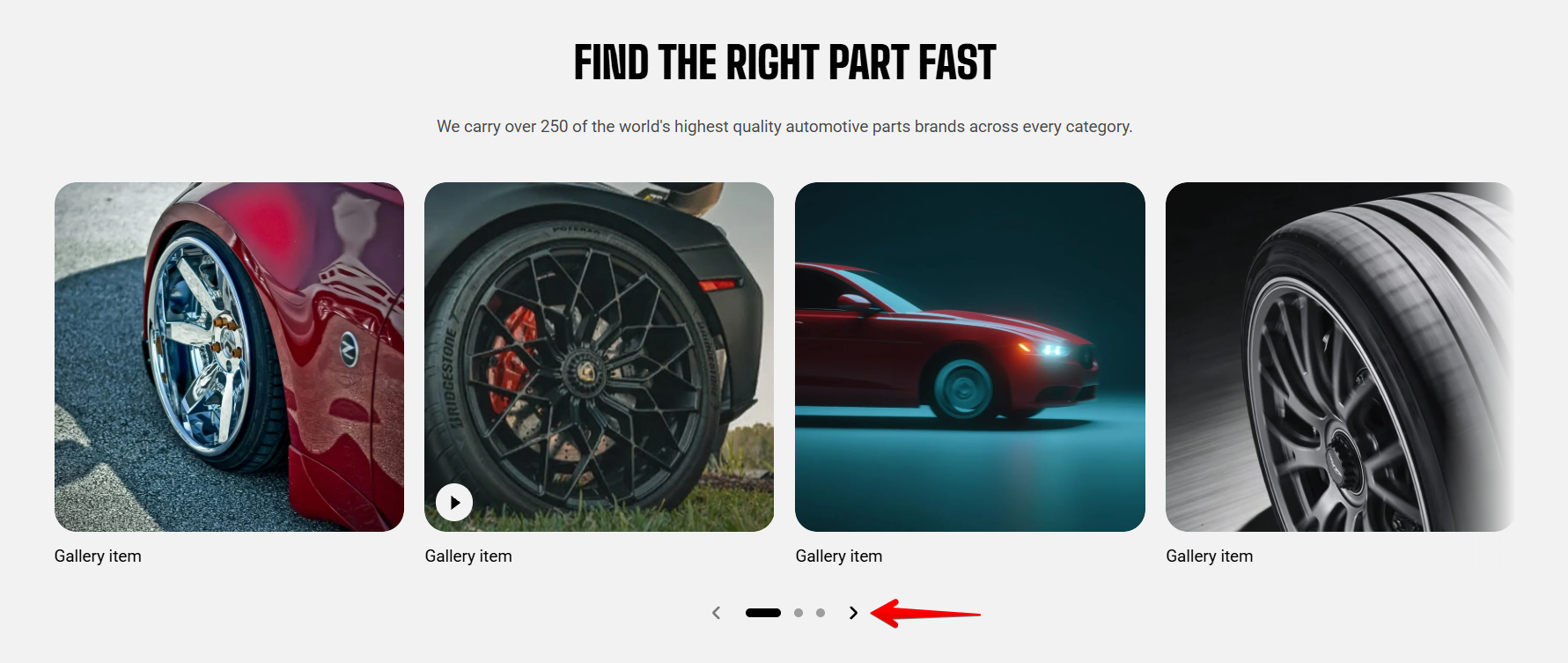
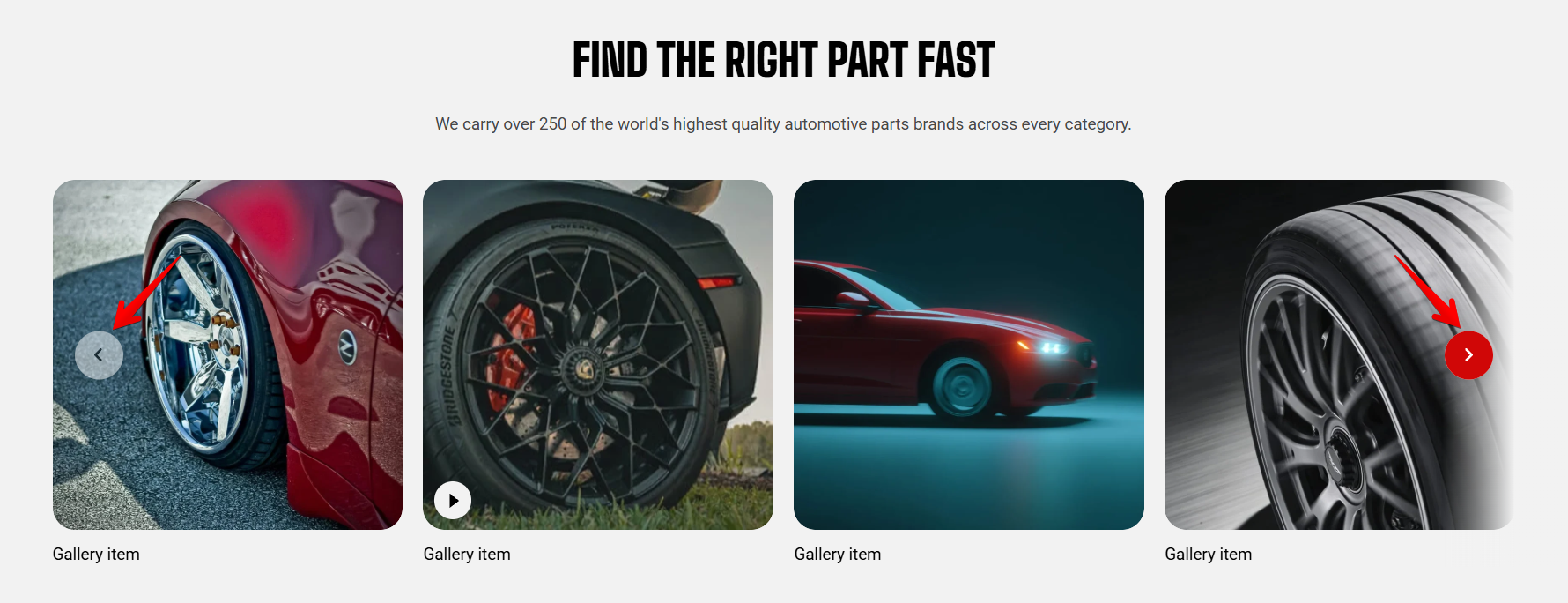
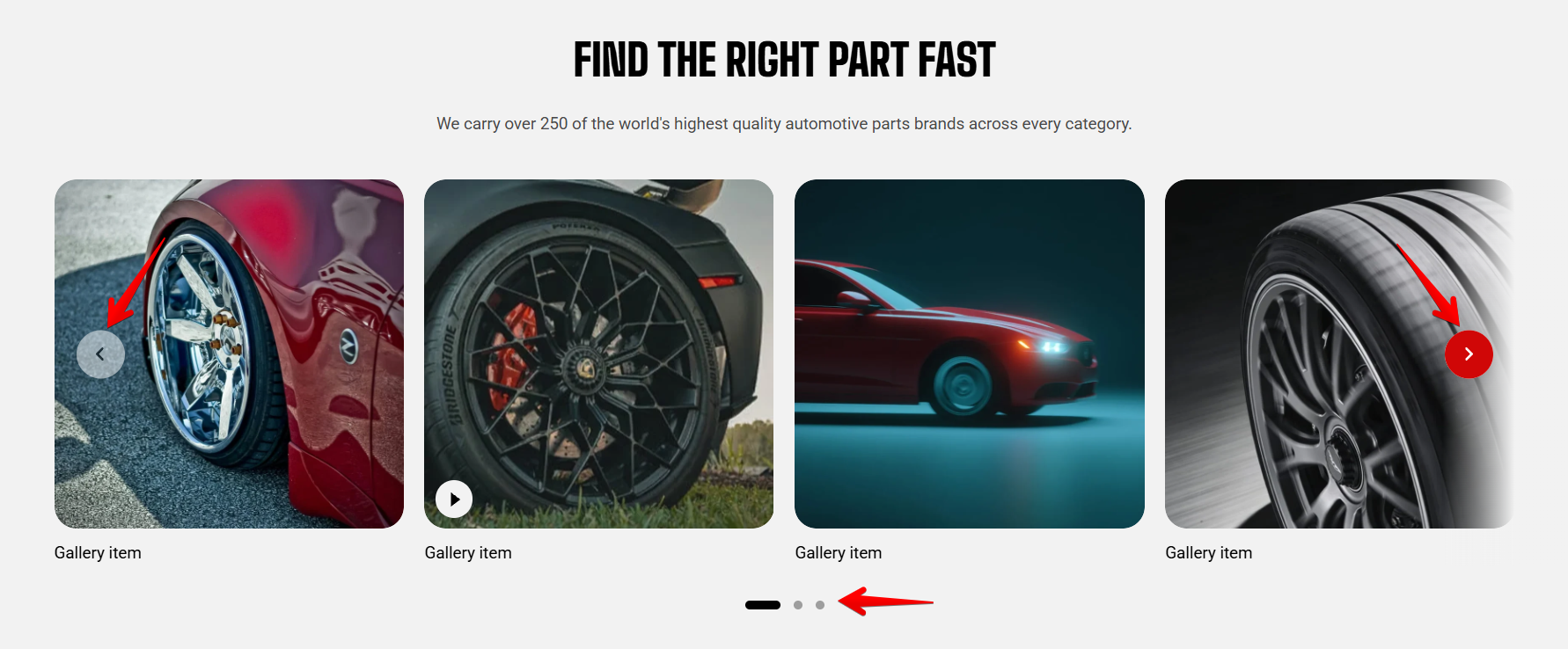
| **Control type** | Choose how customers navigate between gallery tiles. | None / Dots / Arrows with dots / Floating arrows / Floating arrows with dots |
| **Control alignment** | Set where the carousel controls appear. This setting appears when a control type is selected. | Left / Center / Right |
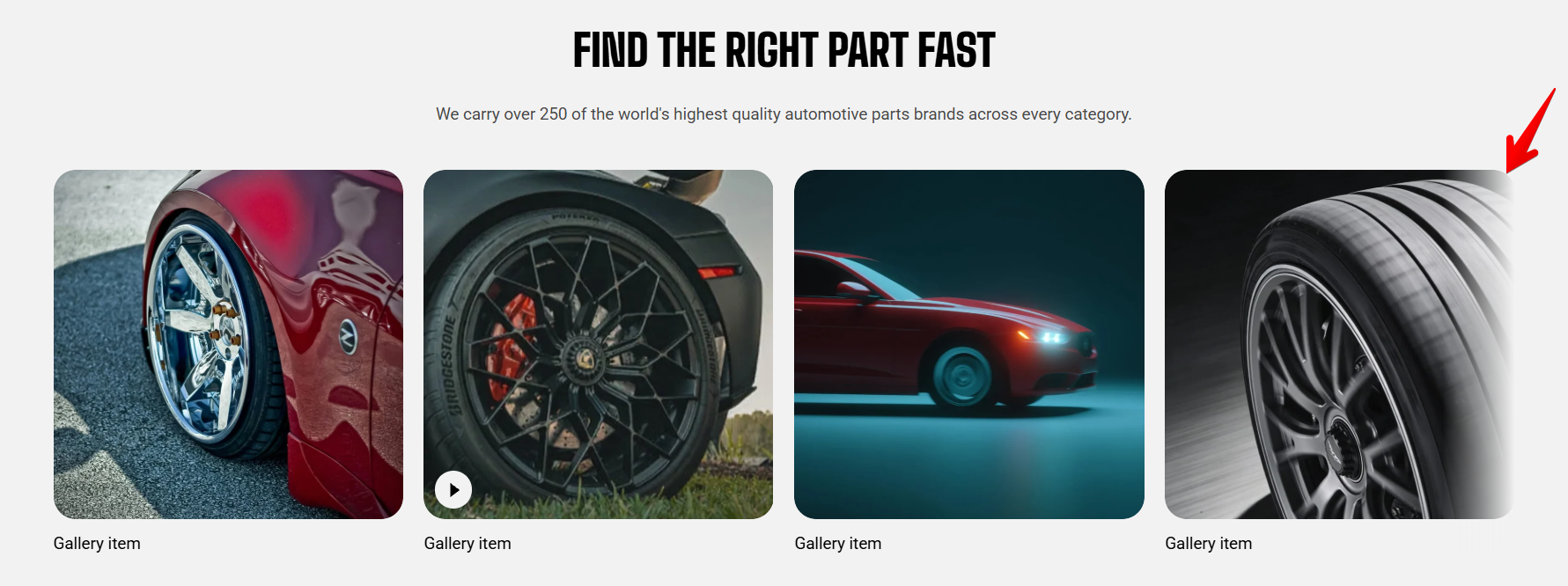
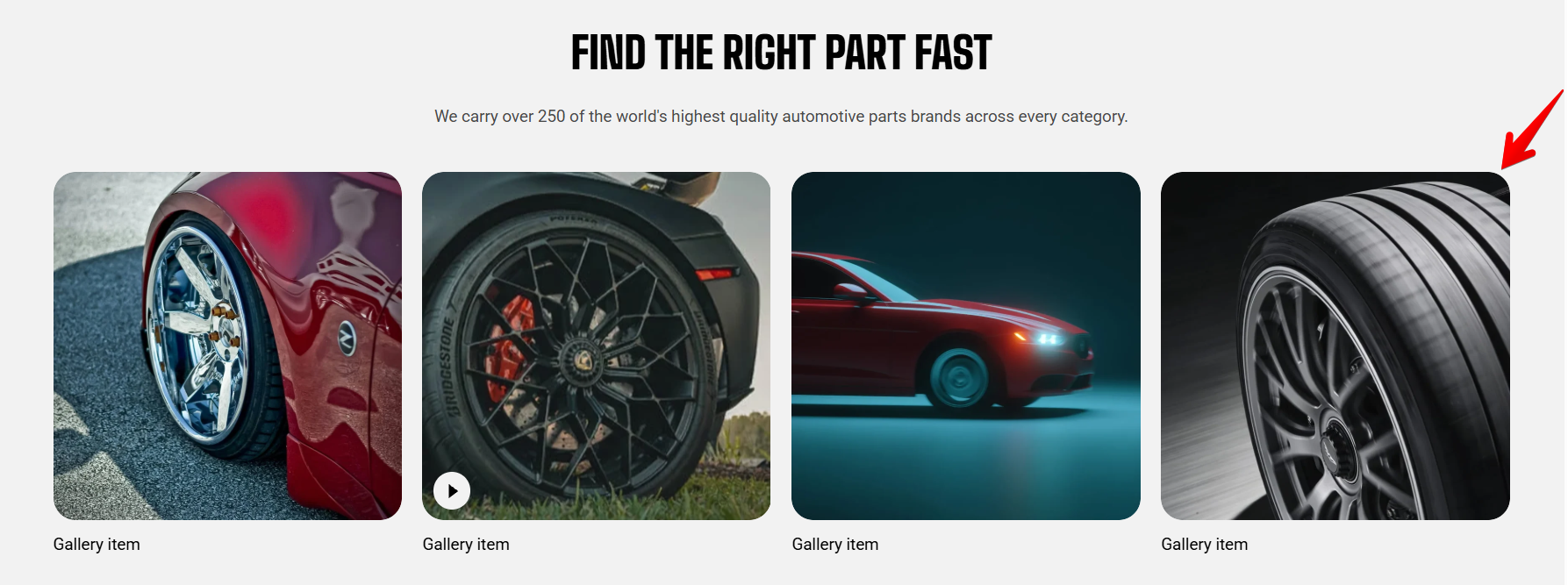
| **Overflow content** | Choose whether the next tile can remain partially visible at the edge of the gallery. | Visible / Hidden |
| **Show edge fade** | Add a soft fade effect to the tiles at the edges of the carousel. | On / Off |
Use **Visible** overflow when you want to show customers that more media is available to browse. Use **Hidden** for a cleaner edge.
### Mobile layout
| Setting | Description | Options |
| ---------------------------- | --------------------------------------------------------------------------------------------------------------------------- | ------------------- |
| **Enable swipe on mobile** | Let customers swipe horizontally through gallery tiles on mobile. | On / Off |
| **Show edge fade on mobile** | Add a soft fade effect at the edges while customers swipe. This setting appears when **mobile swipe is enabled**. | On / Off |
| **Custom column width** | Use a custom tile width so part of the next tile can remain visible. This setting appears when **mobile swipe is enabled.** | On / Off |
| **Custom width** | Set the width of each mobile tile when Custom column **width is enabled.** | 0% - 100% |
| **Mobile columns** | Set how many tiles appear in each row on mobile. This setting appears when **Custom column width or mobile swipe is off.** | 1 column/ 2 columns |
| **Horizontal gap** | Set the horizontal space between mobile tiles. | 0px - 100px |
| **Vertical gap** | Set the vertical space between mobile rows. This setting appears when **mobile swipe is off.** | 0px - 100px |
Turn on mobile swipe when you have several tiles and want to keep each tile large enough to view. Use **Custom column width** when you want part of the next tile to remain visible as a cue to swipe.
### Appearance
| Setting | Description | Options |
| ------------------ | ------------------------------------------------------------------------------------------- | --------------------- |
| **Color scheme** | Apply a theme color scheme to the gallery. | Select a color scheme |
| **Border** | Add or remove a border around the gallery. | None / Solid |
| **Border width** | Set the thickness of the gallery border. This setting appears when **a border is enabled**. | 0px - 10px |
| **Border opacity** | Set the opacity of the gallery border. This setting appears when **a border is enabled**. | 0% - 100% |
| **Corner radius** | Set the corner radius of the gallery. | 0px - 32px |
### Padding
Choose **Desktop** or **Mobile**, then adjust the spacing around the gallery.
| Setting | Description | Options |
| ----------- | --------------------------------------------------------------------------------------------- | ---------------- |
| **Devices** | Choose the device type to customize padding for. | Desktop / Mobile |
| **Top** | Set the spacing above the gallery. | 0px - 100px |
| **Bottom** | Set the spacing below the gallery. | 0px - 100px |
| **Left** | Set the spacing to the left of the gallery. This setting appears when **Container is Full.** | 0px - 100px |
| **Right** | Set the spacing to the right of the gallery. This setting appears when **Container is Full.** | 0px - 100px |
Use the left and right padding with a **Full** container when you want the gallery to span the screen while keeping the tiles away from the edges.
## Blocks
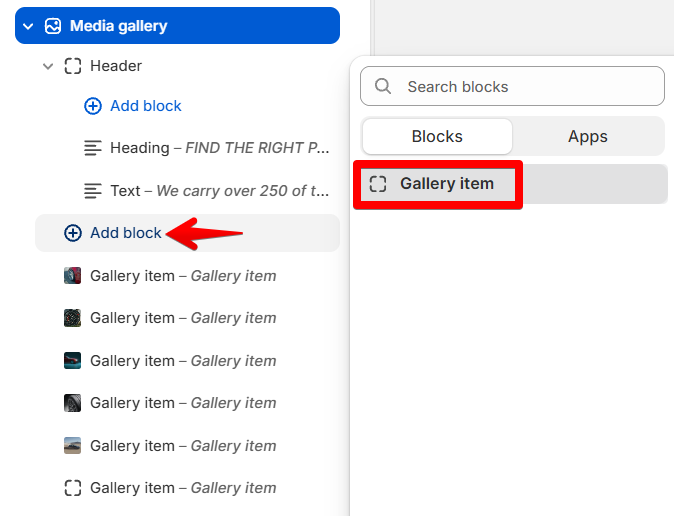
The **Media gallery** section uses **Header** and **Gallery item** blocks to build the gallery. Add multiple Gallery item blocks to create your collection of image and video tiles.
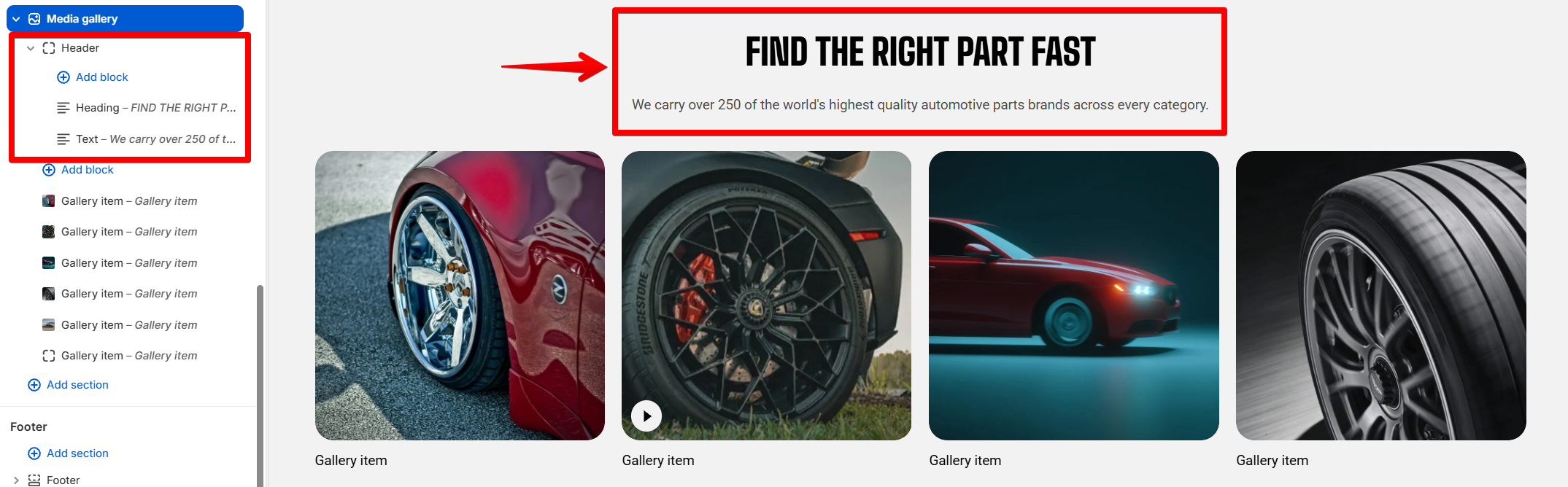
### Header
Adds the heading area above the gallery items. Use it to introduce the content or provide context before customers see the section.
It can't be removed or reordered, but you can customize its content by adding, removing, and arranging supported blocks inside it.
#### Header settings
| Setting | Description | Options |
| ------------- | ------------------------------------------------------------- | ------------------------------- |
| **Alignment** | Controls the horizontal alignment of the Header content. | **Left, Center,** or **Right**. |
| **Devices** | Selects which device-specific padding values you are editing. | **Desktop** or **Mobile**. |
| **Bottom** | Controls the space below the Header content. | **0–100px.** |
#### Header blocks
You can add and arrange the following theme blocks inside the Header:
* [**Button**](https://docs.foxecom.com/motrix-theme/theme-blocks/button) — Adds a call-to-action button.
* [**Heading/Subheading/Text**](https://docs.foxecom.com/motrix-theme/theme-blocks/text) — Adds a heading, supporting text, or descriptive text.
* [**Image**](https://docs.foxecom.com/motrix-theme/theme-blocks/image) — Adds an image.
### Gallery item
Add one square tile with an **image** or **video** and an optional caption. Video tiles include play and mute controls, and you can add a preview image to control how the tile looks before playback.
 #### Media
| Setting | Description | Options |
| ----------- | ------------------------------------------------------------------------------------------- | ---------------------------------------------------------------------------------------------- |
| **Type** | Choose the media type displayed in the gallery item. | Image / Video |
| **Image** | Upload the image displayed in the gallery item. This setting appear when **Type is Image**. | Select image |
| **Video** | Upload the image displayed in the gallery item. This setting appear when **Type is Video**. | Select video |
| **Heading** | Add a heading to describe the gallery item. | Enter Text |
| **Preset** | Choose a text preset to control the heading style. | Paragraph / Subheading / Heading 1 / Heading 2 / Heading 3 / Heading 4 / Heading 5 / Heading 6 |
Use a short **Heading** to help customers understand the image or video at a glance. Choose a consistent **Preset** across gallery items to keep the text styling uniform.
#### Appearance
| Setting | Description | Options |
| ------------------------ | ---------------------------------------------------------------------------------------------- | ---------- |
| **Corner radius** | Set how rounded the corners of the gallery item appear. | 0px - 32px |
| **Enable preload image** | Loads the slide image earlier so it appears faster when the block is near the top of the page. | On / Off |
**Enable preload image** only when the image is visible as soon as the page opens. Avoid enabling it for images that customers need to scroll to.
## FAQs
#### Why doesn't my video play automatically?
Videos in gallery tiles don't autoplay. Customers start playback using the play control.
#### How can I control how many tiles appear on desktop?
Adjust **Columns** under **Layout**. For more precise control across different screen sizes, use **Custom columns** under **Advanced**.