# Flex carousel
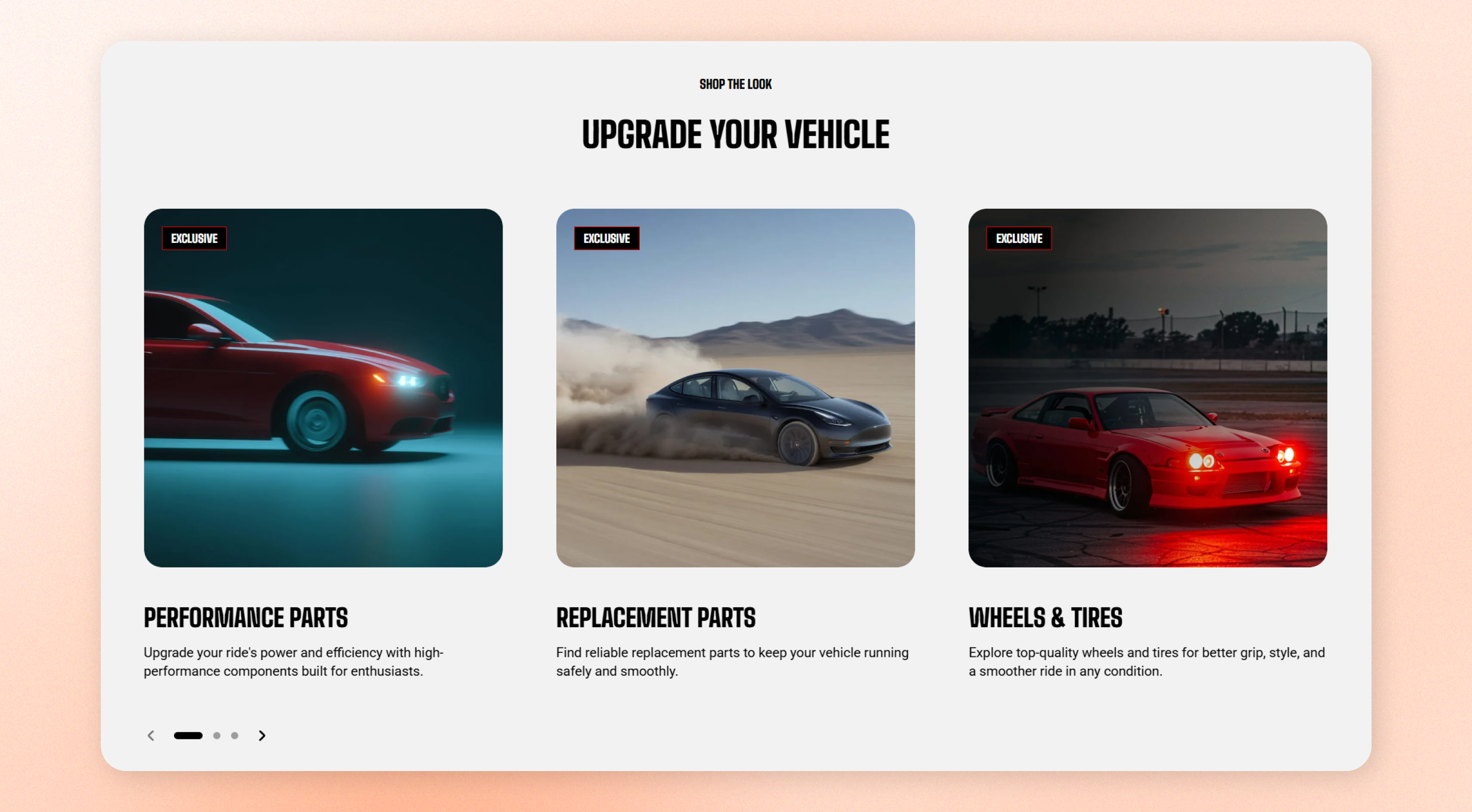
A flexible carousel row for image cards, collection cards, or collection items, with an optional heading area above. Use it to create promotional and editorial card rows or a compact “shop by category” strip.
## Presets
* **Collection list: Flex carousel** — Display a compact row of collection items that customers can browse horizontally. Use it to create a “shop by category” strip.
* **Image cards: Carousel** — Display a carousel of image cards with promotional or editorial content. Use it to highlight campaigns, featured content, or curated collections.
Image card: Carousel preset will includes a **Header** with additional blocks are **Image cards.**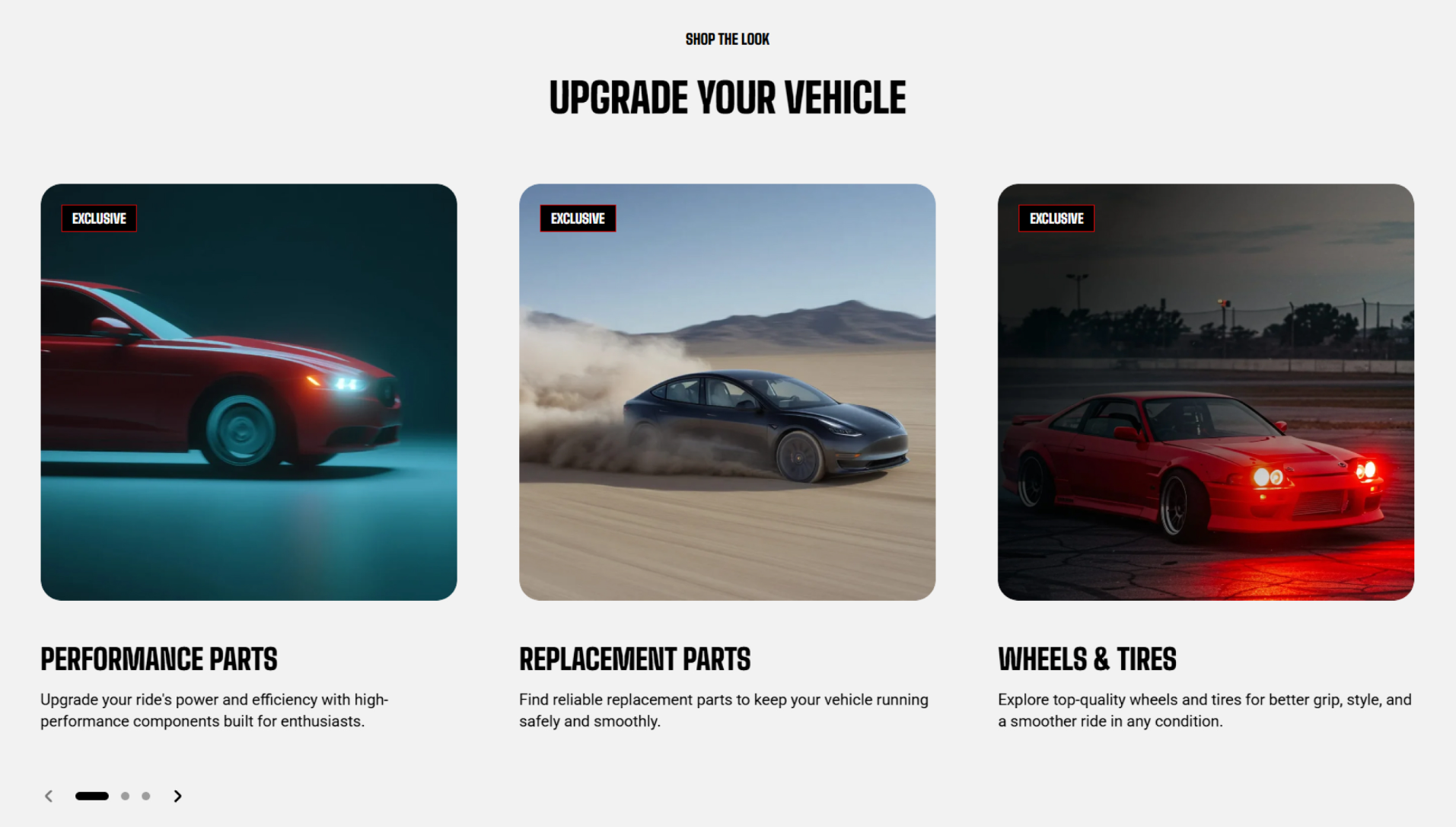
Collection list: Flex carousel preset will includes a **Header** with additional blocks are **Collection cards.**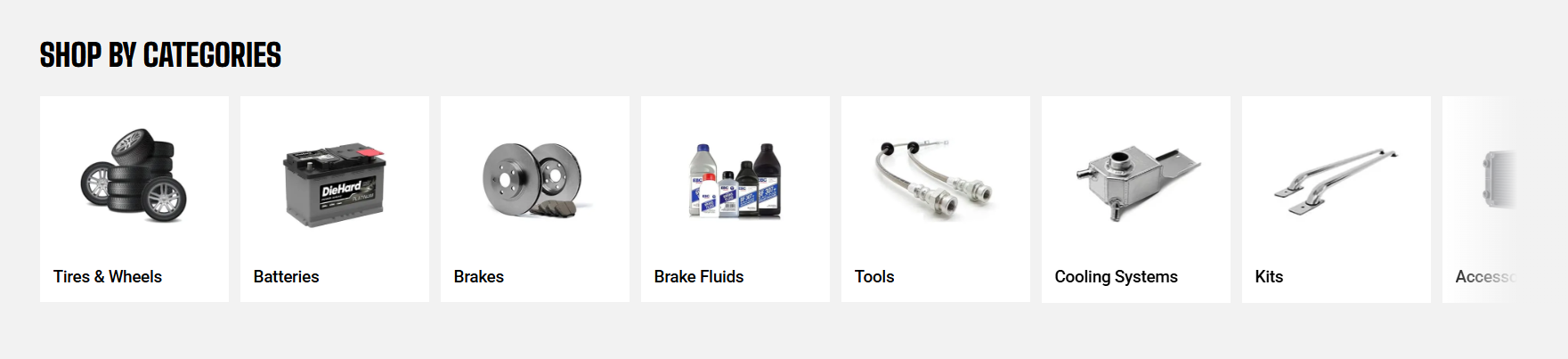
## How to customize the Flex carousel
1. Go to **Online Store** > **Themes** in Shopify Admin.
2. Find your theme and click **Edit theme**.
3. Open the page where the Flex carousel is used.
4. Select **Collection list: Flex carousel** or **Image cards: Carousel** presets.
5. Adjust the section settings and blocks as needed.
6. **Save** your changes.
## Section settings
### Layout
Control the container width and carousel controls.
| Setting | Description | Options |
| --------------------- | ------------------------------------------------------------------------------------------------- | ---------------------------------------------------------------------- |
| **Container** | Set the width of the carousel section. | Full / Fixed |
| **Control type** | Choose how customers navigate between cards. | None / Dots / Arrows + dots / Floating arrows / Floating arrows + dots |
| **Control alignment** | Set the alignment of the carousel controls. | Left / Center / Right |
| **Overflow content** | Choose whether part of the next or previous card remains visible outside the carousel. | Hidden / Visible |
| **Show edge fade** | Add a fade effect at the edges of the carousel. | On / Off |
| **Slides per view** | Choose whether the number of visible cards is determined automatically or by the Columns setting. | Auto / Columns |
| **Columns** | Set the number of cards displayed at the same time when Slides per view is set to Columns. | 2 - 4 columns |
| **Horizontal gap** | Set the horizontal space between cards. | 0px - 100px |
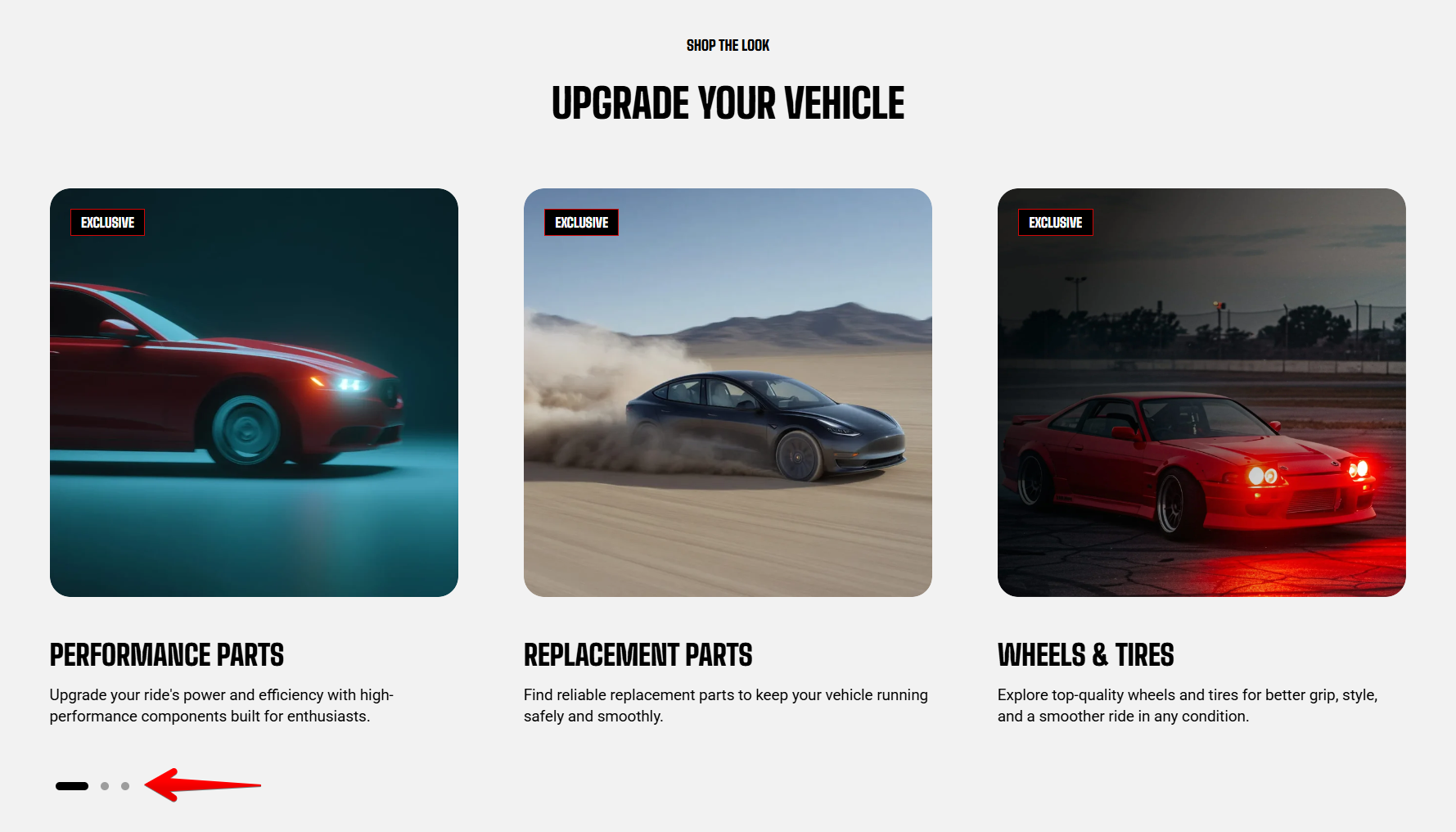
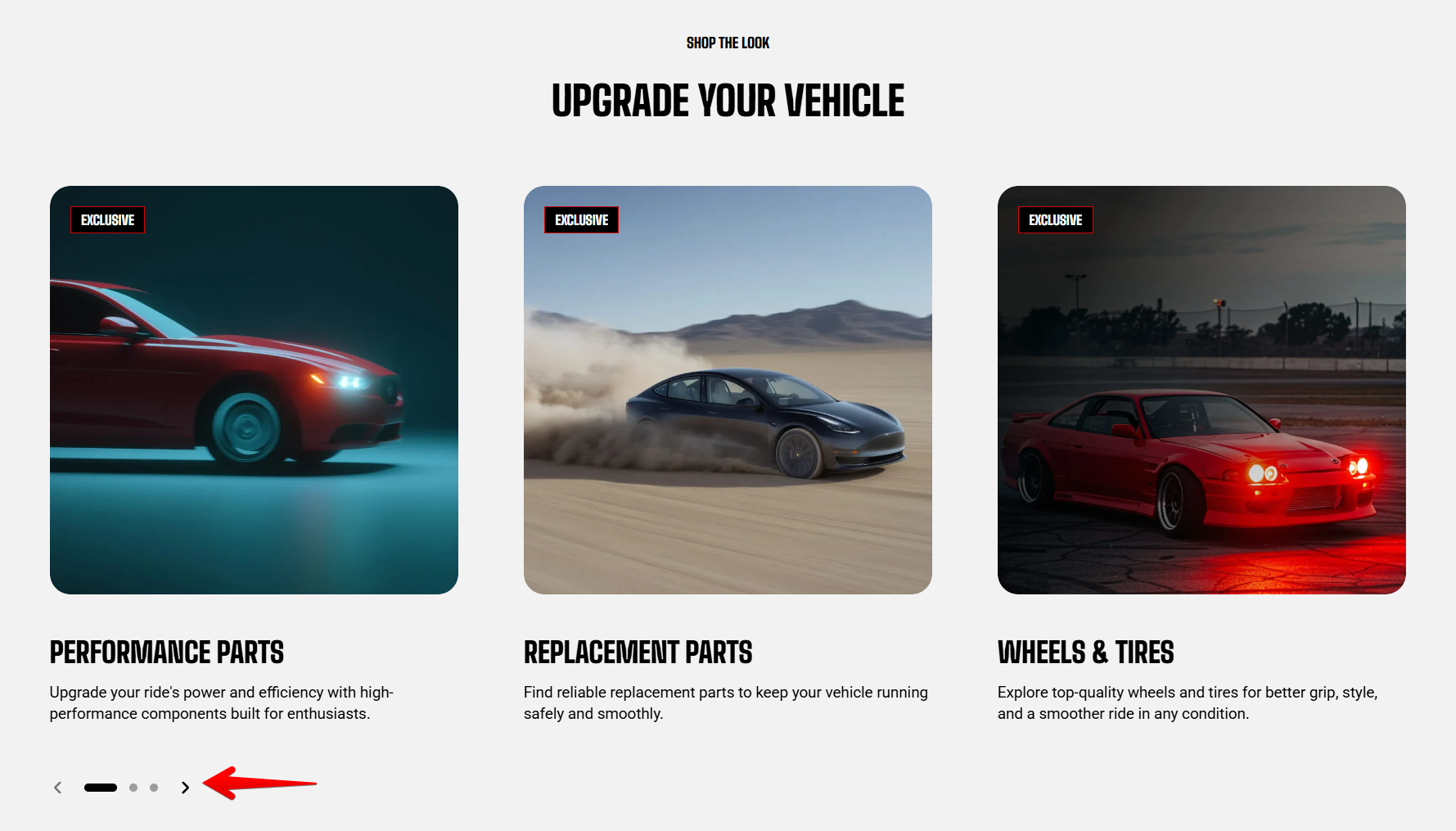
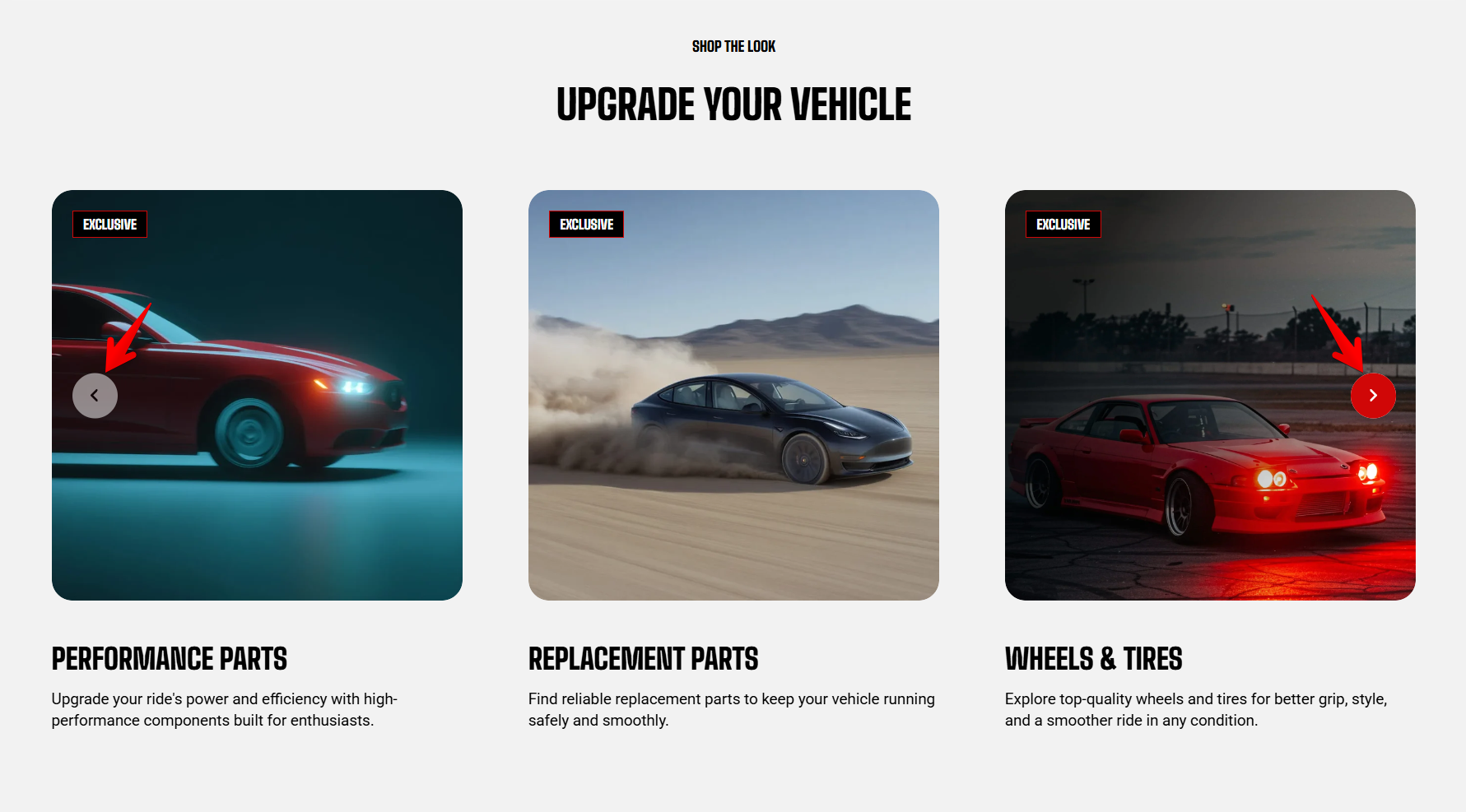
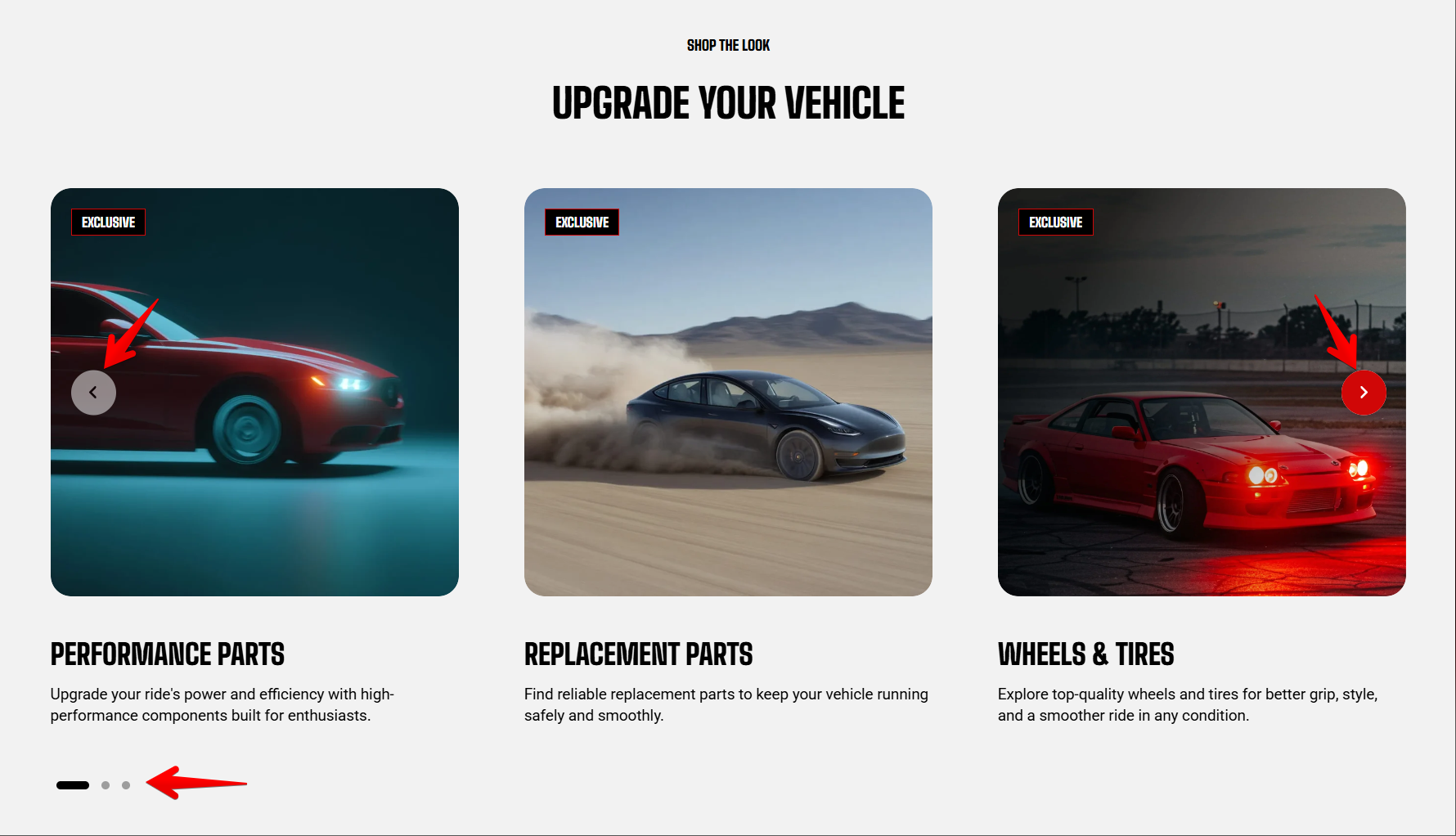
Turn on **Overflow content** when you want to hint that more cards are available. Use **Hidden** for a cleaner, contained layout.
### Mobile layout
Adjust how the carousel behaves on smaller screens.
| Setting | Description | Options |
| -------------------------- | ------------------------------------------------------------- | -------------------- |
| **Enable swipe on mobile** | Let customers swipe through cards on mobile devices. | On / Off |
| **Columns** | Set the number of cards displayed at the same time on mobile. | 1 column / 2 columns |
| **Horizontal gap** | Set the horizontal space between cards on mobile. | 0px - 100px |
| **Vertical gap** | Set the vertical space around cards on mobile. | 0px - 100px |
### Appearance
Customize the section's colors and card container.
| Setting | Description | Options |
| ------------------ | -------------------------------------------------------------------------- | --------------------- |
| **Color scheme** | Choose the color scheme for the section. | Choose a color scheme |
| **Border** | Add a border around the section. | None / Solid |
| **Border width** | Set the border thickness. This setting appear when **Border is Solid**. | 0px - 10px |
| **Border opacity** | Set the border transparency. This setting appear when **Border is Solid**. | 0% - 100% |
| **Corner radius** | Round the section's corners. | 0px - 32px |
### Padding
Control the spacing around the section content.
| Setting | Description | Options |
| ----------- | ------------------------------------------------ | ---------------- |
| **Devices** | Choose the device type for the padding settings. | Desktop / Mobile |
| **Top** | Set the top spacing around the section. | 0px - 100px |
| **Bottom** | Set the bottom spacing around the section. | 0px - 100px |
### Animation
Choose how cards appear when they enter the page.
| Setting | Description | Options |
| --------------------------- | --------------------------------------------------------------------------------------------------------------------------------------------- | ------------------------------------------------------------------------- |
| **Items** | Choose the animation applied to carousel items. | None / Fade in / Fade up / Fade down / Slide in (left) / Slide in (right) |
| **Reveal items one by one** | Each item in the list arrives after the one before it, instead of the whole list appearing at once. This setting appear when items isn't None | On / Off |
## Blocks
The Flex carousel section includes a fixed [**Header**](https://docs.foxecom.com/motrix-theme/theme-sections/image-cards-carousel#header) block and [**additional supported blocks**](https://docs.foxecom.com/motrix-theme/theme-sections/image-cards-carousel#additional-blocks).
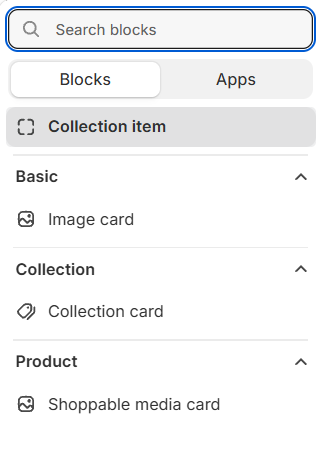
The **Flex carousel** supports **Image card**, **Collection card**, **Collection item,** and **Shoppable media card** blocks. Use each block based on the type of content you want to display.
### Header
Adds the heading area above the carousel. Use it to introduce the content or provide context before customers browse the cards.
It can't be removed or reordered, but you can customize its content by adding, removing, and arranging supported blocks inside it.
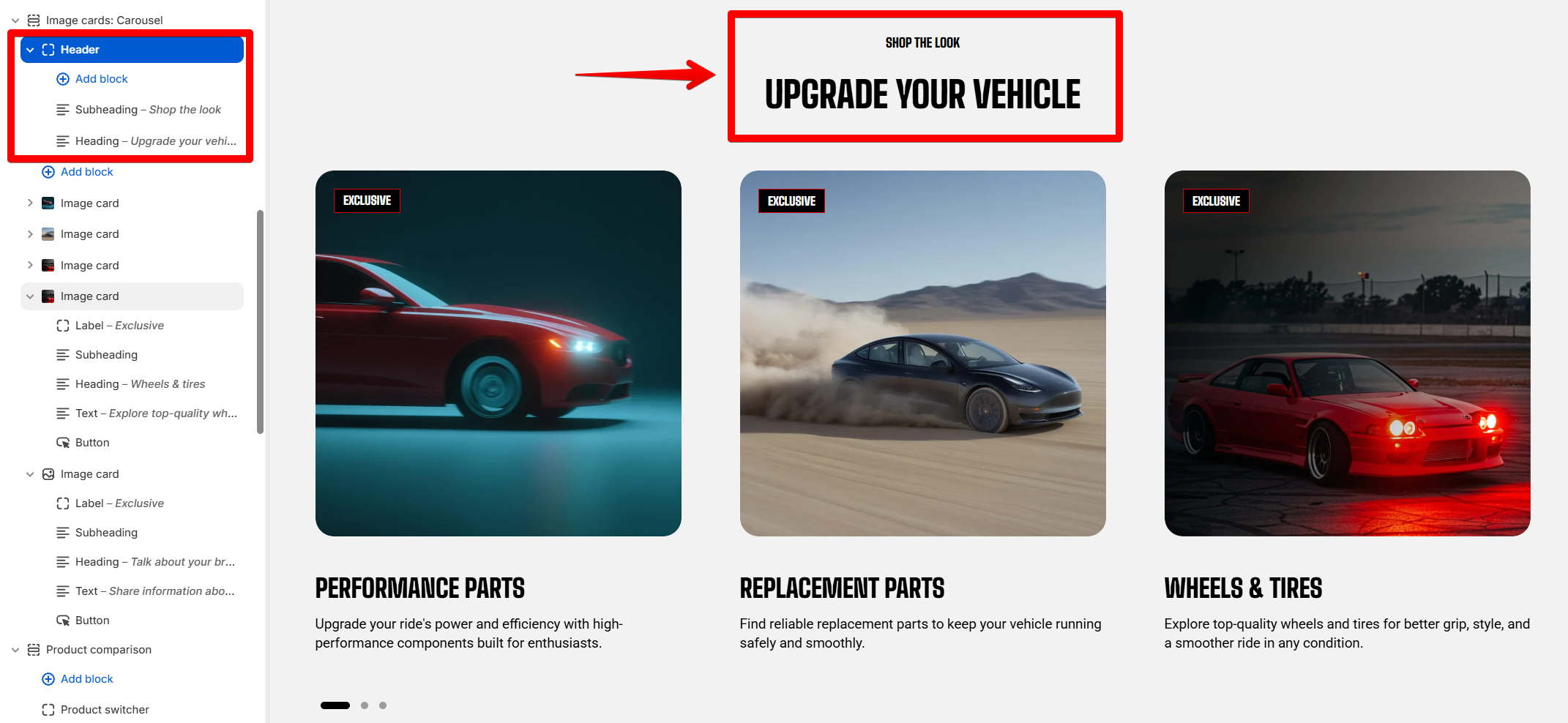
#### Header settings
| Setting | Description | Options |
| ------------- | ------------------------------------------------------------- | ------------------------------- |
| **Alignment** | Controls the horizontal alignment of the Header content. | **Left, Center,** or **Right**. |
| **Devices** | Selects which device-specific padding values you are editing. | **Desktop** or **Mobile**. |
| **Bottom** | Controls the space below the Header content. | **0–100px.** |
#### Header blocks
You can add and arrange the following theme blocks inside the Header:
* [**Button**](https://docs.foxecom.com/motrix-theme/theme-blocks/button) — Adds a call-to-action button.
* [**Heading/Subheading/Text**](https://docs.foxecom.com/motrix-theme/theme-blocks/text) — Adds a heading, supporting text, or descriptive text.
* [**Image**](https://docs.foxecom.com/motrix-theme/theme-blocks/image) — Adds an image.
### Additional blocks
#### Image card
Display an image with a label, heading, text, and button. Use it for promotional or editorial content. [See the Image card page for details on configuring Image card settings**.**](https://docs.foxecom.com/motrix-theme/theme-blocks/image-card)
#### Collection card
Display a collection with its image and title. [See the Collection card page for details on configuring Collection card settings**.**](https://docs.foxecom.com/motrix-theme/theme-blocks/collection-card)
#### Shopable media card
Display a lifestyle image or video with a product panel overlaid at the bottom. [See the Shopable media card page for details on configuring Shopable media card settings](https://docs.foxecom.com/motrix-theme/theme-blocks/shoppable-media-card)
#### Collection item
Display a compact collection thumbnail with its own width.
| Setting | Description | Options |
| ------------------------ | -------------------------------------------------------------------------------------------- | ------------------------------------- |
| **Collection** | Select the collection to display. | Select a collection |
| **Image** | Upload a custom image for the collection item. Leave blank to use the collection's image. | Select image |
| **Aspect ratio** | Choose the shape of the collection image. | Auto / Square / Potrait / Lanscape |
| **Title** | Add a custom title for the collection item.
Leave blank to use the collection's title. | Enter Text |
| **Text line limit** | Limit the number of lines displayed for the text. | No limit / 1 line / 2 lines / 3 lines |
| **Size - Width** | Set the width of the collection item on desktop devices. | 150px - 500px |
| **Size - Width mobile** | Set the width of the collection item on mobile devices. | 150px - 500px |
| **Inherit color scheme** | Use the color scheme from the Flex carousel section. | On / Off |
| **Border** | Choose whether to display a border around the collection item. | None / Solid |
| **Border width** | Set the border thickness. This setting appear when **Border is Solid.** | 0px - 10px |
| **Border opacity** | Set the transparency of the border. This setting appear when **Border is Solid.** | 0% - 100% |
| **Corner radius** | Control how rounded the collection item corners appear. | 0px - 32px |
Use this block with **Slides per view \= Auto** when you want each collection item to control its own width.
## FAQs
#### What is the difference between Auto and Columns in Slides per view?
Auto sizes each card to its own content, so cards of different widths sit side by side and as many fit as the row allows. Columns gives every card the same width and shows the number you choose. Use Columns when you want an even row, and Auto when your cards are deliberately different sizes.
#### Why can't I set more than 4 columns?
Four is the limit for this section. Image cards carry a picture and usually text over it, and past four across there is not enough width for either to read. If you need more cards visible, lower the horizontal gap or switch to Auto.
#### Why are the arrows missing on my phone?
Floating arrows appear on hover, so they are a desktop control. Choose Dots, or Arrows + dots, if you want a visible control on mobile — or leave it to swiping, which most shoppers try first anyway.
#### My carousel will not scroll.
Every card already fits in the row, so there is nothing to scroll and the controls hide themselves. Add more cards, raise the column count, or lower the gap.