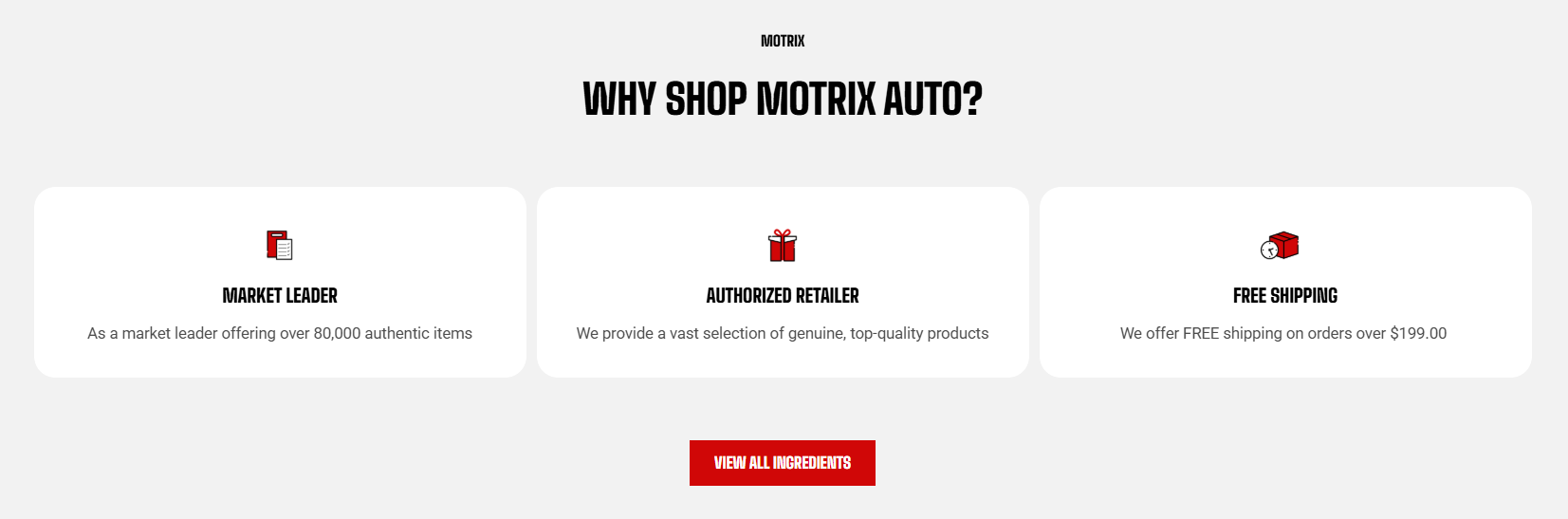
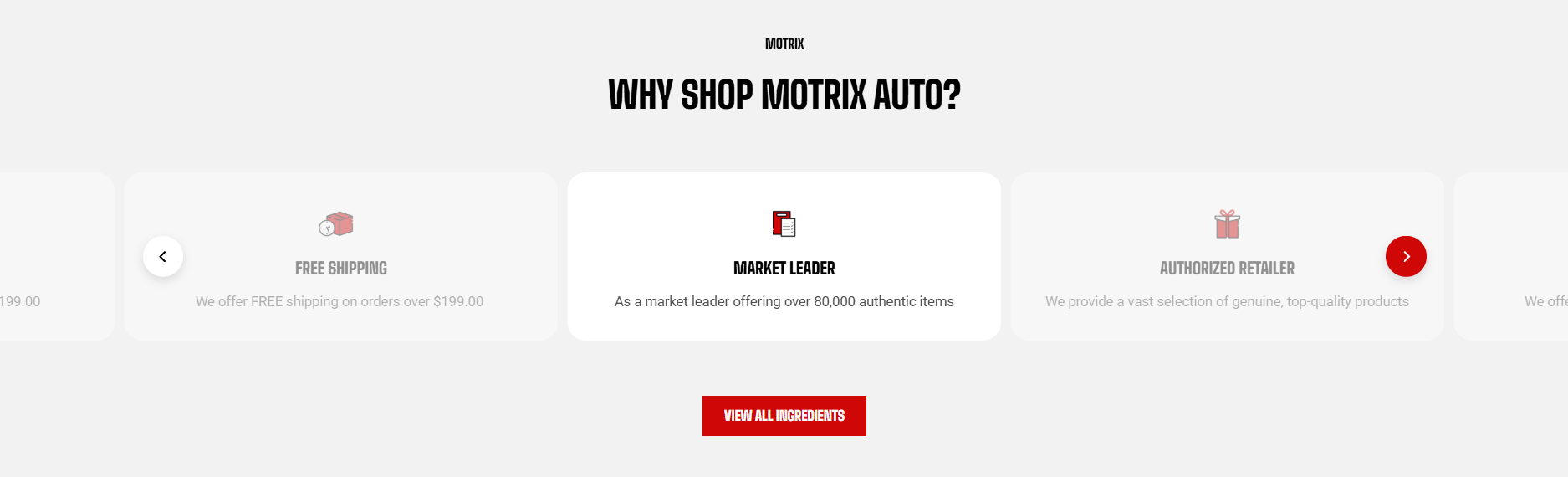
# Icon boxes
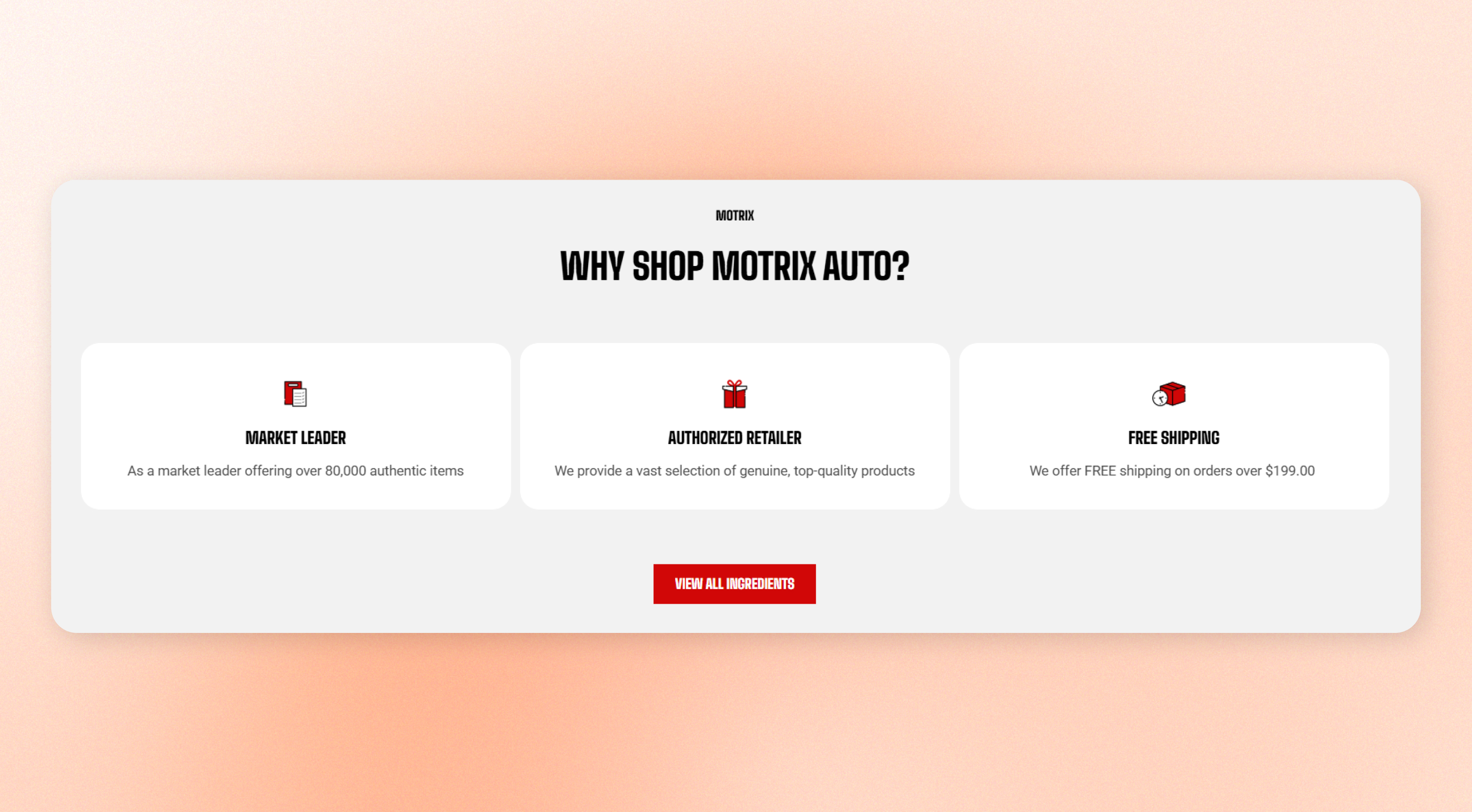
Some things are easier to scan than to read: free shipping, a two-year warranty, the four ingredients that make a product work. Icon boxes give each one a card with a symbol, a short heading, and a line of text, then lay them out as a grid or a carousel.
Each box can also hold extra detail that opens in a pop-up, so a shopper who wants the full story gets it without the section growing to fi
## How to customize the Icon boxes
1. Go to **Online Store > Themes** in Shopify Admin.
2. Find your theme and click **Edit theme**.
3. Open the page where the **Icon boxes** section is used.
4. Select **Icon boxes** from the section list.
5. Adjust the [section settings](https://docs.foxecom.com/motrix-theme/theme-sections/icon-boxes#section-settings), including layout, carousel, mobile, appearance, and spacing settings.
6. Select an [**Icon box**](https://docs.foxecom.com/motrix-theme/theme-sections/icon-boxes#icon-box) block to customize its icon, content, appearance, and padding.
7. Save your changes.
## Section settings
### Layout
| Setting | Description | Options |
| -------------- | ------------------------------------------------------------------------------------------------------------------------------------------------ | ------------------------------------------------------------------------------------------- |
| **Type** | Choose how to display the icon boxes. On desktop, the carousel activates when you have **more boxes than the selected number of columns**. | **Grid** places boxes in rows
**Carousel** lets customers navigate through them. |
| **Columns** | Set how many boxes appear across the widest screen. | 2 - 6 |
| **Column gap** | Set the horizontal space between boxes. | 0px - 100px |
| **Row gap** | Set the vertical space between rows. This setting appears when **Type is set to Grid**. | 0px - 100px |
Columns applies to very wide screens. Below that the theme caps the row at three, so a setting of 5 or 6 shows as 3 on most laptops. Use **Custom columns** under Advanced if you need a different number at each width.
**Tip**: Carousel only takes effect when you have more boxes than columns. With five boxes and five columns the section renders as a grid regardless of what Type is set to.
### Carousel settings
These settings appear when **Type** is set to **Carousel**.
| Setting | Description | Options |
| --------------------- | --------------------------------------------------------------------------------------------------------- | ---------------------------------------------------------------------------- |
| **Control type** | Choose how customers navigate the carousel. | None / Dots / Arrows with dots / Floating arrows / Floating arrows with dots |
| **Control alignment** | Set where the carousel controls appear. Appears when controls are shown. | Left / Center / Right |
| **Overflow content** | Visible lets the next box peek past the page edge, hinting there is more. Hidden cuts it off at the edge. | Visible / Hidden |
| **Show edge fade** | Add a soft fade effect at the edges of the carousel. | On / Off |
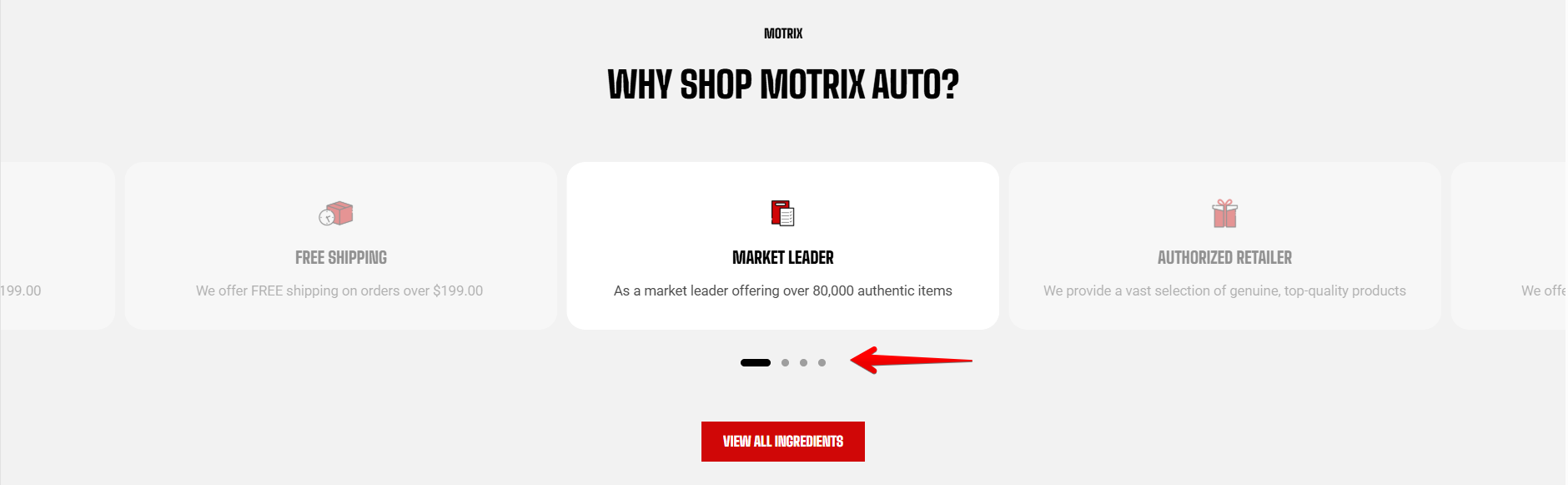
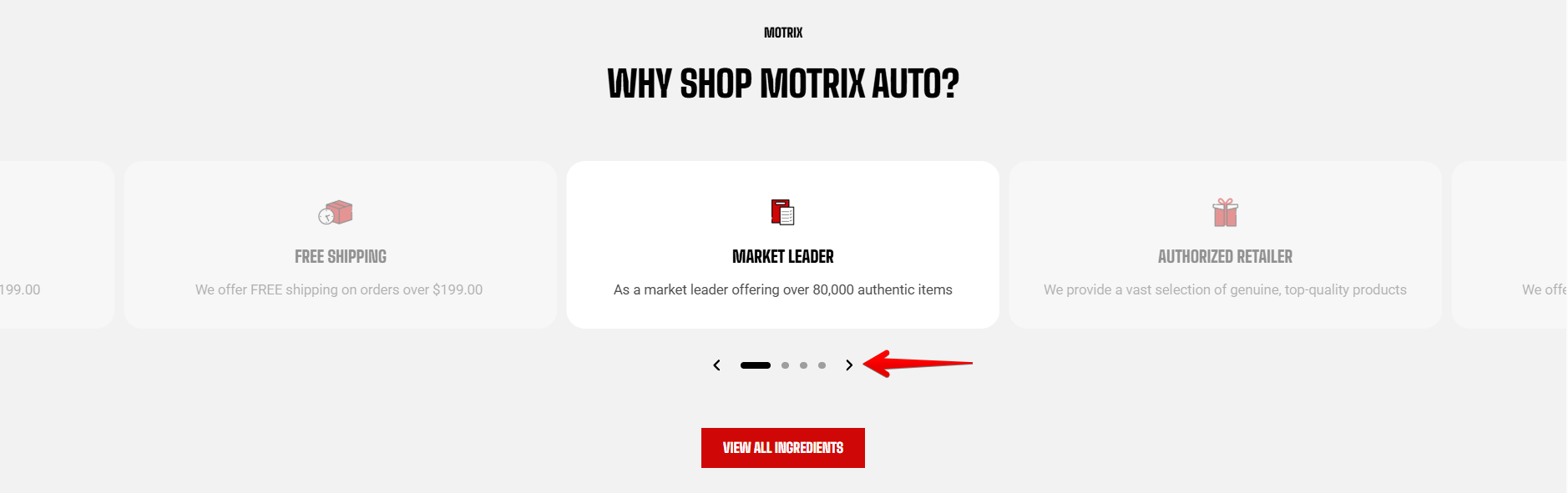
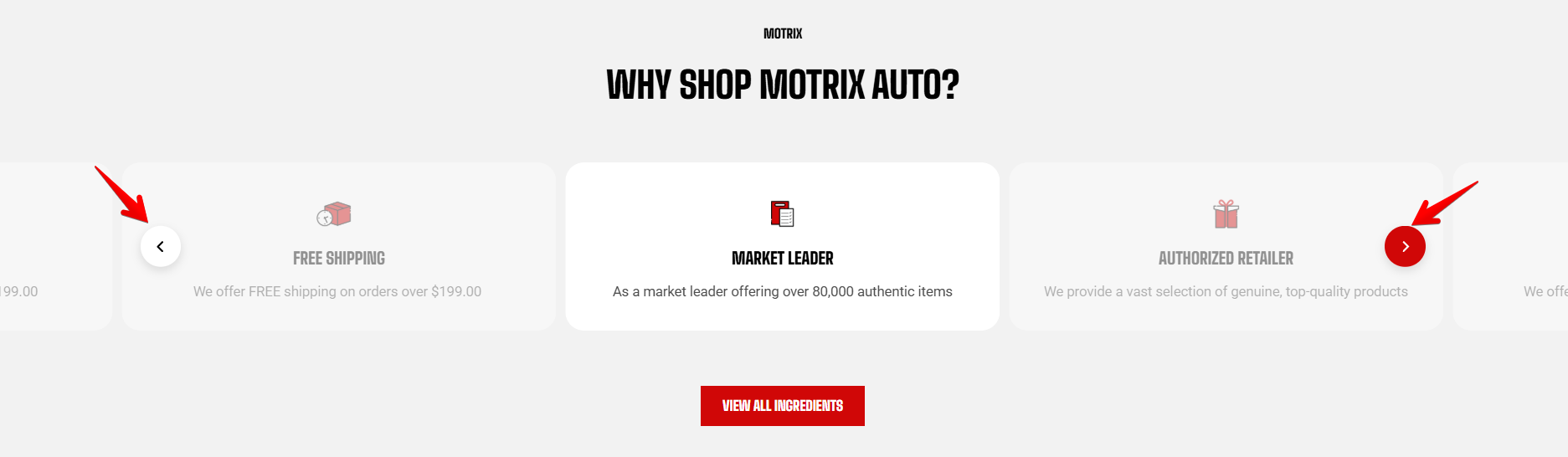
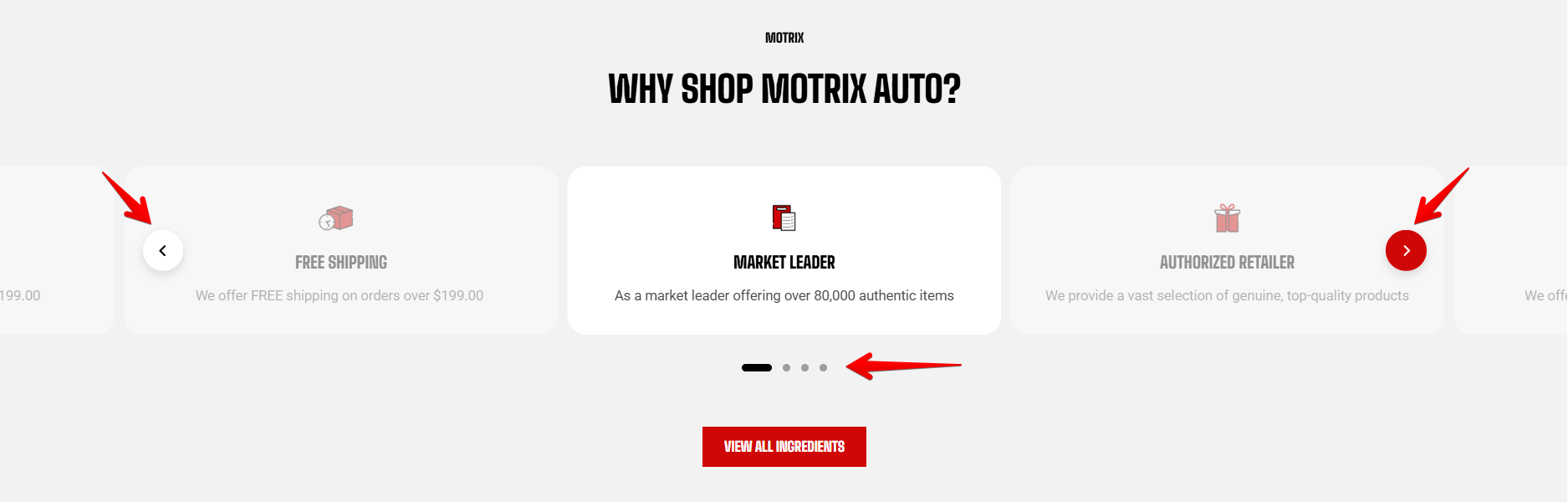
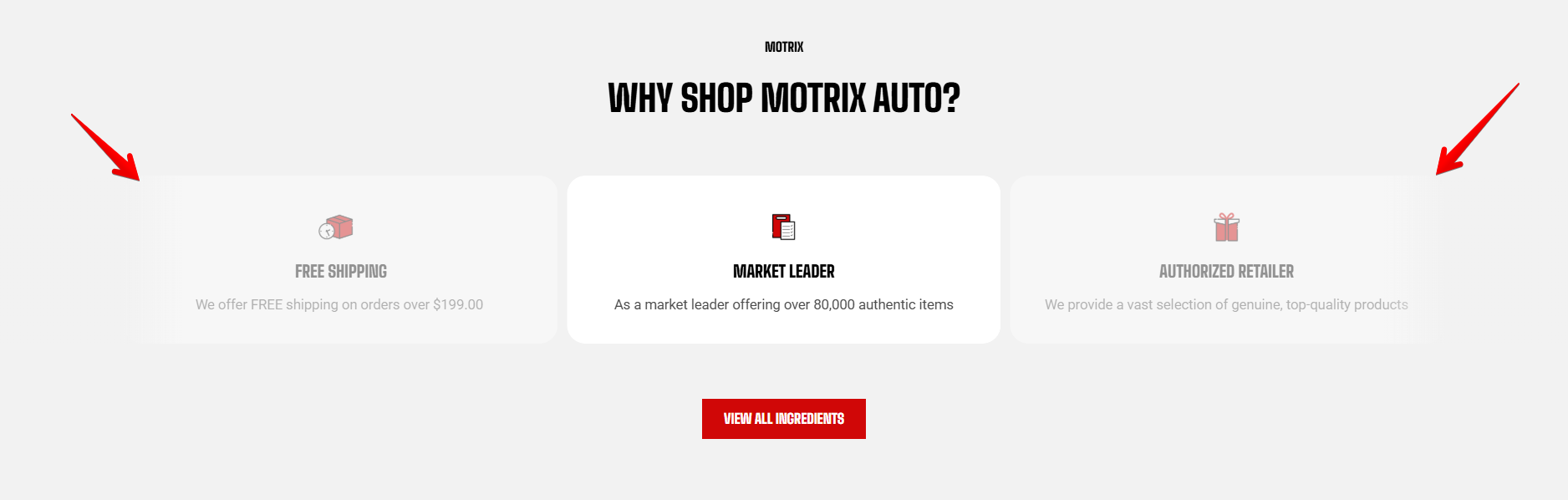
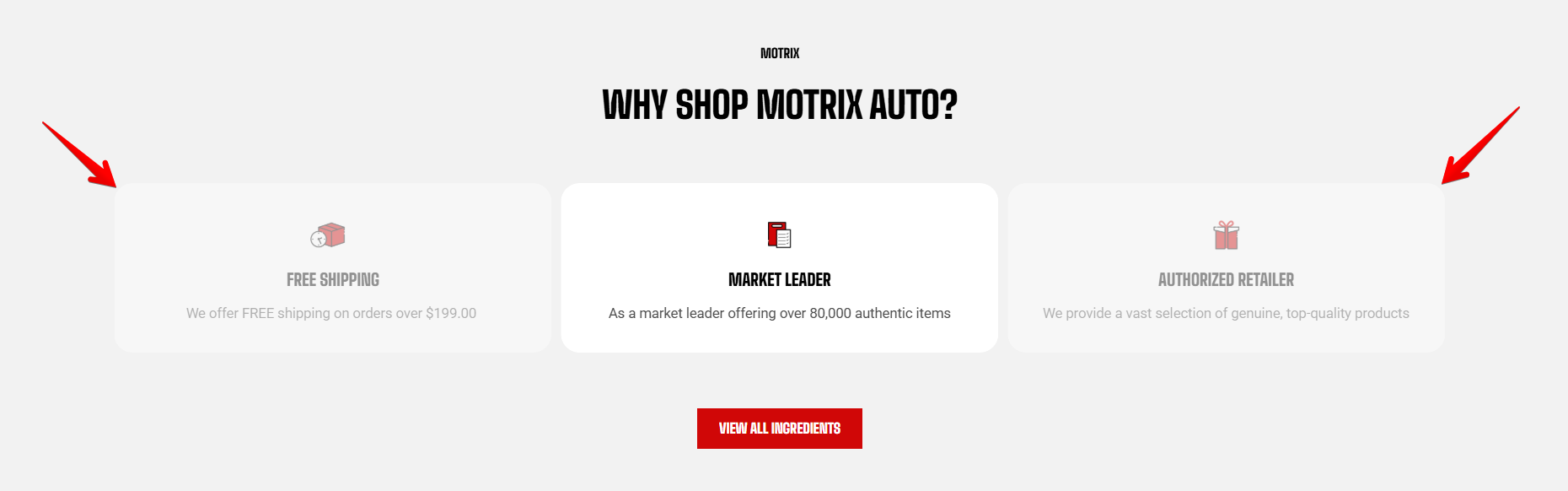
**Best practice:** leave Overflow content on Visible. A partially visible box is the clearest signal that the row scrolls — clearer than arrows, which people often read as decoration.
### Mobile layout
On phones the carousel is replaced by either a stacked grid or a swipeable row, depending on these settings.
| Setting | Description | Options |
| ---------------------------- | ----------------------------------------------------------------------------------------------------------------------------------------- | ------------- |
| **Enable swipe on mobile** | Let customers swipe horizontally through the boxes on mobile instead of displaying them as a grid. | On / Off |
| **Show edge fade on mobile** | Add a soft fade effect at the edges of the mobile carousel. This setting appears when **Type is Carousel** and mobile swipe is enabled. | On / Off |
| **Custom column width** | Use a custom width for each mobile box so part of the next box can remain visible. This setting appears when **mobile swipe is enabled**. | On / Off |
| **Custom width** | Set the width of each mobile box. This setting appears when **Custom column width and mobile swipe are enabled**. | 20% - 90% |
| **Mobile columns** | Set how many boxes appear in each row on mobile. This setting appears when **Custom column width or mobile swipe is off**. | 1 - 2 columns |
| **Horizontal gap** | Set the horizontal space between mobile boxes. | 0px - 100px |
| **Vertical gap** | Set the vertical space between mobile rows. This setting appears when **mobile swipe is off**. | 0px - 100px |
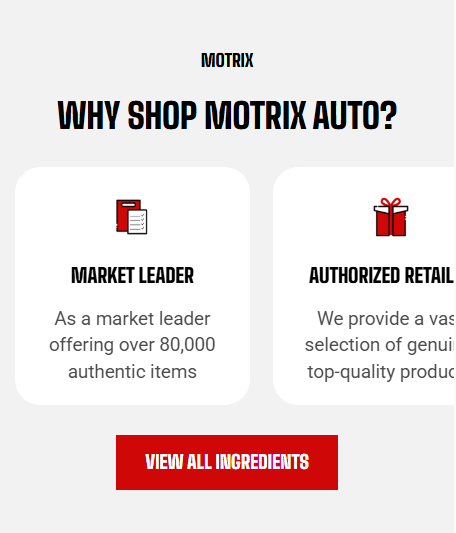
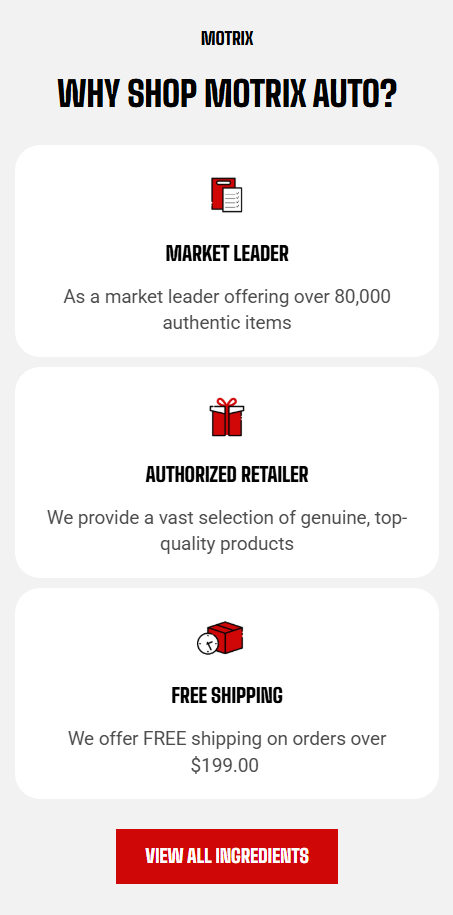
Turn on **Enable swipe on mobile** when you have several boxes and want to keep each box wide enough to read.
Use **Custom width** when you want part of the next box to remain visible as a cue to swipe.
### Appearance and padding
Color scheme applies a theme scheme to the section background. Padding sets the top and bottom spacing, separately for desktop and mobile — 100 px on desktop and 48 px on mobile by default.
This is the scheme behind the boxes. Each box has its own color scheme setting, which is what gives the cards their background.
### Advanced
Custom columns sets a different number of columns at each screen width, overriding Columns and Mobile columns.
## Blocks
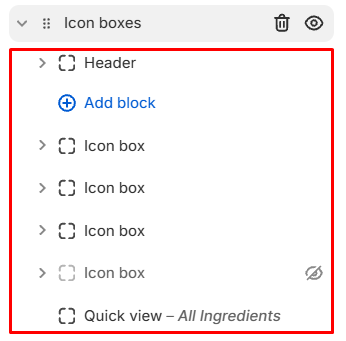
The Icon boxes section includes **three blocks**: [**Section header**](https://docs.foxecom.com/motrix-theme/theme-sections/icon-boxes#header), [**Icon box**](https://docs.foxecom.com/motrix-theme/theme-sections/icon-boxes#icon-box), and [**Quick view**](https://docs.foxecom.com/motrix-theme/theme-sections/icon-boxes#quick-view). Use them together to build the content shown above the boxes, the individual boxes themselves, and an optional expanded view for customers.
### Section header
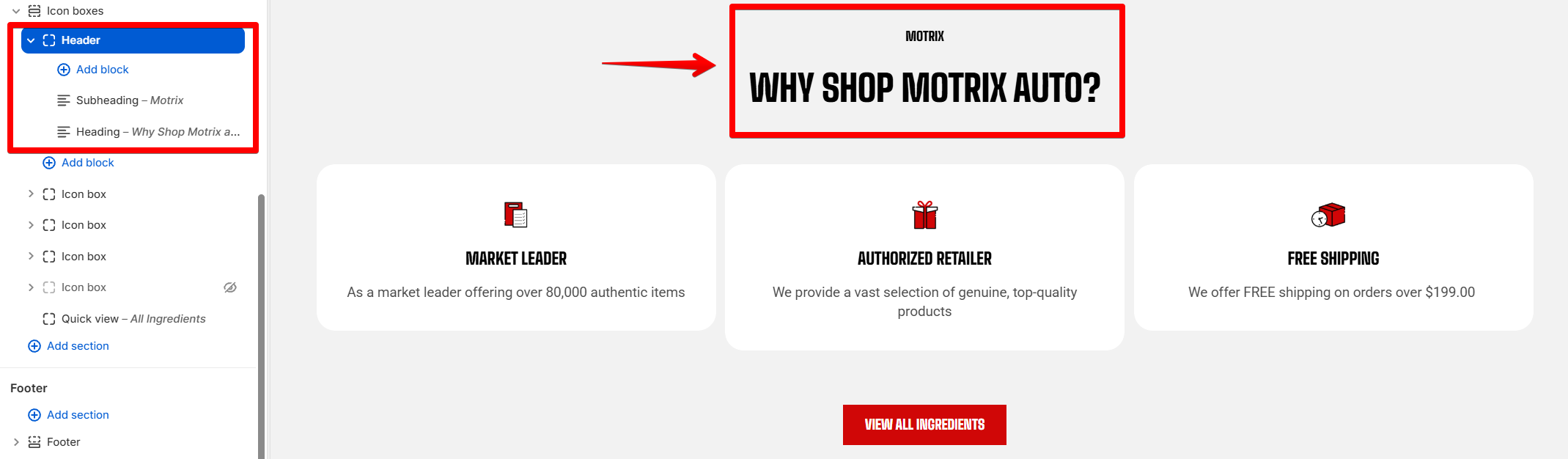
A built-in block above the boxes, holding a subheading and a heading. It is part of the section, so it cannot be removed — empty the text to hide it.
#### Header settings
| Setting | Description | Options |
| ------------- | ------------------------------------------------------------- | ------------------------------- |
| **Alignment** | Controls the horizontal alignment of the Header content. | **Left, Center,** or **Right**. |
| **Devices** | Selects which device-specific padding values you are editing. | **Desktop** or **Mobile**. |
| **Bottom** | Controls the space below the Header content. | **0–100px.** |
#### Header blocks
You can add and arrange the following theme blocks inside the Header:
* [**Button**](https://docs.foxecom.com/motrix-theme/theme-blocks/button) — Adds a call-to-action button.
* [**Heading/Subheading/Text**](https://docs.foxecom.com/motrix-theme/theme-blocks/text) — Adds a heading, supporting text, or descriptive text.
* [**Image**](https://docs.foxecom.com/motrix-theme/theme-blocks/image) — Adds an image.
### Icon box
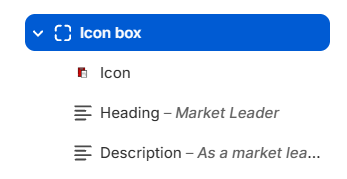
One card. Add as many as you need, and drag them to reorder. Each box holds an icon, a heading, and a description, and carries its own color scheme, alignment, and corner radius so the cards read as cards rather than as bare text.
#### Layout
| Setting | Description | Options |
| ------------- | --------------------------------------------------- | --------------------- |
| **Alignment** | Set how the content inside the icon box is aligned. | Left / Center / Right |
#### Content
| Setting | Description | Options |
| -------- | ------------------------------------------ | --------------------------- |
| **Link** | Add a link to make the icon box clickable. | Enter link or select a page |
#### Appearance
| Setting | Description | Options |
| ------------------------ | ---------------------------------------------------------------------------------------------- | --------------------- |
| **Inherit color scheme** | Use the section's color scheme for the icon box. | On / Off |
| **Color scheme** | Choose a color scheme for the icon box. This setting applies when Inherit color scheme is off. | Select a color scheme |
| **Corner radius** | Set the corner radius of the icon box. | 0px - 32px |
#### Icon block settings
| Setting | Description | Options |
| ---------------- | --------------------------------------------------------------------------------------------- | ----------------------------------------------------------- |
| **Icon** | Choose a built-in icon to display in the icon box. | Select an icon |
| **Image icon** | Upload a custom image to use instead of a built-in icon. | Select an image |
| **Icon size** | Set the size of the icon. | Extra small / Small / Medium / Large / Extra large / Custom |
| **Width** | Set the icon width on desktop devices. This setting will appear when **Icon size is Custom**. | 12px - 200px |
| **Width mobile** | Set the icon width on mobile devices. This setting will appear when **Icon size is Custom**. | 12px - 200px |
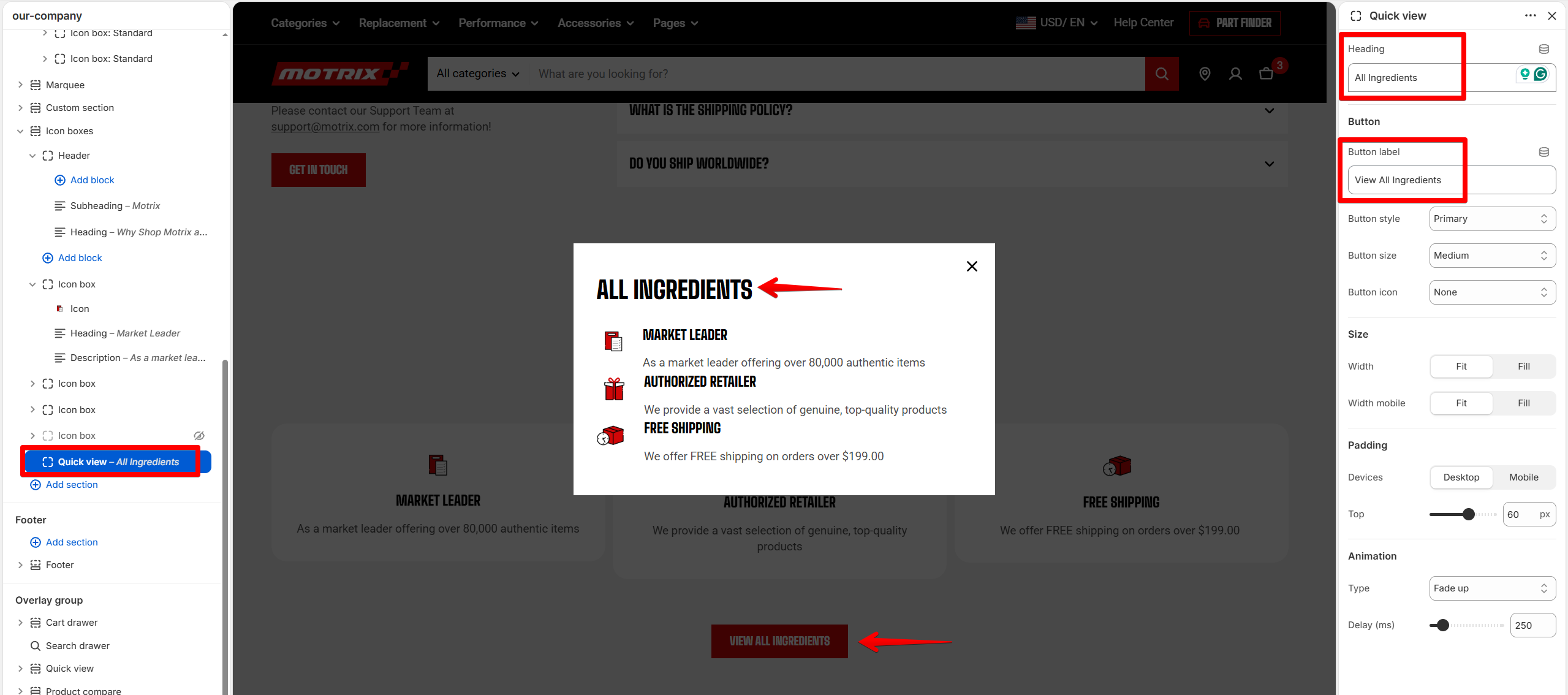
### Quick view
A built-in block that adds a button below the boxes. Clicking it opens a pop-up showing the extra detail from every box at once, with its own heading and button label.
Quick view settings
## FAQs
#### I set Columns to 5 but only see 3.
Your screen is not wide enough. Columns applies above 1440 px, and the theme caps the row at three below that. Use Custom columns to set a number for each width.
#### How many icon boxes can I add?
Add multiple **Icon box** blocks and adjust **Columns** or the carousel settings to control how they are displayed.
#### Why don't I see all my boxes in one row?
The number of boxes shown in a row depends on **Columns**, the screen width, and the number of boxes you've added. On smaller desktop screens, up to three boxes may appear per row.
#### Can I make an icon box clickable?
Yes. Open the **Icon box** block and add a **link** to send customers to the relevant page.