# Hero banner: Products
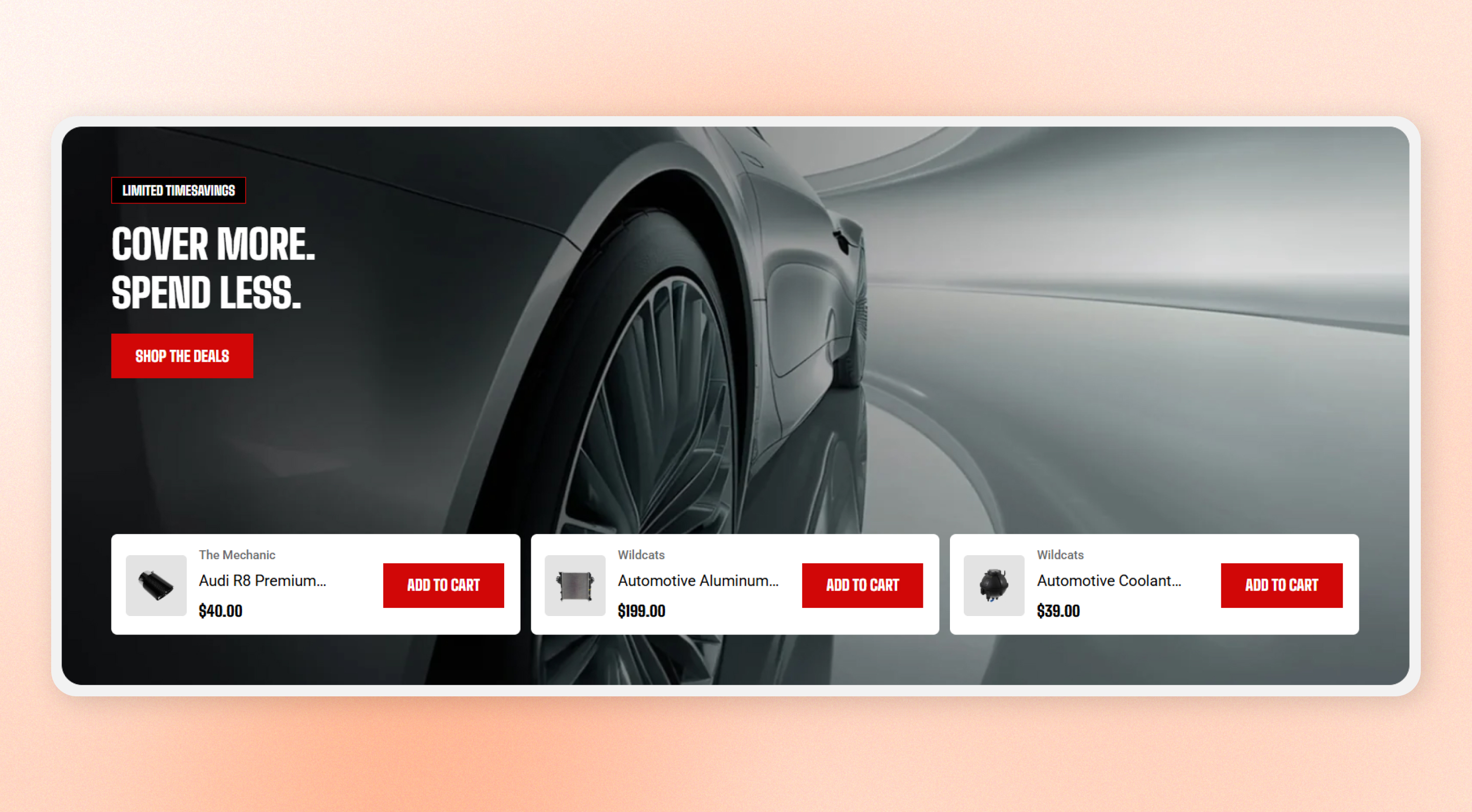
Add a hero banner with promotional content over a full background image or video, plus a row of **shoppable product cards** along the bottom.
Use this section when you want to highlight specific products directly from the first section of your home page.
## How to customize the Hero banner: Products
1. Go to **Online Store > Themes** in Shopify Admin.
2. Find your theme and click **Edit theme**.
3. Open the page where you want to edit the section.
4. Select **Hero banner** from the section list.
5. Adjust the [section settings](https://docs.foxecom.com/motrix-theme/theme-sections/hero-banner-products#section-settings) and add or edit [blocks ](https://docs.foxecom.com/motrix-theme/theme-sections/hero-banner-products#blocks)as needed.
6. **Save** your changes.
## Section settings
### Layout
| Setting | Description | Options |
| -------------------- | ------------------------------------------------------------------------------------------------------------------------------------------------------------------------------------------------------ | ---------------- |
| **Container** | Choose whether the banner stretches across the full screen width or stays within the page width. | Fixed / Full |
| **Height** | Choose whether to set a fixed banner height or let the banner follow the media proportions. | Custom / Auto |
| **Custom height** | Set the desktop banner height. The media crops to fill the selected height, while the banner still grows if the content needs more space. This setting appears when **Height is set to Custom**. | 200px - 1000px |
| **Content position** | Choose whether the content stays aligned with the page width or sits closer to the screen edge. This setting appears when **Container is set to Full**. | Inside / Outside |
Choose **Auto** when you want the banner to follow the original proportions of your image or video. Choose **Custom** when you need a consistent banner height across your store.
### Mobile settings
| Setting | Description | Options |
| ----------------- | ----------------------------------------------------------------------------------------------------- | ------------- |
| **Height** | Choose whether to set a fixed banner height on mobile or let the banner follow the media proportions. | Custom / Auto |
| **Custom height** | Set the mobile banner height. This setting appears when mobile **Height is set to Custom**. | 200px - 600px |
Choose **Auto** when the desktop image does not crop well on tall phone screens. If you use **Custom**, choose a mobile height that leaves enough room for both the promotional content and product cards.
### Appearance
| Setting | Description | Options |
| ----------------- | ------------------------------------------------------------------------------ | --------------------- |
| **Color scheme** | Apply a theme color scheme to the banner. | Select a color scheme |
| **Corner radius** | Round the banner corners. This setting appears when Container is set to Fixed. | 0px - 32px |
Use a color scheme with enough contrast against the background media so the promotional content and product cards remain easy to read.
### Content padding
Choose **Desktop** or **Mobile**, then set the **horizontal** and **vertical** space between the banner edges and its content.
The padding scales smoothly between the desktop and mobile values as the screen gets wider.
### Padding
Choose **Desktop** or **Mobile**, then set the top and bottom spacing around the section.
| Setting | Description | Options |
| ---------- | ---------------------------------------------- | ----------- |
| **Top** | Set the spacing above the Hero banner section. | 0px - 100px |
| **Bottom** | Set the spacing below the Hero banner section. | 0px - 100px |
Increase the section padding when you want more space between the Hero banner and the sections above or below it.
## Blocks
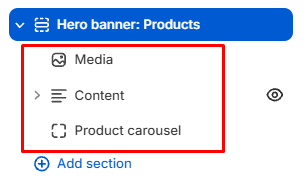
The Hero banner: Products section includes **three fixed parts**:
### Media
Displays the background **image** or **video**. Add an optional color overlay to improve contrast and keep the content readable.
| Setting | Description | Options |
| ------------------------ | ------------------------------------------------------------------------------------------------------------------------------------ | ------------- |
| **Type** | Choose the type of media displayed as the Hero banner background. | Image / Video |
| **Image** | Upload the desktop image used as the Hero banner background. | Select Image |
| **Image mobile** | Upload a separate image for mobile devices. Use a mobile-specific image when the desktop image doesn't crop well on smaller screens. | Select Image |
| **Video** | Upload the video used as the Hero banner background. | Select Video |
| **Media overlay** | Add an overlay to the media to improve contrast and keep the content readable. | On / Off |
| **Enable preload image** | Loads the image earlier so it appears faster when the block is near the top of the page. | On / Off |
**Enable preload image** when the image is visible as soon as the page opens. Avoid enabling it for images customers need to scroll to.
### Content
Holds the overlaid [**text**](https://docs.foxecom.com/motrix-theme/theme-blocks/text), **headings, labels**, **spacers**, and [**buttons**](https://docs.foxecom.com/motrix-theme/theme-blocks/button). Add, reorder, or remove these pieces to build your message.
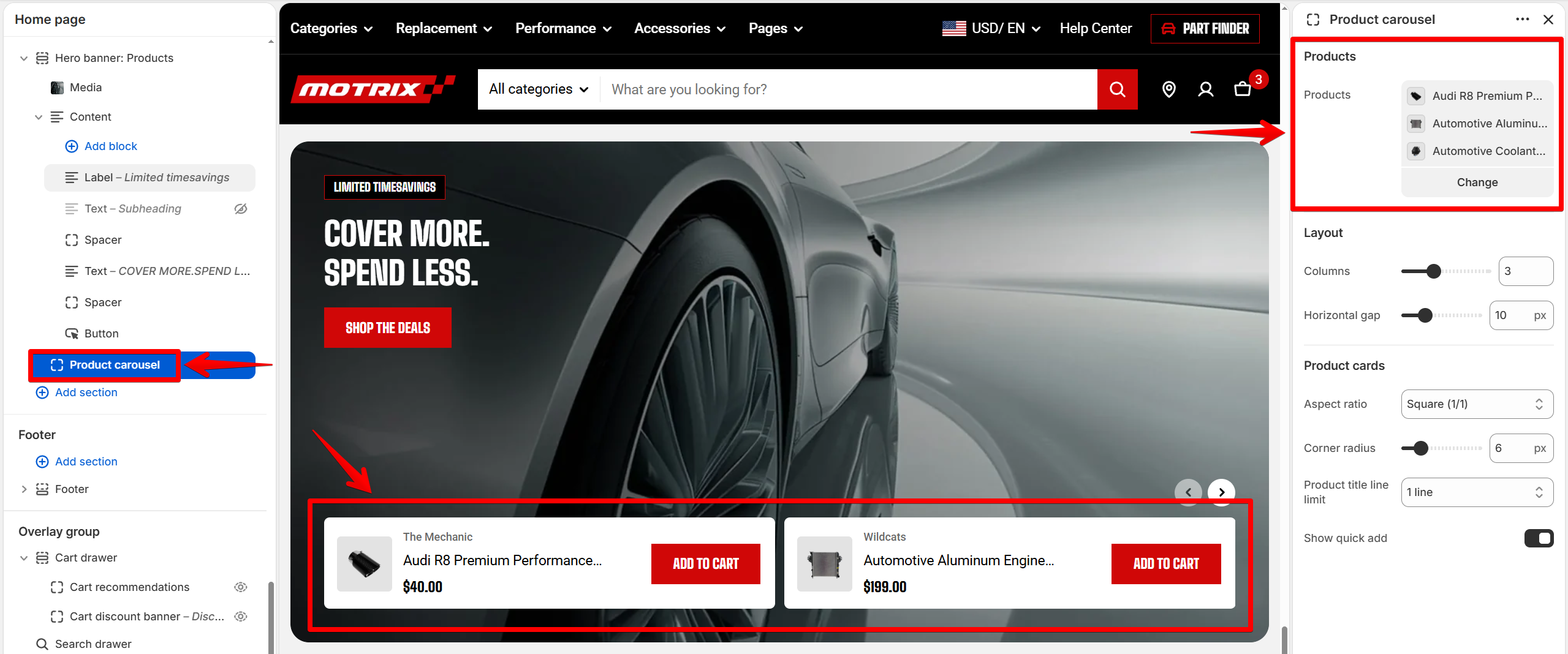
### Product carousel
Displays selected products as compact horizontal cards along the bottom of the banner. Adjust the number of columns, gap, product title length, and quick-add options.
You can add up to **8 products** in the Product carousel.
| Setting | Description | Options |
| -------------------------------------------- | ------------------------------------------------------------------------------------------------------------------------- | ---------------------------------------------------------------------------------------------------------------- |
| **Products** | Select the products to display in the product carousel. | Select products |
| **Layout - Columns** | Set how many product cards appear in each carousel tab. | 2 - 5 |
| **Layout - Horizontal gap** | Set the horizontal space between product cards. | 0px - 40px |
| **Product cards - Aspect ratio** | Choose the image ratio for product cards. Select Use global settings to follow the theme's global product image settings. | Use global settings / Auto / Square (1/1) / Portrait (4/5) / Portrait (3/4) / Landscape (16/9) / Landscape (4/3) |
| **Product cards - Corner radius** | Set the corner radius for product card images. | 0px - 32px |
| **Product cards - Product title line limit** | Limit the number of lines used to display product titles. Use No limit to show the full title. | No limit / 1 line / 2 lines / 3 lines |
| **Show quick add** | Add a Quick add button to product cards so customers can add products to their cart without opening the product page. | On / Off |
Product carousel settings
Select the products you want to promote before judging the final product carousel layout. Until products are selected, placeholder cards appear so you can preview the layout.
## FAQs
#### How do I choose which products appear in the Hero banner?
Select the **Product carousel** block and choose the products you want to feature. The carousel displays the products you select as compact product cards.
#### Why are fewer product cards showing than the number of columns I selected?
The Product carousel does not show more columns than the number of selected products. For example, if you select three products, the carousel won't display more than three product columns. You will need to click on the arrow to see the next products.
#### How can I prevent the background image from cropping badly on mobile?
Choose a background image specifically for mobile. Alternatively, set the mobile **Height** to **Auto** so the banner follows the media proportions.
#### Why is my text difficult to read over the background image?
Add a color overlay to the **Media** block or choose a color scheme with stronger contrast. This helps the promotional content remain readable over busy images.
#### Can customers add products to the cart directly from the Hero banner?
Yes, if **Quick Add** is enabled for the **Product carousel**. Customers can use the quick-add option directly from the product card without opening the product page.