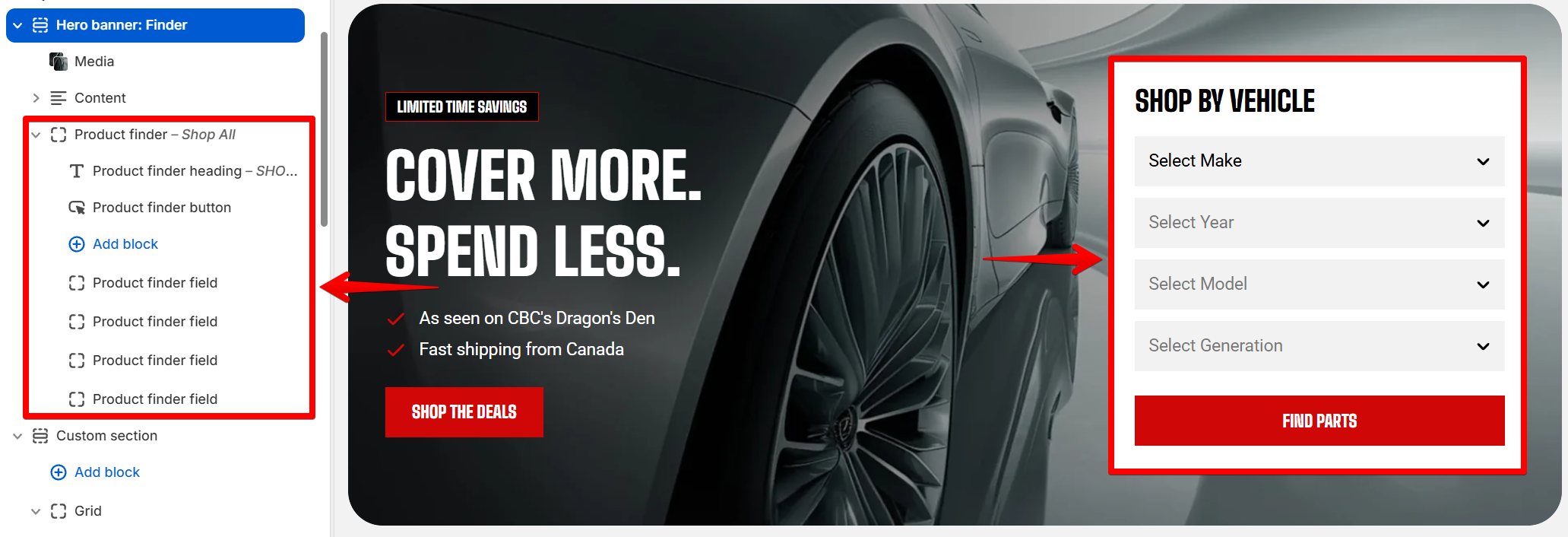
# Hero banner: Finder
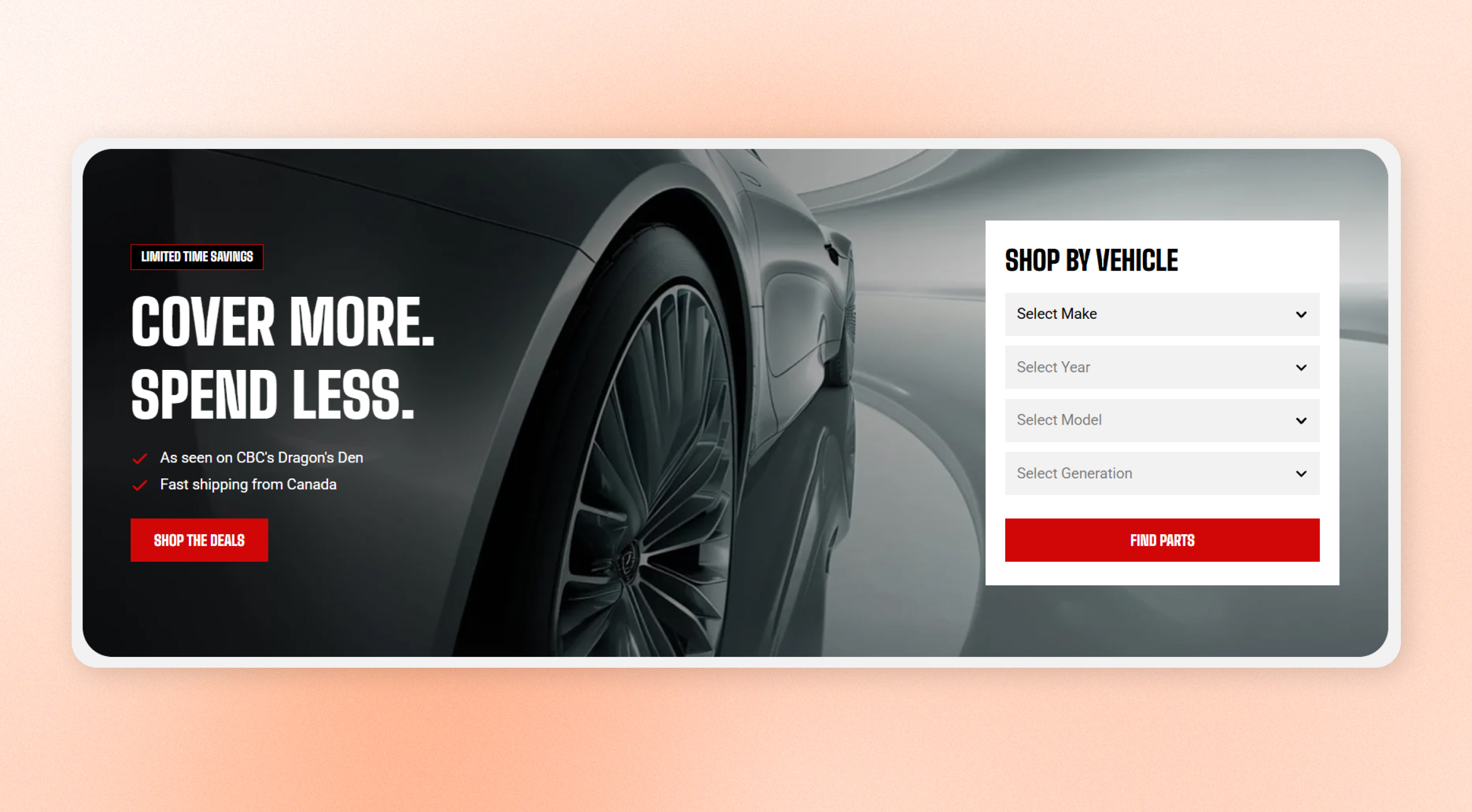
Add a hero banner with promotional content and a product finder panel. Customers can select options such as vehicle make, year, and model, then go directly to a collection filtered by their choices.
Use this section when customers need to find products based on specific requirements, such as auto parts, covers, or accessories.
## How to customize the Hero banner: Finder
1. Go to **Online Store > Themes** in Shopify Admin.
2. Find your theme and click **Edit theme**.
3. Open the page where the **Hero banner: Finder** section is used.
4. Select **Hero banner: Finder** from the section list.
5. Adjust the [section settings](https://docs.foxecom.com/motrix-theme/theme-sections/hero-banner-finder#how-to-customize-the-hero-banner-finder), add [blocks, ](https://docs.foxecom.com/motrix-theme/theme-sections/hero-banner-finder#blocks)and its content.
6. Save your changes.
## Section settings
### Layout
| Setting | Description | Options |
| -------------------- | ------------------------------------------------------------------------------------------------------------------------------------------------------------------------------------------------------ | ---------------- |
| **Container** | Choose whether the banner stretches across the full screen width or stays within the page width. | Fixed / Full |
| **Height** | Choose whether to set a fixed banner height or let the banner follow the media proportions. | Custom / Auto |
| **Custom height** | Set the desktop banner height. The media crops to fill the selected height, while the banner still grows if the content needs more space. This setting appears when **Height is set to Custom**. | 200px - 1000px |
| **Content position** | Choose whether the content stays aligned with the page width or sits closer to the screen edge. This setting appears when **Container is set to Full**. | Inside / Outside |
Choose **Auto** when you want the banner to follow the original proportions of your image or video. Choose **Custom** when you need a consistent banner height across your store.
When using **Custom** height, keep the important part of the image near the center because the media crops to fill the banner.
### Mobile settings
| Setting | Description | Options |
| ----------------- | ----------------------------------------------------------------------------------------------------- | ------------- |
| **Height** | Choose whether to set a fixed banner height on mobile or let the banner follow the media proportions. | Custom / Auto |
| **Custom height** | Set the mobile banner height. This setting appears when mobile **Height is set to Custom**. | 200px - 600px |
Keep the mobile banner tall enough to display the promotional content and product finder without making customers scroll excessively inside the banner.
### Appearance
| Setting | Description | Options |
| ----------------- | ------------------------------------------------------------------------------ | --------------------- |
| **Color scheme** | Apply a theme color scheme to the banner. | Select a color scheme |
| **Corner radius** | Round the banner corners. This setting appears when Container is set to Fixed. | 0px - 32px |
Use a color scheme with enough contrast for the promotional content and product finder panel to remain easy to read.
### Content padding
Choose **Desktop** or **Mobile**, then set the **horizontal** and **vertical** space between the banner edges and its content.
The padding scales smoothly between the desktop and mobile values as the screen gets wider.
### Padding
Choose **Desktop** or **Mobile**, then set the top and bottom spacing around the section.
| Setting | Description | Options |
| ---------- | ---------------------------------------------- | ----------- |
| **Top** | Set the spacing above the Hero banner section. | 0px - 100px |
| **Bottom** | Set the spacing below the Hero banner section. | 0px - 100px |
## Blocks
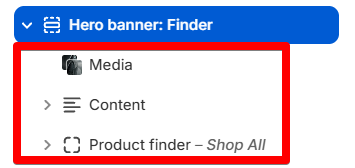
The Hero banner: Finder section includes **three fixed parts**: [Media](https://docs.foxecom.com/motrix-theme/theme-sections/hero-banner-finder#media), [Content](https://docs.foxecom.com/motrix-theme/theme-sections/hero-banner-finder#content), and [Product finder](https://docs.foxecom.com/motrix-theme/theme-sections/hero-banner-finder#product-finder)
### Media
Displays the background **image** or **video**. Add an optional color overlay to improve contrast and keep the content readable.
| Setting | Description | Options |
| ------------------------ | ------------------------------------------------------------------------------------------------------------------------------------ | ------------- |
| **Type** | Choose the type of media displayed as the Hero banner background. | Image / Video |
| **Image** | Upload the desktop image used as the Hero banner background. | Select Image |
| **Image mobile** | Upload a separate image for mobile devices. Use a mobile-specific image when the desktop image doesn't crop well on smaller screens. | Select Image |
| **Video** | Upload the video used as the Hero banner background. | Select Video |
| **Media overlay** | Add an overlay to the media to improve contrast and keep the content readable. | On / Off |
| **Enable preload image** | Loads the image earlier so it appears faster when the block is near the top of the page. | On / Off |
**Enable preload image** when the image is visible as soon as the page opens. Avoid enabling it for images customers need to scroll to.
### Content
Holds the promotional content. The preset includes a label, heading, [text](https://docs.foxecom.com/motrix-theme/theme-blocks/text), [icon list](https://docs.foxecom.com/motrix-theme/theme-blocks/icon-list), and [button](https://docs.foxecom.com/motrix-theme/theme-blocks/button), and you can add, reorder, or remove child blocks.
### Product finder
Displays the product finder panel with a heading, dropdowns, and a submit button. Each dropdown gets its options from the filters available on the target collection. When customers submit their selections, the button opens the collection filtered by those choices.
The **Product finder** works the same way as the standalone **Product finder** block. [See the **Product finder block documentation** for all available settings](https://docs.foxecom.com/motrix-theme/theme-blocks/product-finder).
Its **width and layout** are managed by the **Hero banner: Finder** section.
Product finder block
Set up the filters on the target collection before configuring the Product finder. Match each finder field to the corresponding collection filter so customers see the options you expect.
## FAQs
#### Why don't my Product finder dropdowns show any options?
The Product finder gets its options from the filters available on the target collection. Set up the required filters first, then match each finder field to the corresponding filter by name. Learn more: [Adding filters with Shopify Search & Discovery](https://help.shopify.com/en/manual/online-store/storefront-search/search-and-discovery-filters)
#### Where do customers go after they submit the Product finder?
The submit button sends customers to the target collection with filters applied based on their selections. The collection then displays products that match those choices.
#### Can I use the Product finder for something other than vehicles?
Yes. Use it for any catalog where customers need to narrow products based on specific attributes, such as size, compatibility, material, or other product information. Set up a corresponding filter for each finder step on the target collection.