# Hero banner
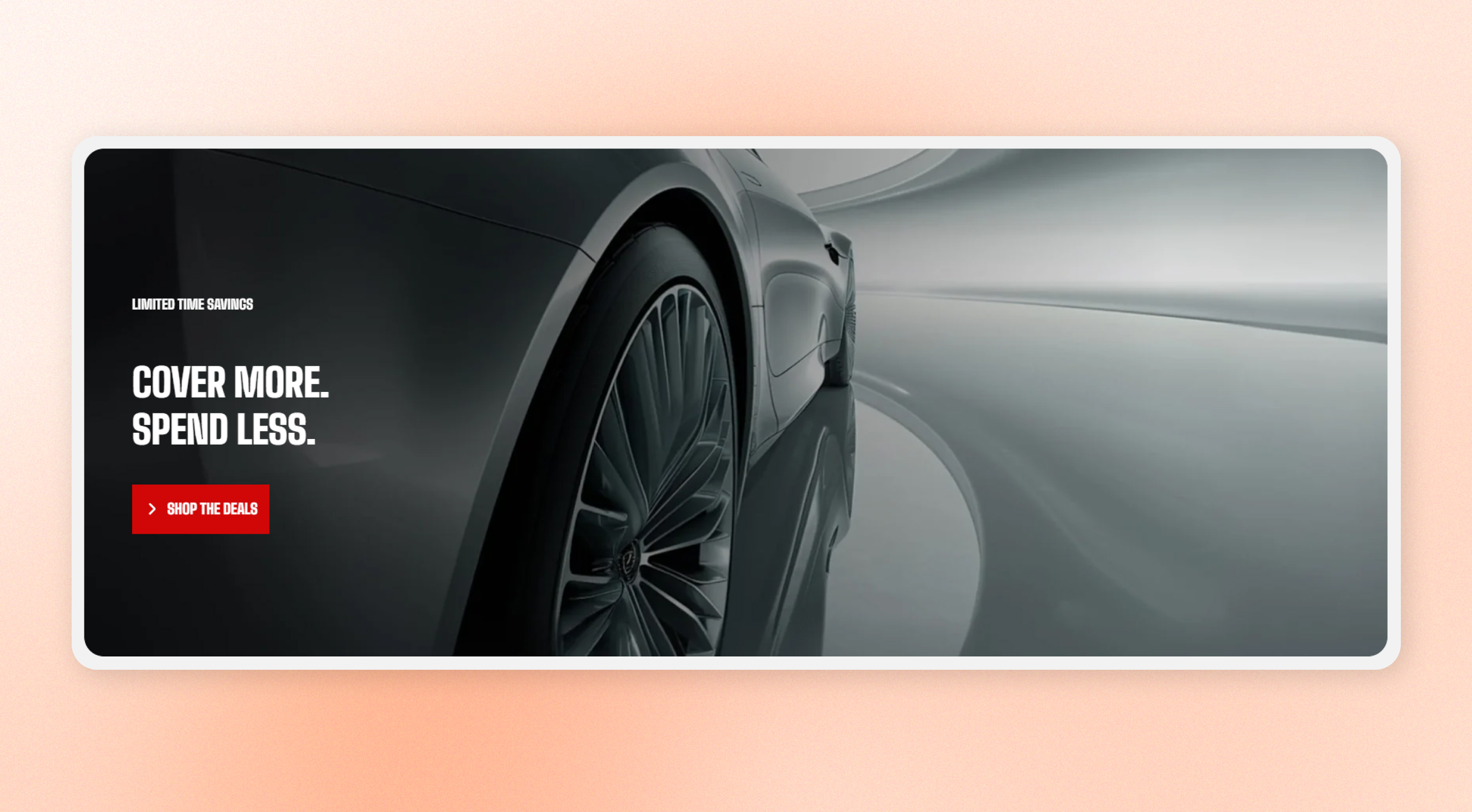
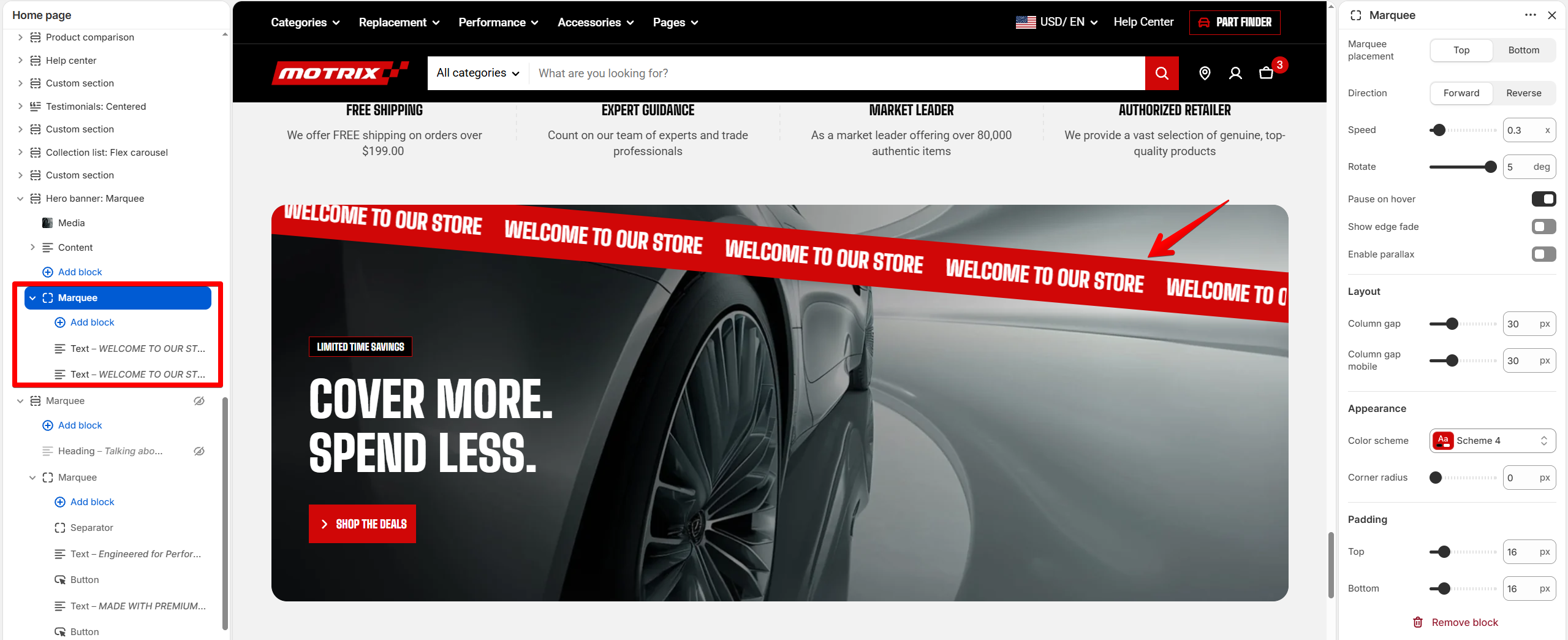
Add a large banner with an image or video background, headline, tagline, and buttons layered on top. You can also add a scrolling marquee strip along the top or bottom edge.
Use a **Hero banner** at the top of your home page or on a landing page to create a strong first impression.
## How to customize the Hero banner
1. Go to **Online Store > Themes** in Shopify Admin.
2. Find your theme and click **Edit theme**.
3. Open the page where you want to edit the section.
4. Select **Hero banner** from the section list.
5. Adjust the [section settings](https://docs.foxecom.com/motrix-theme/theme-sections/hero-banner#section-settings) and add or edit [blocks](https://docs.foxecom.com/motrix-theme/theme-sections/hero-banner#blocks) as needed.
6. **Save** your changes.
## Section settings
### Layout
| Setting | Description | Options |
| -------------------- | ------------------------------------------------------------------------------------------------------------------------------------------------------------------------------------------------------ | ---------------- |
| **Container** | Choose whether the banner stretches across the full screen width or stays within the page width. | Fixed / Full |
| **Height** | Choose whether to set a fixed banner height or let the banner follow the media proportions. | Custom / Auto |
| **Custom height** | Set the desktop banner height. The media crops to fill the selected height, while the banner still grows if the content needs more space. This setting appears when **Height is set to Custom**. | 200px - 1000px |
| **Content position** | Choose whether the content stays aligned with the page width or sits closer to the screen edge. This setting appears when **Container is set to Full**. | Inside / Outside |
Choose **Auto** when you want the banner to follow the original proportions of your image or video. Choose **Custom** when you need a consistent banner height across your store.
When using **Custom** height, keep the important part of the image near the center because the media crops to fill the banner.
### Mobile settings
| Setting | Description | Options |
| ----------------- | ----------------------------------------------------------------------------------------------------- | ------------- |
| **Height** | Choose whether to set a fixed banner height on mobile or let the banner follow the media proportions. | Custom / Auto |
| **Custom height** | Set the mobile banner height. This setting appears when mobile **Height is set to Custom**. | 200px - 600px |
Use **a shorter mobile height** when you want customers to see more of the page without scrolling. Keep important text or subjects away from the edges to prevent them from being cropped.
When both desktop and mobile heights are set to **Custom**, the banner scales smoothly between the two values as the screen gets wider.
### Appearance
| Setting | Description | Options |
| ----------------- | ------------------------------------------------------------------------------ | --------------------- |
| **Color scheme** | Apply a theme color scheme to the banner. | Select a color scheme |
| **Corner radius** | Round the banner corners. This setting appears when Container is set to Fixed. | 0px - 32px |
Use a corner radius that matches the rest of your store for a consistent visual style.
### Content padding
Choose **Desktop** or **Mobile**, then set the **horizontal** and **vertical** space between the banner edges and its content.
The padding scales smoothly between the desktop and mobile values as the screen gets wider.
Increase the horizontal padding when text or buttons sit too close to the banner edges. Keep enough space around the content to make it easy to read on smaller screens.
### Padding
Choose **Desktop** or **Mobile**, then set the top and bottom spacing around the section.
| Setting | Description | Options |
| ---------- | ---------------------------------------------- | ----------- |
| **Top** | Set the spacing above the Hero banner section. | 0px - 100px |
| **Bottom** | Set the spacing below the Hero banner section. | 0px - 100px |
Increase the section padding when you want more space between the Hero banner and the sections above or below it.
## Blocks
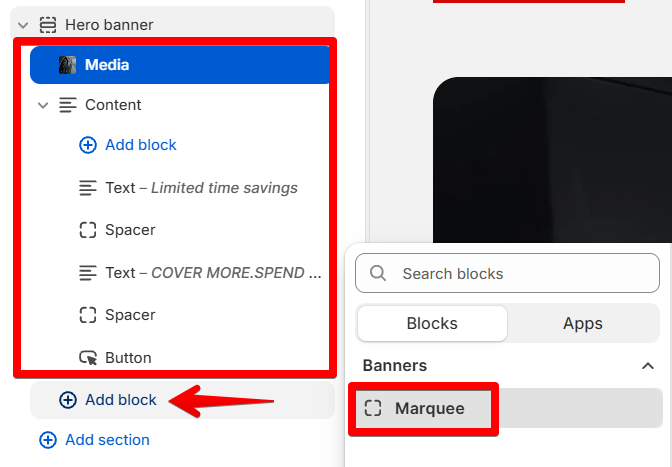
The Hero banner includes **two fixed areas (**[**Media**](https://docs.foxecom.com/motrix-theme/theme-sections/hero-banner#media) **and** [**Content**](https://docs.foxecom.com/motrix-theme/theme-sections/hero-banner#content)**)** and **one optional block (**[**Marquee**](https://docs.foxecom.com/motrix-theme/theme-sections/hero-banner#marquee)**)**:
### Media
Displays the background **image** or **video** that fills the banner.
| Setting | Description | Options |
| ------------------------ | ------------------------------------------------------------------------------------------------------------------------------------ | ------------- |
| **Type** | Choose the type of media displayed as the Hero banner background. | Image / Video |
| **Image** | Upload the desktop image used as the Hero banner background. | Select Image |
| **Image mobile** | Upload a separate image for mobile devices. Use a mobile-specific image when the desktop image doesn't crop well on smaller screens. | Select Image |
| **Video** | Upload the video used as the Hero banner background. | Select Video |
| **Media overlay** | Add an overlay to the media to improve contrast and keep the content readable. | On / Off |
| **Enable preload image** | Loads the image earlier so it appears faster when the block is near the top of the page. | On / Off |
**Enable preload image** when the image is visible as soon as the page opens. Avoid enabling it for images customers need to scroll to.
### Content
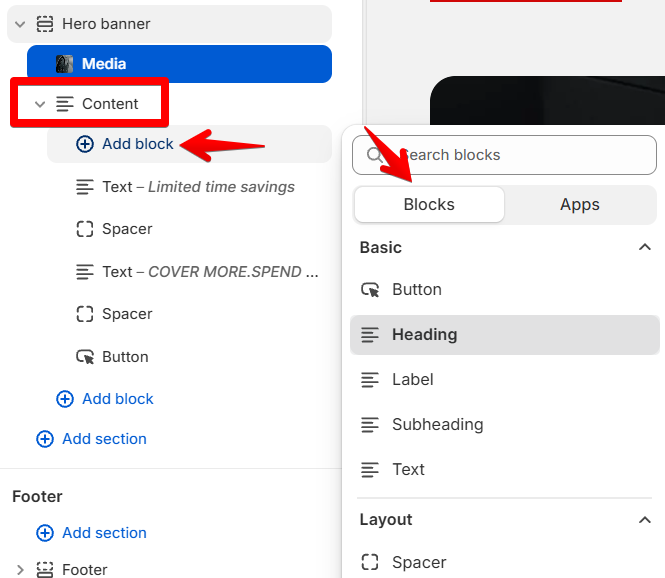
Holds the overlaid [**text**](https://docs.foxecom.com/motrix-theme/theme-blocks/text), **headings, labels**, **spacers**, and [**buttons**](https://docs.foxecom.com/motrix-theme/theme-blocks/button). Add, reorder, or remove these pieces to build your message.
### Marquee
Displays a scrolling content bar within the hero banner. Add text, buttons, icons, images, or other supported theme blocks to highlight announcements, promotions, or key messages.
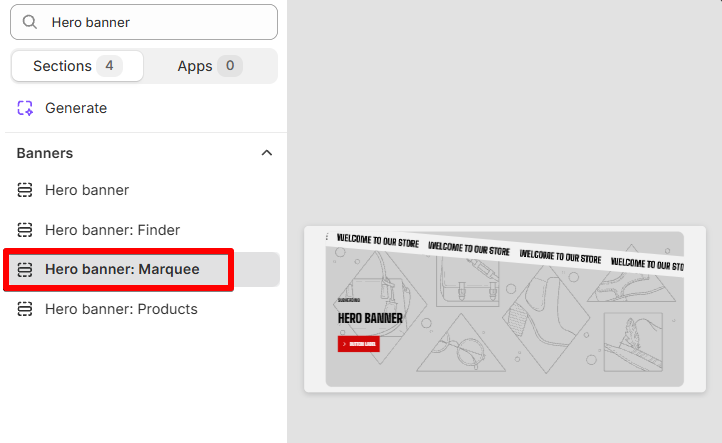
**Hero banner: Marquee** preset includes a scrolling marquee automatically. Select this preset to add a marquee to your hero banner.
Hero banner: Marquee preset
The Marquee works the same way as the standalone Marquee block. [See the](https://docs.foxecom.com/motrix-theme/theme-blocks/marquee)[ ](https://docs.foxecom.com/motrix-theme/theme-blocks/marquee)[**Marquee documentation**](https://docs.foxecom.com/motrix-theme/theme-blocks/marquee)[ ](https://docs.foxecom.com/motrix-theme/theme-blocks/marquee)[for all available settings.](https://docs.foxecom.com/motrix-theme/theme-blocks/marquee)
Marquee settings
## FAQs
#### Why is my Hero banner image cropped?
The media is cropped when **Height** is set to **Custom** so it can fill the selected banner height. Keep important subjects and text near the center of the image to reduce unwanted cropping.
#### Why does my Hero banner have empty space around it?
Check **Container** and **Padding** settings. A **Fixed** container keeps the banner within the page width, while section padding adds space above and below the banner.
#### Can I add scrolling text to the Hero banner?
Yes. Add the [Marquee](https://docs.foxecom.com/motrix-theme/theme-blocks/marquee) block to display continuously scrolling text, images, or icons along the top or bottom edge of the banner.
 ### Media
Displays the background **image** or **video** that fills the banner.
### Media
Displays the background **image** or **video** that fills the banner.
 ### Marquee
Displays a scrolling content bar within the hero banner. Add text, buttons, icons, images, or other supported theme blocks to highlight announcements, promotions, or key messages.
### Marquee
Displays a scrolling content bar within the hero banner. Add text, buttons, icons, images, or other supported theme blocks to highlight announcements, promotions, or key messages.