# Featured collection
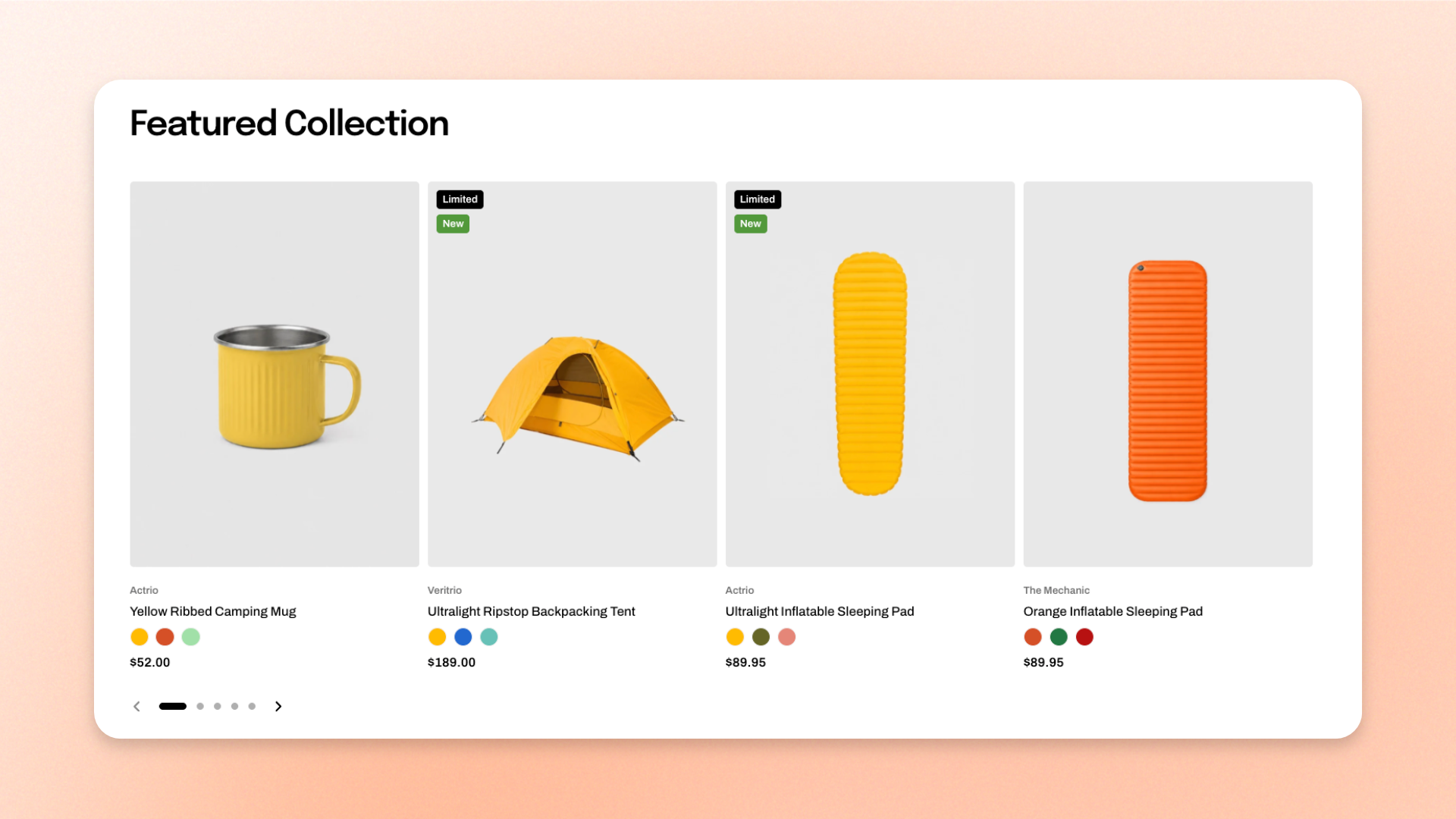
The **Featured collection** section showcases products from a selected collection in either a **Grid** or **Carousel** layout. It’s ideal for highlighting best sellers, new arrivals, seasonal picks, or other key collections on your homepage or landing pages.
## Presets
The section includes two presets:
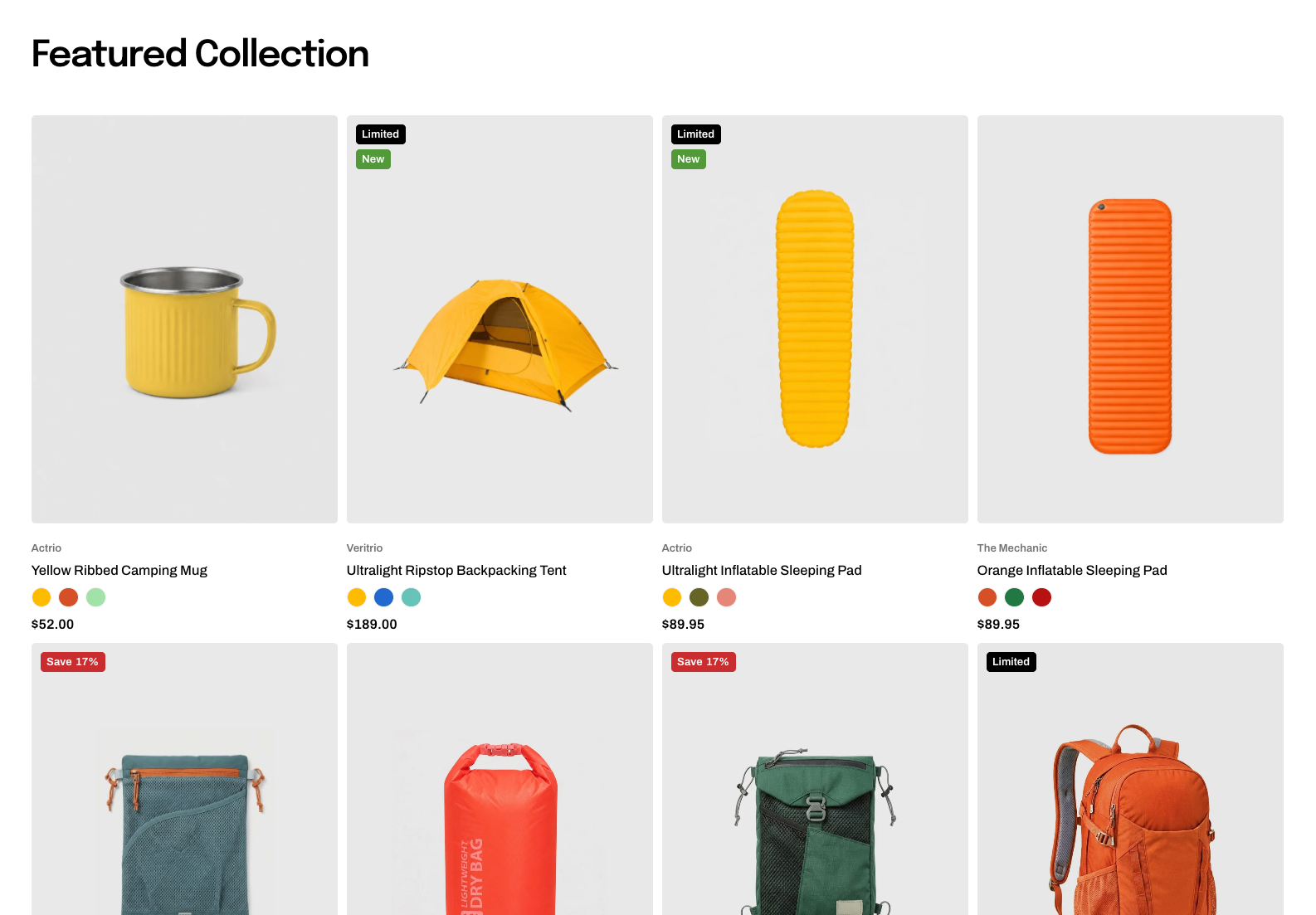
* **Featured collection: Grid** — displays products in rows.
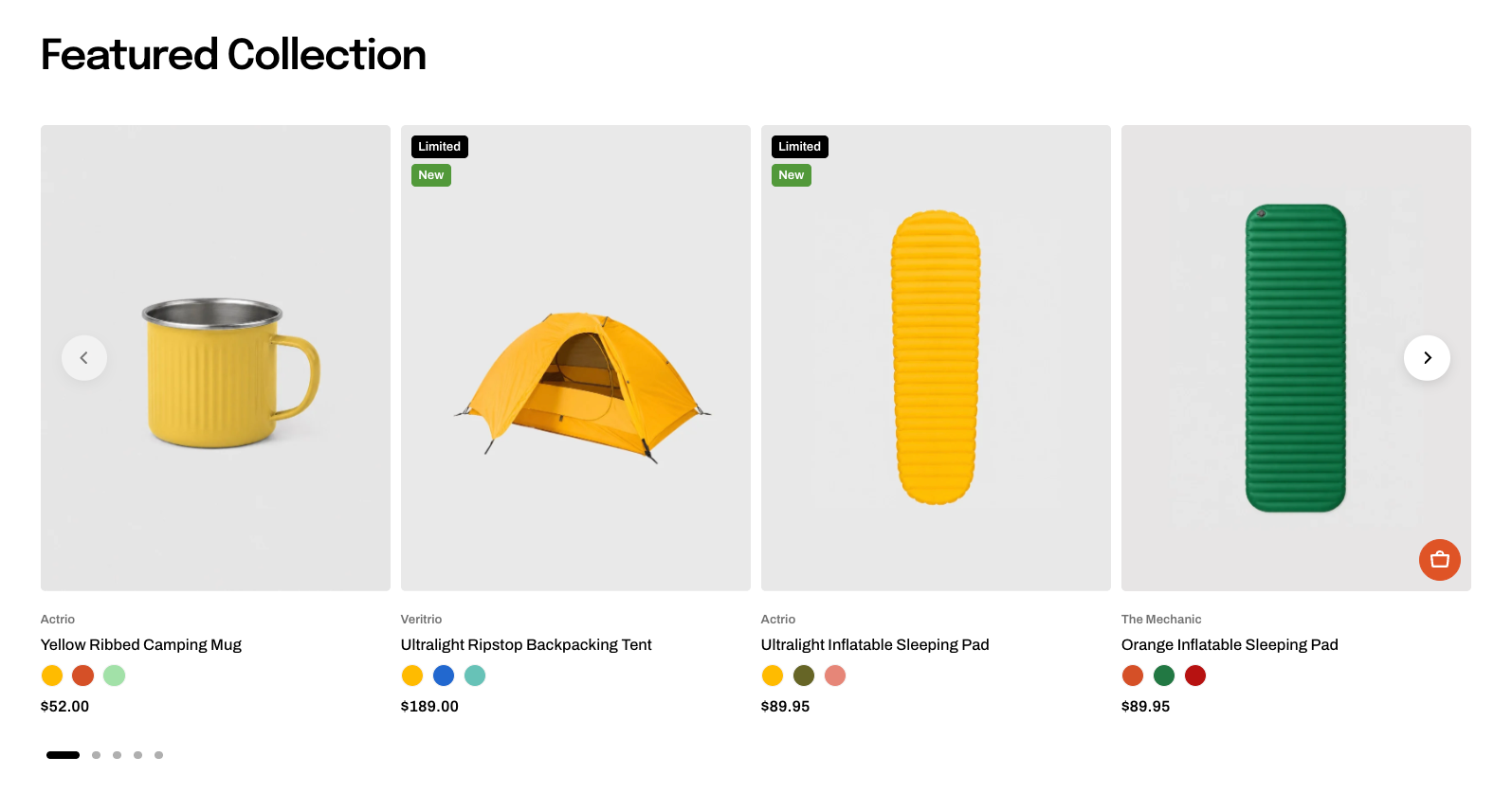
* **Featured collection: Carousel** — displays products in a horizontally navigable carousel.
Both presets use the same section settings. You can switch between them at any time using the **Type** setting.
## How to customize the Featured collection
1. In the theme editor (**Edit theme**), open the page where you want to display the section.
2. Click **Add section** and select **Featured collection: Grid** or **Featured collection: Carousel**.
3. Select the **Collection** and choose how many products to display.
4. Configure the layout, spacing, and mobile display.
5. Customize the section header and product card settings if needed.
6. Click **Save**.
## Section settings
### Collection
Controls which collection and how many products are displayed.
| Setting | Description | Options |
| ----------------- | --------------------------------------------------------------------------- | -------------------- |
| **Collection** | Selects the collection whose products are displayed in the section. | Select a collection. |
| **Product count** | Sets the maximum number of products displayed from the selected collection. | 1–16 products. |
### Layout
Controls how product cards are arranged in the section.
| Setting | Description | Options |
| ------------------ | ---------------------------------------------------------------------------- | -------------------------------------------------------------------------------------------------------------------------- |
| **Container** | Controls the width of the section content. | **Full:** Uses the available page width.
**Fixed:** Keeps the content within the theme's fixed container width. |
| **Type** | Controls how product cards are arranged. | **Grid** or **Carousel**. |
| **Columns** | Sets the number of product cards displayed across the row on larger screens. | **2–6 columns.** |
| **Horizontal gap** | Controls the horizontal space between product cards. | **0–100px.** |
| **Vertical gap** | Controls the vertical space between rows of product cards. | **0–100px.**
*Available when **Type** is set to **Grid**.* |
### Carousel settings
These settings are available when **Type** is set to **Carousel**.
**Carousel** is used on desktop and tablet. On mobile, the section follows the **Mobile layout** settings instead, using either a grid or swipeable row. Carousel arrows and dots are not shown on mobile.
| Setting | Description | Options |
| --------------------- | ------------------------------------------------------------------------------------------ | ----------------------------------------------------------------------------------------------------------------------- |
| **Control type** | Controls the navigation shown for the carousel. | **None, Dots, Arrows + dots, Floating arrows,** **Floating arrows + dots** or **Floating arrows + dots mobile**. |
| **Control alignment** | Controls the horizontal position of the carousel controls. | **Left, Center,** or **Right**.
*Available when the selected **Control type** includes navigation controls.* |
| **Overflow content** | Controls whether cards extending beyond the content area remain visible. | **Hidden:** Clips cards at the content edge.
**Visible:** Allows part of the next card to remain visible. |
| **Show edge fade** | Adds a soft fade at the edge of the carousel to indicate that more products are available. | **On** or **Off**. |
Set **Overflow content** to **Visible** and turn on **Show edge fade** when you want to hint that more products can be viewed.
### Mobile layout
Controls how product cards are displayed on mobile devices.
| Setting | Description | Options |
| ---------------------------- | -------------------------------------------------------------------------------------- | ------------------------------------------------------------------------------------------------------------- |
| **Enable swipe on mobile** | Controls whether customers can swipe horizontally through product cards on mobile. | **On** or **Off**. |
| **Show edge fade on mobile** | Adds a soft fade at the screen edge to indicate that more product cards are available. | **On** or **Off**.
*Available when **Enable swipe on mobile** is turned on.* |
| **Custom column width** | Lets you manually control the width of each product card on mobile. | **On** or **Off**.
*Available when **Enable swipe on mobile** is turned on.* |
| **Custom width** | Sets the width of each product card on mobile. | **20–90%.**
*Available when **Enable swipe on mobile** and **Custom column width** are turned on.* |
| **Mobile columns** | Sets the number of product cards displayed per row on mobile. | **1 column** or **2 columns**.
*Available when **Custom column width** is turned off.* |
| **Horizontal gap** | Controls the horizontal space between product cards on mobile. | **0–100px.** |
| **Vertical gap** | Controls the vertical space between rows of product cards on mobile. | **0–100px.**
*Available when **Enable swipe on mobile** is turned off.* |
Turn on **Custom column width** and use a value below **90%** to keep part of the next product card visible and encourage customers to swipe.
### Appearance
Controls the color scheme, border, and corners of the section.
| Setting | Description | Options |
| ------------------ | ------------------------------------------------ | ----------------------------------------------------------------------- |
| **Color scheme** | Applies a theme color scheme to the section. | Select an available color scheme. |
| **Border** | Controls whether the section has an outline. | **None** or **Solid**. |
| **Border width** | Controls the thickness of the section border. | **0–10px.**
*Available when **Border** is set to **Solid**.* |
| **Border opacity** | Controls the opacity of the section border. | **0–100%.**
*Available when **Border** is set to **Solid**.* |
| **Corner radius** | Controls how rounded the section corners appear. | **0–32px.** |
### Padding
Controls the spacing around the section separately for desktop and mobile.
| Setting | Description | Options |
| ----------- | ------------------------------------------------------------------------- | -------------------------------------------------------------------------- |
| **Devices** | Selects which device-specific padding values you are editing. | **Desktop** or **Mobile**. |
| **Top** | Controls the space above the section content. | **0–100px**. |
| **Bottom** | Controls the space below the section content. | **0–100px**. |
| **Left** | Controls the space between the content and the left edge of the section. | **0–100px**.
*Available when **Container** is set to **Full**.* |
| **Right** | Controls the space between the content and the right edge of the section. | **0–100px**.
*Available when **Container** is set to **Full**.* |
Tablet and other in-between screen sizes use responsive values between the desktop and mobile settings.
### Animation
These settings are available when animations are enabled in **Theme settings**. Learn more: [Animations](https://docs.foxecom.com/motrix-theme/theme-settings/animations).
| Setting | Description | Options |
| --------------------------- | ------------------------------------------------------------------------------------------------- | -------------------------------------------------------------------------------- |
| **Heading** | Controls the entrance animation applied to the section heading. | **None, Fade in, Fade up, Fade down, Slide in (left), or Slide in (right)** |
| **Heading delay** | Sets how long the heading waits before its animation starts. | **0–2000ms**.
*Available when **Heading** is not set to **None**.* |
| **Items** | Controls the entrance animation applied to the collection cards. | **None, Fade in, Fade up, Fade down, Slide in (left), or Slide in (right)** |
| **Reveal items one by one** | Makes collection cards animate into view one after another instead of appearing at the same time. | **On** or **Off**.
*Available when **Items** is not set to **None**.* |
### Advanced
#### Custom columns
Use **Custom columns** when you need more control over the number of product cards displayed at different screen sizes.
| Setting | Description | Options |
| ------------------ | -------------------------------------------------------------------- | --------------------------------------------------------------------- |
| **Custom columns** | Overrides the number of columns displayed at different screen sizes. | Enter values using `breakpoint:number` and separate them with commas. |
For example:
```
mb:1,md:2,lg:3,xl:4,xxl:5
```
Use this option only when the standard **Columns** and **Mobile columns** settings don't provide the layout you need.
## Blocks
The **Featured collection** supports theme blocks that can be added above the product cards.
### Text
The default presets include a **Text** block, used as the section header for adding a heading, supporting text, or other introductory content. [See the **Text block documentation** for all available settings](https://docs.foxecom.com/motrix-theme/theme-blocks/text).
The section also automatically includes one built-in **Product card** block. It is used for every product displayed from the selected collection, so you don't need to add, remove, or reorder Product card blocks manually.
### Product card
The section also automatically includes one built-in **Product card** block. It is used for every product displayed from the selected collection, so you don't need to add, remove, or reorder Product card blocks manually.
This built-in block has no settings inside the Featured collection. Its layout, content, and appearance are configured globally in **Theme settings >** [**Product cards**](https://docs.foxecom.com/motrix-theme/theme-settings/product-cards).
## FAQs
#### Can I choose which products appear, or their order?
Not here. The section shows the first products in the collection, in the order set on the collection itself. Change it in Shopify admin > Products > Collections, where you can sort automatically or drag products by hand.
#### Why am I seeing blank placeholder cards?
No collection is selected, or your store has no products yet. The placeholders show you the layout while you set things up and never appear on a live store with products in the chosen collection.
#### Why can't I show more than 16 products?
Sixteen is the limit, and it is a generous one — a home page section is meant to sample a collection, not replace its page. Add a button linking to the full collection instead.
#### Why is there no carousel on mobile?
The carousel is a desktop and tablet layout. On phones the products either stack as a grid or become a swipe row — turn on Enable swipe on mobile for the latter.
#### Why are my product cards different heights?
They should not be — cards in a row stretch to match the tallest. What varies is the space inside them, usually because one product name runs to two lines. Set a title line limit in Theme settings > [Product cards](https://docs.foxecom.com/motrix-theme/theme-settings/product-cards) to even them out.