# FAQ: Tabs
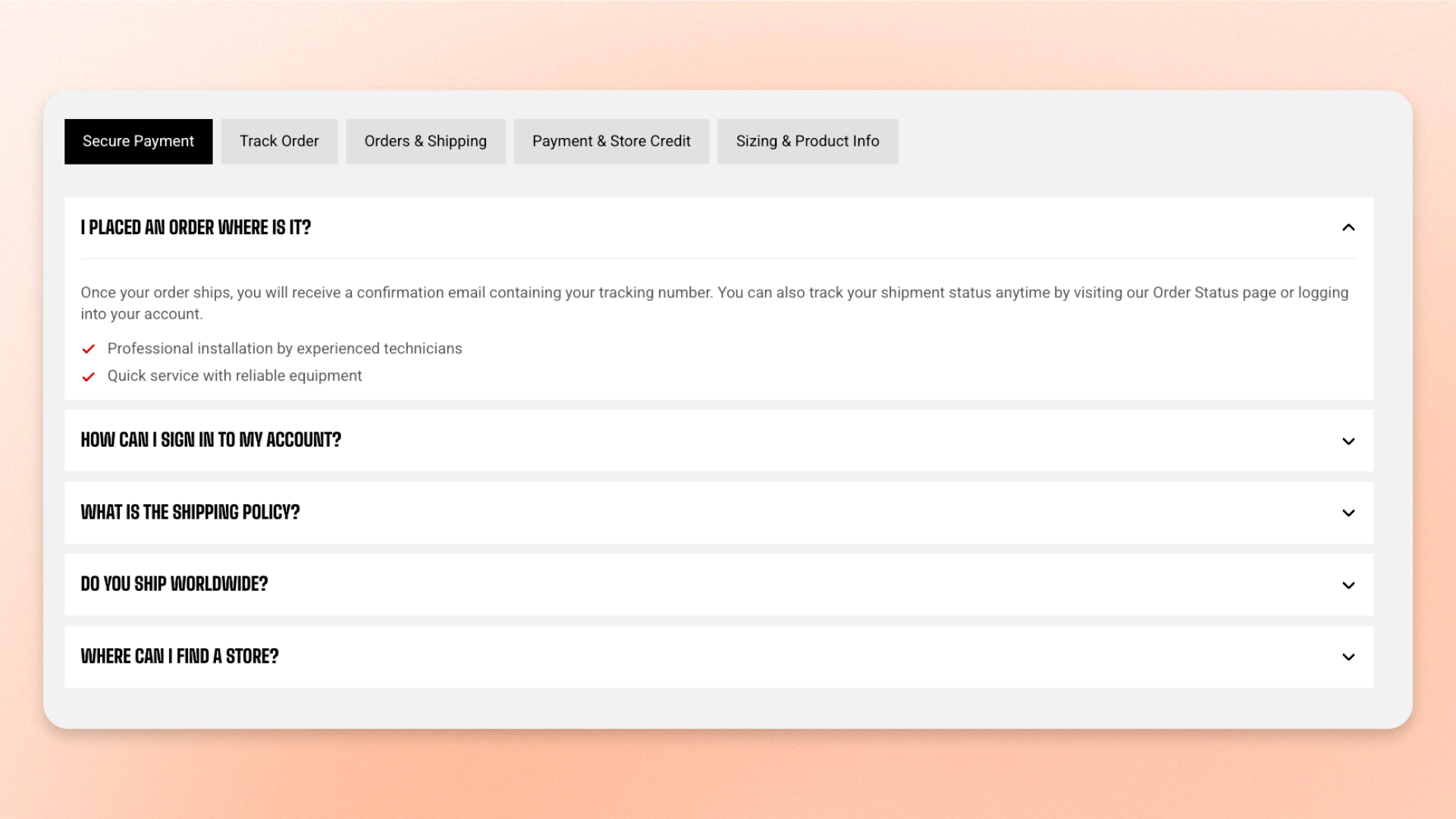
The **FAQ: Tabs** section organizes content into switchable tabs so customers can view one panel at a time instead of scrolling through a long page.
Each **Tab** has its own title and can contain different content blocks, including text, images, videos, accordions, buttons, section headers, and app blocks. This makes the section useful for organizing FAQs by topic, as well as information such as shipping, returns, payments, product details, or support content.
Customers select a tab title to display its corresponding content panel.
## How to customize FAQ: Tabs\*\*\*\*
1. In the theme editor (**Edit theme**), open the page where you want to display the section.
2. Click **Add section** and select **FAQ: Tabs**.
3. Choose the **Direction** and **Tab style**.
4. Customize the section appearance, spacing, and animation if needed.
5. Add, remove, or reorder **Tab** blocks.
6. For each Tab, enter the text used for its tab title.
7. Add and arrange the content blocks you want to display inside each Tab.
8. Click **Save**.
## Section settings
### Layout
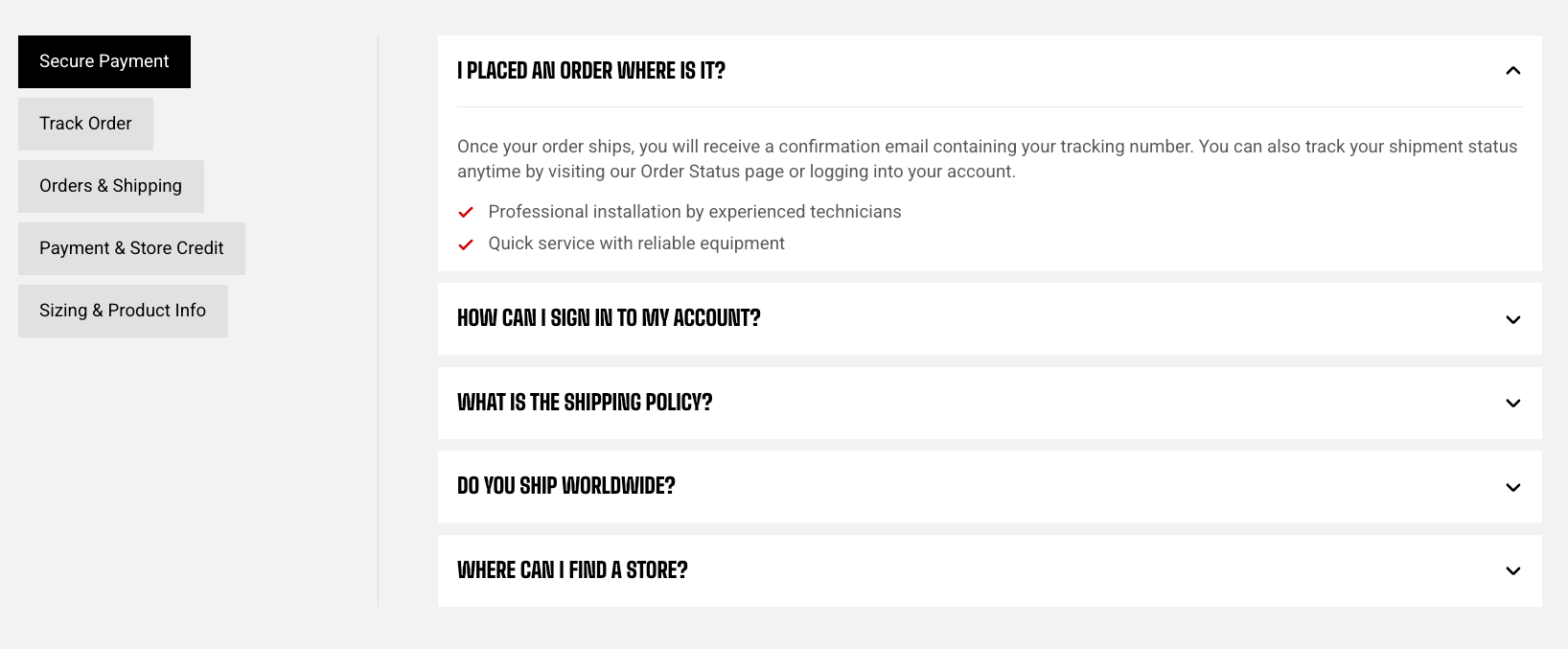
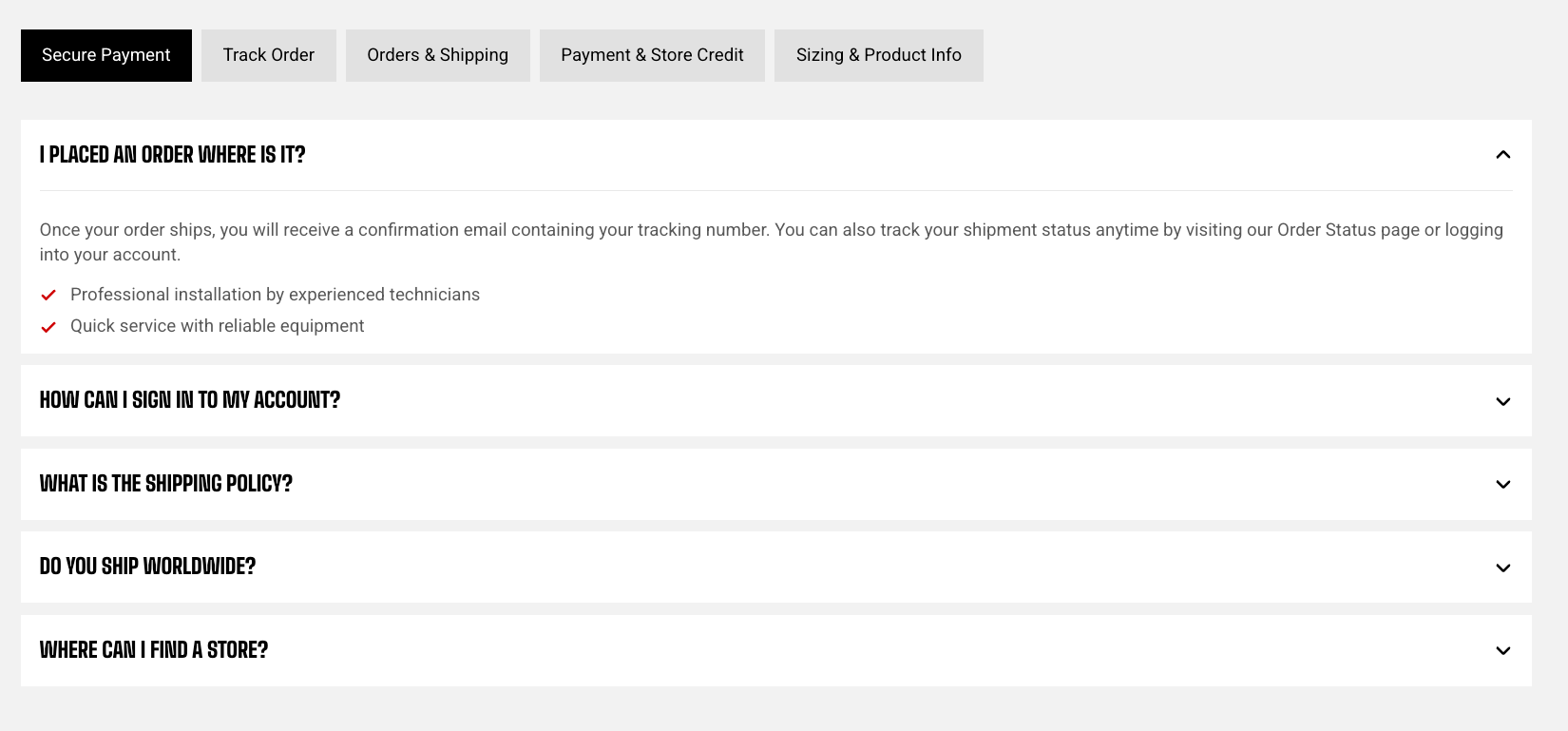
Controls how the tab navigation is positioned relative to the tab content.
| Setting | Description | Options |
| ------------- | ----------------------------------------------------- | --------------------------------------------------------------------------------------------------------------------------------------------------------- |
| **Direction** | Controls how the tab titles and content are arranged. | **Vertical:** Displays the tab navigation beside the content on larger screens.
**Horizontal:** Displays the tab navigation above the content. |
### Tabs
Controls the appearance and typography of the tab titles.
| Setting | Description | Options |
| -------------------- | -------------------------------------------------------- | -------------------------------------------------------------------------------------------------------------------------------------------------------------------------------------------------------------------------------------- |
| **Tab style** | Controls how customers select between tabs. | **Solid, Outline, Underline,** or **Dropdown**. |
| **Preset** | Controls the text style used for the tab titles. | Select an available heading preset or **Custom**.
*Available when* ***Tab style*** *is set to* ***Underline*** *or* ***Dropdown.*** |
| **Font** | Controls which theme font is used for custom tab titles. | **Body** or **Heading**.
*Available when* ***Tab style*** *is set to* ***Underline*** *or* ***Dropdown***, and ***Preset*** *is set to* ***Custom***. |
| **Font size** | Controls the tab title size on larger screens. | Set a custom font size.
*Available when* ***Tab style*** *is set to* ***Underline*** *or* ***Dropdown***, and ***Preset*** *is set to* ***Custom***. |
| **Font size mobile** | Controls the tab title size on mobile devices. | Set a custom font size.
*Available when* ***Tab style*** *is set to* ***Underline*** *or* ***Dropdown***, and ***Preset*** *is set to* ***Custom***. |
| **Text transform** | Controls the capitalization of the tab titles. | **As typed:** Keeps the original casing.
**Title Case, UPPER CASE, or lower case**.
*Available when* ***Tab style*** *is set to* ***Underline*** *or* ***Dropdown***, and ***Preset*** *is set to* ***Custom***. |
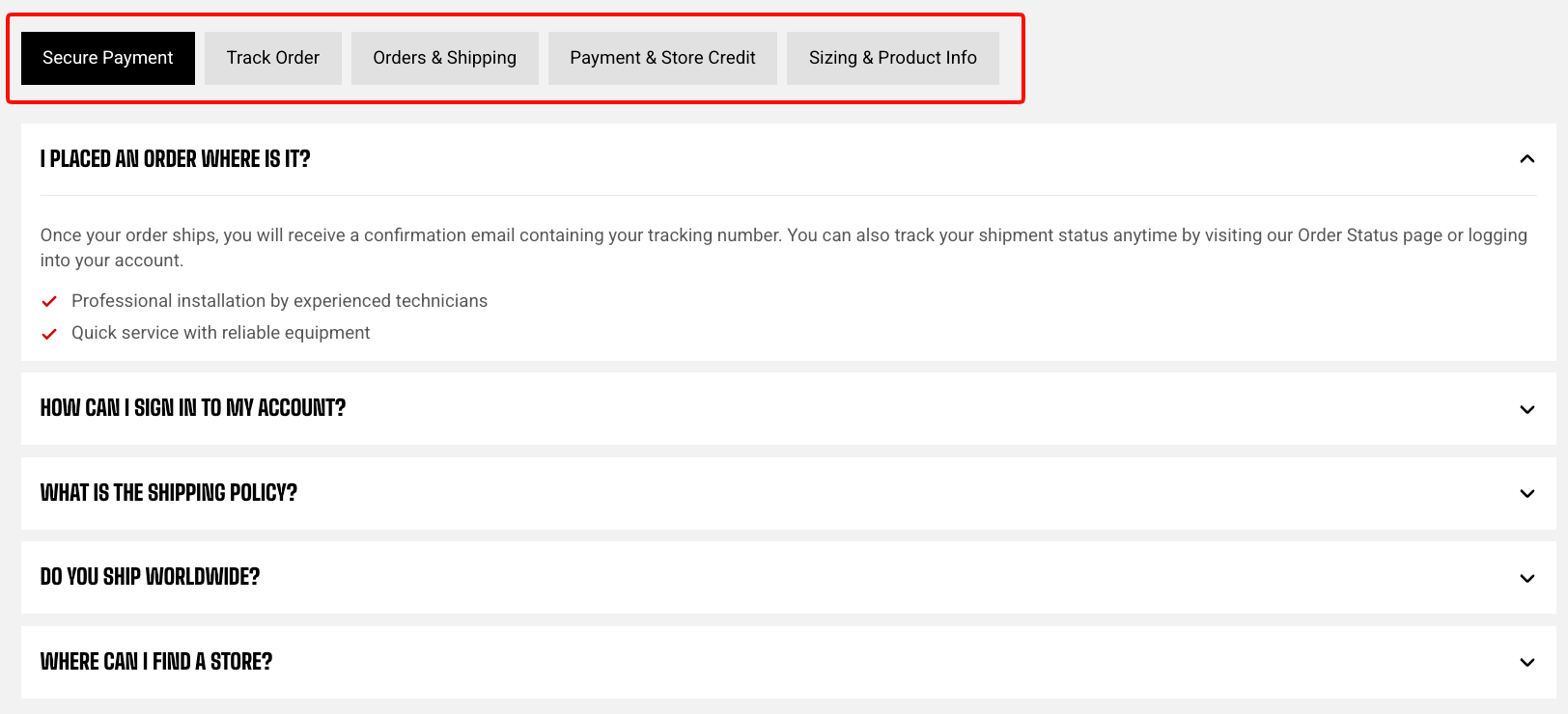
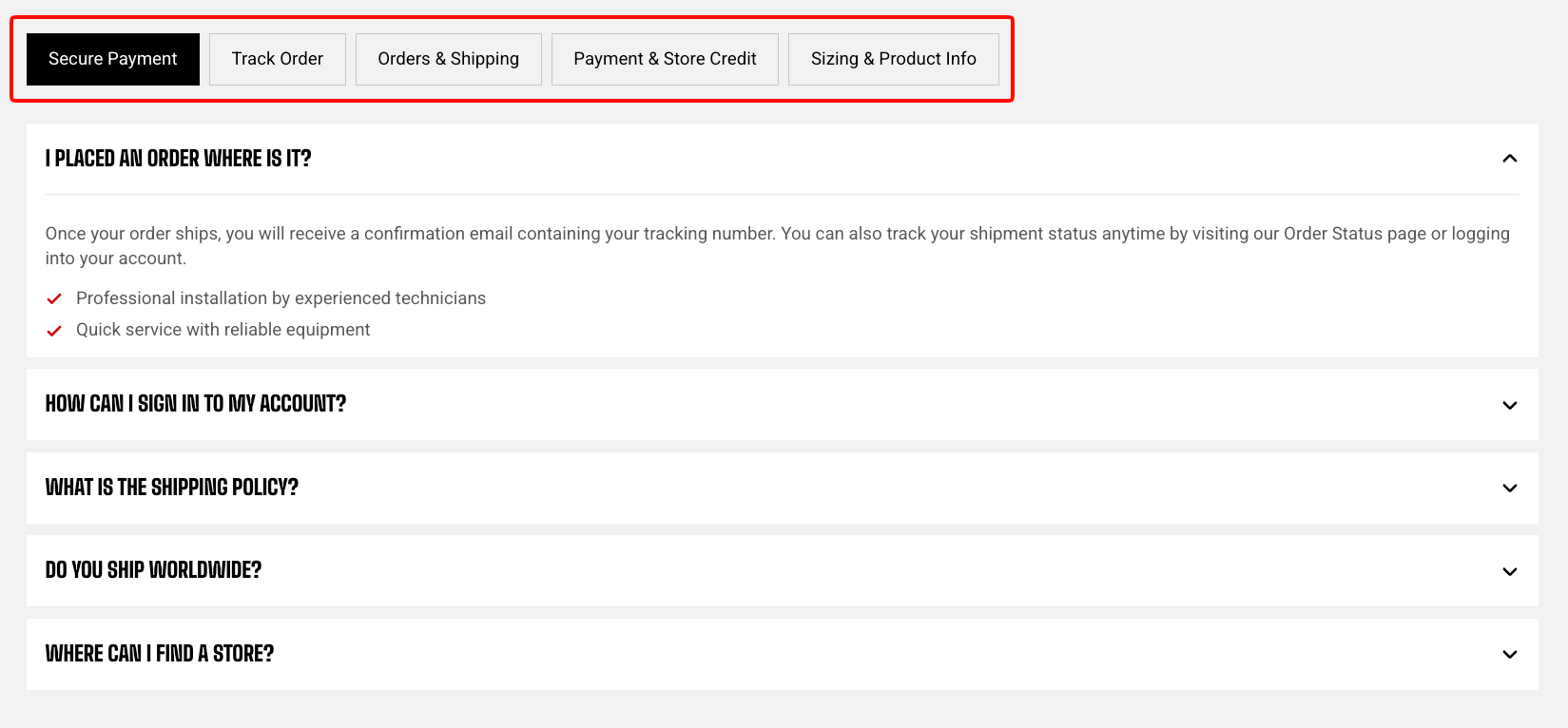
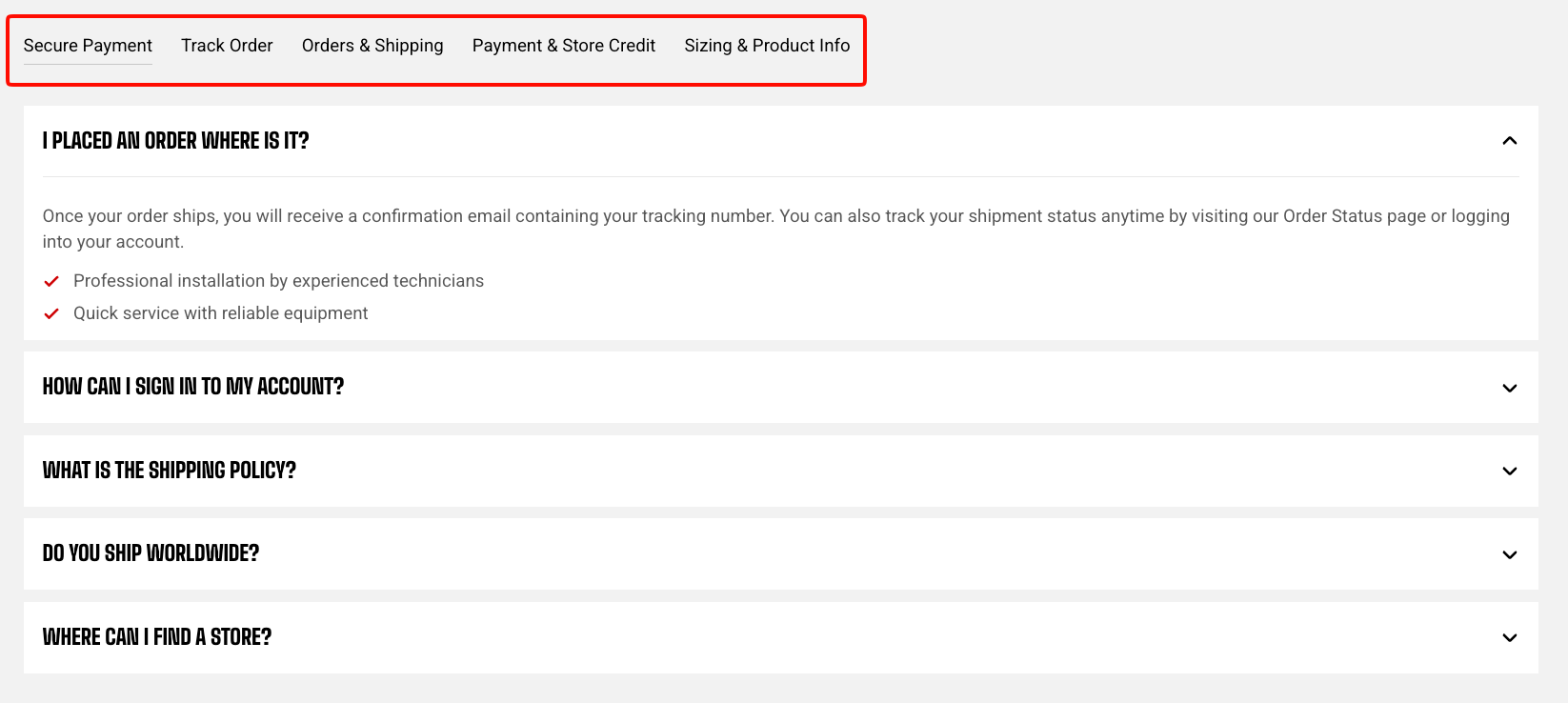
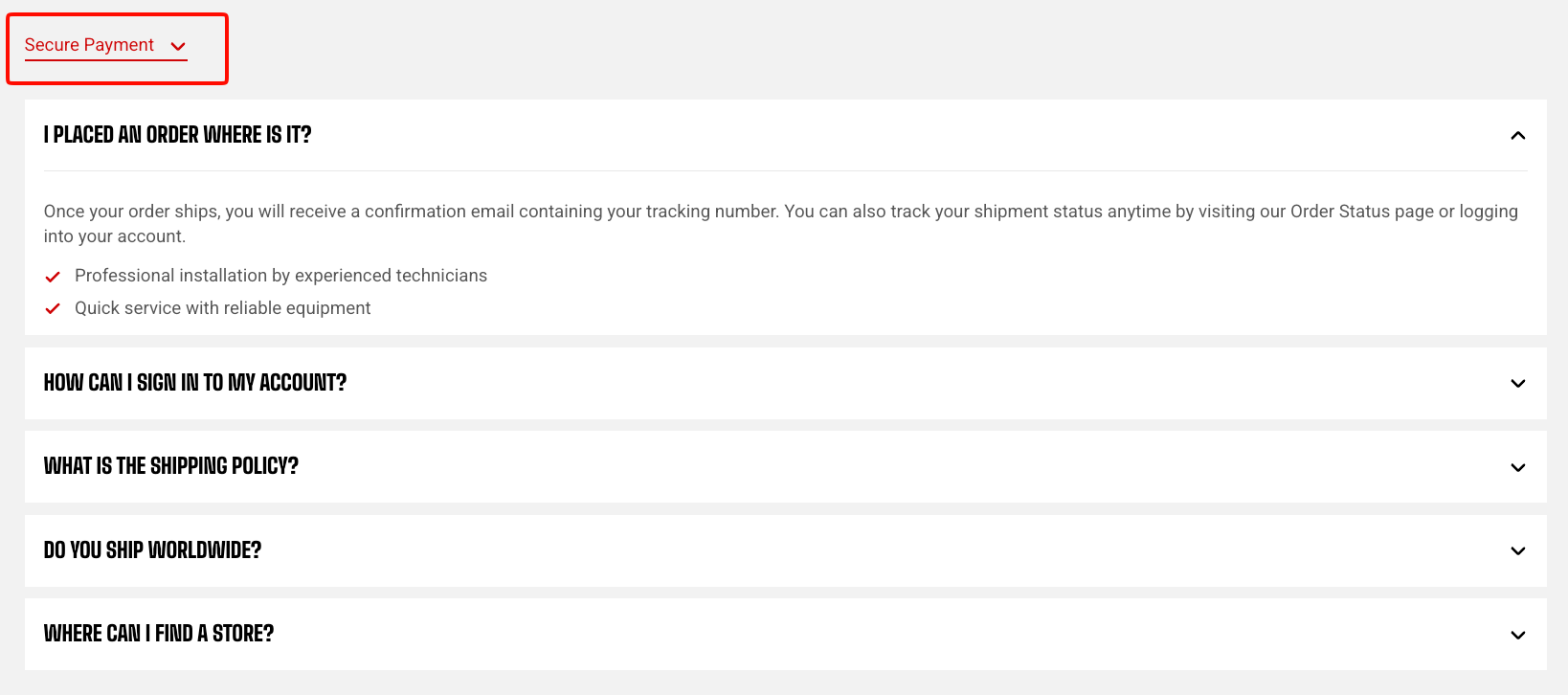
For many or longer tab titles, use the **Dropdown** style to keep the navigation compact.
### Appearance
Controls the section color scheme, border, and corners.
| Setting | Description | Options |
| ------------------ | ------------------------------------------------ | ----------------------------------------------------------------------------- |
| **Color scheme** | Applies a theme color scheme to the section. | Select an available color scheme. |
| **Border** | Controls whether the section has an outline. | **None** or **Solid**. |
| **Border width** | Controls the thickness of the section border. | **0–10px.**
*Available when* ***Border*** *is set to* ***Solid***. |
| **Border opacity** | Controls the opacity of the section border. | **0–100%.**
*Available when* ***Border*** *is set to* ***Solid***. |
| **Corner radius** | Controls how rounded the section corners appear. | **0–32px.** |
### Padding
Controls the vertical spacing around the section.
| Setting | Description | Options |
| ---------- | --------------------------------------------- | ------------ |
| **Top** | Controls the space above the section content. | **0–100px.** |
| **Bottom** | Controls the space below the section content. | **0–100px.** |
### Animation
Controls the entrance animation used when customers switch between tabs.
This group is available when animations are enabled in the theme settings.
| Setting | Description | Options |
| --------------- | ------------------------------------------------------------------------------------------- | -------------------------------------------------------------------------------- |
| **Tab content** | Controls the entrance animation applied to the active tab panel when customers switch tabs. | **None, Fade in, Fade up, Fade down, Slide in (left),** or **Slide in (right)**. |
## Blocks
The **FAQ: Tabs** section uses repeatable **Tab** blocks.
Each Tab creates one selectable tab and its corresponding content panel. You can add, remove, and reorder Tabs to control both the available topics and their display order.
### Tab
Each **Tab** has its own title and can contain multiple theme blocks.
| Setting | Description | Options |
| -------- | ---------------------------------------------------------- | ---------------------------------------------- |
| **Text** | Sets the title customers use to identify and open the Tab. | Enter custom text or connect a dynamic source. |
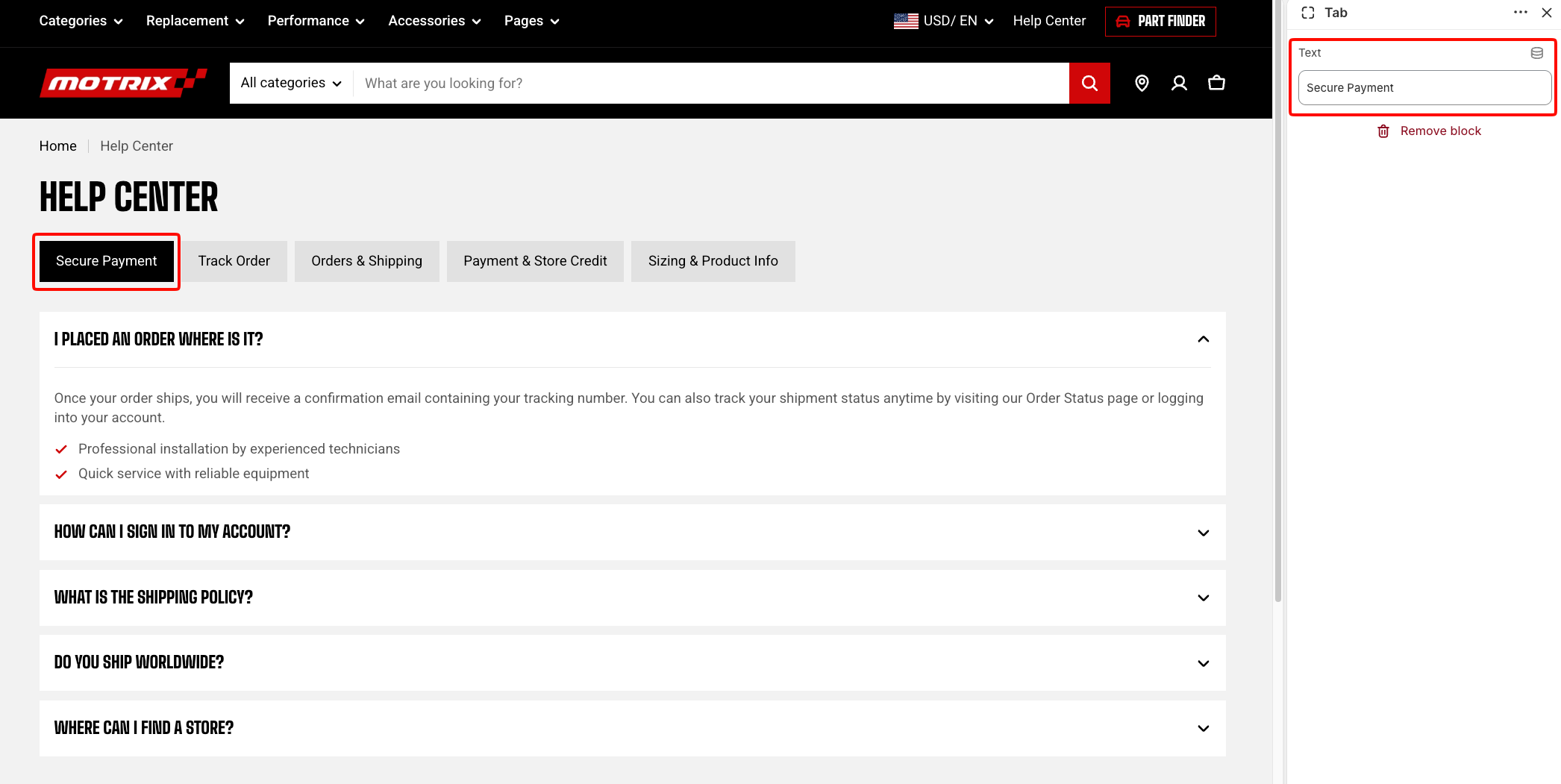
Keep tab titles short and specific, such as **Secure Payment**, **Track Order**, **Shipping**, or **Returns**, so customers can quickly find the information they need.
You can add and arrange supported theme blocks inside each **Tab**:
* [**Button**](https://docs.foxecom.com/motrix-theme/theme-blocks/button) — Adds a call-to-action button.
* [**Heading/Subheading/Text**](https://docs.foxecom.com/motrix-theme/theme-blocks/text) — Adds headings, subheadings, or supporting text.
* [**Icon**](https://docs.foxecom.com/motrix-theme/theme-blocks/icon) — Adds an icon.
* [**Image**](https://docs.foxecom.com/motrix-theme/theme-blocks/image) — Adds an image.
* [**Video**](https://docs.foxecom.com/motrix-theme/theme-blocks/video) — Adds video content.
* **Shop by collection** — Adds a prebuilt [Group](https://docs.foxecom.com/motrix-theme/theme-blocks/group) for showcasing collections. It includes a Section header: Vertical, followed by [Collection card](https://docs.foxecom.com/motrix-theme/theme-blocks/collection-card) blocks separated by [Divider](https://docs.foxecom.com/motrix-theme/theme-blocks/divider) blocks. The default structure includes three Collection cards.
* [**Accordion**](https://docs.foxecom.com/motrix-theme/theme-blocks/accordion) — Adds expandable content, useful for individual FAQ questions.
* [**Group**](https://docs.foxecom.com/motrix-theme/theme-blocks/group) — Groups multiple blocks together.
* **Section header: Horizontal** — Adds a prebuilt [Group](https://docs.foxecom.com/motrix-theme/theme-blocks/group) for a horizontally arranged section header. It includes a [Heading](https://docs.foxecom.com/motrix-theme/theme-blocks/text) and [Button](https://docs.foxecom.com/motrix-theme/theme-blocks/button).
* **Section header: Vertical** — Adds a prebuilt [Group](https://docs.foxecom.com/motrix-theme/theme-blocks/group) for a vertically arranged section header. It includes a [Subheading, Heading, and Text](https://docs.foxecom.com/motrix-theme/theme-blocks/text) block.
* **Store location** — Adds a prebuilt [Group](https://docs.foxecom.com/motrix-theme/theme-blocks/group) for displaying store information. It includes an [Image](https://docs.foxecom.com/motrix-theme/theme-blocks/image) and a Store location content Group. Inside Store location content, you can use Store location info Groups containing [Heading and Text](https://docs.foxecom.com/motrix-theme/theme-blocks/text) blocks, together with a [Button](https://docs.foxecom.com/motrix-theme/theme-blocks/button).
* **App blocks** — Adds compatible blocks provided by installed Shopify apps.
**Shop by collection, Section header: Horizontal, Section header: Vertical,** and **Store location** are predefined versions of the **Group** block. They come with child blocks already arranged to provide a starting layout, while their individual content can be customized inside the block tree.
For an FAQ layout, you can place an **Accordion** inside each Tab and use its **Accordion row** blocks for individual questions and answers.
## FAQs
#### Which Tab is open when the page first loads?
The first **Tab** in the section is displayed initially. Reorder the Tab blocks in the theme editor if you want a different topic to appear first.
#### What happens if there are too many tab titles to fit on a small screen?
For tab styles that display titles in a row, customers can navigate through the available titles when they no longer fit within the screen width. If you have many categories, consider using the **Dropdown** tab style to keep the navigation more compact.
#### Can each Tab contain different types of content?
Yes. Each Tab has its own content panel, so you can build each one differently. For example, one Tab can contain an **Accordion**, while another can use text, images, video, buttons, groups, or other supported blocks.
Content added inside a Tab is displayed only when that Tab is active.
#### Can I use FAQ: Tabs without Accordion blocks?
Yes. **Accordion** is useful when each Tab contains several individual questions, but it isn't required. You can use any supported child blocks to create the content structure that fits each Tab.