# Custom liquid
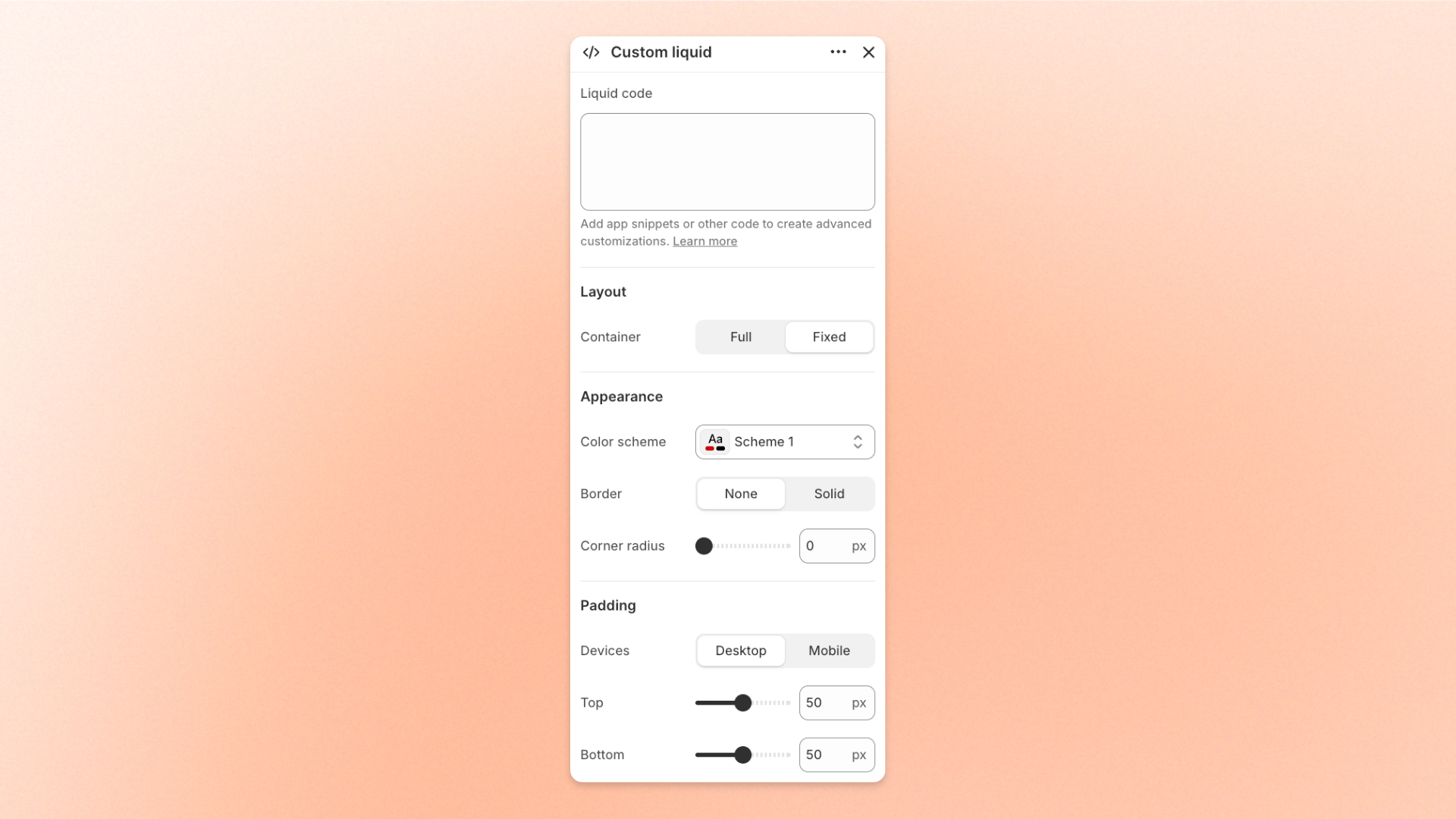
The **Custom liquid** section lets you add custom Liquid code to a page when you need content or functionality that isn't available through the theme's built-in sections and blocks.
Use it for app-provided snippets, embed code, or small customizations created with Liquid. You can also control the section width, color scheme, border, corner radius, and spacing.
Custom code can affect how your storefront displays or behaves. Add code only from a source you trust, and test your changes before publishing.
## How to customize the Custom liquid section
1. In the theme editor (**Edit theme**), open the page where you want to add the section.
2. Click **Add section** and select **Custom liquid**.
3. Paste or enter your code in **Liquid code**.
4. Configure the section width, appearance, and spacing if needed.
5. Preview the result to make sure the code works as expected.
6. Click **Save**.
## Section settings
### Liquid code
Adds the custom code displayed by the section.
| Setting | Description | Options |
| --------------- | ------------------------------------------------------------------------- | ------------------ |
| **Liquid code** | Adds Liquid or other supported code for custom content and functionality. | Enter custom code. |
If the code comes from an app or developer, paste it exactly as provided unless they instruct you to modify it.
## Layout
Controls the width of the Custom liquid section.
| Setting | Description | Options |
| ------------- | ------------------------------------------ | -------------------------------------------------------------------------------------------------------------------------- |
| **Container** | Controls the width of the section content. | **Full:** Uses the available page width.
**Fixed:** Keeps the content within the theme's fixed container width. |
## Appearance
Controls the color scheme, border, and corners of the section.
| Setting | Description | Options |
| ------------------ | ------------------------------------------------ | ----------------------------------------------------------------------- |
| **Color scheme** | Applies a theme color scheme to the section. | Select an available color scheme. |
| **Border** | Controls whether the section has an outline. | **None** or **Solid**. |
| **Border width** | Controls the thickness of the section border. | **0–10px**.
*Available when **Border** is set to **Solid**.* |
| **Border opacity** | Controls the opacity of the section border. | **0–100%**.
*Available when **Border** is set to **Solid**.* |
| **Corner radius** | Controls how rounded the section corners appear. | **0–32px**. |
## Padding
Controls the spacing around the section separately for desktop and mobile.
| Setting | Description | Options |
| ----------- | ------------------------------------------------------------------------- | -------------------------------------------------------------------------- |
| **Devices** | Selects which device-specific padding values you are editing. | **Desktop** or **Mobile**. |
| **Top** | Controls the space above the section content. | **0–100px**. |
| **Bottom** | Controls the space below the section content. | **0–100px**. |
| **Left** | Controls the space between the content and the left edge of the section. | **0–100px**.
*Available when **Container** is set to **Full**.* |
| **Right** | Controls the space between the content and the right edge of the section. | **0–100px**.
*Available when **Container** is set to **Full**.* |
Tablet and other in-between screen sizes use responsive values between the desktop and mobile settings.
## FAQs
#### Why isn't my Custom liquid content showing?
Check that the code is complete and valid. If the code was provided by an app or developer, confirm that you copied the entire snippet exactly as provided.
#### When should I use Custom liquid instead of a built-in theme section?
Use **Custom liquid** when you need app-provided code, embeds, or custom Liquid functionality that isn't available through the theme's built-in sections and blocks. For standard layouts and content, use the theme's built-in options (such as [Custom section](https://docs.foxecom.com/motrix-theme/theme-sections/custom-section)) instead.