# Blog posts
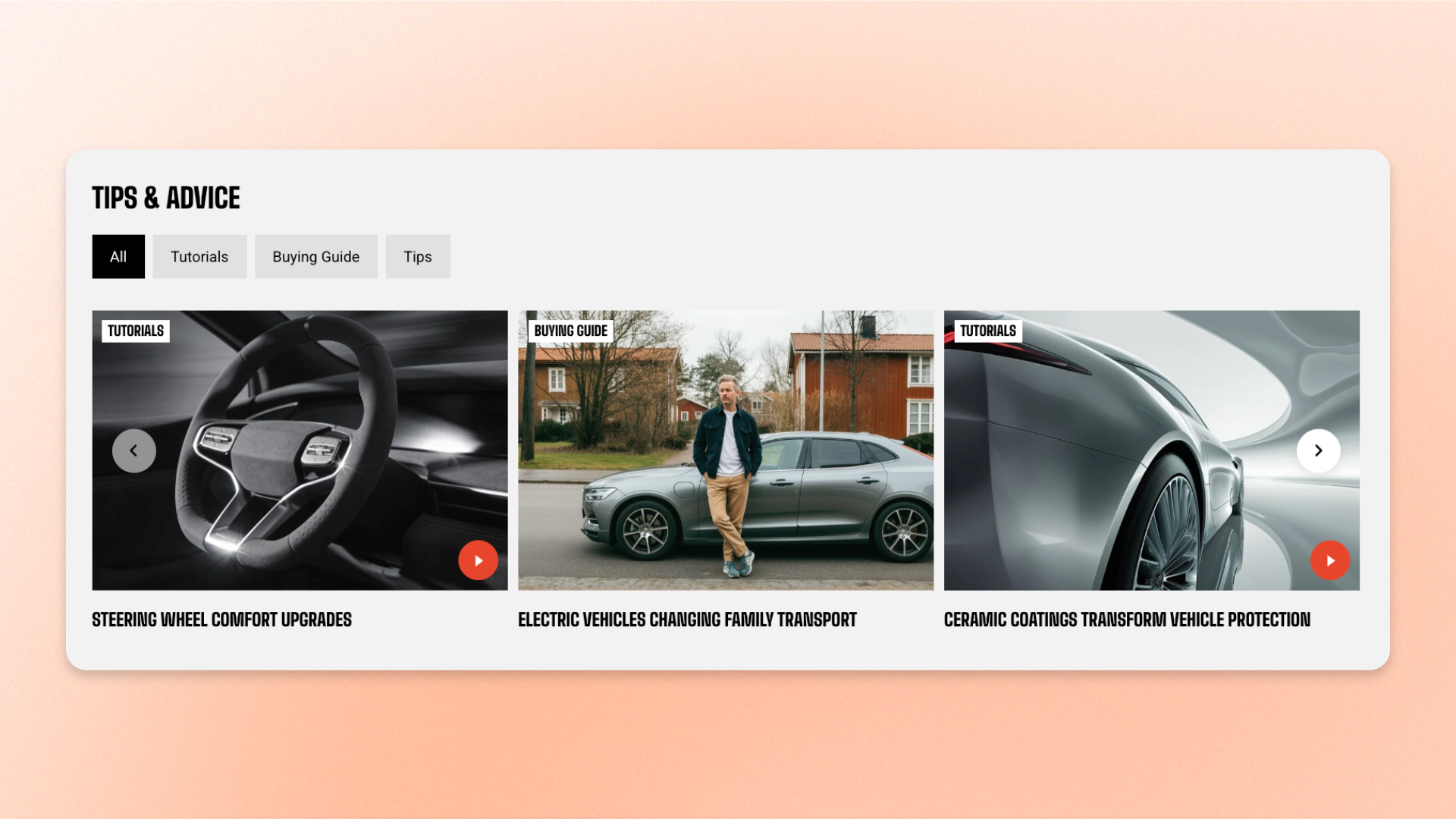
The **Blog posts** section displays posts from one blog in a responsive **Grid** or **Carousel**, helping customers discover editorial content without leaving the page.
Use it on a home page or landing page to highlight tutorials, guides, news, stories, or other blog content. You can display up to **24 posts**, add tag filters, customize the desktop and mobile layout, and control the content shown on each article card.
## How to customize the Blog posts
1. In the theme editor (**Edit theme**), open the page where you want to display the section.
2. Click **Add section** and select **Blog posts**.
3. Select a **Blog**, set the **Post count**, and enable **Show tag filters** if needed.
4. Configure the layout, spacing, and mobile display.
5. Customize the section heading and article card content if needed.
6. Click **Save**.
## Section settings
### Content
Controls which blog posts appear in the section and whether customers can filter them by tag.
| Setting | Description | Options |
| -------------------- | ---------------------------------------------------------------------------------------------------------------------------------------- | ------------------ |
| **Blog** | Selects the blog whose posts are displayed in the section. | Select a blog. |
| **Post count** | Sets the maximum number of posts displayed. | **2–24 posts.** |
| **Show tag filters** | Adds an All option followed by the tags used by the displayed posts. Selecting a tag filters the visible posts without leaving the page. | **On** or **Off**. |
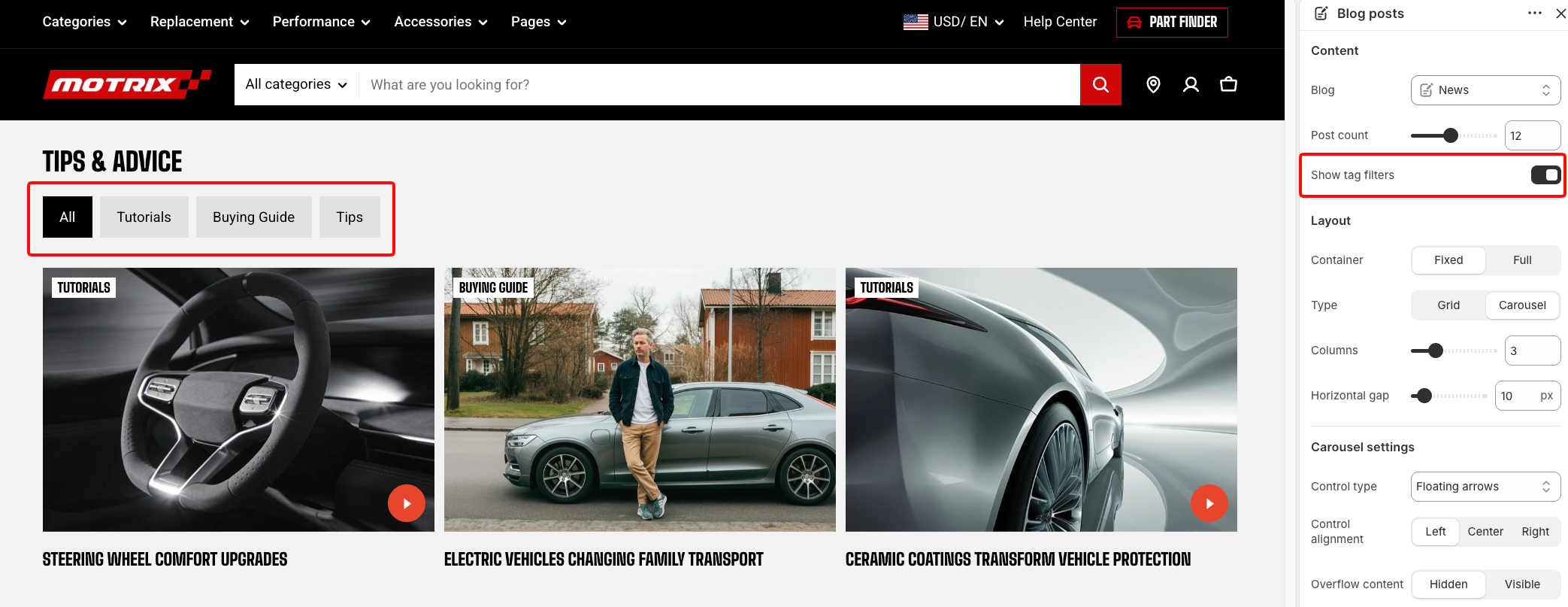
Use short, clear tags when enabling **Show tag filters** so customers can quickly understand and browse the available topics.
### Layout
Controls how article cards are arranged in the section.
| Setting | Description | Options |
| ------------------ | -------------------------------------------------------------------------- | -------------------------------------------------------------------------------------------------------------------------- |
| **Container** | Controls the width of the section content. | **Fixed:** Keeps the content within the theme's fixed container width.
**Full:** Uses the available page width. |
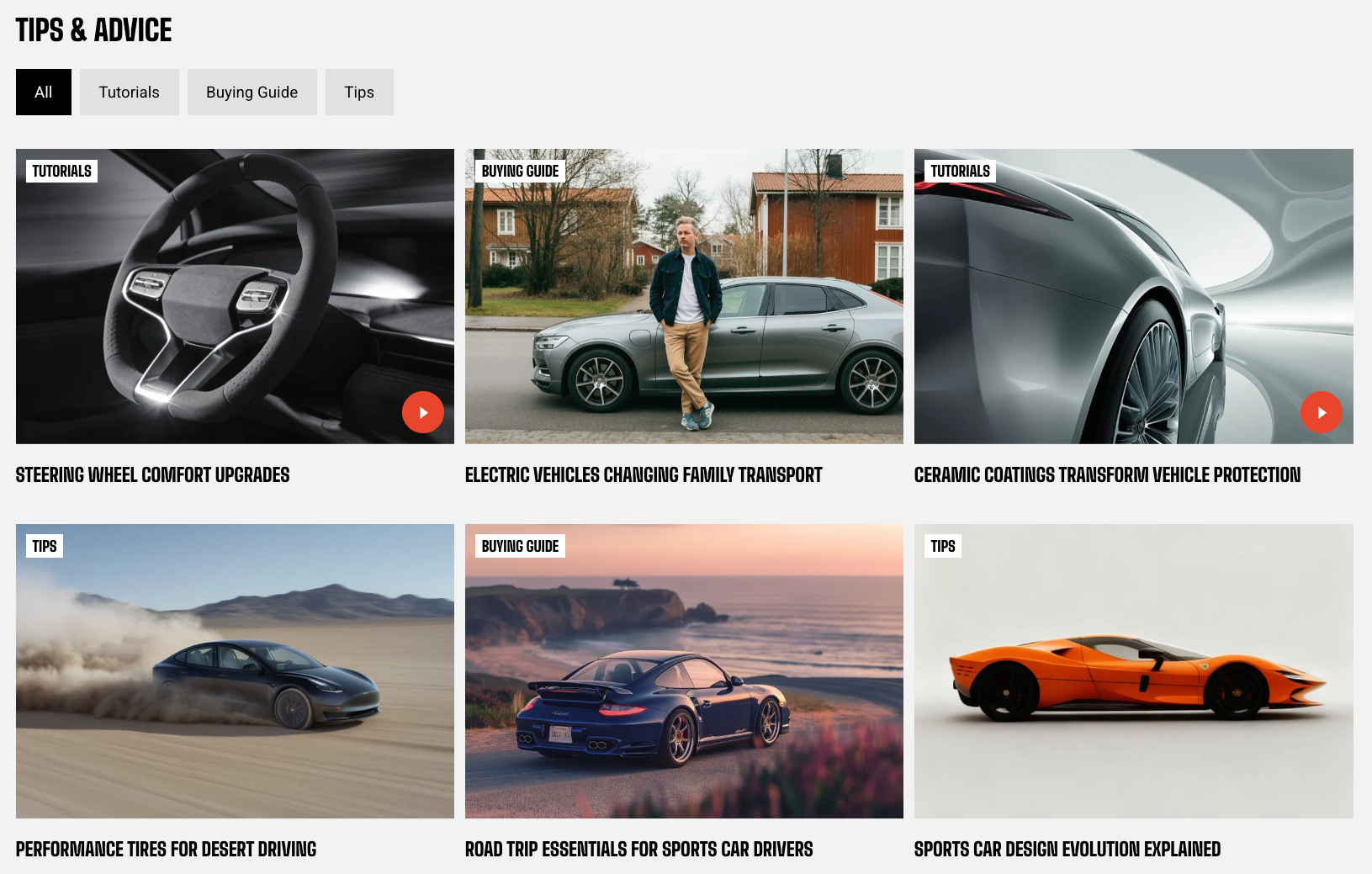
| **Type** | Controls how the article cards are arranged. | **Grid** or **Carousel**. |
| **Columns** | Sets the number of article cards displayed across a row on larger screens. | **2–6 columns**. |
| **Horizontal gap** | Controls the horizontal space between article cards. | **0–100px**. |
| **Vertical gap** | Controls the vertical space between rows of article cards. | **0–100px**.
*Available when **Type** is set to **Grid**.* |
### Carousel settings
*These settings are available when **Type** is set to **Carousel**.*
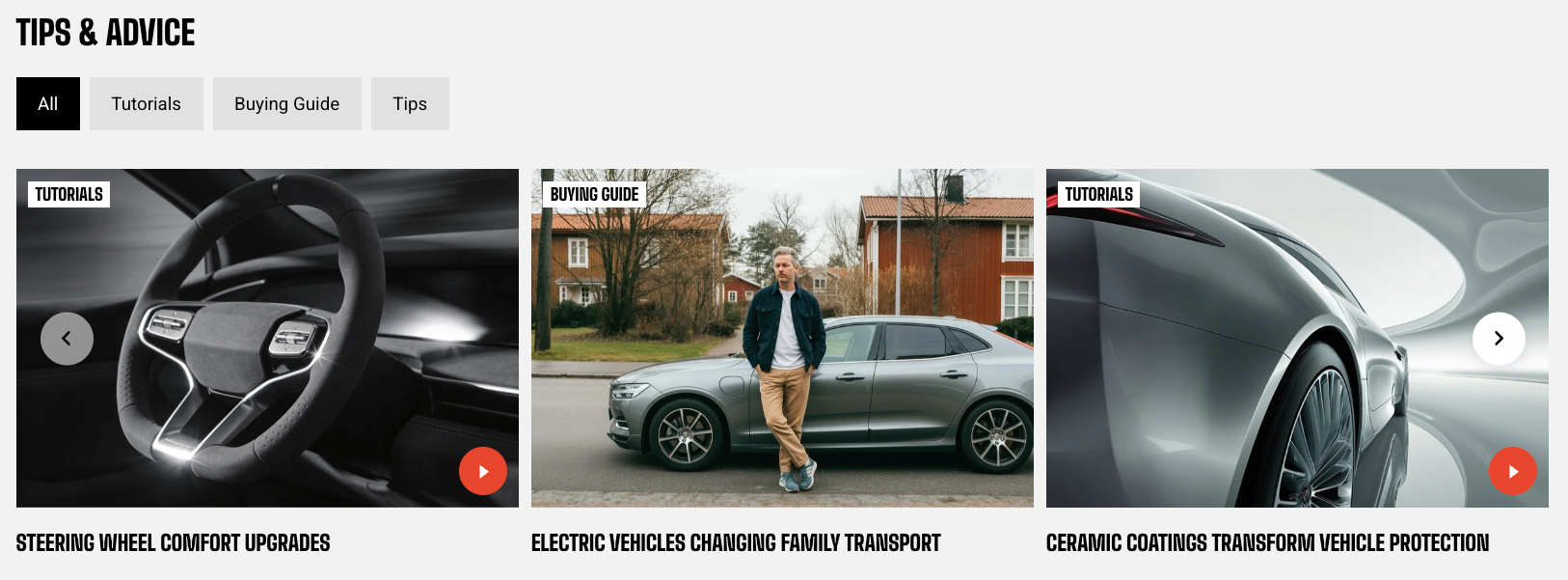
**Carousel** is used on desktop and tablet. On mobile, the section follows the **Mobile layout** settings instead, using either a grid or swipeable row. Carousel arrows and dots are not shown on mobile.
| Setting | Description | Options |
| --------------------- | --------------------------------------------------------------------------------- | ----------------------------------------------------------------------------------------------------------------------- |
| **Control type** | Controls the navigation shown for the carousel. | **None, Dots, Arrows + dots, Floating arrows,** or **Floating arrows + dots**. |
| **Control alignment** | Controls the horizontal position of the carousel controls. | **Left, Center,** or **Right**.
*Available when the selected **Control type** includes navigation controls.* |
| **Overflow content** | Controls whether cards extending beyond the content area remain visible. | **Hidden:** Clips cards at the content edge.
**Visible:** Allows part of the next card to remain visible. |
| **Show edge fade** | Adds a soft fade at the carousel edges to indicate that more cards are available. | **On** or **Off**. |
Set **Overflow content** to **Visible** and turn on **Show edge fade** when you want to hint that more products can be viewed.
### Mobile layout
Controls how article cards are displayed on mobile devices.
| Setting | Description | Options |
| ---------------------------- | ---------------------------------------------------------------------------------- | ------------------------------------------------------------------------------------------------------------- |
| **Enable swipe on mobile** | Controls whether customers can swipe horizontally through article cards on mobile. | **On** or **Off**. |
| **Show edge fade on mobile** | Adds a soft fade at the row edges to indicate that more cards are available. | **On** or **Off**.
*Available when **Enable swipe on mobile** is turned on.* |
| **Custom column width** | Lets you manually control the width of each article card in the mobile swipe row. | **On** or **Off**.
*Available when **Enable swipe on mobile** is turned on.* |
| **Custom width** | Sets the width of each article card on mobile. | **20–90%**.
*Available when **Enable swipe on mobile** and **Custom column width** are turned on.* |
| **Mobile columns** | Sets the number of article cards displayed per row on mobile. | **1 column** or **2 columns**.
*Available when **Custom column width** is turned off.* |
| **Horizontal gap** | Controls the horizontal space between article cards on mobile. | **0–100px**. |
| **Vertical gap** | Controls the vertical space between rows of article cards on mobile. | **0–100px**.
*Available when **Enable swipe on mobile** is turned off.* |
Turn on **Custom column width** and use a value below **90%** to keep part of the next article card visible and encourage customers to swipe.
## Blocks
The **Blog posts** section includes two built-in static blocks: **Heading** and **Article card**. These blocks are part of the section structure and cannot be removed or reordered.
### Heading
The **Heading** is a built-in static **Text block** used as the section header. Use it to add a heading, supporting text, or other introductory content above the posts.
Its settings follow the standard [Text block](https://docs.foxecom.com/motrix-theme/theme-blocks/text) settings.
### Article card
The **Article card** is a built-in static block that controls the layout and content used for every post displayed in the section.
| Setting | Description | Options |
| ------------------------- | ------------------------------------------------------------------------------------------------------------------------------------------------------------------------------------------------------------------------------------------------------------------------------------------------------------------------------------------------------------ | ----------------------- |
| **Alignment** | Controls the alignment of the article card content. | **Left** or **Center**. |
| **Enable video lightbox** | Shows a play control on articles that have a video assigned through the **Videos** blog post metafield.
Selecting the play control opens the video in a pop-up player. Articles without a configured video continue to link normally.
Learn more: [Set up video lightbox for your blog posts](#set-up-video-lightbox-for-your-blog-posts) | **On** or **Off**. |
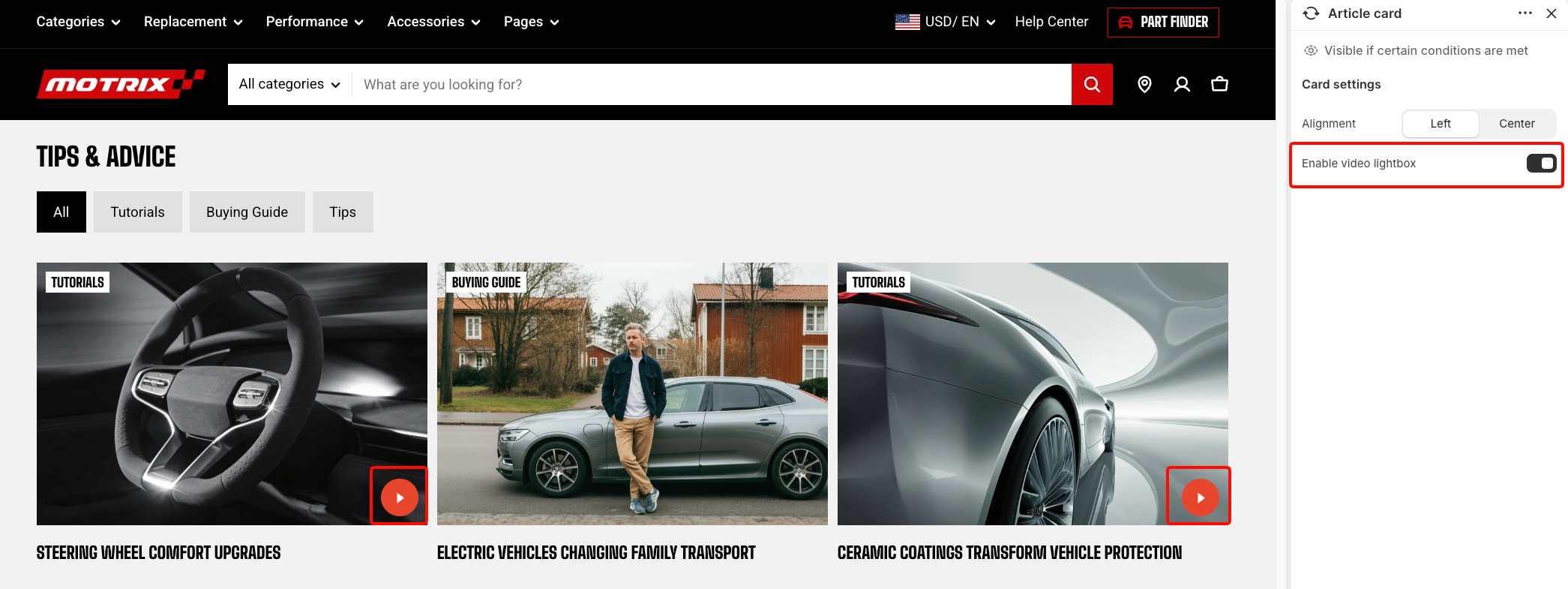
The Article card automatically includes the built-in static **Tag**, **Title**, and **Meta** child blocks, so you don’t need to add them manually. These are part of the card structure and can be configured individually.
You can also add supported dynamic child blocks, such as **Excerpt** and **Button**, when you want to display additional post content or a clearer call to action.
The built-in **Article card** inside the Blog posts section is different from the standalone **Article card** available under Theme blocks.
The standalone theme block includes additional settings and is documented separately in the [Article card documentation](https://docs.foxecom.com/motrix-theme/theme-blocks/article-card).
#### Tag
Controls how the article tag appears on the card.
| Setting | Description | Options |
| ---------------- | --------------------------------------------------------------------------- | ---------------------------------------------------------------------------------------------------------------------------------------------------- |
| **Placement** | Controls where the article tag appears. | **On media:** Displays the tag over the article image.
**In content area:** Displays the tag with the article content. |
| **Top** | Controls the space above the tag. | **0–100px**
*Available when **Placement** is set to **In content area**.* |
| **Bottom** | Controls the space below the tag. | **0–100px**
*Available when **Placement** is set to **In content area**.* |
| **Mobile scale** | Scales the top and bottom margins on mobile relative to the desktop values. | **20–100%:** Select the percentage of the desktop margin to keep on mobile.
*Available when **Placement** is set to **In content area**.* |
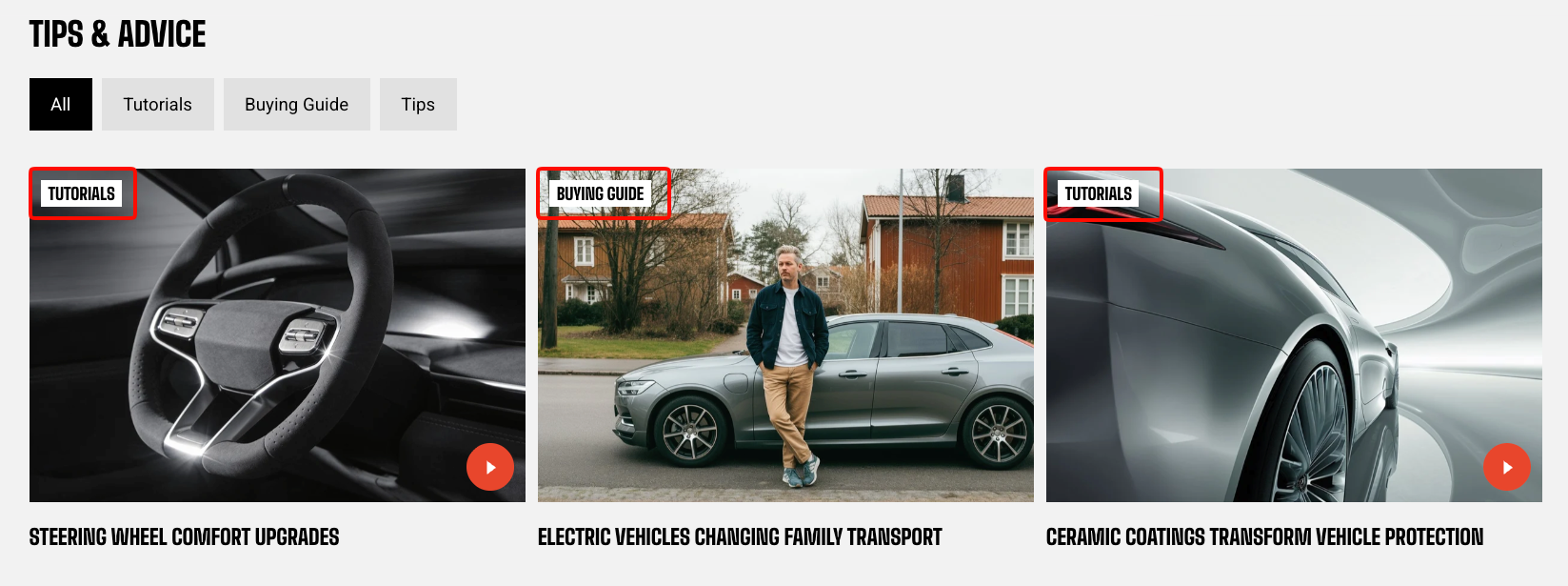
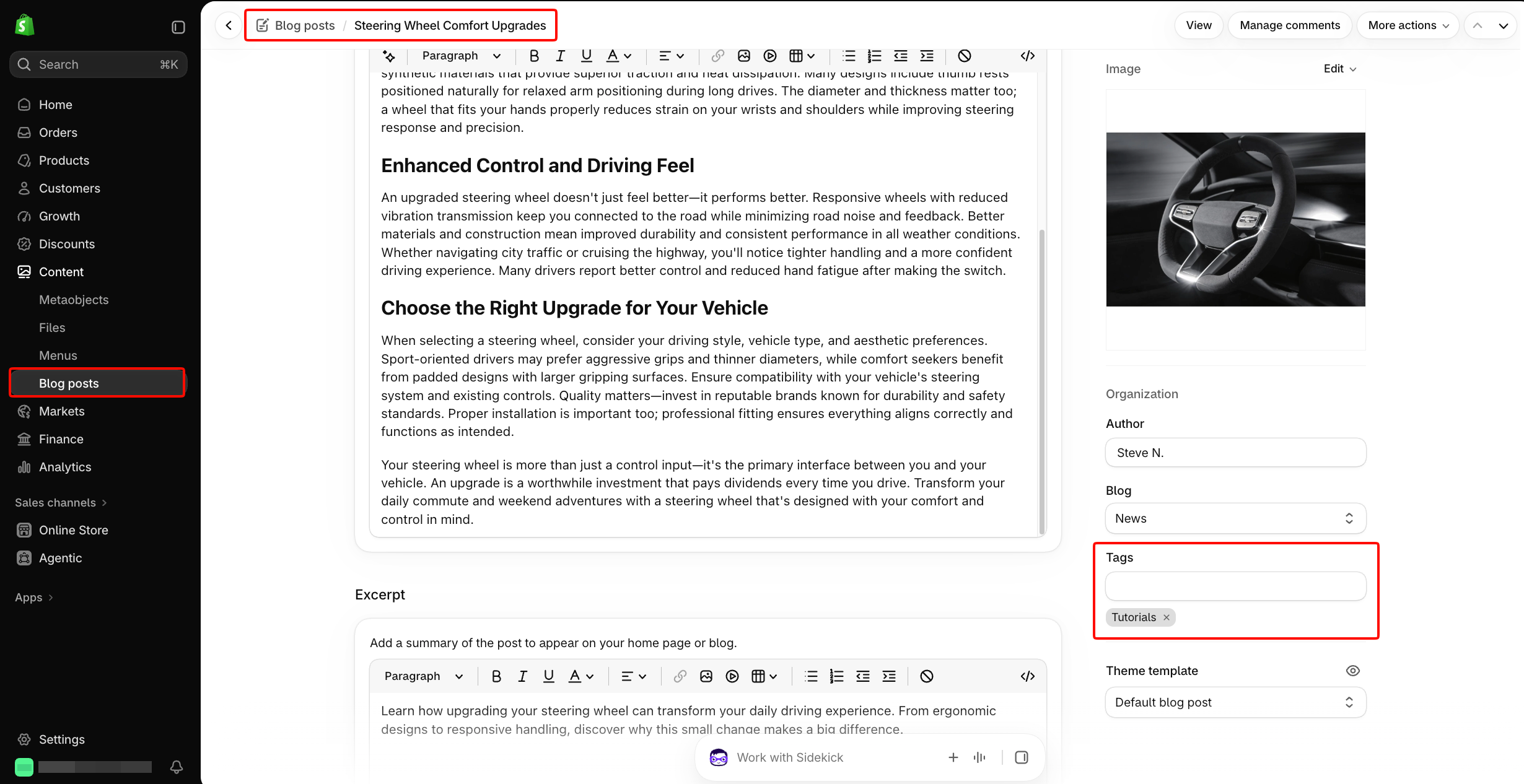
Blog post tags are managed in Shopify admin under **Content > Blog posts > open a post > Organization > Tags**.
These tags are used by the **Tag** block and by **Show tag filters** in the Blog posts section.
[*Shopify Help: Managing blog posts and tags*](https://help.shopify.com/en/manual/online-store/blogs/writing-blogs/working-with-blog-posts#add-tags-to-a-blog-post)
#### Title
Controls the typography and length of the article title.
| Setting | Description | Options |
| ------------------- | ------------------------------------------------------------------------------------ | ----------------------------------------------------------- |
| **Preset** | Controls the typography used for the article title. | **Heading 1–6** |
| **Text line limit** | Controls how many lines of the title are shown before the remaining text is cut off. | **No limit, 1 line, 2 lines, 3 lines, 4 lines, or 5 lines** |
#### Meta
Controls which article metadata appears on the card.
| Setting | Description | Options |
| --------------- | ----------------------------------------------------------- | ----------------- |
| **Show date** | Controls whether the article publication date is displayed. | **On** or **Off** |
| **Show author** | Controls whether the article author is displayed. | **On** or **Off** |
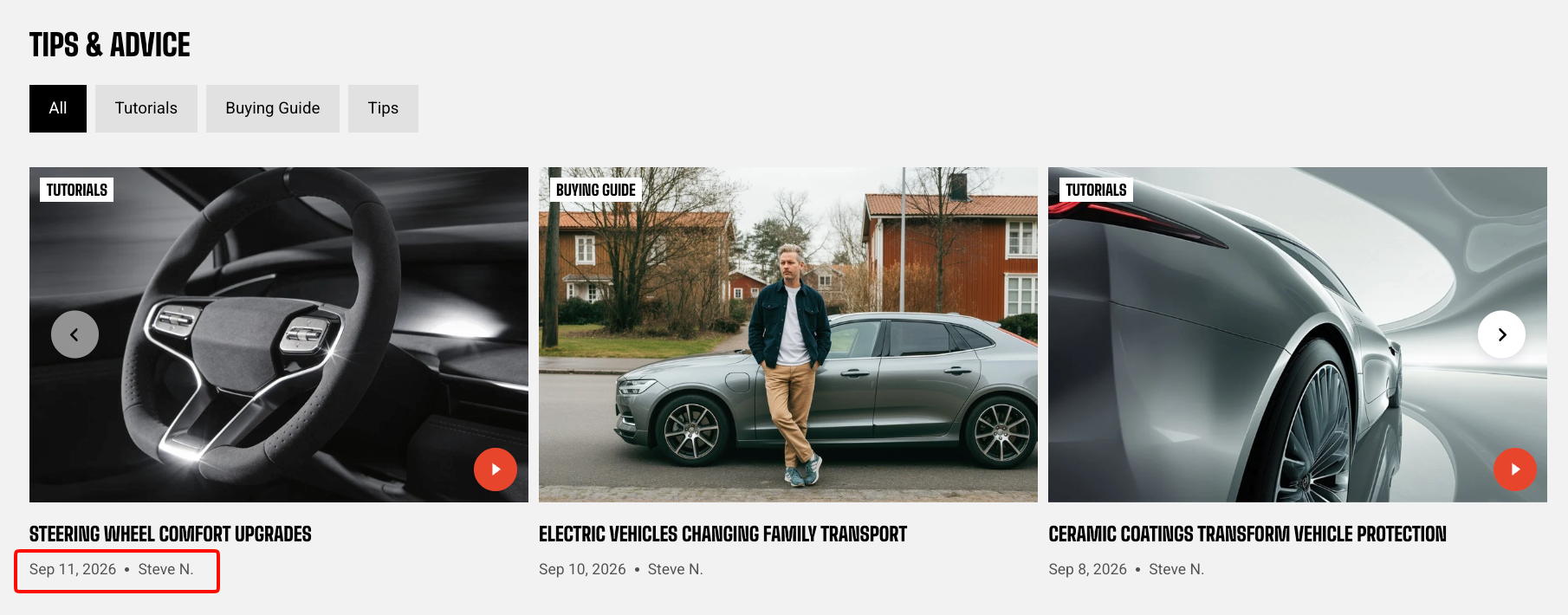
The article author is managed in Shopify admin under **Content > Blog posts > open a post > Organization > Author**.
The publication date comes from the blog post itself. Use **Show date** and **Show author** to control what appears on the card.
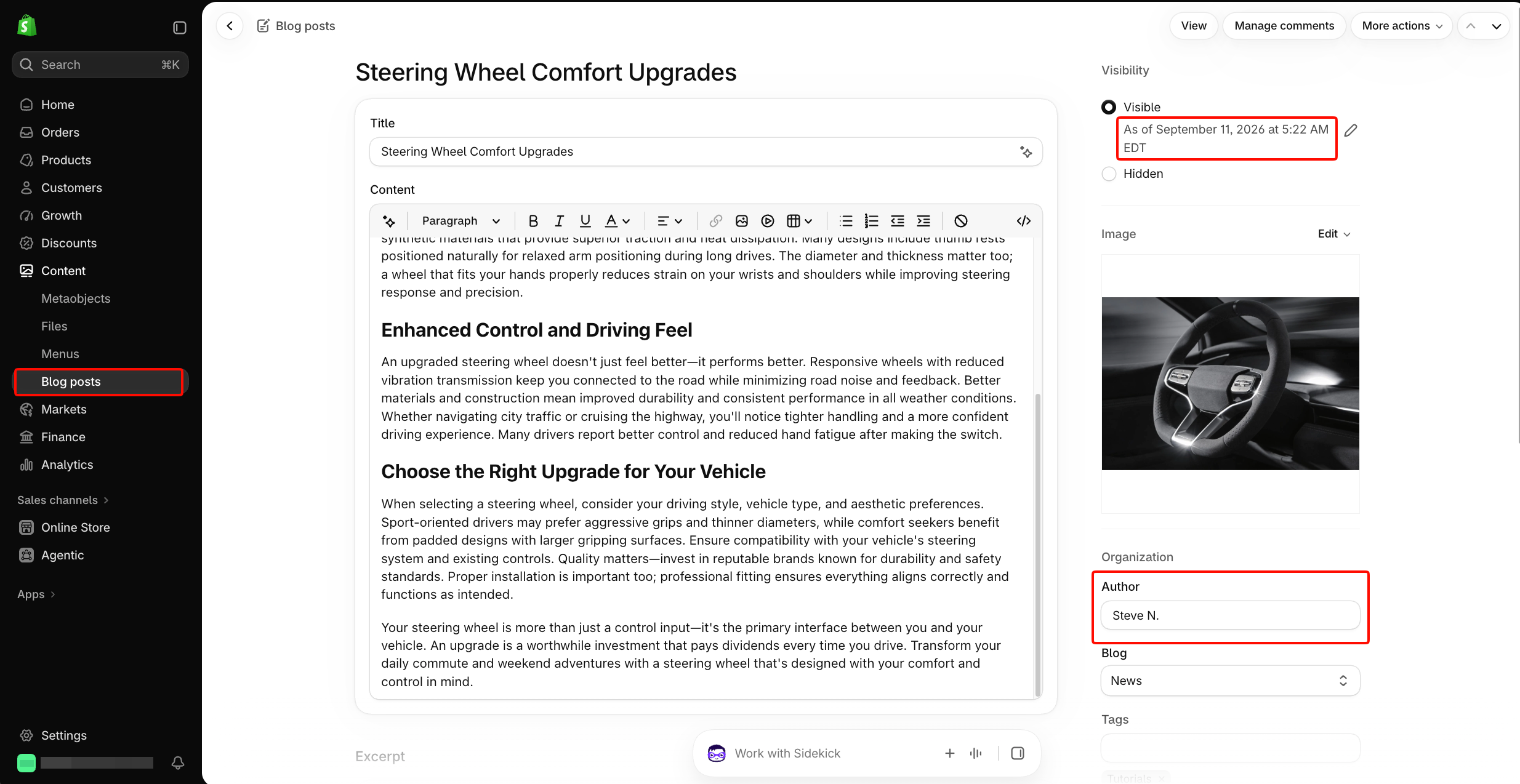
This Meta block is different from the SEO title and meta description in [**Search engine listing**](https://help.shopify.com/en/manual/online-store/blogs/writing-blogs/working-with-blog-posts#edit-the-search-engine-listing-for-a-blog-post).
#### Excerpt
Add an **Excerpt** block to show a short preview of the article content.
| Setting | Description | Options |
| ------------------- | ------------------------------------------------------------------------------------------- | ----------------------------------------------------------- |
| **Text line limit** | Controls how many lines of excerpt text are displayed before the remaining text is cut off. | **No limit, 1 line, 2 lines, 3 lines, 4 lines, or 5 lines** |
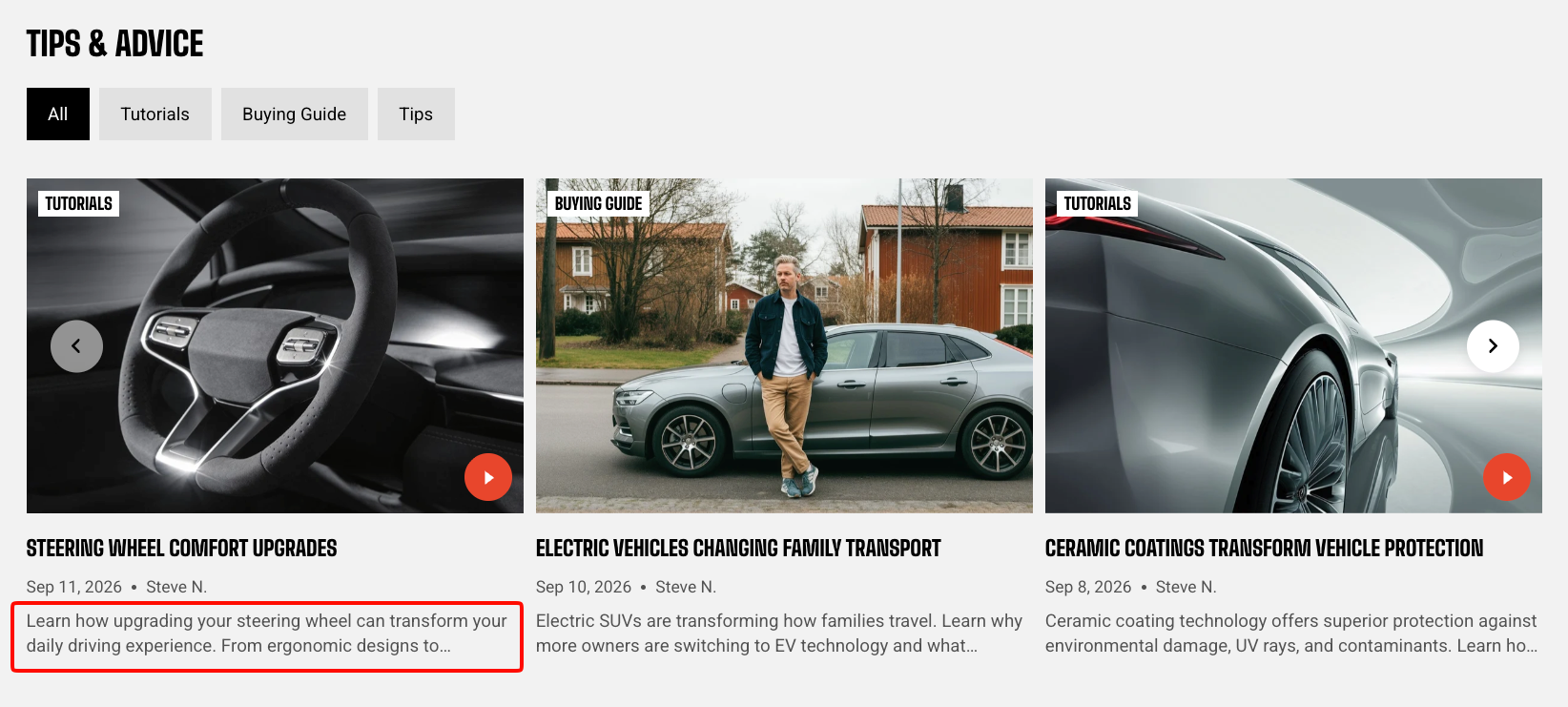
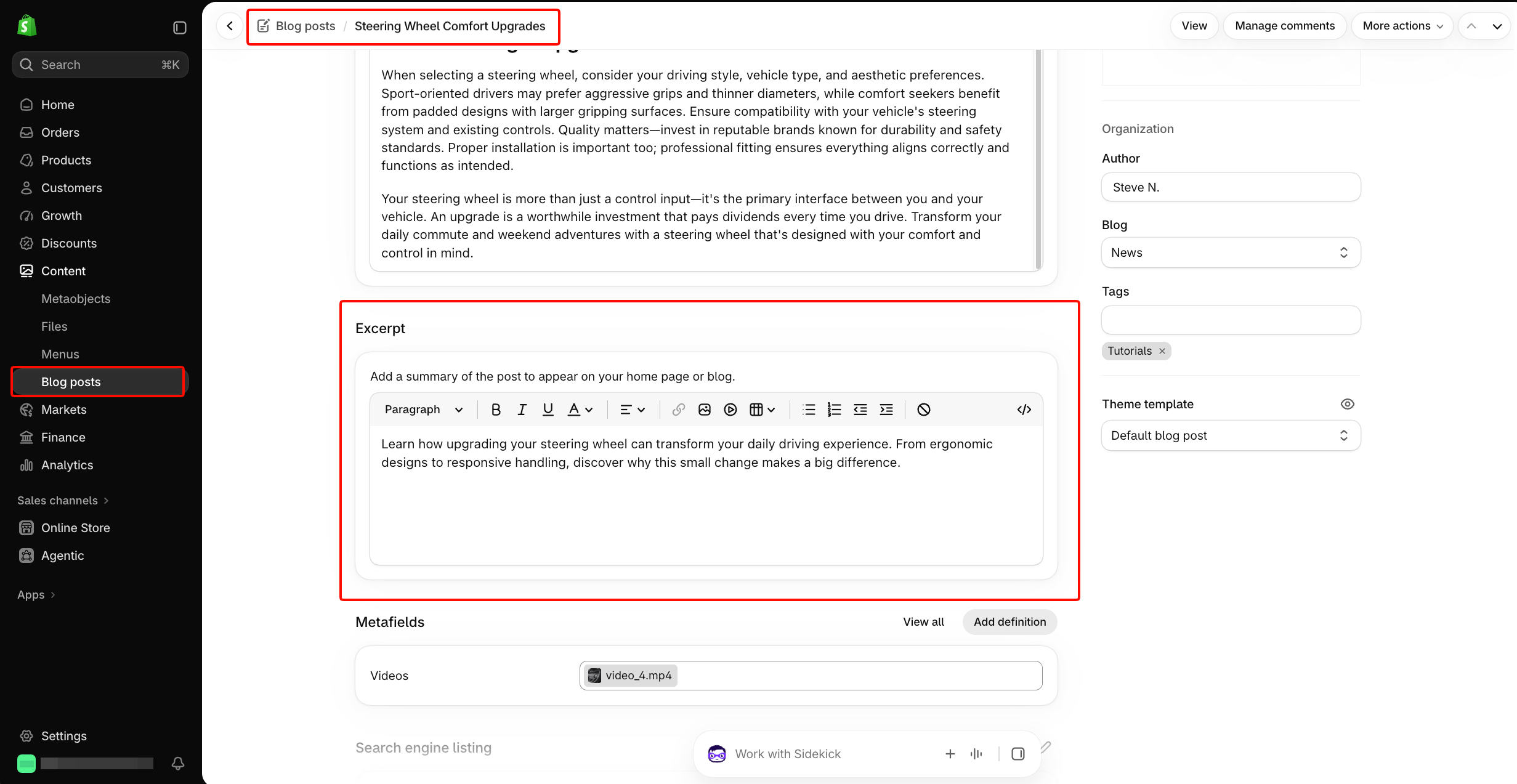
The excerpt comes from the individual blog post in Shopify admin under **Content > Blog posts > open a post > Excerpt**.
Add an **Excerpt** block to the Article card to display it.
[*Shopify Help: Display an excerpt from a blog post*](https://help.shopify.com/en/manual/online-store/blogs/writing-blogs/working-with-blog-posts#display-an-excerpt-from-a-blog-post)
#### Button
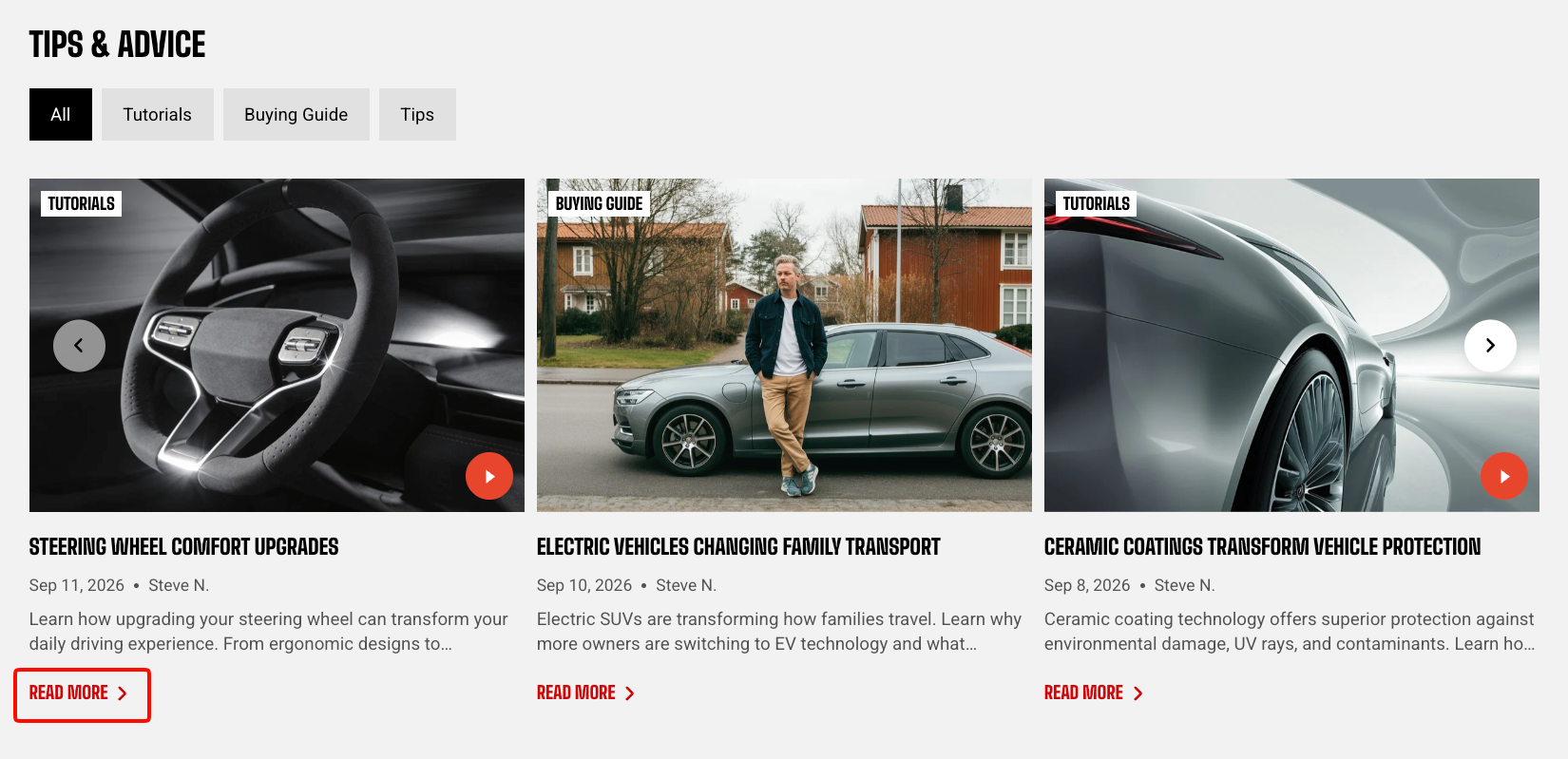
Add a **Button** block to give shoppers a clear way to open the full article. The destination is linked to the selected article automatically.
| Setting | Description | Options |
| ----------------- | ------------------------------------------------------------ | ------------------------------------------------------------------------------------------------------------------ |
| **Style** | Controls the visual style of the button. | **Primary, Secondary, White, Outline, or Plain** |
| **Size** | Controls the button size. | Extra small, Small, Medium, or Large |
| **Icon** | Adds an optional icon to the button. | Select an available icon or **None**. |
| **Icon size** | Controls the size of the button icon. | **Auto, Extra small, Small, Medium, Large, or Extra large**.
*Available when an **Icon** is selected.* |
| **Icon only** | Displays only the icon without the button label. | **On** or **Off**.
*Available when an **Icon** is selected.* |
| **Trailing icon** | Places the icon after the button label instead of before it. | **On** or **Off**.
*Available when an **Icon** is selected and **Icon only** is turned off.* |
| **Width** | Controls the button width on desktop. | **Fit** or **Fill**.
*Available when **Icon only** is turned off.* |
| **Width mobile** | Controls the button width on mobile devices. | **Fit** or **Fill**.
*Available when **Icon only** is turned off.* |
## Set up video lightbox for your blog posts
To use **Enable video lightbox**, first create the video metafield used by the theme, assign a video to the blog post, then enable the feature in the Article card.
You only need to create this metafield definition once.
1. From Shopify admin, go to **Settings > Metafields and metaobjects**.
2. Select **Blog posts**.
3. Click **Add definition**.
4. Enter **Videos** as the metafield name.
5. Set the namespace and key to `foxtheme.videos`.
6. For **Type**, select **List > Video (File)**.
7. Enable **Storefront API access**.
8. Click **Save**.
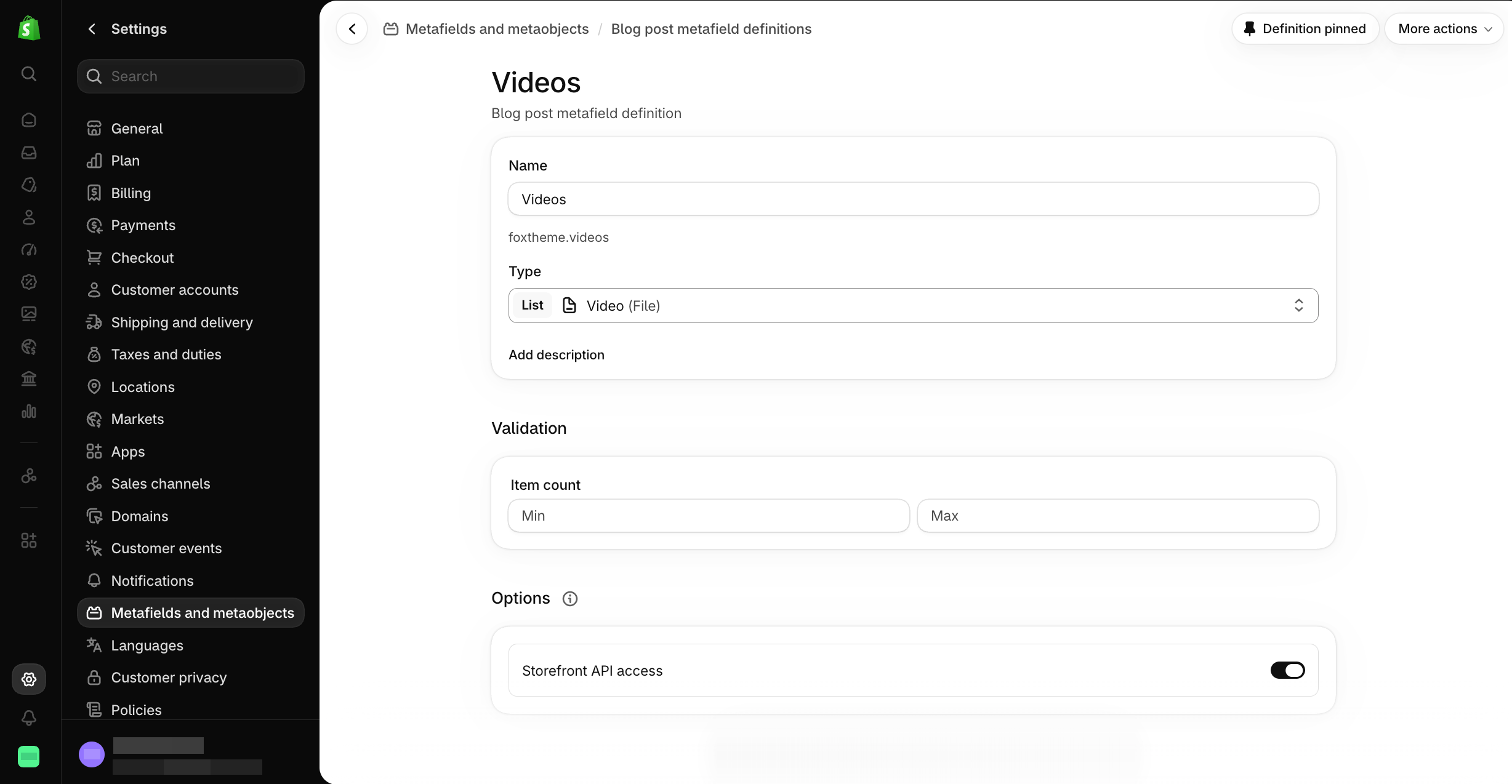
Use the namespace and key `foxtheme.videos` so the theme can detect the videos assigned to each blog post.
1. From Shopify admin, go to **Content > Blog posts**.
2. Open the blog post you want to edit.
3. Scroll to **Metafields**.
4. Find **Videos**.
5. Select or upload the video you want to use.
6. Save the blog post.
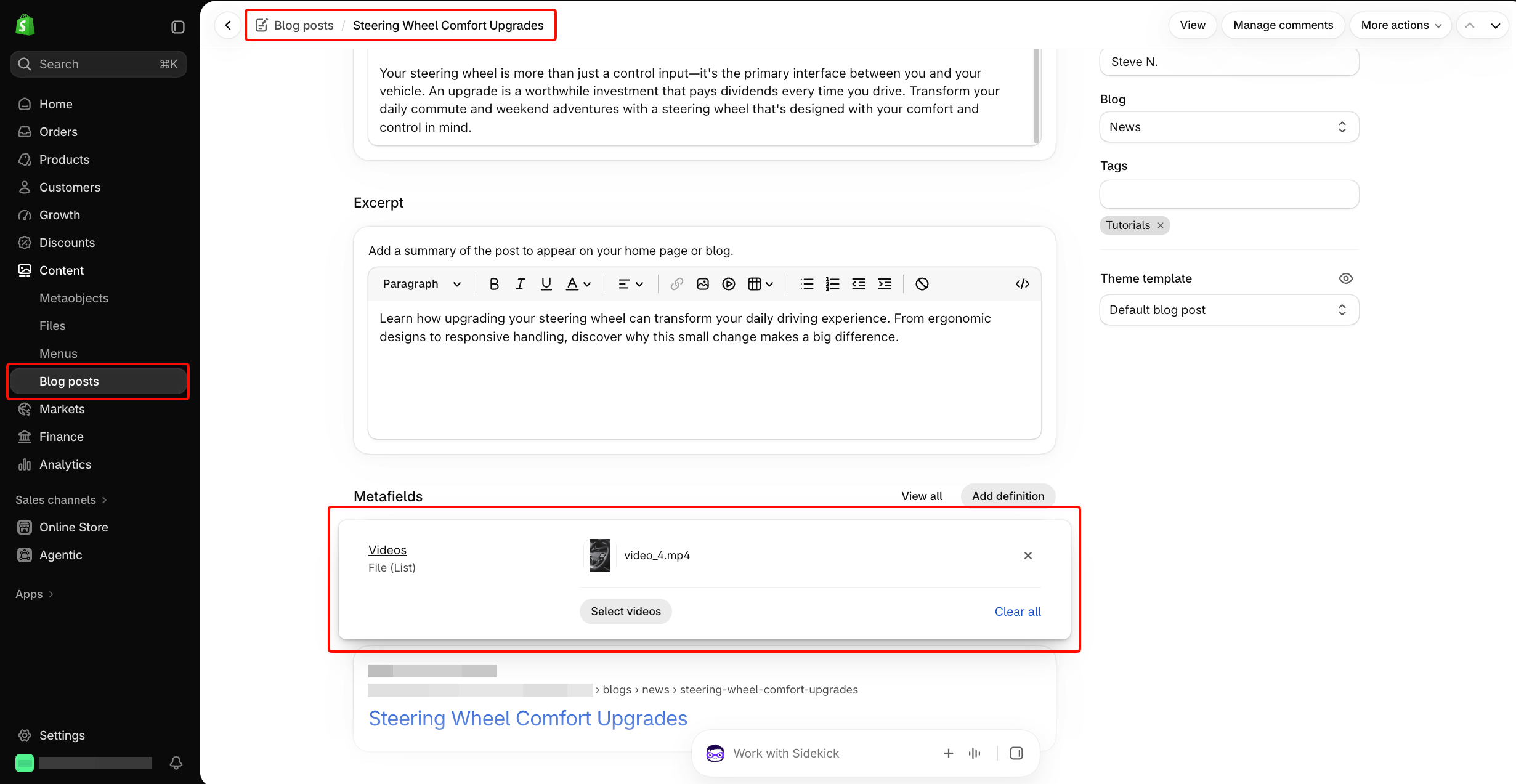
Repeat these steps for any other articles that should have a video.
1. Open the theme editor.
2. Select the **Blog posts** section.
3. Open the **Article card** block.
4. Turn on **Enable video lightbox**.
5. Click **Save**.
When an article has a video assigned, a play control appears on its article card. Selecting it opens the video in a pop-up player.
If an article does not have a video assigned, its card continues to behave as a normal link to the article.
You can use the same Blog posts section for a mix of video and non-video articles. You don't need to create a separate section for each type.
## FAQs
#### What happens to articles without tags when tag filters are enabled?
Articles without tags remain available under the **All** filter. They do not receive their own tag filter.
#### What happens if an article has more than one tag?
The article can appear under each matching tag filter. The tag shown on its article card uses the article's first tag.
#### Why are carousel controls missing after I select a tag?
If only one article matches the selected filter, there is nothing else to navigate to. Carousel controls are therefore hidden or disabled automatically.